

Do not panic if you have lost or accidentally deleted important data from your Windows device. This post shares the best free data recovery software for Windows 10 and older versions of the OS to help you recover all types of lost or deleted files in no time.
Have you ever thought about how you would react if you lose essential data stored on your computer system? It sounds frustrating and helpless!! Right?
Well, there can be multiple scenarios, where you can lose your relevant data, it can be a system crash, virus attack, corrupted hardware, or unforeseen issue like manual deletion of data.
System backup is the only way that can save from the adverse effects of data loss. But what happens if you don’t have a system backup? Data recovery software comes into the picture in such situations.
Keep on reading to know about the data recovery programs in detail and how they can save you from losing your important files and folders.
What is Data Recovery Software?
Data recovery software, also known as file recovery software, is a dedicated program that helps users recover various types of lost or deleted files, including photos, audios, videos, archives, documents, and more.
Since Windows data recovery software comes in a variety of flavors, identifying and sorting the best out of them becomes a really tough job. To make things easier for you, we have prepared a comprehensive list of the top paid as well as free file recovery software for Windows 10 and older versions of the operating system.
Now, without wasting any time, let’s scroll through our below list of best data recovery software of 2024 and pick the one that stands different from the rest.
List of Top 15 Best Free Data Recovery Software For Windows in 2024
To help you quickly and easily recover deleted files in Windows 10 and older versions, we have below shared a comprehensive list of the best software for data recovery you could try in 2024.
1. Stellar Data Recovery for Windows
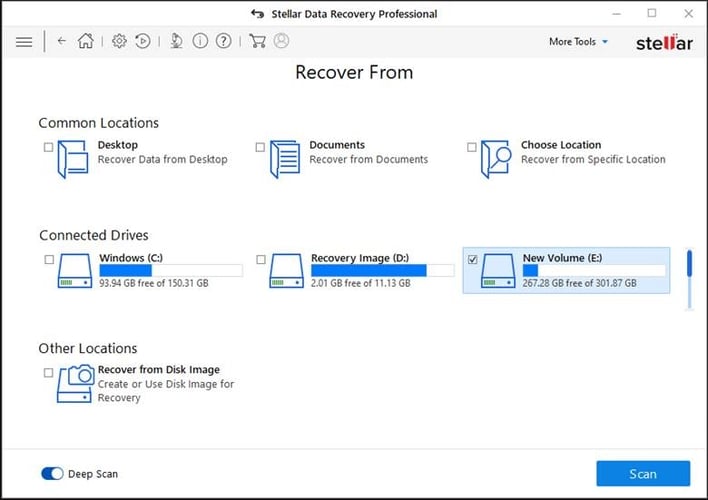
One of the most powerful and best data recovery software solution for Windows to try is Stellar Data Recovery. With the help of this tool, you can recover lost or deleted data from a variety of storage devices, including hard drives, USB sticks, memory cards, and many others.
The program is quite easy to use and helps recover up to 1 GB of data for free. If you’re looking for a freemium file recovery software with impressive functionality and an easy-to-understand interface, then this Stellar Data Recovery is a good pick for you.
Key Features of Stellar Data Recovery:
- You can use this software to recover files from various storage devices.
- The software claims to offer accurate and reliable results.
- You can recover a variety of lost or deleted files, including photos, videos, email, excel workbook, and more.
- The software can easily recover data, even from corrupt and virus-infected drives.
- With this free data recovery tool, you can even retrieve data from formatted drives.
- With the Pro version of the software, you can quickly repair corrupt video files of a wide array of video formats.
Get For : Windows MAC iPhone Android
2. Recuva
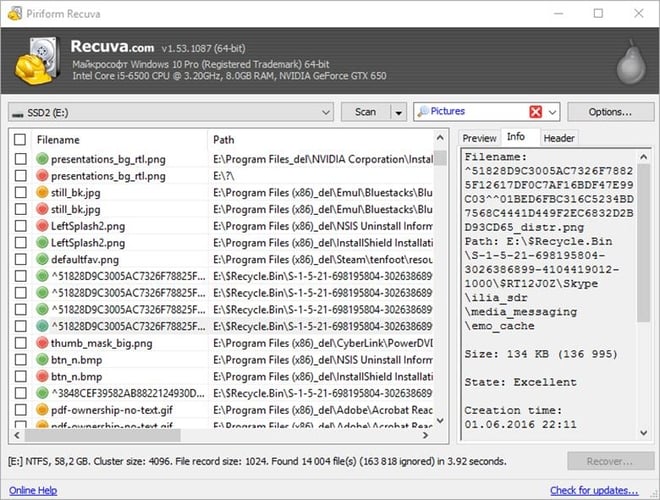
The second spot on our list of best free data recovery software for Windows 10 goes to Recuva. Developed by Piriform (the maker of CCleaner), the software allows users to retrieve lost or accidentally files from external drives, hard drives, memory cards, and DVD/CDs.
Recuva is compatible with almost all Windows versions including Windows 7/8/8.1/10/ Vista and XP along with 2008/2003 servers. It also comes in a portable version and can recover your music, audio, video files, pictures, and other vital documents.
See Also: CCleaner Review: Product Details, Features, Price & More
It also comes in a portable version and can recover your music, audio, video files, pictures, and other vital documents.
Key Features of Recuva:
- Using this best free data recovery program, you can easily recover files including audio, video, images, and other documents.
- It comes with an advanced deep scan mode that helps perform a thorough scanning of the drives to find deeply buried files.
- Recuva is compatible with all the Windows OS.
- The software supports internal as well as external drives for recovery.
- The software has a very easy and clean user interface.
3. Disk Drill
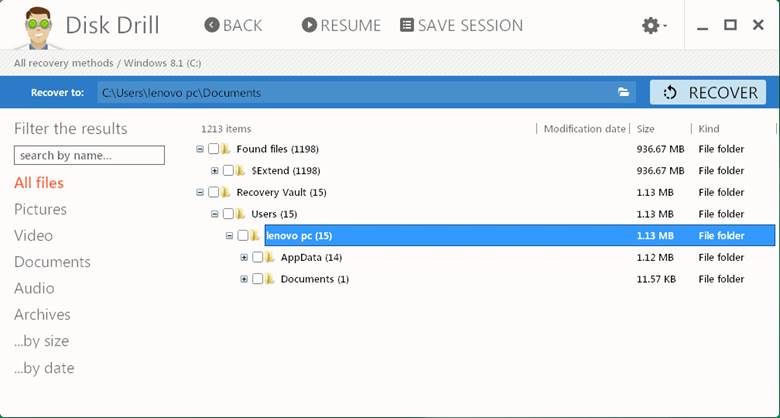
Disk Drill is another trusted and best Windows data recovery software tool available in the market currently. The software comes in two versions: free and paid. The free version (Disk Drill Basic) helps recover up to 500MB of data, whereas the paid version (Disk Drill Pro) allows its users to recover an unlimited amount of data.
Disk Drill file recovery software works incredibly well with both old and modern versions of the Windows operating systems and can quickly recover documents, music, video files along with multiple photographs.
Must Read: Must-Have Software for Windows 10
With the software, you can even preview your lost files before they are restored, perform partition recovery, filter files by size or date, run a quick system scan, and save your scan results. Below are some other features of Disk Drill software that attract users.
Key Features of Disk Drill:
- The software offers up to 500 MB of free data recovery.
- It encompasses a Recovery Vault to keep important files and folders safe.
- It helps take byte-level backup of the entire hard disk.
- It allows you to completely recover lost, deleted, or accidentally formatted partitions.
- It boasts a S.M.A.R.T. monitoring system that provides updates on disk health.
- The program helps undelete files from virtually all types of storage devices.
4. Glary Undelete
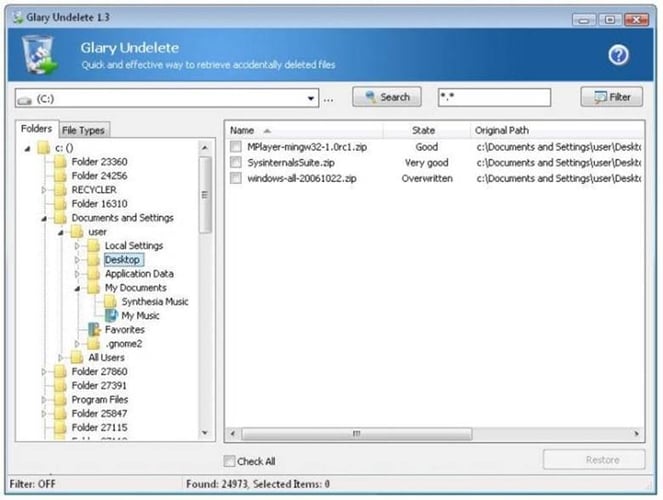
Glary Undelete is another good option to consider in the category of best free data recovery software for Windows 10, 8, 7, and older versions. Using Glary file undelete software is a breeze thanks to its clean and straightforward UI.
It lets you effortlessly recover deleted files from your hard drive, removable media, USB drives, memory cards, and more. The most beautiful thing about Glary Undelete is that it’s 100% virus-free and supports all the major Windows operating systems.
Key Features of Glary Undelete:
- It is an easy-to-use, powerful, and free file recovery software for Windows.
- The software supports various file systems like NTFS, NTFS+, FAT, EFS, etc.
- It allows users to get back lost or deleted data from removable devices like USB keys, SD cards, external hard disks, and more.
- It allows automatic sorting of each file based on the name, size, and creation date.
- With this Windows data recovery program, you can retrieve all the files that have been emptied Recycle Bin in just a few simple clicks.
5. Recoverit Data Recovery
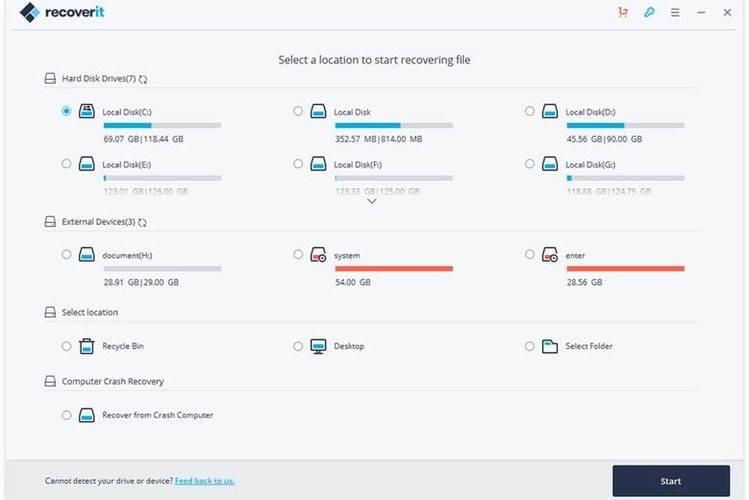
If you are looking for a paid data recovery program for Windows with advanced functionalities, then Recoverit Data Recovery from Wondershare can be a perfect pick. It seamlessly covers a wide range of storage devices including memory sticks, hard drives, USB flash drives, camcorders and many more.
The biggest highlight of this stunning application is that you can pause and resume the file recovery process at any point in time. It supports almost all Windows versions.
Key Features of Recoverit Data Recovery:
- Wondershare’s data recovery tool allows you to restore any type of file easily.
- The software is capable of recovering data from all types of storage devices.
- You can easily pause and resume the recovery process at any point in time
- The software supports more than 1000 file formats.
- It provides a quick preview of files before recovery.
- With its premium version, you can perform advanced file recovery, repair corrupt videos, create a bootable disk, and a lot more.
6. EaseUS Data Recovery Wizard
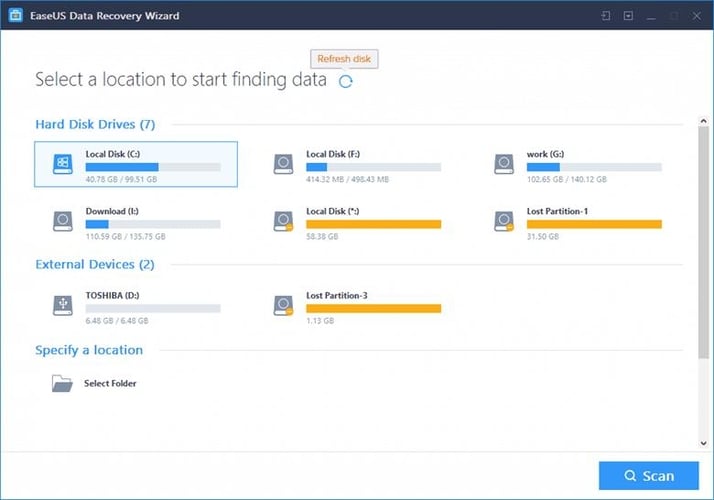
Have you accidentally deleted your essential files and data? Are you suffering from data loss? EaseUS Data Recovery Wizard Professional can come to your rescue.
This multi-functional tool can help you recover your lost data, including photos, emails, text files and many more. Use it to retrieve data even from a corrupted, formatted, infected and also crashed hard drive.
Not just this, it goes a step ahead and helps you recover your deleted files even from the recycle bin.
Below are some of the notable features that make EaseUS Data Recovery Wizard a strong candidate for the best free Windows data recovery software of 2024.
Key Features of EaseUS Data Recovery Wizard:
- The interface of the software is neat and clean and has 20 menu languages.
- The program has two advanced scanning modes: Quick Scan & Deep Scan.
- It allows you to quickly recover 1000+ types of file formats.
- It helps retrieve files from lost, deleted, or formatted partitions.
- It allows to restore deleted files from an internal/external HDD, memory card, USB pen drives, and other supported storage media devices.
- You also have the option to preview the deleted files before recovering them.
7. Wise Data Recovery
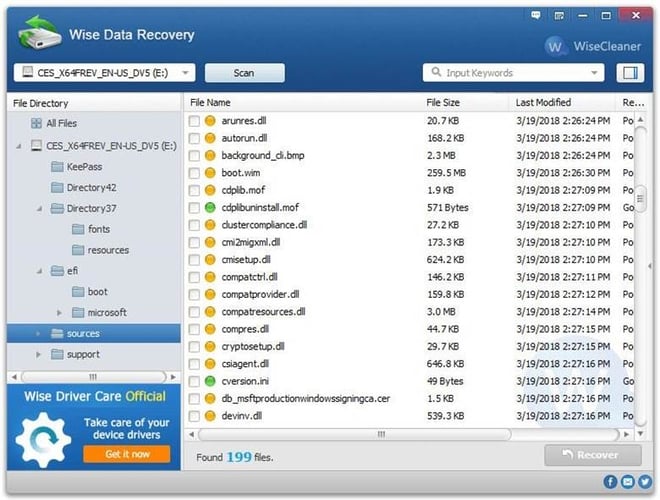
If you are looking for an all-rounder professional data recovery tool for Windows, then Wise Data Recovery can be an excellent option to pick.
You can use it to recover deleted files like photos: audio, video files, emails, documents from NTFS, FAT and exFAT disks.
By far the top feature of Wise Data Recovery is that it’s a portable application, and therefore it requires no installation. Here are the other features that make it one of the best software to recover deleted files in Windows 10 and older versions of the OS.
Key Features of Wise Data Recovery:
- Wise Data Recovery is 100% free of viruses and is a small program.
- It allows you to recover 1000+ types of file formats.
- It can also restore data from HDD, SSD, USB thumb drives, digital cameras, and other storage devices.
- It offers fast data scanning speed to save your time.
- It lets you recover files in complex scenarios such as unexpected system crash, formatted hard drives, etc.
8. FreeUndelete
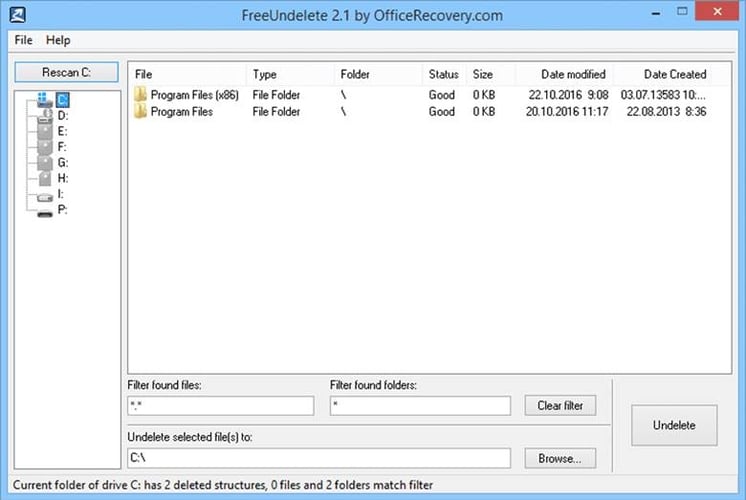
FreeUndelete is a completely free data recovery software for Windows 10 and older editions of the operating system. With the help of this file undelete software, you can easily retrieve your important data that have been deleted from the Windows Recycle Bin.
It comes with a simple and easy-to-use interface and supports various versions of Windows including Windows XP/ 7/2000/2008/2003 and NT4 servers.
Here are some of the salient features that FreeUndelete software offers to its users.
Key Features of FreeUndelete:
- This Windows file recovery software is absolutely free for personal use.
- It has a simple and uncluttered UI.
- It allows users to save the recovered files into a new location to prevent overwriting.
- It supports file systems like NTFS 1.0, NTFS 2.0, FAT 12, etc.
- It offers its users full install and uninstall support.
Also Read: List of Best Duplicate Photo Finder & Cleaner Software
9. Testdisk
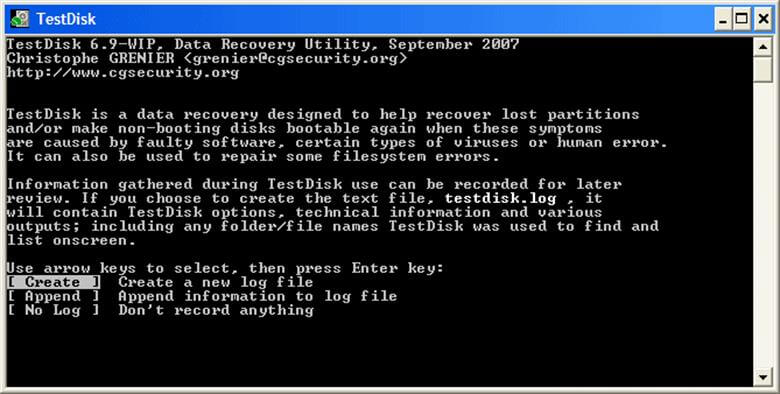
Here comes another open-source tool on our list of best free data recovery utility for Windows 10 and older versions.
Testdisk comes with a robust mechanism that helps you locate and completely recover lost disk partitions in the blink of an eye. You can use it to recover files from ext2, NTFS, exFAT and FAT file systems.
It works on almost all major Windows versions and has a multitude of features for both beginners and advanced users.
Below we have described some of the top features that helped Testdisk hold a significant position in the list of best data recovery software in 2024 to retrieve deleted files from Windows.
Key Features of Testdisk:
- Testdisk has the capability to restore the deleted partition and fix the partition table.
- It helps in restoring the FAT 32 and NTFS boot sector from its backup.
- It also rebuilds the boot sector for FAT 12/ FAT 16/ FAT 32.
- It can also fix MFT with the help of an MFT mirror.
- It also helps in restoring files from file systems like FAT, exFAT, NTFS, etc.
10. Photorec
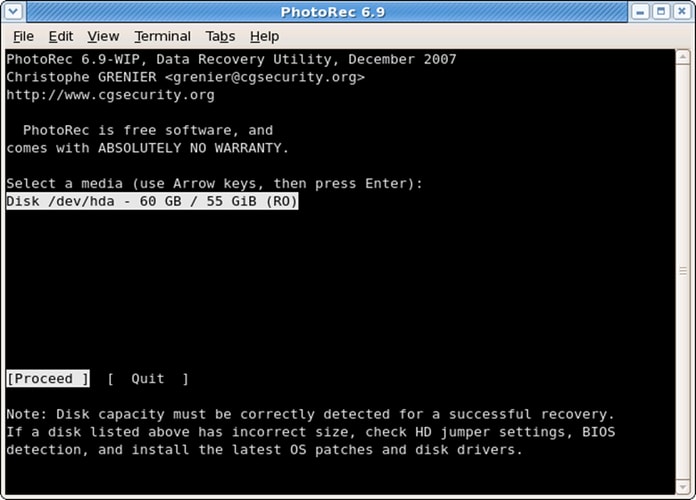
Next on our list of best free windows data recovery software is Photorec. It is a companion tool to the aforementioned TestDisk program.
Its data recovery functionality is quite extensive and comprehensive; whether it’s a portable drive or a digital camera, it can support almost everything.
It is compatible will all significant Windows versions and can restore your lost photos, videos, audio files, documents, and files.
Key Features of Photorec:
- Photorec is open-source and absolutely free software for data recovery.
- It can work with various types of operating systems like, Windows, Mac OS, Linux, etc.
- It also supports a huge list of file systems like FAT, exFAT, NTFS, HFS+, etc.
- It can recover permanently deleted data from HDD, CD-ROMs, USB flash drives, SD cards, and more.
11. Data Rescue 6
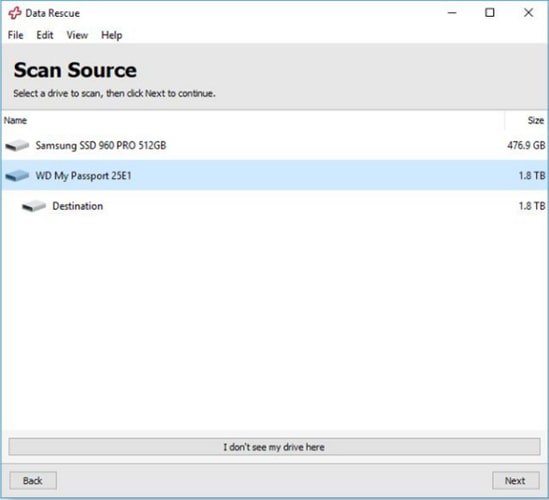
Data Rescue 6 from Prosoft Engineering comes next on our list of best data recovery software for Windows 10 and older versions.
This program gives hard competition to other rival products due to the fact that it makes the process of file recovery straightforward. It’s ideal for novice users. Simplicity is one of its major highlights and it comes with a clean and convenient interface.
Read More: Best FTP Client Program For Windows
It supports data recovery functions of all types, including both external and internal storage devices.
Key Features of Data Rescue 6:
- Data Rescue 6 has a straightforward and neat interface.
- It is compatible with Windows 7 and later versions.
- It has two scan modes: Quick Scan & Deep Scan.
- Using the software, you can quickly recover every type of file easily.
- The software keeps the data stored, and you can anytime view previous scan results.
12. ADRC Recovery Tool
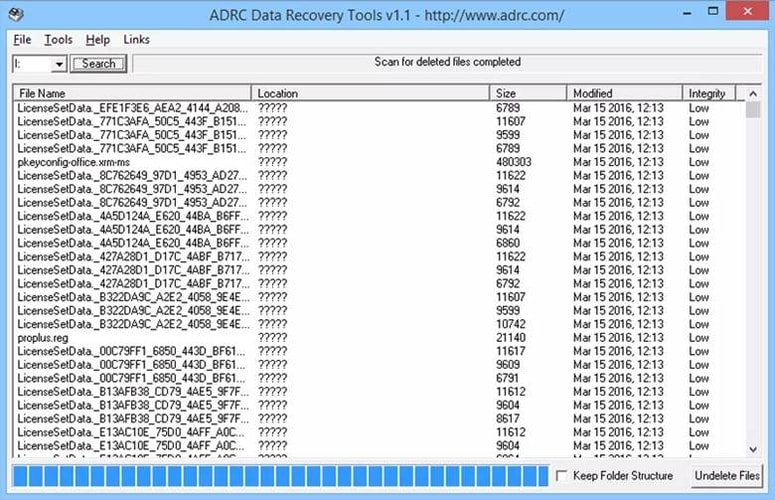
With many attractive features such as sophisticated scanning algorithms and simple GUI, ADRC Recovery Tool comes next on our list of top free data recovery software for Windows PC.
You can use it to the backup disk image, undelete important files, disk cloning, restore the backup image, and many more.
Moreover, it’s a portable program, meaning you can run it from a floppy disk to recover data on your Windows laptop or desktop computer. The only drawback of this file recovery tool to consider is that it’s only compatible with older versions of the operating system (Windows 95, 2000, and XP).
Key Features of ADRC Recovery Tool:
- It’s completely free software to recover deleted files from Windows.
- The software has a very easy-to-use interface
- It can be used for backup, disk cloning, and undelete important files.
- Using this Windows data recovery tool, you can quickly recover physically damaged files.
- It lets you create and write raw image files to and from a removable device or a hard drive.
13. SoftPerfect File Recovery
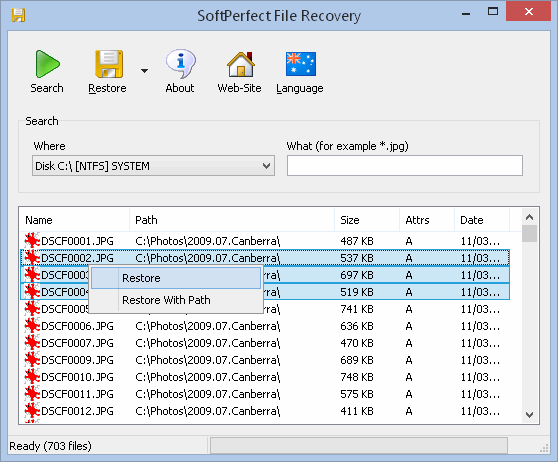
Another famous name in the list of best data recovery software for Windows 10 is SoftPerfect File Recovery. Since it’s a portable file recovery software, you can use it without any installation.
Softperfect can easily sync with all versions of Windows and can recover deleted files from hard drives, floppy disk, flash drives, SD CARDS, etc.
Key Features of SoftPerfect File Recovery:
- SoftPerfect File Recovery program is lightweight and absolutely free for personal use.
- It supports most of the popular file formats (NTFS, NTFS5, FAT12, FAT16, and more).
- The software supports the recovery of compressed and encrypted files.
- The interface of the software is very easy that can be adapted by anyone.
- You can use this software for restoring deleted files from internal as well as external drives.
14. MiniTool Data Recovery Software Free
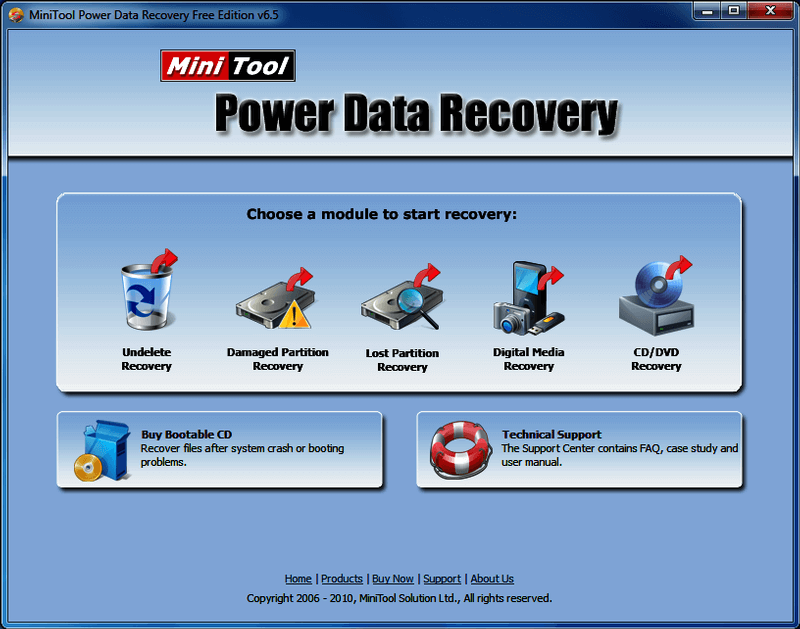
Another impressive data recovery solution to take into account if you wish to recover deleted files is MiniTool Data Recovery Software Free. The software makes it convenient to find and restore deleted files like pictures, work documents, archives, audio, videos, emails, etc.
However, MiniTool’s free data recovery software has some limitations and only allows you to recover up to 1 GB of data. So, if you want to perform large file recovery you have to shell out some bucks and purchase the full version of the software.
Key Features of MiniTool Data Recovery Software Free:
- Using the free version, you can recover up to 1 GB of data.
- It offers support for up to 70 different kinds of file formats (e.g., picture, audio, video, document formats, etc.).
- It helps get the lost files/data back even from formatted or lost partitions.
- The software supports various storage devices like SSDs, hard drives, memory cards, etc.
15. Puran File Recovery
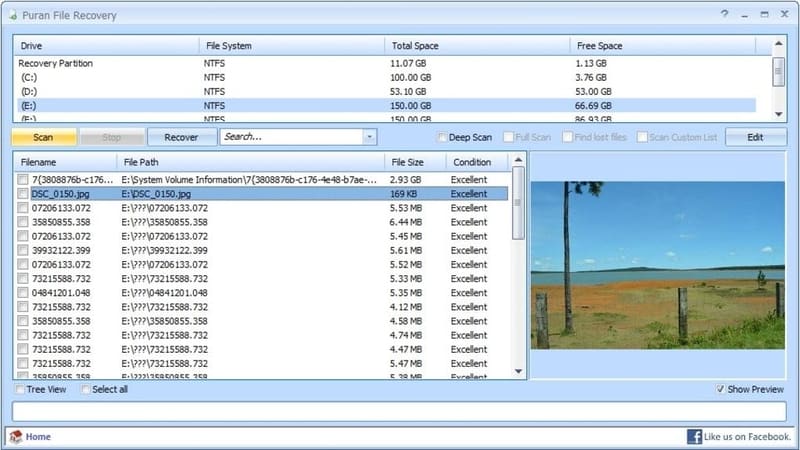
A decent choice for a file undelete program is Puran File Recovery. It’s incredibly easy to use and configure and has a very generous amount of features like a powerful recovery engine and multiple scanning modes. The main feature that makes this free file recovery program worth checking out is the ability to look for deleted and lost files of different formats based on data patterns.
Even though it’s not the most intuitive software out there to recover deleted or lost data, Puran File Recovery earns a spot on this list considering it’s completely free to use without hidden charges/fees.
Key Features of Puran File Recovery:
- This file undelete software has a very simple interface.
- It helps recover files from hard drive within a few seconds.
- It has three scan modes: Quick, Deep, and Full scan.
- It displays the files in neatly organized tree and list views.
- Its search box supports wildcard characters to help users quickly find deleted files.
Frequently Asked Questions Related to Best Data Recovery Software for Windows
Below are a few most commonly asked questions regarding the best free data recovery software for Windows 10, 8, 7 PC.
Q.1 What is the Best Software For Data Recovery?
Stellar Data Recovery is one of the most powerful and popular services for data recovery. The software comes with various scan options, which means users can pick the scan type for the data loss that has happened. This saves a lot of time and effort. Additionally, this data recovery software possesses advanced search capabilities, making the overall process of data recovery much easier.
Q.2 What to do if I Don’t have a Lot of Money for Data Recovery Software?
Well, “the cost of not getting the lost data back is a lot higher than the cost of data recovery”. So, it is worth paying for data recovery. But, unfortunately, if you don’t have a lot of money for it, then you can use any of the best free software for data recovery. We recommend using Recuva, a powerful and 100% free recovery software.
Q.3 How Successful is Data Recovery?
The success rate of data recovery mainly depends on the dedicated R&D (Research and Development) team who constantly works on discovering new recovery techniques and tools. Generally, in about 70%-85% of cases, almost 75% of the files can be recovered. And, if there’s an NTFS volume involved, averages might get a bit worse- 40% chance to retrieve at least 90% of the files, and about 75% chance to recover at least 70% of the files.
Q.4 Can Lost Data Be Recovered?
Yes, you can be able to retrieve the lost data from a damaged hard drive by removing the hard drive from your system and connecting it to another PC to check if any files/data aren’t damaged. If in case, the hard drive is completely corrupted, then you can use any of the best data recovery software to recover the lost data.
Q.5 Why is Data Recovery So Expensive?
For some businesses or people, data recovery may seem a bit expensive. Below are a few significant factors that might affect the data recovery cost.
- Research & development.
- Quality guarantee.
- Infrastructure and facilities.
- Data security and protection.
- Customer service team.
- Device replacement.
Recover Lost or Deleted Files in Windows Easily with Best Data Recovery Software (2024)
Through this post, we have shared a well-researched list of the best free data recovery software for Windows 10 and older versions to help you quickly and easily retrieve lost or accidentally deleted files.
Each of the Windows data recovery software tools mentioned above comes with a unique set of features. Hence, we recommend you check your requirements before making your final choice.
We hope you found our article helpful. Before you leave, please tell us which software you choose to undelete files in Windows through the comments section below.







1 Comment
hi, thank you for this article, I am myself for years now, I prefer using the Minitool both versions, data recovery, and partition wizard, it helps me a lot with my 1Tb external hard drive, to get it back on track hhh.