A message popped up on your Facebook while using, that ‘Facebook app session expired, and you are now worried about what to do?’ No worries, we got your back. It feels like something is wrong with your Facebook account, but this is an automated safety feature to guard your data on Facebook. This issue is completely fixable in under two to five minutes.
If the Facebook session expired, loop issues do not resolve in a few processes. In this article, you will find the best ways to resolve the issue if your Facebook keeps saying ‘session expired’ in easy ways.
What Does ‘Session Expired’ Depict on a Facebook Page?
While using Facebook, have you ever received the notification ‘Your session has expired’? And wondered, what does it mean? It is quite simpler than it looks.
The notification of ‘Facebook app session expired’ means that the authorization you are using right now was interrupted in a certain way.
It is used by Facebook to confirm the identity without you having to log in again. And the primary reason is to construct and review the security system. It helps in terminating all the active sessions due to a lot of logins from various platforms.
Ways to Fix Facebook Session Expired Loop Error
Confused, why does Facebook keep saying ‘session expired’ on repeat? Let us now understand the ways to fix this issue. To resolve the Facebook session expired loop error without having to reach out to support, manage and follow these steps.
Let us see how to resolve this issue if you are using Facebook in your mobile Facebook application.
Fixing on Mobile Device
For mobile devices to resolve the issue of the Facebook session expired loop error again, follow the given steps.
1. Restart Your Device and Session
Restart the device you are using the Facebook app in. To reset authentication by removing and re-adding your account, follow the given steps for Android and iOS as well.
- For Android:
Step 1: Go to ‘Settings’ in your Facebook application on your phone.
Step 2: Go to ‘Accounts’ and then ‘Facebook / Messenger.’
Step 3: Click on ‘Remove Account’ and then select ‘Re-add Account.’
- For iOS:
Step 1: Go to ‘Settings’ in your Facebook application on your phone.
Step 2: Go to ‘Passwords & Accounts’ on your phone.
Step 3: Select ‘Facebook / Messenger.’
Step 4: Click on ‘Delete Account’ and then select ‘Re-add Account.’
2. Login Again
Make sure to log out of all the devices your account is logged into. When the session expires, please log in again to use your account.
3. Clear Cache and Cookies
Go to settings in your phone or in the browser and delete all the temporary data from your account.
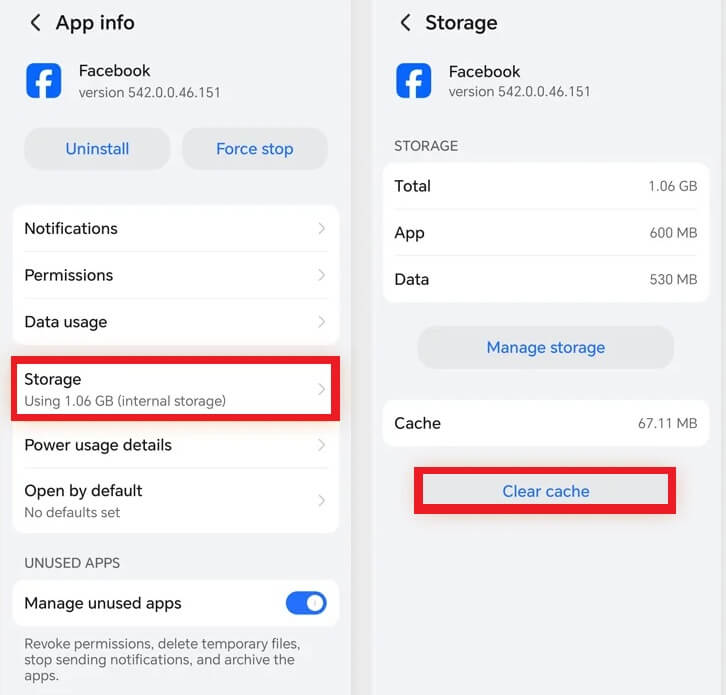
The following are the steps for Android and iOS to clear cache and data.
- For Android:
Step 1: Go to the ‘Settings’ of your device.
Step 2: And then to the ‘Apps,’ go to ‘Facebook.’
Step 3: And then select ‘Storage’ from the list of options.
Step 4: Then click on ‘Clear Data’ or ‘Clear Cache.’
- For IOS:
For iPhone users, you have to uninstall the application and then reinstall the app again from the App Store.
4. Update or Reinstall Facebook
Make sure to keep your Facebook app updated regularly. And even after updating the application, if it does not work, then reinstall Facebook on your device.
5. Check Internet:
Confirm that the current Wi-Fi signals are strong and try different networks if it does not work.
6. Review Security Settings
Make sure to terminate all the security settings on your Facebook pages and on all the other devices.
Let us see how to resolve this issue if you are using Facebook in your web browser.
Also know: How to Fix Facebook Dating Not Showing Up for Android & iPhone
Fixing Issues in Web Browsers
If you are using your Facebook account and if Facebook keeps saying ‘session expired,’ try to follow these simple settings with your Facebook page.
- Accessing the privacy settings to delete the cookies and cache in the browser.
- Make sure to turn off the third-party extensions in your browser. Some of the extensions are the primary reason for creating an issue of the ‘Facebook session expired loop’ error.
- Try to open the Facebook page in incognito mode to prevent the storage of your data, and it also helps in privacy and security as well.
- Scan the firewall and antivirus thoroughly.
- Try to reboot your browser. Many times, issues like these are caused due to cached resources.
You tried everything, and the issues have been fixed as well, but this is happening again, and you are confused about how to resolve them now?
Now let us understand the process of what to do if you are facing the issues repeatedly.
What if Session Expired Errors Hang in There?
If you still cannot fix the issues, or the issues hang in there, and you still get that notification. Try these advanced tips to fix those issues.
- Make sure the date and time of your device is correct.
- Reexamine the login and security activities on your Facebook page.
- You can reset your Facebook password; this will inactivate all the suspicious activities on your Facebook page.
To learn how to maintain security and stability to avoid the Facebook ‘session expired’ loop error, continue reading.
Maintain Security and Stability
To maintain security and stability on the Facebook page, and if Facebook keeps saying sessions expired, follow the given steps mentioned.
- To make sure of stronger security, enable two-factor authentication.
- Make sure to keep your Facebook app and device OS up-to-date.
- Try not to use unprotected Wi-Fi for using Facebook without a VPN.
- Use password managers often and try to change passwords often as well.
- Go to monitor active sessions in the settings on the Facebook app and log out from all the unknown devices.
- Use privacy-focused browsers to run your Facebook page.
Future Prevention Methods
To ensure that the ‘Facebook session expired loop’ issue will not be repeated for your account, try these simple steps.
- Avoid sharing your account activity with unauthorized devices. And if you log in to some other device, log out at the same time after using it.
- Clear cache and cookies, which helps as well to run your Facebook account.
- Check out the sessions used in various devices regularly. And terminate all the older sessions you used before.
- Update your Facebook application regularly.
- Fix all the important security fixes that are included in the updates.
Also know: How to Share a Facebook Post to Instagram: Complete Guide
Frequently Asked Questions (FAQs)
Q1. Why does Facebook keep saying sessions expired repeatedly?
Ans. It is caused by privacy and security settings.
Q2. Why does it keep showing ‘session expired please log in again’ repeatedly?
Ans. You are facing an issue called the ‘Facebook session expired loop’ that is the indicator that the underlying issue has not yet been resolved.
Q3. How long does it take for a Facebook session to expire automatically?
Ans. Facebook does not have any specific duration for this. There are various answers for this, because the exact duration varies based on the activity level of the application or session, platform, or devices as well.
There are several methods by which you can easily fix the issue of expiration of a Facebook session on your device. Most of the time, it is a routine for privacy and security checkups, but if it is happening repeatedly, then you must follow the processes mentioned in this article.