Resizing images has now become a necessity. While filling up some forms, or uploading images on social media, from social media managing to blogging, every time, the image resize websites are required to make the image fit to work. Not only resizing, but maintaining its quality, clarity, and size is a big challenge. Different websites have their own requirements to upload photos to it.
Many tools are available online that provide this service to resize image in Windows. On some websites, you have to upload files or images to resize them, which might be sensitive or private, which you do not want to do. To solve the problem of image resize and how to change the dimensions of a photo, we bring solutions to this blog.
Windows software to Resize Images
1. MS Paint
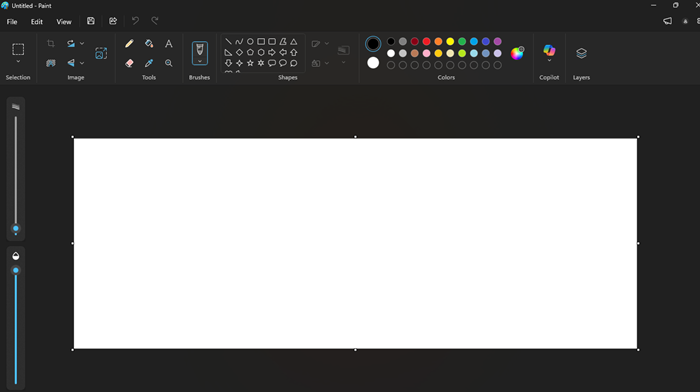
The most basic step to resize image in windows if you don’t want to search for external websites. Windows resize image in paint is an offline process that supports formats like Windows Bitmap, JPG, PNG, GIF, and TIFF. All you have to do is open the image with Paint and go to properties, adjust it as per the requirement, and save a copy in any format.
Pros:
- Completely free, as it is built-in already and no internet is needed.
- No downloads of edited pictures.
- Supports other features like shaping, flipping, etc.
Cons:
- Do not provide other formats as other websites do.
- Do not provide resampling.
- Lack of advanced editing tools.
2. Squoosh.app
A powerful, and open-source resizer that runs entirely on the web. It ensures that your images or files never get out of your device. It offers privacy, which is ideal for developers. User interface is efficient with side-by-side comparison before and after image resize. It offers features like resize image, adjust quality, and compression. It supports formats like JPG, PNG, WebP, AVIF, and other formats available on the web.
Pros:
- All the operations are done locally without uploading them to the server.
- Works without the internet.
Cons:
- Do not have any features of bulk or batch processing. One single image at a time, which is sometimes annoying.
- It has a developer-focused user interface, which may not be suitable for casual users.

Also know: How to Identify Fonts That Are Used In An Image with Font Identifier
3. Pixlr
It offers more AI assistance that helps in preparing images. It has a “smart resize” tool which is operated within a browser and process presets for Instagram, Facebook or Twitter. It is very useful for marketers and content creators. You need to upload your images to the server for further processing. The UI is very efficient and provides options like “fit” and “fill” for the images to manage dimensions. When the image resize process is done, you can download images in any format like jpg, png, webP, etc.
Pros:
- Quick image resize and modern browser user interface.
- Useful for social media upload in just one click.
Cons:
- It requires an online upload, which is not suitable for private or sensitive images.
- Advanced AI features can be used in paid tiers.
4. BeFunky
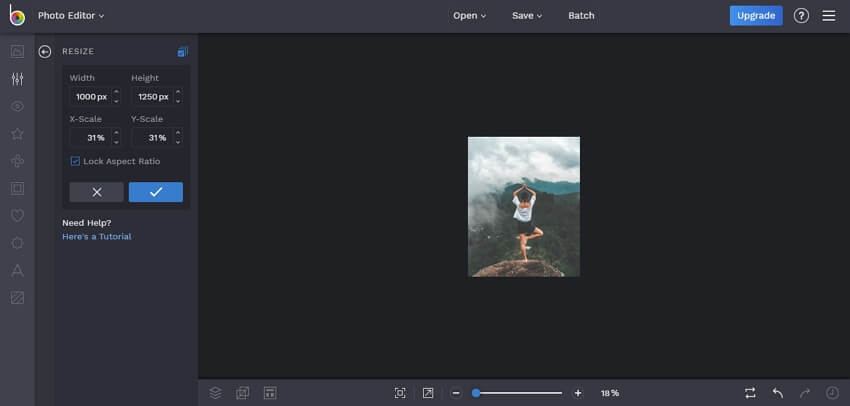
This software to resize image in Windows is user-friendly and rich in features that create a balance between simple interfaces and advanced functions. It is designed for all, from social media enthusiasts to casual bloggers. It stands out among all the other software for integrating its resizing tool, making it the best one-stop edit within simple dimension changes. The interface is clear, which guides users in resizing images by pixels or percentages. Additionally, it has presets for social media, banners, and prints, which make resizing quick and easy. Other AI powered features are available in BeFunky subscriptions. But for daily purposes and common work, the free version is highly capable of doing most of your work.
Pros:
- Ideal for users without having a technical background.
- Simplified resizing for different purposes.
- Offers cross-device access. Can be used in both mobile and web.
Cons:
- Those who need privacy, this is not meant for them.
- AI features unlock after the subscription.
5. Photopea
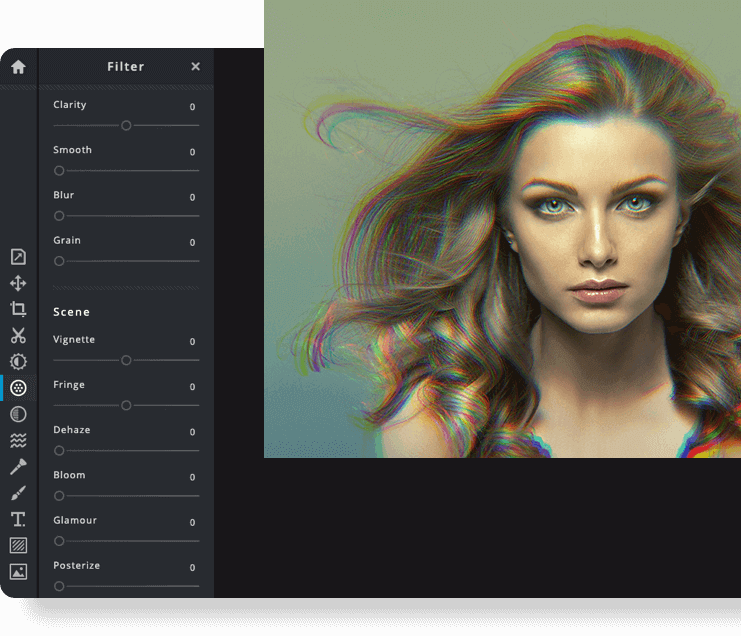
Photopea is a comprehensive image editor that is similar to Adobe in terms of functions. This is a powerful tool for those who have to perform complex edits. It allows you to make layer adjustments before image resizing. It stands out among other software with features like unparalleled file format support, which allows opening file formats like PSD, AI, or RAW formats without any external installation. Resizing is done over dimension, resolution, and resampling.
Pros:
- Powerful toolset that goes beyond simple resizing.
- Handle broad files and support them.
- No installation required
Cons:
- The free version has advertisements.
- Complex interface.
- Use the internet to perform the process.

6. ILoveIMG
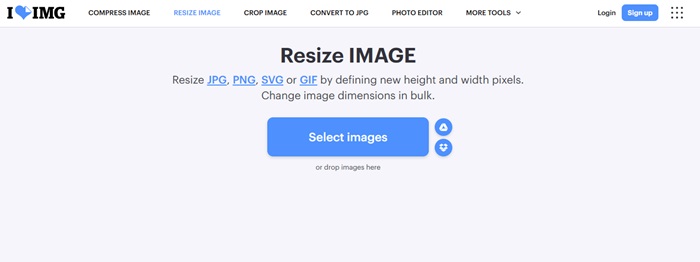
A well-known online document and image tool. ILoveIMG provides a simple yet powerful feature. It’s the best choice for users who need a quick resizing tool, especially when you work with a lot of files. The platform is directly taking files from google drive or by drag and drop, without downloading in your device. The user interface is simple, which guides you in selecting files, managing dimensions by pixels or percentage, and processing image resize in windows. It has the option to download images in different formats and even in GIFs. The service is fast and easy to use interfaces.
Pros:
- Seamless work with google.
- Can manage multiple files at once.
Cons:
- Sensitive and private images are not safe here.
- It has limited usage when there are many files; a subscription is required.
- No offline mode is available.
Also know: Best Ways to Combine Images Into PDF Files
7. MicrosoftPowerToys
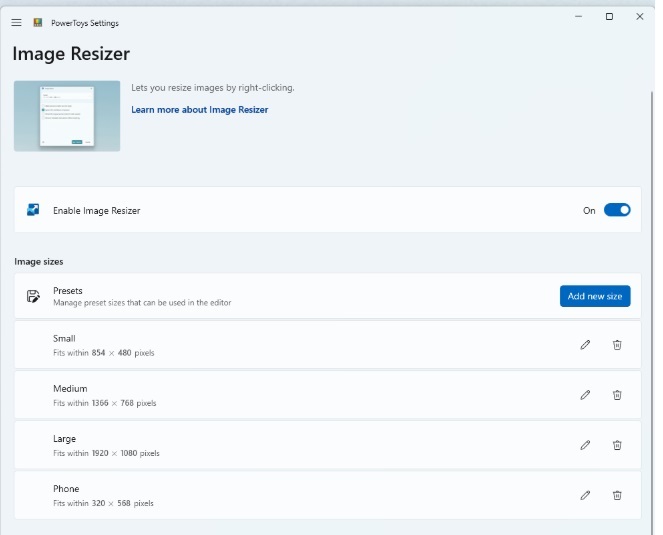
For Windows users, the most reliable and deeply integrated software for image resize in Windows is Microsoft PowerToys. After installation, it directly adds to the utility as “resize picture” when you right-click on any image. One of the most efficient and fast ways to resize image in Windows 10 and other operating systems is without opening any application or dragging your images here and there. It allows users to resize single or multiple images quickly with custom sizes. As a part of Microsoft, it is an easy, efficient, trustworthy, and secure workflow even if you are offline. It is 100% local and completely offline.
Pros:
- Ultimate privacy as nothing uploads on the server.
- Fast and superb workflow.
- Free and managed by Microsoft.
Cons:
- Only available on windows, not available for macOS or Linux users.
- It lacks advance editing tools.
8. Resize.com
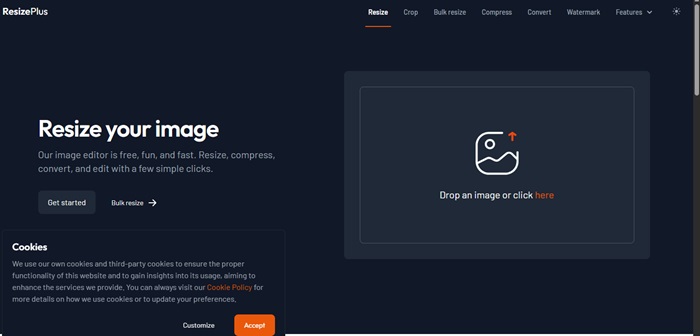
An efficient and streamlined image resizer designed for those users who need quick results with multiple images, that too, without installing software. It has a web-based interface that combines all other tools, like resizing, conversion, and compression. It would be a great choice for social media managers, bloggers, and editors. You can also convert formats like JPG, PNG and others.
Pros:
- Instant results without uploading files.
- A plus point is that it provides bulk resizing by pixels and percentage.
- Core tools can be used without signing up for the account.
Cons:
- It has a limit of 20 images per job.
- Not suitable for private or sensitive images.
Frequently asked questions
Q1. Which website is best for resizing images?
Given websites are the best preferred to resize your images in just one click. Some of them resize in bulk while some do it one-by-one. Some of them can work offline without using internet connection while providing other editing features.
Q2. Is it fine to upload images on the server?
It is fine until images are not sensitive or private. If they are, it is recommended not to upload the images on the server. There are many websites and options that resize images offline, without letting image upload on the server. Some of them are listed above.
Q3. Are these websites free to use?
Basic plan contains all the necessary editing features which are free. But if you want to edit at a very professional level, you need to take a subscription as per your requirement.
Given websites are best known for editing, resizing and compressing images that one should go and give them a try. At the end, technology is a vast syllabus to know and learn, but we keep you updating with all those websites, tips and tricks that are required in daily life with privacy and security.