You can adjust email sync frequency settings in Windows to manage battery life, data usage, and message delivery speed. Adjusting the email sync settings allows faster message access, helps reduce notifications, saves battery life, and limits background data usage.
The options to adjust email sync frequency settings in Windows 10 and 11 are available in the Outlook app and popular third-party email clients for Windows, such as Gmail. This article walks you through all these options in detail, beginning with a quick overview of email sync frequency to avoid confusion.
Note: The older Windows versions included a ” Download new content ” option that allowed users to change the Windows Mail sync frequency setting to as items arrive, every 15 minutes, every 30 minutes, hourly, or manually. However, this option is no longer available, even if other online tutorials mention it, as Microsoft retired Windows Mail and Calendar applications and ended their support on December 31, 2024. Since Windows has moved users to the Outlook app, Outlook is the primary solution for Windows PC users to change their email sync frequency.
What Is Sync Frequency on Email
Email sync frequency is a set of settings that control how often Windows checks for new email messages. Checking for new messages frequently uses more data and drains the battery. No frequent checking or slower syncing means you may not get urgent emails instantly. Hence, you must have a balanced email sync frequency.
Let’s adjust email sync frequency settings in Windows 11 and 10.
How to Adjust Email Sync Frequency Settings
You can adjust sync frequency in Microsoft Outlook, depending on your Outlook version, or a third-party email app if you use one. In Classic Outlook for Microsoft 365, Outlook 2024, or Outlook 2021, you can set a recurring sync interval. In the New Outlook for Windows, you cannot set a recurring sync interval.
If you are not sure which version of Outlook you are using, refer to the checklist below:
– Classic Outlook: You see traditional menu tabs like File, Home, Send/Receive, and View at the top, with the Send/Receive option clearly visible. The interface looks more like older versions of Microsoft Office.
– New Outlook for Windows: The layout is more modern and minimal. There is a left navigation pane with Mail, Calendar, and People icons, and you use the Sync button or F9 to check for new emails. The Send/Receive tab is not present.
Check your Outlook window for these features to identify your version before following the sync adjustment steps.
Moreover, steps to manage sync for third-party apps vary by application. Below are all these approaches explained in detail.
How to adjust sync frequency in Microsoft Outlook
Adjust email sync frequency in Classic Outlook (Outlook for Microsoft 365, Outlook 2024, and Outlook 2021)
Below is how to adjust email sync frequency in Windows Outlook Classic.
- To change the automatic sync interval in Classic Outlook:
- Open the Outlook app.
- Click the Send/Receive option on the ribbon.
- Next, click Define Send/Receive Groups.
- Select the group you wish to change. By default, most accounts are in All Accounts.
- Under the All Accounts group settings, select/clear Schedule an automatic send/receive every n minutes. For example, 30 minutes.
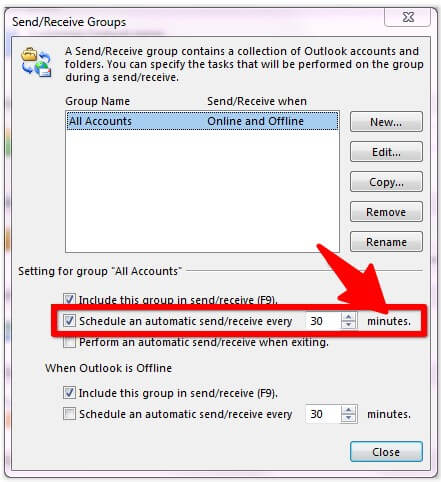
- Enter the interval in minutes if the option is selected.
- Lastly, click Close.
- To set a different interval while Outlook is offline:
- Follow the path: Outlook > Send/Recieve > Send/Receive Groups.
- Select the schedule an automatic send/receive every specified number of minutes while offline.
- To exclude an account from automatic synchronization:
- Follow the path: Outlook > Send/Receive > Send/Receive Groups > Define Send/Receive Groups.
- Click All Accounts.
- Click Edit.
- Choose the account you wish to change.
- Clear Include the selected account in the group.
- Click OK and then exit the open dialog.
- To sync Classic Outlook manually:
- Follow the path: Outlook > Send/Receive > Send/Receive Groups.
- Click Send/Receive All Folders.
Alternatively, you can press F9. To sync only a single account, click Send/Receive, click Send/Receive Groups, select the account, and choose Inbox.
Adjust email sync frequency in New Outlook for Windows
Below is how to adjust New Outlook sync frequency settings in Windows.
- Open Outlook.
- In the navigation bar, click Mail.
- Click Sync.
Alternatively, use the F9 keyboard shortcut to sync New Outlook for Windows.
Also know: Best Email Marketing Software To Grow Your Business
How to adjust sync frequency for third-party email apps
If you use a third-party email app, such as Gmail or Yahoo, on Windows, below is how to adjust email sync frequency settings.
Adjust sync frequency on Gmail
To change Gmail sync frequency:
- Click the hamburger icon.
- Next, click Settings in the menu that appears.
- Select the email account for which you want to change the frequency of email checks.
- Click Sync frequency.
- Set how often you want the Google email client to check emails for your email account, and then back up Gmail emails with attachments to prevent data loss.
On other third-party email apps, you can find Settings or Preferences; look for Sync, Download settings, or Email sections, and then change the frequency to match your requirements. For example, in Thunderbird, go to Tools, then Account Settings, select Server Settings for your account, and adjust the ‘Check for new messages every…’ option. In Mailbird, open the Menu, go to Settings, choose the Accounts tab, select your email account, and look for the sync or checking frequency option under Server Settings. Popular apps like eM Client also have similar settings under Menu, Accounts, and then Sync Options.
However, if your emails are not syncing properly in Windows, you can check the solutions below.
Troubleshoot Common Email Sync Adjustment Problems
To fix email sync issues in Windows:
- Update the Outlook app. To update the app, navigate to the Microsoft Store, then go to the Library, and install the latest Outlook updates.
- Restart Windows. To restart Windows, right-click the Start button, hover over Shut down or sign out, and then click Restart.
- Check your internet connection and metered connection settings. Follow the path: Windows key + I > Network & internet > Select your WiFi or Ethernet connection > Ensure metered connection is enabled.
- On Laptops and tablets, review battery restrictions. Follow the path: Windows key + System > Power & battery.
Below are the answers to a few commonly asked questions about adjusting the email sync frequency settings in Windows 11 and 10 to clear up any persistent doubts.
Also know: Best Free Email Extractor Tools
Frequently Asked Questions
Q1. How do I change the sync frequency in Outlook?
In Classic Outlook, follow the path: Outlook app > Send/Receive > Send/Receive Groups > Define Send/Receive Groups > Choose the group you wish to change > Clear the Schedule an automatic send/receive every n minutes option, or check the Schedule an automatic send/receive every n minutes option if you frequently work offline. In the New Outlook app, click Mail in the navigation bar and then click Sync. For more details, check the guide above.
Q2. How do I change Gmail sync frequency?
To change your email sync frequency in Gmail, follow the path: Hamburger icon > Settings > email account for which you want to change the email check frequency > Sync frequency > set the email check duration, as explained in this guide.
Q3. How often should I sync my emails?
Most people sync their emails every 15 to 30 minutes; for urgent emails, notifications are better than faster syncing.
Q4. Is faster syncing the same as faster internet?
No, faster syncing does not mean faster internet. Sync frequency does not affect the internet speed; it only controls how often Windows performs checks for mail.
Q5. Does manual sync consume more battery than automatic sync?
No, manual sync does not consume more battery than automatic sync. On the contrary, it consumes less battery, as you sync only when you want.
Q6. Can I sync different email accounts at different times?
Yes, you can select each account and adjust its email sync frequency settings individually.
Q7. How do I sync multiple email accounts?
To sync multiple email accounts in Microsoft Outlook, open the Outlook app, click View or File, depending on your app version, follow the path: Accounts > Email accounts > Add account, enter your email address, click Continue or Connect, enter your password, and then allow permissions to complete the sync.
Q8. When should I use push notifications vs. sync?
Use push notifications when you want the email server to send alerts directly to your device, keeping you informed instantly. Otherwise, use Sync to save system resources.
Hopefully, this helps you adjust the email sync frequency settings in Windows 10 and 11. As a best practice for email sync, do not use sync for accounts you do not use frequently to save resources. If you have any doubts or need clarification, leave us a comment.




![[Fixed] Could Not Connect To Steam Network Error](https://wpcontent.techpout.com/techpout/wp-content/uploads/2021/02/24175557/Fix-Could-Not-Connect-to-Steam-Network-Error.jpg)