You are enjoying a movie or any kind of content on YouTube, and suddenly a notification pops up on your screen stating, ‘YouTube video paused, continue watching’ or ‘still watching video will pause soon’ it’s quite frustrating, right? Then you need to get out of your comfort zone and then search for options to continue to video like before.
This error mainly occurs when there is a platform-specific setting that you need to notice, or there could be any kind of technical or connectivity lag occurring in your system.
With this guide, you will learn how to fix the ‘YouTube video paused, continue watching’ error, and you will also learn about the reasons behind this error occurring.
Why Did This Video Paused, Continue Watching YouTube Error Occur?
There are many reasons why you face YouTube video paused, continue watching issues in your system that you need to keep in mind always. So that if you ever face any similar kind of error, you will know why it is happening. Along with that, the reason will help you to reach the method to resolve it actively as well.
So, these are the main reasons why you encounter notifications like ‘still watching video will pause soon’ on your screen.
- The most basic reason for this error is to remind you sometimes to take a break. Sometimes YouTube sets a screen limit for some users for screening, so this reason can also make you face this error.
- When you export YouTube clips or any content, then for mobile phones or other devices, the background data saver gets turned on. This might also rest in pauses for your streaming.
- Make sure that all the cables and external devices you are using for streaming are properly connected. If not, then reconnect it or connect it properly as per requirements.
- Also, you need to make sure that you clear all the junk files and cache them from the system.
- If you are using older and outdated ad-blocking extensions, then throw them away now.
As we have seen the reasons behind this error, now it’s the right time to learn how to turn off video paused, continue watching YouTube on your system.
How to Resolve Video Paused Continue Watching YouTube Error?
The sudden popping of this ‘still watching video will pause soon’ notification is very frustrating, and if you are finding ways to get rid of this every time you see this. Then we got your back, because now we are about to learn how to fix something that went wrong on YouTube to continue to watch video after numerous ad repetitive pauses while streaming.
1. Clear Cache and Cookies
To answer the question, ‘How to turn off video paused, continue watching YouTube?’ You can simply reply by clearing all the cache and cookies on your Chrome. Because many times, the older browsing data can actually break the video player code which freezes the streaming for you.
Here are the steps that you need to follow to clear all the cache and cookies to avoid YouTube ‘video paused, continue watching’ kind of errors.
Step 1: Open Chrome in your system and press ‘Ctrl + Shift + Delete’ if you are using Windows, or press ‘Cmd + Shift + Delete’ if it’s a Mac.
Step 2: Now select the time for ‘All time’.
Step 3: Then make sure that ‘Cookies and other site data’ and ‘Cached images and files’ also.
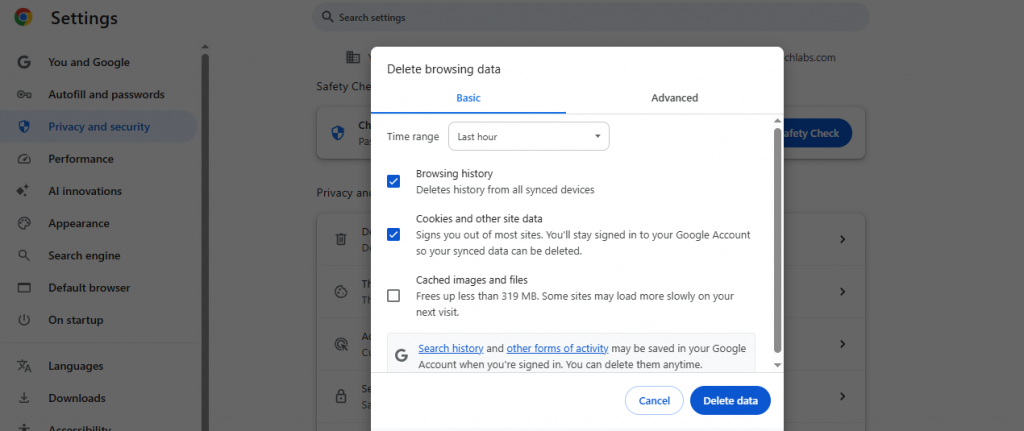
Step 4: Select the ‘Clear Data’ option also and then close the browser.
Now restart YouTube one again to make sure that the issue has been resolved.
Also know: How to Use ChatGPT for YouTube
2. Chrome Memory Saver Settings
The YouTube video paused continue watching error is also caused when you do not adjust properly all the memory saver settings for Chrome. And Chrome automatically blocks and pauses all unused websites running in the background, if you switch the windows.
Here are the steps that you can follow in your Chrome extension for YouTube to adjust all the memory saver settings.
Step 1: Go to the three dots option on the topmost right corner of the Chrome window.
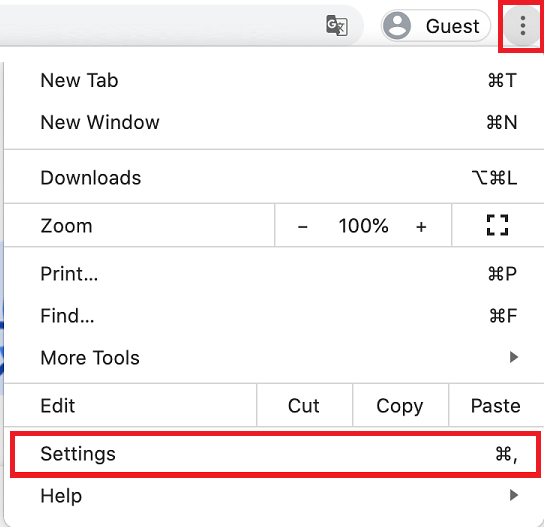
Step 2: Now open ‘Settings’ followed by the ‘Performance’ option.
Step 3: In the ‘General’ menu, look for the ‘always keep these sites active’ option.
Step 4: Select the ‘Add’ option, and type ‘youtube.com’ in the box, and then click the Save button.
3. Check for all Physical Connections
For a stable and secure connection for a longer period, you must make sure that all the cables or connections used are proper. And those connections must be in an accurate manner that is required for the streaming on YouTube to avoid errors like ‘video paused, continue watching YouTube’ for you.
A weaker Wi-Fi connection can also lead you to these kinds of errors or lead the player to buffer a lot or even stop sometimes. This can create lots of buffering, especially when the videos are streamed on 4K quality or any higher quality.
Lots of junk and cache files, as we already discussed, can also create this error, or even some faulty or buggy hardware external device can lead you to the same error.
Also know: Best YouTube Video Summarizer with AI Technology
Frequently Asked Questions (FAQs)
Q1. What is YouTube video paused, continue watching error?
Ans. Whenever you are streaming suddenly, your YouTube screen pops up with this notification. The ‘YouTube video paused, continue watching’ error is when the player suddenly starts buffering or suddenly pauses.
Q2. How to turn off video paused, continue watching YouTube without YouTube Premium?
Ans. You can simply resolve this issue by making sure that all the physical connections are set in the proper way or even by clearing all the cache and cookies as well. You also need to adjust the memory saver settings for Chrome.
Q3. Can you avoid the error by disabling the Idle-Pause prompt?
Ans. Yes, the video paused, continue watching YouTube errors can be avoided by disabling the Idle-Pause prompt on YouTube. You can find this setting in the general menu of the settings of the YouTube application only.
The ‘YouTube video paused, continue watching’ error is much easier to resolve than everyone thinks. You just need to know the right steps and ways for the same, which we have already discussed with this guide. So, if you ever face the ‘video paused, continue watching YouTube’ error again, just remember some of these easy-to-use steps of any one of these methods.