mmsys.cpl opens the classic Windows Sound control panel applet. Also called the Multimedia Control Panel module or Sound Properties, it provides a fast way to manage audio hardware directly.
You can use mmsys.cpl in Windows 11 or 10 to edit your recording/playback device properties, manage endpoints, modify the communications behavior, or configure Windows event sounds.
There are multiple ways to use the mmsys.cpl command to open the Multimedia Control Panel. Running this command in the Run utility is the fastest approach. Simply press the Windows key + R, type mmsys.cpl, and press Enter. This article walks you through this and possible methods to open this command. First, it is important to familiarize yourself with what mmsys.cpl actually means to avoid confusion.
What Is mmsys.cpl
mmsys.cpl is a Windows Multimedia Control Panel applet. Also called the Multimedia Properties module, Windows usually displays it as Sound Properties or Sound. It helps manage speaker output, microphone input, and other audio settings.
Present in the System32 folder: mmsys.cpl allows users to access advanced audio controls directly. Advanced audio controls are settings that let you fine-tune how your speakers, headphones, and microphones work beyond just adjusting the volume. For example, you can change the sample rate, enable enhancements, or set different modes for audio playback and recording. These controls are not always available in the modern Windows Settings app. You can use these tools to solve audio playback problems and other audio issues, create a professional recording setup, and level up your sound preferences beyond volume controls.
Not that you have a better idea of mmsys.cpl Multimedia Control Panel, let’s help you open it.
How to Open mmsys.cpl in Windows 10/11
To access mmsys.cpl, you can use the Run command, Control Panel, Windows Terminal/PowerShell/Command Prompt, Windows 11 Settings, or create a shortcut for quick access. If you are a beginner or want the quickest solution, using the Run dialog is the most straightforward and reliable approach that bypasses unnecessary menu layers to launch the multimedia properties window directly. The Control Panel is also suitable for beginners or anyone who wants to browse related audio settings within Windows’ organizational structure. Advanced users who are comfortable with command-line tools may prefer the Windows Terminal, PowerShell, or Command Prompt methods, especially if they need to troubleshoot system issues or automate audio configuration with scripts. Windows 11 Settings is approachable for any user but offers slightly limited options compared to the classic panel. Creating a shortcut is a convenient choice for both beginners and advanced users who frequently access the Multimedia Control Panel. You can choose any method depending on your convenience and requirements. Below are all the methods explained in detail.
Method 1: Use the Run command to access mmsys.cpl
- Press the Windows key + R to launch the Run dialog.
- In the Run box, type mmsys.cpl.
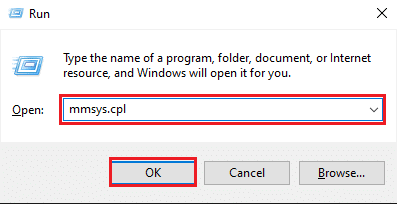
- Lastly, press Enter or click OK to open the Multimedia Control Panel.
Method 2: Open mmsys.cpl using Control Panel
- Click the Start button.
- In the search bar, type Control Panel.
- Click the first search result.
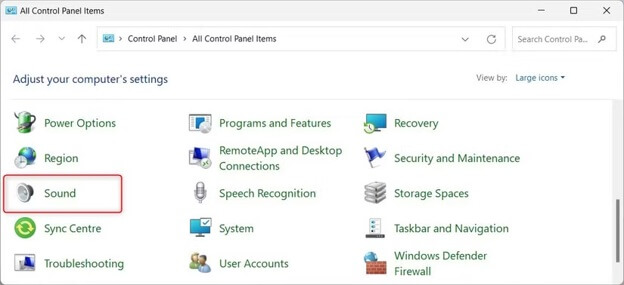
- Click the View by drop-down.
- Select Small icons or Large icons.
- Lastly, click Sound to open the Sound Properties or Sound dialog.
Also know: Best Ways To Run PowerShell As An Administrator
Method 3: Use Command Prompt, Windows Terminal, or PowerShell to open mmsys.cpl
- Click the Start button.
- Type Command Prompt, Windows Terminal, or PowerShell in the search bar.
- Right-click the first search result and then click Run as administrator.
- In the Administrator Command Prompt/Windows Terminal/PowerShell, type cpl and press Enter to open the classic Sound dialog.
Method 4: Open Multimedia Control Panel from Windows 11 Settings
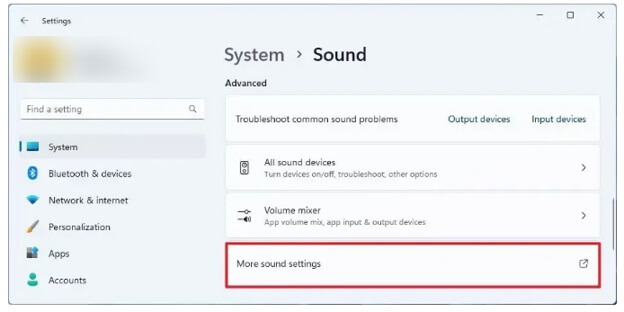
- Press Windows key + I to open Settings.
- Click System in the Settings menu.
- Next, click Sound in the System menu.
- Scroll down and click More sound settings to open the Multimedia Control Panel module in a separate window.
Method 5: Create a shortcut to open mmsys.cpl
- Right-click an empty desktop area and then click
- Click Shortcut in the menu that appears.
- Enter cpl or %windir%System32mmsys.cpl for the location.
- Click Next.
- Name the shortcut anything like Classic Sound.
- Lastly, click Finish to complete the process.
Also know: Best Music & Audio sound Visualization Software for Windows 11/10
However, if you encounter problems with mmsys.cpl, such as file not found errors, permission issues, Search opens Sound settings, More sound settings does nothing, a device is missing, a property tab is missing, or the applet is blocked, check below for solutions.
Troubleshoot Common mmsys.cpl Problems
Follow the solutions below sequentially until the issue is solved and you can use the Multimedia Control Panel correctly.
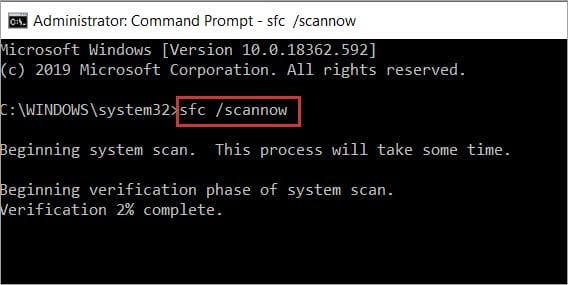
- Right-click the Start button, type cmd, right-click the first search result, click Run as administrator, and then run the sfc /scannow command to fix corrupted system files.
- Run the Control Panel, Windows Terminal, Command Prompt, or PowerShell app as an administrator, and then follow the steps in the guide above to open mmsys.cpl.
- To fix Windows Search opening Sound settings instead of the classic Sound dialog, follow the path: Settings > System > Sound > More sound settings.
- If More sound settings does nothing, close and reopen Settings, and then retry. You can also run mmsys.cpl directly.
- If a device is missing in the sound control panel, ensure the device is connected, enabled, and functioning. Also, update the device driver to solve related problems.
Once mmsys.cpl opens correctly, you can use it for many purposes, such as enabling or disabling a device, setting a device as your default audio device, and more. Let’s have a quick look at its interface and how to use it.
How to Use the mmsys.cpl Multimedia Control Panel
The mmsys.cpl has four tabs: Playback tab, Recording tab, Sounds tab, and Communications tab. Below is a quick overview of these tabs to help you use them.
Playback tab
The Playback tab in Windows mmsys.cpl lists all audio output devices connected to your computer, such as headphones, digital audio interfaces, and speakers. The tab shows the current status of each of these devices and allows users to configure properties, test audio output, and set defaults.
You can use this tab to enable/disable devices, select the default device, and access properties, such as bit depths, sample rates, and mode settings.
Recording tab
The Recording tab in the classic Sound dialog includes microphones, digital recording interfaces, and line inputs. Through this tab, you can adjust recording quality, monitor input levels, and change device settings to ensure optimal audio quality.
Moreover, the Recording tab has noise suppression options, boost controls, and format selection options to improve the recording quality.
Sounds tab
The Sounds tab has options to manage Windows system sound settings. It allows you to customize audio feedback for different system events, choose sound schemes, set custom audio files for specific actions, or turn off sounds completely.
Sound schemes offer a themed audio experience. Customization for individual events offers greater control over system audio.
Communications tab
The Communications tab in the Multimedia Control Panel controls the audio level adjustment in the communication applications and voice calls. You can use the options in this tab to reduce sounds, mute sounds, or disable the automatic audio level adjustment.
Below are the answers to a few related questions to clear up persistent doubts.
Also know: How to See What COM Ports are in Use in Windows 11/10
Frequently Asked Questions
Q1. What does mmsys.cpl do?
mmsys.cpl launches the classic Windows Sound Control Panel to manage audio devices, recording configurations, multimedia hardware, and sound settings for complete control over audio-related PC functions.
Q2. How is mmsys.cpl different from modern Sound Settings?
mmsys.cpl contains hardware-specific settings, professional configuration settings, and advanced audio controls. Modern Sound Settings only offer simplified controls with a user-friendly interface.
Q3. Can I safely delete or alter the mmsys.cpl file?
No, deleting or modifying the mmsys.cpl file is not safe. Deleting or altering this file can prevent smooth multimedia functionality and cause system failures.
Q4. Can I open the volume mixer with mmsys.cpl?
No, mmsys.cpl does not open the volume mixer; you can open the volume mixer in Windows 11 with ms-settings:apps-volume.
Hopefully, this helps you open the Multimedia Control Panel with mmsys.cpl to get full control over audio settings, fix audio problems, and improve your Windows experience. If you have any questions, need clarification, or want to help us make this guide more useful with your valuable suggestions, leave us a comment.