Main LogoLight Logo
  • Reviews
  • Top 10
  • How To
  • Tech News
  • OS
    • Windows
    • MAC
    • iOS
    • Android
  • Categories
    • Driver Updater
    • Cyber Security
    • Games
    • Fitness
    • Entertainment
    • Tips & Tricks
Driver Updater How To Windows
by Snigdha

Windows 10 100% Disk Usage In Task Manager [Fixed]

January 8, 2021
1

If you are finding your Windows 10 system at 100% disk usage, then for sure something is stressing your hard drive and causing it to overwork. Your system will be unresponsive and it will lag and freeze when your system is using 100% disk.

In fact, the lagging and freezing makes us look at the Task Manager automatically to end tasks and processes. It is only then, that most users come across this underlying error of 100% disk utilization. Additionally, the event log may also represent several resets of the disk controller.

It sure is mind boggling to discover this anomalous behaviour of your system and we can’t help wondering which actions led to 100% disk usage error. But you will be relieved to know that it’s a genuine occurrence that happens on its own and can be fortunately fixed with some easy troubleshooting methods.

In this guide, we present to you 10 best ways in which you can fix 100% disk usage error.

All-in-One Solution to Fix 100% Disk Usage Error

Before trying the other high-level fixes, you should update the outdated drivers. Majorly, the system lags and freezes due to outdated or faulty drivers. And, updating drivers manually takes a long while, hence, you must use Bit Driver Updater to perform the same task automatically.

This ultimate utility not only lets you perform the driver update in one click but also elevates the performance bar of your system. If you have convinced yourself that this is the only tool you need, then you can click on the download button below to get this one-stop solution for free.

Windows Download Button

Table of Contents hide
Wholesome Guide To Resolve Windows 10 100% Disk Usage Error
1. Disable Antivirus Software Temporarily
2. Perform a Disk Check
3. Alter Energy Options From Balanced To High Performance
4. Disable Windows Search
5. Disable SuperFetch
6. Uninstall Flash Player Update
7. Update Device Drivers
8. Reset Virtual Memory
9. Fix the StorAHCI.sys Driver
10. Disable Windows Update Service

What Causes 100% Disk Usage In Windows 10 

When a specific program demands more memory than expected it usually happens. Plus, this drives a lack of resources to other programs and thus results in slow down issues. If you are suffering from slow performance of your PC and don’t how to fix it. Then, this write-up will elucidate how to fix this issue quite quickly.

But, before moving forward, it would be better enough to know about the causes of it for future prevention. However, there are numerous causes of this problem but here are core ones. Have a look at them! 

  • Registry issues.
  • Due to pending windows system updates. 
  • Corrupt, broken, old, or faulty system drivers.
  • Faulty system files. 
  • Due to malware and viruses.
  • Background running programs.

So, these are some of the significant causes of 100% Disk Usage and that makes your computer sluggish and vulnerable. But no worries, this write-up will explain to you some fruitful ways to fix this annoying issue. And, will surely bring back the actual effective performance of your system. So, without any further ado, let’s move ahead to know more about it! 


Wholesome Guide To Resolve Windows 10 100% Disk Usage Error

Let us now get to the details of the troubleshooting techniques one by one in the below segment.

1. Disable Antivirus Software Temporarily

Your antivirus software sometimes might keep running in the background which might lead to 100% disk usage in Windows 10. What you can do in  this scenario is to disable your antivirus tool momentarily to see if it is able to decrease the disk usage value from 100% to the minimum value. 

Even when you are disabling the antivirus solution for a short while, you needn’t worry about your system becoming defenseless and vulnerable to cyber threats because, in Windows 10 system, the in-built Windows Defender stands guard against several manipulative cyber exploitation mechanisms.

To strengthen the security walls of your device we recommend you to use powerful antivirus software like ITL Antivirus along with Windows Defender. Give your device all-around protection from digital threats and harmful viruses with ITL Antivirus.

Read More: How to Fix Windows 10 Not Responding Error


2. Perform a Disk Check

To do this you need to run the Command Prompt as an admin. You can give permission by clicking “Yes” at the User Account Control prompt. The below-mentioned steps will let you complete the disk check:

  • In the Command Prompt window, key-in the following command and press Enter following that: chkdsk.exe / f/r
  • Further, type Y to confirm that you would want to proceed with the desk check process the next time you restart your system. 

Post this, you can open the Task Manager to verify if the 100% disk usage error has resolved or not. If it didn’t, then jump to the next solution.


3. Alter Energy Options From Balanced To High Performance

As suggested by many experts, altering the energy options to High Performance from Balanced works well with Windows 10 100% disk usage error. To do this, you need to follow the following steps:

  • Navigate to the Power Options.
  • Then, click on “Change plan settings.”
  • Further, go to “Change advanced power settings.”
  • Here, select the High-Performance option from the drop-down box and let all other plan settings be as per the default settings.
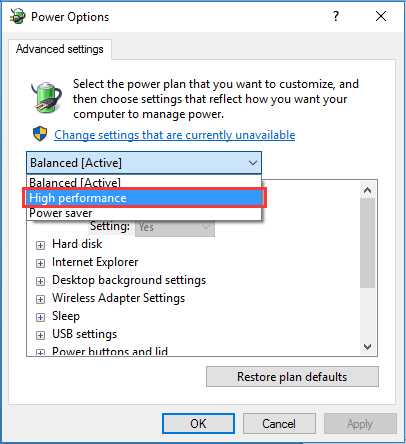
Alter Energy Options From Balanced to High Performance

Finally, reboot the PC to see if the disk usage has changed.

Read More: Fix Steam Disk Write Error on Windows 10


4. Disable Windows Search

Windows Search searches files on your PC faster. If not needed then, it can be disabled temporarily as it will stop the indexing process of all files. Temporary disabling is recommended at first to see if this is the cause behind 100% disk usage error. You can do this as per the below steps:

  • Open Command Prompt as an administrator by hitting Windows and X keys together. Further grant permission to the user account control and type the following command and press the Enter key: net.exe stop “Windows search“

Now check if your disk usage level has come down to a normal level. If this method seemed to work out, then disable the Windows Search permanently.


5. Disable SuperFetch

SuperFetch in Windows systems is responsible for reducing the boot time and making must-load programs more efficient. However, a lot of times it has been identified to be a potential cause behind system lags. To disable the service you can look at the below steps:

  • Launch the Command Prompt as an admin, type the following command and hit Enter – net.exe stop superfetch OR net.exe stop sysmain

After waiting for a few minutes, check if your system has become fast and stable? If so, then you have successfully fixed the 100% disk usage issue in the Windows 10 system.


6. Uninstall Flash Player Update

If you are still seeing Windows 10 high disk usage in the Task manager, then uninstall any flash player update. Several users have reported this technique to be effective. To uninstall flash player update, use the following path:

  • Windows Settings > Update & Security > Windows Update > Advanced Options.
  • Here, go to the “View your update history.” 
  • Then, go to “Uninstall updates” and uninstall the flash player update.
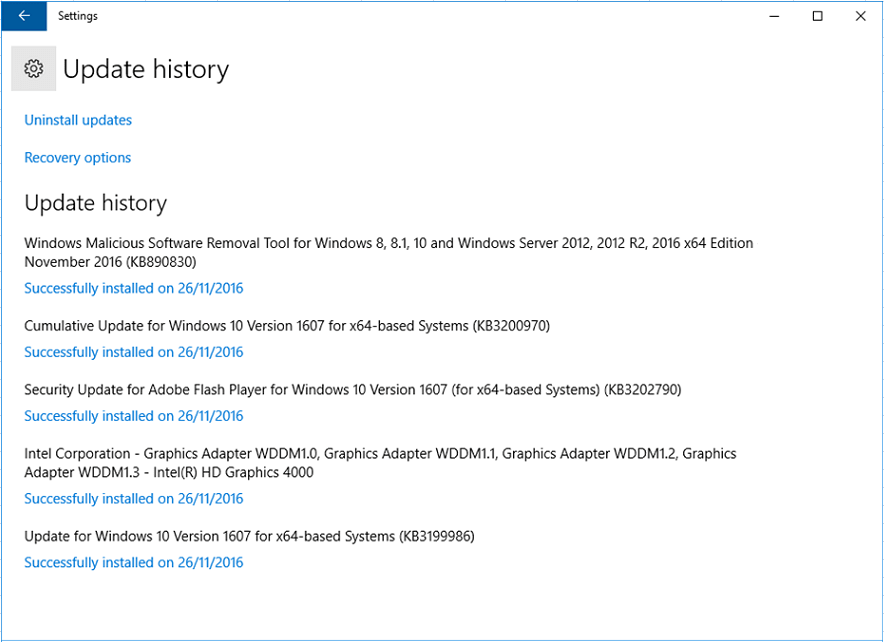
Uninstall Flash Player Update

7. Update Device Drivers

If you are experiencing issues with your system’s performance, then the best step is to update the device drivers. Outdated, missing, faulty drivers often leads to system slowdowns and may even contribute to Windows 10 100% disk usage error.

What can you do in this scenario is update device drivers automatically with the help of a driver update software. You can install a top-notch driver updater tool on your Windows system and let it scan your PC to detect faulty and out-of-date drivers.

If you are confused which tool will suit you the best from the many available options then we recommend you to pick Bit Driver Updater for troubleshooting your driver-related issues. You can download this power-packed tool using the given link.

Windows Download Button

You can use the below guide to update your device drivers:

  • Go to the website and install the Bit Driver Updater tool on your computer.
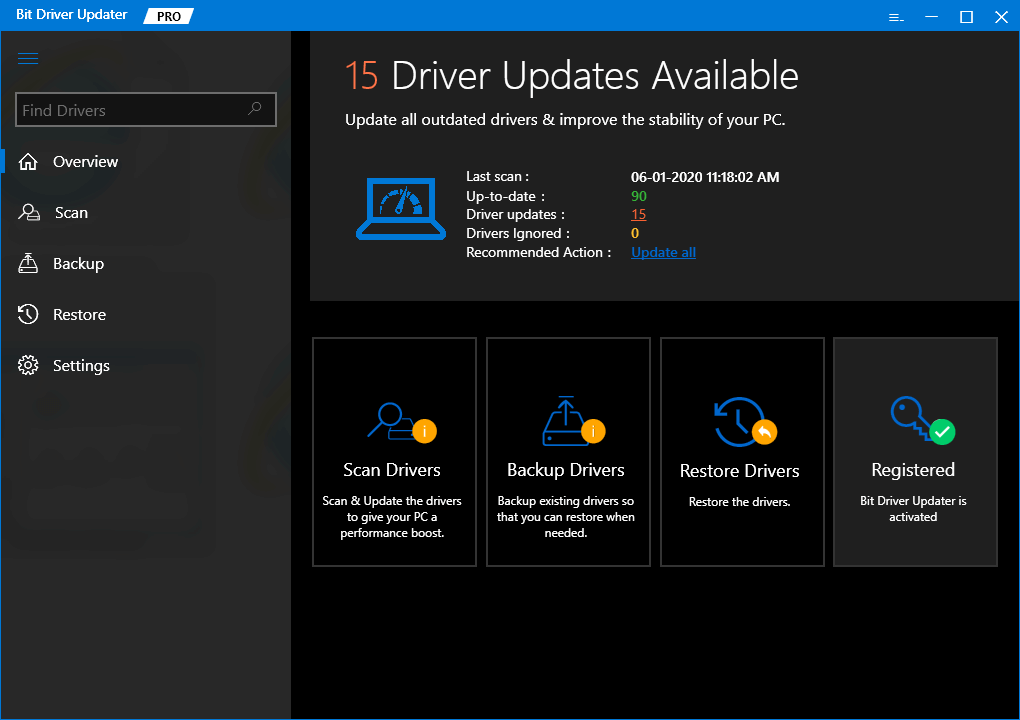
Bit Driver Updater Tool

Windows Download Button

  • Then, initiate driver analysis by performing a quick scan with this tool.
  • Once it has detected the drivers that need fixing, you can automatically download the updated versions of the respective system driver software with its one-click update feature.

After installing the drivers, verify if the Task Manager is now showing a reduced disk usage value.

Read More: Best Disk Cloning Software For Windows


8. Reset Virtual Memory

Virtual memory is a combination of a portion of the hard drive and RAM. When the system is low on RAM, it starts storing files temporarily in the virtual memory. Whenever RAM is available, it swaps the files back from the virtual memory to the RAM.

Steps to Reset Virtual Memory:

  • Go to Control Panel > All Control Panel Items > System.
  • Then, click on the Advanced system settings on the left-side pane.
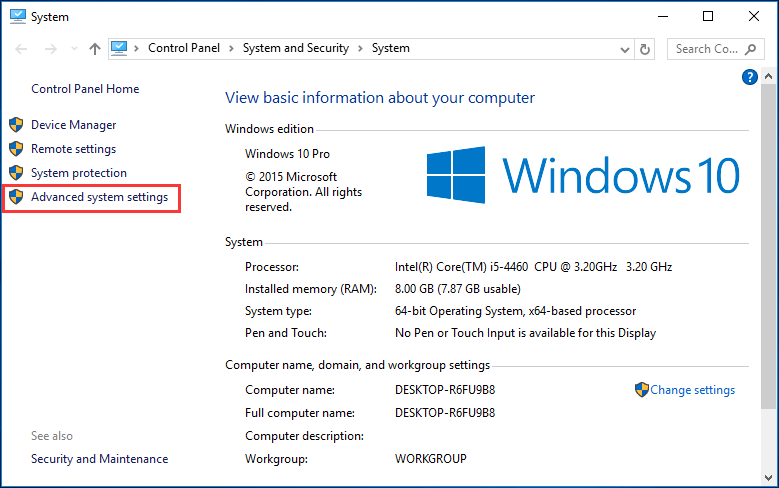
Reset Virtual Memory
  • This will open the System Properties window.
  • Under the Advanced tab, click the Settings button
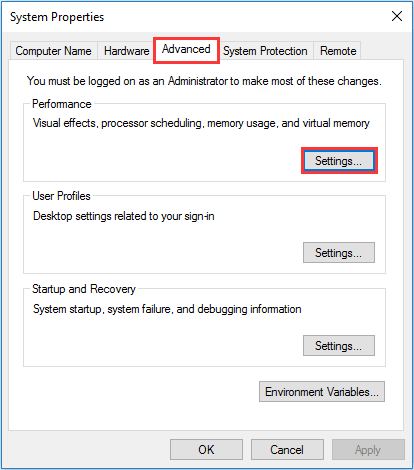
Under the Advanced tab, click the Settings button to Reset Virtual Memory
  • Go to the Advanced tab again and in the virtual memory section select the button labeled as Change…
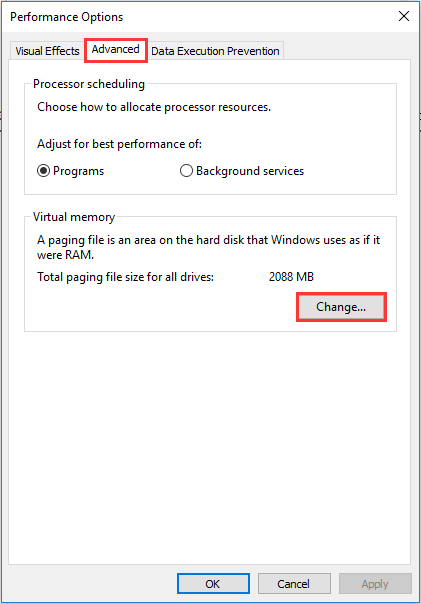
Reset Virtual Memory to Fix Windows 10 100% disk usage in Task Manager

Note – Ensure that the “Automatically manage paging file size for all drives” box is not checked.

  • Now select the Windows drive (usually the C drive) and input the Initial and Maximum size for your virtual memory.
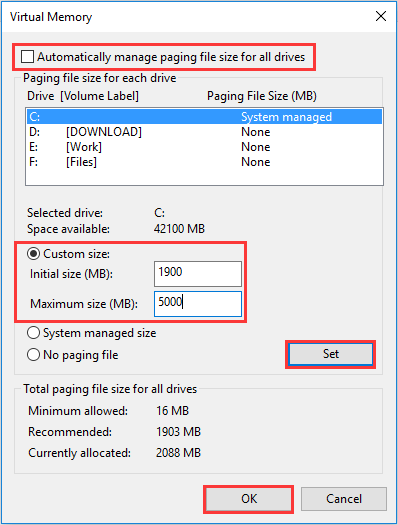
Reset Virtual Memory to Fix Windows 10 100% Disk Usage Error

Note – The Initial size value can vary depending on your system and you may use the numbers from the Recommended category for this field.

The Maximum size value should not be set too high. Try to keep a value which is at the most 1.5 times the size of your physical RAM.

  • Once you have set the values of virtual memory according to the above instructions, you can then click on “Set” and “OK” to continue further.
  • Further, clear all the temp files from your computer and then check the disk usage percentage in the Task Manager.

This should successfully resolve the 100% disk usage problem in your Windows 10 PC.

Read More: How to Fix Discord Screen Share Audio Not Working [Solved]


9. Fix the StorAHCI.sys Driver

100% disk usage error may also be due to the Advanced Host Controller Interface PCI-Express (AHCI PCIe) models that run with the inbox StorAHCI.sys driver. 

Due to a firmware bug, the SSD may not be able to complete input/output when Message Signaled Interrupt (MSI) mode is enabled. SO the Windows storage stack tries to reset the device after waiting on unresponsive read/write for some time.

Disabling the MSI mode via the registry can resolve your disk usage issue.

The way to determine if this is the cause of your current issue and if so, then fixing it up is outlined in the below points:

Determining if you are running StorAHCI.sys:

  • In the Device Manager, expand the IDE ATA/ATAPI controllers section.
  • Double-click the Standard SATA AHCI Controller.
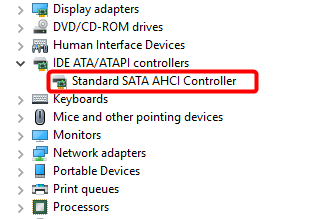
Fix the StorAHCI.sys Driver to Solve Windows 100% Disk Usage Error
  • As the Standard SATA AHCI Controller Properties tab opens, go to the Driver Details located under the Driver tab.
  • Here, if you can see storhci.sys stored in the path of the system32 folder, then you are running the inbox AHCI driver.
  • Close the Driver Details window and then choose the Device Instance Path found under the Driver tab. You need to note down the path, beginning from VEN_.
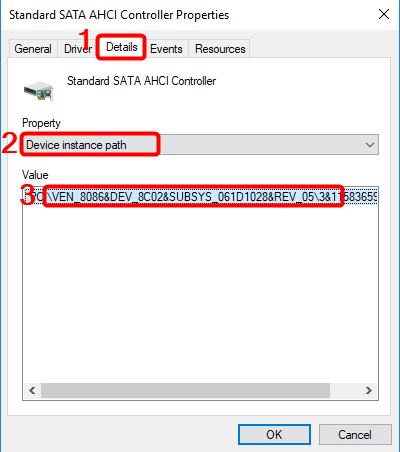
Standard SATA AHCI Controller Properties

Disabling MSI for the Controller via the Registry:

  • Open the run dialog box and type “regedit” to open the registry editor.
  • Then, navigate to the below path:

“HKEY_LOCAL_MACHINE\System\CurrentControlSet\Enum\PCI\< AHCI Controller> Device Parameters\Interrupt Management\MessageSignaledInterruptProperties”

  • Alter the value of the MSISupported key from “1” to “0.”
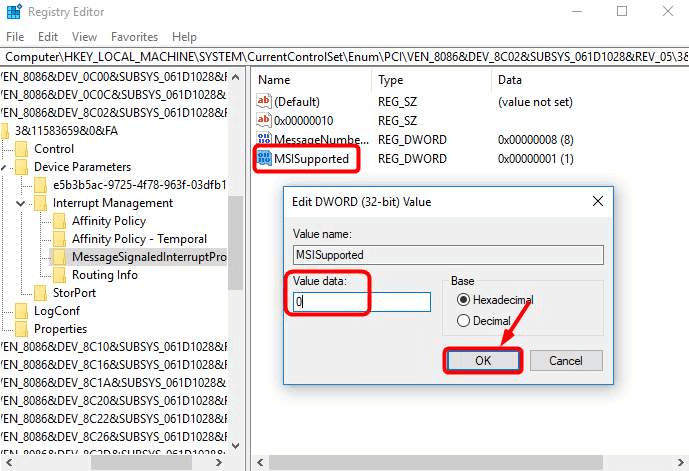
Disabling MSI for the Controller via the Registry
  • Finally, reboot your system to see if this worked or otherwise try the next solutions.

10. Disable Windows Update Service

Our next solution to fix 100% disk usage in Windows 10 is by disabling the Windows Update Service. It can be done as per the outlined steps below:

  • Run “services.msc” and click “OK” to open the Services window.
  • Scroll down to “Windows Update” and double-click on it.
  • As the Properties window pops open, in the start type select the “Disabled” option and then press “Stop.”
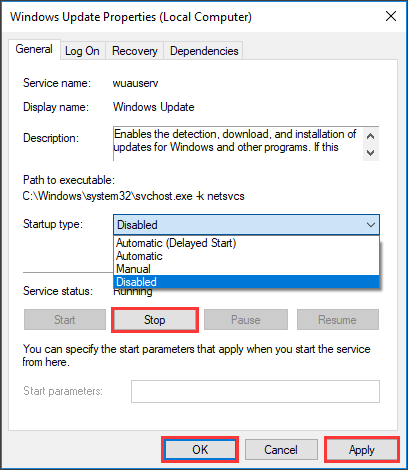
Disable Windows Update Service to Fix Windows 10 100% Disk Usgae Error
  • Followed by this, press “Apply” and “OK” to bring the change into effect.

Read More: Fix The Disk Is Write-protected Error On Windows 10/8/7


Summing Up

So, friends this was our wholesome guide to fix Windows 10 100% disk usage in Task Manager error. With this I hope that you are able to boost your PC performance. Always ensure to run only a few programs at a time to keep your PC performance at an optimum level.

Do let us know in the comments section which method worked for you or if you have any other suggestions.


 

Author

Snigdha

Snigdha is a technical content writer with expertise in the field of science & technology. Though she has a very diverse academic and professional profile yet she finds writing to be a creative form that she was unable to explore so far. When not writing, she can be found indulging in other forms of creativity like painting or travelling.

View all posts

Related Posts
How to Fix Graphics Device Driver Error Code 22 (FIXED)

How to Fix Graphics Device Driver Error Code 22 (FIXED)

December 26, 2023
0

If you are also facing the Graphics Device Driver Error Code 22 on Windows 11/10/8/7 devices, then take the help of the solutions provided in this guide and fix the issue instantly. 

It is possible that the hardware of your computer may experience a variety of problems. It is only when you want to utilize it that you become aware of the problems. However, at first, all you notice is that the item is not functioning as it typically would. But you have no idea why the hardware is unable to function properly.

If you find yourself in a position like this, you may check the status of the device by going to the Device Manager. After that, you can see what occurs to the device you are monitoring. The device will display an error message along with an error code if there is a problem with the hardware. In many ways, Error Code 22 is comparable to the same concept.

There are a number of reasons that may lead to the Graphics Device Driver Error Code 22 Windows 11 issue. Whatever may the reason be, we will list and address some of the best solutions to fix the error with ease. In this article, we will have a look at the same.

Graphics Device Driver Error Code 22 Windows 10/11

Below, there are certain solutions that will allow you to fix the Graphics Device Driver Error Code 22 on Windows 7 and other higher OS. Follow the solutions provided below chronologically and stop when the issue is fixed.

Fix 1: Remove and Reinstall the CMOS Battery

In order to repair your Graphics Device Driver Error Code 22 Windows 10 issue, you may need to remove the CMOS battery in order to reset the BIOS to its factory settings. Some talents are required for it.

But before you go on, you should exercise caution with regard to the following points:

  • Make sure you are aware of the direction in which the battery is put. Face up is the typical orientation of the engraved side, often known as the positive side. Next, take the CMOS battery off of the main board (the majority of them can be easily removed by popping them out).
  • For the CMOS to return to its factory settings, you will need to wait for around one to two minutes.
  • Start your computer once you have reinserted the battery into its housing, sealed the casing of your computer, and powered it on. Your computer’s BIOS ought to have reset itself, thus re-enabling your graphics hardware in the subsequent process.

The following instructions are now available for your perusal to fix the Graphics Device Driver Error Code 22 Windows 10:

  1. You should turn off your computer.
  2. Take out all of the cords and disconnect all of the power sources.
  3. By opening the cover of your computer, you can see the hardware that is on the inside.
  4. Once you have located the CMOS battery, remove it and then replace it in the same position as before.

If you are unable to fix the error using this solution, try the next one.

Also Read: How Do I Know Which Intel Graphics Driver Do I Have


Fix 2: Fix the Error if the Device Is Disabled Mistakenly

Sometimes, you may mistakenly use a setting or the Device Manager to disable the graphics card. If this is the case, then you will not see anything on the device. Hence, to execute the first solution, you need to trust your instincts and navigate the solution on the black screen. Follow the below steps cautiously to fix the Graphics Device Driver Error Code 22 Windows 10 error:

Proceed with the Below Steps Cautiously:

  1. Perform a restart on your computer.
  2. Proceed to step 3 if you are able to log in automatically; otherwise, you will need to wait for a while until you believe the login page displays, after which you will need to enter your credentials to log in.
  3. To ensure that any applications that are running during startup are terminated, hit the Alt key & the F4 key simultaneously using your keyboard many times.
  4. While maintaining pressure on Windows button, hit R one to launch Run.
  5. When you want to launch Device Manager, type devmgmt.msc & then press Enter.Run command devmgmt.msc
  6. First, wait for 10 seconds to ensure that Device Manager launches, & then hit Tab.
  7. In order to access Display adapters, press the D button twice.
  8. Once you have expanded the category by tapping the right → key, you may then use the right → key once again.
  9. When you want to enter Action, press Alt & A simultaneously.
  10. Click the down ↓ key once to pick the Enable device option (it is important to note that if you are using the incorrect device, it will give you the option to disable that device). Afterward, to activate it, hit the Enter key.

The display on your screen will now show correctly. In the event that it is not functioning properly, you may hit the power key to turn off & reboot your computer. After that, you should execute the procedures described above in a meticulous manner in order to better diagnose the problem.

Also Read: How to Fix GeForce Experience Driver Download Failed


Fix 3: Try Enabling the Device Manually

If you can see the screen perfectly and yet are facing the Graphics Device Driver Error Code 22 Windows 7 error; you can try enabling the disabled device manually. To execute this task, all you need to do is take the help of the Device Manager, as shown in the below process:

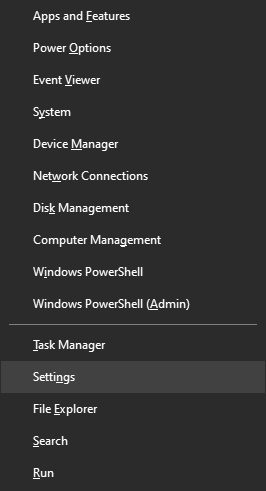
  1. To access the Start menu, use the Win & X keys on your keyboard.
  2. Start up the Device Manager.Select Device manager
  3. Make the Display adapter section more extensive.In Device Manager Select Display adapters
  4. To access your graphics driver, double-click on it.
  5. Make sure you are on the Driver tab.
  6. Click the button that says “Enable Device.”
  7. To apply the changes, click the OK button.
  8. Perform a restart on your computer.

In the event that you see the Graphics Device Driver Error Code 22, you have the option of manually activating the graphics application. In the event that the device is already on, you are free to proceed to the subsequent solution.

Also Read: How to Fix Nvidia Driver Crashing Issue in Windows 10, 11


Fix 4: Update the Graphics Driver Using Win Riser (Recommended Bonus Tip)

Problems related to drivers like the Graphics Device Driver Error Code 22 on Windows 11 are quite recurring. Such issues mainly appear because the drivers on the device are outdated. An outdated driver causes multiple performance-related problems on Windows. Hence, the best way to keep such errors at bay and/or fix them is to take the help of Win Riser.

Win Riser is an automatic and reliable tool that allows you to update drivers with a single click automatically. Apart from that, the tool also offers the most advanced protection against malware, faulty Registry entries, and junk. You can get rid of junk, fix Registry, and remove malware from your device with a single click.

The tool, along with the above ones, offers multiple other features to you. You can schedule operations, take system backups, and do a lot more with this tool. For now, let’s understand how to fix the Graphics Device Driver Error Code 22 via driver updates:

  1. Click on the Download button below and install the executable file that downloads.Download-Button
  2. Run the tool after installation as after this, the tool will automatically start the deep scanning of your system.
  3. When the entire scan results appear, take the help of the Fix Issues Now button to fix everything. (Alternatively, visit individual categories of the error and use the Fix Now button instead.)Win Riser Update the All Outdated Driver Click On Fixes Now
  4. When all the issues are resolved (drivers are updated, malware is removed, etc.) restart the system when advised.

Also Read: How to Fix Valorant ‘Graphics Driver Crashed’ Error {Quick Tips}


Graphics Device Driver Error Code 22 Windows 10: Fixed

It is not necessary for you to be concerned about this device showing the Graphics Device Driver Error Code 22 error. You have the ability to find a solution to the problem by using the solutions that are discussed in this article. It is important to note that the methods that were described above may also be used in order to resolve the graphics device driver error code 43.

That concludes our contribution to this guide. If you are or are not experiencing the Graphics Device Driver Error Code 22 Windows 10/11, please feel free to leave a comment below and let us know which solution you successfully used.

How to Fix No Audio Output Device Is Installed In Windows 10

How to Fix No Audio Output Device Is Installed In Windows 10 PC

August 10, 2022
0

Are you searching for a tutorial on how to fix no audio output device is installed error? If yes, then your search ends here. In this blog post, you will find everything you need to know about this Windows 10 audio device error. Read more!

Unable to hear any sound from your audio device? This could usually occur when your computer system fails to recognize your audio device. Incompatible, corrupt, faulty, or out-of-date audio drivers is one of the most common reasons behind this inconvenience. The audio error generally displays up with a red cross mark adjacent to the sound control in your system tray. But, nothing to worry about, after reading this descriptive article you will know exactly what needs to be done to overcome this error.

What Causes No Audio Output Device Is Installed Error?

Similar to other Windows 10 errors, it is quite hard to pinpoint only one exact reason behind the audio device malfunctions. However, we have still gathered some of the most common reasons for this error, which will probably help you figure out why you aren’t capable to hear any sound from your device. Listed below are the possible causes for this error:

  • Outdated, missing, or faulty audio drivers.
  • Maybe, your playback device is not connected to the correct port.
  • Your wireless audio device is not paired with your system.
  • The playback device has been disabled.
  • Windows 10 updates are rolled out.

Now that we have taken a closure look at possible causes, it is time to get work started.

Quick Solutions to Fix ‘No Audio Output Device Is Installed’ Error in Windows 10

Following are the several methods that can be used to get rid of the ‘Windows 10 No audio output device is installed’ error. Let’s learn more!

Solution 1: Reboot your PC

Sometimes, when you modify hardware configurations, there are chances that your audio device stops functioning properly. To avoid such issues, prefer to never connect any hardware peripheral while the system is in booting up mode. Despite this, if you still connect equipment when Windows was not completely loaded, just start your device all over again. This might help resolve no audio output device is installed on Windows 10.

Also Read: How to Find and Fix Audio Playback Sound Problems


Solution 2: Run Windows Audio Troubleshooter

In order to fix several PC issues, Windows 10 comes with multiple troubleshooters that have expertise in detecting and resolving technical glitches on your system. Fortunately, the one can be used for dealing with the issues related to audio devices. Here are the steps that you need to take into consideration in order to use Windows audio troubleshooter:

Step 1: Open the Windows Settings menu.

Step 2: Click on Update & Security.Locate The Update & Security Option and Click On It

Step 3: From the left pane, select Troubleshoot.

Step 4: Choose Additional Troubleshooters.

Step 5: Choose Playing Audio, and then click on the Run the Troubleshooter option.Click On Playing Audio Option Then Click On Run the Troubleshooter

Follow the instructions on your screen and wait until the troubleshooter finds issues. If anything is detected, you will be able to resolve it with just a single click of a mouse. After that, check if the issue is resolved or persisting.


Solution 3: Update Old Audio Drivers

If you are using an older version of the audio driver, then you may face issues with your audio device like an audio device not found in Windows 10. Therefore, in order to avoid such errors, updating audio drivers from time to time is recommended. An audio driver is an essential software that enables your computer to communicate with your audio device accurately.

You can either update audio drivers manually through Device Manager or automatically via the best third-party driver updating software. However, manual driver downloads take a lot of time and require a good understanding of technical skills. Hence, it can be error-prone at times, especially if you’re a newbie or non-tech PC user.

To help you, we highly suggest you automatically update drivers with a reliable driver updater utility like Bit Driver Updater. The program is a globally recognized utility that automatically detects the system and finds out the most compatible drivers for it.

The software is available in two variants i.e, the free version or the pro version. With its pro version, you can update all PC drivers with just one click of the mouse. On the other hand, the free version allows you to update each driver individually.

Follow the procedure below to update audio drivers with Bit Driver Updater:

Step 1: Click on the download button below to get the setup file of Bit Driver Updater.Windows Download Button

Step 2: Double click the downloaded file and follow the setup wizard to finish the installation.

Step 3: Launch Bit Driver Updater on your computer and choose the Scan option from the left menu pane.Bit Driver Updater - Scan all the outdated driver

Step 4: After that, wait until the scanning process to be completed. Check the scan results and click on the Update Now button adjacent to the outdated or problematic audio driver. Else, you can also click on the Update All button instead. This way leads you to install all PC drivers in one click, which saves your time as well.Update all the driver - Bit Driver Updater

What’s more, the pro version provides round-the-clock technical support and a complete money-back guarantee but for a limited time i.e., within 60 days of purchase.

Try other solutions, if Windows 10 no audio output device is installed error remains the same as earlier.

Also Read: How to Fix Install Realtek HD Audio Driver Failure in Windows 10


Solution 4: Check for System Updates

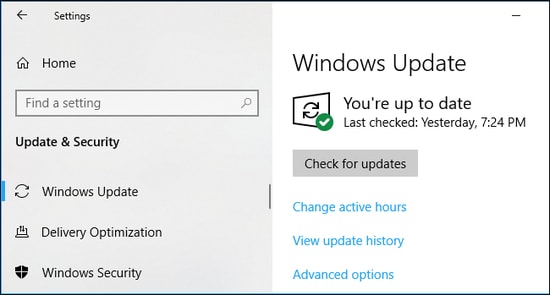
Many PC users have reported that simply updating Windows 10 to its newest version can resolve the audio device not found Windows 10 error. As a golden tip, you might even receive access to the latest and interesting features, enhanced security, performance improvements, and many more. Below is how to run Windows Update:

Step 1: Go to the Start menu and click on the same.

Step 2: Then, click on the gear (Settings) icon.Windows Settings

Step 3: This action will pop up the Windows settings menu, here you need to choose the Update & Security option to proceed.Click on update and security

Step 4: From the next prompt, you need to make sure that Windows Update is selected from the left menu pane.

Step 5: Next, click on the Check for Updates option.Check for Updates on windows settings

Step 6: If any new update is detected, click on the Download & Install option.

Once your PC successfully installs the available Windows updates, restart your device and check to see if your audio device is functioning normally as expected. If not, move on to the next tactic.


Solution 5: Try to Reconnect the External Audio Output Device

If you are using an external audio device like headphones, then try to remove them from your computer system. After that, restart your PC and re-connect it. This might help you fix ‘no audio output device is installed in Windows 8, 7, or higher versions.

Proceed with other solutions, if this troubleshooting tip didn’t work for you.


Solution 6: Enabling Sound Card Again

Consider disabling and re-enabling the sound card as the most effective fix for audio devices not found Windows 10 error. Here are the steps that you need to follow:

Step 1: Simultaneously press Windows and X keyboard keys. Then, choose Device Manager from the menu that appears.Open Device manager

Step 2: Find and double-click on the Sound, video, and game controllers.Select Sound, Video and Game Controllers

Step 3: Right-click on your audio device and select Disable device from the context menu list.

Step 4: Wait for a while and then make it enable.

Once done, reboot your system and check if this resolves the Windows 10 no audio output device is installed or not.


Solution 7: Replace Corrupt Sound Card

Unfortunately, if nothing has helped you from above, then your sound card may be corrupted or defective. If that is the case, we recommend you get it inspected and replace it if required. This would definitely work for you in order to fix no audio device error on Windows 10.

Also Read: The Audio Service is Not Running On Windows 10


Windows 10 No Audio Output Device Is Installed: SOLVED

Using any of the solutions suggested above, you can fix no audio output device is installed error in Windows 10, without any hassles. We hope the article helps you in the best possible way. Do tell us in the comments below if you have any doubts, questions, or further recommendations regarding the same.

Are you interested in reading more helpful blog posts related to technical issues? If yes, do subscribe to our Newsletter. Follow us on Facebook, Instagram, Pinterest & Twitter.

1 Comment
    Darrick Varron says: Reply
    November 20th 2020, 2:15 am

    Very nice post, I actually love this web site, carry on it

Leave a Reply Cancel reply

Your email address will not be published. Required fields are marked *

Sidebar Image bit G ad1

Latest Posts

  • Anytime Astro: Best Website For Online Astrology Consultation
    Anytime Astro: Connect Now For Online Astrology Consultation
    by Somya Shrimal / March 13, 2026
  • Best-Ways-to-Combine-Images-Into-PDF-Files
    Best Ways to Combine Images Into PDF Files
    by Niharika / March 12, 2026
  • Best FREE VPS Hosting Providers
    7 Best FREE VPS Hosting Providers in 2026
    by Devesh / March 12, 2026
  • Best-McAfee-alternative-software-to-use-for-Virus-Protection
    Best McAfee Alternative Software to use for Virus Protection
    by adminuser / February 11, 2026
  • What-is-Flip-Flop-in-Circuite-and-it's-Types
    What is Flip Flop in Circuit and its Types
    by Meet / February 6, 2026

Categories

  • Cyber Security
  • Driver Updater
  • Entertainment
  • Fitness
  • Games
  • How To
  • laptop
  • OS
  • Reviews
  • Tech News
  • Tips & Tricks
  • Top 10
Sidebar Image bit G ad1
Download & Install Sony VAIO Drivers On Windows 10 Download & Install Sony VAIO Drivers On Windows 10by Monil / January 8, 2021
How To Send Selfie Stickers On Instagramby Jyotsana / January 9, 2021How To Send Selfie Stickers On Instagram
TechPout Footer Logo

We at TechPout promise to put forth stories that help people to learn and simplify their digital life. Our purpose is to share the true essence of technology with our tech-loving community.

Useful Links

  • About Us
  • Contact us
  • Privacy Policy

Popular Posts

  • Best PC Optimizer Software
  • Best Mac Cleaner Apps
  • Best Driver Updater
  • Duplicate Photo Finder and Cleaner Software
  • Best Free Movie Download Sites
  • Best IPTV Players

Follow us

Copyright © 2026 www.techpout.com. All rights reserved
DMCA.com Protection Status