Main LogoLight Logo
  • Reviews
  • Top 10
  • How To
  • Tech News
  • OS
    • Windows
    • MAC
    • iOS
    • Android
  • Categories
    • Driver Updater
    • Cyber Security
    • Games
    • Fitness
    • Entertainment
    • Tips & Tricks
Driver Updater How To Windows
by Snigdha

Windows 10 100% Disk Usage In Task Manager [Fixed]

January 8, 2021
1

If you are finding your Windows 10 system at 100% disk usage, then for sure something is stressing your hard drive and causing it to overwork. Your system will be unresponsive and it will lag and freeze when your system is using 100% disk.

In fact, the lagging and freezing makes us look at the Task Manager automatically to end tasks and processes. It is only then, that most users come across this underlying error of 100% disk utilization. Additionally, the event log may also represent several resets of the disk controller.

It sure is mind boggling to discover this anomalous behaviour of your system and we can’t help wondering which actions led to 100% disk usage error. But you will be relieved to know that it’s a genuine occurrence that happens on its own and can be fortunately fixed with some easy troubleshooting methods.

In this guide, we present to you 10 best ways in which you can fix 100% disk usage error.

All-in-One Solution to Fix 100% Disk Usage Error

Before trying the other high-level fixes, you should update the outdated drivers. Majorly, the system lags and freezes due to outdated or faulty drivers. And, updating drivers manually takes a long while, hence, you must use Bit Driver Updater to perform the same task automatically.

This ultimate utility not only lets you perform the driver update in one click but also elevates the performance bar of your system. If you have convinced yourself that this is the only tool you need, then you can click on the download button below to get this one-stop solution for free.

Windows Download Button

Table of Contents hide
Wholesome Guide To Resolve Windows 10 100% Disk Usage Error
1. Disable Antivirus Software Temporarily
2. Perform a Disk Check
3. Alter Energy Options From Balanced To High Performance
4. Disable Windows Search
5. Disable SuperFetch
6. Uninstall Flash Player Update
7. Update Device Drivers
8. Reset Virtual Memory
9. Fix the StorAHCI.sys Driver
10. Disable Windows Update Service

What Causes 100% Disk Usage In Windows 10 

When a specific program demands more memory than expected it usually happens. Plus, this drives a lack of resources to other programs and thus results in slow down issues. If you are suffering from slow performance of your PC and don’t how to fix it. Then, this write-up will elucidate how to fix this issue quite quickly.

But, before moving forward, it would be better enough to know about the causes of it for future prevention. However, there are numerous causes of this problem but here are core ones. Have a look at them! 

  • Registry issues.
  • Due to pending windows system updates. 
  • Corrupt, broken, old, or faulty system drivers.
  • Faulty system files. 
  • Due to malware and viruses.
  • Background running programs.

So, these are some of the significant causes of 100% Disk Usage and that makes your computer sluggish and vulnerable. But no worries, this write-up will explain to you some fruitful ways to fix this annoying issue. And, will surely bring back the actual effective performance of your system. So, without any further ado, let’s move ahead to know more about it! 


Wholesome Guide To Resolve Windows 10 100% Disk Usage Error

Let us now get to the details of the troubleshooting techniques one by one in the below segment.

1. Disable Antivirus Software Temporarily

Your antivirus software sometimes might keep running in the background which might lead to 100% disk usage in Windows 10. What you can do in  this scenario is to disable your antivirus tool momentarily to see if it is able to decrease the disk usage value from 100% to the minimum value. 

Even when you are disabling the antivirus solution for a short while, you needn’t worry about your system becoming defenseless and vulnerable to cyber threats because, in Windows 10 system, the in-built Windows Defender stands guard against several manipulative cyber exploitation mechanisms.

To strengthen the security walls of your device we recommend you to use powerful antivirus software like ITL Antivirus along with Windows Defender. Give your device all-around protection from digital threats and harmful viruses with ITL Antivirus.

Read More: How to Fix Windows 10 Not Responding Error


2. Perform a Disk Check

To do this you need to run the Command Prompt as an admin. You can give permission by clicking “Yes” at the User Account Control prompt. The below-mentioned steps will let you complete the disk check:

  • In the Command Prompt window, key-in the following command and press Enter following that: chkdsk.exe / f/r
  • Further, type Y to confirm that you would want to proceed with the desk check process the next time you restart your system. 

Post this, you can open the Task Manager to verify if the 100% disk usage error has resolved or not. If it didn’t, then jump to the next solution.


3. Alter Energy Options From Balanced To High Performance

As suggested by many experts, altering the energy options to High Performance from Balanced works well with Windows 10 100% disk usage error. To do this, you need to follow the following steps:

  • Navigate to the Power Options.
  • Then, click on “Change plan settings.”
  • Further, go to “Change advanced power settings.”
  • Here, select the High-Performance option from the drop-down box and let all other plan settings be as per the default settings.
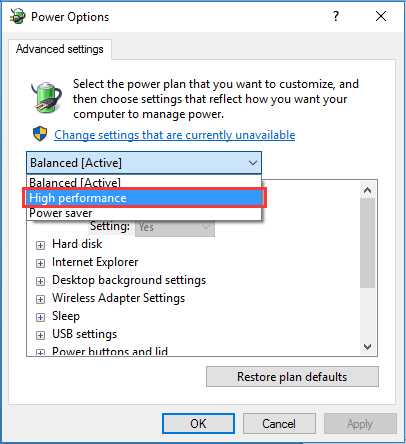
Alter Energy Options From Balanced to High Performance

Finally, reboot the PC to see if the disk usage has changed.

Read More: Fix Steam Disk Write Error on Windows 10


4. Disable Windows Search

Windows Search searches files on your PC faster. If not needed then, it can be disabled temporarily as it will stop the indexing process of all files. Temporary disabling is recommended at first to see if this is the cause behind 100% disk usage error. You can do this as per the below steps:

  • Open Command Prompt as an administrator by hitting Windows and X keys together. Further grant permission to the user account control and type the following command and press the Enter key: net.exe stop “Windows search“

Now check if your disk usage level has come down to a normal level. If this method seemed to work out, then disable the Windows Search permanently.


5. Disable SuperFetch

SuperFetch in Windows systems is responsible for reducing the boot time and making must-load programs more efficient. However, a lot of times it has been identified to be a potential cause behind system lags. To disable the service you can look at the below steps:

  • Launch the Command Prompt as an admin, type the following command and hit Enter – net.exe stop superfetch OR net.exe stop sysmain

After waiting for a few minutes, check if your system has become fast and stable? If so, then you have successfully fixed the 100% disk usage issue in the Windows 10 system.


6. Uninstall Flash Player Update

If you are still seeing Windows 10 high disk usage in the Task manager, then uninstall any flash player update. Several users have reported this technique to be effective. To uninstall flash player update, use the following path:

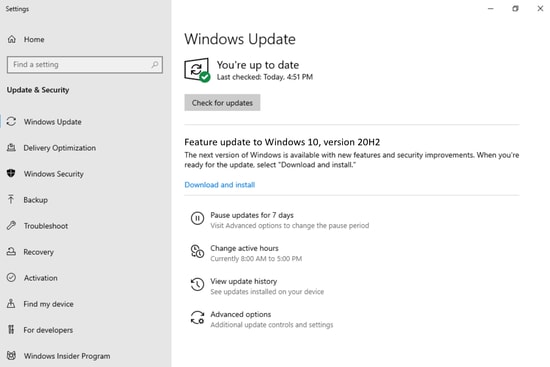
  • Windows Settings > Update & Security > Windows Update > Advanced Options.
  • Here, go to the “View your update history.” 
  • Then, go to “Uninstall updates” and uninstall the flash player update.
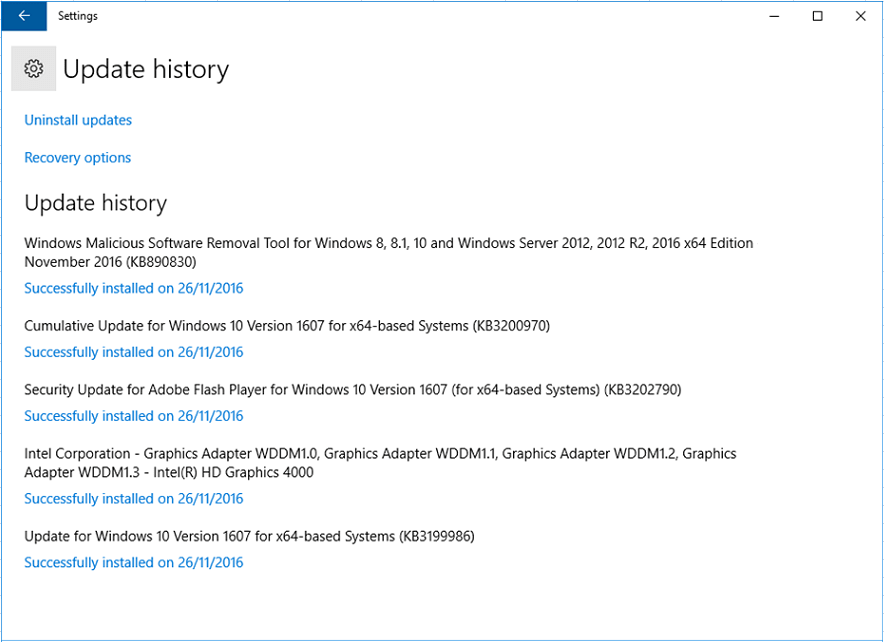
Uninstall Flash Player Update

7. Update Device Drivers

If you are experiencing issues with your system’s performance, then the best step is to update the device drivers. Outdated, missing, faulty drivers often leads to system slowdowns and may even contribute to Windows 10 100% disk usage error.

What can you do in this scenario is update device drivers automatically with the help of a driver update software. You can install a top-notch driver updater tool on your Windows system and let it scan your PC to detect faulty and out-of-date drivers.

If you are confused which tool will suit you the best from the many available options then we recommend you to pick Bit Driver Updater for troubleshooting your driver-related issues. You can download this power-packed tool using the given link.

Windows Download Button

You can use the below guide to update your device drivers:

  • Go to the website and install the Bit Driver Updater tool on your computer.
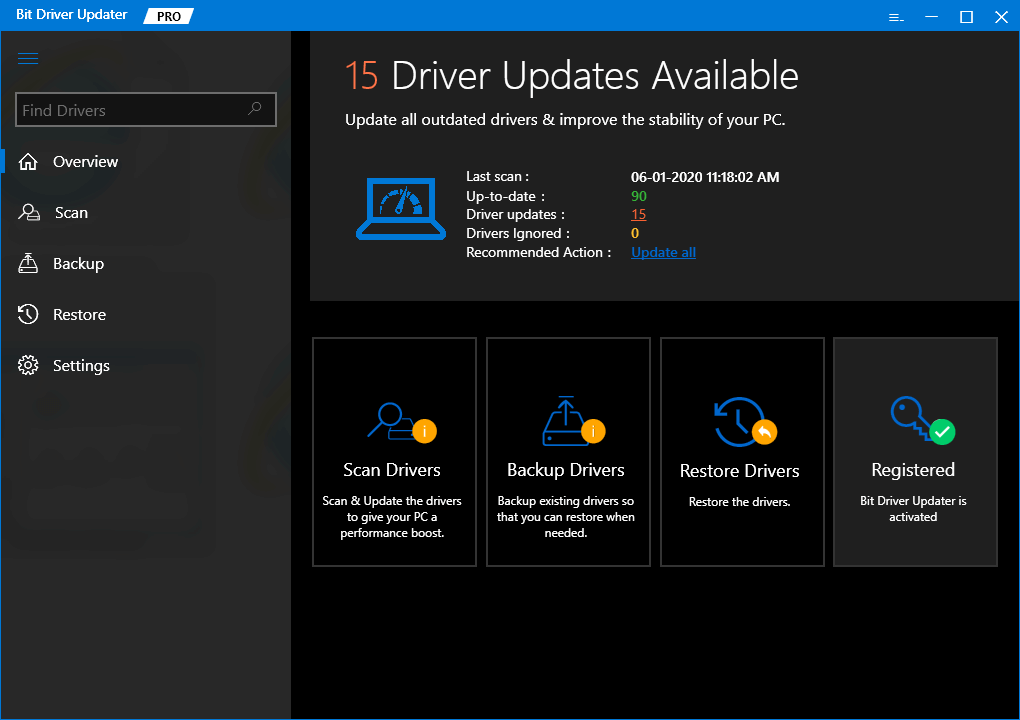
Bit Driver Updater Tool

Windows Download Button

  • Then, initiate driver analysis by performing a quick scan with this tool.
  • Once it has detected the drivers that need fixing, you can automatically download the updated versions of the respective system driver software with its one-click update feature.

After installing the drivers, verify if the Task Manager is now showing a reduced disk usage value.

Read More: Best Disk Cloning Software For Windows


8. Reset Virtual Memory

Virtual memory is a combination of a portion of the hard drive and RAM. When the system is low on RAM, it starts storing files temporarily in the virtual memory. Whenever RAM is available, it swaps the files back from the virtual memory to the RAM.

Steps to Reset Virtual Memory:

  • Go to Control Panel > All Control Panel Items > System.
  • Then, click on the Advanced system settings on the left-side pane.
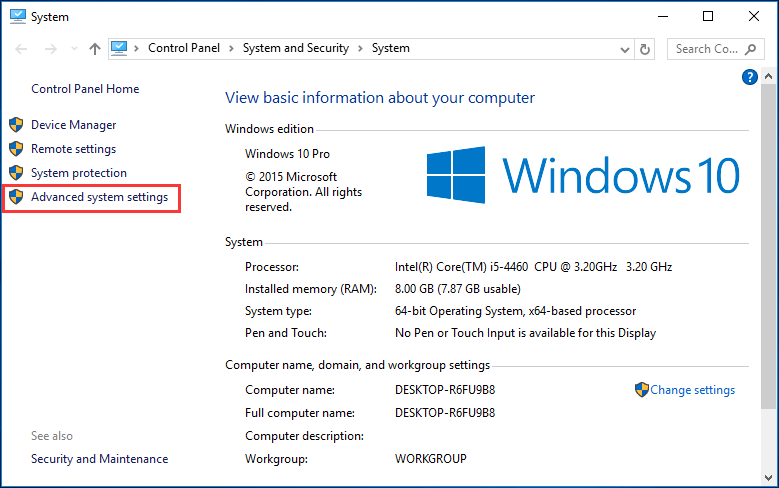
Reset Virtual Memory
  • This will open the System Properties window.
  • Under the Advanced tab, click the Settings button
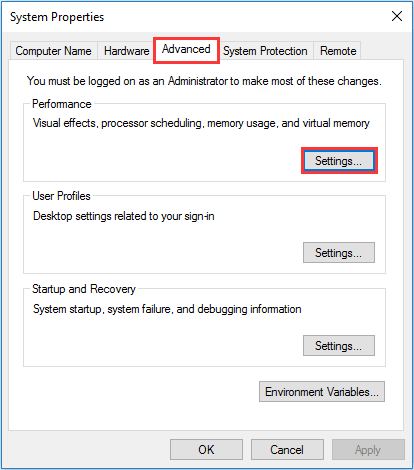
Under the Advanced tab, click the Settings button to Reset Virtual Memory
  • Go to the Advanced tab again and in the virtual memory section select the button labeled as Change…
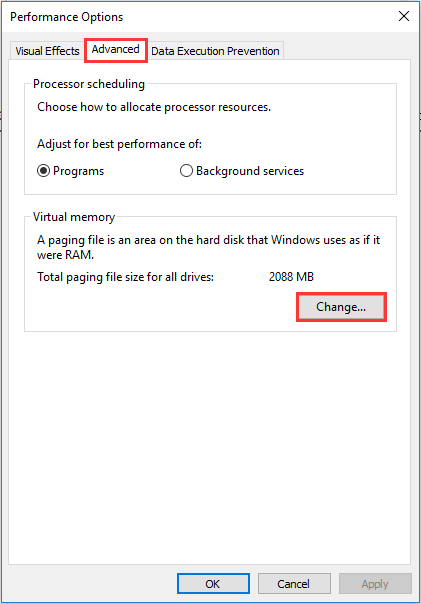
Reset Virtual Memory to Fix Windows 10 100% disk usage in Task Manager

Note – Ensure that the “Automatically manage paging file size for all drives” box is not checked.

  • Now select the Windows drive (usually the C drive) and input the Initial and Maximum size for your virtual memory.
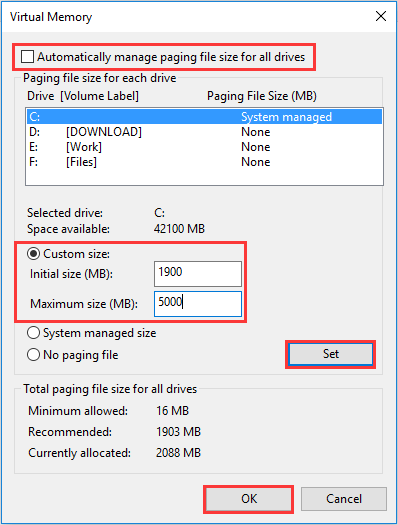
Reset Virtual Memory to Fix Windows 10 100% Disk Usage Error

Note – The Initial size value can vary depending on your system and you may use the numbers from the Recommended category for this field.

The Maximum size value should not be set too high. Try to keep a value which is at the most 1.5 times the size of your physical RAM.

  • Once you have set the values of virtual memory according to the above instructions, you can then click on “Set” and “OK” to continue further.
  • Further, clear all the temp files from your computer and then check the disk usage percentage in the Task Manager.

This should successfully resolve the 100% disk usage problem in your Windows 10 PC.

Read More: How to Fix Discord Screen Share Audio Not Working [Solved]


9. Fix the StorAHCI.sys Driver

100% disk usage error may also be due to the Advanced Host Controller Interface PCI-Express (AHCI PCIe) models that run with the inbox StorAHCI.sys driver. 

Due to a firmware bug, the SSD may not be able to complete input/output when Message Signaled Interrupt (MSI) mode is enabled. SO the Windows storage stack tries to reset the device after waiting on unresponsive read/write for some time.

Disabling the MSI mode via the registry can resolve your disk usage issue.

The way to determine if this is the cause of your current issue and if so, then fixing it up is outlined in the below points:

Determining if you are running StorAHCI.sys:

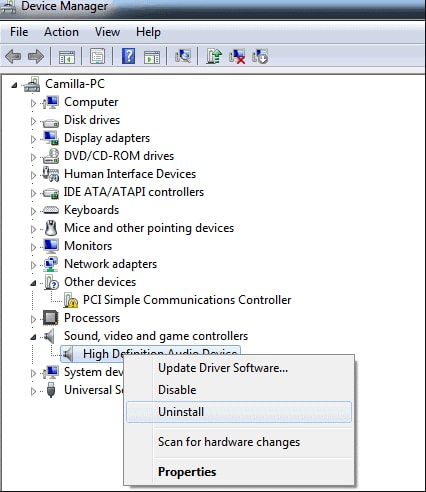
  • In the Device Manager, expand the IDE ATA/ATAPI controllers section.
  • Double-click the Standard SATA AHCI Controller.
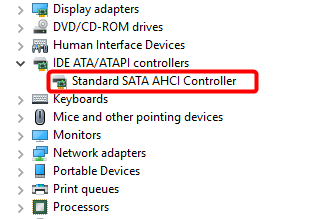
Fix the StorAHCI.sys Driver to Solve Windows 100% Disk Usage Error
  • As the Standard SATA AHCI Controller Properties tab opens, go to the Driver Details located under the Driver tab.
  • Here, if you can see storhci.sys stored in the path of the system32 folder, then you are running the inbox AHCI driver.
  • Close the Driver Details window and then choose the Device Instance Path found under the Driver tab. You need to note down the path, beginning from VEN_.
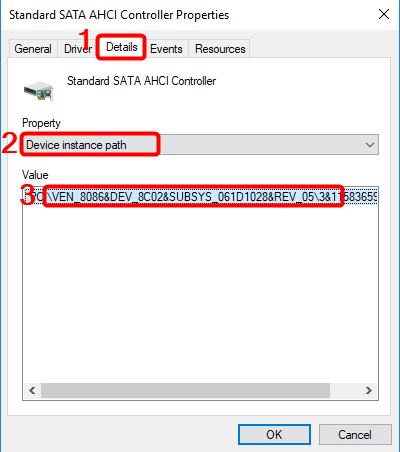
Standard SATA AHCI Controller Properties

Disabling MSI for the Controller via the Registry:

  • Open the run dialog box and type “regedit” to open the registry editor.
  • Then, navigate to the below path:

“HKEY_LOCAL_MACHINE\System\CurrentControlSet\Enum\PCI\< AHCI Controller> Device Parameters\Interrupt Management\MessageSignaledInterruptProperties”

  • Alter the value of the MSISupported key from “1” to “0.”
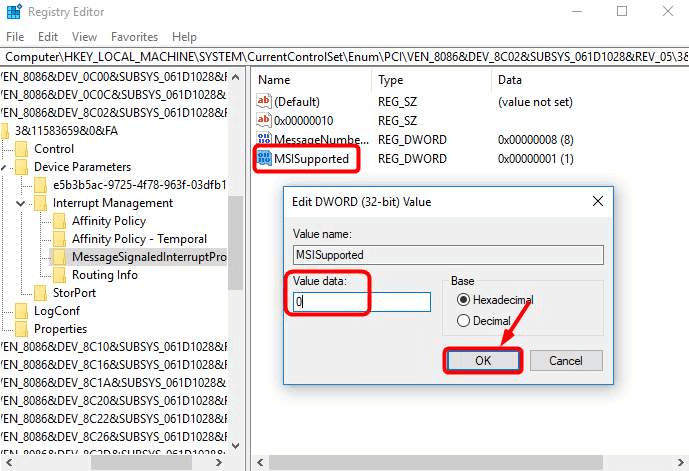
Disabling MSI for the Controller via the Registry
  • Finally, reboot your system to see if this worked or otherwise try the next solutions.

10. Disable Windows Update Service

Our next solution to fix 100% disk usage in Windows 10 is by disabling the Windows Update Service. It can be done as per the outlined steps below:

  • Run “services.msc” and click “OK” to open the Services window.
  • Scroll down to “Windows Update” and double-click on it.
  • As the Properties window pops open, in the start type select the “Disabled” option and then press “Stop.”
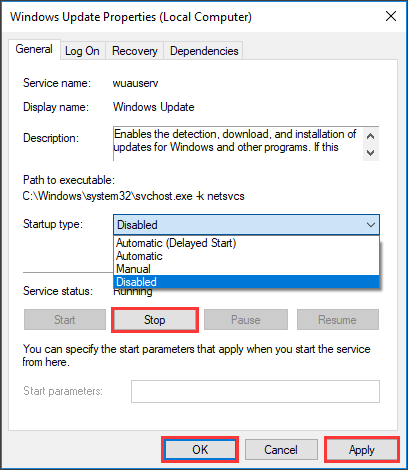
Disable Windows Update Service to Fix Windows 10 100% Disk Usgae Error
  • Followed by this, press “Apply” and “OK” to bring the change into effect.

Read More: Fix The Disk Is Write-protected Error On Windows 10/8/7


Summing Up

So, friends this was our wholesome guide to fix Windows 10 100% disk usage in Task Manager error. With this I hope that you are able to boost your PC performance. Always ensure to run only a few programs at a time to keep your PC performance at an optimum level.

Do let us know in the comments section which method worked for you or if you have any other suggestions.

 

Author

Snigdha

Snigdha is a technical content writer with expertise in the field of science & technology. Though she has a very diverse academic and professional profile yet she finds writing to be a creative form that she was unable to explore so far. When not writing, she can be found indulging in other forms of creativity like painting or travelling.

View all posts

Related Posts
How to Download Photos from iCloud to iPhone, Mac, and Windows PC

How to Download Photos from iCloud to iPhone, Mac, and Windows PC

December 10, 2022
0

Here, in this article, we present a guide to effortlessly downloading iCloud photos to Mac, Windows, or iPhone.

It is quite challenging to recover accidentally deleted photos from iCloud. Hence, it is better to download photos from iCloud to an iPhone, Mac, or Windows computer to ensure there is always a backup with you.

If you are confused about how to do it, you may go through this penned note with the utmost attention. Through this article, we share the step-by-step process to download iCloud photos on Mac, Windows, or iPhone. Let us begin with it without any further ado.

The process to Download Photos from iCloud to Windows, Mac, or iPhone

Let us now look at how to go about downloading photos from iCloud to iPhone, Mac, or Windows one by one, beginning with the transfer to iPhone.

Downloading photos to iPhone from iCloud

You may take the following steps to download your pictures from iCloud to your iPhone.

  • Launch the Settings application on your iPhone.
  • Tap on your name which is present at the top of the Settings menu to go to the Apple ID page.Settings application on your iPhone
  • Select iCloud. 
  • Now, choose Photos. Now, choose Photos
  • If the iCloud Photos toggle is grayed out, tap on it to enable it.iCloud Photos
  • Now, tap on the option to Download and Keep Originals. Download and Keep Originals

Above, we looked at the steps to download photos from iCloud on iPhone. Now, let us learn how to download them on Mac.

Also Read: Restore iPhone from iCloud Backup


Downloading photos to Mac

You can follow the directions shared below to download images from iCloud to Mac.

  • Firstly, open your Mac’s Photos application.
  • Now, choose Photos from the top menu.
  • Select Preferences from the menu that drops down.Photos Preferences
  • Now, select iCloud from the top of the on-screen menu.
  • Finally, choose the option to Download originals to this Mac. Download originals to this Mac

The above was the process of downloading photos from iCloud to Mac. Now, let us look at how to download iCloud images to your Windows computer.


Downloading photos to Windows

Here are the methods you may follow to download photos to your Windows PC from iCloud.

Method 1: Use the keyboard shortcut to download photos to your computer from iCloud

This method to download photos from iCloud to Windows works when you wish to download less than 1000 pictures. If you are downloading less than the said limit, you may follow these steps.

  • Navigate to icloud.com on your Windows computer.
  • Input your credentials, i.e., Apple ID and Password to log in to the iCloud account.Apple ID and Password
  • After signing in, select the Photos icon.select the Photos icon
  • Now, choose the Photos tab and select the First Photo on your screen.choose the Photos tab and select the First Photo on your screen
  • Press and hold the keys Shift+Ctrl+Alt and hit the Down arrow to choose all photos.
  • After selecting all the photos, click on the icon to download all iCloud photos to your computer.

Method 2: Use iCloud for Windows to download photos from iCloud

If you wish to download more than 1000 pictures to your computer from iCloud, you may use the iCloud application for Windows. Here are the step-by-step directions to do it.

  • First of all, get iCloud for Windows on your PC.
  • After completing the download, click on the downloaded setup file and follow the on-screen wizard to install iCloud for Windows.
  • Now, input your Apple ID and Password to sign in to iCloud.Apple ID and Password to sign in to iCloud
  • Next, checkmark the Photos option.Photos option
  • Choose iCloud Photo Library from the pop-up that appears.iCloud Photo Library
  • Select Done. 
  • Now, select Apply to start syncing all cloud pictures to your computer’s downloads folder.
  • After all the photos get downloaded, launch your computer’s File Explorer. 
  • Now, choose iCloud Photos from the left pane and select Downloads from the right pane.iCloud Photos gallery
  • Finally, you may find all your photos downloaded from iCloud in the Downloads folder.

In the above section, we looked at ways to download photos from iCloud on iPhone, Mac, and Windows. Now, let us answer some related questions to clear your doubts if any.

Also Read: Best iCloud Alternatives


Frequently Asked Questions

Below we answer the questions users often ask about downloading pictures from iCloud on iPhone, Windows, and Mac.

Q1. How do you download all photos from iCloud to Windows PC at once?

You may download all iCloud photos to Windows using a keyboard shortcut or the iCloud application. We shared both these options in the above section.

Q2. How do I download thousands of pictures from iCloud?

You may use the iCloud app for Windows to download more than 1000 photos from iCloud. The previous section of this article explained how to do it.

Q3. Will deleting pics from iPhone delete from iCloud?

If you delete photos from the iPhone, these pictures will get deleted from iCloud Photos and all other devices where you have iCloud Photos signed in.


Photos from iCloud Downloaded

Through this article, we shared how to download photos from iCloud on iPhone, Mac, and Windows. You may follow the above guide to get the required pictures downloaded on your desired device.

In case of any confusion, you can write to us in the comments section. And for other helpful tech guides, keep yourself connected with TechPout.

How to Download Corsair Link

How to Download Corsair Link (Easily & Quickly)

January 21, 2024
0

If you are looking for a way to download Corsair Link, then take the help of this article to learn how to execute it and install the RGB controller.

Corsair is a System Monitoring Tool. The system performance monitor assists you in comprehending the problems that are associated with various components of your Windows computer. With regard to control, the program performs a comprehensive monitoring of the output and input of the power supply, in addition to providing a list of essential information on several other hardware features.

The Corsair Link system monitoring tool is a robust tool that allows users to oversee different parts of the Corsair product catalog. This software will automatically identify and monitor suitable system sensors, such as the speed of the fan, the temperature of the CPU, and other similar sensors. Configuring user-specific profiles is possible with the help of this information.

What are the Benefits and Features of Corsair Link?

Under normal circumstances, the primary interface of the Corsair Link app will consist of the following elements.

Options

You are able to customize Corsair Link, set up email notifications, update the firmware of certain Corsair Link devices, and even record any number of variables that are being watched and/or managed by the program via the use of many tabs that are included inside the Options panel.

Also Read: Corsair H115i Driver Issue For Windows 10, 11

Power

This tab is only visible through the Corsair Link Digital connection. Within this page, you will have the ability to monitor the fan speed, consumption, efficiency, load, and temperature of your individual power supply.

Graph

Corsair Link is able to monitor temperatures and fan speeds in real-time, and the Graph tab gives you the ability to choose and graph this data. On the graphing screen, you have the option of selecting any of the temperature inputs or fans.

Groups

The Groups section of the Corsair Link app allows you to control the temperature of different fans and devices. You can even control respective device temperature with this feature.

RGB LEDs Controller

This section of the app allows you to control the RGB or Red, Blue, and Green LED lights of your Corsair devices. This includes keyboards, mice, and all other devices.

Fan Control

When you click on a fan in the Corsair Link System panel, you have the ability to choose from a number of pre-programmed modes and also design a fan speed curve that is unique to your preferences and corresponds to the activity level of a chosen Group.

Control Panel

Your computer’s components, including any Corsair Link-capable hardware that is attached, as well as temperatures for the majority of the component’s CPU activity, and graphics card fan speeds, are all shown on the System panel, which offers an overview of the components that are included inside your computer.

Also Read: Corsair K55 Driver Download and Update for Windows 10, 11


How to Download and Install the Corsair Link App?

The process of downloading Corsair Link is one that is not complicated and is easy to understand. All that is asked of you is to follow the procedures that are given below, and then install the tool in the manner that is necessary.

  1. Corsair’s download center is where you should go.
  2. To locate the version of Corsair Link that best suits your needs, scroll below.
  3. To begin the process of downloading, click the button that looks like a downward arrow next to it.
  4. Following the completion of the download, the file should be decompressed, and then the Corsair LINK Installer should be double-clicked inside the extracted folder.
  5. To install Corsair Link, just follow the instructions that appear on the screen.

Bonus Tip: Update All the Corsair Hardware Drivers for Optimal Performance

If you want to ensure that all your Corsair devices run properly and feasibly, then the best way to ensure this is to update all the drivers for your Corsair devices. To do this, you may find a lot of ways on the internet. However, all the methods are not reliable or even easy to use. Hence, the best and most optimal way to do the same is to use the Win Riser app. This is an advanced tool that helps in automatic updates of all drivers, including those for Corsair devices.

The tool also offers features to remove junk, free up your system from malware, and fix faulty registry entries; apart from updating the drivers. The procedure to use Win Riser is very simple and provided below.

  1. First, click on the button available below and install the Win Riser tool.Download-Button
  2. When the tool installs and runs automatically, wait for it to complete the scanning of the system for outdated drivers.
  3. When the required driver’s list appears, click on the Fix Issues Now button to fix all the errors found by the tool.Win Riser Update the All Outdated Driver Click On Fixes Now
  4. Restart the system when the entire process is complete.

Also Read: How to Fix Corsair Mouse and Keyboard Not Working


Corsair Link: Downloaded With Ease for Windows Devices

So, that’s all folks. We hope that the above content didn’t only help you with the Corsair Link download, but also informed you about the working of the tool. If you have any questions related to the tool, then feel free to ask them in the comments section below. Also, before you go ahead, subscribe to our newsletter by providing your email address in the provided space below. Lastly, we highly appreciate you following us on Facebook, Instagram, Twitter, or Pinterest for support.

1 Comment
    Darrick Varron says: Reply
    November 20th 2020, 2:15 am

    Very nice post, I actually love this web site, carry on it

Leave a Reply Cancel reply

Your email address will not be published. Required fields are marked *

Sidebar Image bit G ad1

Latest Posts

  • Best VirusTotal Alternatives for windows in 2026 
    by Dikshika Singh / April 30, 2026
  • Best Ways to Fix Facebook Session Expired Loop Error  (1)
    Best Ways to Fix Facebook Session Expired Loop Error 
    by Gunjita Sompura / April 28, 2026
  • React vs Vue
    React vs Vue Detailed Comparison in 2026
    by Gunjita Sompura / April 23, 2026
  • Top Image Resizing software for Windows PC 
    by Dikshika Singh / April 21, 2026
  • How-To-Download-and-Install-Windows-Fax-And-Scan-In-Windows-11
    How To Download and Install Windows Fax and Scan in Windows 11
    by Dikshika Singh / April 15, 2026

Categories

  • Cyber Security
  • Driver Updater
  • Entertainment
  • Fitness
  • Games
  • How To
  • laptop
  • OS
  • Reviews
  • Tech News
  • Tips & Tricks
  • Top 10
Sidebar Image bit G ad1
Download & Install Sony VAIO Drivers On Windows 10 Download & Install Sony VAIO Drivers On Windows 10by Monil / January 8, 2021
How To Send Selfie Stickers On Instagramby Jyotsana / January 9, 2021How To Send Selfie Stickers On Instagram
TechPout Footer Logo

We at TechPout promise to put forth stories that help people to learn and simplify their digital life. Our purpose is to share the true essence of technology with our tech-loving community.

Useful Links

  • About Us
  • Contact us
  • Privacy Policy

Popular Posts

  • Best PC Optimizer Software
  • Best Mac Cleaner Apps
  • Best Driver Updater
  • Duplicate Photo Finder and Cleaner Software
  • Best Free Movie Download Sites
  • Best IPTV Players

Follow us

Copyright © 2026 www.techpout.com. All rights reserved
DMCA.com Protection Status