Main LogoLight Logo
  • Reviews
  • Top 10
  • How To
  • Tech News
  • OS
    • Windows
    • MAC
    • iOS
    • Android
  • Categories
    • Driver Updater
    • Cyber Security
    • Games
    • Fitness
    • Entertainment
    • Tips & Tricks
Top 10 Windows
by Prachi Dani

11 Best Free Video Call Software For Windows PC (2024)

January 17, 2024
1

Gone are the days when people used to rely on text messages and calls. With the growth of technology, video calling is gaining popularity at a skyrocketing speed.

High-speed video calling is the thing everyone talks about nowadays. Thankfully several online video calling apps for PC are available to cater to this ever-growing need.

These apps offer a great platform to communicate with your loved ones as if you are talking with them face-to-face. Our blog here will talk about some of the best video calling software for PC.

Let’s get started to explore this fabulous and stunning way of communication.

Table of Contents hide
10 Best Video Call Software For Windows in 2024
1. Skype
2. Google Hangouts
3. Facebook Video Chat
4. Line
5. Viber
6. Zoom
7. Imo
8. Talky
9. Zalo
10. Ekiga
11. TokBox
Conclusion

10 Best Video Call Software For Windows in 2024

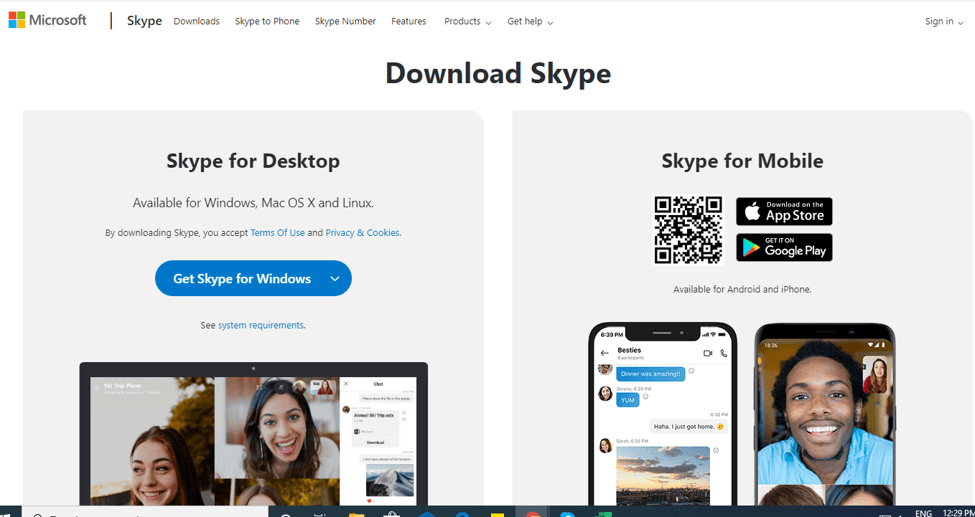
1. Skype

Best Video Call Software - Skype
Image Source: Skype

First on our list of video call software for PCs is this incredible tool. Skype is a highly popular platform and enjoys a rich user base.

The incredible set of features and offerings of Skype ensures that you get a smooth video-chat experience.

With this power-packed tool, you can do a lot of things, you can do a full-screen video call with it and even mute the video in an ongoing call. Apart from this, it also supports easy networking and finding a friend on it is fairly simple.

Just create your account, find your friends and start video calling.

Read Also: Top 10 Best Video Editing Software for Windows


2. Google Hangouts
Best Video Call Software For Windows - Google Hangouts
Image Source: Techviral

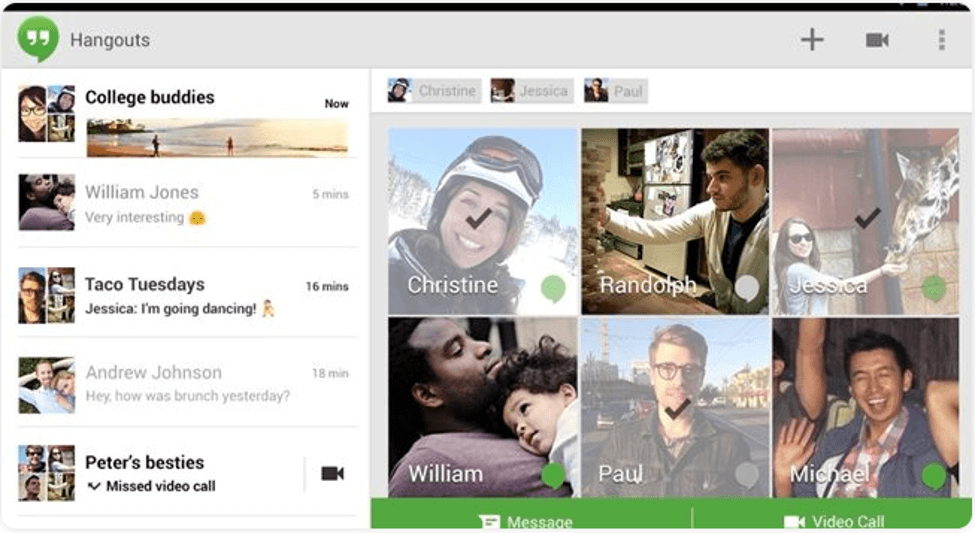
Another best and free video call software that you can pick in 2024 is Google Hangouts. The application first came as an official in-built part of Google’s Hangout social media platform.

With this stunning application, you can enjoy having video chat with up to 10 people at a single time. You can have one-on-one conversations with your loved ones, share photos, GIFs, emojis, and much more. Apart from this, you can use it to send text messages, make audio, and uninterrupted video calls.

With its simple interface, you can find your friends very easily, and the app syncs quite smoothly with various platforms including smartphones, iOS, and Windows.

Use it today to experience a secure way of video calling.


3. Facebook Video Chat
Best Video Call Software - Facebook Video Chat
Image Source: Techviral

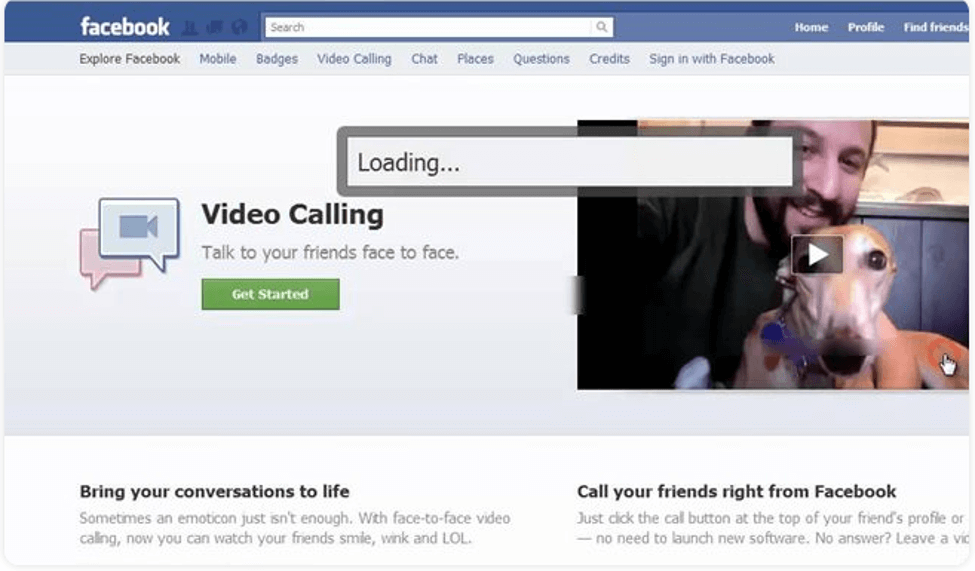
Our next pick comes from the Social Media giant, Facebook. Facebook video chat offers a simple and smooth way of exchanging text messages and doing video chats.

See your dull conversations come to life with this feature-rich tool. Creating an account on it is fairly simple, and you can use it to share emojis and reactions with your friends, share stories, send your live location, play games, and whatnot.

All-in-all Facebook Video Chat comes with great functionality and features and can be a good pick for you.


4. Line

Best Video Call Software - Line
Image Source: Techviral

The line is a well-known video-calling app in Asian countries. The application works smoothly on smartphones but also performs incredibly well on desktops. Loaded with multiple high-end features it also ensures to deliver stunning video feeds.

Apart from this you also get a massive collection of emotions with it which adds to your video chat experience. You can also use it to send audio messages and snapshots with your friends and fellow contacts.


5. Viber
Best Video Call Software - Viber
Image Source: Techviral

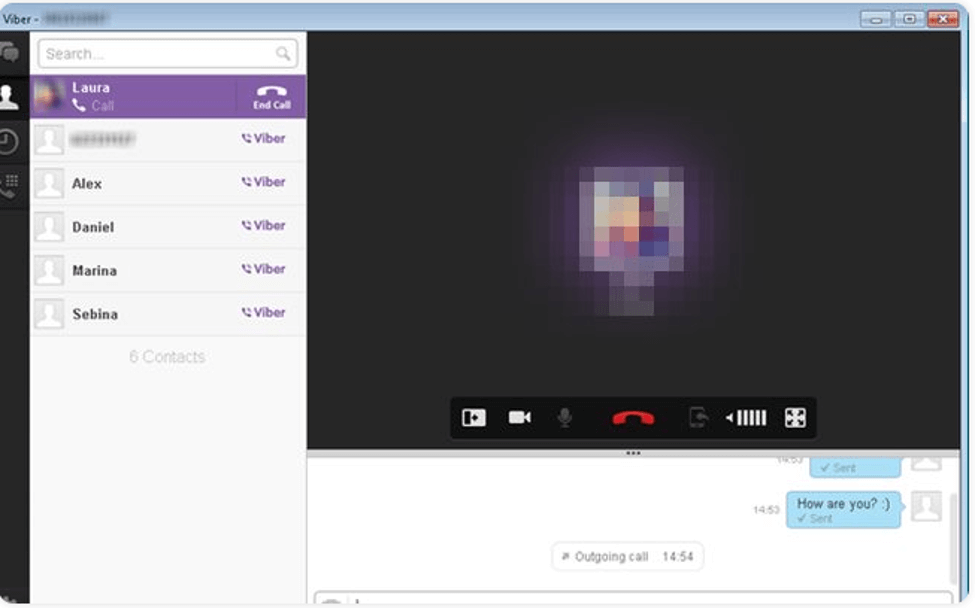
Next on our list of best video calling software for laptop and desktop PCs is Viber. It is a well-known name in its category of software and provides a good platform for uninterrupted video calling services.

It works fairly well on almost all platforms and comes with a clean and convenient working. On the top, setting up an account on Viber is very simple, just enter your mobile number and you are good to go.

Find and add your friends to your contact list and start video calling.


6. Zoom
Best Video Call Software For Windows - Zoom
Image Source: Zoom

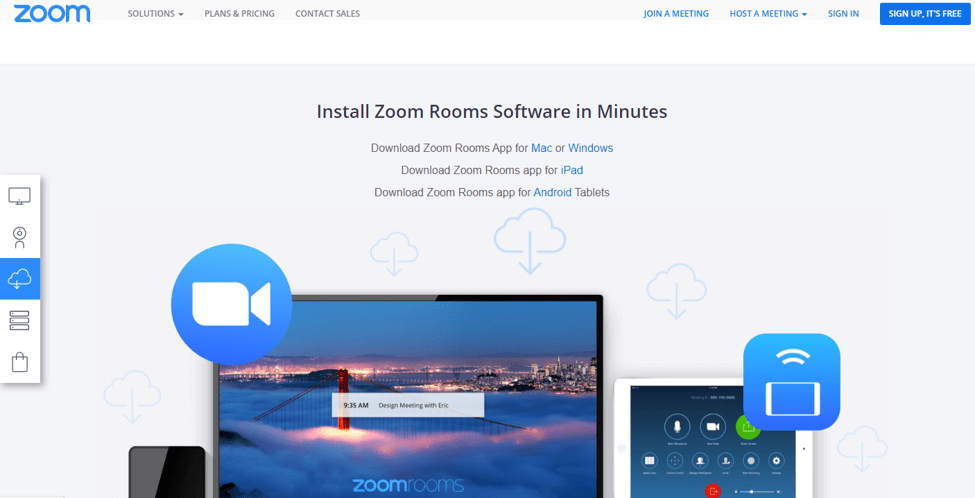
Zoom is a global platform that aims to provide tremendous opportunities to its customers in the field of video calling. Portable display sharing and breakout rooms are two of its distinguishing features.

You can add up to 100 contacts to your profile. Apart from this, a great display screen and high-quality video talk are a few of its other notable features.

Use it for multi-screen video sharing, enterprise remote management, calendar integration to schedule various meetings, and much more.


7. Imo
Best Video Call Software - Imo
Image Source: Techviral

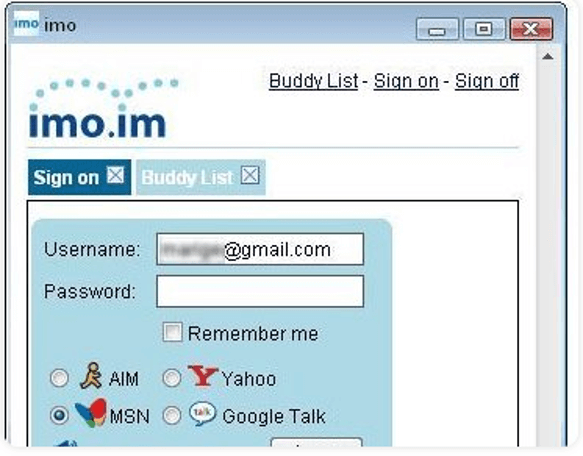
Imo is another best video calling software that you can consider for your Windows PC in 2024. The software comes powered with multi-tool support and an easy-to-use interface. You can use it on your smartphones as well as on your desktops.

In addition to this, it also offers several happy and cool stickers that add to your video-calling experience. The app can work well on smartphones, and desktops and also offers an extension for Chrome browsers.

Pick this best and free video call software and enjoy hassle-free video and voice calling with your friends.


8. Talky
Best Video Call Software - Talky
Image Source: Talky

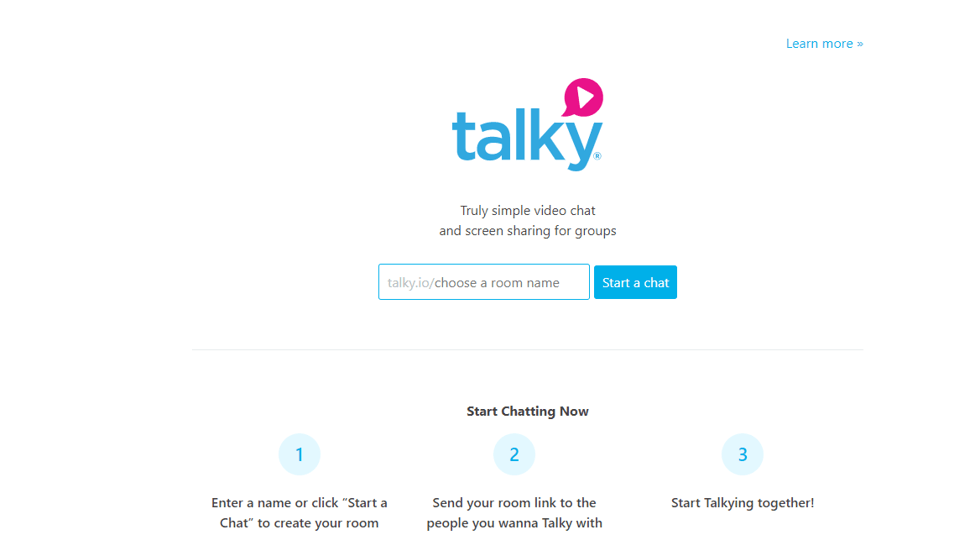
Still finding it difficult to pick the best video call software for your Windows PC, Talky can be of great assistance to you. The application does not ask for any information exchange and is very simple to use.

You can add it and complete the set-up process within seconds. Use this incredible platform to experience high-quality video calling and enjoy added benefits like bolted rooms and screen sharing.


9. Zalo
Best Video Call Software - Zalo
Image Source: Zalo

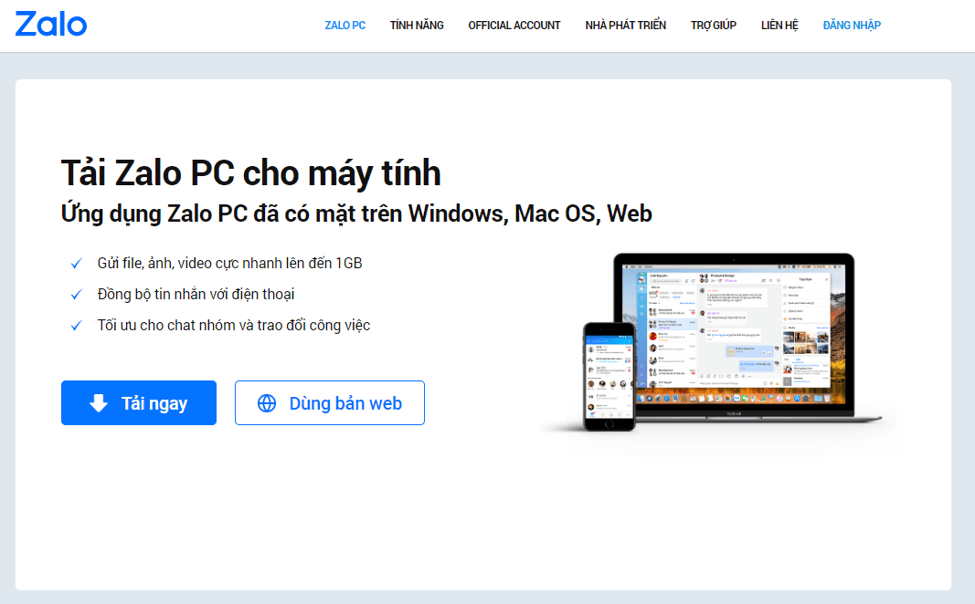
This is a relatively new video calling software but comes with a lot of useful functionalities and features. It works well on iOS, Android, and Windows platforms.

You can use it to do video calls with your friends, share stickers and emojis, discover other people who are using it in nearby locations, and much more.

All-in-all it is a good choice to make.

Read More: Best Free Video Sharing Sites Like YouTube


10. Ekiga
Best Video Call Software - Ekiga
Image Source: Techviral

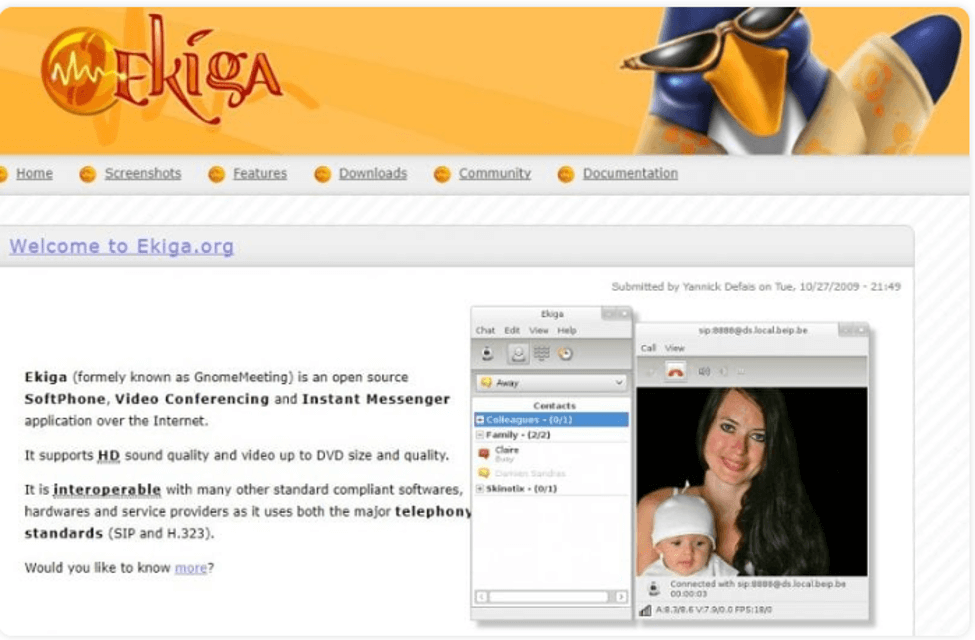
Next on our list of Video chat software is Ekiga, initially known as GnomeMeeting. It is an open-source video calling platform that also works as an instant messaging platform.

If you wish to experience HD sound quality and a great display screen then pick Ekiga.


11. TokBox

Best Video Call Software - TokBox
Image Source: Techviral

Our last pick is this amazing web-based video calling tool. Setting it up is very easy, just log in and you are good to go.

Use it to get a customized video calling experience, it can be set up within any web browser.


Conclusion

That’s all friends, I hope now you have a fair deal of ideas about some of the best video calling software that you can pick in 2024 for your Windows PC.

All the tools mentioned above are excellent in what they do and ensure uninterrupted communication. Make your choice and start video calling your friends.


Author

Prachi Dani

Prachi Dani is a technical content writer who specializes in areas of science and technology. She is highly up to date with technological transitions and transformations. Writing is not her passion but the only thing that carries satisfaction in life. If not writing, you may find her engrossed playing action games on her treasured smartphone.

View all posts

Related Posts
Download, Install and Update Gigabyte motherboard drivers for Windows 10

Gigabyte Motherboard Drivers for Windows 10 [Download, Install and Update]

March 3, 2021
0

Quite a few users want to download and update Gigabyte Motherboard drivers for Windows 10, unfortunately, don’t know how to do that. But, after reading this complete guide, you will exactly understand what to do!

Having issues with the Gigabyte motherboard drivers in your Windows 10 computer? It does happen sometimes but you don’t have to worry as there are easy ways to fix the issue. It doesn’t make any difference whether your system is 32-bit or 64-bit, after every Windows Update, you should perform Motherboard driver updates such as Gigabyte Z390 Gaming Motherboard. Just be sure the Motherboard drivers are up-to-date to the latest version, plus, compatible with your Windows 10 operating system.

Contrary to other device drivers, Motherboard drivers include numerous drivers for Windows 10 including the graphics card, sound card, video card, and chipset drivers.

Through this tutorial, we will explore the ways to download and install the Gigabyte motherboard drivers for Windows 10. We will also see what role the Gigabyte motherboard drivers play in the Windows 10 computer.

Universal Solution to Download Gigabyte Motherboard Drivers (Recommended by Professionals)

You can simply install and run Bit Driver Updater on your PC to replace your old or bad Gigabyte motherboard drivers with the latest, manufacturer-recommended versions in a jiffy. You can download the Bit Driver Updater application for Free from here:

Windows Download Button

What is Gigabyte Motherboard Driver?

Gigabyte motherboard drivers act as an interface between the Windows operating system and the Motherboard of your computer.

We know that the Motherboard is an important piece of hardware because it connects all other essential parts of your computer together like the RAM, CPU, hard drives, driver software and others either directly or with the help of wires.

Therefore, it is important to keep the motherboard driver in an up-to-date state so that the system functions without crashing, freezing, or encountering any other major issues.


Why Update Gigabyte Motherboard Drivers for Windows 10?

The Motherboard driver lets the Motherboard hardware interact with the operating system. The outdated gigabyte Motherboard can result in frequent system failures, snail-like slow performance, and low-security patches.

Hence, it is crucial to frequently update Gigabyte Motherboard drivers for experiencing the fastest PC’s performance and preventing the often system failures. Updated Motherboard optimizes the overall Windows 10 performance. But, before you get started with it, just be sure to know the serial number of your gigabyte Motherboard.

Also Read: Best Ways to Update Outdated Drivers in Windows 10 & Older Version


How to Install Gigabyte Motherboard Drivers for Windows 10?

Read the below ways to understand how to download and install as well as update the Gigabyte motherboard drivers of your computer.

1. Manual Method to Install Gigabyte Motherboard Drivers

You can utilize the manual method of downloading and installing the motherboard drivers. For this, you need to head to Gigabyte’s website to get the latest drivers of the Motherboard hardware. You can follow the below steps:

  • Open the website of Gigabyte and enter the Model Number and then hit the search icon.
  • Alternatively, you can also search for the motherboard driver “By Chipset” or “Socket” specification.

Gigabyte motherboard drivers

  • Once you have found the latest motherboard driver package, then download the .exe file and double click on the setup file to open and install it on your PC.
  • Follow the on-screen instructions to complete the steps of installation.
  • Finally, restart your Windows 10 PC once to complete the installation process.

2. Download Gigabyte Motherboard Drivers in Device Manager

Microsoft Windows has a built-in utility tool called Device Manager to control numerous devices. As we have explained above, to update the drivers for the gigabyte Motherboard, you need to update the graphics card drivers, chipset drivers, and other sorts of hardware drivers. Go with the below-shared steps to download Gigabyte Motherboard drivers using Device Manager.

Step 1: Hit the Windows and R keys from the keyboard to open the Run Dialog box.

Step 2: After this, type devmgmt.msc in the box and click on the Ok button.

Type devmgmt.msc in Run Dialog Box

Step 3: Now, double click on the Display adapters component to expand its category.

Step 4: Click right on the graphics driver to choose the Update Driver.

Choose Update Driver Option From The List

Step 5: The next wizard shows two options, you need to choose the first one i.e., Search Automatically for the Updated Driver Software.

Click On Search Automatically For Updated Driver Software

Now, wait until the Windows explore drivers online for the graphics card. Similarly, update the chipset drivers using Device Manager for Windows 10. Maybe, there is an in-built video card integrated on your Motherboard. Hence, updating the drivers related to the Gigabyte Motherboard leads you in the right direction. So, this is how you can update Motherboard drivers using Windows in-built utility program Device Manager.


3. Automatic Method to Install Gigabyte Motherboard Drivers

You can skip the above-mentioned tedious, cumbersome, and time-taking manual method and utilize the automatic method instead. You can make use of Bit Driver Updater software which is efficient in finding and downloading the driver software of your PC. With this tool, you can also take up the task of Gigabyte motherboard drivers update.

Windows Download Button

Noteworthy features of Bit Driver Updater:

  • It is enabled with one-click update feature.
  • It is also enabled with the ability to optimize the performance of your system.
  • Users can rely on the backup and restore drivers feature.
  • You can avail round the clock technical service assistance.
  • The extensive driver database offers genuine driver updates.

Steps to Install Gigabyte Motherboard Hardware Drivers:

You know now how Bit Driver Updater can help your computer remain stable and perform well. Now, let’s see how you can use this tool to download motherboard drivers.

Bit Driver Updater - Best Driver Updater Software

Windows Download Button

  • Install the Bit Driver Updater tool and use it to scan your PC drivers.
  • Then, click the Update button to install the most recent drivers of the motherboard driver.
  • Ultimately, restart your Windows system.

Read Also: How to Restore Audio (Sound) Drivers on Windows 10, 8, 7?


Gigabyte Motherboard Drivers Updated

This is how you can download and install Gigabyte motherboard drivers for Windows 10 PC. Also, Gigabyte motherboard drivers update is possible with the use of the automatic method described in the above article.

It is always suggested to keep the motherboard drivers updated to prevent the computer from malfunctioning as the Motherboard pieces together all the essential components of the computer.

Drop in your suggestions or questions for us in the comments box below and follow us on social media to get the latest updates from the world of technology.

How To Fix Printer Printing Blank Pages On Windows 10

How To Fix Printer Printing Blank Pages On Windows 10? Easy Solutions!

October 30, 2020
0

In this write-up, we answer your question “Why a Printer Printing Blank Pages”. So, stay focused on this penned note to get the solutions to fix the issue. 

Nothing is more frustrating when the particular device lags to do what it is supposed to do. Is it so with you all as well? Probably, yes, because when you acquire a device you always wished off to receive the accurate outcome of what it meant to do. But, what if when it lags in doing so? You’ll get irritated endlessly. Right no?

So, basically, we are here talking about the printer and issues related to it. Almost, most of us ever faced a situation where you’ve got to notice that your printer is printing the blank pages. And, possibly some of you are currently facing the same issue. In that case, the only question that constantly hits in your mind is – Why is my printer printing the blank pages? Are we hitting the right odds? But, things have gone extremely wrong when we lag in fixing the issue. 

Surprisingly, lucky you, because now fixing the printer printing blank pages issue is a matter of moments. What you need to do is, just rely on a few methods and choose the appropriate one that fits the bill. If you are quite unaware of those useful methods then no need to worry as below we shared the list of methods. But, before switching to the list, it’s cool enough to know why your printer jammed in the situation where it prints the blank pages.

Powerful Solution to Fix Printer Printing Blank Pages on Windows 10

When the printer driver hasn’t installed properly then the printer prints blank pages. So, to fix the printer driver issues, one should use Bit Driver Updater. It is the best utility tool to fix driver issues. Along with it, the tool can update all the outdated drivers in just one click. Through this driver updater utility, you can also elevate the speed of your overall system. Download this advanced all-in-one solution for free from the link given below.
Windows Download Button

Why is my Printer Printing Blank Pages?

The printer stops doing what it’s supposed to do i.e., printing. When you receive blank pages from your printer it occurs because of printer glitches. 

  • Installing a new cartridge can be a cause for this error, even an old one too. 
  • Stubborn hardware issues.
  • Outdated printer and software drivers.
  • Printer running out of ink. 
  • Printing nozzles get blocked if the printer isn’t used for so long. 

So, these are some heading causes because of which printer printing blank pages. Now, when you’ve familiar with the causes, it’s time to head to the solution to get rid of this issue. Hence, centric your eyeballs on the below-shared methods to fix the same issue. 


Quick Solutions to Fix Printer Printing Blank Pages on Windows 10

Facing lots of trouble while fixing a “printer printing blank pages” issue. Then, we can help. But, you need to go through the entire typewritten note!

Method 1: Start your Printer Again 

Whenever, you get stuck into any faulty situation or don’t be able to receive the proper outcomes, not only with the printer but other things as well. Then in that case, initially you have to restart your printer just to wipe out the corrupt elements. Sometimes, it proves worthwhile and fixes the issue, whatever is hindering your work. But, in the course, where it doesn’t fix the issues, then move to the below solutions. Before moving ahead, here’s a step to restart the printer!

Step 1:- Hit the Power supply button presented on your Printer to turn it off. 

Step 2:- Now, plug-out the printer power cable and wait for a while.

Step 3:- Then, plug-in the printer power cable into the power socket.

Step 4:- After that, start your printer.

Once you restart your printer then try to print a page just to check whether the printer printing blank pages or not. 

Read Also: Fix “Printer Not Responding” Error on Windows PC


Method 2: Inspect Ink Levels 

If restarting the printer doesn’t fix the issue then try this solution. Printer prints blank or faded pages when the ink cartridge is empty or running with low ink levels. So, keep checking the ink levels, and when you find the ink cartridge empty fill it instantly. You can check the printer’s ink levels by utilizing the menu buttons on your printer. It will be present as Ink Levels or Print Quality depending on your printer model. 

Or there is one way as well to check the ink level and which is the printer’s manual. So, make sure the ink cartridge must be kept filled always, because if there is no ink, then obviously, the printer lags in printing accurately. That’s how you can surely fix a printer printing blank pages issue. 


Method 3: Void the Clogged Print Head 

Just in case, if you have not used your printer for so long, then the complete amount of ink dries up and gets jammed in the print heads. Hence, you need to clean the print heads to fix the printer printing blank pages. To void the nozzles or print heads, in most of the printer models, there is an option to clear print heads in the menu of the printer. If you want that you will not experience the same issue in the future as well, then make sure you print a page every 3 or 4 days. 

Read More: Download Epson Printer Drivers For Windows 10


Method 4: Perform Windows Printer Troubleshooter

Windows offers some in-built functionalities to fix the tech errors. If you are also facing printer-related issues then, in that case, you need to run the troubleshooter initially to fix the issue. Here’s how to do it!

Step 1:- Hit the Win key, and type Troubleshooting.

Hit The Win Key and Type Troubleshooting

Step 2:- Now, select the best match to open-up the troubleshooting settings.

Step 3:- After that, choose printer and click on the Run the Troubleshooter.

Choose Printer and Click on Run The Troubleshooter

Once troubleshooting gets completed, try printing a page just to ensure still, the printer printing blank pages or not. 


Method 5: Update Printer Drivers

Drivers are essentially a core-centric element that ensures the effective working of every device that you used or even an entire system as well. Therefore, always make sure that your system and hardware drivers are always updated. The same methodology works for the printer as well. If you want to run your printer smoothly and keep it impeccable, then you need to keep your printer drivers updated. You can update printer drivers either manually or automatically. Below, we’ve shared the steps for both, just take a quick look!

Option 1: Update Printer Driver via Official Website of Manufacturer (Manually)

Nothing is more secure than the official source. So, if you want to look out the whole scenario on your own, then you have to adopt the manual option to update the printer’s drivers. You can update the printer driver safely from the official website of the manufacturer. You just need to focus on a certain series of steps. Here’s how to do it!

Step 1:- Go to the official website of your printer, for instance, if you have an Epson printer then visit Epson official website. 

Step 2:- Then, switch to the support tab and choose printer.

Step 3:- After that, the list will pop-up and asks you to enter the model name of your printer.

Step 4:- After entering the model name of your printer hit the submit button.

Step 5:- Now, to move further, choose the compatible version of Windows OS and then click on the downloads.

That is it! what you have to do for updating printer drivers using the official website of the manufacturer. So, now you are aware of how to fix printer printing blank pages issue via updating drivers. 

Read More: Best Driver Updater Software for WINDOWS 10

Option 2: Update Printer Driver using Bit Driver Updater (Automatically)

If you are not a tech-type individual, then you may have to face trouble while updating the drivers in a manual way. Hence, just for your convenience, we want to recommend you Bit Driver Updater, a fully automated tool that itself updates all the outdated drivers within just a single go. You can download Bit Driver Updater by clicking on the below download link button. String with the below listed steps to update & install drivers via Bit Driver Updater!

Windows Download Button

Step 1:- Download Bit Driver Updater.

Step 2:- Run the installer then follow wizard instructions.

Bit Driver Updater Software

Step 3:- Once the Bit Driver Updater is installed completely, then you have to wait for some time until the automatic scan is processed.

Step 4:- Now, it shows the list of drivers, review the list quite actively.

Step 5:- After that, select the updates and click on the Update Now option.

Within 5 steps you can successfully update the printer drivers through Bit Driver Updater. If your printer printing blank pages, then try to update the drivers in terms of fixing the issue.

Windows Download Button


Printer Printing Blank Pages – [Fixed]

When you expect that your printer produces the shiny bold prints but responds in the totally vice-versa manner. Don’t feel depressed because of this, as now you can solve this issue. Yeah, using the above solutions you can easily fix a printer prints blank pages issue. Through this post, we’ve brought up a list of some easy solutions. We hope, now you can easily troubleshoot the issue of your printer regarding the same. Still, the issue remains the same, and your printer printing the blank pages then do let us know in the comment section below. We’ll try to help you out in all the possible ways. Lastly, subscribe to our Newsletter to stay updated about every tech happening! That’s all, up till now, stay engaged with us, we’ll catch you up soon!  

Pro Tip: We would like to give you a pro tip that helps you a lot if you take it seriously and ensure it goes perfectly. So, the pro tip is – you need to keep your printer drivers updated always, for receiving the perfect print outs. Hence, keep in mind that your printer drivers must be associated with the latest updates.

1 Comment
    Macbeth says: Reply
    December 29th 2020, 12:10 pm

    Hello,

    Thanks for the great article !!

Leave a Reply Cancel reply

Your email address will not be published. Required fields are marked *

Sidebar Image bit G ad1

Latest Posts

  • Best-Free-Online-Portfolio-Websites-in-2026
    Best Free Online Portfolio Websites in 2026
    by Niharika / March 16, 2026
  • Anytime Astro: Best Website For Online Astrology Consultation
    Anytime Astro: Connect Now For Online Astrology Consultation
    by Somya Shrimal / March 13, 2026
  • Best-Ways-to-Combine-Images-Into-PDF-Files
    Best Ways to Combine Images Into PDF Files
    by Niharika / March 12, 2026
  • Best FREE VPS Hosting Providers
    7 Best FREE VPS Hosting Providers in 2026
    by Devesh / March 12, 2026
  • Best-McAfee-alternative-software-to-use-for-Virus-Protection
    Best McAfee Alternative Software to use for Virus Protection
    by adminuser / February 11, 2026

Categories

  • Cyber Security
  • Driver Updater
  • Entertainment
  • Fitness
  • Games
  • How To
  • laptop
  • OS
  • Reviews
  • Tech News
  • Tips & Tricks
  • Top 10
Sidebar Image bit G ad1
9 Best Shareit Alternative for PC in 2024 - Instant Transfer Files 9 Best Shareit Alternative for PC in 2024 - Instant Transfer Filesby Tanmay Sharma / January 17, 2024
7 Best Pinterest Alternative Sites & Apps You Should Use in 2024by Jyotsana / January 17, 2024Best Pinterest Alternative Sites & Apps You Should Use in 2024
TechPout Footer Logo

We at TechPout promise to put forth stories that help people to learn and simplify their digital life. Our purpose is to share the true essence of technology with our tech-loving community.

Useful Links

  • About Us
  • Contact us
  • Privacy Policy

Popular Posts

  • Best PC Optimizer Software
  • Best Mac Cleaner Apps
  • Best Driver Updater
  • Duplicate Photo Finder and Cleaner Software
  • Best Free Movie Download Sites
  • Best IPTV Players

Follow us

Copyright © 2026 www.techpout.com. All rights reserved
DMCA.com Protection Status