Main LogoLight Logo
  • Reviews
  • Top 10
  • How To
  • Tech News
  • OS
    • Windows
    • MAC
    • iOS
    • Android
  • Categories
    • Driver Updater
    • Cyber Security
    • Games
    • Fitness
    • Entertainment
    • Tips & Tricks
Top 10 Windows
by Snigdha

12 Best Lightweight Antivirus for Windows 10

January 11, 2024
1

Is your antivirus software eating away too much system resources? Are you considering replacing it with a lightweight antivirus so that you can use it without encountering problems with your system?

An advanced antivirus is capable of many things including ransomware detection, removal of all potent forms of malware, and a lot more. But at the same time, installing and using advanced antivirus tools can be too heavy on the system resources.They are pricey and use the RAM extensively besides consuming heavy power and making the PC run slowly.

Lightweight antivirus software for Windows 10 on the other hand uses less system resources yet provides adequate protection from malware attacks.

We have, therefore, found out and listed down the best lightweight antivirus tools that have a good reputation and can be mostly used for day-to-day works.

Table of Contents hide
Things to Consider Before Choosing an Antivirus Software
12 Best Lightweight Antivirus for Windows 10 In 2024:
1. Kaspersky Total Security
2. McAfee Total Protection
3. Panda Free Antivirus
4. Bitdefender
5. Avira Free Antivirus
6. AVG Free Antivirus
7. Avast Free Antivirus
8. BullGuard Antivirus
9. 360 Total Security
10. Comodo Free Antivirus
11. Sophos Home Free
12. Malwarebytes

Things to Consider Before Choosing an Antivirus Software

Here are the few features that you should search for before installing an antivirus software on your computer:

  • The antivirus application should not be using your system resources heavily.
  • The antivirus software should be capable of detecting, blocking, and removing a huge range of malware such as viruses, spyware, ransomware, keyloggers, rootkits, Trojans, etc.
  • The antivirus should be effective against phishing attempts.
  • The antivirus software should be efficient in detecting zero-day threats.
  • The antivirus should be capable of frequently updating the virus definition.
  • The antivirus software should be reasonably priced.
  • You should also see whether the antivirus includes some additional features like in-built firewall, VPN, parental control features, password manager, etc.

12 Best Lightweight Antivirus for Windows 10 In 2024:

If you are on the lookout for lightweight antiviruses for Windows 10, then here are the top 12 picks for you.

1. Kaspersky Total Security
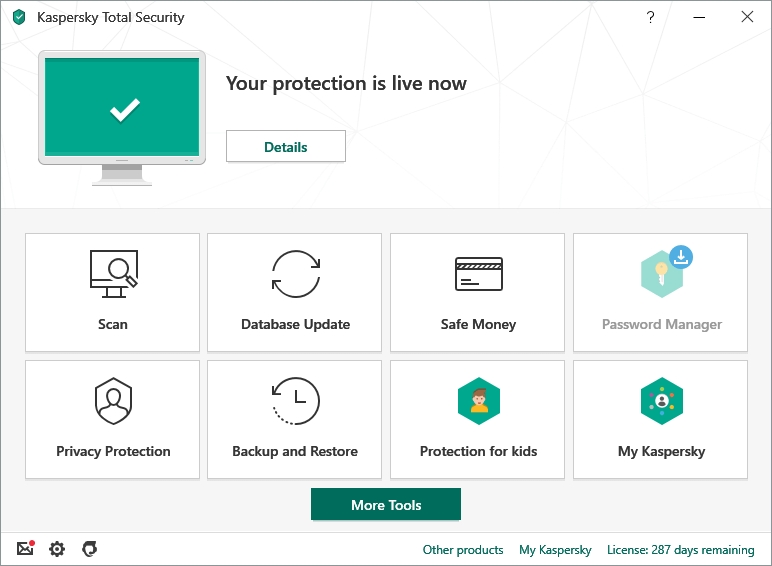
Kaspersky Total Security

If you are seeking the best lightweight antivirus for Windows 10, then here is an ultimate tool that can serve the purpose. It consumes less system resources, therefore, it can be used without any worries. 

An award-winning antivirus solution from Kaspersky labs offers many brilliant features to detect and remove malware, crypto lockers, etc besides backing up your data

Essential Features:

  • Offers bank-grade encryption facility to protect netbanking use.
  • Includes advanced parental control features and a VPN feature to encrypt data.
  • Real-time scanning and email scanning detects malware and phishing attempts.
  • Provides webcam security along with anti-ransomware and anti-spyware features.
  • Users can utilize Kaspersky Security Cloud to store data and manage passwords, etc.

Windows Download Button


2. McAfee Total Protection

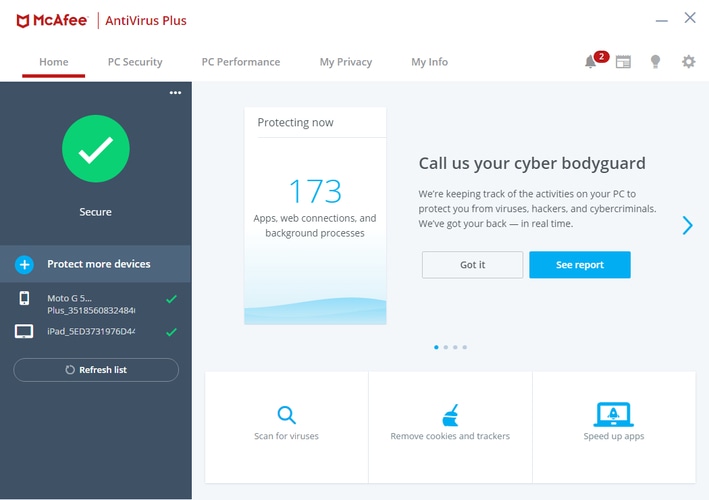
McAfee Antivirus Plus

As the name suggests this antivirus software for Windows and Mac offers total protection. Unlike other lightweight antivirus on this list, McAfee offers some of the best protection features. This antivirus software has home network security, performance optimizer, password manager, and safe web browsing-like amazing features.

The software cannot be included in the list of free software as it requires a subscription to use and has no free malware removal feature. According to your requirement, you can choose the plan. It offers three plans including Individual/couple, single device, and family plan. Depending on the offer the prices can go down. We would suggest you to buy the software when offers are active. Apart from this, there are many other features that are offered by this Kaspersky alternative. Some of them are listed below.

Essential Features:

  • The antivirus protects your financial and personal information from fraud
  • Irrespective of the network you can browse freely as the software protects data
  • Notifies the user about fraudulent sites and dangers
  • It offers bank-grade VPN encryption

3. Panda Free Antivirus
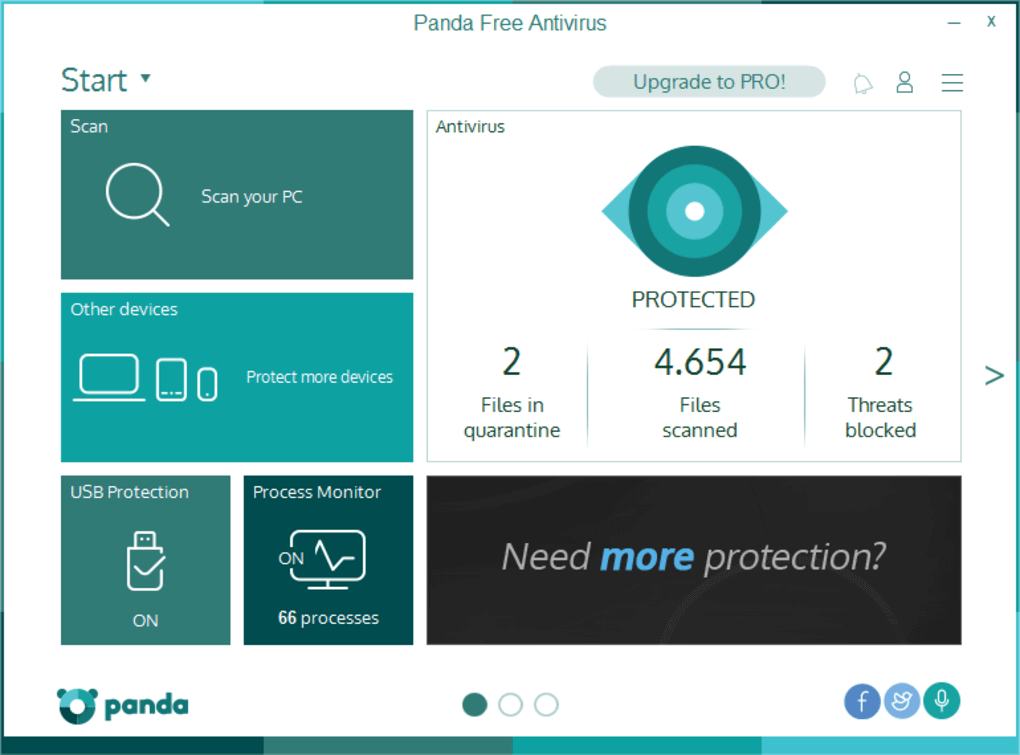
Panda Free Antivirus

Being a lightweight antivirus for Windows 10, this app is another best solution to manage your system’s security needs effortlessly. The app has a clean UI with an intuitive dashboard, making it easy-to-use application for novices. 

Although a free tool, users can still obtain unlimited free VPN data with the Panda Dome Premium plan, otherwise it has a data limit of 150 MB per day.

Essential Features:

  • VPN feature saves your system even on a public Wi-Fi network.
  • Includes a firewall to block intrusions.
  • A free PC recovery system can be availed with the panda rescue kit.
  • Also offers an excellent USB protection feature.

Read Also: Best Firewall Software For Windows


4. Bitdefender
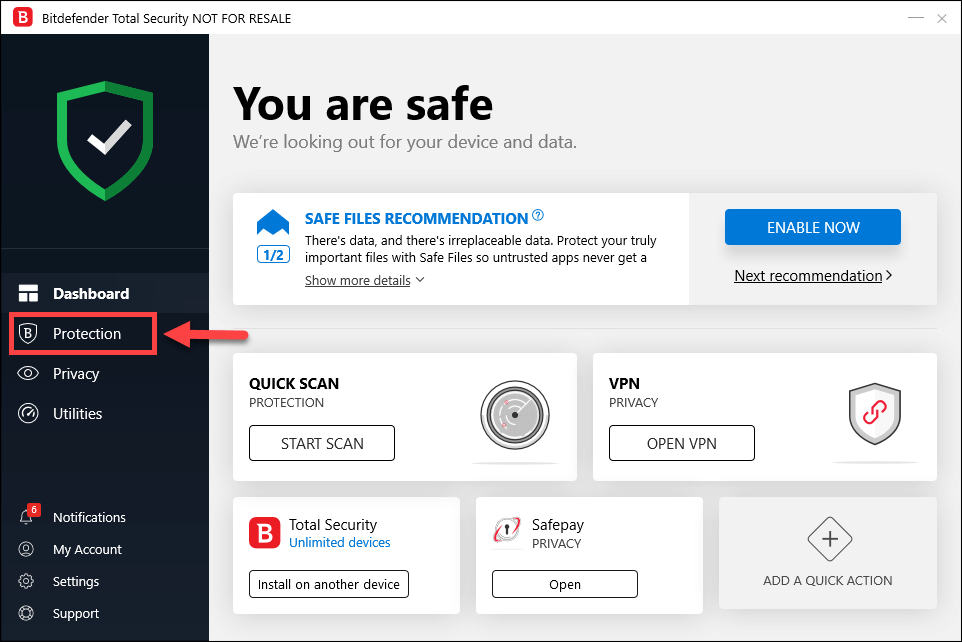
Bitdefender

Are you looking for the best lightweight antivirus solution? Bitdefender is the tool of the next generation with the utilization of artificial intelligence and other advanced technologies. Offering multilayered protection to defend against cyberattacks, this lightweight antivirus tool is capable of malware removal efficiently.

Essential Features:

  • It has an in-built password manager.
  • Offers webcam protection.
  • Efficiently monitors the dark web.
  • Runs in the background without slowing down the PC.

5. Avira Free Antivirus
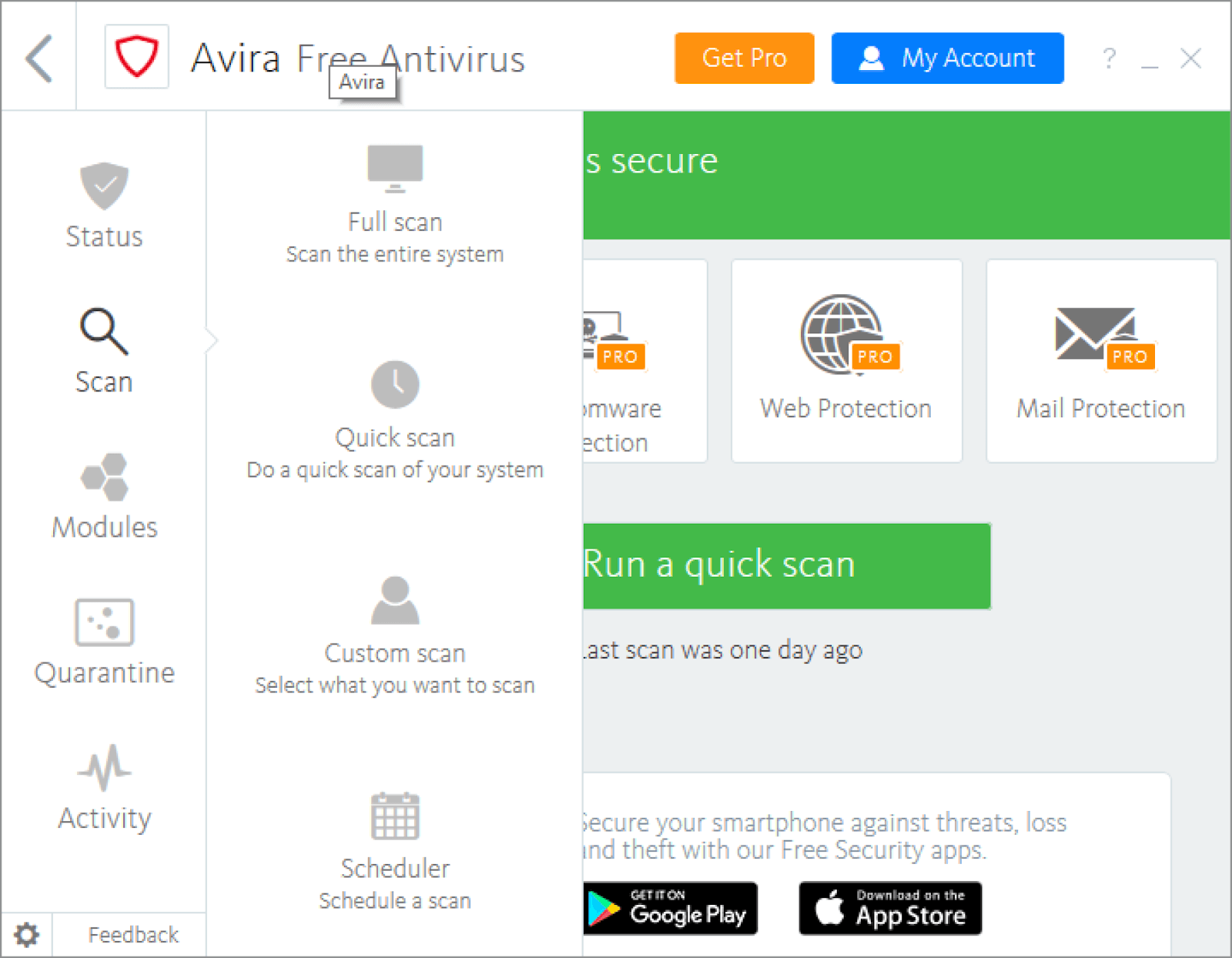
Avira Free Antivirus

Avira free antivirus is our next pick in the category of lightweight antivirus for Windows 10 because it is extremely easy- to-use, is light on the system resources, and is one of the world’s best cloud-based scanning tools.

Essential Features:

  • It operates in the cloud and is hence much faster.
  • It consumes less system resources due to its ability to operate in the cloud.
  • Offers effective shopping Chrome and Firefox browser extensions.
  • Protects a great deal against phishing scams.

6. AVG Free Antivirus
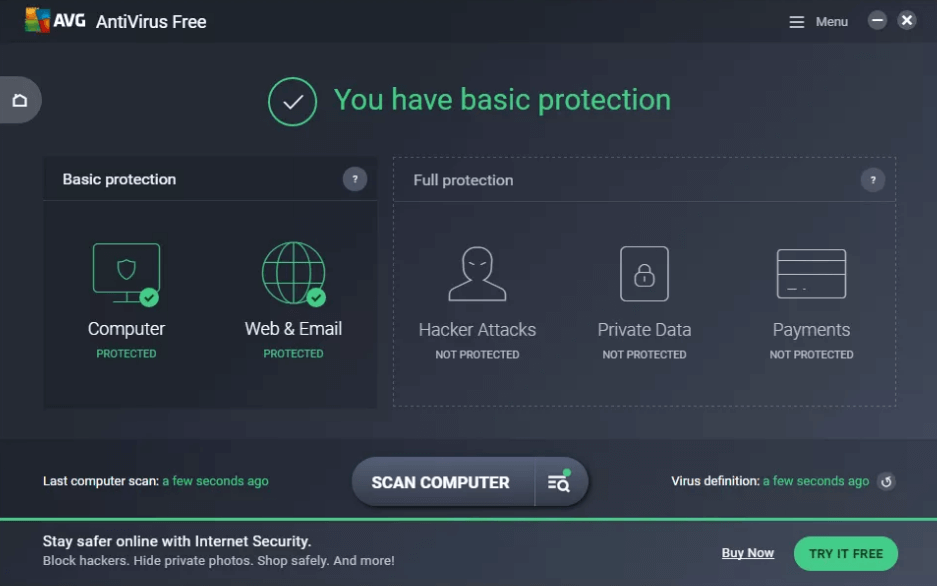
AVG Free Antivirus

AVG antivirus tool is a free antivirus tool that is able to cater to the needs of the users in defending their systems against malware attacks despite being a lightweight antivirus for Windows 10.

Essential Features:

  • Capable of blocking unsafe links, downloads, and email attachments.
  • Automatically updates the virus definition in real-time.
  • Protects from spyware and other malicious programs.

7. Avast Free Antivirus
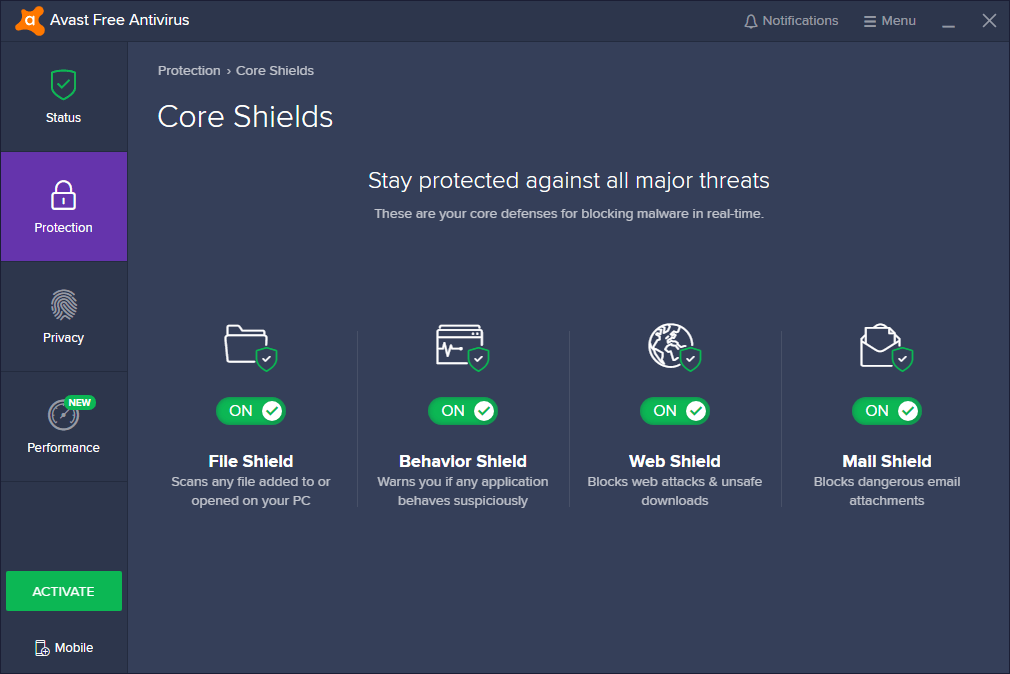
Avast Free Antivirus

This is another best lightweight antivirus software that can offer extensive protection to your PC against cyberthreats without eating up your system resources. It has the biggest threat detection network and uses a heuristics engine to watch your system constantly to detect anomalous behavior.

Essential Features:

  • Detects and blocks spyware, ransomware, and phishing attacks.
  • Uses smart analytics techniques and machine-learning to defend a system.
  • Scans unknown files in real-time and sends threats to the Cloud.
  • Encrypts the passwords.

8. BullGuard Antivirus
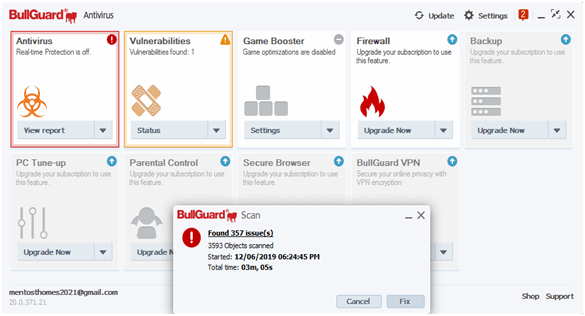
BullGuard Antivirus

BullGuard Antivirus is another best lightweight antivirus that can defend your sytems with a number of easy-to-use services and features. This antivirus solution uses advanced machine learning and deep learning techniques to identify malware.

Essential Features:

  • Vulnerability Scanner detects unsafe apps and networks and alerts the user.
  • Offers triple-layer protection.
  • Optimizes and speeds up the games.

Read More: Best Encryption Software For Windows


9. 360 Total Security
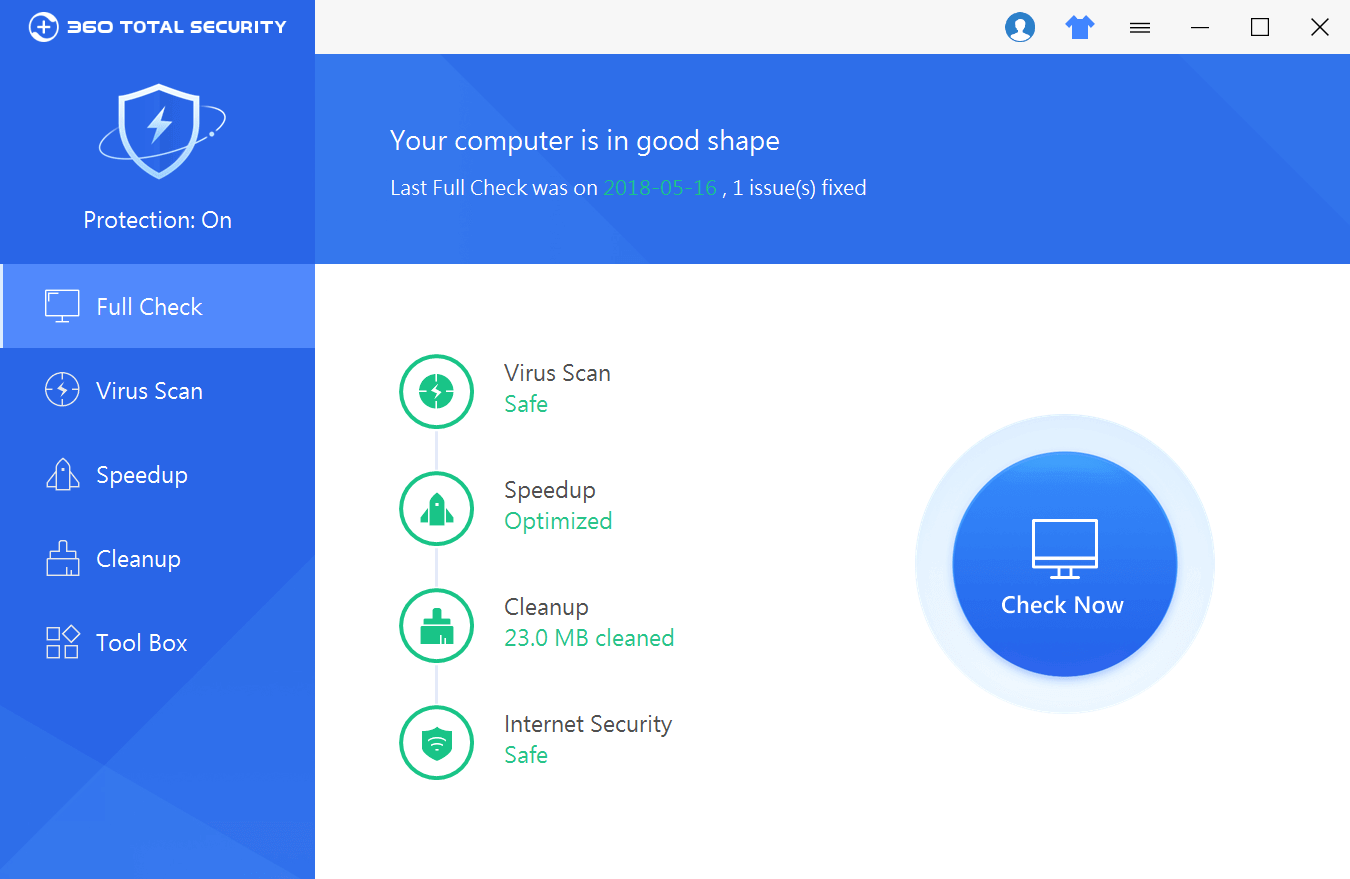
360 Total Security

Here is another excellent lightweight antivirus that not only utilizes less RAM but also protects the computer from several online threats in a seasoned manner. It speeds up the system by wiping off junk files and also creates extra space in the system.

Essential Features:

  • Monitors behaviour to detect document hijacking.
  • Offers premium online shopping security.
  • Offers privacy cleaner and Wi-Fi security features.

10. Comodo Free Antivirus
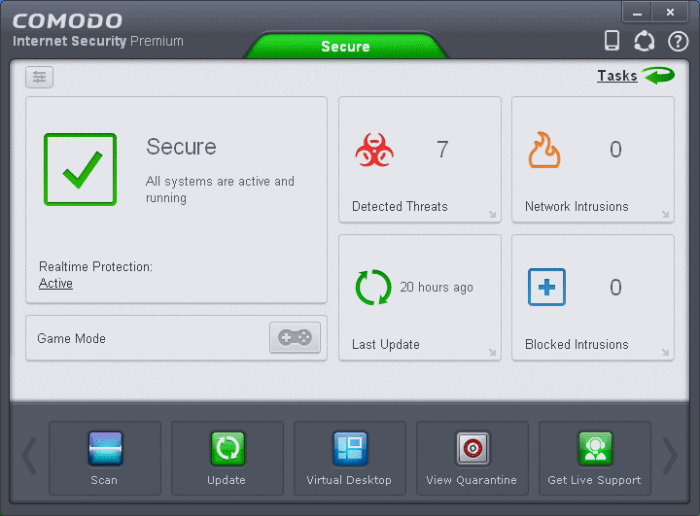
Comodo Free Antivirus

This lightweight antivirus tool is capable of handling diverse cyber threats efficiently and makes your PC safe and secure to use. Built with a zero trust architect, a heuristics engine, and in-built firewall, this antivirus application also includes cloud AV and a lot more.

Essential Features:

  • Prevents host intrusion.
  • Capable of sandboxing unknown programs.
  • Offers exemplary online security.
  • Facilitates on demand scan, on acess scan, and boot time scans.

11. Sophos Home Free
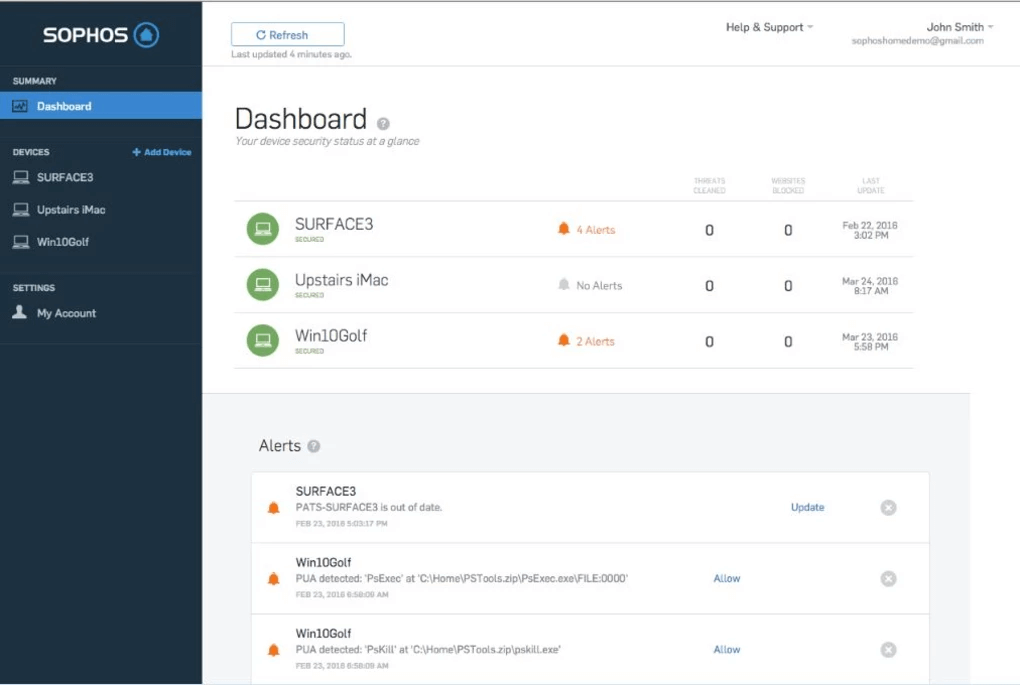
Sophos Home Free

This is a lightweight antivirus solution that can protect against malware with real-time malware detection and protection. It’s free version can be installed in three devices that can defend your devices against several phishing attacks.

Essential Features:

  • Offers web filtering tools.
  • Includes superb parental control features.
  • Also comes as a browser extension.

12. Malwarebytes
Malwarebytes

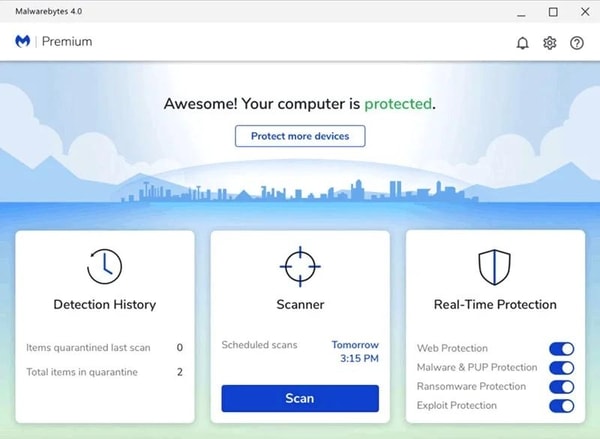
Here’s yet another of the best lightweight antivirus tools for Windows. Malwarebytes is an amazing tool that offers you protection against malware and other threats. This is one of the strongest tools that you can install and use to protect yourself against ransomware.

Essential Features:

  • Multilingual UI
  • Effective operations
  • Free and paid versions

Protect Your PC with Top-notch Antivirus Protection

Thus, these were the 12 best lightweight antivirus applications that could be utilized to obtain the best protection without burning the system resources. Having advanced antivirus protection is extremely essential nowadays to combat the various forms of cyberthreats.

The Windows Defender app is not sufficient against the next gen cybersecurity threats, hence you can obtain one of the best antivirus tools from our list provided above and never worry about a vulnerable system again.


Author

Snigdha

Snigdha is a technical content writer with expertise in the field of science & technology. Though she has a very diverse academic and professional profile yet she finds writing to be a creative form that she was unable to explore so far. When not writing, she can be found indulging in other forms of creativity like painting or travelling.

View all posts

Related Posts
How to Use Multiple WhatsApp Accounts on Mac and Windows PC

How to Use Multiple WhatsApp Accounts on Mac and Windows PC

December 9, 2022
0

If you are wondering how to use multiple Whatsapp accounts on Windows and Mac then check out this thorough and easy guide that will help you with the same. 

The introduction of Whatsapp has been nothing short of a blessing for smartphone and computer users. With the help of this platform, anyone can easily connect with their friends, families, and loved ones. This effortless platform makes it easy for everyone to be in touch with one another.

Whatsapp was initially rolled out for smartphones, but now even Windows and Mac users can easily use the platform on their computers. For this, you can take the help of the Whatsapp app for Windows/Mac or access the web Whatsapp portal. Normally, you can only log in to one account at a time and use it on the computer. However, there is a way sound that allows you to use multiple WhatsApp accounts on your Windows or Mac device with ease.

With the help of further sections of this problem-solving guide, we will assist you with the same. Here, you will know how to activate or use the WhatsApp multi-device feature and use two or even more Whatsapp accounts simultaneously on Windows or Mac.

So, let’s have a look at the solutions right below for ease.

How to Use Multiple WhatsApp Accounts on Windows

Below, you will find different methods that will help you use as many accounts as you want on your Mac and Windows PC or laptop with ease. Follow any of the techniques and solutions provided, as you may, to get the desired results. However, firstly, let’s know how to log in to the Web Whatsapp portal in the below section.

How to Login on the Web Whatsapp Portal?

With the help of the below procedure, you can easily log in to the web portal of Whatsapp named Web Whatsapp:

  1. Visit Web Whatsapp to begin.
  2. Wait while the website loads and a QR code appears on the screen.
  3. Open Whatsapp on your smartphone.
  4. Tap on WhatsApp options (three-dots icon) from the top-right corner of the device.WhatsApp options (three-dots icon)
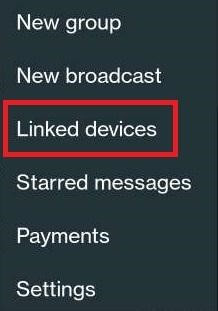
  5. In the menu, tap on Linked Devices to proceed.tap on Linked Devices
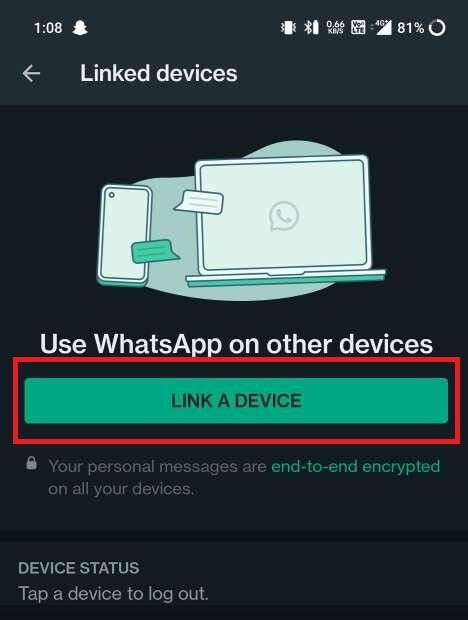
  6. Top on Link a Device to proceed.Link a Device
  7. Adjust the camera of your device to read the QR code available on the computer.

Wait for a couple of minutes while the website gathers and downloads the data of your Whatsapp account. After this, you can easily access your Whatsapp chats and more. Now, let’s have a look at the methods to log in to multiple accounts on Windows.

Also Read: Best WhatsApp Sticker Apps For Android and iPhone


Method 1: Create a New User Profile on the Browser

The first method that you may try to log in to multiple Whatsapp accounts on the Windows PC is to create a new profile on the browser. This will provide a fresh start to your browser and allow you to use different WhatsApp accounts easily. The method is reliable and works even if you want to log in and use more than two WhatsApp accounts.

You can create as many profiles as you want on the browser and log in to a new Whatsapp account with every profile. You can also take the help of the below procedure to know how to create a new profile on the browser. Although the procedure is provided for the Google Chrome browser only but works for other browsers as well:

  1. Open the browser.
  2. Click on the Profile section present at the top-right corner of the window.
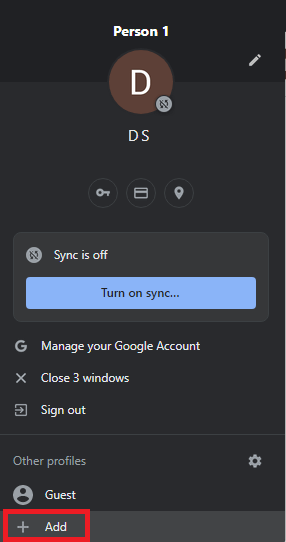
  3. At the button of the profile menu, click on Add to create a new profile.click on Add to create a new profile
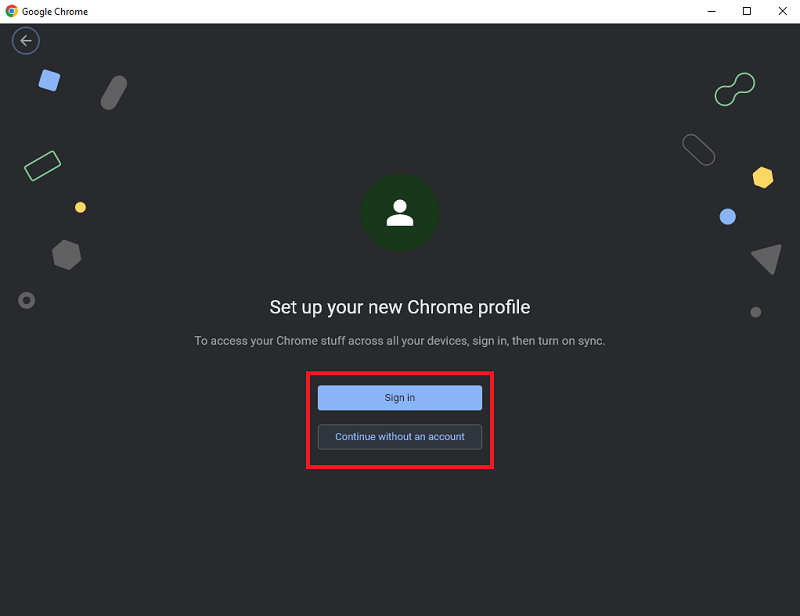
  4. Either sign in to a new account or continue without any account.sign in to a new account
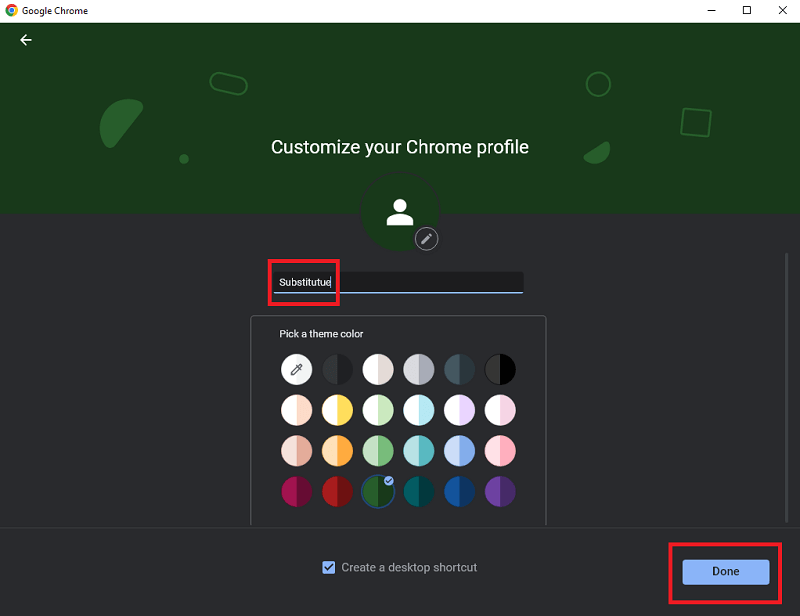
  5. Rename this profile and customize it as you may. Click on Done to create this profile.Rename profile and customize
  6. Now every time you open Chrome, the browser will ask you to specify the profile. Log in to the Web Whatsapp account as shown previously.

This method works for both Windows and Mac devices. You can repeat this procedure and create n number of profiles on the browser and log in to multiple Whatsapp accounts. If this method didn’t float your boat, try the next one.


Method 2: Take the Help of the Incognito Mode

Another viable solution to use multiple WhatsApp accounts is to seek the help of a new Incognito tab on the browser. The Incognito tab does not store any browser history and hence is a viable solution if you want to use the account for some time only. For this, all you need to do is follow the steps below:

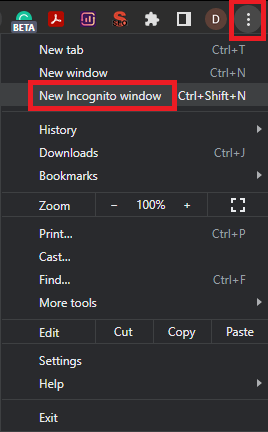
  1. Open the browser and click on Options.
  2. From the menu, click on New Incognito Tab to open it.New Incognito Tab
  3. Visit Web Whatsapp and log in to your Whatsapp account.

This method works for both Windows and Mac devices. Using this procedure, you can easily use a new Whatsapp account on your browser. If you want another way out to use multiple WhatsApp accounts, follow the next solution.


Method 3: Try Using Another Web Browser on Windows or Mac

We are set in certain ways and like to work accordingly. The same goes for web browsers. Generally, everyone loves one browser and sticks to it to surf the internet. However, using more than one browser can help you use multiple WhatsApp accounts on your Windows/Mac device quite easily. You can log in to different Whatsapp accounts on different browsers. Tons of lightweight and fast browsers are available to make surfing easy for you. Try the next method if you don’t like this one.

Also Read: How To Send Message To Someone On WhatsApp Who Is Not In Your Contact List


Method 4: Take the Help of Third-Party Extensions

To use multiple WhatsApp accounts, you can also download a third-party session management tool or extension. Some Google Chrome extensions like SessionBox, MultiLogin, Smart Sessions, and Session Switcher allow you to create multiple sessions on one website. Using these sessions, you can easily use over 10 different Whatsapp accounts on the browser. The procedure to use any of these extensions is quite simple as well, hence, you will not face any problems while using multiple WhatsApp accounts.


Method 5: Seek the Help of Third-Party Software

Nextly, what you can try in order to use multiple Whatsapp accounts on your device is to download third-party software. On the internet, you may find various tools like ChatMate for WhatsApp, Shift, and WebCatalog that allow you to use multiple accounts as well as manage your Whatsapp business account as well with ease.


Method 6: Use an Android Emulator

Lastly, even an Android Emulator for Windows and Mac can help you use multiple Whatsapp accounts on your device. An Android Emulator is a tool that allows you to run Android apps on your device with ease. You can use the same to run Whatsapp as well. Similarly, the iOS emulators can also help you run more WhatsApp accounts with ease.

Also Read: How To Use Two Accounts On WhatsApp


Methods to Use Multiple WhatsApp Accounts on Windows and Mac: Explained

Here we are going to conclude this guide on how to run and use various and multiple Whatsapp accounts on Windows and Mac. We hope that with the help of at least one of the methods provided previously, you were able to succeed in your quest to use multiple accounts. For your ease, we have provided detailed information related to the methods as and when suitable. Hence, you will not face any problems in using any of these.

However, if you have any queries or doubts related to the guide, feel free to use the comments section and write to us. Here, you can also provide your useful feedback and suggestions related to the blog as well as the blog page. If you liked this guide on how to use multiple WhatsApp accounts, subscribe to our newsletter for more interesting updates.

Sharp Printer Driver Download and Update for Windows 10, 11

Sharp Printer Driver Download and Update for Windows 10, 11

August 17, 2023
0

Like every other system hardware, printers also require respective drivers to communicate with the operating system. The latest and appropriate drivers act as a channel to offer channel for communication and function as desired. The following guide talks about Sharp printer drivers for Windows users.

Several users complained about issues with Sharp printer driver update and download. Majorly the concern came into existence after the Windows update. Although the issue can lead to malfunctioning of your printer it is easily fixable.

Read the complete guide to download and update the latest Sharp printer driver download for Windows devices. So without any further delay let’s begin.

Methods for Sharp Printer Driver Download and Update for Windows 10/11

The following section explains the steps for each manual and automatic method to download, install, and update the latest Sharp printer driver for Windows 11 or 10. No need to apply them all, just move down the list and pick the most suitable method for your device.

Method 1: Manual Sharp Printer Driver Download via Official Website

The product manufacturer releases regular driver updates to ensure Sharp printer’s peak performance. Apply the following set of instructions to download the latest Sharp printer driver update. However, these steps are only feasible if you have some basic technical skills and knowledge about your system’s specifications.

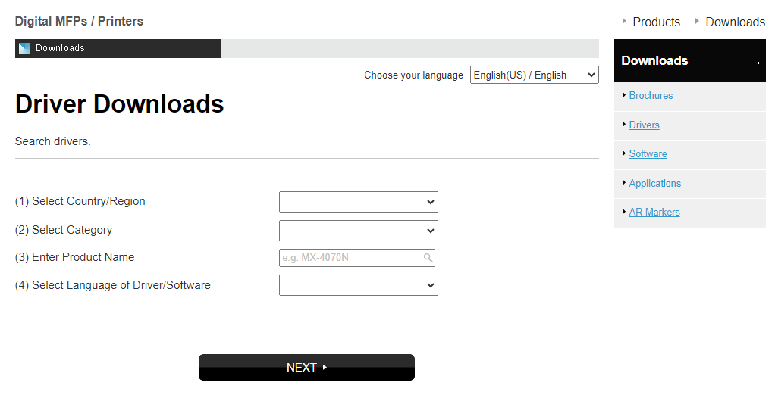
Step 1: On your web browser head to the official website of Sharp. Or simply Click Here to directly navigate to the webpage.

Step 2: Select your Region, Category, Product Name, and language for your Sharp printer driver.Sharp Printer Driver Download Official Site

Step 3: Search for the respective drivers and download the version compatible with your Windows device.

Step 4: As the download completes, double-click and launch the file to proceed with the installation steps.

Step 5: Follow the on-screen instructions and Restart your PC to apply the updated Sharp printer drivers.

Although the manual method is the most reliable to download Sharp printer driver for Windows 10 it requires basic technical skills. Therefore, if you don’t want to invest much time choose the partly manual or automatic methods mentioned below.

Also Read: Printer Driver Downloads For Free on Windows 11, 10, 8, 7


Method 2: Update Sharp Printer Driver Device Manager

You can take advantage of a built-in program known as Device Manager to manually download and update the Sharp Printer driver for Windows 10, 11, and later versions.

Use the Windows Device Manager program to locate the most recent driver updates for your Sharp Printer model. Apply the instructions that follow to install drivers with the help of this utility.

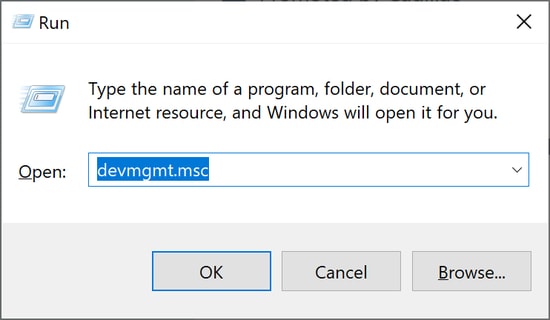
Step 1: To bring up the Run command box on your computer, hit the Windows logo key and the letter R on your keyboard at the same time.

Step 2: In the box that appears, type the command devmgmt.msc, and then click the OK button.Run command devmgmt.msc

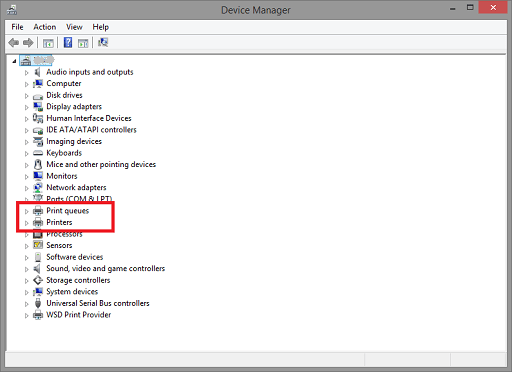
Step 3: Now, within the Device Manager application, navigate to the Print Queues category, and then expand that category by clicking on it.Print Queues

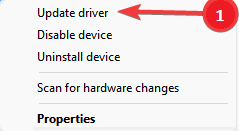
Step 4: Click the Update driver button after right-clicking on the model of your Sharp Printer.Update driver

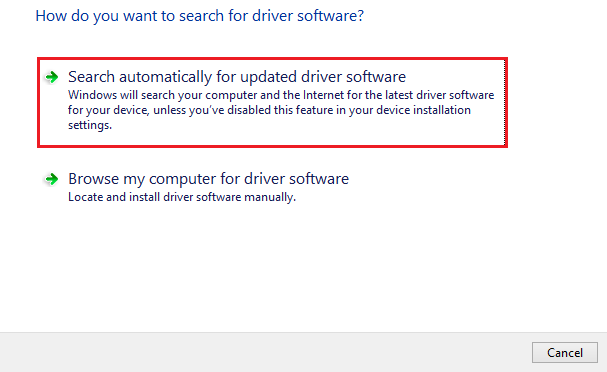
Step 5: Click the Search automatically for an updated driver software option that appears on the following screen.Search Automatically for Updated Driver Software

This will automatically search for pending updates on drivers. Following the completion of the installation of the latest Sharp printer driver update, all that is required of you is to restart your computer.

However, if you still find the method complicated you can simply opt for the following fully automatic method for driver updates.

Also Read: How to Download, Install and Update Printer Drivers for HP Printers


Method 3: Download Sharp Printer Driver Update using Bit Driver Updater

The Sharp Printer drivers for Windows 10 can be downloaded or updated using this technique, which is by far the easiest and most convenient of the available options. In contrast to the manual techniques that were discussed before, this method merely requires you to click a button in order to install the most recent driver versions that are advised by the manufacturer for your Sharp Printer and any other computer peripherals.

Step 1: Download and Install the Bit Driver Updater tool on your system with the help of following button.

Windows-Download-Button

Step 2: After finishing the program’s installation without any problems, you will be able to initiate the scanning procedure by going to the navigation panel on the left side of the screen.

Step 3: After the scan completes, the tool will provide you with a list of all of the out-of-date, corrupt, and incompatible drivers that are currently installed on your personal computer.

Step 4: Once you have obtained the list, you will have the choice to either click the Update Now option that is located next to the driver that you wish to update.

Note: With the Pro version of the tool, you can select the Update All option in order to update all of the drivers that are causing problems in a single step.Update all outdated driver of your windows pc

Step 5: Install the latest Sharp printer driver update and Restart your device.

Also Read: How to Download and Install Brother Printer Drivers


Method 4: Download Sharp Printer Driver Update with Windows Update

In addition to bringing the most recent fixes or enhancements, maintaining the most recent version of the Windows operating system allows for the installation of any available driver updates. Therefore, in order to get the Sharp Printer printer driver, the user can also run Windows Update on their computer.

To carry out this procedure, simply follow the instructions that are outlined below.

Step 1: To begin, you will need to simultaneously click the Windows key on your keyboard along with the I button.

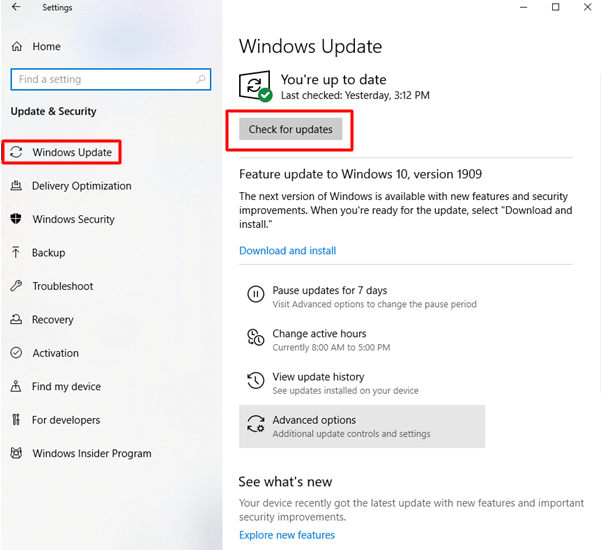
Step 2: In the Settings Windows click on Update & Security option.Updates and Security

Step 3: After that, make sure that the Windows Update option is selected from the left-hand menu pane, and then click the Check For Updates button.Check for Updates Button

Step 4: Wait till the pending updates are scanned and downloaded automatically on your device.

Once the Windows update including latest Sharp printer driver completes Restart your PC.

Also Read: How to Download Epson Printer Drivers For Windows 10/8/7


Sharp Printer Driver Download and Update: DONE

Hopefully, with the help of the above methods you were able to download, update and install the latest Sharp printer driver for Windows 11 or 10 devices. We have listed the possible methods for the driver download and update out of that you can pick the most suitable one. In our opinion, use the Bit Driver Updater software to make not just the printer but all other system driver updates easier.

For any further concerns or suggestions reach out to us in the section of comments below. Also, if you found the guide needful make sure to subscribe to our blog. To never miss any tech tips or updates follow us on Facebook, Instagram, Twitter, or Pinterest.

1 Comment
    Bitdefender Internet Security Review 2021 says: Reply
    December 29th 2020, 6:43 pm

    […] One such impeccable way of ensuring internet security in the modern era is with the use of a complete internet security suite that can do a lot more than a plain antivirus software. […]

Leave a Reply Cancel reply

Your email address will not be published. Required fields are marked *

Sidebar Image bit G ad1

Latest Posts

  • how-to-export-bookmarks-from-edge
    How to Export Bookmarks From Edge
    by Niharika / March 18, 2026
  • Best-Free-Online-Portfolio-Websites-in-2026
    Best Free Online Portfolio Websites in 2026
    by Niharika / March 16, 2026
  • Anytime Astro: Best Website For Online Astrology Consultation
    Anytime Astro: Connect Now For Online Astrology Consultation
    by Somya Shrimal / March 13, 2026
  • Best-Ways-to-Combine-Images-Into-PDF-Files
    Best Ways to Combine Images Into PDF Files
    by Niharika / March 12, 2026
  • Best FREE VPS Hosting Providers
    7 Best FREE VPS Hosting Providers in 2026
    by Devesh / March 12, 2026

Categories

  • Cyber Security
  • Driver Updater
  • Entertainment
  • Fitness
  • Games
  • How To
  • laptop
  • OS
  • Reviews
  • Tech News
  • Tips & Tricks
  • Top 10
Sidebar Image bit G ad1
Best Free Reference Management Software 8 Best Free Reference Management Software for 2024by Devesh / January 11, 2024
4 Best Ways to Update Outdated Drivers Manually in Windows PCby Harshita / January 11, 20244 Best Ways to Update Outdated Drivers in Windows 10 & Older Version
TechPout Footer Logo

We at TechPout promise to put forth stories that help people to learn and simplify their digital life. Our purpose is to share the true essence of technology with our tech-loving community.

Useful Links

  • About Us
  • Contact us
  • Privacy Policy

Popular Posts

  • Best PC Optimizer Software
  • Best Mac Cleaner Apps
  • Best Driver Updater
  • Duplicate Photo Finder and Cleaner Software
  • Best Free Movie Download Sites
  • Best IPTV Players

Follow us

Copyright © 2026 www.techpout.com. All rights reserved
DMCA.com Protection Status