Main LogoLight Logo
  • Reviews
  • Top 10
  • How To
  • Tech News
  • OS
    • Windows
    • MAC
    • iOS
    • Android
  • Categories
    • Driver Updater
    • Cyber Security
    • Games
    • Fitness
    • Entertainment
    • Tips & Tricks
How To
by Jyotsana

How To Send Message To Someone On WhatsApp Who Is Not In Your Contact List

October 16, 2020
1

Despite the upgrades and exciting features over the years that WhatsApp has into, you still need to save the contact in your phone to commence the conversation. But that doesn’t echo a straightforward NO to messaging an unsaved contact on WhatsApp. If you are wondering how to send a message to the number not in your contact list, this article is here for you.

Table of Contents hide
Send Message to an Unsaved Contact on Your WhatsApp
How to Send Message to an Unsaved Number If You are an iPhone User
How to Send Message to an Unsaved Number If You are an Android User

Send Message to an Unsaved Contact on Your WhatsApp

If the unsaved number you are meaning to send a message to is registered on WhatsApp, you will have to start by creating a WhatsApp link to be able to send a message to the number that is not in your contacts list. When you click on the link, a chat with that person will automatically open up.

Here’s what you have to do to create the link:

  • First, open your preferred browser Chrome, Firefox or Safari. 
  • Stop yourself at the web address bar to type: https://wa.me/<phonenumber>
  • Replace the last part (“phonenumber”) with the unsaved number you want to send a message to.
  • As you add that number, make sure to add region code and do not put + , () or 00. It should look like this: https://wa.me/910987654321 
  • As you type the URL in the browser, you will now see the big green message icon on the new web page. Tap on it to open chat with that number which you just typed in your WhatsApp.

Read Also: How to Show or Hide WhatsApp Status from Specific Contacts


How to Send Message to an Unsaved Number If You are an iPhone User

Are you looking for a way to send messages in a number that is not added in your WhatsApp contacts on iPhone? Great. You can try this method to message the unsaved number on WhatsApp. It involves Siri (iOS 12 and above) for the steps to get started.

Here’s how to do that:

  • Open Shortcuts in the Settings.
  • Now, enable Allow Untrusted Shortcuts.
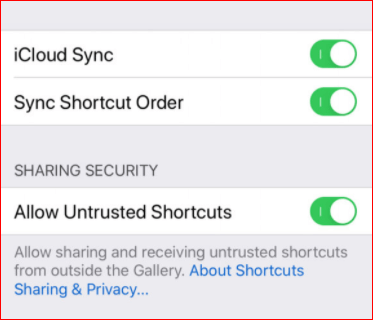
Enable Allow Untrusted Shortcuts

  • Now that you are allowed to run Siri Shortcuts from everyone and anyone, you can open this link and click on the Get Shortcut button to download it. You will be redirected to the Shortcuts app. 
  • Now, Tap Add Untrusted Shortcut.
  • Find the WhatsApp to non-contact shortcut in the My Shortcuts tab. Then, tap Add to Home Screen to create a quick launch shortcut on the home screen.
  • Now, you will need to enter the recipient’s number. Mention the country code along with the number. Then, you’ll be redirected to WhatsApp with a new message window open.

Read More: Find Someone On Snapchat Without Username & Phone Number


How to Send Message to an Unsaved Number If You are an Android User

If you are an Android user then you can try the method below to send a message to an unknown number on WhatsApp.

  • Open your phone’s keypad.
  • Type the number.
  • Once you have typed the number, select it on the keypad.
  • Now, there will be a few options to take action on that number like Call, Cut, Copy etc.
  • Check to see if there’s a drop-down button further for more options to send messages on third-party text messaging tools. If it is there, you might be able to get WhatsApp in the list which you can select to send a message to that unsaved number.

Note: This trick does not work on all iPhone & Android phones. You must have Android 9 and above OS to get access to this trick which is only available on the selects or you can apply the method of creating the link to start messaging.


Conclusion

You just learned the best methods and tricks on how to send WhatsApp messages without adding contact. Whether you are an iPhone user or the Android one, give these tricks a try. It does require extra actions as compared to sending messages to the saved numbers but if you are up for that, then you can perform the steps. If you found this section helpful, don’t forget to let us know in the comments.  

Author

Jyotsana

Jyotsana is a technical writer with a non-technical background. An eye of detail and a knack for writing helps her to write technology related content.
Apart from writing, she is a coffee connoisseur and an aesthete who rejoices in poetry and music during leisure.

View all posts

Related Posts
how-to-see-and-delete-google-incognito-history

How to See and Delete Google Incognito History

October 19, 2025
0

Many people think that using incognito mode in Google Chrome means their browsing activity is completely private. While it is true that incognito mode does not save your history, cookies, or form data on the browser, it does not make you invisible online. Your internet activity can still be seen through system logs, network tools, and sometimes even by your Google account.

In this guide, we will show you how to see incognito activity on different devices and explain how to delete incognito history when possible. If you are looking for ways to manage your privacy better, especially with Google Chrome, this post will help you take the right steps.

What Is Incognito Mode Really Hiding?

When you open an incognito window in Google Chrome, the browser stops saving certain types of data, such as your browsing history, cookies, site data, and any information you enter in forms. This helps keep your activity hidden from other users on the same device. However, incognito mode does not make you completely invisible online. Your internet activity can still be seen by your internet service provider (ISP), network administrators, and the websites you visit.

In addition, system-level tools like DNS logs may record domain lookups, and if you are signed into your Google account, your activity could still be saved there as well. So even though your browser does not display your incognito sessions, records might still exist elsewhere. This is why many users look for ways to understand how to see incognito history and how to manage or erase those hidden traces effectively.

How to See Incognito History

Here’s how you can check for any hidden logs of incognito browsing across different devices:

On Windows – Check the DNS Cache

Even though Chrome’s incognito mode does not save history in the browser, your system may store DNS lookups (which websites your system visited). Follow these steps:

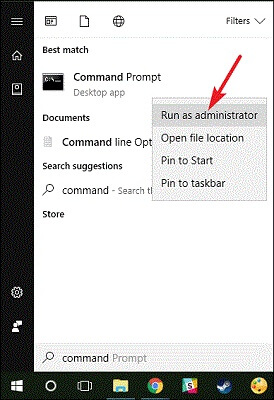
  • Click the Start menu and type cmd.
  • Right-click Command Prompt and select Run as Administrator.

Command Prompt Run as admin in Windows 11

  • In the window, type ipconfig /displaydns and press Enter.

displaydns

You will see a list of websites your system accessed, including those opened in incognito mode.

On macOS – View DNS Queries

DNS queries can also be seen on a Mac, showing domain names you accessed. Follow these steps:

  • Open Applications > Utilities > Console.

View DNS Queries on mac

  • In the search bar, type: any:mdnsresponder and click Start.

start mdnsresponder

  • Open Terminal and enter: sudo killall -INFO mDNSResponder

info mdnsresponder

  • Enter your password if asked.
  • Go back to Console to view DNS logs under com.apple.mDNSResponder.

These are technical entries, but they can show websites visited, even in incognito mode.

On Android and iPhone

Incognito history is not saved directly on your phone, but there are still ways it can be tracked. Parental control apps or monitoring tools may log activity, even in incognito. If your Google account is active, your searches and visited websites may be saved in Web & App Activity. Steps to view it:

  • Open a browser and go to Google My Activity.
  • Sign in with your Google account.
  • Tap Web & App Activity.

Tap Web & App Activity.

  • Under See and delete activity, tap Chrome to view logs.

See and delete activity,

This is one of the easiest ways to see incognito history, especially if you are logged into your Google account while browsing.

Also know: How to Clear Search History From Any Browser?


How to Delete Incognito History

Now that you know incognito activity can leave behind traces, let’s go over how to delete incognito history on different platforms.

Incognito History Delete on Windows

To remove stored DNS records (which may include incognito sites):

  • Open Command Prompt as Administrator (as shown earlier).
  • Type: ipconfig /flushdns and press Enter.

ipconfig .flushdns

This will clear the DNS cache and delete incognito history that may have been stored in system memory.

Incognito History Delete on macOS

To clear incognito-related DNS entries:

  • Open Terminal.
  • Enter the command: sudo killall -HUP mDNSResponder

hup mdnsresponder

  • Press Enter and type your password if prompted.

This command refreshes the DNS cache and helps with incognito history delete on Mac systems.

Incognito History Delete Chrome (Google Account)

If you were signed into Chrome or Google during incognito browsing, some activity may still be saved in your account. Steps to clear them:

  • Visit Google My Activity.
  • Click on Chrome under activity types.
  • Select the items you want to remove and click Delete.

Select the items you want to remove and click Delete.

You can also set automatic deletion rules here. This is one of the best ways to manage incognito history delete Chrome settings if you are logged into your account.

How to Clear Incognito History on Android

Most modern browsers on Android clear in-memory DNS data after incognito tabs are closed. However, if you are using a browser like Firefox, DNS logs may remain longer. To clear everything:

  • Go to Settings > Apps > Chrome (or your browser).
  • Tap Storage > Clear Data to reset all browser data (note: this affects normal and private modes).

How to Clear Incognito History on iPhone

The simplest method is to restart your iPhone, which flushes temporary memory and DNS cache.

  • Press and hold the power button.
  • Turn off the device.
  • Wait a few seconds, then restart it.

This helps with how to delete incognito history in Safari or Chrome, especially since iOS does not provide direct tools for DNS clearing.


Final Tips for Better Privacy

If you are serious about protecting your privacy online, it is important to understand that incognito mode alone is not enough. While it can prevent your browsing history and cookies from being saved on your device, it does not hide your activity from internet providers, websites, network administrators, or even your own accounts if you are logged in. It also does not protect you from malware, spyware, or other forms of online tracking.

To strengthen your privacy, consider taking additional steps. Using a VPN is one of the most effective ways to encrypt your internet traffic and hide your IP address, making it harder for others to track your online activity. You should also review your Google settings and turn off Web & App Activity to stop your account from saving your searches and site visits. Privacy-focused browsers like Brave or Firefox Focus offer built-in tools that block trackers and ads. Lastly, if you are using a desktop, make it a habit to regularly clear your DNS cache to remove any system-level traces of your browsing sessions.

Also know: How to Delete Temporary Files Safely in Windows


Conclusion

Incognito mode offers basic privacy, but it does not erase every trace of your activity. If you have ever wondered how to see incognito history, now you know where to look. And if you are asking how to delete incognito history, clearing DNS cache or managing your Google account are your best options.

Whether you are using Windows, Mac, Android, or iPhone, you now have the tools to manage and delete incognito history effectively. For extra protection, combine incognito mode with a good VPN and privacy settings in your browser and Google account.

Remove Junk Files From Windows 10

How to Remove Junk Files From Windows 10

February 2, 2020
0

Irrespective of the amount of disk space on our computer system, it doesn’t take long for us to load it with hundreds of videos, images, apps, games and other important files. Too much clutter not only eats away your system RAM but also affects its speed and performance in the long run. 

In such scenarios, it becomes imperative to free up storage space on your computer. Junk cleaning and system optimization are what should be done to keep your hard drive clean of duplicate photos, system logs, temporary files, unwanted Windows registry, etc. 

Our article here talks about some useful methods to remove junk files from Windows 10. You may also use a disk cleanup tool to remove the trash from the treasure. 

What Kind of Files Can You Delete to Speed Up Your PC? 

Before we talk about the various methods of system cleaning, it is important to know what is to be kept and what can be removed. Here we have listed a few files that can be deleted to recover lost Memory space.

  • Files present in your systems Recycle bin.
  • System junk files and APK files.
  • Broken and unwanted Windows registry entries.
  • Duplicated and similar pictures. 
  • Large and bulky files and documents.
  • Temporary files, Log files and program files.

Why Is It Necessary to Delete Unnecessary Files From Windows 10? 

  • It will remove junk files from your system and make it clutter-free.
  • It will take away the extra load created by unwanted apps and files.
  • Apart from this, it will also boost the overall performance of your system and tune it up just like a new machine.
  • Removing junk files also ensures that all your system resources are put to optimal use.

Useful Methods to Remove Junk Files From Your System:

1. System Restore

System Restore is the simplest way to make your system work like a new machine. This also works as a life savior, if you have accidentally deleted some important files.

 To start with create a system restore point and ensure that System Restore is enabled on your device. 

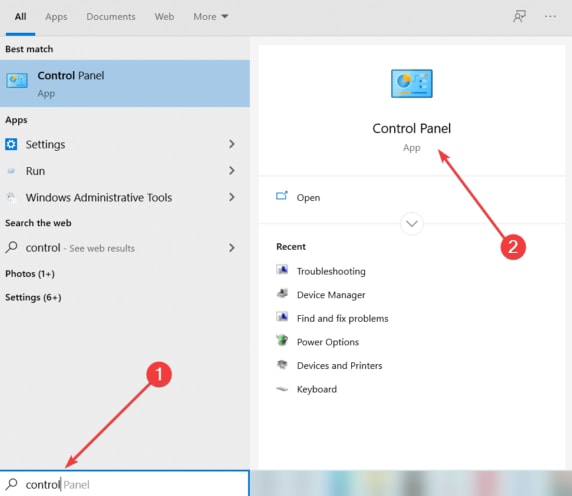
  • Begin with opening the Control panel from the “Search box” 
  • Now open the “Control Panel” window, and choose “System and Security” followed by the “System” button.
choose “System and Security” in Control Panel
  • In the next step, select “System Protection” from the left Windowpane.
  • Over here, please ensure that the “Protection” tab is active here, if not go to “System Drive” and click on configure. Click on “Turn on system protection” and then tap on the “Apply” button.
  • The next window that you see is the “Create” window, from here choose the” Create a restore point” option. 
Apply System Protection
  • Add all required details to set a restore point and press the “Create” button.
Create Restore point
  • Once the required process is completed, you will get a confirmation message on your window. 
  • In the end, select “Close”. You can use this point to restore your system whenever required.

Read Also: How To Fix Flickering Screen Issues on Windows 10

2. Remove Files From Recycle Bin

Any and every file that you delete gets stored in the recycle bin. Deleting these files is the easiest way to recover RAM space. The main purpose of a recycle bin is to give users an option to restore their deleted files if ever required in the future.

However, once you delete files from the recycle bin, they will be permanently removed. Below are the steps to empty the recycle bin.

  • Locate the Recycle bin icon on your screen and right-click on it.
  • From the list of displayed options click on “Empty Recycle Bin”.
  • Confirm your action by clicking on “Yes”. This will permanently delete the files and add some space to your Disk.

3. Delete Temp Files 

Your hard disk is loaded with several temp files that you are not even aware of. Deleting these files will effortlessly free up disk space and boost system performance. Follow simple step mentioned below:

  • Open the “Settings” tab and then open “Storage”.
Turn on the Storage Sense
Image Source: Easeus
  • Move the slider button to turn on the “Storage Sense” option.
  • Next, click and choose “ Change how we free up space”. 
  • From the next window, select all the relevant options from the list of options displayed.
Delete all Temporary Files
Image Source: Easeus

Once this is done, Windows 10 will start deleting the temp as specified by you, specifically those who have not seen any activity in the last 30 days or more. 

4. Remove Junk Files with Disk Cleanup in Windows 10

This is a built-in feature of Windows computers. It is one of the simplest methods to Free Up Disk Space in Windows 10 by deleting junk files. To use it :

  • Click on the Start button > File Explorer > This PC button.
  • Next, right-click on a hard drive and choose the “Properties” option.
Choose Clean up system files
Image Source: Easeus
  • From the newly displayed window, check to mark the list of options that you wish to remove from the displayed list.
  • You may also choose “Clean up system files”. In the end, click on the “Ok” button followed by Delete Files.

5. Get Rid of Old and Unwanted Downloaded Files

This is another way of removing junk files from Windows 10 pc. It is quite a simple process but ensures great results. Old installer files and the once associated with applications that you don’t use anymore are the ones you should target the most.

  • Click on Start- File Explorer- This PC, and then select the “Downloads” folder.
  • If you are in the habit of downloading files directly to your Desktop, check there as well.
  • Sort your data based on their download date and check for all unwanted files and documents. 
Downloaded Unwanted Files
  • Once you know what is to be deleted, you can go ahead and get rid of them.

All the above methods help you deal with system junk manually. These processes are quite tedious and time-consuming. What can help us in such circumstances is an automated disk cleanup tool. 

Read More: How to Upgrade to Windows 10 for Free

6. Use Disk Cleanup Tools

ITL Windows Optimizer is one of the most recommended tools. It not only maintains your PC space but also protects you from online threats.

Revamp your system and restore lost disk space with this all-in-one tool. Clean out junk to boost system speed and performance in a single tap with ITL Windows Optimizer.

Prominent Features:

Junk and Privacy Scan

Run a system scan to check and remove temporary files, privacy traces, duplicate photos, and memory dumps. Doing this will not only free up disk space on your Windows 10 PC but will also add a security layer to it.

Broken and Invalid Registry Entry

Multiple Registry entries can eat away a lot of disk space making your pc slow. So, it is essential to get rid of them from time to time, and that’s exactly what ITL Windows Optimizer does. It scans your system for all broken and invalid registry entries and eradicates them to tune up your PC to optimal performance.

Web Protection

This is another differential offering of ITL Windows optimizer. Use it’s Ad-Blocker Web Protection feature to safeguard your web surfing experience. 

Block all unwanted and infected ads from major web browsers and stay protected. Transform your Windows 10 PC to enjoy supreme and excellent speed and working. 

To Sum Up

So these are some of the methods in which you can Keep Your Hard Drive Clean and make it clutter-free. Having a slow and sluggish PC is something which nobody enjoys. 

Hopefully, the above-mentioned tips will help you delete system junk and unwanted files to recover its lost disk space. You may do it manually or choose to use an automated Disk cleanup tool to make it clutter-free. 

Point of caution: If you are using the manual methods to Free Up Storage Space on your computer, be very sure of what you are deleting. 

1 Comment
    Michale says: Reply
    October 18th 2020, 2:10 am

    Thanks for your marvelous posting! I actually enjoyed reading it, you’re a great author.

Leave a Reply Cancel reply

Your email address will not be published. Required fields are marked *

Sidebar Image bit G ad1

Latest Posts

  • tpm msc access the trusted platform module (1)
    tpm.msc Command: How to Access the Trusted Platform Module (TPM) in Windows 
    by Niharika / September 12, 2026
  • sign in to hotmail in windows (1)
    How to Sign in to Hotmail in Windows 
    by Gunjita Sompura / September 11, 2026
  • How to Update Windows Security Signatures Manually 
    How to Update Windows Security Signatures Manually 
    by Niharika / September 10, 2026
  • How to Connect to Your PC Remotely on Windows 11  (1)
    How to Connect to Your PC Remotely on Windows 11 
    by Niharika / September 9, 2026
  • Best y2mate Alternatives for Download YouTube Videos
    10 Best y2mate Alternatives for Downloading YouTube Videos
    by Harshita / September 9, 2026

Categories

  • Cyber Security
  • Driver Updater
  • Entertainment
  • Fitness
  • Games
  • How To
  • laptop
  • OS
  • Reviews
  • Tech News
  • Tips & Tricks
  • Top 10
Sidebar Image bit G ad1
How To Change IP Address in Windows 10 How To Change IP Address in Windows 10? Try Easy Methods!by Jyotsana / October 12, 2020
How to Sync Contacts from Gmail to iPhone and iPad? Try 3 Ways!by Jyotsana / October 18, 2020How To Sync Gmail Contacts to iPhone or iPad
TechPout Footer Logo

We at TechPout promise to put forth stories that help people to learn and simplify their digital life. Our purpose is to share the true essence of technology with our tech-loving community.

Useful Links

  • About Us
  • Contact us
  • Privacy Policy

Popular Posts

  • Best PC Optimizer Software
  • Best Mac Cleaner Apps
  • Best Driver Updater
  • Duplicate Photo Finder and Cleaner Software
  • Best Free Movie Download Sites
  • Best IPTV Players

Follow us

Copyright © 2026 www.techpout.com. All rights reserved
DMCA.com Protection Status