Main LogoLight Logo
  • Reviews
  • Top 10
  • How To
  • Tech News
  • OS
    • Windows
    • MAC
    • iOS
    • Android
  • Categories
    • Driver Updater
    • Cyber Security
    • Games
    • Fitness
    • Entertainment
    • Tips & Tricks
Driver Updater How To Windows
by Harshita

Unable to Connect to World Minecraft On Windows 10 [Solved]

December 21, 2020
1

Have you ever encountered an error message unable to connect to the world in Minecraft? We know, it is hampered, but it is easy to fix too. Hence, this post elucidates to you how to fix the Unable to Connect to World Minecraft error. 

There is no doubt in admitting that Minecraft is one of the most relishing games which takes you into the virtual fantasy world. Moreover, it lets you create or design your own world and promotes you to play in distinct modes that lead your way from modeling to survival. But, presently, many users have complained that whenever they are trying to connect with their friend’s world in Minecraft, they get one error message that reads Unable to connect to world Minecraft.

Are you in a trap of this error? If yes, then we can help! But before reaching solutions, here is a briefing about the causes because of which this issue occurs. So, let’s read them!

All-In-One Solution to Fix Unable to Connect to World Minecraft on Windows 10

The outdated network driver is one of the most common reasons behind this annoying error. Therefore, to deal with this error, one can use Bit Driver Updater. It is the world-class driver updater utility that ensures automatic & frequent driver updates. This utility comes with an in-built system optimizer that can elevate the performance pace of the PC by around 50%. What you need to do is just click on the button below to download Bit Driver Updater for Free.

Windows Download Button

Table of Contents hide
What Causes the Error “Unable to Connect to World” in Minecraft?
Best Fixes to Resolve Unable to Connect to World Minecraft on Windows 10
Fix 1: Adding Your Friend Again
Fix 2: Turn Off Windows Firewall
Fix 3: Temporarily Turn Off Antivirus Application
Fix 4: Update Network Drivers

What Causes the Error “Unable to Connect to World” in Minecraft?

Well, there are numerous reasons because of which this error occurs. But, so far now, after reading all the complaints, here are the major causes of this error. 

  • Problem in the friend list.
  • Outdated version of the game.
  • Third-party Antivirus software may conflict.
  • Problems with ISP.
  • Outdated network drivers.

So, these are the core causes of this error. But don’t worry, as now it is extremely easy to deal with this issue. Step forward towards our next section that explains to you how to fix unable to connect to world Minecraft windows 10. 

Read Also: Fix Minecraft Won’t Launch on Windows 10


Best Fixes to Resolve Unable to Connect to World Minecraft on Windows 10

Within a matter of moments, you can easily fix the annoying unable to connect to world Minecraft error on Windows 10. Here, at Tech Pout, we’ve brought up a list of troubleshooting solutions to fix the same issue. Without wasting more time, let’s start the discussion. 

Fix 1: Adding Your Friend Again

After restarting your computer and then the Minecraft game if still, it shows an “unable to connect to world Minecraft” error. Then, here is one thing, that you can do in order to fix the issue and that is re-adding the friend. Your friend list is the core part because of which you might encounter this error if there is some sort of corruption in your friend list. Issues in your friend list may prevent you from connecting to the friend’s Minecraft world. 

What you can do to fix this issue is – removing the friends from the friend list and then again adding them back. To do that you just need to know the username of the friend and then input the following (/f remove <username>) command and hit the Enter key from the keyboard. But, we suggest you before implementing this fix, try to visit the unknown person’s Minecraft world. If you can, then it will get clear that there is an issue with your friend list. After that, you can move ahead!

Read More: How to Fix Minecraft LAN Not Working Issue


Fix 2: Turn Off Windows Firewall

If the Minecraft executable file is not allowed in Firewall, then, it may be the reason for unable to connect to world Minecraft. However, you can still link to the game but can’t be able to connect to a friend’s Minecraft world. Hence, to prevent this make sure that Minecraft executable file must be allowed in Firewall. Here is how to do it!

  • Hit the Windows start button and input Control Panel in the search box then hit the enter key from your Keyboard to launch Control Panel.
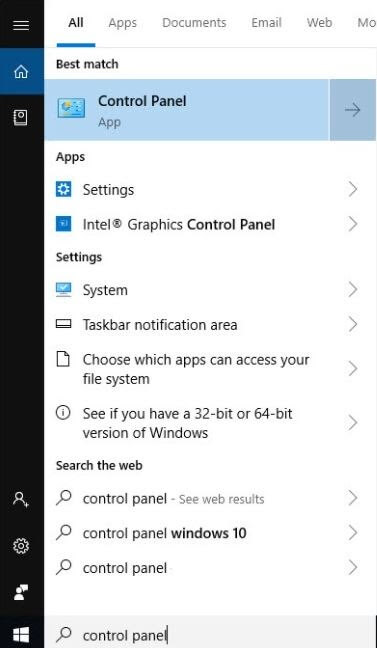
Launch Control Panel

  • Then, make sure to set the View By section as Large icons, after this click on the Windows Defender Firewall option.
  • From the next pop-up window, click on the Allow an app or feature through Windows Defender Firewall.
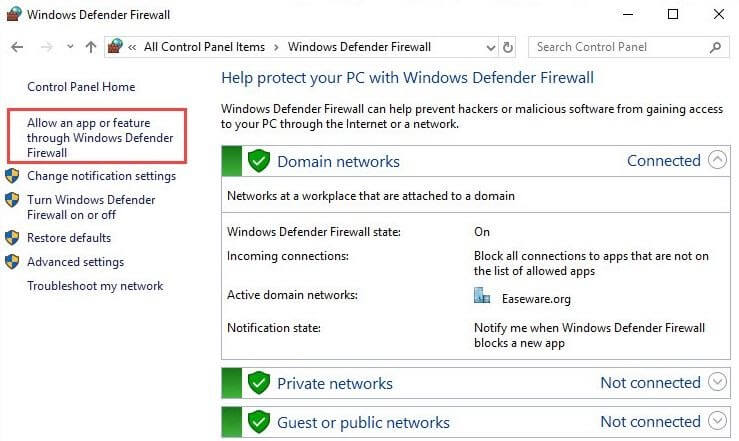
Click On Allow App Or Feature Through Windows Defender Firewall

  • Thereafter, be sure that javaw.exe is marked. If it isn’t then click on the Change Settings option and then mark the checkbox. If you find more than one javaw.exe records then mark them all. Make sure that the private and public both checkbox are marked. 
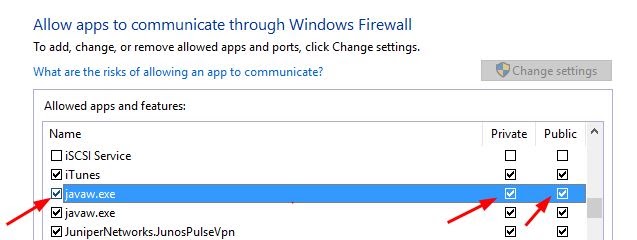
Private and Public Both Checkbox Marked

Do as so, and check whether the “Minecraft unable to connect to world” problem is solved or not. If it still remains like earlier, then move to our next fix. 


Fix 3: Temporarily Turn Off Antivirus Application

Sometimes, your Antivirus software can be the major cause because of which you are encountering the Minecraft unable to connect to world issue on windows 10. Rarely, your antivirus software can block some features in Minecraft so you may confront this annoying issue where you are helpless to connect to your friends’ world.

But, you do not need to panic, as this can be solved just by disabling the antivirus software for a temporary period of time. So, what are you looking for, try this hack and then connect to your friend’s world in Minecraft. 


Fix 4: Update Network Drivers

So, here is one of the most common yet bit impactful reasons why do you get an “unable to connect to world Minecraft” error on Windows 10 while connecting. The biggest culprit behind the occurrence of this issue is your outdated, old, broken, or corrupt network drivers. Hence, if you want to experience a breakthrough and smoother experience while playing Minecraft or any other game then you have to make sure that your network drivers must be always updated to their latest version.

Here, is one tool to do this task much easier and that is Bit Driver Updater. It is one of the leading driver updater tools currently which lets you update all the drivers with ease. Want to know how it works? Then, read the below-listed steps!

  • Download Bit Driver Updater from the download tab given below and launch it on your system.

Windows Download Button

  • Then, keep patience until the whole Automatic Scanning procedure gets finished.
  • Once, it will get over then examine the whole list of drivers.
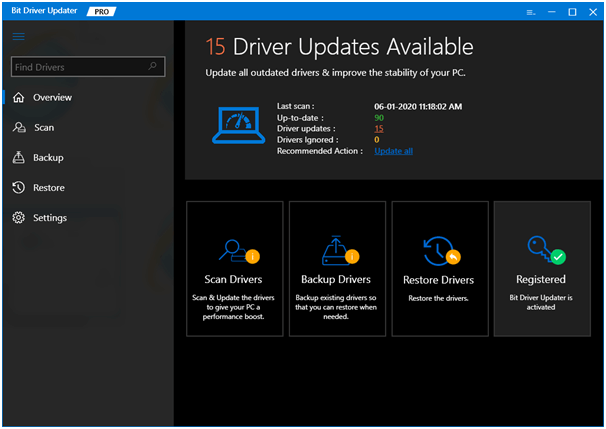
Bit Driver Updater - Best Driver Updater Software

  • After this, hit the Update Now option presented next to the drivers, to update the drivers.

That’s all, what you need to do, in order to update drivers using Bit Driver Updater. Isn’t it so facile? Undoubtedly, yes! So, hit the download tab and install this amazing software now!

Read More: How to Solve Discord Overlay Not Working on Windows 


Unable to Connect to World Minecraft On Windows 10 [Fixed]

So, with all this, we have come to the end. Through this write-up, we have tried to explain to you every bit possible to fix Minecraft unable to connect to world issue on Windows 10. Hopefully, the above-listed fixes can help you a lot. And, just in case, if you have any queries regarding this then feel free to ask in the comment box below. We’ll hear you and will answer your every query too.

In sum, do not forget to subscribe to our Newsletter for getting the latest tech information instantly. So, that’s all as for the present heat of the moment, we’ll back on board sooner with yet another informative post. Till then, stay in touch with us to stay in touch with the tech realm! 

Author

Harshita

Harshita Sharma is a technical writer with quite a distinct understanding of the tech realm. She is a tech enthusiast who believes that tech knowledge should reach one and all and tries to convert the sketchy knowledge into the simplest possible form for making people understand the tech world better. When not playing with words, she loves to travel and explore new places. And, is a coffee & cricket connoisseur.

View all posts

Related Posts
Fixed- Your Organizations Data Cannot be Pasted Here

Fixed: Your Organization’s Data Cannot be Pasted Here in Windows

February 15, 2024
0

Have you ever tried to copy data from one Office program to another and received the error message “Your organization’s data cannot be pasted here”? It indicates that you do not have permission to transfer the data to the program that you are attempting to copy it to; however, why is this the case?

The problem manifests itself most often when your company has implemented security measures using Microsoft Intune that prevent users from copying and pasting data. On the other hand, it may also be brought on by utilizing an app that is no longer supported, copying more information than the maximum allowed, or having an issue with either the source files or the destination files. If you are experiencing anything similar, this post contains a list of potential solutions that you may try in order to resolve the issue.

How to Fix Your Organization’s Data Cannot Be Pasted Here

The error “Your organization’s data cannot be pasted here” on Windows 11/10/8/7 PC can be easily solved. In this guide, you will find five different approaches to quickly resolve the issue.

Solution 1:  Restart your PC

If the Office app you’re using is sluggish or slow, you could have trouble copying or pasting data. It’s possible that quitting the Office app and then restarting your computer would fix the problem. In order to avoid losing unsaved work, you should make sure to save your file or create a backup of it before quitting your Office software or restarting your computer.

Restart your Windows computer

Launch the Start menu, click the Power symbol, and then pick Restart from the available option.Restart your Windows computer

Also Read: IRQL Not Less Or Equal Error in Windows 10, 11 [Fixed]


Solution 2: Make Changes to the Application Protection Policy for Intune

For the purpose of keeping sensitive information secure on company-issued PCs, many businesses rely on the app protection policies provided by Microsoft Intune. You will get the error “Your organization’s data cannot be pasted here” if Microsoft Intune’s policy settings at your place of business prevent the transmission of data to apps that are not related to work.

If you’ve administrative access, you may change the protection policy for your company’s Microsoft Intune account to permit data transmission between managed applications and unmanaged apps. Alternatively, you may create a whole new standard policy that enables the movement of data across any application.

Note: If you are unable to access the Microsoft Intune dashboard for your business or organization, you should get in touch with an administrator.

Step 1: Log in to the Microsoft Intune dashboard for the business or organization that you work for.

Step 2: Choose App protection policies after selecting the Apps option located in the sidebar on left.App protection policies

Step 3: After making your selection, go to the “Data Transfer” section of the policy settings menu. Next, choose Any app from the drop-down menu for the “copy, & paste, Restrict cut between other programs” option.

If the business or organization you work for does not already have an app protection policy, you may create one by selecting the option to Create policy.Create policy

Step 4: After that, go to Settings, then choose Data Protection > Data Transfer. Next, choose Any App for the “copy, & paste, restrict cut between other apps” option.

Step 5: To save the changes to the protection policy settings, choose the OK button.

After eliminating data transfer limits in Microsoft Intune, restart your computer to check if the error “Your organization’s data cannot be pasted here” is resolved. If not, try other solutions.


Solution 3: Updating Microsoft Office Suite

Applications inside Microsoft Office have been known to malfunction and display error messages when they are either outdated or plagued by bugs. Check to see whether you can copy and paste data between Microsoft Office products once you’ve updated them and see if you can export data.

Follow the instructions below to update your Office app, but first, make sure to connect your system to an active internet connection (either through Wi-Fi or Ethernet).

Step 1: Launch the Office program, and then choose the File tab from Ribbon’s menu.

Step 2: Choose Account from the menu on the sidebar.Microsoft OfficeAccount from the menu on the sidebar

Step 3: Click the Update Now button after expanding the drop-down menu for the Available Update Options.Update Microsoft Office

Step 4: Continue to make use of the program while the client in background downloads any available updates. You will be prompted to exit the Office application so that the tool may install any updates that have been obtained. To go forward, use the Continue button.

Step 5: You should get yet another message after the update has finished installing. After you have closed the update client and reopened the Office program, check to see whether you can now copy & paste data.Close when Updates Installed

Once done, test the issue. If your organization’s data cannot be pasted, error still persists, then try the next solutions.

Also Read: How to Fix Kernel Security Check Failure Error in Windows 10, 11


Solution 4: Enable Editing on the Document Or File

When you first invoke a file in one of the Office applications after downloading it from internet, the file will open in read-only mode. And, this mode, which is known as the “Protected View,” is a robust security part that decreases the likelihood that corrupted or possibly harmful files may infect your computer.

When you open a document in Protected View, you won’t have access to the paste or edit functions. When a file cannot be edited, the Microsoft Office applications will show a notification that reads “PROTECTED VIEW” below the ribbon.

To enable editing of the document, choose Enable Editing option that is located at the bottom of the message.

You might try adding some text to the page and seeing whether the error message “Your organization’s data cannot be pasted here” goes away if you disable Protected View. whether the problem continues to occur, check to see whether you have permission to copy and paste data inside the app.


Solution 5. Copy & paste the Content into a New Document or File

There are situations when a particular file is to blame for the “Your organization’s data cannot be pasted here” problem. Launch a fresh session of the Office program, create a new file, and see whether the application allows you to insert previously copied content. This will surely work for you in order to resolve the issue.


Frequently Asked Questions (FAQs)

Following are a few most common questions about the ‘your organization’s data cannot be pasted here’ issue on Windows 11, 10, or older versions. Just check them out below!

Q.1 How to resolve your organization’s data Cannot be pasted here?

Listed below are a few potential approaches to resolve the ‘your organization’s data cannot be pasted here’ problem.

  • Rebooting the PC.
  • Modifying the Microsoft Intune’s Application Protection Policy.
  • Updating the Microsoft Office Suite.
  • Enabling the edit feature on the document or file.

Q.2 What is the Meaning of Your Organization’s Data Cannot be Pasted Here?

It is a very common error and in most cases, the issue occurs because the owner of the content/ information that you wish to transfer has prohibited copy-and-paste activities. However, in this case, the error occurred for a different reason. Users are prohibited from copying data from Microsoft Office programs and pasting it into an illegal third-party application by the MS Intune Policy Management system. This indicates that Microsoft Intune Policy does not recognize the app into which you are copying the data. If the problem happens with approved applications as well, then it is most likely caused by outdated versions of the program.

Also Read: How to Fix DirectDraw Error in Windows 10, 11 (FIXED)


How to Fix ‘Your Organization’s Data Cannot Be Pasted Here’ on PC: Explained

You may be able to overcome constraints on your computer that prohibit you from copying and pasting data in Office apps by using these troubleshooting approaches. If the issue continues, you may get in touch with Microsoft Support, attempt to fix the Office application or speak with the IT support branch of your organization.

We hope you found the article helpful & useful. Please feel free to drop your queries or better suggestions in the comments section below.

For more tech-related information, do subscribe to our Newsletter and follow us on Social Media.

Why Do My Games Keep Crashing in Windows 10 {FIXED}

Why Do My Games Keep Crashing in Windows 10 {FIXED}

September 16, 2021
0

A precise & simple troubleshooting guide to address “Why do my games keep crashing on Windows 10”.

Nowadays, many Windows 10 users have reported frequent crashing issues while playing the game online. They complained that high-end games including Overwatch, Call of Duty, Battlefield, etc, ended up with regular crashes, and sometimes didn’t launch at all.

Experiencing the lags while playing the game online affects the whole mood and gameplay. We understand this is really annoying. But, don’t worry as the frequent game crashing issues can be solved, easily & quickly. Through this write-up, we have brought up the list of few easy tactics you can use to fix games keep crashing for Windows 10.

Quickly Fix Games Keep Crashing in Windows 10 by Updating Graphics Driver (Recommended)

Updating graphics drivers from time to time helps you deal with all possible problems related to games like freezing, crashing, or lagging. To do so with ease, you can try Bit Driver Updater, a top-notch utility for updating all outdated drivers within a few clicks of the mouse. The software comes with a default system optimizer that can boost the overall performance of your machine by cleaning junks. Give Bit Driver Updater a try from the download button below.

What Causes Games Keep Crashing on Windows 10?

Before we shift towards the solutions, here are some major causes of this inconvenience.

  • Outdated, broken, or faulty graphics drivers.
  • Old version of Windows Operating System.
  • Unnecessary programs that are running in the background.
  • Due to third-party anti-virus.
  • Game Mode.

Most Workable Solutions to Fix Games Keeps Crashing on Windows 10

Action-packed games like Minecraft crashes during the playtime, then below mentioned solutions helps you fix games keep crashing on Windows 10. Let’s read them thoroughly!

Solution 1: Restart your PC

Before you try other advanced methods you should always try to reboot your computer. This may sound a bit easy but sometimes, it does make a difference and fix the bugs. However, this solution is a temporary way to get rid of issues. So, ultimately, you need to consider the other solutions.

Also Read: How Do I Know Which Intel Graphics Driver Do I Have


Solution 2: Close Background Running Applications

If your game keeps crashing on Windows 10, then it might happen due to the programs that are running in the background. Because these background running applications occupy an ample amount of memory, eventually, your preferred game is unable to use the required memory, thus, games lead to frequent crashes. Therefore, it would be a smart move to close all the background programs. Here is a quick tutorial on how to do that:

Step 1: Make a right-click on the Taskbar to select Task Manager from the context menu list that appears.

Select Window Task Manager

Step 2: Then, hover over the Startup tab.

Step 3: Thereafter, select the programs you want to close and then click on Disable.

Disable Select the Programs in Startup Tab

Step 4: Lastly, restart your computer.

Now, try to launch the game again just to check whether the games keep crashing or fixed.

Important: In order to enjoy the glitch-free gaming experience, you can also use the best game booster software. Such kinds of utilities help you optimize your overall PC performance.


Solution 3: Update your Graphics Driver

Games keep crashing on Windows 10 due to the outdated graphics drivers. Therefore, to fix all possible glitches related to the games, you should make sure to update the graphics driver frequently. To do so, you can either use the manufacturer’s official website or a leading driver updater software. However, we recommend you to use the driver updater utility as it takes lesser time as well as manual efforts.

Plus, searching for the correct driver online can be tiresome and error-prone. So, you should use the best driver updater software to automatically find and install genuine drivers.

Bit Driver Updater is one of the safest and quickest ways to repair all broken drivers with ease. This utility automatically recognizes your system and then detects the most suitable drivers for your machine. Not only that, but with this software, you can deal with many Windows-related problems, including slow PC performance, BSOD (Blue Screen of Death) errors, frequent system failures, and many more. Follow the steps shared below to know how Bit Driver Updater works:

Step 1: Download and install Bit Driver Updater for Free from the button given below.

Windows Download Button

Step 2: Launch the utility on your machine and let it scan your PC for outdated, broken, or faulty drivers.

Step 3: You have to wait for a while as it takes a couple of minutes to list all the drivers which need to be updated.

Step 4: Go through the scan results, and locate the problematic graphics drivers. Then, click on the Update Now button placed next to the driver.

Step 5: Else, if you noticed that other drivers also need to be updated then you can update them too, along with the graphics drivers. For this, you need to click on the Update All button instead.

Update All Driver with Bit Driver Updater

That was all you need to take into consideration in order to fix all faulty drivers and related issues. Once done, then reboot your computer and check to see if the Steam games crashing in Windows 10 are fixed. If not then try other tactics listed below.

A Point to Remember: Bit Driver Updater provides round-the-clock technical assistance to its users. That means you can contact the support team of Bit Driver Updater at any time regarding your queries or further help. Also, you get a 60-days complete money-back guarantee.

Also Read: How to Fix Unreal Engine 4 Crashing {SOLVED} – Expert Tips


Solution 4: Check for Updates

Why do my games keep crashing on Windows 10? Juggling to know the answer to this question? Well, if you are using the outdated version of your Windows operating system, then it is possible to witness possible glitches while playing the game online, the regular game crashes are one of them. Therefore, it is extremely crucial to install the latest updates and patches uniformly. Follow the steps below to run Windows Update:

Step 1: Right-click on the Windows icon presented at the bottom of the left side, and then click on the gear icon (Settings).

Select settings from Start Menu

Step 2: Once Windows Settings opens, then click on the Update & Security option to proceed further.

Updates and Security

Step 3: After that, on the left pane, scroll down until you see Windows Update and click on it.

Step 4: Next, make a click on the Check For Updates option.

Check for Updates in Windows Settings

Wait and let Windows search for the available updates. If any update is available then Windows will automatically download and install it.


Solution 5: Launch Games in Windows Mode

Since games can either be opened in full-screen or windowed mode. So, if your games keep crashing on Windows 10, even after upgrading Windows operating system, then you can consider launching the game in Windows mode.

For this, you have to modify the video settings of your game, then navigate to its launch option, and set it as Window mode. In addition to this, a bulk of games also comes with an in-built program that allows the players to alter the display settings before opening the game. So, you can seek help from such kinds of programs. After launching the game in window mode, you still encounter the issue, then try the next solutions mentioned below.

Also Read: How to Fix Fallout 4 Keeps Crashing Issue on Windows PC


Solution 6: Temporarily Remove Third-Party Anti-Virus

Do games keep crashing? Don’t worry, try to uninstall the third-party antivirus program, if you use any. Because sometimes, your third-party anti-virus may interfere with your preferred game and cause frequent crashes. Therefore, by removing the antivirus software temporarily you can get rid of this issue.

If in case, disabling the anti-virus software doesn’t work in your favor, then move on to the next solution.


Solution 7: Reinstalling the Game

If nothing has fixed the problem for you, then you need to reinstall the game as a final option. For reinstalling the game, you need to first uninstall the currently installed version of the game as well as associated files. Doing so resolves numerous configuration issues that happened due to the faulty game files, which make your game work again. Below are a few simple steps to do so:

Step 1: Simultaneously, press Windows + R keys from your keyboard to invoke the Run Dialog box.

Step 2: Then, type Control inside it and hit the Enter key.

Type Control in Run Utility Box

Step 3: This will take you to the Control Panel, wherein you need to set View by as Category and then click on Uninstall a Program under the Programs.View by as Category and click on Uninstall a Program

Step 4: Thereafter, right-click on the game you wish to uninstall and then select the Uninstall option.

Once done, then go to the official website of the game you want to play and install it again. This should fix the frequent games crashing on Windows 10.

Also Read: [Fixed] Modern Warfare Crashing Issues On PC


Was this Helpful?

Now, you can enjoy a better gaming experience as frequent game crashes will not bother you anymore. In this write-up, we have tried to address the most asked question “why do my games keep crashing on Windows 10”.

We hope you find this troubleshooting guide helpful. Please feel free to contact us through the comments box below if you have any questions or further suggestions. Also, comment on which solution worked for you.

Lastly, do subscribe to our Newsletter for staying up-to-date and informed. Along with this, follow us on our Social Media Handles: Facebook, Twitter, Instagram, and Pinterest.

1 Comment
    [Fixed] World of Warcraft Was Unable to Start Up 3D Acceleration says: Reply
    December 24th 2020, 1:22 pm

    […] Read Also: Fix to Resolve Unable to Connect to World Minecraft On Windows 10 […]

Leave a Reply to [Fixed] World of Warcraft Was Unable to Start Up 3D Acceleration Cancel reply

Your email address will not be published. Required fields are marked *

Sidebar Image bit G ad1

Latest Posts

  • Best-Ways-to-Combine-Images-Into-PDF-Files
    Best Ways to Combine Images Into PDF Files
    by Niharika / March 12, 2026
  • Best FREE VPS Hosting Providers
    7 Best FREE VPS Hosting Providers in 2026
    by Devesh / March 12, 2026
  • Anytime Astro: Best Website For Online Astrology Consultation
    Anytime Astro: Best Website For Online Astrology Consultation
    by Somya Shrimal / February 13, 2026
  • Best-McAfee-alternative-software-to-use-for-Virus-Protection
    Best McAfee Alternative Software to use for Virus Protection
    by adminuser / February 11, 2026
  • What-is-Flip-Flop-in-Circuite-and-it's-Types
    What is Flip Flop in Circuit and its Types
    by Meet / February 6, 2026

Categories

  • Cyber Security
  • Driver Updater
  • Entertainment
  • Fitness
  • Games
  • How To
  • laptop
  • OS
  • Reviews
  • Tech News
  • Tips & Tricks
  • Top 10
Sidebar Image bit G ad1
How To Install Windows 10 On Mac How To Install Windows 10 On Mac? Simple Guide!by Jyotsana / December 20, 2020
15 Best Christmas Tech Gifts & Gadgets For Kidsby Prachi Dani / December 21, 202015 Best Christmas Tech Gifts & Gadgets For Kids
TechPout Footer Logo

We at TechPout promise to put forth stories that help people to learn and simplify their digital life. Our purpose is to share the true essence of technology with our tech-loving community.

Useful Links

  • About Us
  • Contact us
  • Privacy Policy

Popular Posts

  • Best PC Optimizer Software
  • Best Mac Cleaner Apps
  • Best Driver Updater
  • Duplicate Photo Finder and Cleaner Software
  • Best Free Movie Download Sites
  • Best IPTV Players

Follow us

Copyright © 2026 www.techpout.com. All rights reserved
DMCA.com Protection Status