Main LogoLight Logo
  • Reviews
  • Top 10
  • How To
  • Tech News
  • OS
    • Windows
    • MAC
    • iOS
    • Android
  • Categories
    • Driver Updater
    • Cyber Security
    • Games
    • Fitness
    • Entertainment
    • Tips & Tricks
Driver Updater How To Windows
by Snigdha

Windows 10 100% Disk Usage In Task Manager [Fixed]

January 8, 2021
1

If you are finding your Windows 10 system at 100% disk usage, then for sure something is stressing your hard drive and causing it to overwork. Your system will be unresponsive and it will lag and freeze when your system is using 100% disk.

In fact, the lagging and freezing makes us look at the Task Manager automatically to end tasks and processes. It is only then, that most users come across this underlying error of 100% disk utilization. Additionally, the event log may also represent several resets of the disk controller.

It sure is mind boggling to discover this anomalous behaviour of your system and we can’t help wondering which actions led to 100% disk usage error. But you will be relieved to know that it’s a genuine occurrence that happens on its own and can be fortunately fixed with some easy troubleshooting methods.

In this guide, we present to you 10 best ways in which you can fix 100% disk usage error.

All-in-One Solution to Fix 100% Disk Usage Error

Before trying the other high-level fixes, you should update the outdated drivers. Majorly, the system lags and freezes due to outdated or faulty drivers. And, updating drivers manually takes a long while, hence, you must use Bit Driver Updater to perform the same task automatically.

This ultimate utility not only lets you perform the driver update in one click but also elevates the performance bar of your system. If you have convinced yourself that this is the only tool you need, then you can click on the download button below to get this one-stop solution for free.

Windows Download Button

Table of Contents hide
Wholesome Guide To Resolve Windows 10 100% Disk Usage Error
1. Disable Antivirus Software Temporarily
2. Perform a Disk Check
3. Alter Energy Options From Balanced To High Performance
4. Disable Windows Search
5. Disable SuperFetch
6. Uninstall Flash Player Update
7. Update Device Drivers
8. Reset Virtual Memory
9. Fix the StorAHCI.sys Driver
10. Disable Windows Update Service

What Causes 100% Disk Usage In Windows 10 

When a specific program demands more memory than expected it usually happens. Plus, this drives a lack of resources to other programs and thus results in slow down issues. If you are suffering from slow performance of your PC and don’t how to fix it. Then, this write-up will elucidate how to fix this issue quite quickly.

But, before moving forward, it would be better enough to know about the causes of it for future prevention. However, there are numerous causes of this problem but here are core ones. Have a look at them! 

  • Registry issues.
  • Due to pending windows system updates. 
  • Corrupt, broken, old, or faulty system drivers.
  • Faulty system files. 
  • Due to malware and viruses.
  • Background running programs.

So, these are some of the significant causes of 100% Disk Usage and that makes your computer sluggish and vulnerable. But no worries, this write-up will explain to you some fruitful ways to fix this annoying issue. And, will surely bring back the actual effective performance of your system. So, without any further ado, let’s move ahead to know more about it! 


Wholesome Guide To Resolve Windows 10 100% Disk Usage Error

Let us now get to the details of the troubleshooting techniques one by one in the below segment.

1. Disable Antivirus Software Temporarily

Your antivirus software sometimes might keep running in the background which might lead to 100% disk usage in Windows 10. What you can do in  this scenario is to disable your antivirus tool momentarily to see if it is able to decrease the disk usage value from 100% to the minimum value. 

Even when you are disabling the antivirus solution for a short while, you needn’t worry about your system becoming defenseless and vulnerable to cyber threats because, in Windows 10 system, the in-built Windows Defender stands guard against several manipulative cyber exploitation mechanisms.

To strengthen the security walls of your device we recommend you to use powerful antivirus software like ITL Antivirus along with Windows Defender. Give your device all-around protection from digital threats and harmful viruses with ITL Antivirus.

Read More: How to Fix Windows 10 Not Responding Error


2. Perform a Disk Check

To do this you need to run the Command Prompt as an admin. You can give permission by clicking “Yes” at the User Account Control prompt. The below-mentioned steps will let you complete the disk check:

  • In the Command Prompt window, key-in the following command and press Enter following that: chkdsk.exe / f/r
  • Further, type Y to confirm that you would want to proceed with the desk check process the next time you restart your system. 

Post this, you can open the Task Manager to verify if the 100% disk usage error has resolved or not. If it didn’t, then jump to the next solution.


3. Alter Energy Options From Balanced To High Performance

As suggested by many experts, altering the energy options to High Performance from Balanced works well with Windows 10 100% disk usage error. To do this, you need to follow the following steps:

  • Navigate to the Power Options.
  • Then, click on “Change plan settings.”
  • Further, go to “Change advanced power settings.”
  • Here, select the High-Performance option from the drop-down box and let all other plan settings be as per the default settings.
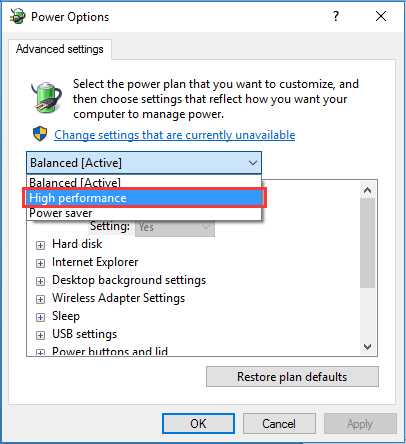
Alter Energy Options From Balanced to High Performance

Finally, reboot the PC to see if the disk usage has changed.

Read More: Fix Steam Disk Write Error on Windows 10


4. Disable Windows Search

Windows Search searches files on your PC faster. If not needed then, it can be disabled temporarily as it will stop the indexing process of all files. Temporary disabling is recommended at first to see if this is the cause behind 100% disk usage error. You can do this as per the below steps:

  • Open Command Prompt as an administrator by hitting Windows and X keys together. Further grant permission to the user account control and type the following command and press the Enter key: net.exe stop “Windows search“

Now check if your disk usage level has come down to a normal level. If this method seemed to work out, then disable the Windows Search permanently.


5. Disable SuperFetch

SuperFetch in Windows systems is responsible for reducing the boot time and making must-load programs more efficient. However, a lot of times it has been identified to be a potential cause behind system lags. To disable the service you can look at the below steps:

  • Launch the Command Prompt as an admin, type the following command and hit Enter – net.exe stop superfetch OR net.exe stop sysmain

After waiting for a few minutes, check if your system has become fast and stable? If so, then you have successfully fixed the 100% disk usage issue in the Windows 10 system.


6. Uninstall Flash Player Update

If you are still seeing Windows 10 high disk usage in the Task manager, then uninstall any flash player update. Several users have reported this technique to be effective. To uninstall flash player update, use the following path:

  • Windows Settings > Update & Security > Windows Update > Advanced Options.
  • Here, go to the “View your update history.” 
  • Then, go to “Uninstall updates” and uninstall the flash player update.
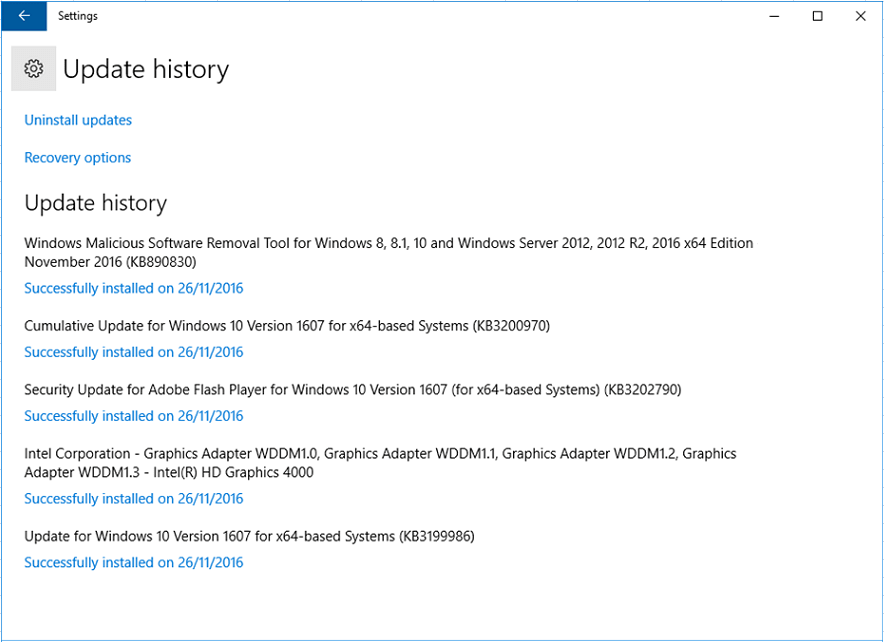
Uninstall Flash Player Update

7. Update Device Drivers

If you are experiencing issues with your system’s performance, then the best step is to update the device drivers. Outdated, missing, faulty drivers often leads to system slowdowns and may even contribute to Windows 10 100% disk usage error.

What can you do in this scenario is update device drivers automatically with the help of a driver update software. You can install a top-notch driver updater tool on your Windows system and let it scan your PC to detect faulty and out-of-date drivers.

If you are confused which tool will suit you the best from the many available options then we recommend you to pick Bit Driver Updater for troubleshooting your driver-related issues. You can download this power-packed tool using the given link.

Windows Download Button

You can use the below guide to update your device drivers:

  • Go to the website and install the Bit Driver Updater tool on your computer.
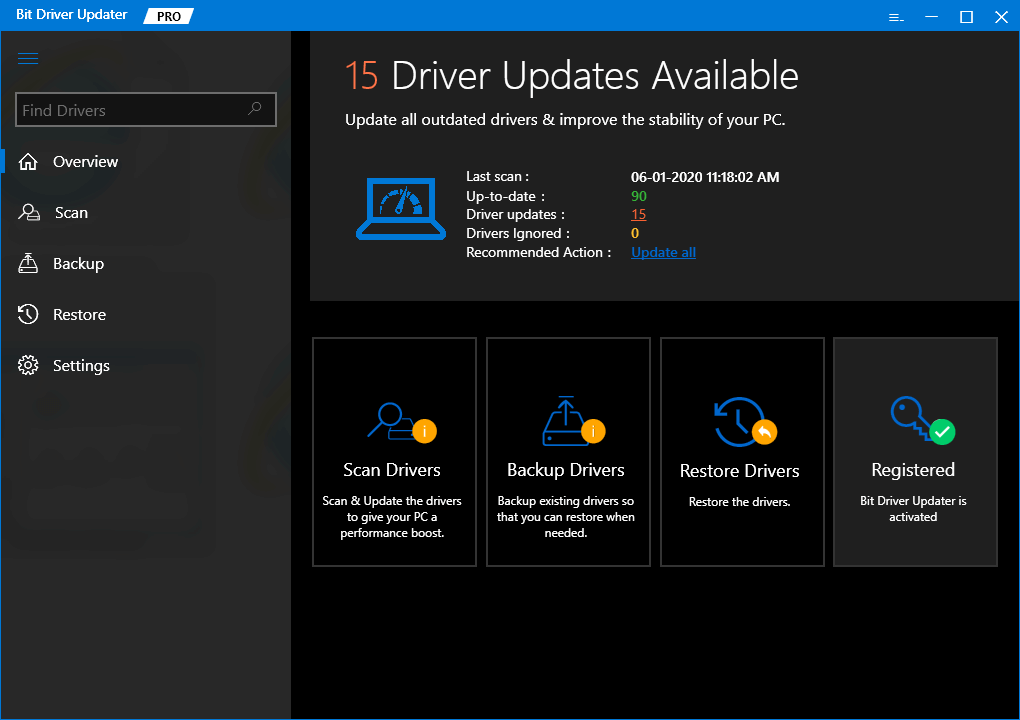
Bit Driver Updater Tool

Windows Download Button

  • Then, initiate driver analysis by performing a quick scan with this tool.
  • Once it has detected the drivers that need fixing, you can automatically download the updated versions of the respective system driver software with its one-click update feature.

After installing the drivers, verify if the Task Manager is now showing a reduced disk usage value.

Read More: Best Disk Cloning Software For Windows


8. Reset Virtual Memory

Virtual memory is a combination of a portion of the hard drive and RAM. When the system is low on RAM, it starts storing files temporarily in the virtual memory. Whenever RAM is available, it swaps the files back from the virtual memory to the RAM.

Steps to Reset Virtual Memory:

  • Go to Control Panel > All Control Panel Items > System.
  • Then, click on the Advanced system settings on the left-side pane.
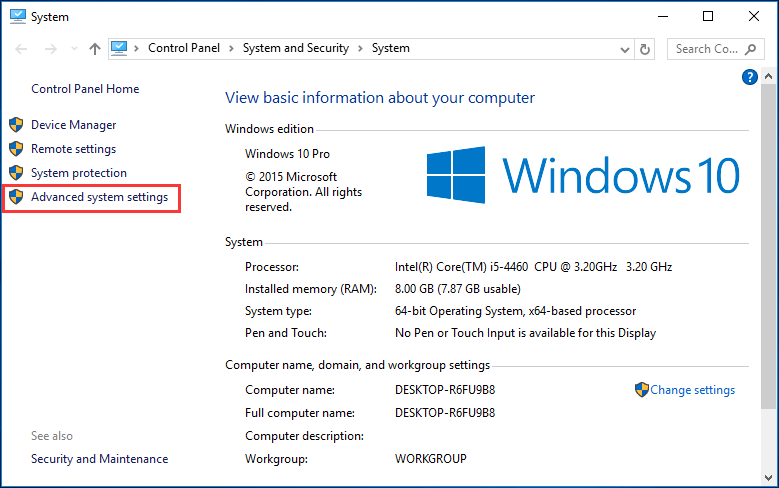
Reset Virtual Memory
  • This will open the System Properties window.
  • Under the Advanced tab, click the Settings button
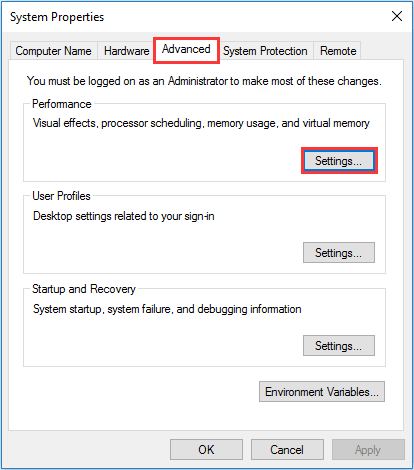
Under the Advanced tab, click the Settings button to Reset Virtual Memory
  • Go to the Advanced tab again and in the virtual memory section select the button labeled as Change…
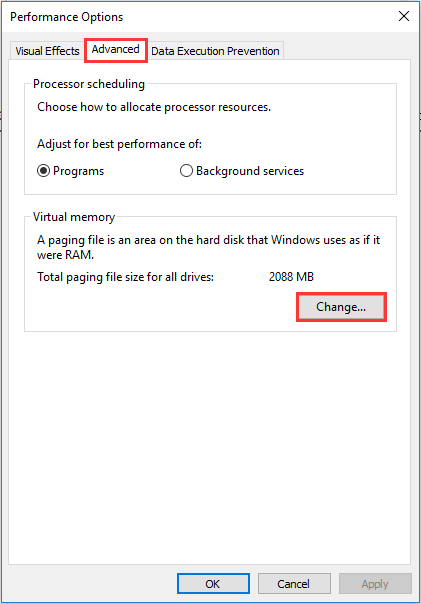
Reset Virtual Memory to Fix Windows 10 100% disk usage in Task Manager

Note – Ensure that the “Automatically manage paging file size for all drives” box is not checked.

  • Now select the Windows drive (usually the C drive) and input the Initial and Maximum size for your virtual memory.
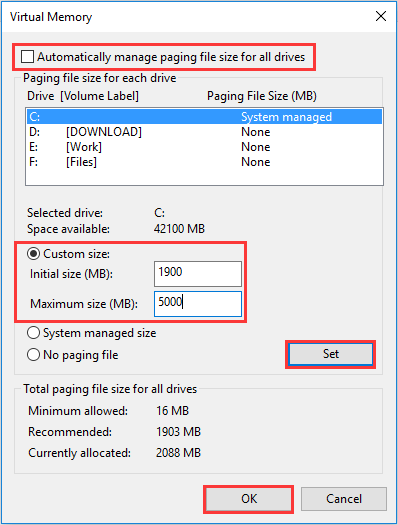
Reset Virtual Memory to Fix Windows 10 100% Disk Usage Error

Note – The Initial size value can vary depending on your system and you may use the numbers from the Recommended category for this field.

The Maximum size value should not be set too high. Try to keep a value which is at the most 1.5 times the size of your physical RAM.

  • Once you have set the values of virtual memory according to the above instructions, you can then click on “Set” and “OK” to continue further.
  • Further, clear all the temp files from your computer and then check the disk usage percentage in the Task Manager.

This should successfully resolve the 100% disk usage problem in your Windows 10 PC.

Read More: How to Fix Discord Screen Share Audio Not Working [Solved]


9. Fix the StorAHCI.sys Driver

100% disk usage error may also be due to the Advanced Host Controller Interface PCI-Express (AHCI PCIe) models that run with the inbox StorAHCI.sys driver. 

Due to a firmware bug, the SSD may not be able to complete input/output when Message Signaled Interrupt (MSI) mode is enabled. SO the Windows storage stack tries to reset the device after waiting on unresponsive read/write for some time.

Disabling the MSI mode via the registry can resolve your disk usage issue.

The way to determine if this is the cause of your current issue and if so, then fixing it up is outlined in the below points:

Determining if you are running StorAHCI.sys:

  • In the Device Manager, expand the IDE ATA/ATAPI controllers section.
  • Double-click the Standard SATA AHCI Controller.
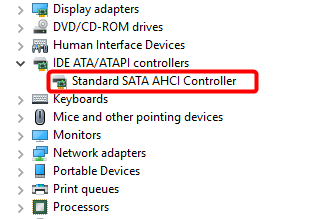
Fix the StorAHCI.sys Driver to Solve Windows 100% Disk Usage Error
  • As the Standard SATA AHCI Controller Properties tab opens, go to the Driver Details located under the Driver tab.
  • Here, if you can see storhci.sys stored in the path of the system32 folder, then you are running the inbox AHCI driver.
  • Close the Driver Details window and then choose the Device Instance Path found under the Driver tab. You need to note down the path, beginning from VEN_.
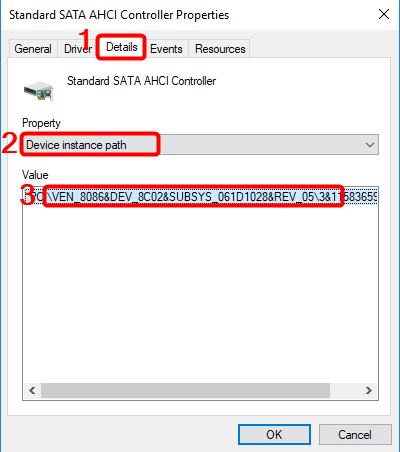
Standard SATA AHCI Controller Properties

Disabling MSI for the Controller via the Registry:

  • Open the run dialog box and type “regedit” to open the registry editor.
  • Then, navigate to the below path:

“HKEY_LOCAL_MACHINE\System\CurrentControlSet\Enum\PCI\< AHCI Controller> Device Parameters\Interrupt Management\MessageSignaledInterruptProperties”

  • Alter the value of the MSISupported key from “1” to “0.”
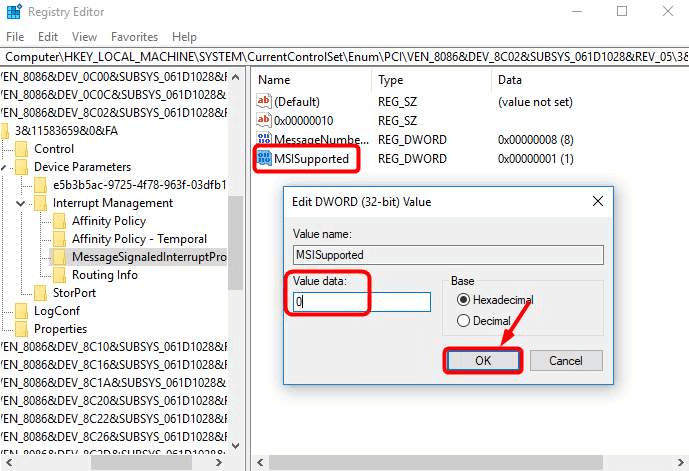
Disabling MSI for the Controller via the Registry
  • Finally, reboot your system to see if this worked or otherwise try the next solutions.

10. Disable Windows Update Service

Our next solution to fix 100% disk usage in Windows 10 is by disabling the Windows Update Service. It can be done as per the outlined steps below:

  • Run “services.msc” and click “OK” to open the Services window.
  • Scroll down to “Windows Update” and double-click on it.
  • As the Properties window pops open, in the start type select the “Disabled” option and then press “Stop.”
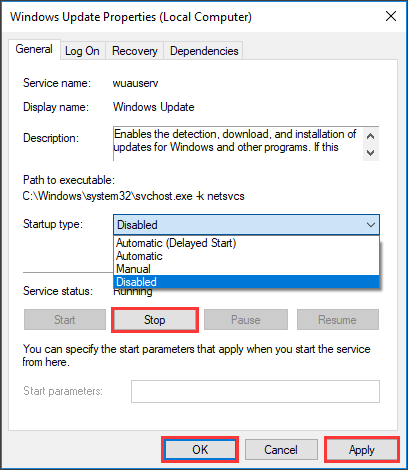
Disable Windows Update Service to Fix Windows 10 100% Disk Usgae Error
  • Followed by this, press “Apply” and “OK” to bring the change into effect.

Read More: Fix The Disk Is Write-protected Error On Windows 10/8/7


Summing Up

So, friends this was our wholesome guide to fix Windows 10 100% disk usage in Task Manager error. With this I hope that you are able to boost your PC performance. Always ensure to run only a few programs at a time to keep your PC performance at an optimum level.

Do let us know in the comments section which method worked for you or if you have any other suggestions.

 

Author

Snigdha

Snigdha is a technical content writer with expertise in the field of science & technology. Though she has a very diverse academic and professional profile yet she finds writing to be a creative form that she was unable to explore so far. When not writing, she can be found indulging in other forms of creativity like painting or travelling.

View all posts

Related Posts
How to Fix Gmail Temporary Error

How to Fix Gmail Temporary Error? Try Best Ways!

December 14, 2020
0

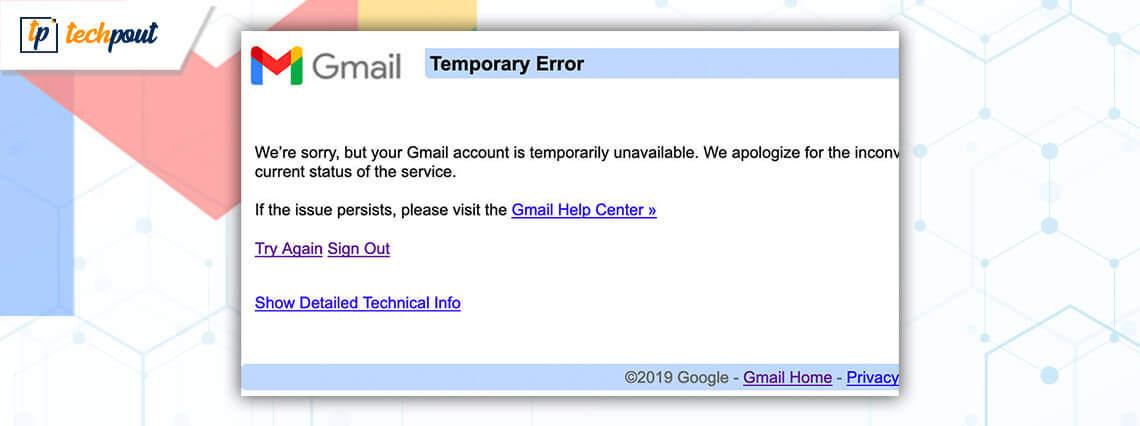
The obstructing error highlighting on your screen as you try to hit open Gmail on your browser is one of the common issues out there. While nothing is perfect and Gmail can cause annoyance for you, we have brought the best solutions to show this error way out. While logging in to your account, if you have found trouble accessing Gmail due to an error displaying with numeric codes like 404, 500 etc., you can check out this section to know how to fix Gmail temporary error. 

Possible Reasons For Gmail Temporary Error

You must be stuck upon a thought about how the Gmail temporary error occurred. Well, there can be several factors to reason that. Here are the possible ways your Gmail can end up displaying some error and stop functioning:

  1. The most common reason behind your Gmail error is some technical issue.
  2. There may be some issue with configuration out which the Gmail is showing an error.
  3. Exhausting your device or browser with multiple applications and tabs can also play a role in causing Gmail error.
  4. Sometimes, antivirus tools limit the data and applications which can also affect your Gmail.
  5. The Gmail temporary error can arise when the website crashes.
  6. There are tons of insecure websites that you accidentally end up visiting while browsing which encourages malicious elements to sneak into the browser and affect overall operations including Gmail.
  7. Cookies and cache can also interfere with the operations on your browser including Gmail.
  8. It may be some temporary problem. 

So, there are major reasons that can possibly affect your browser including your Gmail account.

Read More: How To Backup Gmail Emails With Attachments


Ways to Fix Gmail Temporary Error

Given that Gmail is the email giant that is sought after for truckloads of emails at work, school and for personal means, this error can be annoying and it can trash time for no reason. While there are multiple reasons that can cause Gmail to get dysfunctional, here are the best ways for you to try in order to clear your way.

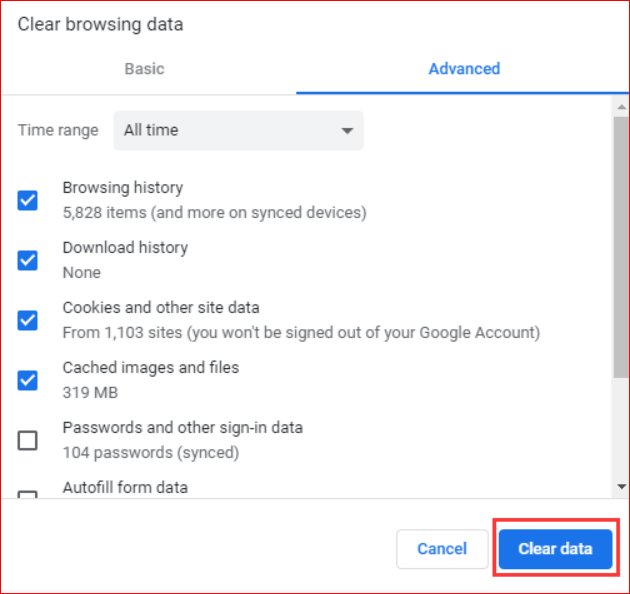
1. Clear Your Browser Data and Cache

Clear Browser Data and Cache

When was the last time you bothered to check up on the useless data your browser has stored by itself? If you have no idea then now is the time to navigate yourself to your preferred browser and scan all the cache and unnecessary data. Know that cookies and cached data are only there to play and intervene with the web platform you use and they continue to pile up unless they get banished from there. Such data leads to unwanted problems in processing the operations you commence.

So, the best way to ensure zero trouble from that clutter, you can wipe them off from your browser. Once done, you can try signing into your account if that was the cause of Gmail error. 


2. Update Your Browser

Gmail is always there, available with every version of the browser you use. If you haven’t installed the latest version of the browser you are using then it is possible to end up facing the tantrums of Gmail and failing to access your emails. Thus, it is best to keep your browser maintained by installing the latest version and save your time from the unnecessary fuss because of Gmail temporary error. Once you have updated the latest version of your preferred browser, you can log into your account and see if that makes any difference.

Read More: How to Sync Contacts from Gmail to iPhone and iPad


3. Try Another Browser

Another best workaround for the Gmail temporary error is to use another browser. Sometimes, it is just annoying to ruminate on what is actually causing your Gmail to get dysfunctional out of nowhere and to help that, you should probably put an end to scanning the root cause and seek another browser to try the fix.

If you cannot connect to your Gmail then it is time to leave the browser and test if this issue is resolved by using any other updated and supported browser. There are multiple browsers like Edge, Safari and Firefox that you can choose from


4. Delete Antivirus and Firewall

Antivirus and Firewall can be one of the causes discreetly affecting your Gmail account to end up at some error you are facing. Antivirus and Firewall actually work by imposing barriers on the kind and amount of files that processes inside your PC which can result in fluctuating performance of your Gmail.

To help yourself (and your Gmail account) get out of this situation, it is recommended to disable (only temporarily) any antivirus tool you are using. While you do that, don’t forget to disable the add-ons and extensions it has brought along as they can play a special role in affecting your web and interfering with your Gmail. Also, remember to get back to enabling it after some time. 


5. Disable Extensions

There are tons of add-ons and extensions that rest on your browser for no reason. Such add-ons and extensions are usually a creation of third-party platforms that have nothing to do with your email account. However, there is a chance that they may be producing troubles for your Gmail and keeping it from a healthy performance.

To stop this interference from add-ons and extensions, the best move you can move is to disable them. Once you are done stopping them, you can restart your browser and check Gmail.


6. Use Incognito Mode on Your Browser

Use Incognito Mode On Browser

You read that right. Accessing your browser with the Incognito mode activated makes sure there is no interference from add-ons, scripts and any extensions. This mode helps you use the web without these uninvited companions and keep it free of any hassle. If you are facing a Gmail temporary error then you can try this method out and see if that’s what your Gmail needs.

Read More: Best Email Apps for Android to Use in 2020


7. Leave It Be for Some Time

If you have tried multiple methods to be able to use your Gmail and view emails and failed, then perhaps the best way out there is to leave it be for some time. Know that usually a Gmail error creeps in, stays for a few minutes and then vanishes. If you cannot sign into your Gmail, then you can wait it out and try again after some time.


Fix the Gmail Temporary Error: Solved

Let’s hope these tips and tricks help you troubleshoot the Gmail issue. Apart from these methods, you can try any trusted third-party cleaner tool that helps in eliminating the cache and unnecessary data along with the protection against malware and it maximizes overall functionality of your device, obstructing any issue. However, it is advised to only seek such tools that you trust and download it from a known source or an official website. Before that, you can try out the methods mentioned above. Have a word to add? Feel free to drop it down in the comment box. 

How to Get Rid of Activate Windows Watermark

How to Get Rid of Activate Windows Watermark

June 7, 2024
0

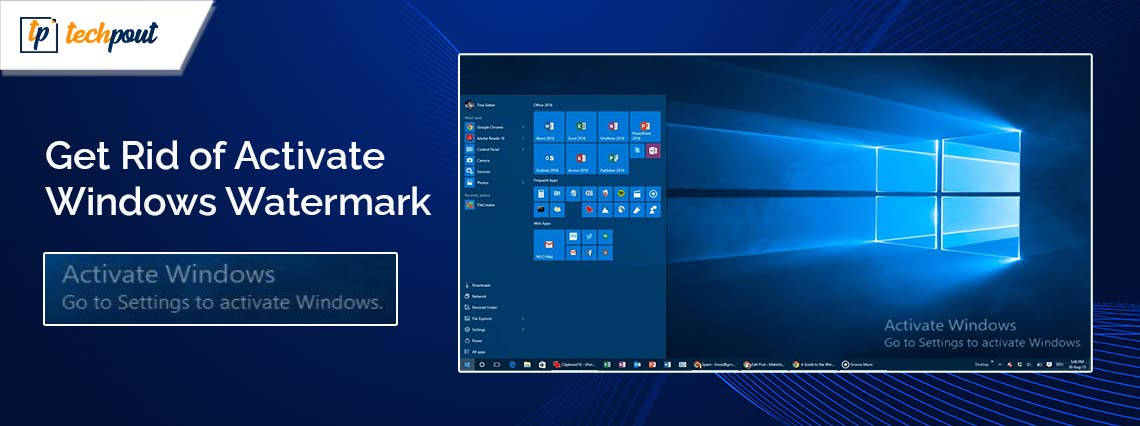
This article helps you with “Activate Windows” watermark removal by explaining the best ways to remove it.

The “Activate Windows” watermark appears frustrating when you are engrossed in some crucial task, and it hinders your focus or when it embarrassingly shows in your screen recordings. This watermark indicates that your Windows license key is invalid or has expired. However, you can effortlessly remove the “activate Windows” watermark.

Wondering how? Then, you can continue reading this article. This article is going to take you through multiple ways to drive this watermark away from your computer screen. Let us get started with the watermark removal without wasting valuable time.

Quick and Easy Ways to Remove “Activate Windows” Watermark

Here are the methods you can use to get rid of the “activate Windows” watermark on your computer.

Method 1: Use the product key to activate Windows

You must have received a product key when you purchase a licensed Windows. That key can be used to activate Windows and remove the activation watermark. Here are the steps to use it.

  • The first step is to launch your computer’s settings. You can access your device’s settings using the Win+I hotkey.
  • In the second step, you are required to choose Update & security from the options available on your screen.Click on Updates and Security
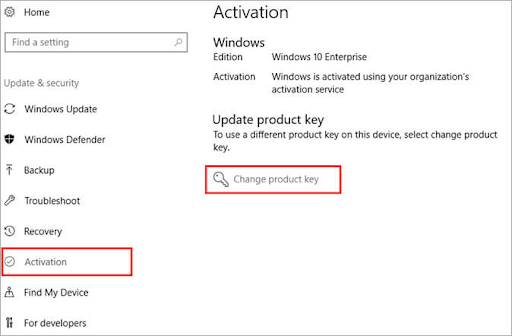
  • Next, you can choose Activation from the Update & Security options.Change product key
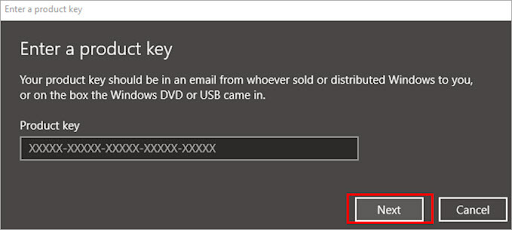
  • In this step, select the Change product key option from the Update product key section.input your Product Key
  • You can now input your Product Key in the on-screen box and click Next. 
  • Next, find and install Windows on the system.
  • Lastly, restart the computer to complete the process.

Method 2: Remove “Activate Windows” watermark on Windows 10/11 using PowerShell

You can use PowerShell scripts to communicate with the Windows operating system to remove the annoying activation watermark. Here are the directions to use it.

  • Firstly, activate the Windows search using the Win+S keyboard shortcut.
  • Secondly, input PowerShell in the search text box.
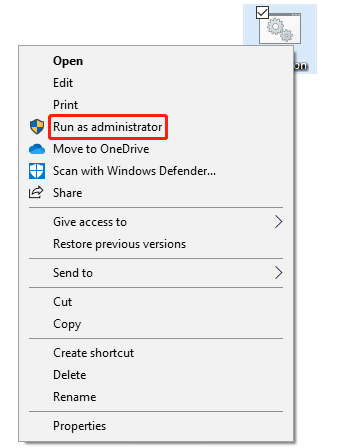
  • Next, you choose Run as administrator from the Windows PowerShell menu.file and choose Run as administrator
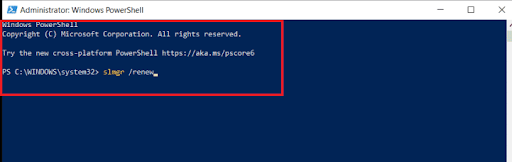
  • After opening the Windows PowerShell as an administrator, input slmgr /renew in the command line and press Enter. input slmgr renew in the command line
  • Lastly, restart your computer to ensure the watermark gets removed.

Method 3: Use the Ease of Access feature for “Activate Windows” watermark removal

The Ease of Access feature comes in handy when you wish to make any changes to your Windows system. Moreover, using the Ease of Access option to disable background images removes the watermark asking you to activate Windows. Hence, here are the steps to use it.

  • Firstly, use the Win+S hotkey to access Windows search.
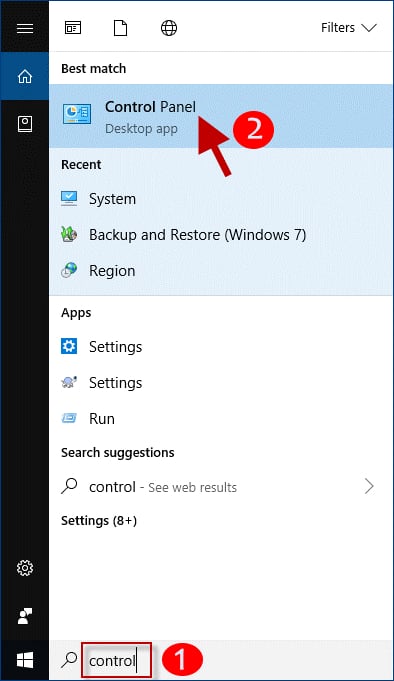
  • Secondly, input the Control Panel in the search box on your screen.control panel
  • In this step, you are required to click on the result appearing under the best match to open the Control Panel application.
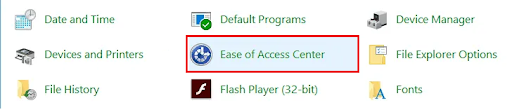
  • After opening the Control Panel, change the view to Large icons and choose Ease of Access Center from the on-screen menu.Ease of Access Center
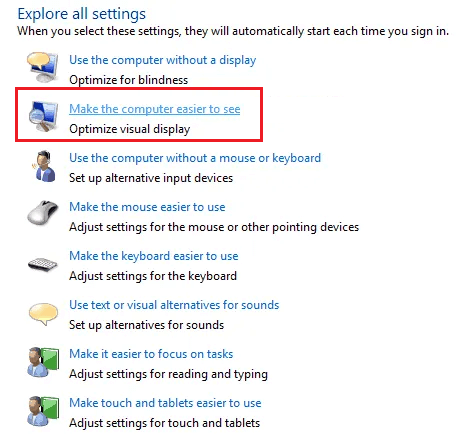
  • Next, click on the link to Make the computer easier to see. You will find this link in the Explore All Settings segment.Make the computer easier to see
  • In this step, scroll down to find and check mark the option to Remove background images (where available).
  • Lastly, click on the Apply and OK buttons to save the changes.

Method 4: Edit Registry to remove the Windows 10 activation watermark

Making some changes, as described below, in the Registry is another way to remove the watermark. Though we make the process as simple as possible for you to follow, perform the following steps cautiously to ensure no harm to your computer.

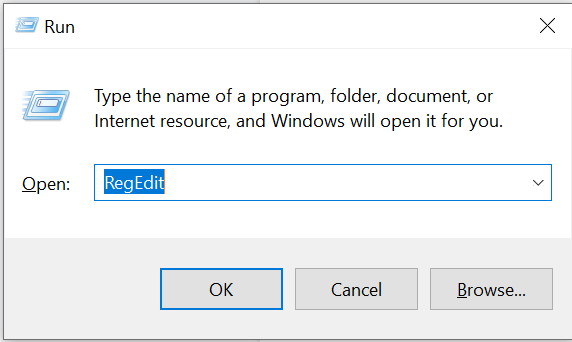
  • The first requires you to activate the Run tool using the Win+R hotkey.
  • Secondly, input regedit in the Run box on your screen and click OK to open the Registry Editor.Type Command RegEdi In RUN Box and Hit Enter Key
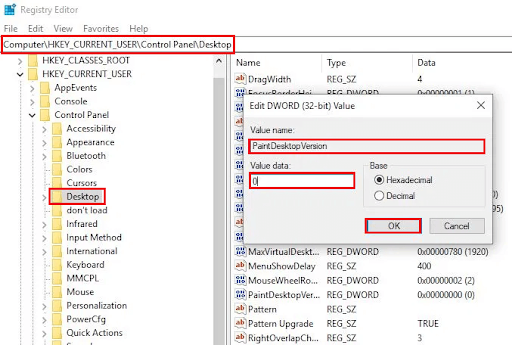
  • After opening the Registry Editor, navigate folders in the Editor using the arrow symbol to reach the path HKEY_CURRENT_USER\Control Panel\Desktop. 
  • In this step, you are required to double-click the PaintDesktopVersion value.PaintDesktopVersion
  • Next, change the PaintDesktopVersion value from 1 to 0 and click OK to save the changes you have made to the Registry.
  • Lastly, restart your computer to make sure the watermark is removed.

Method 5: Use the Notepad application to remove the Windows watermark

A simple Notepad Windows Notepad trick can remove the Windows 10/Windows 11 “Activate Windows” watermark. Hence, here is how to perform this action.

  • Firstly, launch Notepad on your computer by searching for and selecting it from the search results.
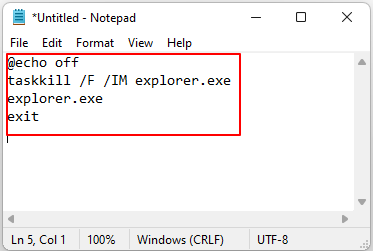
  • After opening Notepad, copy and paste the following code into the Notepad window.

@echo off

taskkill /F /IM explorer.exe

explorer.exe

exit

code into the Notepad window

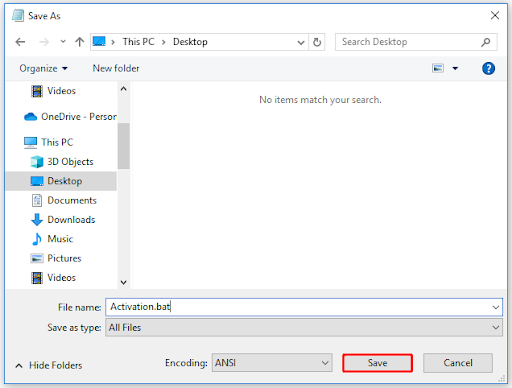
  • You can now save this file. Please remember to use the .bat extension when saving this file. For instance, you can name this file as Activation.bat.Activation bat
  • In this step, right-click the saved file and choose Run as administrator from the available options.
  • Lastly, restart your computer to finish the process.

Method 6: Disable Windows 10 tips

Windows offers tips and tricks to make your experience better. Disabling these tips can temporarily remove the Windows 10 activation watermark. Hence, here is how to turn off Windows 10 tips.

  • The first step is to use the Win+I hotkey to access Windows settings.
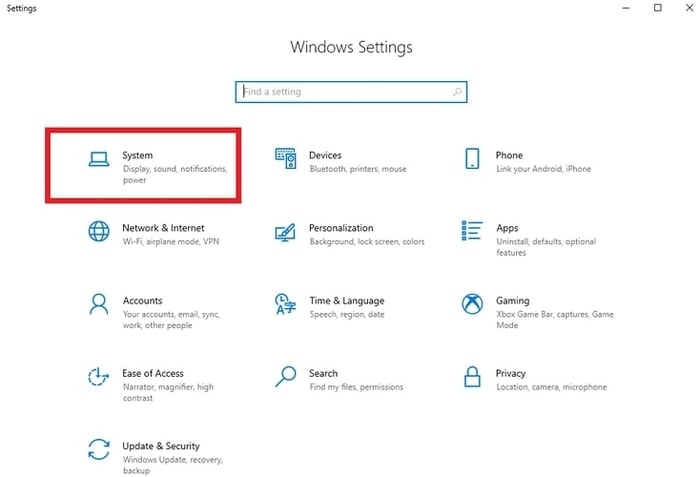
  • You will get the settings window on your screen. Select System from the available options.Select - System for Troubleshooting
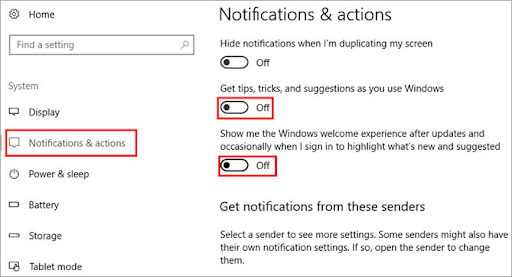
  • Next, select Notifications & actions from the system menu.
  • You can now toggle off the “Get tips, tricks, and suggestions as you use Windows” and “Show me the Windows welcome experience after updates and occasionally when I sign in to highlight what’s new and suggested” options.Get tips, tricks, and suggestions as you use Windows

“Activate Windows Watermark Removed”

“Activate Windows” is a watermark that annoys most of the users. Hence, this article shared tried and true ways to remove it. However, instead of only removing the watermark, you should ensure that you use a licensed and valid version of Windows to avoid various problems. Please comment if you have any doubts or suggestions about this write-up.

1 Comment
    Darrick Varron says: Reply
    November 20th 2020, 2:15 am

    Very nice post, I actually love this web site, carry on it

Leave a Reply Cancel reply

Your email address will not be published. Required fields are marked *

Sidebar Image bit G ad1

Latest Posts

  • Best VirusTotal Alternatives for windows in 2026 
    by Dikshika Singh / April 30, 2026
  • Best Ways to Fix Facebook Session Expired Loop Error  (1)
    Best Ways to Fix Facebook Session Expired Loop Error 
    by Gunjita Sompura / April 28, 2026
  • React vs Vue
    React vs Vue Detailed Comparison in 2026
    by Gunjita Sompura / April 23, 2026
  • Top Image Resizing software for Windows PC 
    by Dikshika Singh / April 21, 2026
  • How-To-Download-and-Install-Windows-Fax-And-Scan-In-Windows-11
    How To Download and Install Windows Fax and Scan in Windows 11
    by Dikshika Singh / April 15, 2026

Categories

  • Cyber Security
  • Driver Updater
  • Entertainment
  • Fitness
  • Games
  • How To
  • laptop
  • OS
  • Reviews
  • Tech News
  • Tips & Tricks
  • Top 10
Sidebar Image bit G ad1
Download & Install Sony VAIO Drivers On Windows 10 Download & Install Sony VAIO Drivers On Windows 10by Monil / January 8, 2021
How To Send Selfie Stickers On Instagramby Jyotsana / January 9, 2021How To Send Selfie Stickers On Instagram
TechPout Footer Logo

We at TechPout promise to put forth stories that help people to learn and simplify their digital life. Our purpose is to share the true essence of technology with our tech-loving community.

Useful Links

  • About Us
  • Contact us
  • Privacy Policy

Popular Posts

  • Best PC Optimizer Software
  • Best Mac Cleaner Apps
  • Best Driver Updater
  • Duplicate Photo Finder and Cleaner Software
  • Best Free Movie Download Sites
  • Best IPTV Players

Follow us

Copyright © 2026 www.techpout.com. All rights reserved
DMCA.com Protection Status