Main LogoLight Logo
  • Reviews
  • Top 10
  • How To
  • Tech News
  • OS
    • Windows
    • MAC
    • iOS
    • Android
  • Categories
    • Driver Updater
    • Cyber Security
    • Games
    • Fitness
    • Entertainment
    • Tips & Tricks
Driver Updater How To Tips & Tricks
by Harshita

How to Fix Discord Mic Not Working in Windows 10, 11 (2024)

February 8, 2024
1

Running into Discord Mic not working in Windows 11, 10? If yes, then you have come to the right place. Here you will find different tried and tested solutions that help you resolve the issue. Read more! 

Discord is a platform that is popular not just among gamers, but also among those who are wanting to engage with others who have similar interests. However, some users have claimed that the microphone in Discord is inoperable with Windows 11, 10.

You are able to communicate with other users on Discord using text, voice, and video in either one-on-one or group settings. Although the former operates normally, problems with the microphone could make your audio and video interactions less satisfying.

However, the solutions to these problems are rather straightforward, and you should have no trouble resolving the Discord mic not working on Windows 10, 11. Proceed through the next parts to get as much information as possible on the issue.

Table of Contents hide
Why is My Mic Not Working on Discord?
A List of Solutions to Fix Discord Microphone Not Working in Windows 10, 11
Solution 1: Reboot the Computer
Solution 2: Reset Discord Voice Settings
Solution 3: Set your Microphone as the Default Input Device
Solution 4: Close Discord and Relaunch it with Administrative Privileges
Solution 5: Update your Audio Driver
Solution 6: Reinstall Discord
Discord Microphone Not Working in Windows 11, 10: FIXED

Why is My Mic Not Working on Discord?

Misconfigured settings or problems with the microphone driver are often to fault if you have problems with the microphone in Windows 11/10, whether it be with particular applications like Discord or throughout the whole operating system. This might be due to the fact that the microphone driver has become obsolete.

Aside from that, if Discord is unable to access your microphone, you won’t be able to make use of it when you’re communicating with other users on the site. In addition, it’s possible that the issue is related to a defect in the currently existing version of the application or the operating system that’s installed on your PC.

Make sure that you give the Discord application a fresh start before moving on to more involved troubleshooting methods to resolve the Discord mic not working in Windows 11, 10. In addition, if you are using a wired microphone, try reconnecting the cord to your microphone, and if you are utilizing a wireless microphone, try repairing the Bluetooth connection to your microphone.

A List of Solutions to Fix Discord Microphone Not Working in Windows 10, 11

In this tutorial, you’ll discover three simple solutions to solve the Discord mic not working in Windows 11/10. Start at the top of the list and work your way down until you discover the solution that works.

Solution 1: Reboot the Computer

It might sound like a basic hack, but sometimes it works wonders. To restart the computer, go to the desktop, press the Alt + the F4 key simultaneously to bring up the Shut Down Windows box, and then choose Restart from the dropdown menu. Now, in order to restart the computer, click the OK button.

Check to see whether the problem of the mic not working on Discord has been resolved or not. If the cause of the issue was anything as simple as a bug, the microphone should be functioning normally again immediately. In the event that the problem still exists, you should go on to the following technique.

Also Read: Best Discord Music Bot in 2023 (That Still Works)


Solution 2: Reset Discord Voice Settings

Resetting the voice settings on Discord is another potential solution to this issue. Here is how to do that:

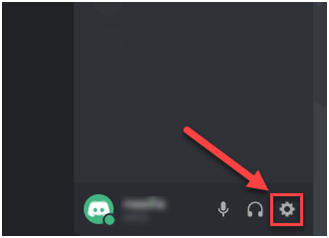
Step 1: From the main page of Discord, choose the gear symbol to access the Settings menu.Open-the-Discord-app-and-go-to-the-Settings
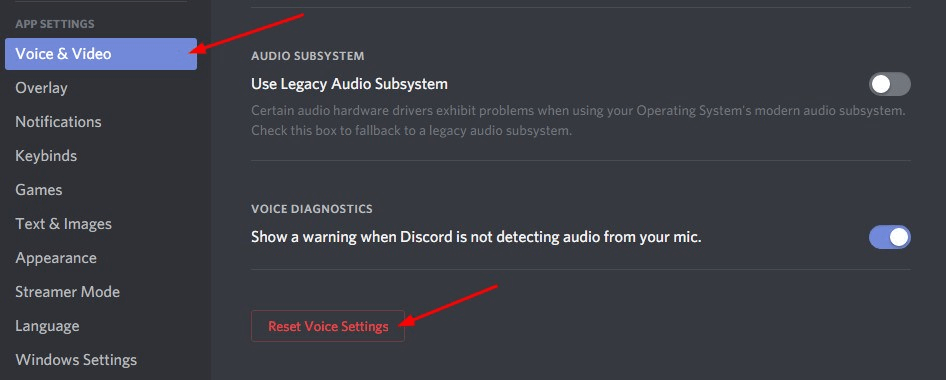
Step 2: Navigate to the Voice & Video menu, and then choose the Reset Voice Settings option.go-to-the-Voice-Video-and-click-on-the-Reset-Voice-Settings
Step 3: Click on Okay to proceed.

Step 4: Once done, then reconnect your mic and simply try to send an audio/ voice message on the Discord application to test the issue. In case, the issue persists, then move on to another solution to fix the Discord mic not working in Windows 11, 10.


Solution 3: Set your Microphone as the Default Input Device

Another workable solution to fix the headset mic not working is to set your desired microphone as your default input device. Follow the steps below:

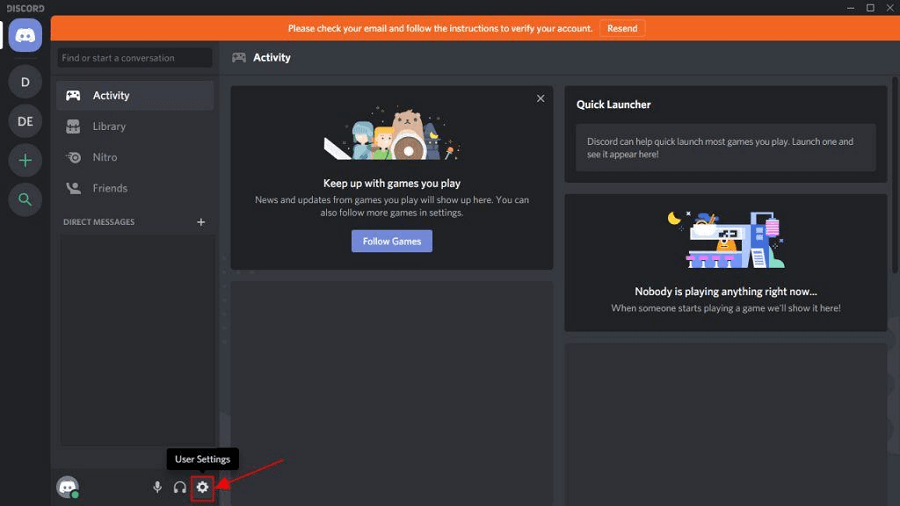
Step 1: Launch the Discord app, and then choose the User Settings icon located in the app’s lower-left corner.Discord User Settings
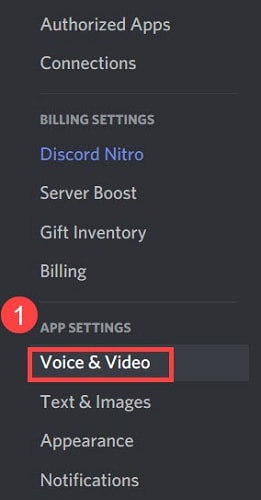
Step 2: Choose the Voice & Video option from the Settings menu of the app.voice and video setting from discord application
Step 3: Next, pick the microphone you want to use by clicking the Input Device dropdown menu and choosing it from the list of available choices that appears.

Step 4: If you want the changes to take full effect, you will need to restart the computer once you have made your option.

Also Read: How to Fix Discord Crashing Issue on Windows PC


Solution 4: Close Discord and Relaunch it with Administrative Privileges

Quitting and restarting the game would likely fix the Discord mic not working problem. This is how you can do it:

Step 1: Navigate to the Discord icon located on your Windows taskbar and right-click on it. Clicking the “Show hidden icons” button will reveal it for you when necessary. After that, choose the Quit Discord option.

Step 2: On your desktop, locate the Discord shortcut icon, right-click on it, and pick the option to “Run as administrator.”

Step 3: When asked by User Account Control, choose Yes from the drop-down menu.

Step 4: Test the functionality of your microphone by attempting to send an audio message using Discord.

Also Read: How to Fix Discord Screen Share Audio Not Working


Solution 5: Update your Audio Driver

An outdated, corrupt, or missing audio driver may be the root of this issue. Simply upgrading the driver for your audio device should fix the issue. You may manually download the appropriate audio driver for your computer, or you can let the computer do it for you automatically.

Manual driver update: If you want to manually update your audio driver, you may do so by visiting the website of the manufacturer of both your audio card and your computer, and looking for the most current version of the right driver. Make sure that the driver you pick is the only one that is compatible with the version of Windows that you are using.

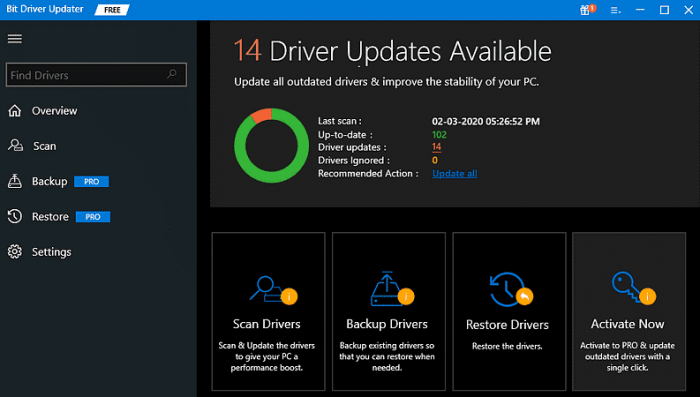
Automatic driver update: If you do not have the time, patience, or computer skills necessary to manually update your video and monitor drivers, you may instead use Bit Driver Updater to do this task automatically. Bit Driver Updater is the free driver updater software and it will automatically detect your computer and search for the appropriate driver for your specific audio card as well as the Windows operating system type you are using. It will then download and properly install the drivers. To use this method, follow the procedure below:

Step 1: Download and install the Bit Driver Updater.

Windows-Download-Button

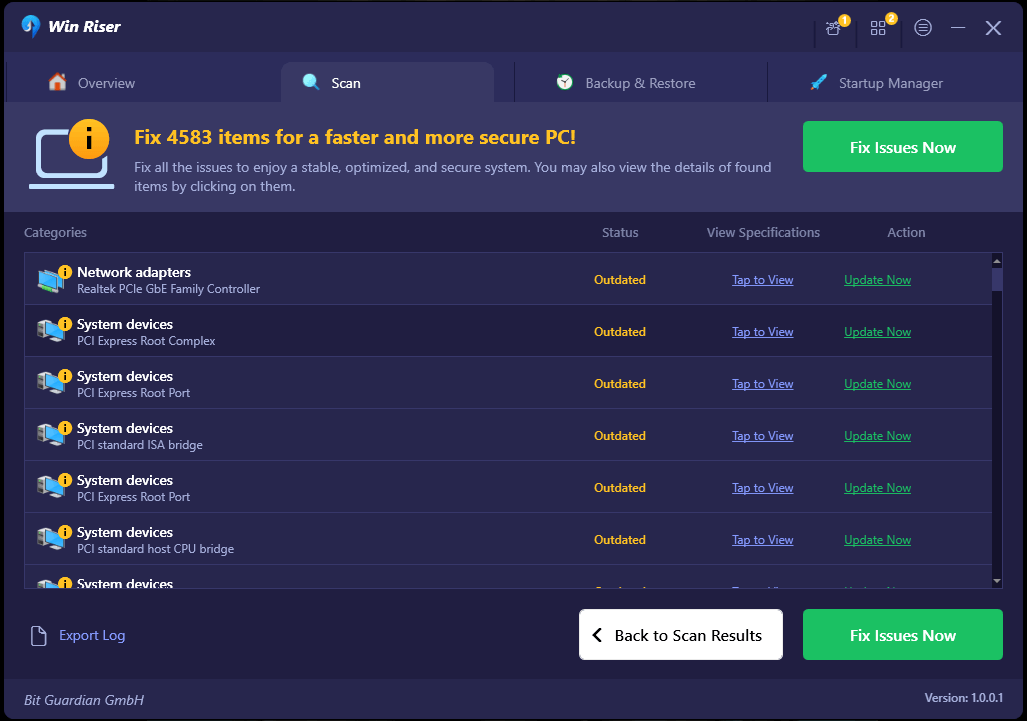
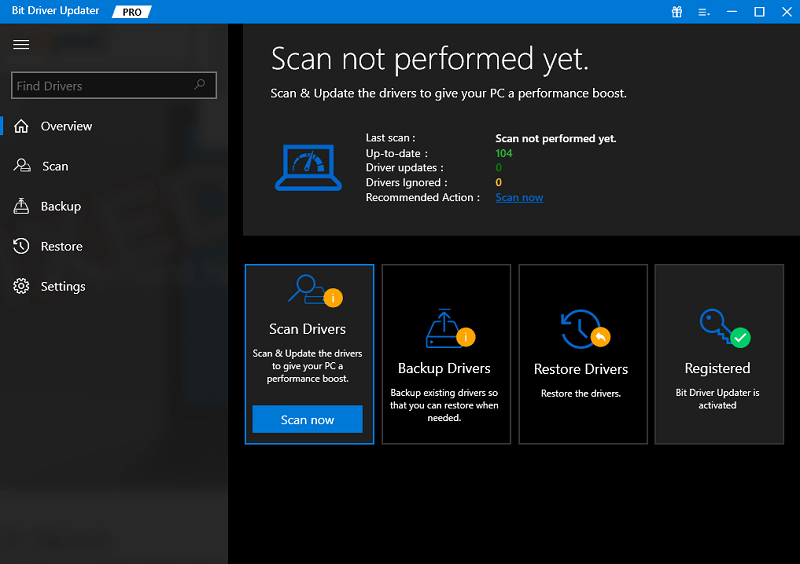
Step 2: Run Bit Driver Updater on your PC and choose the Scan option from the menu available on the left. After that, Bit Driver Updater will scan your computer to look for any problematic drivers.Scan outdated driver of your windows pc
Step 3: You may accomplish this with the free version if you click the Update Now button that is located next to the audio driver that is being flagged. This will install the latest audio driver update automatically on your computer. bit driver updater- update all
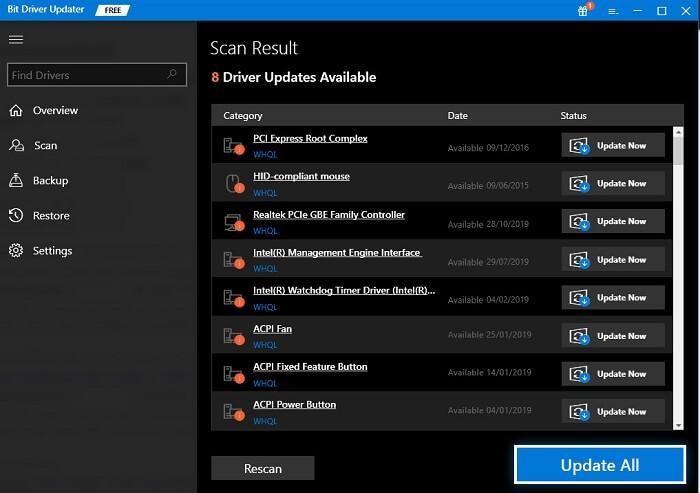
Alternatively, you may click the Update All button to have your system automatically download and install the most recent and up-to-date version of any driver that is either missing or not functioning properly on your system. (You’ll need to upgrade to the Pro edition for this, which includes lifetime free technical support and a 60-day full money-back guarantee.


Solution 6: Reinstall Discord

If none of the solutions presented above worked for you, the issue is most likely related to the program installation, which is what’s preventing the Discord mic from functioning properly on Windows 11/10. In this particular scenario, the only viable solution is to reinstall the Discord client. Here is how:

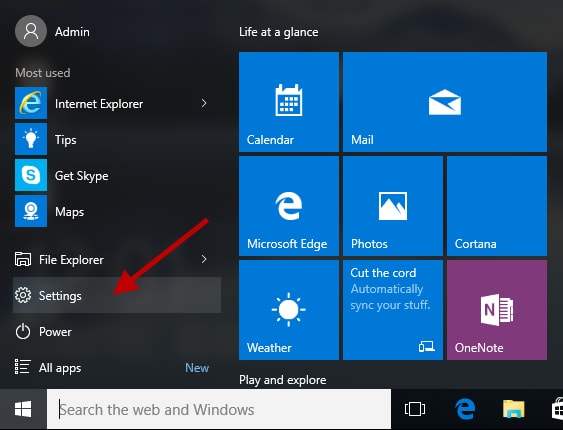
Step 1: To open the Settings menu, press Windows + I, and then pick Apps from the list of tabs in the navigation bar on the left.

Step 2: After that, go to the right side of the screen and choose Apps & Features.Apps and Features
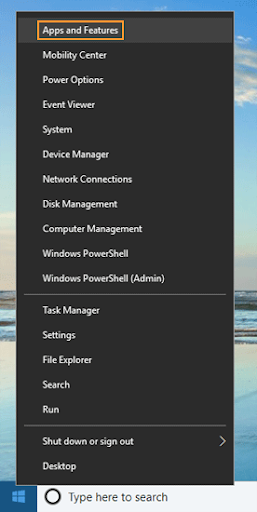
Step 3: Find Discord among the programs that are shown here, click on the ellipsis button that is located next to it, and then pick Uninstall from the selection that appears.

Step 4: Once again, choose Uninstall from the menu that appears in the confirmation box that appears.

After you have completed the process of uninstalling, restart the computer and then download the Discord application. This will definitely fix the mic not working on Discord.

Also Read: How to Fix Discord Stuck on ‘RTC Connecting’


Discord Microphone Not Working in Windows 11, 10: FIXED

If you are encountering problems with the Discord application, one of these techniques should assist to address the problem of your mic not working on Discord. If none of the above methods worked, you may try reinstalling the Discord client on your Windows computer.

Was this guide helpful? Please drop your suggestions or further questions in the comments box below. For more tech-related tips & tricks, you can subscribe to our Newsletter and follow us on Social Media: Facebook, Instagram, Twitter, or Pinterest

Author

Harshita

Harshita Sharma is a technical writer with quite a distinct understanding of the tech realm. She is a tech enthusiast who believes that tech knowledge should reach one and all and tries to convert the sketchy knowledge into the simplest possible form for making people understand the tech world better. When not playing with words, she loves to travel and explore new places. And, is a coffee & cricket connoisseur.

View all posts

Related Posts
How-to-delete-temporary-files-safely-in-Windows

How to Delete Temporary Files Safely in Windows

August 8, 2025
0

Is your computer slow, are applications malfunctioning, or do you have no space for crucial files? Then, you must delete temporary files, also known as temp files, to fix storage problems, performance issues, and potential security risks.

However, if you have no idea how to clear temp files, we are here to help you. In this article, we introduce you to the easiest and safest ways to perform temp file cleanup.

Before proceeding to these methods, let’s explain what these files are and whether or not it is safe to delete temporary files, so that no confusion remains.

What Are Temporary Files in Windows

Temporary files in Windows are files that programs create to store data temporarily while the program is running or being modified. While these files are deleted automatically when you close the program, sometimes they can be left behind.

Moreover, the files can be useful for different purposes, for example, saving data safely before being written to permanent storage or cleaning up memory.

If left undeleted, these files accumulate over time, leading to low disk space, slower boot times, sluggish application performance, system slowdowns, errors or unexpected system behavior, and security risks. Hence, a cleanup of temp files becomes necessary for the system to function smoothly.

Is it Safe to Delete Temporary Files

To answer the question, “Should I delete temp files?” and if it is safe to do so, yes, it is safe to delete temporary files. These files are typically not crucial for the functioning of your computer or any applications that you are running.

That being considered, there may be instances where deleting some kinds of temporary files could lead to problems for certain programs or processes. If you are unsure whether you should delete or not delete specific temporary files, it is always best to exercise caution and leave the files you are doubtful about.

On that note, let’s walk you through the quickest and easiest methods to delete temporary files to improve your computer performance.

How to Delete Temporary Files: Quick and Easy Ways

You can follow any of the methods explained below to clear temporary files depending on your convenience.

Method 1: Use the temporary files menu to clear temporary files

A quick way to identify and delete temporary files is through the temporary files menu. You can follow the steps below to clear these files on your computer using the temporary files menu.

  • First, open Windows settings using the Windows logo key+I key combination.
  • Second, choose System from the on-screen settings panel.
  • Next, select Storage from the System settings menu.
  • In this step, choose Temporary Files from the Storage menu.

temporary files storage

  • You can now select the type of temp file you want to delete and then click on the Remove files button. However, remember not to delete the Downloads folder if you are currently accessing these files.

Also know: Best Ways To Delete Temp Files On Mac


Method 2: Delete temporary files using Storage Sense

Storage Sense is a built-in Windows utility that allows you to free up disk space. It also lets you clean up temp files. Here is how.

  • First, use the combination of the Windows logo key and the I key to open the Settings panel.
  • Second, choose System from the on-screen Settings.
  • Next, select Storage from the System settings.
  • In this step, toggle on Storage Sense and click Configure Storage Sense or run it now. 

Configure Storage Sense or run it now

  • Next, check the Delete temporary files that apps aren’t using under the “Temporary Files” section.
  • Lastly, click on the Clean now button to clear temporary files.

Method 3: Perform temp files cleanup using Disk Cleanup

You can use the built-in Disk Cleanup utility to delete temporary files on Windows by performing a whole drive scan. Here is how.

  • First, access Windows search using the Windows logo key and the S key combination.
  • Second, type disk cleanup in the on-screen search bar and press Enter. 
  • Next, choose Run as administrator for the Disk Cleanup.
  • Select the drive you wish to search for temp files to delete and click OK. 
  • In this step, review each file type description and select or deselect them as required.
  • Lastly, click on the OK button to delete temporary files.

Method 4: Use Command Prompt to delete temporary files

While Command Prompt allows you to clear temporary files permanently, you may be unable to recover these files after they are deleted. Hence, delete the temporary files using Command Prompt if you are sure you no longer need them. Here is how to do it.

  • First, type cmd or Command Prompt in Windows search.
  • Second, choose Run as administrator for Command Prompt.

CMD Run as administrator

  • Once the Command Prompt appears, type or copy-paste the command del /q/f/s %TEMP%\ into the on-screen window and press Enter. 

Also know: How to Remove Windows Temp CAB Files


Method 5: Clean up your browser to delete temporary files

Browsers create a lot of temporary files, such as cookies, cached websites, and browsing history. These temporary files, if left unmanaged, keep accumulating and causing performance problems on Windows. Hence, it becomes essential to clear your browser cache.

While the cache clearing process differs slightly from one browser to another, it is mostly the same across all browsers. For your reference, below is how to clear the cache on Google Chrome, one of the top browsers.

  • First, open the Clear browsing data window using the Ctrl+Shift+Delete window.
  • Second, choose All Time from the Time Range menu.
  • You can now select cached images and files from the options on your screen.
  • Lastly, complete browser cache cleaning by clicking on the Clear Data button.

Temporary Files Deleted Successfully

That is how to delete temporary files in Windows to keep away storage space problems, performance issues, potential errors, and security risks. You can follow any method from the guide above that you are most comfortable with.

However, if you need help or have any questions/feedback/suggestions about this article, please do not hesitate to leave them in the comments section.

How to Fix Server IP Address Could Not Be Found [FIXED]

How to Fix Server IP Address Could Not Be Found [Easily]

May 15, 2024
0

If you are also facing the Server IP Address Could Not Be Found error on your Windows PC, then try the solutions provided in this guide to fix the error right away. 

Whenever we want to look for anything on the Internet, whether it is any movie, a game, the latest events transcribing in the world, or otherwise, our go-to solution for the same is taking the help of a web browser. There are multiple web browsers available for multiple devices that you can try. However, most users think and believe that Google Chrome is amongst the best web browsers for Windows, macOS, and other OS.

The browser is highly customizable and easy to use. These are two of the main reasons why people choose this browser over any other. The performance of the browser is quite amazing but at times, errors may appear. One such error is the Server IP Address Could Not Be Found on Google Chrome.

What is the Server IP Address Could Not Be Found Error?

As the statement infers the server IP address error is the error associated with your internet connectivity. When the browser is unable to access your internet connection, then it shows this error. The reason behind this error can be varied. At times, two or more errors can also sum up and present this error. The procedure to fix this problem is quite simple and provided in the coming sections of this guide.

Methods to Fix the Server IP Address Could Not Be Found

The sections provided below will allow you to fix the Server IP Address Could Not Be Found error right away. Whether you are facing this error on a Windows device or a macOS, the easy solutions will help you run Chrome perfectly. Follow the solutions consecutively as provided until the issue is resolved.

Solution 1: Ensure Internet Connectivity

This may seem a little obvious but as the Server IP Address Could Not Be Found error is related to the internet, the first solution to fix it is to ensure optimal connectivity of the same. Check whether the internet is working on other platforms, apps, etc., or not. Check the ethernet cable and see if it’s loose. Fix the same if necessary. Moreover, if you are using Wifi, then turn off the router for 5 mins and then check again. If nothing works, then try the next solution.

Also Read: How to Fix Your IP has Been Temporarily Blocked (FIXED)


Solution 2: Clear the Chrome History and Restart the Browser

When too much cache or a huge load of browser history collects on the browser, it can also cause problems. Such reasons can also result in the Server IP Address Could Not Be Found error. Hence, to fix the error, you need to clear the browser history as well as restart Chrome. This will help you visit different websites without any errors. Follow the steps below to know what you can do:

  1. Open a new tab in the browser and press the combination of the Ctrl+Shift+Esc keys. This will bring you to the history of your device.
  2. Go to the Advanced tab and set the Time Range to All Time.Click on Advanced
  3. Check mark all the boxes and click on the Clear Data button.All time, and click on Clear Browsing Data
  4. Clearing the history may take a minute or two, so wait. After that, close the browser and run it again.

If this method fails, then try the next one to fix this error.


Solution 3: Restart the VPN or Proxy

We tend to use a VPN or proxy tool for added security. Such tools allow you to get added protection against online threats. However, when the VPN or proxy’s connection breaks or restarts, the browser may be unable to access the internet. Hence, in such a case, you need to turn off the VPN tool and run it again. This method also works if Google Server IP Address Could Not Be Found on mac. You may even need to restart the entire system or device to run the browser. This will allow you to offer a fresh start to the browser and run the same smoothly.


Solution 4: Update the Network Driver

The next solution to use if the Server IP Address Could Not Be Found error persists, is to update the network driver. The Network driver is responsible to run any network adapter with respect to the requirements of the system. Hence, if the driver of the adapter is outdated, faulty, missing, broken, corrupted, or damaged in any other way, such problems may appear.

For this task, you can take the help of a number of solutions. However, all the solutions may not be helpful. Hence, it’s best to use an automatic tool for this task. Bit Driver Updater is the best way to update the network driver. Not just for network drivers, the tool also works for other driver updates as well. You can take the help of the software to update any type of driver for any type of device.

Moreover, Bit Driver Updater also offers other features to you like a multilingual interface, backup and restore options, ignore updates, single-click updates, effective scheduling, and many more. You will find all these features when you use the tool.

How to Fix Server IP Address Could Not Be Found With Bit Driver Updater?

The below steps will allow you to fix the error by updating the network adapter drivers using Bit Driver Updater:

  1. Click on the below button and download the Bit Driver Updater setup.Windows-Download-Button
  2. When the setup downloads, run it and install the tool.
  3. Run the updater and click on the Scan Now button to initiate system scanning for outdated or faulty drivers.Scan outdated driver of your windows pc
  4. You may see a list of outdated drivers on the tool after the scanning stops. Use the Update Now or Update All button to install the required or all drivers with ease.Update all outdated driver of your windows pc
  5. Once the required updates are installed on the system, restart it.

Also Read: [Solved] err_tunnel_connection_failed in Google Chrome


Solution 5: Reset the Network

If you are still unable to fix the Server IP Address Could Not Be Found error, then you can try resetting the network address. Sometimes, faulty network credentials or settings can also result in this error. Hence, you should try resetting the network and then use it to fix the error. Follow the steps below to learn what you need to do:

  1. First press the combination of the Win+S keys, type cmd, and run Command Prompt as an administrator. Type cmd in Start Menu Search Bar
  2. Copy and paste or type the below command followed by the Enter key.
    ipconfig
  3. Now, copy and paste or type the below commands followed by the Enter key individually to reset the network.
    netsh int ip reset
    netsh winsock reset

Now that you have reset the network, the Server IP Address Could Not Be Found error will not appear anymore.


Google Server IP Address Could Not Be Found: Fixed

So, these were some of the most helpful methods that allow you to fix the Google Chrome error. All the fixes or solutions above are quite easy to follow and work to fix the error right away. You will not face any problems in using these for your benefit. However, if you come across any problem or have any queries, then write to us. The comments section below is there to help you.

Write your queries, provide feedback, or include suggestions as you want via comments. We will get back to you with helpful responses in no time. Moreover, if we were able to help you with the Google Server IP Address Could Not Be Found error. Follow us on Facebook, Twitter, Instagram, Pinterest, and Tumblr. Also, don’t forget to subscribe to our newsletter to stay up to date with new and upcoming articles. See you at the next one.

1 Comment
    HyperX Cloud 2 Mic Not Working On Windows 10 [Solved] says: Reply
    December 25th 2020, 11:31 am

    […] Read Also: How To Fix Discord Mic Not Working Issue […]

Leave a Reply Cancel reply

Your email address will not be published. Required fields are marked *

Sidebar Image bit G ad1

Latest Posts

  • Best-Free-Online-Portfolio-Websites-in-2026
    Best Free Online Portfolio Websites in 2026
    by Niharika / March 16, 2026
  • Anytime Astro: Best Website For Online Astrology Consultation
    Anytime Astro: Connect Now For Online Astrology Consultation
    by Somya Shrimal / March 13, 2026
  • Best-Ways-to-Combine-Images-Into-PDF-Files
    Best Ways to Combine Images Into PDF Files
    by Niharika / March 12, 2026
  • Best FREE VPS Hosting Providers
    7 Best FREE VPS Hosting Providers in 2026
    by Devesh / March 12, 2026
  • Best-McAfee-alternative-software-to-use-for-Virus-Protection
    Best McAfee Alternative Software to use for Virus Protection
    by adminuser / February 11, 2026

Categories

  • Cyber Security
  • Driver Updater
  • Entertainment
  • Fitness
  • Games
  • How To
  • laptop
  • OS
  • Reviews
  • Tech News
  • Tips & Tricks
  • Top 10
Sidebar Image bit G ad1
13 Best Free Malware Removal Tools for Windows PC in 2021 5 Best Free Malware Removal Tools of 2024by Devesh / February 8, 2024
10 Best Free PDF To JPG Converter In 2024 To Use Onlineby Devesh / February 8, 2024Best Free PDF To JPG Converter
TechPout Footer Logo

We at TechPout promise to put forth stories that help people to learn and simplify their digital life. Our purpose is to share the true essence of technology with our tech-loving community.

Useful Links

  • About Us
  • Contact us
  • Privacy Policy

Popular Posts

  • Best PC Optimizer Software
  • Best Mac Cleaner Apps
  • Best Driver Updater
  • Duplicate Photo Finder and Cleaner Software
  • Best Free Movie Download Sites
  • Best IPTV Players

Follow us

Copyright © 2026 www.techpout.com. All rights reserved
DMCA.com Protection Status