Main LogoLight Logo
  • Reviews
  • Top 10
  • How To
  • Tech News
  • OS
    • Windows
    • MAC
    • iOS
    • Android
  • Categories
    • Driver Updater
    • Cyber Security
    • Games
    • Fitness
    • Entertainment
    • Tips & Tricks
Driver Updater How To Tips & Tricks
by Harshita

How to Fix Discord Mic Not Working in Windows 10, 11 (2024)

February 8, 2024
1

Running into Discord Mic not working in Windows 11, 10? If yes, then you have come to the right place. Here you will find different tried and tested solutions that help you resolve the issue. Read more! 

Discord is a platform that is popular not just among gamers, but also among those who are wanting to engage with others who have similar interests. However, some users have claimed that the microphone in Discord is inoperable with Windows 11, 10.

You are able to communicate with other users on Discord using text, voice, and video in either one-on-one or group settings. Although the former operates normally, problems with the microphone could make your audio and video interactions less satisfying.

However, the solutions to these problems are rather straightforward, and you should have no trouble resolving the Discord mic not working on Windows 10, 11. Proceed through the next parts to get as much information as possible on the issue.

Table of Contents hide
Why is My Mic Not Working on Discord?
A List of Solutions to Fix Discord Microphone Not Working in Windows 10, 11
Solution 1: Reboot the Computer
Solution 2: Reset Discord Voice Settings
Solution 3: Set your Microphone as the Default Input Device
Solution 4: Close Discord and Relaunch it with Administrative Privileges
Solution 5: Update your Audio Driver
Solution 6: Reinstall Discord
Discord Microphone Not Working in Windows 11, 10: FIXED

Why is My Mic Not Working on Discord?

Misconfigured settings or problems with the microphone driver are often to fault if you have problems with the microphone in Windows 11/10, whether it be with particular applications like Discord or throughout the whole operating system. This might be due to the fact that the microphone driver has become obsolete.

Aside from that, if Discord is unable to access your microphone, you won’t be able to make use of it when you’re communicating with other users on the site. In addition, it’s possible that the issue is related to a defect in the currently existing version of the application or the operating system that’s installed on your PC.

Make sure that you give the Discord application a fresh start before moving on to more involved troubleshooting methods to resolve the Discord mic not working in Windows 11, 10. In addition, if you are using a wired microphone, try reconnecting the cord to your microphone, and if you are utilizing a wireless microphone, try repairing the Bluetooth connection to your microphone.

A List of Solutions to Fix Discord Microphone Not Working in Windows 10, 11

In this tutorial, you’ll discover three simple solutions to solve the Discord mic not working in Windows 11/10. Start at the top of the list and work your way down until you discover the solution that works.

Solution 1: Reboot the Computer

It might sound like a basic hack, but sometimes it works wonders. To restart the computer, go to the desktop, press the Alt + the F4 key simultaneously to bring up the Shut Down Windows box, and then choose Restart from the dropdown menu. Now, in order to restart the computer, click the OK button.

Check to see whether the problem of the mic not working on Discord has been resolved or not. If the cause of the issue was anything as simple as a bug, the microphone should be functioning normally again immediately. In the event that the problem still exists, you should go on to the following technique.

Also Read: Best Discord Music Bot in 2023 (That Still Works)


Solution 2: Reset Discord Voice Settings

Resetting the voice settings on Discord is another potential solution to this issue. Here is how to do that:

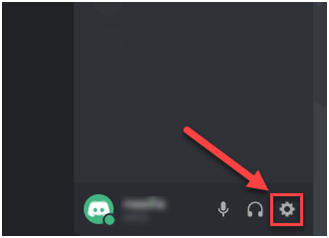
Step 1: From the main page of Discord, choose the gear symbol to access the Settings menu.Open-the-Discord-app-and-go-to-the-Settings
Step 2: Navigate to the Voice & Video menu, and then choose the Reset Voice Settings option.go-to-the-Voice-Video-and-click-on-the-Reset-Voice-Settings
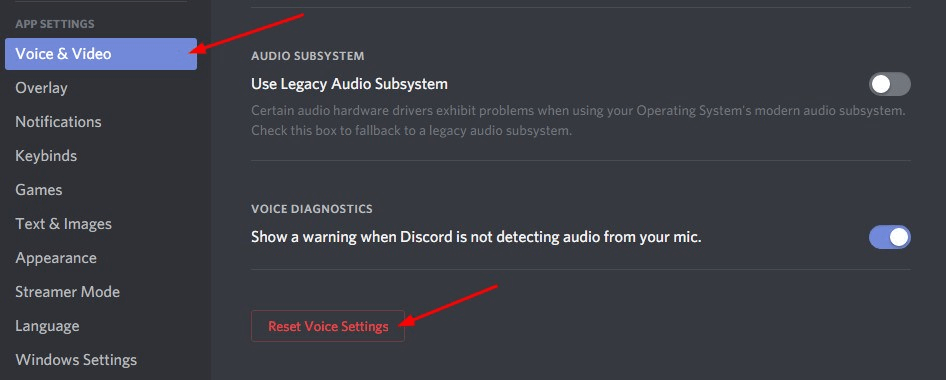
Step 3: Click on Okay to proceed.

Step 4: Once done, then reconnect your mic and simply try to send an audio/ voice message on the Discord application to test the issue. In case, the issue persists, then move on to another solution to fix the Discord mic not working in Windows 11, 10.


Solution 3: Set your Microphone as the Default Input Device

Another workable solution to fix the headset mic not working is to set your desired microphone as your default input device. Follow the steps below:

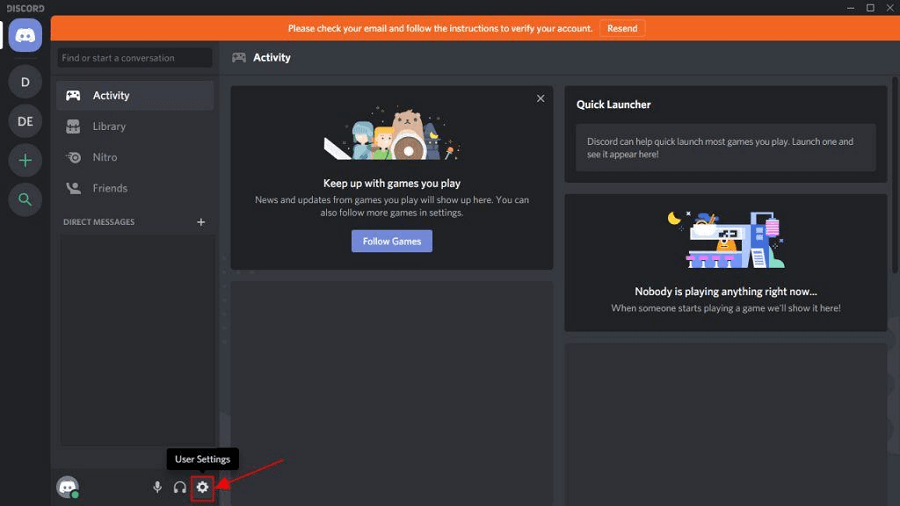
Step 1: Launch the Discord app, and then choose the User Settings icon located in the app’s lower-left corner.Discord User Settings
Step 2: Choose the Voice & Video option from the Settings menu of the app.voice and video setting from discord application
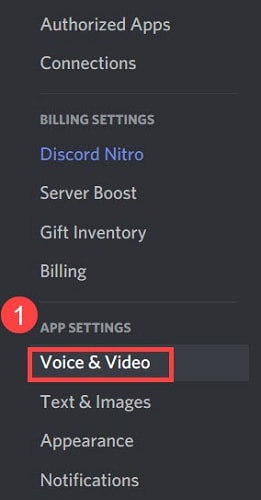
Step 3: Next, pick the microphone you want to use by clicking the Input Device dropdown menu and choosing it from the list of available choices that appears.

Step 4: If you want the changes to take full effect, you will need to restart the computer once you have made your option.

Also Read: How to Fix Discord Crashing Issue on Windows PC


Solution 4: Close Discord and Relaunch it with Administrative Privileges

Quitting and restarting the game would likely fix the Discord mic not working problem. This is how you can do it:

Step 1: Navigate to the Discord icon located on your Windows taskbar and right-click on it. Clicking the “Show hidden icons” button will reveal it for you when necessary. After that, choose the Quit Discord option.

Step 2: On your desktop, locate the Discord shortcut icon, right-click on it, and pick the option to “Run as administrator.”

Step 3: When asked by User Account Control, choose Yes from the drop-down menu.

Step 4: Test the functionality of your microphone by attempting to send an audio message using Discord.

Also Read: How to Fix Discord Screen Share Audio Not Working


Solution 5: Update your Audio Driver

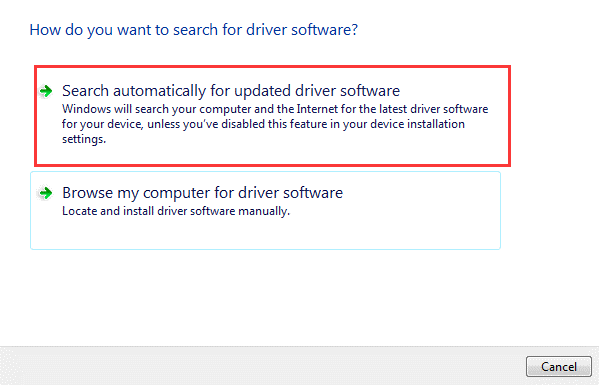
An outdated, corrupt, or missing audio driver may be the root of this issue. Simply upgrading the driver for your audio device should fix the issue. You may manually download the appropriate audio driver for your computer, or you can let the computer do it for you automatically.

Manual driver update: If you want to manually update your audio driver, you may do so by visiting the website of the manufacturer of both your audio card and your computer, and looking for the most current version of the right driver. Make sure that the driver you pick is the only one that is compatible with the version of Windows that you are using.

Automatic driver update: If you do not have the time, patience, or computer skills necessary to manually update your video and monitor drivers, you may instead use Bit Driver Updater to do this task automatically. Bit Driver Updater is the free driver updater software and it will automatically detect your computer and search for the appropriate driver for your specific audio card as well as the Windows operating system type you are using. It will then download and properly install the drivers. To use this method, follow the procedure below:

Step 1: Download and install the Bit Driver Updater.

Windows-Download-Button

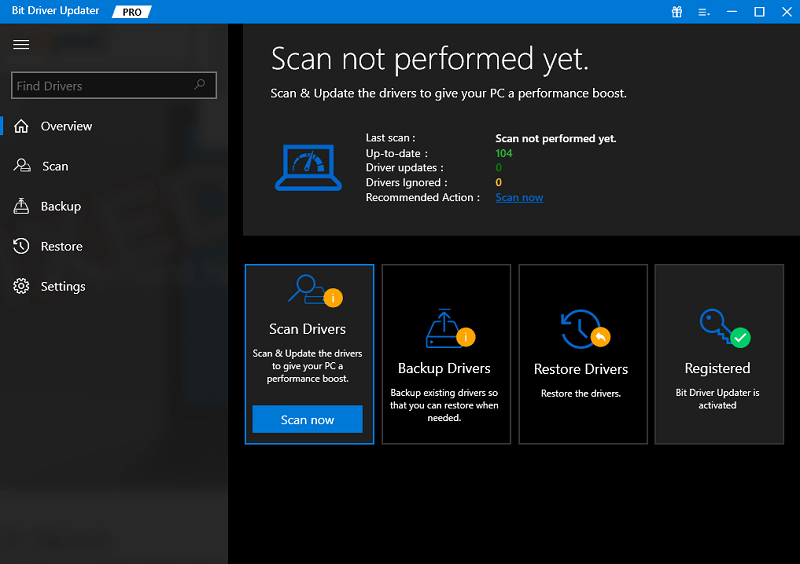
Step 2: Run Bit Driver Updater on your PC and choose the Scan option from the menu available on the left. After that, Bit Driver Updater will scan your computer to look for any problematic drivers.Scan outdated driver of your windows pc
Step 3: You may accomplish this with the free version if you click the Update Now button that is located next to the audio driver that is being flagged. This will install the latest audio driver update automatically on your computer. bit driver updater- update all
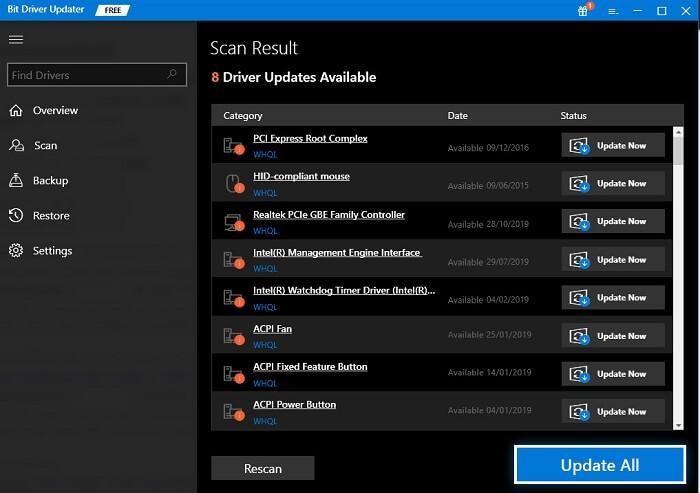
Alternatively, you may click the Update All button to have your system automatically download and install the most recent and up-to-date version of any driver that is either missing or not functioning properly on your system. (You’ll need to upgrade to the Pro edition for this, which includes lifetime free technical support and a 60-day full money-back guarantee.


Solution 6: Reinstall Discord

If none of the solutions presented above worked for you, the issue is most likely related to the program installation, which is what’s preventing the Discord mic from functioning properly on Windows 11/10. In this particular scenario, the only viable solution is to reinstall the Discord client. Here is how:

Step 1: To open the Settings menu, press Windows + I, and then pick Apps from the list of tabs in the navigation bar on the left.

Step 2: After that, go to the right side of the screen and choose Apps & Features.Apps and Features
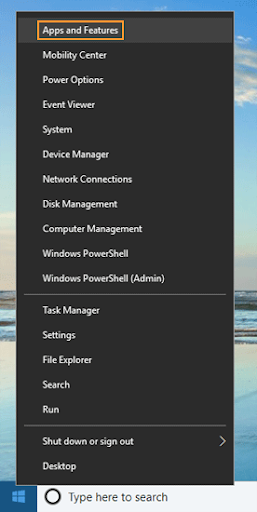
Step 3: Find Discord among the programs that are shown here, click on the ellipsis button that is located next to it, and then pick Uninstall from the selection that appears.

Step 4: Once again, choose Uninstall from the menu that appears in the confirmation box that appears.

After you have completed the process of uninstalling, restart the computer and then download the Discord application. This will definitely fix the mic not working on Discord.

Also Read: How to Fix Discord Stuck on ‘RTC Connecting’


Discord Microphone Not Working in Windows 11, 10: FIXED

If you are encountering problems with the Discord application, one of these techniques should assist to address the problem of your mic not working on Discord. If none of the above methods worked, you may try reinstalling the Discord client on your Windows computer.

Was this guide helpful? Please drop your suggestions or further questions in the comments box below. For more tech-related tips & tricks, you can subscribe to our Newsletter and follow us on Social Media: Facebook, Instagram, Twitter, or Pinterest

Author

Harshita

Harshita Sharma is a technical writer with quite a distinct understanding of the tech realm. She is a tech enthusiast who believes that tech knowledge should reach one and all and tries to convert the sketchy knowledge into the simplest possible form for making people understand the tech world better. When not playing with words, she loves to travel and explore new places. And, is a coffee & cricket connoisseur.

View all posts

Related Posts
How to Live Stream PUBG Mobile on YouTube, Twitch & Facebook

How to Live Stream PUBG Mobile on YouTube, Twitch & Facebook

July 11, 2020
0

Learn how to live stream PUBG on YouTube, Twitch and other video hosting platforms using your smartphones.

In today’s digital era, online multiplayer games with its realistic adventures, virtual environments, and wide array of gameplay modes are gaining a lot of popularity across a wide spectrum of gamers.

With more than 600 million downloads, PUBG Mobile (Player Unknown’s Battleground) is one such game that has single-handedly revolutionized the entire mobile gaming industry.

Even after 3 years of its release, the PUBG still remains one of the world’s most popular and highest grossing mobile games of all time. Getting the satisfaction of a “Chicken Dinner” after all the intense fighting, surviving, and killing, is undeniably the sweetest blessing.

Due to its unprecedented popularity, millions of gamers around the world are live streaming PUBG on Twitch, YouTube or Facebook to showcase their gaming skills and earn money while they do it.

Gone are the days when people used to play games just to kill some time, now they have started to pursue gaming as a full-blown career option.

Making money while playing PUBG mobile from the comfort of your home is not rocket science. You just need to deliver unique high-quality streaming content and garner the views of as many members of your target audience as possible.

Things to Consider Before You Start Live Streaming Android Games

When it comes to hosting livestream gaming videos, here are few things that you should consider before you begin your broadcast:

1. Know Your Target Audience

Before you start live stream PUBG, it is important to know who your target audience is. The more you understand your audience and their interests, the better you can target them. As some people watch live video game streams just to enjoy the thrilling gameplay experience and some watch to develop unbeatable skills to be a better player. So, knowing your target audience should be one of your top priorities.

2. Know How to Optimize Video Title, Description & Tags

Optimize your video description and channel tags in the best way to grow your reach and rank higher in your viewer’s search results. One way to do this is to use core SEO keywords (related to your topic) in your video’s title and description.

Our next segment will give you a clear insight on how to live stream PUBG from your smartphone. Keep reading ahead to know the same!

How to Live Stream PUBG Mobile on YouTube from Android

How to Live Stream PUBG Mobile on YouTube from Android

Streaming PUBG live on YouTube from your mobile device screen is pretty simple. All you need is a mobile phone running Android version 6.0 or later and a good internet connection. If you have both these things, follow the step-by-step instructions listed below to create the PUBG mobile live stream.

Step 1: First open the YouTube app on your smartphone.

Step 2: Now, tap the recorder icon at the top of the YouTube app and then select the ‘Allow Access’ button. This allows YouTube to use your microphone, camera, and location.

Step 3: After giving access to the required permissions, select ‘GO LIVE’.

steps to live stream PUBG mobile gameplay on YouTube - Go Live Now

Step 4: Now tap on the ‘Create Channel’ option.

Step 5: On the next screen, select the phone icon from the top of the app as shown in the above image.

Step 6: Now you will be asked to select privacy settings and create a title.

Step 6: Select ‘More options’ and fill the additional required details such as age restriction for your PUBG live stream, description of the video, monetization, etc.

Step 7: After doing this, click ‘Next’ and then you will be asked to set your thumbnail and screen orientation. Here you have the option to select Landscape or Portrait orientation for your streaming. Since you’re streaming PUBG mobile, it is suggested to choose Landscape mode.

Remember that once the recording begins you won’t be able to change the orientation, so choose it as per your requirement.

Step 8: Once done, tap on the ‘Next’ option to finish the setup.

Step 9: Upon clicking the Next button, a toolbar with live controls will appear at the top of your app screen to help you manage the stream.

Step 10: Now, open PUBG on your smartphone and hit the ‘Go Live’ button from the toolbar. A countdown animation of 3 seconds will appear before your live stream starts.

Note: Before you create a PUBG live stream, make sure that your YouTube channel is verified and there are no restrictions on live streaming in the past 90 days. In addition to the requirement above, your channel must-have at least 1,000 subscribers to be able to live stream from mobile device screen, as per the Google policies.

If you meet all the terms of YouTube live streaming conditions, then follow the aforementioned simple steps to live stream PUBG mobile gameplay on YouTube.

Also See: Release Date of PUBG Mobile Season 14

How to Live Stream PUBG Mobile on Twitch & Facebook

There are a plethora of streaming applications available online that helps you live stream video games right from your smartphone. Below we’ve mentioned a few popular ones that could come handy in live streaming PUBG mobile on Facebook & Twitch.

Omlet Arcade – Screen Recorder, Live Stream Games

Omlet Arcade - Screen Recorder, Live Stream Games

If you’re unable to live stream Android games with YouTube Gaming, then you could use a more reliable application such as Omlet Arcade. It is one of the most popular platforms for live streaming mobile games on YouTube, Twitch, Facebook, and Omlet.

Also See: Putlocker Alternative Sites To Stream Movies Free

List of mobile games supported by Omlet Arcade:

  • PUBG Mobile
  • Fortnite
  • Minecraft
  • Brawl Stars
  • Roblox and many others!

With this app at your disposal, you can show off your gameplay to the world by live multi-streaming games to YouTube, Twitch and other video hosting platforms.

Download App

Streamlabs – Stream Live to Twitch and Youtube

Streamlabs - Stream Live to Twitch and Youtube

If you’re looking for an easy way to live stream PUBG mobile on Twitch and YouTube,
Streamlabs is what you need. It helps you customize your live stream so your fans can chat, donate, subscribe or engage with you in the best way possible.

You also have the option to shout out the names of your fans in real-time when they donate money or subscribes to your channel.

All in all, Streamlabs is an excellent option for broadcasting mobile games such as PUBG Mobile.

Download App

Conclusion

So folks this is how you can live stream PUBG mobile on Twitch, YouTube and Facebook from your smartphone. If you want to earn a hefty sum of money while streaming video games, YouTube is an ideal platform to begin with.

So, what are you waiting for? Start streaming PUBG live on YouTube now and show your gaming skills to the world like Shroud, Ninja, Mortal, and other pros to make a lucrative career out of your passion.

Local Security Authority Protection Is Off-Fixed

Local Security Authority Protection Is Off: Fixed

July 15, 2023
0

If you are looking for ways to fix the Local Security Authority Protection Is Off error on a Windows device, then take the help of this simple guide to do the same. 

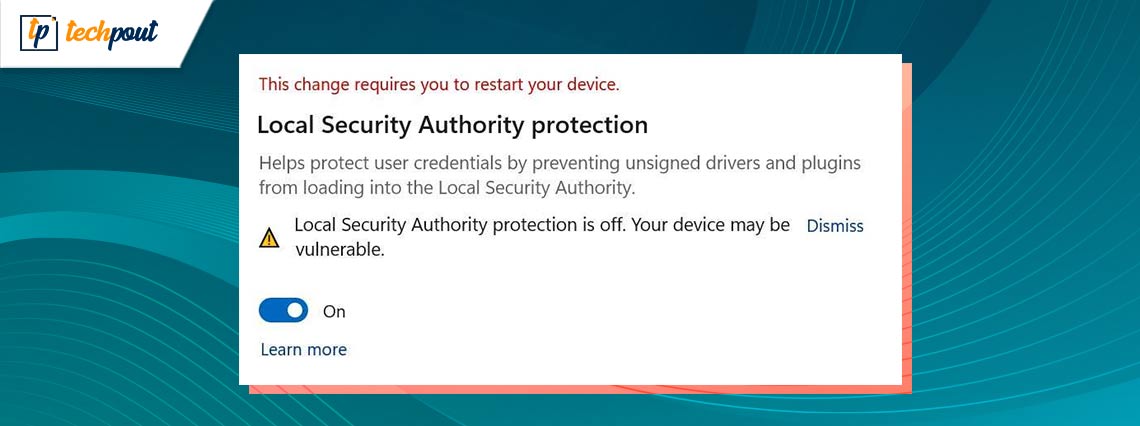
The “Local Security Authority protection” feature was firstly brought in Win 8.1 & Server 2012-R2, and it is now available in Windows 11. Protection from the Local Security Authority is, by default, turned on, and Microsoft does not want you to turn it off, so it displays a notice that says “Local Security Authority protection is disabled.” When you disable the function, the message “Your device may be vulnerable” appears on the screen.

Users of Windows 11 will get a warning informing them that “Local Security authority protection is disabled.” Even if you have engaged the security function, your device may still be vulnerable to attack. This misleading alert isn’t going away, and Microsoft has tried numerous times to fix the issue by releasing new versions of Windows Defender, but all of their efforts have been fruitless.

In addition to the warning, Windows Defender will remind you repeatedly to restart your computer if one is necessary. Users often believe that restarting their computers would clear the warning, but in reality, this action has no effect and the notification will remain visible. With the help of the easy solutions provided in this guide, we will have a look at the ways to fix the same.

What is Local Security Authority Protection?

Windows 11, much like previous versions of Windows, has something called Local Security Authority (LSA), which is the component in charge of putting security rules into effect. Because the LSA process is so important to the operation of a number of different parts of the OS, it is imperative that it be safeguarded from interference from malware and other types of hostile actors.

LSA Protection operates within the background via the isolation of all LSA processes inside a small container & prevents access to the feature by other processes, such as programs or actors that are harmful. As a result of this, LSA Protection is considered an essential security feature, which is why Microsoft decided to make its activation the default setting for Windows 11.

Why does it say my Local Security Authority Protection Is Off?

Warning messages stating that “Local Security authority protection is off” will be shown to users of Windows 11 when the operating system is installed. Even if you have the security feature turned on, there is a chance that an attacker might still get access to your device. This false signal is not going away, and Microsoft has attempted multiple times to remedy the problem by releasing new versions of Windows Defender, but none of their attempts have been successful. Despite their efforts, the misleading alert will continue to appear.

Windows Defender will prompt you many times to restart your computer if it determines that such an action is required. You may assume that restarting their computers would delete the warning, but in fact, this activity has no impact, and the message will continue to be displayed.

Also Read: Cloud Security Best Practices: Protecting Your Business in the Digital Era

How to Fix the Local Security Authority Protection Is Off?

To fix the LSA error, the best way to proceed is to enable the feature. However, one may wonder “How do I enable Local Security Authority Protection?” The solution is quite simple. There are multiple ways and sources that you can use to fix the error and enable the setting. Have a look at the coming sections of this guide to fix the error by enabling the feature.

Method 1: Use the Windows Registry

To begin, you may make use of the registry editor to have your Local Security Authority Protection turned off. This is the first step in activating the function. Users have reported success in resolving issues after making modifications to the RunAsPPL registry key.

Suggestion: Take a Backup of the Registry Files

Launch the Registry Editor, then choose File > Export from the menu that appears.

When the backup has been produced, proceed to activate LSA using Windows Registry by following the methods below.

Steps to Modify the Registry

  1. To launch Run, press the Win+R keys together.
  2. Type regedit and press Enter to porceed
  3. When you’re in the editor for the registry, go to this path:
    Computer\HKEY_LOCAL_MACHINE\SYSTEM\CurrentControlSet\Control\Lsa
  4. To modify RunAsPPL, double-click it, and then modify the Value Data to 2. Click the Save button.

If you are unable to locate the RunAsPPL item, you may make a new one by selecting New > Dword (32-bit) Value from the drop-down menu. RunAsPPL should be the name of the entry. Double-click it, then in Value Data, enter 2, & then click the OK button to preserve your changes.

  1. Next, click in the blank space, choose New, and then choose DWORD (32-bit) Value from the drop-down menu.
  2. After giving a new registry the name RunAsPPLBoot, click the OK button.
  3. Execute a double-click on RunAsPPLBoot, then modify the Value Data so that it reads 2, and then click OK to save the modifications.
  4. Restart the computer.
  5. If this fails to assist, we propose setting the Value Data for RunAsPPLBoot to 1, but only if this does not help.
  6. Now restart your computer

Try the next method if this one fails to enable the setting.

Also Read: How to Enable or Disable USB Ports in Windows 10/8/7


Method 2: Use the Policy Editor

The Policy Editor is a software that enables one Windows computer or a group of Windows computers to have their Policy settings customized by the user. Policy, which is mostly aimed at professionals who administer networks, specifies how you or a group of people may use your devices by limiting or enabling functionality according to what is required. You can use the same to enable Local Security Authority Protection on Windows 11 errors as well. Follow the below steps to know more:

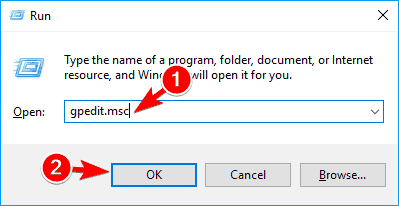
  1. To activate the Run Search menu, use the Windows key plus R on your keyboard.
  2. Make use of the “GPEDIT.msc” command in the Run Search option.gpedit.msc in run box
  3. Once the local group policy editor is open, travel to Computer Configuration\Administrative Templates\System\Local Security Authority
  4. You may identify the LSASS that has been set to operate as a protected process by following the route that was just described.
  5. Right-clicking on the option that was discussed before will let you choose it. You’ll find the option to enable things there. Simply clicking on it and then restarting your computer will bring the modifications you made into effect.

Alternatively, you can also take the help of the last solution provided below to enable the feature. Let’s have a look at the same.

Also Read: FIXED: Your Device Is Missing Important Security and Quality Fixes


Method 3: Use the Windows Security

Lastly, you can take the help of Windows Security to undo Local Security Authority Protection Is Off. Windows-based computers come pre-installed with Windows Security, a program that offers the most recent antivirus protection available. As soon as you boot up Windows, your device will already be under constant surveillance and protection.

Windows Security performs ongoing scans for malware (also known as malicious software), viruses, and other potential security risks. In addition to this security in real-time, your device will also download updates automatically, which will help keep it secure and prevent it from any dangers.

You can use the same to enable the feature. Refer to the instructions below for details:

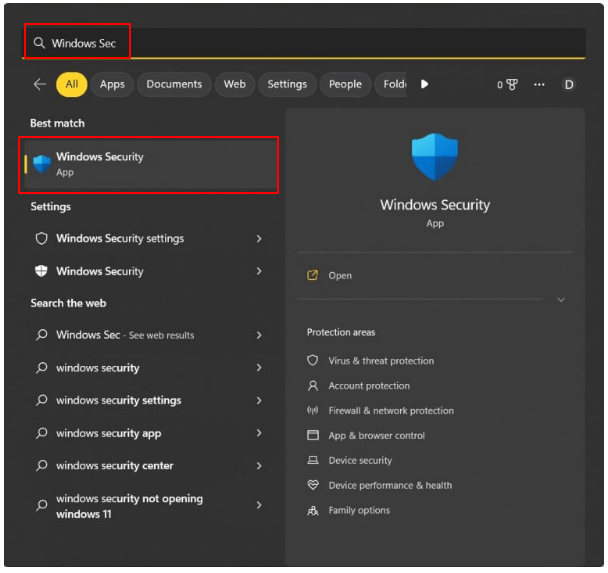
  1. Launch a search from the Start menu for an application in Windows referred to simply as “Windows Security.”Windows Security
  2. When you go into Windows Security, you will see an option that reads “Device Security” in the panel on the left of the screen.
  3. Under Device Security, choose “Core Isolation details” from the drop-down menu.
  4. You will find the “LSA toggle” under the Core Isolation menu option. Simply turning it on should be enough to get you going.

If nothing works to fix the LSA error. Follow the last solution provided below.

Also Read: What is Computer Security | Common Computer Security Threats


Method 4: Uninstall OS Updates

Uninstalling the most recent system updates and reverting them to an earlier version is the next step in the process of resolving the Local Security Authority Protection Is Off your device may be a vulnerable problem. To do this, you will want the assistance of the Boot Menu. To find out what options are available to you, please follow the procedures outlined below:

  1. After the computer has finished restarting, you will need to use the keys SHIFT and F8.
  2. Click on the Options tab before proceeding with troubleshooting when the Advanced Startup Screen that has numerous parts displays.
  3. After that, choose Uninstall Updates from the menu, and after that, select Uninstall latest quality update.
  4. Uninstall the updates and revert them to the version they were in before.

Also Read: What is a Network Security Key


Local Security Authority Protection Is Off | Your Device May Be Vulnerable: Solved

It is now time to summarize this tutorial using a restricted number of words. In the earlier chapters of this tutorial, we discussed a few of the most effective approaches to correct the issue. You will have no trouble repairing the problem and turning on the LSA function if you use these options.

Please don’t hesitate to get in touch with me if you have any questions about this manual. Make use of the comments area below to get the answers to any of your questions and concerns. You may even provide some ideas as you go along, which is another option. Finally, make sure you’re following us across all of your favorite social media platforms, including Facebook, Twitter, Instagram, and more. Don’t forget to sign up for our newsletter so you don’t miss any of the fascinating information we provide. Please let us know which of the options helps you repair the “Local Security Authority Protection Is Off” problem so that we can better assist you.

1 Comment
    HyperX Cloud 2 Mic Not Working On Windows 10 [Solved] says: Reply
    December 25th 2020, 11:31 am

    […] Read Also: How To Fix Discord Mic Not Working Issue […]

Leave a Reply to HyperX Cloud 2 Mic Not Working On Windows 10 [Solved] Cancel reply

Your email address will not be published. Required fields are marked *

Sidebar Image bit G ad1

Latest Posts

  • Best-Free-Online-Portfolio-Websites-in-2026
    Best Free Online Portfolio Websites in 2026
    by Niharika / March 16, 2026
  • Anytime Astro: Best Website For Online Astrology Consultation
    Anytime Astro: Connect Now For Online Astrology Consultation
    by Somya Shrimal / March 13, 2026
  • Best-Ways-to-Combine-Images-Into-PDF-Files
    Best Ways to Combine Images Into PDF Files
    by Niharika / March 12, 2026
  • Best FREE VPS Hosting Providers
    7 Best FREE VPS Hosting Providers in 2026
    by Devesh / March 12, 2026
  • Best-McAfee-alternative-software-to-use-for-Virus-Protection
    Best McAfee Alternative Software to use for Virus Protection
    by adminuser / February 11, 2026

Categories

  • Cyber Security
  • Driver Updater
  • Entertainment
  • Fitness
  • Games
  • How To
  • laptop
  • OS
  • Reviews
  • Tech News
  • Tips & Tricks
  • Top 10
Sidebar Image bit G ad1
13 Best Free Malware Removal Tools for Windows PC in 2021 5 Best Free Malware Removal Tools of 2024by Devesh / February 8, 2024
10 Best Free PDF To JPG Converter In 2024 To Use Onlineby Devesh / February 8, 2024Best Free PDF To JPG Converter
TechPout Footer Logo

We at TechPout promise to put forth stories that help people to learn and simplify their digital life. Our purpose is to share the true essence of technology with our tech-loving community.

Useful Links

  • About Us
  • Contact us
  • Privacy Policy

Popular Posts

  • Best PC Optimizer Software
  • Best Mac Cleaner Apps
  • Best Driver Updater
  • Duplicate Photo Finder and Cleaner Software
  • Best Free Movie Download Sites
  • Best IPTV Players

Follow us

Copyright © 2026 www.techpout.com. All rights reserved
DMCA.com Protection Status