Visual Studio Code (VS Code) is a platform that allows editors and developers to design plenty of languages. VS Code was released in 2015, and since then the platform has evolved uninterruptedly in context for editing, flexibility, and broad adoption in the industries.
Along with that, it also provides you with the best VS Code extensions, which provide you with the core editing features and a wide range of languages, frameworks, and workflows.
VS Code Extensions
As the name defines, the extensions are the features of the platform that allow you to expand all the feature sets present on that platform. The same thing happens in VS Code also; it gives access to the variety of its editing features to the developers. The best VS Code extensions are used for web development and other essential tasks like building and resetting modern frontends, writing Code faster with an AI assistant, and even for improvised Code readability.
The most useful VS Code extensions are mentioned in this article, but first we will understand those qualities you must ensure before installing any extension in VS Code.
Features of VS Code Extensions
All the extensions are activated after a certain type of condition is met, which can be anything like opening a certain type of file, invoking a command, or even after entering any kind of workplace.
Here are some of the features of some of the most useful VS Code extensions you should check first:
- Activation: All the Visual Studio Code for best extensions must activate only when some sort of activation setup is done and when needed. These kinds of extensions are usually safer than others.
- Scope: Those extensions that are used for only one thing to perform are generally better to use. Using only tasks makes them more predictable and better in performance than all the others that are all-in-one kind of tools.
- Language Usage: All the must have VS Code extensions should contain powerful coding language user servers. This might be expensive for some developers when used on large Code bases.
- Maintenance: For better usage and smooth access, you must use extensions that are actively maintained. It helps in keeping up with VS Code API changes and allows better performance improvements.
Here is the list of the 5 best VS Code extensions for web development in 2026.
1. GitLens
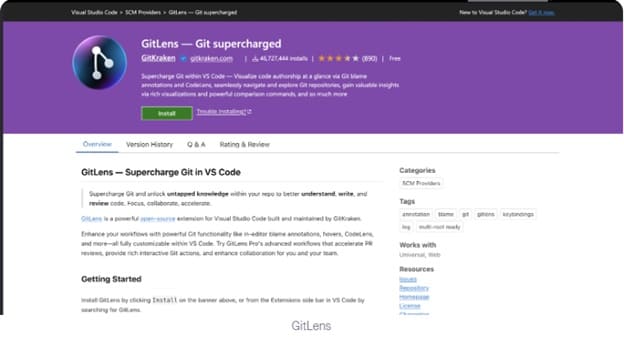
For those who are already using Git or have ever used Git, it will run into merge conflicts. GitLens is primarily used for acquiring information and data from the Git source, which is effectively edited in the VS environment. You can access commit logs, file history, and many more options from your Git repository files in your VS Code environment.
Best for: This extension is best for those developers working on any shared Code bases whose users frequently navigate history and reviews.
Key Features:
The following are the key features of the extension Gitlens which is one of the best VS Code extensions in 2026.
- This extension is very rich in files and contains all the repository insights of your projects.
- It provides you with every side-by-side comparison and provides all the Code lens information.
- It provides you with all the inline blame annotations and keeps the history of all the activities.
Also know: How to Fix the Drivers for this Device Are Not Installed. (Code 28)
2. Docker
The Docker extension is used as a Visual Studio Code best extension, which needs no introduction anyway. This provides you with the ability to explore, build, and get any kind of logs from the containers. This also helps in preventing context whenever you are developing microservices that are running in containers.
Best for: This extension is used for developers who are debugging, developing, and maintaining containerized applications.
Key Features:
The following are some of the key features of the Docker:
- This is the Visual Studio Code best extensions because it manages images, containers, and volume for the developer.
- It is the best extension for VS Code, because it provides Dockerfile and Compose file support.
- It also has integrated container logs and inspection of the project by the developers.

3. Remote-SSH
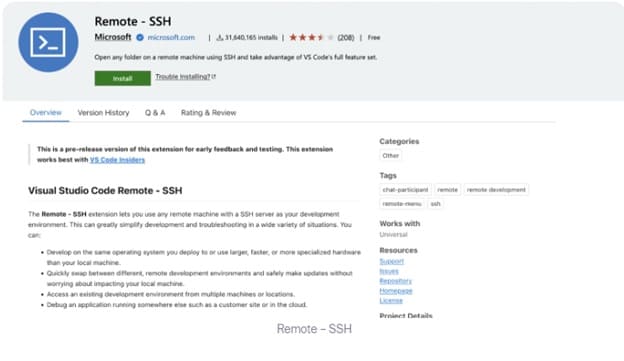
The extension, Remote-SSH, was developed by Microsoft. By this, you can use a remote machine that runs on an SSH server, which you use as your development environment. This helps connect directly with the remote system, and then you can easily run your extensions there.
Best for: This extension is best for developers who are working with remote servers and Linux-specific tooling from non-Linux machines.
Key Features:
The following are a few key features of the Remote-SSH extension.
- Helps in connecting with remote hosts with SSH and makes you work on that just like you work on a local system.
- It helps in running all the extensions, terminals, and debuggers on your remote machine.
- It provides security to forward ports and complete access to all remote services.
4. Mirrord
This was developed by a clan of Metalbear, this extension allows developers to interact with all the applications that are running in remote environments. This extension is generally used by all the teams who use microservices architectures and primarily need traffic deployment patterns in their projects.
Best for: This extension is best for teams which are working with existing Kubernetes access using all the default kubeconfig.
Key Features:
The following are some of the key features of extension Mirrod which is one of the best VS Code extensions in 2026.
- This extension runs a local process along with the execution of the remote Kubernetes pods, which also includes environmental variables, file access, and network behavior.
- It mirrors all the upcoming traffic from your remote pod with the local process even when it is routing outgoing traffic throughout the clusters.
- This extension integrates all the existing Kubernetes access when you are using the default kubeconfig along with all the support of explicit port mapping.

5. Dev Containers
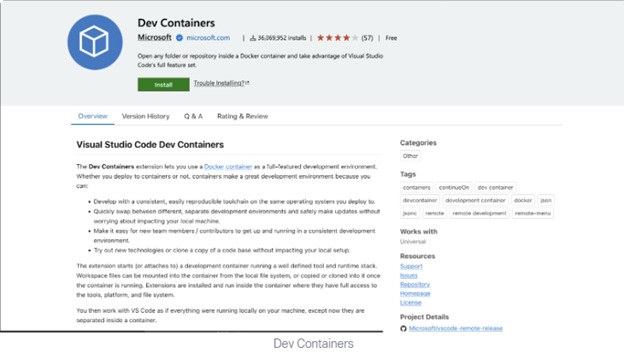
Best for: This is one of the best VS Code extensions because this is used for teams to value consistent development environments across machines.
Key Features:
The following are some of the key features of extension Dev Container, which is one of the best VS Code extensions in 2026.
- It provides you with reproducible development environments.
- Via version control, this extension provides support for team-wide configuration.
- It has complete integration with Docker and remote-SSH workflows.
Also know: How to Fix Error Code 0x80070035 on Window PC
Method to Install VS Code Extensions
1. From the VS Code Marketplace
The following are the steps you can use to install the best extensions for VS Code using the VS Code marketplace.
Step 1: Press together ‘Ctrl + Shift+ X’ in Windows and ‘Cmd + Shift + X’ in mac.
Step 2: Search for whatever extension you want to download by its name.
Step 3: Click on the ‘Install’ option to install the extension you searched for.
Step 4: Try to reload once it is prompted. Usually, reloading is required after installation of the extension.
2. Using Command-Line Method
The following command with the unique name of the extension you want to install is used if you are using the CLI. The format will be ‘publisher.extension-name.’
Ex. Code —install-extension esbenp.prettier-vsCode.
3. By Managing Collective Extensions
You can use the following command to install the extension you want in your VS Code using the managing collective extensions method.
Frequently Asked Questions (FAQs)
Q1. Do these must-have VS Code extensions impact a developer’s performance?
Ans. Yes, these must have VS Code extensions that lead to poor performance because of poorly designed or any kind of outdated extensions.
Q2. What should the frequencies be to update to delete the extensions from VS Code?
Ans. You must update the extensions regularly; this will help you to keep your extensions up-to-date and help in smooth working.
Q3. Will my VS Code slow down if I install too many extensions in it?
Ans. Yes, if you install too many extensions in VS Code then it might affect your startup time or responsiveness, especially when multiple extensions are activated on startup. A better option is to install and keep whatever you use on a regular basis and mostly needed extensions.
Extensions are very useful for you to understand and support web development tasks. It mostly helps you in coding, debugging, and formatting your code easily in a VS environment.