Main LogoLight Logo
  • Reviews
  • Top 10
  • How To
  • Tech News
  • OS
    • Windows
    • MAC
    • iOS
    • Android
  • Categories
    • Driver Updater
    • Cyber Security
    • Games
    • Fitness
    • Entertainment
    • Tips & Tricks
How To Tips & Tricks
by Prachi Dani

How to Use Google Authenticator For Your Facebook Account

May 20, 2020
1

Every minute a new Facebook account is hacked, if you don’t want to be the next victim then use 2-Step Verification on your Facebook account. 

From bank accounts to email accounts and from social media accounts to your browsing history nothing is hidden from the eyes of Cybercriminals. A standard level of authentication can expose your device to digital attacks and identity theft, thus to safeguard your confidential information it is imperative to use two-factor authentication. 

What Happens When You Activate 2-Step Verification on your Facebook Account?

Setting up the 2FA on your Facebook account prevents any unauthorized access to it: 

  • Any attempt to login to your account which is done from an unidentified mobile device or computer system will be declined until and unless a special 6 digit code is entered along with the password.
  • Apart from this, if anyone else besides the account holder tries to log in to the account, the account holder will receive an alert message that a login attempt has been made.

If you wish to set up two-factor verification for your account, there are two methods that you can use. 

  1. SMS based security message.
  2. A dedicated app based code generator method. Google Authenticator is one such app that you can utilize in such scenarios.

Experts recommend that the use of Google Authenticator is a more secure method than the SMS based message.

What is Google Authenticator?

Google Authenticator is a dedicated mobile security app. Its working is based on the 2 step verification and is used to check the authenticity of the user before granting them access to the account.

Table of Contents hide
How to Use an Authentication App for Two-Factor Authentication on Facebook?
How to Enable Two-Factor From The Web?
How to Enable Two-Factor From Your Phone?
Final Words

How to Use an Authentication App for Two-Factor Authentication on Facebook?

Now, that you are aware of the basic information about two-factor verification and Google Authenticator. Let’s have a quick look at the process to set it up on the web and mobile phones. 

  • How to enable two-factor from the web?
  • How to enable two-factor from your phone?

How to Enable Two-Factor From The Web? 

Follow these simple steps to activate Two-factor verification from Web:

1. To start with Login into your Facebook Account. 

2. Click on the Settings button from the upper right corner of your Facebook page.

3. Now click on the “Settings and Login” tab.

4. From the displayed window choose the Two-factor authentication section and click on the Edit button.
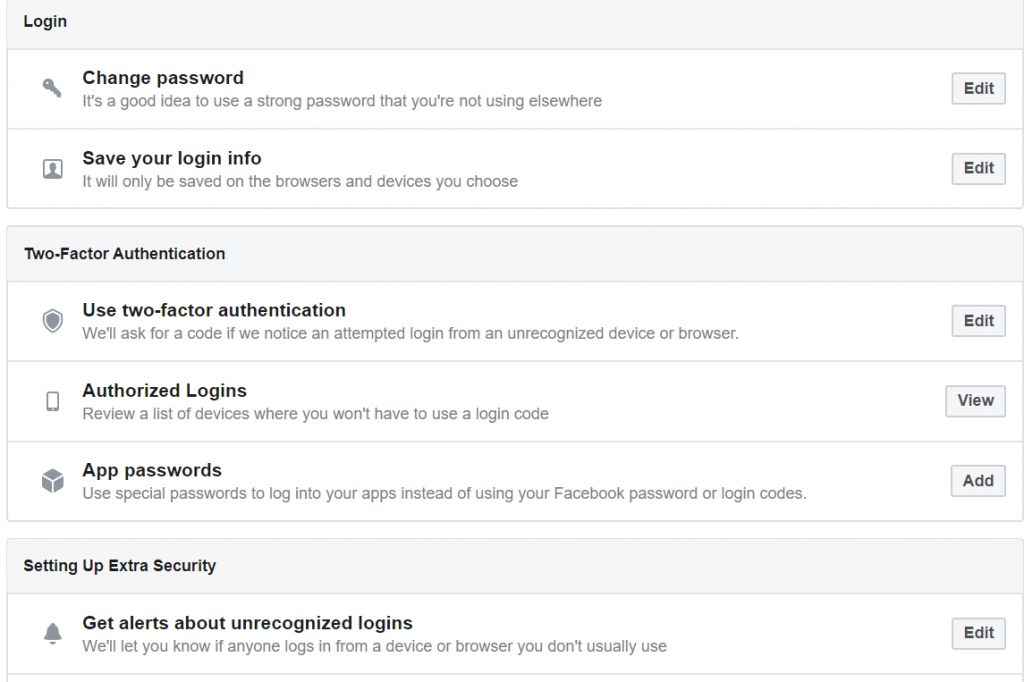
Choose the Two-factor authentication section and click on the Edit button

5. Here you can choose from the Text Message or the Authentication app.
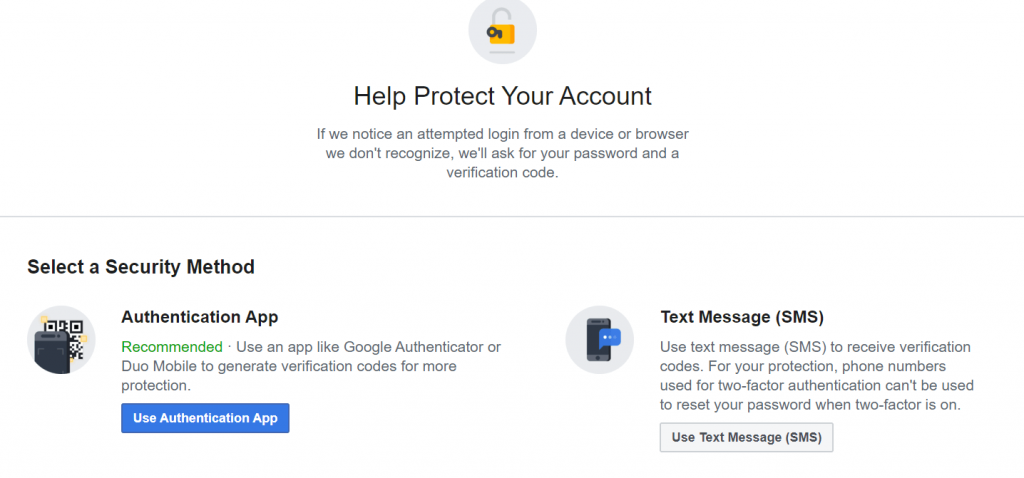
Choose from the Text Message or the Authentication app

6. To pick the SMS code option, click on Use text message, select your phone number and then enter the verification code sent on your number.
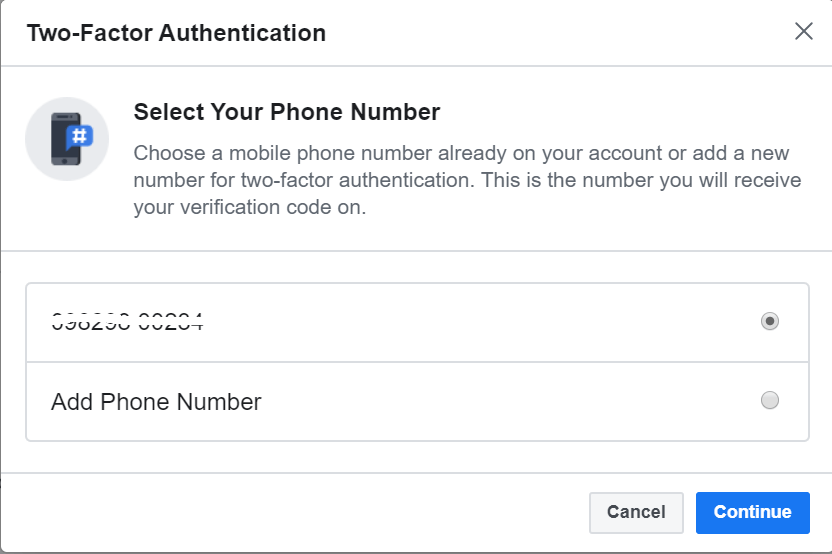
Enter the verification code sent on your number.

7. You can alternatively choose to use the Authentication app. 

8. A new window will appear on your screen with a QR code displayed on it. Here you can either scan the QR code or enter the code in your Google authentication app. 
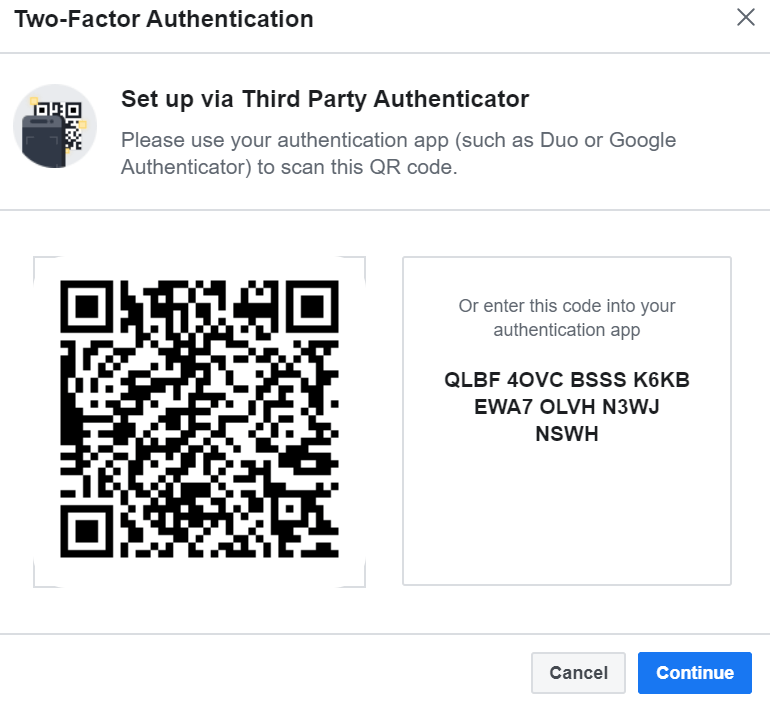
Scan the QR code or enter the code in your Google authentication app

9. Following the above mentioned steps will activate and enable two-factor from the web. Once done you will need to enter a unique code every time you try to login into your account from an unauthorized device. 

Read More: How To Wave On Facebook (Facebook App & Facebook Messenger)

How to Enable Two-Factor From Your Phone?

Follow our step-by-step guide to enable and activate two-factor authentication on your Facebook account from your mobile device:

1. Login into your Facebook account from your mobile device. 

2. From the rightmost side of the navigation bar open the Menu tab.

3. In the next step, open the Setting and Privacy option.

4. Now choose the Settings button.

5. From the Settings menu, opt for Security and Login option.
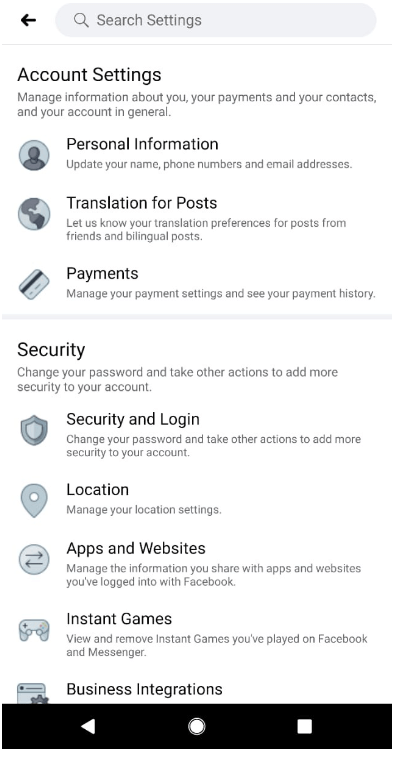
Enable Two-Factor From Your Phone

6. Now click on the Two-Factor authentication tab.

7. From here you can either choose to use the Text message or the Authentication app.
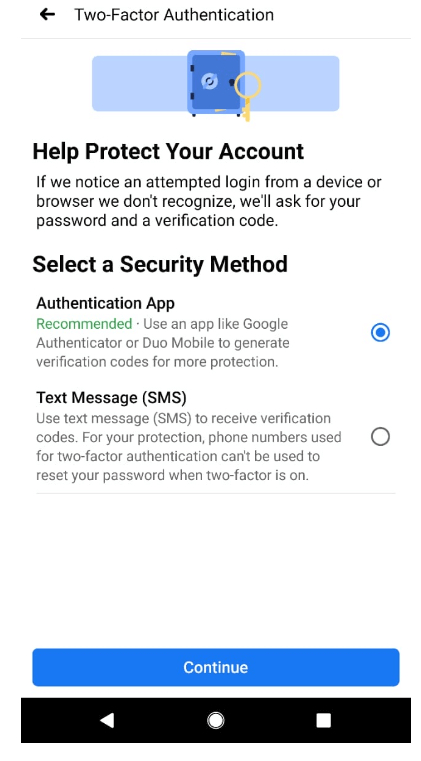
Choose to use the Text message or the Authentication app

8. If you choose the Text message option, a unique code will be sent to your registered mobile number to confirm your identity.
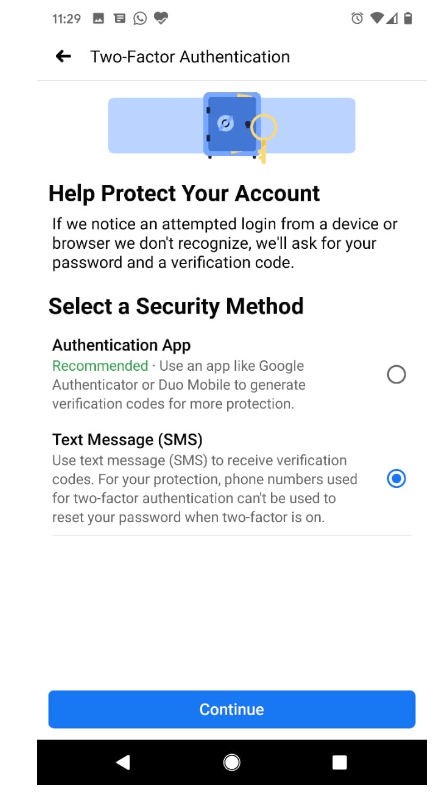
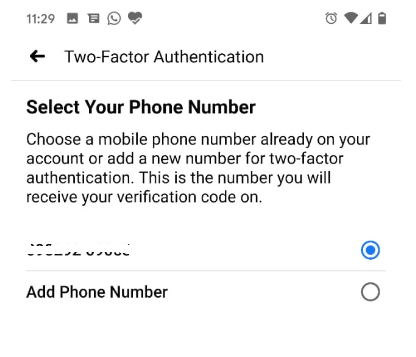
Confirm Registered Mobile Number
unique code will be sent to your registered mobile number

9. Alternatively you can choose to use the Authentication app. Here you will be provided with a QR code. Scan the QR to validate your identity, if you are unable to do so, you can manually enter the secret code to confirm your identity.
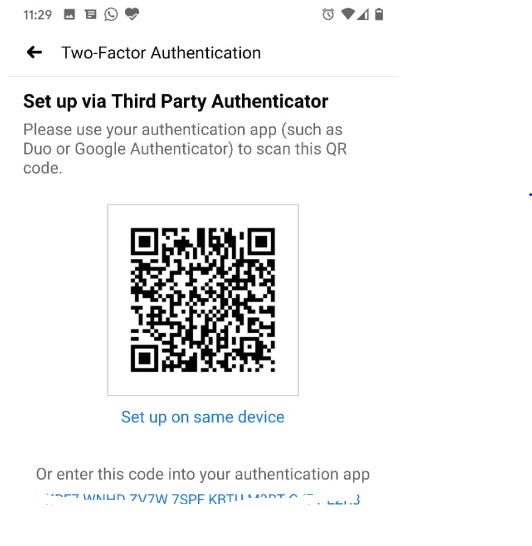
Choose to use the Authentication app

On successful completion of the above mentioned steps, you will see a confirmation message stating that the Two-factor authentication has been successfully enabled on your Facebook account.

Read More: How to Use Multiple Facebook Accounts on Android Smartphones

Final Words

We hope that our blog has given you enough insight about the importance of two factor authentication and how to set up Google Authenticator to generate the security code. 

Follow the steps as mentioned above to safeguard your Facebook account from unauthorized access.

Author

Prachi Dani

Prachi Dani is a technical content writer who specializes in areas of science and technology. She is highly up to date with technological transitions and transformations. Writing is not her passion but the only thing that carries satisfaction in life. If not writing, you may find her engrossed playing action games on her treasured smartphone.

View all posts

Related Posts
How to Fix Steam won't open Windows 10, 11

How to Fix Steam won’t open Windows 10, 11 (Top Ways)

October 15, 2023
0

Steam platform is one of the most preferred options for gamers across the globe. Its simple user interface and availability of a huge game library make it the topmost preference. However, lately, many users complained about issues while opening Steam. So if you are also here in search of a solution for Steam won’t open issue this guide is for you.

If you are concerned that Steam won’t launch or open on your Windows 11 or 10 device the following section is for you. Read the complete guide to resolve the issue and enjoy uninterrupted gaming.

Methods to Fix Steam Won’t Open Windows 10/11 Issue

The following methods can be applied in the given order format to fix the Steam won’t open Windows 11/10 issue. No need to implement them all, just move down the list of solutions to fix the issue.

Method 1: Restart your PC

If you are facing the Steam won’t open issue on your computer, there may be a problem with the computer’s operating system. Simply restarting your computer may repair a wide variety of less significant system problems.

To do this, enter the Start Menu on your own computer, click the “Power” button, and then pick “Restart.”

After your computer has finished restarting, you should attempt to launch Steam. Now check if the Steam won’t launch issue is addressed. In case the problem remains, move on to the next solution.

Also Read: Steam: Your Transaction Cannot Be Completed [FIXED]


Method 2: Launch Steam with Administrative Privileges

Steam won’t launch problem may occur when an application does not have the required permissions to function properly. Therefore, if the situation applies to you, you may try running the Steam app in with administrator rights.

To do so, just follow the instructions outlined below:

Step 1: To begin, locate the Steam shortcut on your desktop and right-click on it. When the context menu appears, pick the Properties option from the menu that appears.

Step 2: Simply go to the Compatibility tab inside the Properties box at this time.

Step 3: After that, check the box that says Run this software as an administrator, and after that, hit the Apply > OK button to save your changes.

Step 4: After that, launch the Steam client, and here’s hoping there won’t be any problems with how it operates.

In case the Steam won’t open issue remains, move to the next alternative.


Method 3: Remove External Hardware

Disconnect all devices and accessories, such as a mouse, keyboard, disks, and so on, that you have attached to your computer. Is Steam available for use right now? It’s possible that one of these is the source of the problem.

Connect each of them individually in order to determine which one was the root of the problem. Additionally, one potential course of action is to just update the drivers.

Pro Tip: 

To manually update drivers and keep track can be a complicated task. Therefore to automate all your system driver updates use the Win Riser tool. The tool comes with the following notable features:

  • Integrated tool for automatic driver updates
  • Track and remove malware
  • Remove Junk
  • Remove registries that are invalid or faulty
  • Restore point for drivers
  • One-click issue fixing.

Steps to Automatically update System Drivers via Win Riser Driver Updater:

Step 1: Download the Win Riser tool with the help of the download button below. Once the download completes follow the on-screen steps to install it.

Windows-Download-Button

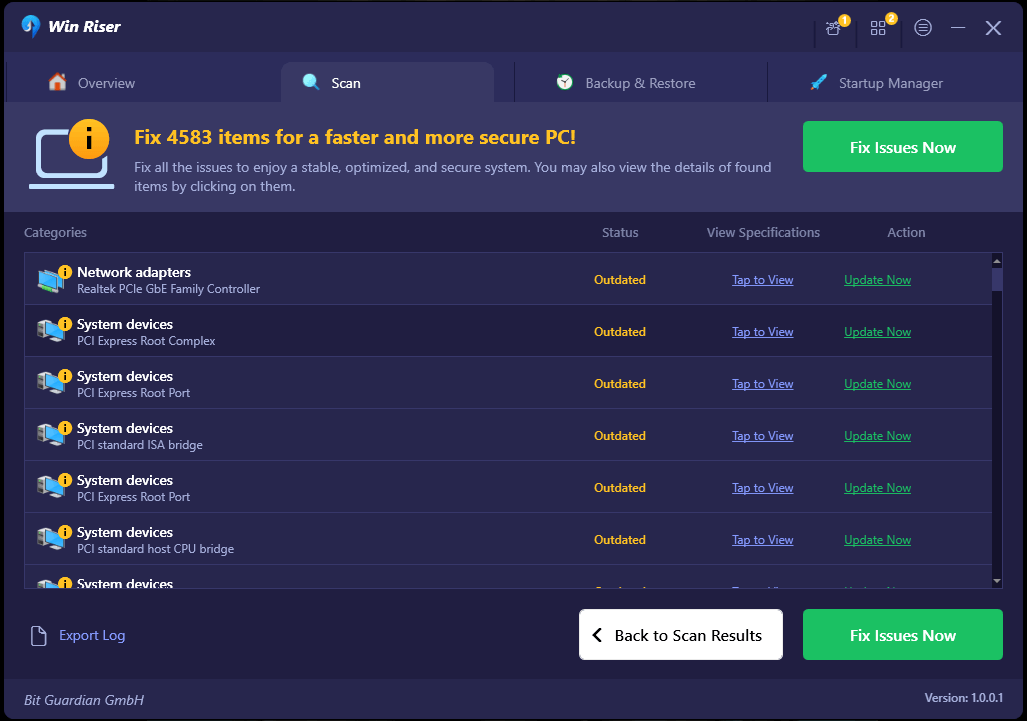
Step 2: As soon as the installation completes, it will automatically begin the system scan. Wait till the result is displayed and simply click on the Fix issues button once done.Win Riser Update the Driver

Simply Restart your device to apply the updates. Win Riser can solve multiple system issues with just one click. Moreover, it offers 24*7 customer support for all customer queries.

In case driver updates and removing unnecessary hardware didn’t prove to be helpful in addressing the Steam won’t launch issue try the next fix.

Also Read: [Fixed] Could Not Connect To Steam Network Error


Method 4: Check If Steam is Down

It is possible that your application will not run if Steam’s servers are experiencing an outage. This is because your app establishes a connection to those servers in order to function; if you do not do this, the app will not launch correctly.

Visit the unofficial Steam Status or Downdetector site in this instance. If Steam is having technical difficulties, you may learn about them on these websites. In such an event, you will be required to hold off until the platform has addressed the problems you encountered.


Method 5: Turn off Overclocking

A lot of gamers raise the clock on their computers in order to get the most out of their graphics processing units and central processing units. If you are aware of what you are doing, this is an excellent option.

In the event that this does not occur, it has the potential to produce a wide variety of difficulties, including Steam won’t open. Disabling overclocking on your computer at this time, using ThrottleStop or any other application, and then restarting it. It will allow you to determine whether or not Steam is launching properly.

However, if overclocking was not the reason Steam won’t open Windows 11 issue try the next solution.

Also Read: How to Access Steam Screenshots on Windows 10


 Method 6: End and Relaunch Process

It is conceivable that a problem has caused the Steam client to become unresponsive; in this case, you will need to restart it. If you didn’t correctly shut the program the previous time, in which case Windows might be under the impression that it is already active.

Eliminating the linked process via the use of the Task Manager is the quickest method for fixing the Steam won’t open issue.

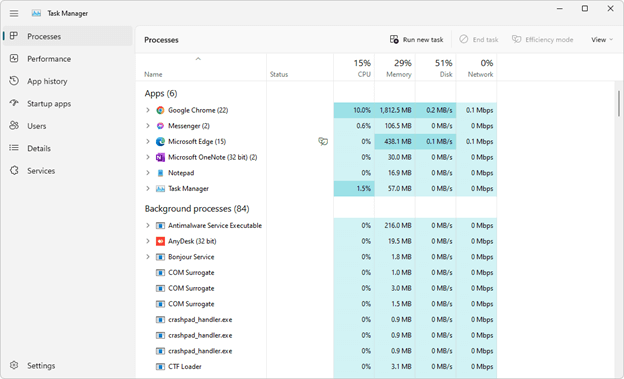
Step 1: To launch the Task Manager, press the Ctrl, Shift, and Esc buttons on your keyboard simultaneously.Task Manager

Step 2: Under the tab labeled Processes, look for the ‘Steam Client Bootstrapper‘ process. When you find it, right-click on it, and pick the End task option.

Step 3: After allowing it to shut completely, wait a few seconds before attempting to open it once again. Check to see whether it’s open.


Method 7: Delete Cache Files

It’s possible that the Steam won’t Open issue occurs due to a corrupted cache in use. Therefore, if this is the case, you may repair the issue by deleting the cache that the Steam program has saved on your computer.

To do so and address the Steam won’t launch issue apply the underlying steps:

Step 1: To begin, press the Windows and E keys to launch File Explorer, and then go to the following location

C:\Users\<Username>\AppData\Local\Steam

Step 2: After that, pick all of the files and folders that are located in the aforementioned place by using the shortcut key combination “Ctrl + A.”

Step 3: To delete anything that Steam has stored, just hit the Delete button.

After you’ve finished, you should restart your computer and then open the Steam client to see whether the issue still exists or not.


Method 8: Turn off Steam’s Compatibility Mode

There is a possibility that you are unable to open the application because Steam is being operated in the compatibility mode of Windows. Because Steam is completely compatible with the Windows 11/10 operating systems, you do not need to enable compatibility mode on your device.

To turn off the compatibility mode in Steam, right-click the Steam shortcut on your desktop and choose “Properties.”

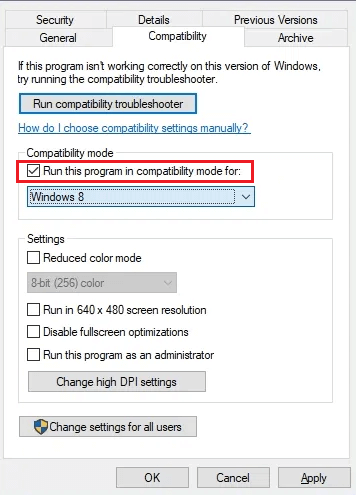
To disable the “Run This Program in Compatibility Mode For” option, go to the “Compatibility” tab. Click the “Apply” button, and then click “OK.”Run this program in compatibility mode

Launch Steam and your application should start up automatically. In case the problem is intact, move to the next fix.

Also Read: Quickly Fix Steam Disk Write Error on Windows 10


Method 9: Turn Off Antivirus Software

If for some reason your antivirus software has incorrectly identified Steam as being a risk to your computer, the Steam app may not be accessible to you. It’s possible that this is why the app won’t start properly for you.

Disable your antivirus software. Check to see whether the program will launch once you have confirmed that you have obtained Steam from a reliable source. Further, check that it does not pose a security risk.

Launch the Windows Security program, go to “Virus & Threat Protection,” and click “Manage Settings” under the “Virus & Threat Protection Settings” title.

Now change the “Real-Time Protection” setting to the “Off” position. This will switch off the antivirus software that comes preinstalled with Windows.

When prompted with “User Account Control,” choose “Yes” from the menu.

Launch Steam after disabling your antivirus software to see whether the game client still functions properly. If the application launches, add it to the “whitelist” of your antivirus software so that you may continue to use it without interruption.


Method 10: Reinstall Steam Engine

In case none of the above methods helped in resolving the Steam won’t launch issue another resort is to reinstall the steam engine. Take into consideration that you will need to re-download all of the games, which may be both time-consuming and demanding on your connection.

To prevent this, you should create a backup of the ‘steamapps’ folder. You can locate it by navigating to the disk where you installed the Steam software and looking in the main Steam folder on that drive. That’s the C drive for the vast majority of computer users. Once the backup is stored you are good to go.

Download the most recent version of Steam that is stable, and then install it. After that, place the Steamapps folder back within the main Steam folder, and then run the Steam program.


Method 11: Update Windows

There can be occasions when you are unable to run an application due to a problem in your operating system. This is often the situation if the version of Windows that you have installed on your computer is somewhat outdated. The quickest and easiest approach to fix this issue is to simply upgrade the version of your operating system.

It is simple and completely free to update either Windows 11 or Windows 10.

To upgrade to Windows 11: 

  • Go to Settings > Windows upgrade
  • Select “Check for Updates,”
  • Download and install the available updates.

To upgrade to Windows 10:

  • Go to Settings > Upgrade & Security > Windows Update
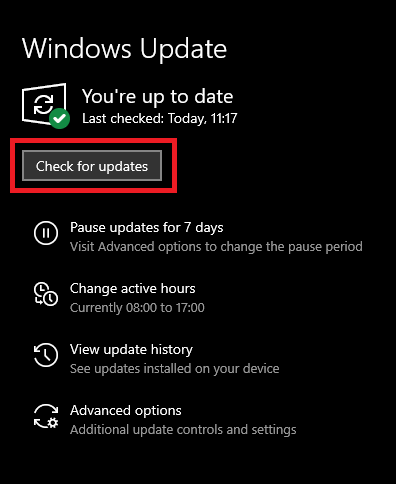
  • Click “Check for Updates.”Check for Windows Updates
  • After that, download and install any available updates.

Start Steam after you’ve finished upgrading your operating system to see whether the application still functions properly. Hopefully, the updated Windows will address the Steam won’t open Windows 10 or 11 issue.

Also Read: How to Fix Error Code Baboon Destiny 2 (Easily)


Steam Won’t Open Windows 11/10 Issue: FIXED

And it’s a wrap. Hopefully, the aforementioned solutions proved to be helpful in addressing the Steam won’t open issue on your Windows devices. However, it is recommended to keep your system drivers updated. For automatic updates on hardware drivers use the Win Riser driver updater tool. In case you still come across any sort of issues, connect with us in the comments section below.

If you found the guide helpful don’t forget to subscribe to our blog. Also, for regular tech tips, updates, and news follow us on Facebook, Instagram, Twitter, or Pinterest.

Easy Fixes for CPU Not Turning on for Windows PC

Easy Fixes for CPU Not Turning on for Windows PC

January 26, 2024
0

Here is an effective guide on how to fix the issues quickly and easily if your CPU does not turn on.

It can be frustrating to find the CPU is not turning on despite many attempts to power on the computer. However, it is not something that cannot be fixed. You can fix this issue effortlessly if you know the right way to do it.

Hence, this article acquaints you with the best possible solutions to the problem you are struggling with. However, it is always recommended to know what may have triggered the issue before trying to fix it to troubleshoot it better. Hence, let us first look at why you are experiencing a dead PC or an issue where your computer fan is running but is not turning on.

Why Is Your CPU Not Turning On

Below are the possible reasons your CPU does not power on.

  • Power issues, such as faulty internal power supply or your computer not getting enough power
  • Monitor problems, such as the monitor not turning on or connecting to the PC
  • Your system is overheating
  • Problematic BIOS settings
  • Faulty or damaged internal PC components

Above, we looked at various factors that may be responsible for the issue you are experiencing. Now, let us look at the most suitable ways to fix it.

How to Fix CPU Is Not Turning On Problem (Quick and Easy)

You can apply the following solutions to solve the problems if your computer’s CPU is not switching on.

Fix 1: Try another power source

A failed internal power supply or no electricity entering the computer can be a reason your CPU does not turn on. In this situation, you can take the following steps to change your computer’s power source to solve the problem.

  • To begin with, unplug your PC from all the power sources.
  • Secondly, plug your computer straight into the wall outlet, without using the UPS, power strip, or surge suppressor.

Also Read: How to Fix BIOS Not Detecting SSD in Computer PC


Fix 2: Check the power cable

A loose or disconnected power cable can be another reason your CPU is not switching on. Hence, you should check the power cable for damages and replace it if necessary. Also, you can change the power cord to ensure it functions properly.


Fix 3: Pay attention to motherboard beep sounds

A series of beep sounds may come from your motherboard when you try to power on the PC. You can identify these sounds to diagnose and solve the problem. A single beep sound means everything is working perfectly. Whereas, long and continuous beeps indicate a critical fault with the power supply.

Moreover, your computer can indicate error codes through a series of beeps, sounding like Morse code. You can go through your PC’s manual to understand the meaning of these beeps and how to fix the problem.

If you do not have the PC’s manual, you can find the necessary information to troubleshoot the issue on the computer manufacturer’s website.


Fix 4: Check your motherboard for error codes

Modern motherboards come with digital displays, showing error codes depicting what process went wrong. You can note the code and search the web to learn how to fix it.


Fix 5: Ensure there is no problem with the power button

A damaged or problematic power button can be the reason your computer fan is running but the device is not turning on. Hence, you can try turning on the onboard button of the motherboard. Since all motherboards are different, you may need to go through your motherboard’s manual to locate the power button.

Also Read: Best Overclocking Software For Windows


Fix 6: Check the display

If you cannot see anything on the computer screen despite the device seeming to be running, there can be a problem with the monitor. Hence, make sure that the monitor is switched on and connected to the PC.

Moreover, ensure the monitor brightness is not accidentally turned down to zero. If possible, you can plug the PC into another display to check if it fixes the CPU not turning on issue.


Fix 7: Let your computer cool down

If you perform a lot of gaming or other resource-intensive tasks, overheating is among the top reasons your CPU is not powering on. Hence, you can wait for the device to cool down before starting it again. Moreover, you can use the best CPU temperature monitor tools to prevent overheating in the future.


Fix 8: Unplug the unnecessary USB devices

USB devices and ports can conflict with the computer, resulting in problems like the CPU not turning on. Hence, you can disconnect all the USB devices and ensure ports are empty when you boot the PC.


Fix 9: Check the BIOS settings

Basic Input/Output System or the BIOS is a low-level program that controls your computer’s hardware. Any issue with the BIOS settings can be a reason the CPU does not power on. Hence, you can follow the below directions to check and correct the BIOS settings.

  • To begin with, press your computer’s power button while holding down the F2/F11/F8/Del key.
  • Secondly, wait until your PC enters BIOS.
  • Now, navigate to the boot menu.
  • Confirm and set your OS drive as your boot drive.

Note: Windows 11 users need to enable secure boot mode and UEFI. You can follow the path Boot tab> Configure (if you have UEFI as the boot mode). If your boot mode is not UEFI, change the mode to UEFI and save the new settings.

Now, you can enable the Secure Boot mode by navigating to the Security tab and switching the mode from Disabled to Enabled. Lastly, save the changed settings and reboot the computer.


Fix 10: Try reinstalling the CMOS battery

You can try to remove and reinstall the CMOS battery to solve your problem. However, ensure you know the battery’s direction (generally, the engraved side has the face-up orientation) before following the below directions to get it reinstalled.

  • To begin with, ensure your computer is off.
  • Secondly, remove all the cords and disconnect all the power sources.
  • Now, open your computer’s cover to view the hardware present inside.
  • Locate and remove the CMOS battery.
  • Lastly, replace the battery in the same position in which you found it and start your computer.

Also Read: Best USB Bootable Software for Windows


CPU Not Turning On Fixed

You no longer have to panic if your CPU is not turning on after a power outage or otherwise. This article guided you through how to fix the issue effortlessly. You can follow the above fixes sequentially until the problem is fixed. Please let us know if you were able to successfully solve the problem with the help of our guide. Also, you can leave a comment if you have any questions or confusion about this write-up. We will be pleased to address all your concerns.

1 Comment
    Thomas says: Reply
    May 20th 2020, 11:51 pm

    Hi Prachi
    I have not yet tried the Google Authenticator app, but I know how those app works and there is not doubt that it is the best way to protect your online accounts. Password is simply not enough anymore.

Leave a Reply Cancel reply

Your email address will not be published. Required fields are marked *

Sidebar Image bit G ad1

Latest Posts

  • Best VirusTotal Alternatives for windows in 2026 
    by Dikshika Singh / April 30, 2026
  • Best Ways to Fix Facebook Session Expired Loop Error  (1)
    Best Ways to Fix Facebook Session Expired Loop Error 
    by Gunjita Sompura / April 28, 2026
  • React vs Vue
    React vs Vue Detailed Comparison in 2026
    by Gunjita Sompura / April 23, 2026
  • Top Image Resizing software for Windows PC 
    by Dikshika Singh / April 21, 2026
  • How-To-Download-and-Install-Windows-Fax-And-Scan-In-Windows-11
    How To Download and Install Windows Fax and Scan in Windows 11
    by Dikshika Singh / April 15, 2026

Categories

  • Cyber Security
  • Driver Updater
  • Entertainment
  • Fitness
  • Games
  • How To
  • laptop
  • OS
  • Reviews
  • Tech News
  • Tips & Tricks
  • Top 10
Sidebar Image bit G ad1
How To Take a Screenshot on Windows HP Laptop? How To Take a Screenshot on Windows HP Laptop?by Snigdha / May 20, 2020
Microsoft 365 Login Pages May Hide Phishing Attackby Prachi Dani / May 22, 2020Microsoft 365 Login Pages May Hide Phishing Attack
TechPout Footer Logo

We at TechPout promise to put forth stories that help people to learn and simplify their digital life. Our purpose is to share the true essence of technology with our tech-loving community.

Useful Links

  • About Us
  • Contact us
  • Privacy Policy

Popular Posts

  • Best PC Optimizer Software
  • Best Mac Cleaner Apps
  • Best Driver Updater
  • Duplicate Photo Finder and Cleaner Software
  • Best Free Movie Download Sites
  • Best IPTV Players

Follow us

Copyright © 2026 www.techpout.com. All rights reserved
DMCA.com Protection Status