Main LogoLight Logo
  • Reviews
  • Top 10
  • How To
  • Tech News
  • OS
    • Windows
    • MAC
    • iOS
    • Android
  • Categories
    • Driver Updater
    • Cyber Security
    • Games
    • Fitness
    • Entertainment
    • Tips & Tricks
How To Tips & Tricks
by Prachi Dani

How to Use Google Authenticator For Your Facebook Account

May 20, 2020
1

Every minute a new Facebook account is hacked, if you don’t want to be the next victim then use 2-Step Verification on your Facebook account. 

From bank accounts to email accounts and from social media accounts to your browsing history nothing is hidden from the eyes of Cybercriminals. A standard level of authentication can expose your device to digital attacks and identity theft, thus to safeguard your confidential information it is imperative to use two-factor authentication. 

What Happens When You Activate 2-Step Verification on your Facebook Account?

Setting up the 2FA on your Facebook account prevents any unauthorized access to it: 

  • Any attempt to login to your account which is done from an unidentified mobile device or computer system will be declined until and unless a special 6 digit code is entered along with the password.
  • Apart from this, if anyone else besides the account holder tries to log in to the account, the account holder will receive an alert message that a login attempt has been made.

If you wish to set up two-factor verification for your account, there are two methods that you can use. 

  1. SMS based security message.
  2. A dedicated app based code generator method. Google Authenticator is one such app that you can utilize in such scenarios.

Experts recommend that the use of Google Authenticator is a more secure method than the SMS based message.

What is Google Authenticator?

Google Authenticator is a dedicated mobile security app. Its working is based on the 2 step verification and is used to check the authenticity of the user before granting them access to the account.

Table of Contents hide
How to Use an Authentication App for Two-Factor Authentication on Facebook?
How to Enable Two-Factor From The Web?
How to Enable Two-Factor From Your Phone?
Final Words

How to Use an Authentication App for Two-Factor Authentication on Facebook?

Now, that you are aware of the basic information about two-factor verification and Google Authenticator. Let’s have a quick look at the process to set it up on the web and mobile phones. 

  • How to enable two-factor from the web?
  • How to enable two-factor from your phone?

How to Enable Two-Factor From The Web? 

Follow these simple steps to activate Two-factor verification from Web:

1. To start with Login into your Facebook Account. 

2. Click on the Settings button from the upper right corner of your Facebook page.

3. Now click on the “Settings and Login” tab.

4. From the displayed window choose the Two-factor authentication section and click on the Edit button.
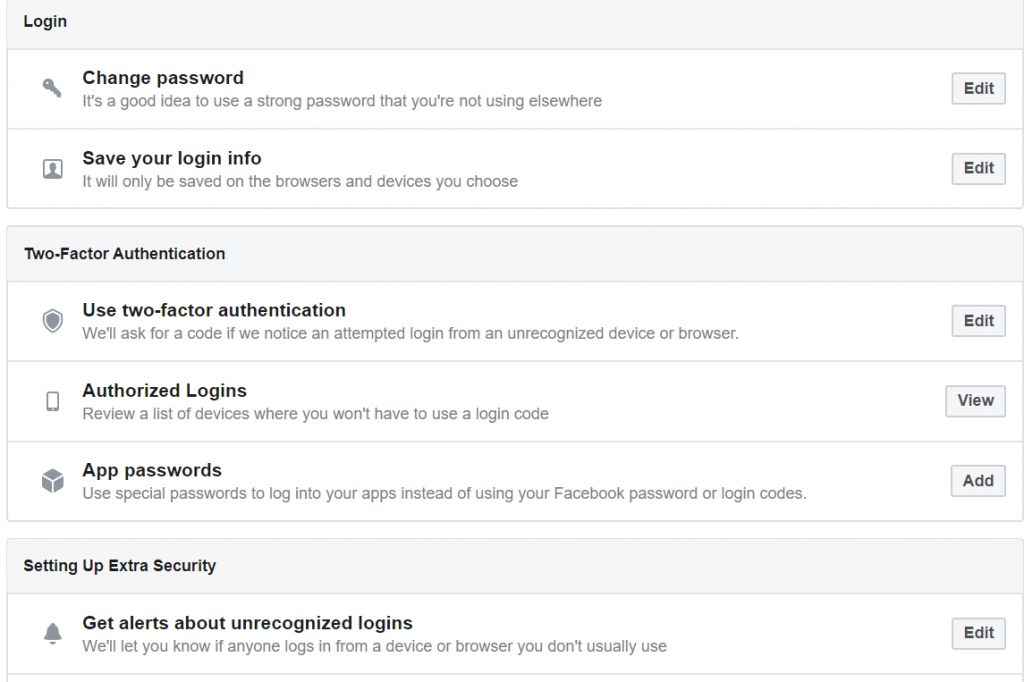
Choose the Two-factor authentication section and click on the Edit button

5. Here you can choose from the Text Message or the Authentication app.
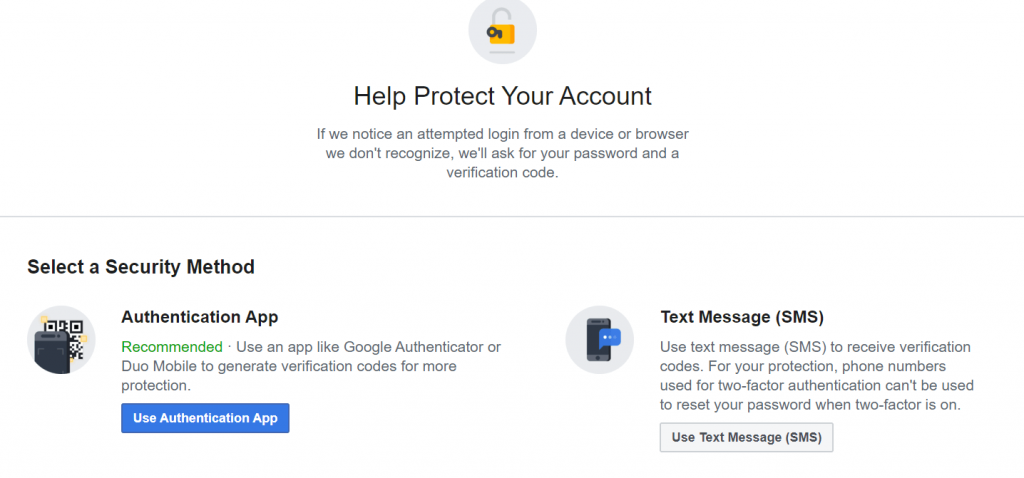
Choose from the Text Message or the Authentication app

6. To pick the SMS code option, click on Use text message, select your phone number and then enter the verification code sent on your number.
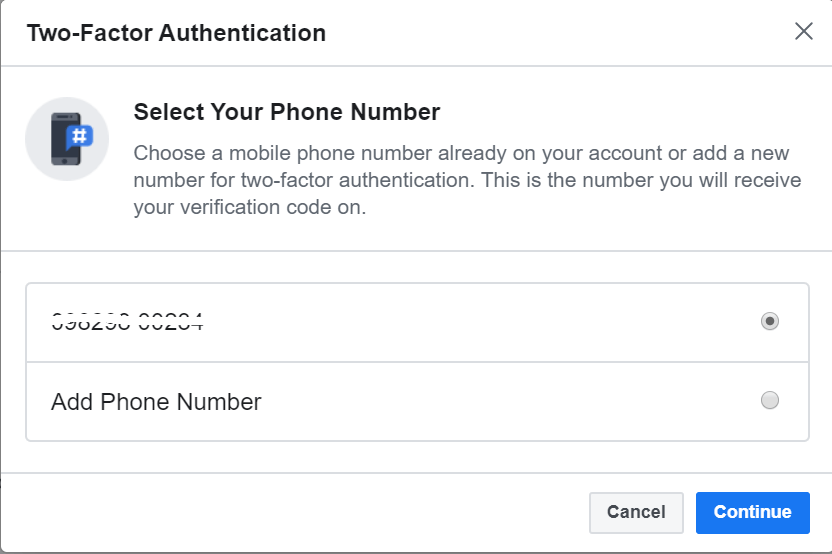
Enter the verification code sent on your number.

7. You can alternatively choose to use the Authentication app. 

8. A new window will appear on your screen with a QR code displayed on it. Here you can either scan the QR code or enter the code in your Google authentication app. 
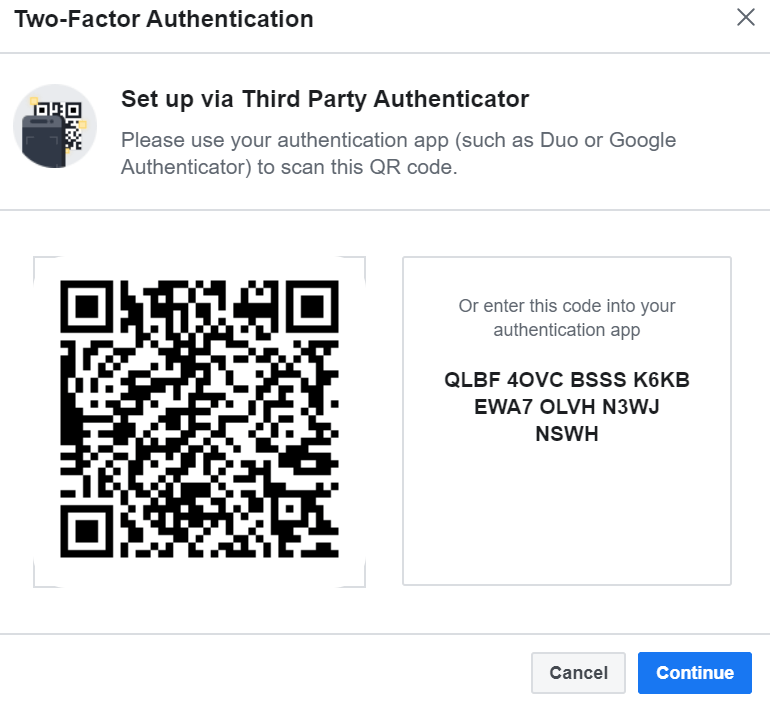
Scan the QR code or enter the code in your Google authentication app

9. Following the above mentioned steps will activate and enable two-factor from the web. Once done you will need to enter a unique code every time you try to login into your account from an unauthorized device. 

Read More: How To Wave On Facebook (Facebook App & Facebook Messenger)

How to Enable Two-Factor From Your Phone?

Follow our step-by-step guide to enable and activate two-factor authentication on your Facebook account from your mobile device:

1. Login into your Facebook account from your mobile device. 

2. From the rightmost side of the navigation bar open the Menu tab.

3. In the next step, open the Setting and Privacy option.

4. Now choose the Settings button.

5. From the Settings menu, opt for Security and Login option.
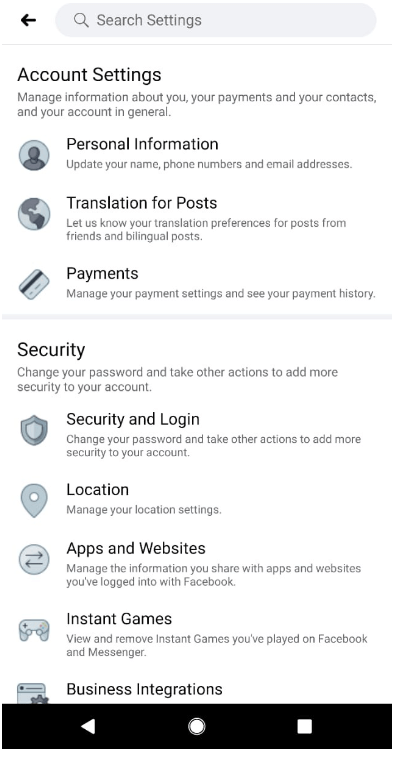
Enable Two-Factor From Your Phone

6. Now click on the Two-Factor authentication tab.

7. From here you can either choose to use the Text message or the Authentication app.
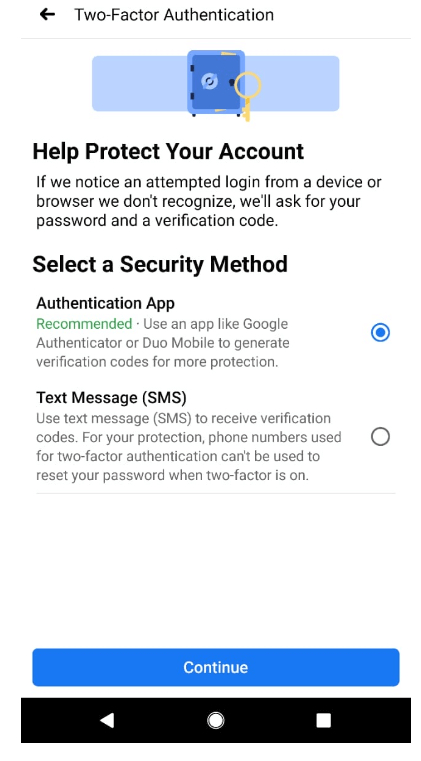
Choose to use the Text message or the Authentication app

8. If you choose the Text message option, a unique code will be sent to your registered mobile number to confirm your identity.
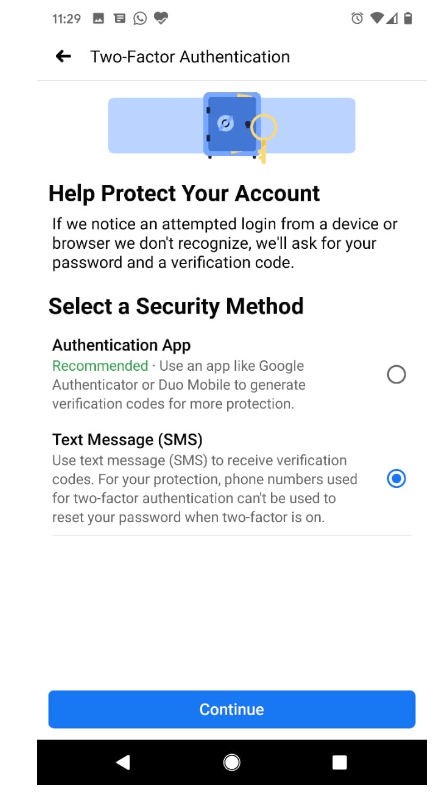
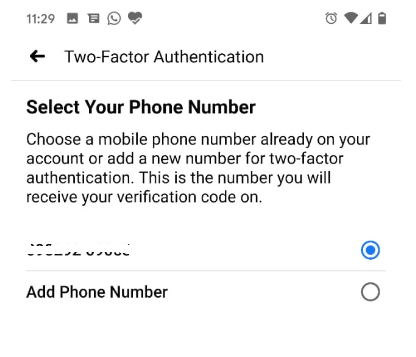
Confirm Registered Mobile Number
unique code will be sent to your registered mobile number

9. Alternatively you can choose to use the Authentication app. Here you will be provided with a QR code. Scan the QR to validate your identity, if you are unable to do so, you can manually enter the secret code to confirm your identity.
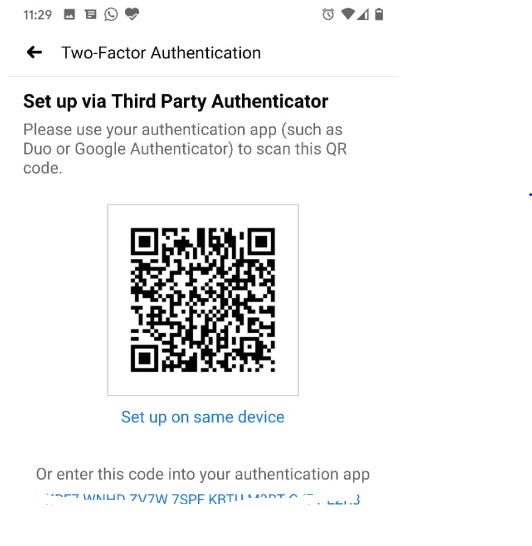
Choose to use the Authentication app

On successful completion of the above mentioned steps, you will see a confirmation message stating that the Two-factor authentication has been successfully enabled on your Facebook account.

Read More: How to Use Multiple Facebook Accounts on Android Smartphones

Final Words

We hope that our blog has given you enough insight about the importance of two factor authentication and how to set up Google Authenticator to generate the security code. 

Follow the steps as mentioned above to safeguard your Facebook account from unauthorized access.

Author

Prachi Dani

Prachi Dani is a technical content writer who specializes in areas of science and technology. She is highly up to date with technological transitions and transformations. Writing is not her passion but the only thing that carries satisfaction in life. If not writing, you may find her engrossed playing action games on her treasured smartphone.

View all posts

Related Posts
How to Update Drivers on Windows 11 [Easily]

How to Update Drivers on Windows 11 [Easily]

May 31, 2022
0

If you want to know the methods to update drivers on Windows 11 then take the help of the methods listed in this article and update drivers quickly. 

Drivers play an important role in running the devices on the Windows 11 PC. These drivers ensure that the respective connected or integrated devices on your PC/laptop have stable and uninterrupted communication with the system. In short, drivers are the source that allows you to run the devices on your Windows 11 system without facing any problems.

When the drivers are outdated, corrupted, or even missing from the system. You may face problems in running the respective devices and even others. Additionally, outdated or corrupted drivers will also mean that your system will work slowly and may show errors like lags, glitches, etc.

So, what is the solution to this problem?

To protect yourself from all such errors and to improve the performance of your system, you should update drivers on Windows 11. This holds for all kinds of drivers whether it is the graphics, mice, keyboards, networks, printers, scanners, or the drivers for any other device (integrated or otherwise).

To help you with the procedure to perform the driver update on Windows 11, we have brought together this guide for you. Here, you will find all the easiest and best methods to update any type of driver for the system within a couple of minutes. Feel free to take the help of any of the methods and install the latest version of drivers on Windows 11 with ease.

Easy Methods to Update Drivers on Windows 11

Below are some of the best methods that you can use with ease to update drivers on Windows 11. Before you proceed, have a look at all the methods to perform Windows 11 drivers update, and then use the one that you like.

Method 1: Device Manager- A Great Integrated Tool for Driver Updates

If you want to update drivers on Windows 11 without any third-party software, then the Device Manager is the best tool for you. With this Windows-integrated tool, you can do a lot more than just update the drivers. The tool also allows you to manage the devices connected to your Windows system.

This tool works best if you want to update only one or maybe two drivers. That too if you already know about the device. Follow the below steps to know how you can perform a driver update on Windows 11 using the Device Manager:

  1. Right-click on the Windows button present on the taskbar and open the Device Manager.Device Manager in Windows 11
  2. When the utility opens, expand the device category according to the driver you want to update (Ex. Mice and other pointing devices).Mice and other pointing devices in Windows 11
  3. Now, right-click on the device you want to update and select the option named Update Driver.Update driver in windows 10
  4. When the pop-up appears, click on Search Automatically for Updates to proceed.Search automatically for drivers in windows 11
  5. It’s time that you follow the on-screen instructions that appear and install the required driver.
  6. Restart your system at the end of the process to apply the changes introduced to the system.

Also Read: Best Free Driver Updater 


Method 2: Windows Update- Update Drivers as well as the OS

The Windows Update utility on Windows devices is well known to update the existing operating system. However, do you know that you can also update drivers on Windows 11 using the same? Yes, you can use the tool to update the drivers as well as the operating system to the latest versions.

The procedure to use the utility for OS updates is quite simple. However, you need to follow a couple of additional steps to perform all Windows 11 drivers updates. Take the help of the below steps to do know how to use the OS updater for driver updates:

  1. Press the Win+S keys on your keyboard, type Check for updates, and hit the Enter key.Check for updates in windows 11
  2. Wait for the utility to load first and then click on Check for updates.Click on Check for updates windows 11 button
  3. Nextly, click on the button named Download and Install All to install the new OS updates.Download and Install All updates
  4. While the update is in progress or even completes, click on Advanced Options. You will be taken to the settings of the Windows Update tool.Check on Advanced Options of windows 11
  5. From here, click on Optional Updates to proceed.Optional Updates
  6. You will see a section named Driver Updates, click on the same to expand.Driver Updates status in windows 11
  7. Now you need to select the required drivers you want to update and select Download and Install. Download and Install drivers in windows 11
  8. The Windows will update the drivers quickly.

Method 3: Bit Driver Updater- The Driver Updater Software for Free

As you can see, the previous methods to update drivers on Windows 11 are a little complicated. These methods are manual as well as require proper knowledge about computers. Additionally, you may not be able to update the hidden drivers as well using these methods. So, our recommendation is that you use the Bit Driver Updater.

The Bit Driver Updater is one of the best tools that can help you update all kinds of drivers with ease. The tool is well-known for its single-click instant or scheduled update drivers on Windows 11. Additionally, you can also use the tool to perform a backup or restoration of the drivers.

The tool has some smart options as well that allows it to scan for outdated drivers deeply. Moreover, if you don’t want to update a driver, you can use the ignore button to skip the same. You will know more about the tool when you download and use it to perform Windows 11 drivers updates using the below procedure:

  1. Firstly, click on the Download Now button below and save the Bit Driver Updater setup.Windows Download Button
  2. Use the installer to install the software on your device and run it.
  3. When the tool launches, either it will scan the updates automatically or you will need to click on the Scan Drivers button to start the same manually.Scan the Outdated driver through Bit Driver Updater
  4. When all the updates appear, click on the Update All button to install all the drivers. Alternatively, you can also use the Update Now button for individual update(s).Update all the outdated driver through bit driver updater
  5. When the procedure to update the drivers is complete, click on the Restart Now button at the end.

Update Drivers on Windows 11: Completed Successfully

So, above were some of the best and easiest methods to update drivers on Windows 11. We hope that after using these methods, you can update any driver you want with ease. Although all the methods listed above are working, we recommend you to use the Bit Driver Updater. You will not find a better tool or method to perform the driver updates.

If you have any questions or suggestions related to the driver update Windows 11 procedure. Our comments section is here for you. Ask the queries and provide comments as you want. We will respond accordingly. If you liked the article, subscribe to our newsletter by providing the email below. You will get real-time updates about blogs and more after that.

How to Download and Update Nvidia Vulkan Driver for Windows PC

How to Download and Update NVIDIA Vulkan Driver for Windows PC

February 18, 2023
0

Vulkan comes integrated into your NVIDIA GeForce, RTX, and Quadro graphics card. Hence, downloading the video card driver also downloads and installs the required Vulkan driver. In this article, we elaborate on the ways to do it hassle-freely.

Vulkan provides you with high-efficiency, cross-platform GPU access. However, this new-age graphics and compute API cannot function without an appropriate and up-to-date NVIDIA Vulkan driver downloaded and installed on your computer.

Therefore, this article focuses on effective methods to download, install, and update the NVIDIA Vulkan driver for Windows 10 and Windows 11. Let us discuss these methods without beating around the bush.

Methods to Download NVIDIA Vulkan Driver Update and Install It

You can go the following ways to get the needed NVIDIA Vulkan driver for Windows 11 and Windows 10 downloaded, installed, and updated.

Method 1: Get the NVIDIA Vulkan driver from the NVIDIA Developer website

The official NVIDIA Developer website is one place from which you can securely download the update for the NVIDIA Vulkan driver on Windows 10/11. The following are the directions to do it.

  • Firstly, navigate to the official website of NVIDIA Developer.
  • Now, click on the magnifying glass icon (search icon), type Vulkan, and press Enter.type Vulkan in the the nvidia official site
  • Click on the link for  Vulkan Driver Support. Vulkan driver support
  • Click on the option to download the NVIDIA Vulkan driver for Windows 10/11.Select operating system
  • Now, you will be redirected to the page to download the driver for your graphics card.
  • Download the installation file for the graphics driver.
  • Double-click on the downloaded file and follow the instructions to install the NVIDIA Vulkan driver update.

Also Read: “You are not currently using a display attached to an NVIDIA GPU” {Solved}


Method 2: Download the NVIDIA Vulkan driver via Device Manager

Device Manager is an in-built tool in your operating system to download and install the required drivers. Below is how you can use it to download the updated NVIDIA Vulkan driver for Windows 11 and Windows 10.

  • Input Device Manager in the search utility of your computer and press the Enter key.Open Device manager
  • After the Device Manager opens, find and click on Display adapters to view them.
  • Right-click your graphics card and select Update driver from the options on your screen.Update driver
  • If you are a Windows 10 user, Search automatically for updated driver software. If you use Windows 11, Search automatically for drivers. Search Automatically for Updated Driver Software
  • After completing the above process, restart your computer to download and install the NVIDIA Vulkan driver update.

Method 3: Update the operating system of your computer

Updating the OS fixes common device issues and downloads the needed drivers (if they are available and not very newly released). Hence, you can follow the below directions to download the NVIDIA Vulkan driver update for your Windows 11/Windows 10 computer and install it.

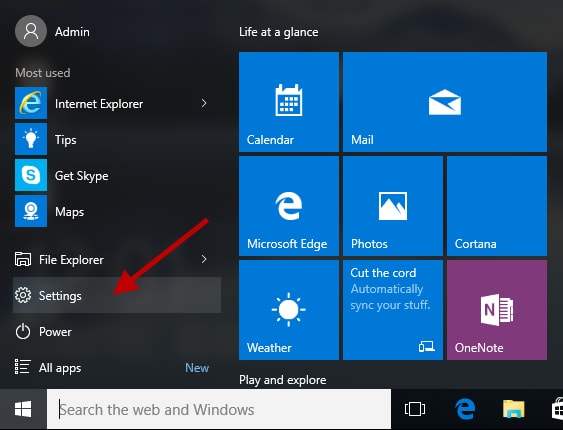
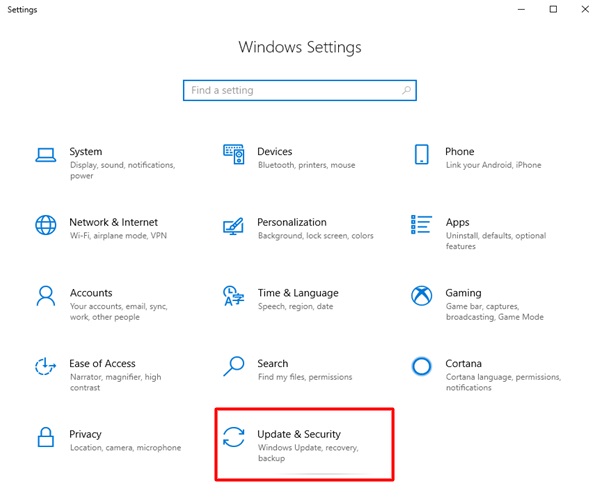
  • Firstly, use the combination of the keyboard’s Windows logo and the I key to access the settings of your device.
  • Now, select the Update & Security setting from the available panel.Clieck on update and security
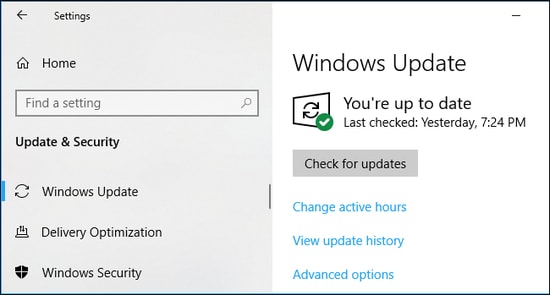
  • Click on the button to Check for updates. Check for Updates on windows settings
  • After completing the checking, download and install all updates (including those for drivers).
  • Finally, restart your PC to complete the process of updating the OS and drivers.

Method 4: Download and install the NVIDIA Vulkan driver update automatically (Recommended)

Many users find it cumbersome to download and update the Vulkan driver manually. If you are one of those users, you can download and install updated drivers with a professional program like Bit Driver Updater.

The Bit Driver Updater is a renowned software to update drivers. It performs driver updates automatically with one click. Moreover, it offers several benefits, such as the creation and restoration of driver backups, scheduling of scans for out-of-date drivers, acceleration of the speed of driver downloads, and much more.

You can go to the following link to download this software and install it on your device.

Windows Download Button

After the software installation completes (it takes only a couple of seconds to complete), you get a list of outdated drivers. You can perform an update for all these drivers automatically with a single click on the Update All button.Bit Driver Updater - Update all the driver

You can also use the Update Now option to update only the graphics (and with it the NVIDIA Vulkan) driver. However, it is always better to update all drivers for smooth computer performance.

Also Read: How To Download & Update Nvidia Drivers On Windows 10


NVIDIA Vulkan Driver Update Downloaded and Installed

In this article, we shared various ways to download the NVIDIA Vulkan driver, install, and update it. You can follow any method from the above guide depending on your convenience.

However, we suggest updating drivers using Bit Driver Updater to ensure you get correct and compatible drivers without any hassles to improve PC performance.

If you have any questions or would like to share anything about this article, please drop us a comment without any hesitation. We would love to hear from you.

1 Comment
    Thomas says: Reply
    May 20th 2020, 11:51 pm

    Hi Prachi
    I have not yet tried the Google Authenticator app, but I know how those app works and there is not doubt that it is the best way to protect your online accounts. Password is simply not enough anymore.

Leave a Reply to Thomas Cancel reply

Your email address will not be published. Required fields are marked *

Sidebar Image bit G ad1

Latest Posts

  • Anytime Astro: Best Website For Online Astrology Consultation
    Anytime Astro: Connect Now For Online Astrology Consultation
    by Somya Shrimal / March 13, 2026
  • Best-Ways-to-Combine-Images-Into-PDF-Files
    Best Ways to Combine Images Into PDF Files
    by Niharika / March 12, 2026
  • Best FREE VPS Hosting Providers
    7 Best FREE VPS Hosting Providers in 2026
    by Devesh / March 12, 2026
  • Best-McAfee-alternative-software-to-use-for-Virus-Protection
    Best McAfee Alternative Software to use for Virus Protection
    by adminuser / February 11, 2026
  • What-is-Flip-Flop-in-Circuite-and-it's-Types
    What is Flip Flop in Circuit and its Types
    by Meet / February 6, 2026

Categories

  • Cyber Security
  • Driver Updater
  • Entertainment
  • Fitness
  • Games
  • How To
  • laptop
  • OS
  • Reviews
  • Tech News
  • Tips & Tricks
  • Top 10
Sidebar Image bit G ad1
How To Take a Screenshot on Windows HP Laptop? How To Take a Screenshot on Windows HP Laptop?by Snigdha / May 20, 2020
Microsoft 365 Login Pages May Hide Phishing Attackby Prachi Dani / May 22, 2020Microsoft 365 Login Pages May Hide Phishing Attack
TechPout Footer Logo

We at TechPout promise to put forth stories that help people to learn and simplify their digital life. Our purpose is to share the true essence of technology with our tech-loving community.

Useful Links

  • About Us
  • Contact us
  • Privacy Policy

Popular Posts

  • Best PC Optimizer Software
  • Best Mac Cleaner Apps
  • Best Driver Updater
  • Duplicate Photo Finder and Cleaner Software
  • Best Free Movie Download Sites
  • Best IPTV Players

Follow us

Copyright © 2026 www.techpout.com. All rights reserved
DMCA.com Protection Status