Main LogoLight Logo
  • Reviews
  • Top 10
  • How To
  • Tech News
  • OS
    • Windows
    • MAC
    • iOS
    • Android
  • Categories
    • Driver Updater
    • Cyber Security
    • Games
    • Fitness
    • Entertainment
    • Tips & Tricks
Driver Updater How To Windows
by Prachi Dani

How to Upgrade Windows 10 for Free

November 20, 2019
1

The free download offer of Windows 10 had come to an end in 2016. However, it is only applicable to Windows C (ten) known as GWX. Besides the GWX tool, the other upgrade tools for Windows are still available for use and shall continue working in the near future. 

The free offer saw its end on 29th July 2016, and it was then that Microsoft had officially announced the end of the “Get Windows 10″ free upgrade program. 

Multiple users who have tried to upgrade their current Windows version to Windows 10 after the expiration date had encountered a message stating that “Windows 10 has failed to validate the product key”. But no need to get bogged down by this message, several users had received this message even when the scheme was live. 

If you still wish to upgrade to Windows 10, then you will have to pay now. 

But there are still ways to download the upgrade for free. Want to know how?

Then, follow the steps on “How to Upgrade from Windows 7 or 8 to Windows 10?”

Table of Contents hide
Best Ways to Upgrade Windows 10 for Free
Way #1: Windows 10 Free Upgrade 2020
Way #2: Windows 10 Free Upgrade 2020
You Can Look For Updated Drivers in Two Ways

Best Ways to Upgrade Windows 10 for Free

Way #1: Windows 10 Free Upgrade 2020

1) It’s always good to keep your product key handy. For those who have misplaced it, they can easily procure one by following the given steps.

Click on the start button > Settings > System > Click on the “About” button located on the left-hand panel. Your product key would be displayed there. 

2) Go to the official website of Microsoft to download Windows 10. Next, click on the “Download now“ tab to start the installation process.

3) Run the downloaded installation file in your system by authenticating the “Run” option.

4) On the first screen, select “Upgrade your PC now” and then click on the Next button.

5) Go through the instructions provided on the screen to complete the Windows 10 free upgrade. Windows connects back to the internet after Upgradation; it would ask you for a digital license. 

6) You need to click on the ‘Update & Security’ from the “Settings Menu” as well before you move to the Activation tab.

Point To Note: 

Every system has a specific digital license associated with it, which supports system formatting and disk reinstallation. It also assists in the clean installation of the Windows 10 version. Additionally, for users who have their digital license handy does not require the product key.

Read Also: Windows 10 November 2019 Update: Everything You Need To Know


Way #2: Windows 10 Free Upgrade 2020

Start with steps 1&2 from the method mentioned above to upgrade to Windows 10 for free.

3) While you run the installation media, instead of selecting “Upgrade this PC now,” you must select “Create Installation Media (USB Flash Drive, DVD or ISO File) for another PC.”

4) In the next step choose your “preferred language,” “Architecture,” and “Windows Edition.” Click on “Next.”

5) There would now be a choice to either Download Windows 10 program in a USB device to run the setup or to get the ISO file to burn on a DVD to run the data on your system.

6) Next, move on to the USB file. To start with insert the USB drive onto your system, then select it and download the data.

7) Insert the USB drive on the system which needs an upgrade and then restart it. To change the Boot priority, press the F2 button to enter the BIOS setup window. By doing this, you allow the USB flash drive to run before the system reboots to desktop- In the following step, choose USB Drive from the Boot Priority Order. Select F10 to save changes and exit.

8) By restarting your computer system, you would reach the install page of the Windows 10 free upgrade.

9) Enter the Product Key to proceed with the final upgrade process to Windows 10.

Once you have successfully updated to Windows 10 version, you should look for all available updates along with compatible drivers. 


You Can Look For Updated Drivers in Two Ways

Either choose to do a manual check for available drivers or leave the job on an excellent driver updater software.

The Driver update software is friendly and easy-to-use software that will scan for outdated drivers and device drivers whenever they release. Moreover, it also reduces the risk of installing a wrong or infected driver. 

This also means that you save a lot of time, which you may waste- manually looking for the correct driver updates. 

With a driver updater tool, you can enjoy advanced functionalities and benefits like: 

  • Round the clock support
  • Peak Performance of your system
  • Time Saver
  • One-Click Update.
  • Automatically updates all your broken and outdated drivers. 

Read More: Best Tips to Speed up Windows 10 Computer

An excellent driver updater tool ensures that we do not miss any essential updates, which thereby promises enhanced system performance. 

I hope our blog was of enough help to you and has also given a fair idea of “How to upgrade from Windows 7 or 8 to Windows 10”. Follow necessary and simple steps to keep your system running on the latest Windows version along with updated device drivers.


Author

Prachi Dani

Prachi Dani is a technical content writer who specializes in areas of science and technology. She is highly up to date with technological transitions and transformations. Writing is not her passion but the only thing that carries satisfaction in life. If not writing, you may find her engrossed playing action games on her treasured smartphone.

View all posts

Related Posts
How to Download Photos from iCloud to iPhone, Mac, and Windows PC

How to Download Photos from iCloud to iPhone, Mac, and Windows PC

December 10, 2022
0

Here, in this article, we present a guide to effortlessly downloading iCloud photos to Mac, Windows, or iPhone.

It is quite challenging to recover accidentally deleted photos from iCloud. Hence, it is better to download photos from iCloud to an iPhone, Mac, or Windows computer to ensure there is always a backup with you.

If you are confused about how to do it, you may go through this penned note with the utmost attention. Through this article, we share the step-by-step process to download iCloud photos on Mac, Windows, or iPhone. Let us begin with it without any further ado.

The process to Download Photos from iCloud to Windows, Mac, or iPhone

Let us now look at how to go about downloading photos from iCloud to iPhone, Mac, or Windows one by one, beginning with the transfer to iPhone.

Downloading photos to iPhone from iCloud

You may take the following steps to download your pictures from iCloud to your iPhone.

  • Launch the Settings application on your iPhone.
  • Tap on your name which is present at the top of the Settings menu to go to the Apple ID page.Settings application on your iPhone
  • Select iCloud. 
  • Now, choose Photos. Now, choose Photos
  • If the iCloud Photos toggle is grayed out, tap on it to enable it.iCloud Photos
  • Now, tap on the option to Download and Keep Originals. Download and Keep Originals

Above, we looked at the steps to download photos from iCloud on iPhone. Now, let us learn how to download them on Mac.

Also Read: Restore iPhone from iCloud Backup


Downloading photos to Mac

You can follow the directions shared below to download images from iCloud to Mac.

  • Firstly, open your Mac’s Photos application.
  • Now, choose Photos from the top menu.
  • Select Preferences from the menu that drops down.Photos Preferences
  • Now, select iCloud from the top of the on-screen menu.
  • Finally, choose the option to Download originals to this Mac. Download originals to this Mac

The above was the process of downloading photos from iCloud to Mac. Now, let us look at how to download iCloud images to your Windows computer.


Downloading photos to Windows

Here are the methods you may follow to download photos to your Windows PC from iCloud.

Method 1: Use the keyboard shortcut to download photos to your computer from iCloud

This method to download photos from iCloud to Windows works when you wish to download less than 1000 pictures. If you are downloading less than the said limit, you may follow these steps.

  • Navigate to icloud.com on your Windows computer.
  • Input your credentials, i.e., Apple ID and Password to log in to the iCloud account.Apple ID and Password
  • After signing in, select the Photos icon.select the Photos icon
  • Now, choose the Photos tab and select the First Photo on your screen.choose the Photos tab and select the First Photo on your screen
  • Press and hold the keys Shift+Ctrl+Alt and hit the Down arrow to choose all photos.
  • After selecting all the photos, click on the icon to download all iCloud photos to your computer.

Method 2: Use iCloud for Windows to download photos from iCloud

If you wish to download more than 1000 pictures to your computer from iCloud, you may use the iCloud application for Windows. Here are the step-by-step directions to do it.

  • First of all, get iCloud for Windows on your PC.
  • After completing the download, click on the downloaded setup file and follow the on-screen wizard to install iCloud for Windows.
  • Now, input your Apple ID and Password to sign in to iCloud.Apple ID and Password to sign in to iCloud
  • Next, checkmark the Photos option.Photos option
  • Choose iCloud Photo Library from the pop-up that appears.iCloud Photo Library
  • Select Done. 
  • Now, select Apply to start syncing all cloud pictures to your computer’s downloads folder.
  • After all the photos get downloaded, launch your computer’s File Explorer. 
  • Now, choose iCloud Photos from the left pane and select Downloads from the right pane.iCloud Photos gallery
  • Finally, you may find all your photos downloaded from iCloud in the Downloads folder.

In the above section, we looked at ways to download photos from iCloud on iPhone, Mac, and Windows. Now, let us answer some related questions to clear your doubts if any.

Also Read: Best iCloud Alternatives


Frequently Asked Questions

Below we answer the questions users often ask about downloading pictures from iCloud on iPhone, Windows, and Mac.

Q1. How do you download all photos from iCloud to Windows PC at once?

You may download all iCloud photos to Windows using a keyboard shortcut or the iCloud application. We shared both these options in the above section.

Q2. How do I download thousands of pictures from iCloud?

You may use the iCloud app for Windows to download more than 1000 photos from iCloud. The previous section of this article explained how to do it.

Q3. Will deleting pics from iPhone delete from iCloud?

If you delete photos from the iPhone, these pictures will get deleted from iCloud Photos and all other devices where you have iCloud Photos signed in.


Photos from iCloud Downloaded

Through this article, we shared how to download photos from iCloud on iPhone, Mac, and Windows. You may follow the above guide to get the required pictures downloaded on your desired device.

In case of any confusion, you can write to us in the comments section. And for other helpful tech guides, keep yourself connected with TechPout.

Download-or-Update-ChipsBnk-Flash-Drivers-on-Windows-PC

Download & Update Chipsbnk Flash Disk USB Device Driver on Windows PC

September 20, 2024
0

Let’s have a look at the methods to execute the ChipsBnk flash drive driver download and update for Windows 10/11 and install the drivers to run the flash drivers with ease.

ChipsBnk is a not-so-popular but prevailing brand that offers multiple USB flash disks and drives. If you are using any flash storage device from the brand, then you should consider updating the USB drivers of your Windows PC. Doing this will help you improve the data reading and sharing speed of the flash drive.

In this simple guide, we will have a look at some of the most effective solutions to execute the ChipsBnk flash drive driver download and update for Windows. All the methods provided in this article will help you easily install the USB driver. Although, for your ease, you can take the help of the automatic methods provided at the end of this article.

Methods for ChipsBnk Flash Drive Driver Install for Windows 10/11

Now, it’s time that we go through all the methods to execute the ChipsBnk flash drive driver download and update. All these solutions can help you get the required USB driver.

Method 1: Use the Device Manager for Updates

The Windows Device Manager is a utility that already comes pre-installed on all of the different sorts of Windows NT operating systems and devices. It is possible to manage and exercise control over all of the devices that are linked to the system, as the name of the product implies. It is also possible to use the same method for ChipsBnk flash drive driver update. Here are the measures you need to take in order to discover more about the same:

  • Use the right mouse button to click on the Start button, or hit the Win and X keys simultaneously. Launch the Device Manager at this time.

Device-manager-window-x-1-jpg (2)

  • Double-clicking on the category of Universal Serial Bus Controller.

In-Device-Manager-Window-Pops-Up

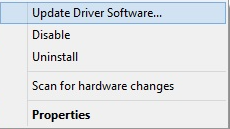
  • Simply choose the device you want to update the USB driver for by right-clicking on it and selecting the option to Update Driver.

Update-driver-software

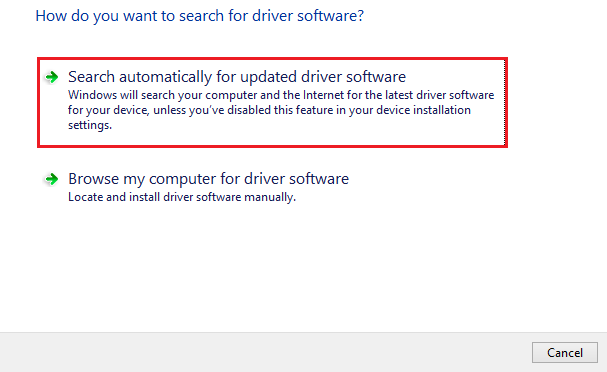
  • At this point, you should continue with the option to search for drivers automatically.

Search-Automatically-for-Drivers

  • It is necessary to wait for the system to load before proceeding to update the driver by following the instructions that appear.
  • Please restart the system after the operation has been completed.

Since this is a daily manual technique, it is possible that numerous repeats may be required in order to install different kinds of drivers on the device.

Also know: How to Fix USB Device Not Recognized Windows 11,10


Method 2: ChipsBnk Flash Drive Driver Update Via Windows Updates

The second method to execute the ChipsBnk flash drive driver update for Windows 10/11 is a manual one. You may not know this but Windows updates can also help you easily update some of the drivers. Let’s have a look at the procedure to get updates via Windows updates right away:

  • Press the combination of the Win + S keys, type updates, and press the Enter key.
  • Wait for the tool to appear and then click on the Check for Updates button.

Search updates and then click on

  • The system will look for updates for a few seconds. Afterward, you need to download and install all the updates that appear on the screen. Don’t miss the optional updates as well.

download-and-install-all-the-upd

Note: Allow the system to restart as many times as it requires.


Method 3: Take the Help of Win Riser

Through the use of Win Riser, you will be able to conduct the ChipsBnk flash drive driver update for Windows 10/11 in a short amount of time. With the assistance of this user-friendly application, you will be able to update any and all drivers that are compatible with your respective operating system. Improvements to the device’s performance are the primary focus of the tool’s functions, including the one that allows users to update their drivers.

Other significant capabilities of the utility include the elimination of trash files, erroneous registry files, and collected temporary junk files on a regular basis, as well as the prevention of malware. In addition to this, the utility gives you the ability to schedule the scans and make repairs to the system whenever it is most convenient for you.

With the assistance of the methods that are described below, you will be able to successfully execute the ChipsBnk flash drive driver install on your device by using the Win Riser driver updater.

  • To begin, you will need to use the download button that is located below in order to get the Win Riser setup.

Download-Button

  • For the program to be able to run automatically after installation, you will need to install it on your Windows device.
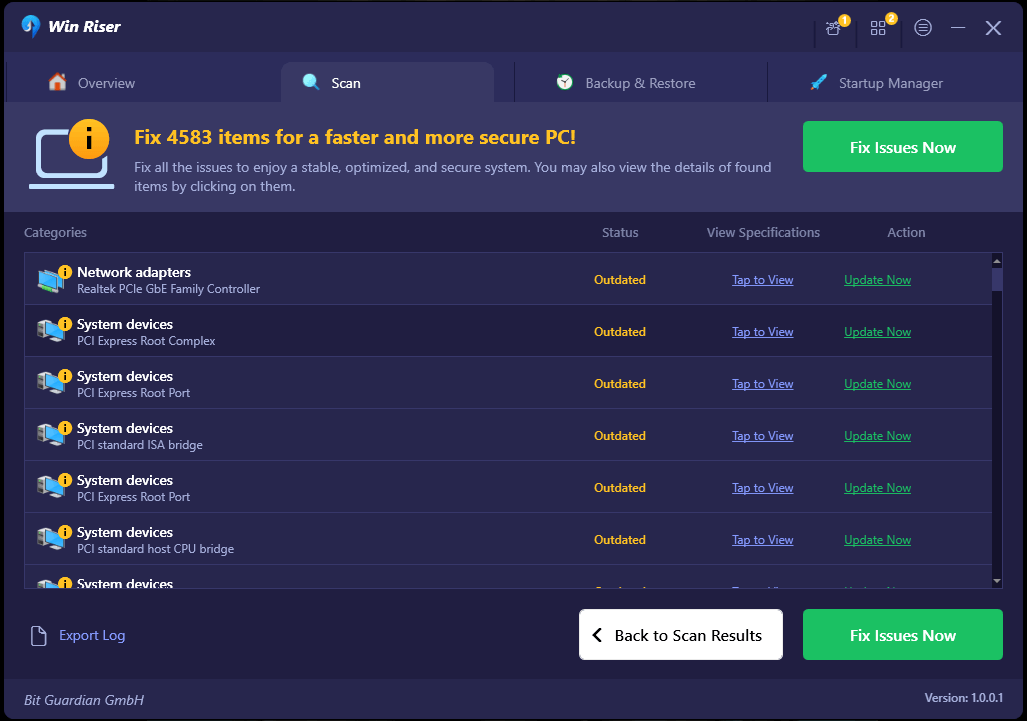
  • If you give the program permission to do a comprehensive but speedy scan of the system, it will look for problems. After the same has been finished, you can get rid of all of these problems that have been identified by clicking on the Fix Issues Now option. Performing this action will also result in the installation and updating of the USB driver.

Win Riser 1

  • When the utility has finished fixing all of the problems, restart the system.

Also know: How To Fix Power Surge On USB Port in Windows 10, 11


Completion of the ChipsBnk flash Drive Driver Download and Update

So, that is all that we have to impart to you at this time. It is our goal that you will have managed to successfully execute the ChipsBnk flash drive driver update after taking the strategies described above into consideration. For your convenience, we will once again recommend that you choose the automated solution in order to get updates in a timely manner.

If there is anything that you need our assistance with, please do not forget to ask your questions in the comments area. Also, if you want to get frequent updates to our blog, be sure to subscribe to our email and follow our social media accounts.

1 Comment
    [Solved] Inaccessible Boot Device Error On Windows 10 says: Reply
    December 28th 2020, 1:20 pm

    […] Screen Of Death) error with having an error code 0*0000007b. During the Windows Startup and after upgrading the Windows 10 you may encounter this […]

Leave a Reply Cancel reply

Your email address will not be published. Required fields are marked *

Sidebar Image bit G ad1

Latest Posts

  • Best-Free-Online-Portfolio-Websites-in-2026
    Best Free Online Portfolio Websites in 2026
    by Niharika / March 16, 2026
  • Anytime Astro: Best Website For Online Astrology Consultation
    Anytime Astro: Connect Now For Online Astrology Consultation
    by Somya Shrimal / March 13, 2026
  • Best-Ways-to-Combine-Images-Into-PDF-Files
    Best Ways to Combine Images Into PDF Files
    by Niharika / March 12, 2026
  • Best FREE VPS Hosting Providers
    7 Best FREE VPS Hosting Providers in 2026
    by Devesh / March 12, 2026
  • Best-McAfee-alternative-software-to-use-for-Virus-Protection
    Best McAfee Alternative Software to use for Virus Protection
    by adminuser / February 11, 2026

Categories

  • Cyber Security
  • Driver Updater
  • Entertainment
  • Fitness
  • Games
  • How To
  • laptop
  • OS
  • Reviews
  • Tech News
  • Tips & Tricks
  • Top 10
Sidebar Image bit G ad1
How To Hide Apps on Android How To Hide Apps on Androidby Snigdha / November 19, 2019
Best Ways To Check Who Viewed Your Instagram Profileby Snigdha / November 26, 2019Best Ways to Check Who Viewed Your Instagram Profile
TechPout Footer Logo

We at TechPout promise to put forth stories that help people to learn and simplify their digital life. Our purpose is to share the true essence of technology with our tech-loving community.

Useful Links

  • About Us
  • Contact us
  • Privacy Policy

Popular Posts

  • Best PC Optimizer Software
  • Best Mac Cleaner Apps
  • Best Driver Updater
  • Duplicate Photo Finder and Cleaner Software
  • Best Free Movie Download Sites
  • Best IPTV Players

Follow us

Copyright © 2026 www.techpout.com. All rights reserved
DMCA.com Protection Status