Main LogoLight Logo
  • Reviews
  • Top 10
  • How To
  • Tech News
  • OS
    • Windows
    • MAC
    • iOS
    • Android
  • Categories
    • Driver Updater
    • Cyber Security
    • Games
    • Fitness
    • Entertainment
    • Tips & Tricks
How To Windows
by Prachi Dani

How To Install Windows 10 From USB Drive (2021 Guide)

November 24, 2020
1

Are you struggling to install New Windows version on your PC? Well, you can quickly boot Window 10/7 using a USB drive. 

With a blink of an eye, you can install the latest version of Windows on your computer system. Here’s everything you should know about Windows 10 bootable USB tool. 

Table of Contents hide
Ensure That Your Device is UEFI Boot Support
How to Prepare Windows 10 Bootable USB Drive
Downloading Windows 10 With a Portable USB Drive
How to Make a Bootable USB Drive

Why Update Your Windows Version Using a USB Drive 

If you are falling short of DVDs and your PC does not have a free optical drive, then USB drive serves the option for booting your system.

This portable device is compatible with almost all desktop gadgets and laptops. Using a mobile device like USB offer a much simpler and straightforward way to boot your device. 

Minimum 8GB of storage is required for this also the USB drive should be well formatted before booting the system.

Read More: How To Update Device Drivers on Windows 10


What You Need Before Installing Windows 10 From USB

Well, this post will guide you on how to Install Windows 10 from USB, but before jumping towards the step. Here are the things that you need before installing Windows 10 from USB. Have a quick look at them!

  • DVD or Windows 10 install .iso file.
  • USB flash drive which has at least 8 GB free space.
  • A PC where you can format the USB Flash Drive.
  • A PC on which you’ll install the new Windows.

So, these are all that you need before installing Windows 10 from USB. After this, follow the following steps!

Step 1:- To format the drive you have to connect the USB flash drive to the other PC that you have. And, later on, make sure to set the partition as Active.

Step 2:- Then, copy and paste the Windows setup file to the formatted USB Flash Drive. And, for doing so, you can use File Explorer.

Step 3:- Now, install the Windows to the new system via connecting a USB flash drive to a new system. After following the directions to install Windows on a new PC, do not forget to pull back the USB flash drive.

This is how you can install Windows 10 from USB drive with much ease.


Ensure That Your Device is UEFI Boot Support

Before we move ahead, let’s first understand the difference between UEFI and BIOS. BIOS stands for basic input/output system and was majorly used to manage data between system devices and OS. 

However, UEFI which stands for Unified Extensible Firmware Interface has wholly taken over BIOS in the last decade. 

Fortunately, you can use either of the two mechanisms to boot your computer using a USB drive. 

Read More: Best Uninstaller Software For Windows 10, 8, 7


How to Prepare Windows 10 Bootable USB Drive

Using Windows 10 bootable USB tools to install windows is the easiest and quickest way. To start with, connect a well-formatted USB drive to your system. There are various ways of installing Windows 10, but the most straightforward and fastest way is with the help of a  windows 10 media creation tool download.

To use this, go to the Windows 10 Microsoft download page. And then hit the “Download tool now” button.

The next step is to create windows 10 installation media, follow the simple steps to get your job done. Ensure that you have a legitimate license to download Windows 10. Once confirmed, you can easily install and run the media creation tool on your system.

  • Next step is to save this lightweight tool on your system.
  • Open the Media creation tool.
  • From the next prompted window, click on “Accept” to confirm.
  • In the displayed window, you will be given 2 options, choose “Create installation media” (ISO file, USB flash drive, or DVD).
  • Click on the “Next” button now.
  • Now set Windows 10 edition, language, and system architecture.
  • In case you are unable to change the settings, uncheck the box with says, “Use the recommended options for this system/PC”.
  • Click on the “Next” button.
  • From the displayed window, choose “USB Flash” followed by the “Next” button.
  • From the list of drives, choose the relevant USB drive and hit “Next” to start the download process.

Downloading Windows 10 With a Portable USB Drive

Once you have successfully created the installation media, installing Windows 10 gets exceptionally easy. You can now use this bootable USB to update the targeted device. 

Switch on the PC you wish to update and then connect the USB drive and wait for it to get detected. Once the USB drive is adequately detected, you can start the installation process. 

You can also similarly install Windows 7. 

Read More: Update Latest Canon Printer Drivers for Windows 10, 8, 7


How to Make a Bootable USB Drive

Follow the simple step-by-step guide to create a bootable USB drive.

  • To start with, you need a minimum of 8GB USB drive.
  • Next, install the Windows media creation tool.
  • To download Windows 10 installation files, run the media creation wizard.
  • Once the installation media is created, eject the USB flash drive.
  • And there you have it, a well-formatted bootable USB drive.

Through the help of the above steps, you can easily create a bootable USB drive to install windows 10 from USB on a new PC.


Closing Words

From here, you’ll be familiar with how you can install Windows 10 from USB on a new PC. Through this write-up, we’ve explained to you how you can make a bootable USB drive. Along with this, we’ve also told you what you need before installing Windows 10 from a USB drive.

Hopefully, now you’ll get to know exactly what you need to do to install Windows 10 from a USB drive. Still, if you’ll face any sort of difficulty while doing so, then do let us know through the comment box below! We assure you to help you out. And, don’t forget to subscribe to our Newsletter to stay updated. Till then, Happy Installing!


create windows 10 installation mediaHow to make a bootable USB drivewindows 10 bootable usb toolwindows 10 media creation tool download
Author

Prachi Dani

Prachi Dani is a technical content writer who specializes in areas of science and technology. She is highly up to date with technological transitions and transformations. Writing is not her passion but the only thing that carries satisfaction in life. If not writing, you may find her engrossed playing action games on her treasured smartphone.

View all posts

Related Posts
How to Fix OBS Studio NVENC Error

How to Fix OBS Studio NVENC Error

August 17, 2023
0

Are you experiencing OBS NVENC Error on Windows PC? Don’t worry, here are a few solutions available that help you in resolving the problem, in no time. Keep reading for better insights!

During the process of broadcasting or recording video content, users of Open Broadcaster Software (OBS) may come across an error known as NVENC error. The issue could have been caused by a number of circumstances, such as incompatibility between the hardware and software, constraints imposed by the hardware, or wrong settings on OBS.

This post will focus on the OBS Studio NVENC error, here you will learn about the causes of this error and how to resolve it. In the post, we will explain a few workable solutions to resolve the error, without any hassles. But, before we proceed with the troubleshooting tactics, it would be helpful to know what the OBS NVENC error exactly is.

What Does NVENC Encoder OBS Mean?

NVENC encoder OBS, also known as NVIDIA Encoder OBS, is a video encoding technology that was developed by NVIDIA. It gives customers the ability to stream or record high-quality video on their computers without negatively impacting the performance or frame rate of the machine. A great number of streamers, gamers, and people who create video content use it in order to record and broadcast their stuff.

The OBS version of the NVENC encoder is offered in both free and paid editions. Users of the free version are able to encode video at a maximum resolution of 1080p and a maximum frame rate of 60 frames per second (FPS), while users of the premium version are able to encode video at a maximum resolution of 4K and a maximum frame rate of 120 FPS. Additional features, such as user-defined profiles and in-depth configuration options, are available in the premium edition.

What are the Major Causes of the OBS NVENC Error?

When using Open Broadcast Software (OBS), both gamers and streamers are susceptible to making this mistake, which is one of the most common blunders. The error typically occurs while you are attempting to stream or record using OBS, and it is brought on by a problem with either the hardware or software on your computer.

  • An out-of-date version of your graphics driver is the most typical reason for the NVENC issue.
  • A conflict between the OBS application and one or more of the other programs or services that are now active on your computer is yet another possible root cause of the OBS NVENC error.
  • This problem can also be caused by any overlay settings or components of Microsoft Visual C++ that conflict with one another.
  • OBS utilizes the NVIDIA Encoder library in order to do hardware-accelerated video encoding; however, an incorrect or out-of-date version of this library may be the source of the issue.

A List of Solutions to Fix OBS Studio NVENC Error On PC

Listed below are a few tried and tested solutions that you can consider in order to fix the OBS NVENC error on Windows 10, 11, or older versions of the PC. Now, without wasting more time, check them out below.

Solution 1: Reboot your PC

Your computer may need to be restarted if it has any settings that are misconfigured or if there are any bugs in the system. This will not only free up any RAM that is currently being consumed by apps and processes, but it will also refresh any drivers and services that may be the source of the NVENC issue in OBS. If you are having trouble using the NVENC feature of OBS, it is recommended that you let your computer shut down completely rather than putting it into sleep mode or hibernation. To fix the OBS NVENC error on Windows 10, 11, follow the steps below:

  • To go to the desktop, press the Windows key + the D key simultaneously. After that, press the Alt + F4 keys simultaneously, and then select the Restart option.Shut down the windows pc
  • Then, select the OK button.

Also Read: Fixed OBS Dropping Frames


Solution 2: Update Outdated Graphics Driver

By keeping your graphics drivers up to date, you can help ensure that your computer’s various components will continue to operate in a streamlined and effective manner. But before you update, check to see that other components, such as sound cards and monitors, have also had the drivers for them updated. This will ensure that everything functions correctly together. You can either update the drivers using a Windows in-built program called Device Manager or third-party driver updating software.

Updating drivers with the best driver updater gives you the option to automatically install the latest PC drivers. Bit Driver Updater is a highly recommended tool that only requires a single click of the mouse to install the latest PC drivers. This driver updater utility is globally recognized and is trusted by millions of users across the globe. The tool is available in both free and paid versions. However, it’s worth noting that a paid version helps you unlock the complete potential of utility. Also, the paid version offers round-the-clock technical support and a 60-day full money-back guarantee. Now, follow the steps below to update outdated drivers using Bit Driver Updater:

  • First of all, download the Bit Driver Updater from the button below.Windows-Download-Button
  • Open the downloaded file and follow the on-screen instructions to complete the installation.
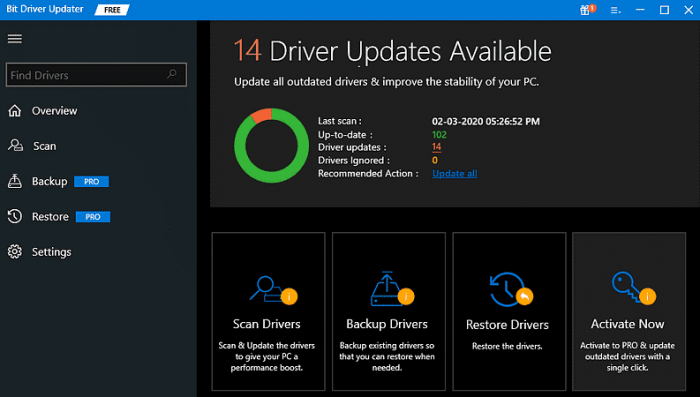
  • After installing, launch the Bit Driver Updater on your PC and click on the Scan option available on the left pane.Scan outdated driver of your windows pc
  • Wait for the driver updater tool to scan your system for outdated or problematic drivers. Check the scan results, and click on the Update Now button presented next to the driver you wish to update. And, as explained, with the premium version you can quickly update all outdated drivers with just a click. For this, simply click on the Update All button.Update all outdated driver of your windows pc

See, how easy and quick it is to update outdated drivers through Bit Driver Updater. Once everything is done, reboot your device so that recently installed drivers can take its effects. Now, test the issue, if the OBS NVENC error still persists, then proceed with the other solutions below.


Solution 3: Use Hardware Encoding

If you stream videos online, you are aware of how important it is to have a dependable video streaming solution at your disposal. Unfortunately, the NVENC encoding that OBS uses can occasionally be faulty, which can result in missed frames, films that stutter, and other difficulties. Switching to QuickSync is fortunately a simple solution to this problem.

QuickSync is a hardware-accelerated encoding method that was developed by Intel. It is more stable than NVENC, and it consumes fewer CPU resources, which means that your computer will be able to do more tasks without stuttering or skipping frames. Additionally, it utilizes fewer resources than NVENC did.

Note: The very first thing you need to do in order to convert over to QuickSync is to check and see if your machine matches the requirements for the system. A computer with an Intel Core i3, i5, or i7 processor and Intel HD Graphics 4000 or a higher version is needed to run QuickSync. You won’t be able to make advantage of QuickSync if your machine isn’t up to snuff in terms of these prerequisites. Follow the steps below to switch to QuickSync in order to fix the OBS Studio NVENC error.

  • Open the OBS app and navigate to the Settings menu by selecting File > Settings.
  • Next, navigate to the Output tab in the Encoder, and then click on the QuickSync H.264 button.

A Point To Remember: If you are unable to view the aforementioned options, you will need to check whether or not the advanced output mode is active on your device.

  • Save the recent changes by clicking on the Apply and then OK buttons, the OBS program should now function normally and without any issues.

Also Read: How to Fix OBS Not Picking Up Mic Windows 11,10


Solution 4: Reducing the Output Resolution in OBS

When the output resolution is decreased, the amount of data that needs to be processed by your hardware also decreases. This makes it possible for your hardware to deliver more consistent performance with fewer interruptions. Additionally, it helps save bandwidth when streaming live broadcasts, which in turn reduces latency when the broadcast is being played back. In order to correct the issue where your computer is unable to open the NVENC codec, the following are some instructions for lowering the resolution in OBS.

  • Tap the Settings button in the OBS Studio app, which is located in the lower right-hand corner of the screen.Reducing the Output Resolution in OBS
  • Move your focus to the left pane, then choose the Video tab. Then, in the right pane, scroll to the bottom and select the Output (Scaled) Resolution option.
  • Now, use the drop-down menu to select any lower resolution values than those currently displayed.
  • Note that the structure of the encoded videos will not be altered in any way by these adjustments.Reducing the Output Resolution in OBS - Video Setting
  • To put the most recent changes into effect, you must first click the Apply button, then the OK button.

Simply relaunch the application at this time, as it will not produce any errors. If the OBS Studio NVENC error still persists, then try another solution.


Solution 5: Reinstalling Microsoft C++ Redistributables

The NVENC problem in OBC can be easily and quickly fixed by performing a fresh installation of the Microsoft C++ Redistributables. It is essential to guarantee that the most recent release of the Microsoft C++ Redistributables is installed in OBS because the Microsoft Visual C++ compiler is used to develop many of the programs and applications that are utilized by OBS. So, you can perform a reinstallation of Microsoft C++ Redistributables in order to fix the OBS NVENC error on Windows 10, 11. Follow the steps below:

  • Go to the search bar, and then type “Apps & Features.” Now, click the Open button.
  • Now, type Microsoft Visual C++ into the search bar and look for it.
  • Simply select the package you want to remove, then hit the Uninstall button.
  • Follow these instructions to uninstall all of the packages that are currently installed on your system, and then proceed with the prompts that are presented to you.Uninstall visual c++
  • After verifying that the packages have been successfully removed, press the Start button and then type “command prompt” into the prompt that appears.
  • To open the command window, select the option to “Run as administrator” and click “OK.”
  • After that, enter this command ( Dism.exe /online /Cleanup-Image /StartComponentCleanup) and press Enter key.StartComponentCleanup
  • Your Windows computer will need to be restarted once the DISM scan has finished running.
  • At this point, you should launch your web browser and proceed to the official Microsoft website.
  • You can get the most recent versions of the Visual C++ Redistributable files for Visual Studio 2015, 2017, and 2019 by scrolling down the screen.Visual C++ Redistributable
  • Please be patient while all of the Visual C++ Redistributable files are successfully downloaded onto your computer.
  • Follow the steps that appear on the screen to successfully install all of the packages found in My downloads.
  • Last but not least, restart your computer.

After your computer has finished restarting, open the OBS application once more. You should not experience any errors at this time.

Also Read: How to Fix Video Conferencing Issues


How to Fix OBS Studio NVENC Error: Explained

In this write-up, we have included a rundown of all of the feasible troubleshooting techniques that can be utilized to resolve the OBS NVENC error on PC and get the video content streaming or recording again properly.

It is anticipated that the solutions provided will work for you to eliminate the error entirely; thus, take care to carefully follow each of the solutions provided one at a time. We really hope this will be helpful to you. If you have any questions or better suggestions please drop them in the comments section below. For more technical information, you can subscribe to our Newsletter and also get the latest tech updates on Social Media – Facebook, Instagram, Twitter, or Pinterest.

How to Fix Conexant isst Audio Not Working in Windows 10, 11

January 20, 2023
0

Is Conexant ISST audio not working on Windows 10, 11? If yes, nothing to worry about. It is a quite common audio problem that can be solved, easily & quickly.

We have seen numerous PC users complaining about sound issues with Conexant Smart HD audio or Conexant ISST audio. Outdated drivers and incorrect audio configurations are majorly responsible for the inconvenience. Whatever the reason is, there are a few possible workable solutions that help you get rid of any kind of sound-related problems on your Windows 10, 11 PC. This article will explain to you the best practices to fix the problem. Continue reading!

Solutions to Fix Conexant isst Audio Not Working in Windows 10, 11

Following are a few tried and tested solutions to resolve Conexant ISST audio not working on Windows 11, 10. Without further ado, let’s get started!

Solution 1: Disable Audio Enhancements

Sometimes, playing around with the audio settings and the wrong configuration can cause common problems with the Conexant ISST audio. If that is the case, then disabling the audio enhancements helps you fix the issue. To do so, use the procedure shared below.

For Windows 10:

Step 1: On your taskbar, find and right-click on the speaker icon available in the lower right corner.

Step 2: Click on Playback devices.

Playback Devices

Step 3: Now, double-click on your default playback device to open it.

Step 4: Head to the Enhancements tab and check the box presented before Disable all enhancements.Disable all enhancements

Step 5: Click on Ok to apply changes.

For Windows 11: 

Step 1: On Windows 11, altogether press Windows and I keys to launch Windows Settings.

Step 2: Navigate to Sounds.

Step 3: Scroll down the window to find All sound devices.

Step 4: Now, click your default audio output device.

Step 5: Launch the dropdown menu and disable it.

Once done, reboot your computer and test the issue. Proceed with the other solutions if this didn’t work for you.

Also Read: How to Fix Realtek Audio Not Working in Windows


Solution 2: Run the Audio Troubleshooter

Another way to fix Conexant ISST audio not working is to use Windows built-in audio troubleshooter. Here is how to do that:

Step 1: Right-click on the Start menu and choose Settings from the available options.

Step 2: This action will open Windows Settings on your system, here you need to click on Update & Security.Clieck on update and security

Step 3: Click Troubleshoot from the left pane.

Step 4: Next, find the Run the Troubleshooter option under the Recording Audio option and click on it.select the Run the troubleshooter option

That’s it! Now, Windows will start scanning your device to find and fix the problem. Once done, reboot your system to see if Conexant ISST audio not working on Windows 10/11 is fixed. If not, then try the next solution.

Also Read: Realtek Audio Console Download and Update Windows 


Solution 3: Modify the Default Audio Format

You can also consider changing the default audio format to get rid of your PC’s sound-related issues. Follow the steps below:

Step 1: Launch Playback devices.Playback Devices

Step 2: Now, click twice on your default playback device and open it.

Step 3: Head to the Advanced tab and modify the bitrate under the Default sound format.Advanced tab and modify the bitrate under the Default sound format

Step 4: Click on OK.

If modifying the default sound format didn’t help you, then you can move on to the next solution to fix Conexant ISST audio not working on Windows 11/10.

Also Read: How to Fix Realtek Audio Not Working in Windows


Solution 4: Update Audio Driver

Audio drivers are one of the most important things for any audio device. So, if you are using outdated, broken, or missing outdated drivers, then you may run into sound-related problems. So, to resolve the issue, you need to make sure that you are using the latest version of the Conexant ISST audio driver.

Searching for the correct drivers manually can be tiresome and challenging, especially for newbies. Bit Driver Updater is the best and simplest way to manage driver updates on Windows operating systems. It is a utility tool that deeply scans your device for broken or old drivers regularly, and provides you with the most compatible driver files.

The most interesting thing about Bit Driver Updater is that it supports all Windows OS versions including Windows 11, 10. Here is how to update the Conexant ISST audio driver with Bit Driver Updater:

Step 1: Download and install Bit Driver Updater.

Windows Download Button

Step 2: Launch Bit Driver Updater and click Scan from the left menu pane.Scan outdated driver of your windows pc

Step 3: Wait for the scanning to be completed. Check the scan results.

Step 4: Click on the Update Now button available next to the driver you wish to update. And, if you are using the pro version, then you can also click on the Update All button. This action will install the latest version of all PC drivers including the Conexant ISST audio driver for Windows 10/11.Update all outdated driver of your windows pc

Important: Its pro version offers 24/7 technical support and a full money-back guarantee but for a limited time.

Also Read: How to Fix Conexant Audio Driver Issue in Windows


Conexant ISST Audio Not Working in Windows 10/11: FIXED

Experiencing sound problems on PC are very common and can resolve instantly. With the help of the above-shared resolutions, you can easily fix any issue related to sound on your Windows PC.

We hope this article on how to fix Conexant ISST audio not working on Windows 11/10 helped you in any possible way. Please tell us in the comments below, if you have any kind of doubts or questions regarding the same.

For more tech-related information, you can subscribe to our Newsletter and follow us on Social Media.

1 Comment
    How To Format Pen Drive In Windows 7, 8 and 10 | TechPout says: Reply
    January 1st 2021, 6:35 pm

    […] Read More: How To Install Windows 10 From USB Drive […]

Leave a Reply Cancel reply

Your email address will not be published. Required fields are marked *

Sidebar Image bit G ad1

Latest Posts

  • Anytime Astro: Best Website For Online Astrology Consultation
    Anytime Astro: Connect Now For Online Astrology Consultation
    by Somya Shrimal / March 13, 2026
  • Best-Ways-to-Combine-Images-Into-PDF-Files
    Best Ways to Combine Images Into PDF Files
    by Niharika / March 12, 2026
  • Best FREE VPS Hosting Providers
    7 Best FREE VPS Hosting Providers in 2026
    by Devesh / March 12, 2026
  • Best-McAfee-alternative-software-to-use-for-Virus-Protection
    Best McAfee Alternative Software to use for Virus Protection
    by adminuser / February 11, 2026
  • What-is-Flip-Flop-in-Circuite-and-it's-Types
    What is Flip Flop in Circuit and its Types
    by Meet / February 6, 2026

Categories

  • Cyber Security
  • Driver Updater
  • Entertainment
  • Fitness
  • Games
  • How To
  • laptop
  • OS
  • Reviews
  • Tech News
  • Tips & Tricks
  • Top 10
Sidebar Image bit G ad1
How To Update Device Drivers on Windows 10 How To Update Device Drivers on Windows 10? {Simple Guide}by Monil / November 20, 2020
Google Starts Task Mate Testing in India - All That You Should Know!by Harshita / November 26, 2020Google Starts Task Mate Testing in India - All That You Should Know!
TechPout Footer Logo

We at TechPout promise to put forth stories that help people to learn and simplify their digital life. Our purpose is to share the true essence of technology with our tech-loving community.

Useful Links

  • About Us
  • Contact us
  • Privacy Policy

Popular Posts

  • Best PC Optimizer Software
  • Best Mac Cleaner Apps
  • Best Driver Updater
  • Duplicate Photo Finder and Cleaner Software
  • Best Free Movie Download Sites
  • Best IPTV Players

Follow us

Copyright © 2026 www.techpout.com. All rights reserved
DMCA.com Protection Status