Main LogoLight Logo
  • Reviews
  • Top 10
  • How To
  • Tech News
  • OS
    • Windows
    • MAC
    • iOS
    • Android
  • Categories
    • Driver Updater
    • Cyber Security
    • Games
    • Fitness
    • Entertainment
    • Tips & Tricks
Top 10
by Niharika

9 Best Free Network Monitoring Software in 2024 (Open Source)

May 16, 2024
1

This article shares the best free tools for network monitoring so that you can identify and fix network issues before they become serious trouble.

Network monitoring is one of the toughest challenges for network or IT administrators. It is a crucial IT process where the administrators continuously monitor various networking components, such as firewalls, servers, routers, VMs, and switches, for faults to ensure their optimal performance and availability. This task of monitoring helps enterprises of all domains and sizes improve their online presence. And the best free network monitoring software goes a long way in helping you perform this function more efficiently and effectively.

With the help of the best network monitoring tools, you can proactively identify and solve network problems. It helps you prevent downtime and failures in the future.

However, the top network monitoring tools in the marketplace often cost a bomb. Therefore, we dived deep into the world of network monitors and found some cost-effective yet feature-rich free and open-source programs to monitor the network.

Before going through this monitoring tool’s list, let us look at some essential features you should consider when selecting a tool. Knowing what to look for in network monitoring software helps you choose the best one for your requirements.

Table of Contents hide
Essential Features of the Best Free Network Monitoring Software
9 Best Free Network Monitoring Software in 2024
1. SolarWinds ipMonitor
2. Network Bandwidth Analyzer
3. Paessler PRTG Network Monitor
4. Zabbix
5. Nagios Core
6. ManageEngine OpManager
7. Icinga
8. DataDog
9. WhatsUp Gold
Summing Up the Best Free Network Monitoring Software

Essential Features of the Best Free Network Monitoring Software

Below are some core features that the top free open-source network monitoring tools should possess.

  • Ability to perform network monitoring automatically
  • Device discovery routine to automatically create an asset inventory
  • Alerts when any problem occurs
  • Displays the live status of every device with a network mapping service
  • Communicates with the network devices via SNMP

Let us now have a rundown of the best and free network monitoring tools having all or most of the above features.

9 Best Free Network Monitoring Software in 2024

The following are our top picks when it comes to selecting the best free software for network monitoring.

1. SolarWinds ipMonitor
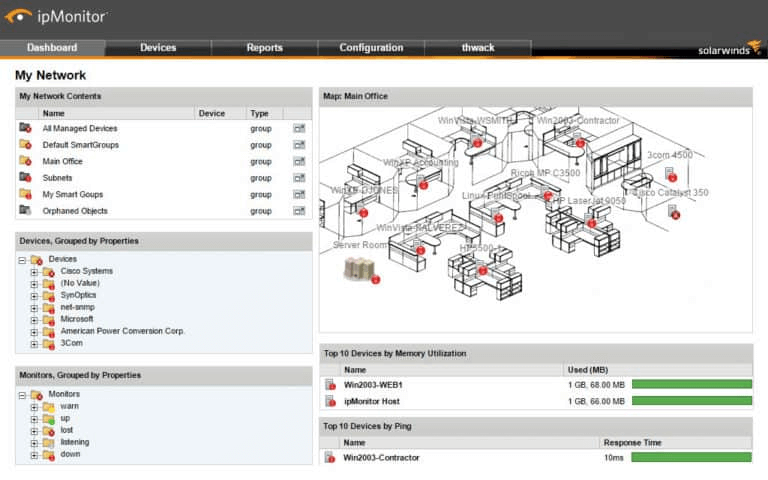
SolarWinds ipMonitor

Let us kickstart our list of the best free network monitoring software with SolarWinds ipMonitor. It is a highly attractive choice if you wish to monitor not more than 50 interfaces.

Ideal for small businesses, SolarWinds ipMonitor boasts top-notch visualizations to give you a high-quality user experience. Moreover, the following features contribute to making it one of the best network monitoring tools.

Key Features of SolarWinds ipMonitor

  • Lightweight, fast, and easy-to-use
  • Network devices and server monitoring from a centralized location
  • System problem alerts
  • Network device status tracking
  • Discovery of devices connected to your network
  • Automatically creates a network topology map according to collected devices

Download Now

Also Read: Best Application Performance Monitoring Tools


2. Network Bandwidth Analyzer
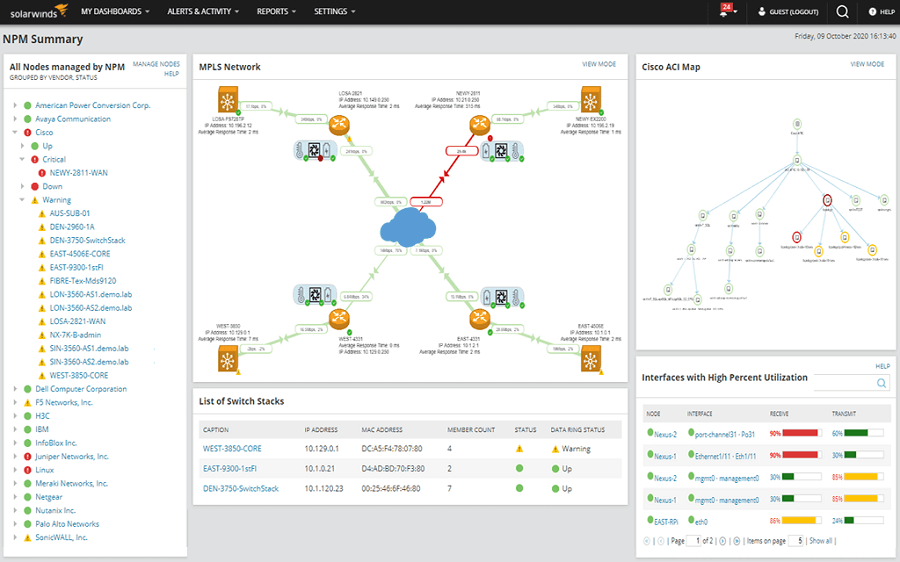
Network Bandwidth Analyzer

Next on our list is the Network Bandwidth Analyzer, one of the top network monitoring tools. It helps you reduce network outages by quickly detecting, diagnosing, and resolving problems with network performance.

Additionally, features like easy viewing of IPv6 and IPv4 flow records are also a reason for including this software on our list. Furthermore, the following are some other noteworthy features of this software.

Key Features of Network Bandwidth Analyzer

  • Easy monitoring of Juniper J-Flow, IPFIX flow data, Huawei NetStream, and Cisco NetFlow to identify the bandwidth-hungry apps and protocols
  • Alerts you about application traffic activity changes
  • Sends an alert if the network monitoring software is not sharing the network performance data
  • Collects and converts the traffic data into a useable format
  • Supports VMware vSphere switch
  • Boasts support for Cisco NBAR2
  • Easy creation of a schedule, in-depth delivery of bandwidth reports, and network traffic analysis
  • Support for monitoring and management of wireless networks
  • CBQoS policy optimization to measure how effective the pre and post-policy traffic levels are

Download Now


3. Paessler PRTG Network Monitor

Paessler PRTG Network Monitor

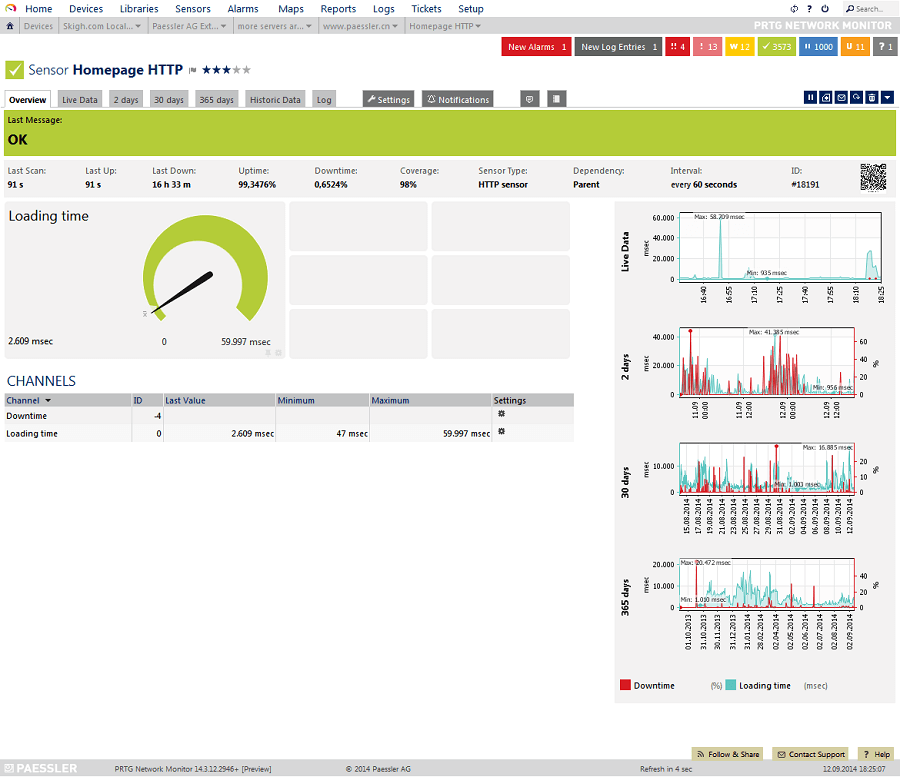
We have Paessler PRTG Network Monitor in the third position on our list of the best free network monitoring software. It is a user-friendly, feature-rich, and fast software you can use to scan connected devices by IP range (it saves you time from manually configuring everything).

Talking about the features, below is what makes Paessler PRTG Network Monitor one of the best network monitoring tools.

Key Features of Paessler PRTG Network Monitor

  • Network autodiscovery
  • Status error alerts
  • Capable of monitoring wireless networks
  • Network, application, traffic, and cloud monitoring
  • Color-coded and user-friendly interface
  • Monitoring of internet connections between locations and remote sites
  • Drag and drop editor to effortlessly create custom reports and views
  • Integration with third-party applications like Slack

Download Now

Also Read: Best Server Monitoring Software


4. Zabbix
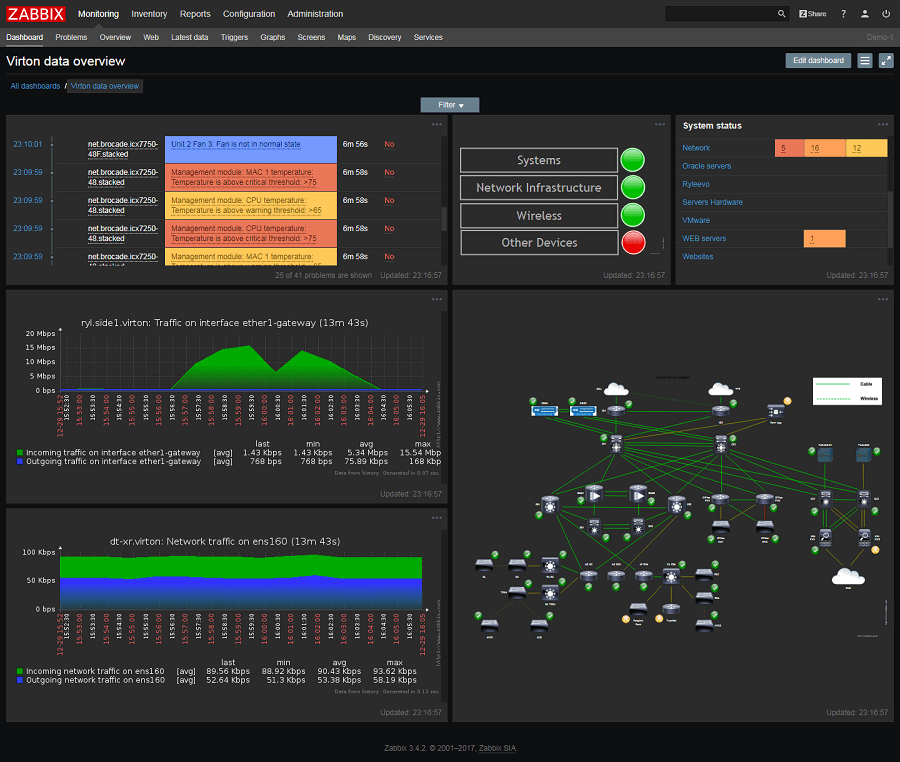
Zabbix

We cannot skip Zabbix when discussing the best free open-source network monitoring software. It uses historical data to predict future behavior. Moreover, this software provides crucial information, such as network utilization, disk space consumption, and CPU load.

Furthermore, automatic detection of device configuration changes and the below features make Zabbix one of the top free network monitoring tools.

Key Features of Zabbix

  • Expandable and flexible Windows data collection
  • Multiple metric gathering protocols and methods
  • Easy monitoring of network bandwidth usage
  • Automatic discovery of networks coming under the purview of Zabbix agents
  • Support for both SNMP protocol and protocol agents
  • Availability of a mobile application and many templates
  • Automatic detection of device configuration changes
  • Predicts bandwidth usage trends, network downtimes, and more
  • Active detection of network connection anomalies
  • Generation of custom report remediation scripts
  • Event correlation feature to reduce the notification noise
  • Customized escalation scenarios

Download Now


5. Nagios Core

Nagios Core

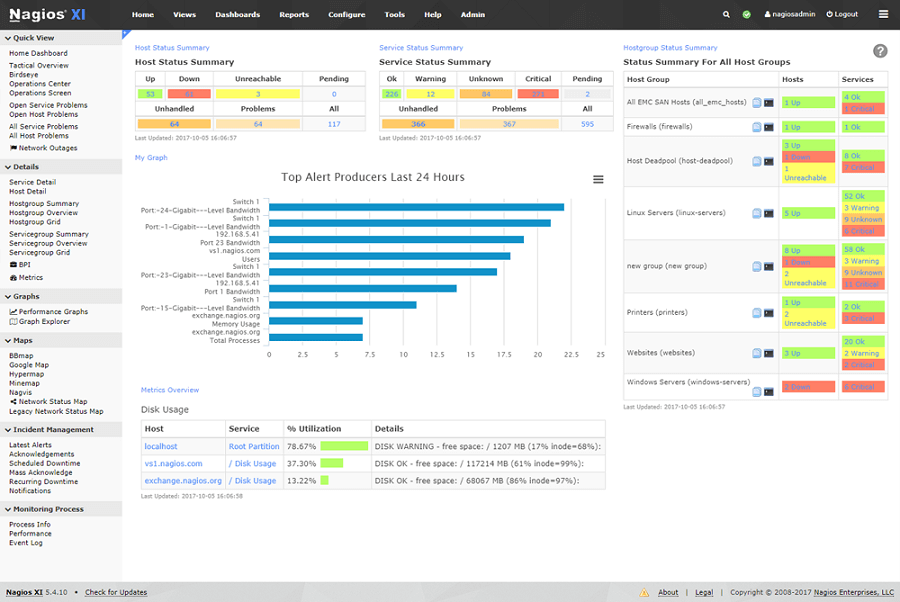
Next, we would like to name Nagios Core as one of the best free network monitoring software with open-source availability. The most attractive thing about this software is its user interface. It sticks to a basic design and web-based GUI to help you analyze the condition of your key services and network infrastructure effortlessly.

Moreover, you should go through the following features of this software before making up your mind about downloading it.

Key Features of Nagios Core

  • Power-packed Nagios Core 4 monitoring engine to ensure top-notch monitoring server performance
  • Powerful dashboards to monitor third-party data and information
  • Its GUI enables layout, design, and preference customization
  • Multi-tenant abilities
  • Lets you easily view and resolve network issues
  • The dashboard provides a customizable overview of network devices, hosts, and services
  • Automated and integrated capacity planning graphs
  • Many infrastructure management tools, such as mass acknowledgment, auto decommissioning, etc.
  • Configuration snapshots feature to save, archive, and revert your configuration

Download Now


6. ManageEngine OpManager

ManageEngine OpManager

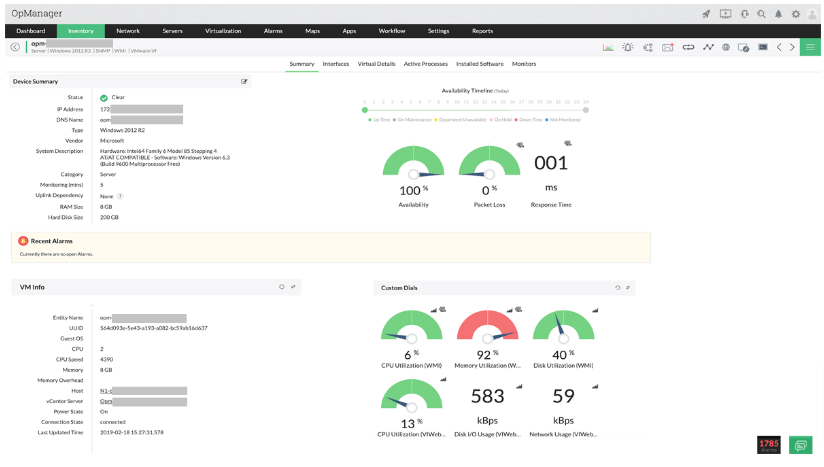
Let us now take a look at ManageEngine OpManager. It is among the best network monitoring tools for its real-time monitoring of multi-vendor network device performance.

Moreover, it boasts many outstanding features, such as active management of physical servers, such as storage arrays, RAID, VMs, etc. Furthermore, the following highlights of this software justify its position on our list.

Key Features of ManageEngine OpManager

  • Over 9500 templates for monitoring network devices
  • Sends advanced notifications and alerts through SMS and emails
  • Custom dashboard through more than 100 performance widgets
  • Easy network management through a mobile application
  • Contextual integrations for complete monitoring of network infrastructure
  • Effective monitoring of latency, packet loss, and WAN/VoIP
  • Availability of automatic troubleshooting
  • Multi-user collaboration and SSL offload

Download Now


7. Icinga

Icinga

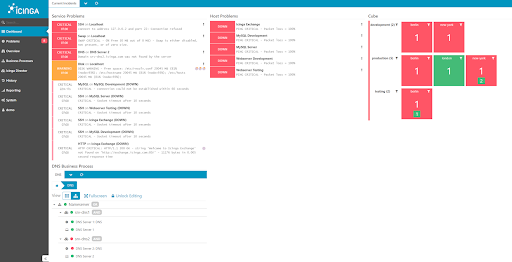
Let us introduce you to Icinga. It is among the best open-source network monitoring software because of its SNMP monitoring, tracking tools for your complete IT infrastructure, auto-discovery, and the following remarkable features.

Key Features of Icinga

  • Availability of pre-configured plugins or templates for easy monitoring
  • Easy monitoring of public, private, and hybrid cloud
  • Metrics collection and direct pattern search in the user’s log management tools and log files
  • Business process modeling, custom dashboards, and reports help gain a fast overview and deep insights
  • Notifies you whenever any important condition is identified

Download Now


8. DataDog

DataDog

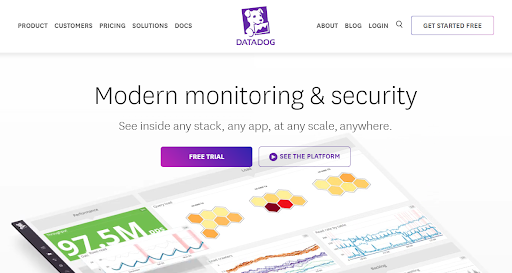
If you are still looking for Network Monitoring Software in 2024, then we recommend DataDog. This is a private and secure alternative that you can try to monitor the network of your enterprise.

Key Features of DataDog

  • Multiple templates to monitor network devices.
  • Downloadable on Android and iOS.
  • Feasible interface
  • Automated and integrated capacity planning graphs
  • Multiple metric gathering protocols and methods

Download Now


9. WhatsUp Gold

WhatsUp Gold

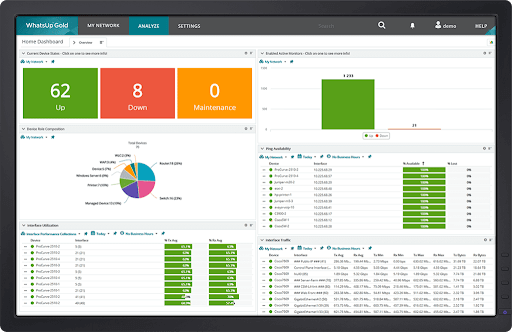
You can try WhatsUp Gold as a networking monitoring software in 2024. The tool is highly-inclusive and offers extensive services and features of network monitoring and storage for personal and professional requirements.

Key Features of WhatsUp Gold

  • Offers Azure, AWS, DevOps, and other platform monitoring
  • Caters to different kind of industries
  • Monitors network performance, usage, and more.
  • Offers real-time monitoring and alerts.

Download Now

Also Read: Best Data Monitoring Apps For Android


Summing Up the Best Free Network Monitoring Software

In this article, we did a rundown of the best network monitoring tools. You can go through the above software and compare their features with your requirements to select the best one.

If you think our list of the best free network monitoring tools misses out on any deserving software, you can mention its name in the comments section. Also, share your views about this article through comments.

Author

Niharika

Niharika is a passionate soul who finds immense satisfaction in putting all her thoughts in writing. Being a technology enthusiast, she loves learning new things about tech and making everyone technologically literate through her articles. When not composing tech articles, you can find her bringing characters to life in her fictional stories, reading something intriguing, or spending time with her near and dear ones.

View all posts | Website

Related Posts
7 Best Parental Control Software To Track Kids Activity 2024

7 Best Parental Control Software To Track Your Kids Online Activity In 2024

January 5, 2024
0

Internet is a weapon that can be used to shape the future for your child but it can be misused as well. While kids do get to learn about many things but they get influenced and distracted easily. The parental control software will help to keep a check on the activities to keep them on the right track.

There are many software available in the market but we have found some of the most used and best parental control apps for you which can help you in monitoring each and every move of your child.

List Of 7 Best Parental Control Software/Apps In 2024

The below-listed 7 apps are selected on the basis of their performance and user satisfaction. Follow the blog till the end to find the best free parental control software.

1. OpenDNS FamilyShield

OpenDNS FamilyShield

Open DNS Family shield is one of the best parental control software to keep your child protected from unwanted internet content. This software can be set up using the router, all the devices connected with the router can be monitored. It is free-to-use software but it offers limited tools in the free version. Users can opt to upgrade to the Pro version to avail all features and tools of the software.

Why OpenDNS Family Shield?

  • Available in different packages, including the OpenDNS Family Shield (Free), OpenDNS Home (Free), OpenDNS Home VIP ($19.95/ year), OpenDNS Umbrella Prosumer ($20/ user)
  • Settings can be applied on every gadget which can connect to the internet
  • It not just protect your child but it also protects your gadgets from malware

Visit Website


2. Qustodio

Qustodio

The software availability on every device makes it the best parental control program. Qustodio offers a variety of tools that can help you in monitoring the actions. The software has two versions available including the free and paid version. The free version of the parental control program offers website blocking, time schedule, and usage monitoring. In the paid version the user will get SMS monitoring, App control, and Social media monitoring.

Read Also: Best Data Monitoring Apps For Android

Why Qustodio?

  • 30 days report of the usage available on the app
  • 18+ content is blocked on the device with Qustodio
  • The user can set and manage time for the apps and games
  • Phone calls and SMS can be tracked on Android devices
  • Parents can track the location of their children by using the ‘family locator’ option

Visit Website


3. KidLogger

KidLogger

Keeping track is easy when you have the KidLogger parental lock software. It keeps track of all activities which your kid is up to. It tracks the app usage, website surfing and also tracks the time. KidLogger is available in Windows, Mac, Linux, Android, and Blackberry. The software can track the usage through various browsers including Internet Explorer, Chrome, Firefox, Opera, Safari.

Read More: Best Firewall Software For Windows 10/8/7

Why KidLogger?

  • Web history monitoring from every browser
  • Periodically keeps taking screenshots of the screen for later analysis
  • Time tracking and keeps the user updated with actual time spent
  • Records keystrokes and texts entered

Visit Website


4. Spyrix Free Keylogger

Spyrix Free Keylogger

Here is another great addition to the list of the best free parental control software. Spyrix Free Keylogger keeps track of apps and the keystrokes that are used by the kids. Whether it’s a chatting app or a search everything will be kept for tracking. The software offers website blocking in the premium version.

Why Spyrix Free Keylogger?

  • Keeps track of apps and keystrokes
  • Printer as well as clipboard control
  • Keeps capturing screen without even letting the user know
  • Compatible with every Windows device after Windows XP

Visit Website


5. Kaspersky Safe Kids

Kaspersky Safe Kids

Kaspersky is a popular name when it comes to antivirus and protection of your device. Now the company has introduced a Kaspersky Safe Kids best parental control software which will help the user to keep a track of the child’s usage. You can make a blacklist that will restrict kids to use it.

Read More: Best GPS Tracking Apps for Android & iPhone

Why Kaspersky Safe Kids?

  • Monitoring location and battery is a unique feature of this software
  • It keeps delivering alert when a blacklisted site is searched
  • Keeps track of social media apps and their time consumption

Visit Website


6. Wondershare Famisafe

Wondershare Famisafe

Wondershare Famisafe is one of the best parental control programs which allows the user to use the software on more than 30 devices. With this software, you can keep your children away from all the restricted and inappropriate content. It also monitors messages and images which are received from other devices.

Why Wondersahre Famisafe?

  • Keeps track of app usage, messages, and images in the device
  • The user can block and set a limit on the usage
  • The software detects potential violence and cyberbullying

Visit Website


7. Bark

Bark

Bark is another one of the most widely-used and best parental control software to protect your children from all excess usage of social media apps. The software keeps track of Facebook, Snapchat, Instagram, and YouTube. Besides, this parental lock application also keeps a check on emails in Gmail and Apple. Bark offers a free 7 days trial to the user.

Read More: List of Best Duplicate Photo Finder and Remover Tools

Why Bark?

  • The user can limit or block the app usage
  • Keeps a track of activity for 24*7
  • Track almost every social media app and activity

Visit Website


Concluding the Search of the Best Free Parental Control Software

Keeping track of your child is a disturbing task for you as well as for your child instead of manually checking on them. Use any of the aforementioned best parental control programs to keep the child safe 24/7. All the software above has the official website link. Click the link to download the software.

All Apple Watch Status Icons & Symbols Meaning

All Apple Watch Status Icons & Symbols Meaning

December 12, 2022
0

The Apple Watch shows a bunch of different status icons at the top of the screen, including – the enigmatic red dot icon – to provide users essential information directly from the watch face.

Apart from displaying them at the top of your Apple Watch’s dial, it also contains several more in watch’s Control Center.

So, if you’ve recently made a switch from Android to Apple watch, there are chances that you might get confused about them just as much as I was when I first started using one.

Well, worry no more! Here’s the definitive guide to help you understand what the status icons and symbols at the top of your Apple Watch screen actually mean.

Status Icons on Apple Watch:

The Apple watch status icons and symbols are displayed without an accompanying text which makes it difficult for beginners to interpret them. Here’s an annotated list of all unknown watchOS 6 icons:

1. Red Dot Icon

Red Dot Icon

This red dot icon on your Apple watch screen appears whenever you have an unread notification. To read a new notification, you can swipe down from the top of the watch face.

2. Charging Icon

Charging Icon

The small green lightning bolt icon at the top of the screen indicates that your Apple Watch is currently charging. 

3. Low Battery Icon 

Low Battery Icon 

The red lightning bolt symbol appears on the screen whenever your Apple watch battery is low and needs charging.

4. Airplane Mode Icon

Airplane Mode Icon

This icon indicates that Airplane mode is turned on. You will not be able to use Wireless features on your watch until you turn Airplane Mode off.

And even though you turn Airplane setting off on your Apple watch, it remains enabled for your iPhone.

5. Do Not Disturb Icon

Do Not Disturb Icon

This half-moon icon appears whenever Do Not Disturb mode is enabled on your watch. If this icon is visible, it means that calls and other notifications won’t ring or light up your Apple Watch home screen. However, this setting won’t have any effect on the alarms sound; they will continue to ring.

Read More: Best Free Apple Watch Games You can Play

6. Lock Icon

Lock Icon

If you’re seeing a lock symbol at top of the display, it means the Apple Watch is locked and you will require to enter the passcode to unlock the screen.

7. Water Lock Icon

Water Lock Icon

The icon indicates that the Water lock mode is turned on. Your Apple Watch automatically locks the display whenever you start doing swimming exercises to prevent accidental touches. Once you’re done, press or rotate the Digital Crown to unlock the display and clear water droplets from your watch. 

Note: The water drop icon is available for only Apple Watch Series 2 and newer models.

8. Theater Mode Icon

Theater Mode Icon

This icon appears when the Theater Mode is turned on. Once enabled, it keeps your Apple Watch silent and its display dark until you wake it intentionally by tapping on the watch’s screen or turning the Digital Crown.

9. Workout Icon

Workout Icon

The icon of a running man appears at the top of the screen whenever you’re using a workout app. After completing a workout, restart your Apple Watch.

10. No Cellular Network Icon

No Cellular Network Icon

This Red Cross icon indicates that your Apple Watch GPS + Cellular models has lost connection or signal to the cellular network.

11. Disconnect Icon

Disconnect Icon

If you’re seeing this icon on your screen, it means your Apple Watch and iPhone device are not connected. This problem may arise if your paired iPhone isn’t close enough to your watch, or when Wi-Fi and Bluetooth are turned off on the iPhone.

12. Connected Icon

Connected Icon

This icon signifies that your Apple Watch is properly connected or paired with your iPhone device.

13. Wi-Fi Icon

Wi-Fi Icon

This icon appears in the Control Center whenever your Apple Watch connects to a Wi-Fi network instead of your iPhone connection.

14. LTE Icon

LTE Icon

The number of green dots denotes the signal strength with the connected cellular network.

15. Wireless Activity Icon

Wireless Activity Icon

This icon appears on your Apple Watch screen when some sort of wireless activity is happening.

16. Microphone Icon 

Microphone Icon 

The Apple Watch’s microphone icon indicates that the audio is being recorded in the background.

17. Now Playing Icon

Now Playing Icon

The Now Playing icon appears at the top of the screen when you play audio on your watch or paired iPhone through the music and podcasts app.

18. Call Icon

Call Icon

This small green phone call icon appears at the home screen of Apple Watch while you’re talking with someone via watch or paired iPhone device.

19. Maps Icon

Maps Icon

You can tap the Maps icon from the home screen to open the maps app on your watch to get directions.

20. Navigation Icon

Navigation Icon

This icon appears at the top of the Apple watch’s dial when you use third-party apps to get voice guided navigation. Restart your watch if the navigation icon remains on the screen after you’ve stopped using an app.

21. Walkie-Talkie Icon

Walkie-Talkie Icon

You can talk with your friends instantly by adding them to the Walkie-Talkie app. Tap on this round-shaped yellow icon to open the Walkie-Talkie app on your watch.

Read More: How to Use Walkie-Talkie on Your Apple Watch

22. Location Indicator Icon

Location Indicator Icon

This arrow-type icon appearing on your screen means that an app is using location services on your Apple Watch.

23. AirPlay Icon

AirPlay Icon

This Air-play icon is available inside the watch’s Control Center which allows you to choose your favorite audio output and switch it between Apple Watch speakers and AirPods or Bluetooth headphones.

24. Turn On/Off Announce Notifications

Turn On-Off Announce Notifications

The On/ Off notifications option on your Apple watch allows you to read the notifications loudly on your watch. These notifications are read aloud and can be heard every time you receive one.

Read More: Best Apple Watch Alternatives

So, this was all folks! You may find all of these aforementioned watchOS 6 icons at the top of your Apple Watch screen, or in places like Control Center. Hope this article helped you learn the meaning of all Apple watch status icons and symbols. 

If you think we missed out on any symbol, let us know in the comments section below, we will be happy to add them to the list.

1 Comment
    Jimmie Dossett says: Reply
    October 15th 2023, 6:54 am

    Nice post. This list is very helpful to find free network monitoring software.

Leave a Reply to Jimmie Dossett Cancel reply

Your email address will not be published. Required fields are marked *

Sidebar Image bit G ad1

Latest Posts

  • Best-Free-Online-Portfolio-Websites-in-2026
    Best Free Online Portfolio Websites in 2026
    by Niharika / March 16, 2026
  • Anytime Astro: Best Website For Online Astrology Consultation
    Anytime Astro: Connect Now For Online Astrology Consultation
    by Somya Shrimal / March 13, 2026
  • Best-Ways-to-Combine-Images-Into-PDF-Files
    Best Ways to Combine Images Into PDF Files
    by Niharika / March 12, 2026
  • Best FREE VPS Hosting Providers
    7 Best FREE VPS Hosting Providers in 2026
    by Devesh / March 12, 2026
  • Best-McAfee-alternative-software-to-use-for-Virus-Protection
    Best McAfee Alternative Software to use for Virus Protection
    by adminuser / February 11, 2026

Categories

  • Cyber Security
  • Driver Updater
  • Entertainment
  • Fitness
  • Games
  • How To
  • laptop
  • OS
  • Reviews
  • Tech News
  • Tips & Tricks
  • Top 10
Sidebar Image bit G ad1
Best Anime Streaming Sites to Watch Anime Online 27 Best Anime Streaming Sites to Watch Anime Online in 2024by Snigdha / May 16, 2024
How to Fix Snapchat Keeps Logging Me Outby Akshara Parnami / May 16, 2024How to Fix Snapchat Keeps Logging Me Out
TechPout Footer Logo

We at TechPout promise to put forth stories that help people to learn and simplify their digital life. Our purpose is to share the true essence of technology with our tech-loving community.

Useful Links

  • About Us
  • Contact us
  • Privacy Policy

Popular Posts

  • Best PC Optimizer Software
  • Best Mac Cleaner Apps
  • Best Driver Updater
  • Duplicate Photo Finder and Cleaner Software
  • Best Free Movie Download Sites
  • Best IPTV Players

Follow us

Copyright © 2026 www.techpout.com. All rights reserved
DMCA.com Protection Status