Main LogoLight Logo
  • Reviews
  • Top 10
  • How To
  • Tech News
  • OS
    • Windows
    • MAC
    • iOS
    • Android
  • Categories
    • Driver Updater
    • Cyber Security
    • Games
    • Fitness
    • Entertainment
    • Tips & Tricks
Driver Updater How To Windows
by Harshita

Unable to Connect to World Minecraft On Windows 10 [Solved]

December 21, 2020
1

Have you ever encountered an error message unable to connect to the world in Minecraft? We know, it is hampered, but it is easy to fix too. Hence, this post elucidates to you how to fix the Unable to Connect to World Minecraft error. 

There is no doubt in admitting that Minecraft is one of the most relishing games which takes you into the virtual fantasy world. Moreover, it lets you create or design your own world and promotes you to play in distinct modes that lead your way from modeling to survival. But, presently, many users have complained that whenever they are trying to connect with their friend’s world in Minecraft, they get one error message that reads Unable to connect to world Minecraft.

Are you in a trap of this error? If yes, then we can help! But before reaching solutions, here is a briefing about the causes because of which this issue occurs. So, let’s read them!

All-In-One Solution to Fix Unable to Connect to World Minecraft on Windows 10

The outdated network driver is one of the most common reasons behind this annoying error. Therefore, to deal with this error, one can use Bit Driver Updater. It is the world-class driver updater utility that ensures automatic & frequent driver updates. This utility comes with an in-built system optimizer that can elevate the performance pace of the PC by around 50%. What you need to do is just click on the button below to download Bit Driver Updater for Free.

Windows Download Button

Table of Contents hide
What Causes the Error “Unable to Connect to World” in Minecraft?
Best Fixes to Resolve Unable to Connect to World Minecraft on Windows 10
Fix 1: Adding Your Friend Again
Fix 2: Turn Off Windows Firewall
Fix 3: Temporarily Turn Off Antivirus Application
Fix 4: Update Network Drivers

What Causes the Error “Unable to Connect to World” in Minecraft?

Well, there are numerous reasons because of which this error occurs. But, so far now, after reading all the complaints, here are the major causes of this error. 

  • Problem in the friend list.
  • Outdated version of the game.
  • Third-party Antivirus software may conflict.
  • Problems with ISP.
  • Outdated network drivers.

So, these are the core causes of this error. But don’t worry, as now it is extremely easy to deal with this issue. Step forward towards our next section that explains to you how to fix unable to connect to world Minecraft windows 10. 

Read Also: Fix Minecraft Won’t Launch on Windows 10


Best Fixes to Resolve Unable to Connect to World Minecraft on Windows 10

Within a matter of moments, you can easily fix the annoying unable to connect to world Minecraft error on Windows 10. Here, at Tech Pout, we’ve brought up a list of troubleshooting solutions to fix the same issue. Without wasting more time, let’s start the discussion. 

Fix 1: Adding Your Friend Again

After restarting your computer and then the Minecraft game if still, it shows an “unable to connect to world Minecraft” error. Then, here is one thing, that you can do in order to fix the issue and that is re-adding the friend. Your friend list is the core part because of which you might encounter this error if there is some sort of corruption in your friend list. Issues in your friend list may prevent you from connecting to the friend’s Minecraft world. 

What you can do to fix this issue is – removing the friends from the friend list and then again adding them back. To do that you just need to know the username of the friend and then input the following (/f remove <username>) command and hit the Enter key from the keyboard. But, we suggest you before implementing this fix, try to visit the unknown person’s Minecraft world. If you can, then it will get clear that there is an issue with your friend list. After that, you can move ahead!

Read More: How to Fix Minecraft LAN Not Working Issue


Fix 2: Turn Off Windows Firewall

If the Minecraft executable file is not allowed in Firewall, then, it may be the reason for unable to connect to world Minecraft. However, you can still link to the game but can’t be able to connect to a friend’s Minecraft world. Hence, to prevent this make sure that Minecraft executable file must be allowed in Firewall. Here is how to do it!

  • Hit the Windows start button and input Control Panel in the search box then hit the enter key from your Keyboard to launch Control Panel.
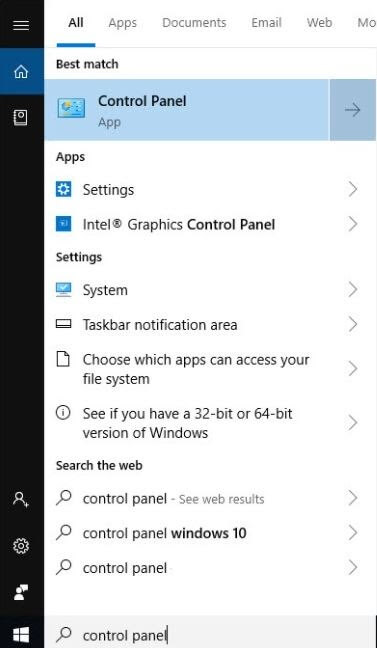
Launch Control Panel

  • Then, make sure to set the View By section as Large icons, after this click on the Windows Defender Firewall option.
  • From the next pop-up window, click on the Allow an app or feature through Windows Defender Firewall.
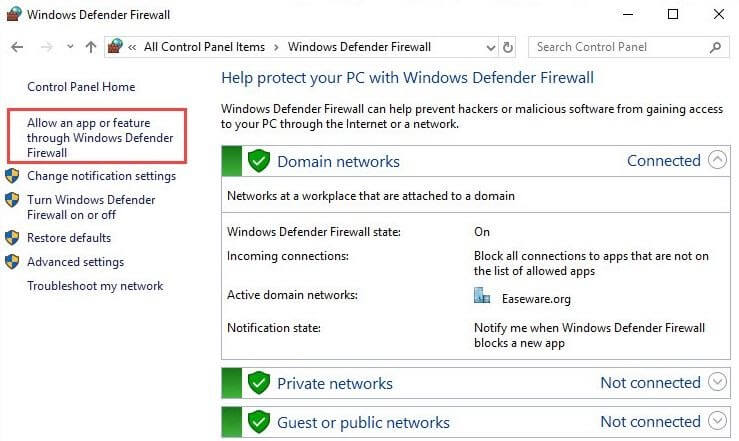
Click On Allow App Or Feature Through Windows Defender Firewall

  • Thereafter, be sure that javaw.exe is marked. If it isn’t then click on the Change Settings option and then mark the checkbox. If you find more than one javaw.exe records then mark them all. Make sure that the private and public both checkbox are marked. 
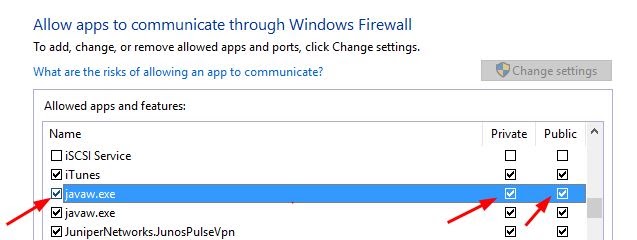
Private and Public Both Checkbox Marked

Do as so, and check whether the “Minecraft unable to connect to world” problem is solved or not. If it still remains like earlier, then move to our next fix. 


Fix 3: Temporarily Turn Off Antivirus Application

Sometimes, your Antivirus software can be the major cause because of which you are encountering the Minecraft unable to connect to world issue on windows 10. Rarely, your antivirus software can block some features in Minecraft so you may confront this annoying issue where you are helpless to connect to your friends’ world.

But, you do not need to panic, as this can be solved just by disabling the antivirus software for a temporary period of time. So, what are you looking for, try this hack and then connect to your friend’s world in Minecraft. 


Fix 4: Update Network Drivers

So, here is one of the most common yet bit impactful reasons why do you get an “unable to connect to world Minecraft” error on Windows 10 while connecting. The biggest culprit behind the occurrence of this issue is your outdated, old, broken, or corrupt network drivers. Hence, if you want to experience a breakthrough and smoother experience while playing Minecraft or any other game then you have to make sure that your network drivers must be always updated to their latest version.

Here, is one tool to do this task much easier and that is Bit Driver Updater. It is one of the leading driver updater tools currently which lets you update all the drivers with ease. Want to know how it works? Then, read the below-listed steps!

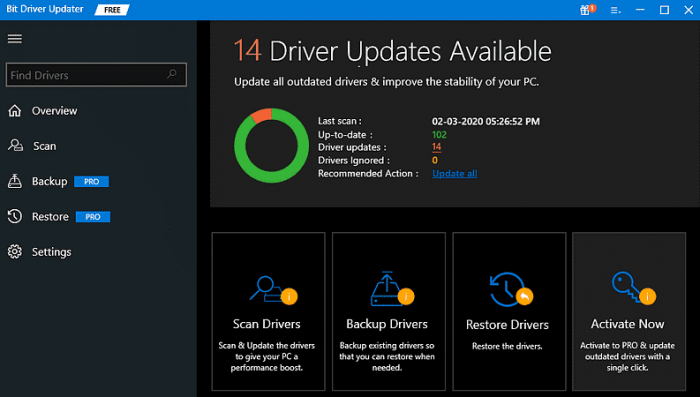
  • Download Bit Driver Updater from the download tab given below and launch it on your system.

Windows Download Button

  • Then, keep patience until the whole Automatic Scanning procedure gets finished.
  • Once, it will get over then examine the whole list of drivers.
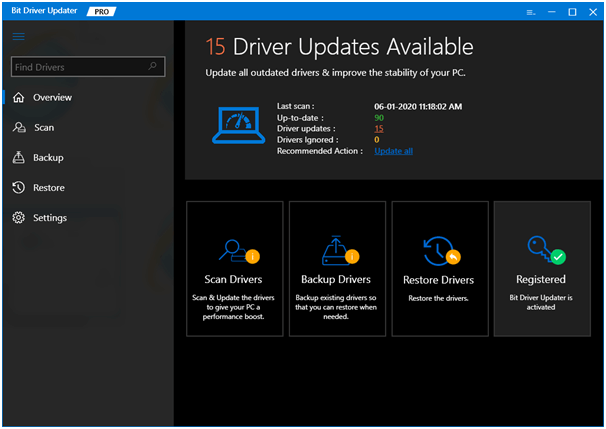
Bit Driver Updater - Best Driver Updater Software

  • After this, hit the Update Now option presented next to the drivers, to update the drivers.

That’s all, what you need to do, in order to update drivers using Bit Driver Updater. Isn’t it so facile? Undoubtedly, yes! So, hit the download tab and install this amazing software now!

Read More: How to Solve Discord Overlay Not Working on Windows 


Unable to Connect to World Minecraft On Windows 10 [Fixed]

So, with all this, we have come to the end. Through this write-up, we have tried to explain to you every bit possible to fix Minecraft unable to connect to world issue on Windows 10. Hopefully, the above-listed fixes can help you a lot. And, just in case, if you have any queries regarding this then feel free to ask in the comment box below. We’ll hear you and will answer your every query too.

In sum, do not forget to subscribe to our Newsletter for getting the latest tech information instantly. So, that’s all as for the present heat of the moment, we’ll back on board sooner with yet another informative post. Till then, stay in touch with us to stay in touch with the tech realm! 

Author

Harshita

Harshita Sharma is a technical writer with quite a distinct understanding of the tech realm. She is a tech enthusiast who believes that tech knowledge should reach one and all and tries to convert the sketchy knowledge into the simplest possible form for making people understand the tech world better. When not playing with words, she loves to travel and explore new places. And, is a coffee & cricket connoisseur.

View all posts

Related Posts
How to Strikethrough on Google Docs

How to Strikethrough on Google Docs (Complete Guide)

January 12, 2024
0

Do you want to learn how to use the Google Docs Strikethrough feature? Without a doubt, you do. The modest strikethrough is something that is often required, but it is frequently difficult to locate. Don’t worry, we are here to demonstrate how to Strikethrough on Google Docs.

There may be moments when there are aspects of the documentation that you are unsure about. Regardless of whether you need those lines or the contents included inside your documents. “Strikethrough Google Docs” is the greatest alternative to take in order to cope with circumstances in which you do not want to remove the text or content but rather maintain it. You will find that the strikethrough option in Google Docs is helpful for you in situations when you are unsure about the content. This allows you to choose the text that you want to include in the content or document by drawing a line.

Despite the fact that this line implies that the area that is highlighted must be ignored, there is no need to delete or clear it out. When you need the text or content at a later time, you will be able to get it that way. It is possible to style text in a variety of ways, and several strikethrough tools are available. If you are working on a Google Doc and are seeking a tool that allows you to strikethrough text in a Google Doc, then you should be ready to learn how to accomplish it.

A Step-By-Step Tutorial on How to Strikethrough on Google Docs

It is possible to strikethrough text in Google Docs on both Windows and Mac. Below is the procedure to accomplish this task.

Also Read: How to Add Google Docs Border

Step 1: Open any desired Google Doc on which you want to apply this feature.

Step 2: Then, select the text that you wish to strikethrough and highlight it.

Step 3: If you are using Windows, then simply press Shift + Alt + 5 keys together from your keyboard. This will Strikethrough the highlighted text on your document. And, in case you are working on a Mac, then you need to hit Shift + cmd + X keys together in order to make use of the Strikethrough feature on your particular document.

That is it! See how easy it is to use Google Docs Strikethrough features on Windows as well as Mac.


How to Access Google Docs Strikethrough on Android & iOS?

Listed below are the following steps to cross out text on Google Docs using Strikethrough on Android and iOS devices. Without further ado, just have a look at them.

  • On your device, run the Google Docs app.
  • Then, open a new/blank document or open the one that you wish to edit.
  • After that, choose a text you want to strikethrough.
  • Now, expand all the available text options, by tapping the pencil icon presented in the lower right corner.Access Google Docs Strikethrough - Click on pencil button
  • The screen now shows you all the text options along with a keyboard. Find and tap the Format (A) icon available on the top of your screen.Find and tap the Format (A) icon
  • A few text options will appear at the bottom of your screen. Now, in order to strikethrough the selected text, simply tap the Strikethrough (-S-) symbol. See the image provided below for reference.tap the Strikethrough symbol

That’s all! Now, your highlighted text has the strikethrough effect.

Also Read: How to Double Space In Google Docs


How to Strikethrough on Google Docs: Explained

So, by implementing the steps provided above you can hassle-free apply the Strikethrough effect to your text. We hope you found this tutorial helpful. If you have any questions, queries, or further tips & tricks regarding the Google Docs Strikethrough feature, then please feel free to share them with us in the comments box below.

Additionally, to receive daily tech updates, you can subscribe to our Newsletter and follow us on Social Media: Facebook, Instagram, Twitter & Pinterest.

Download-ATI-Display-Driver-for-Windows

Download ATI Display Driver for Windows PC

January 21, 2025
0

If you want to download and install the ATI Display driver on your Windows 11/10 PC, then you can take the help of the simple procedures explained in this guide.

A driver plays a vital role in establishing communication and connection between a device and the system. Driver works like a set of instructional files that allow the user to interact with the system and use a device. Hence, one may not wish to bear the risk of an outdated driver as an outdated driver means that you may face problems while using or interacting with the device.

This is true for the ATI driver as well. ATI display devices require up-to-date drivers to run, causing screen flickering, glitches, and other issues. In this guide, we will be listing and describing the best methods to execute the ATI Display driver download and install for your ease.

How to Download and Update the ATI Display Driver on Windows 11/10?

In the coming sections of this guide, you will find a trident of methods to help you execute the ATI Display driver install. All the methods provided to you are safe and won’t affect your system or storage files in any way. But the methods will surely improve the performance of your ATI Display driver. Feel free to use any of the methods to install the driver.

Method 1: Use the Device Manager

The Device Manager is a Windows-integrated tool. This tool offers control over your connected devices and other peripherals. Hence, the same can also be used for the ATI Display driver update for Windows 10/11. Check out the below procedure to learn how:

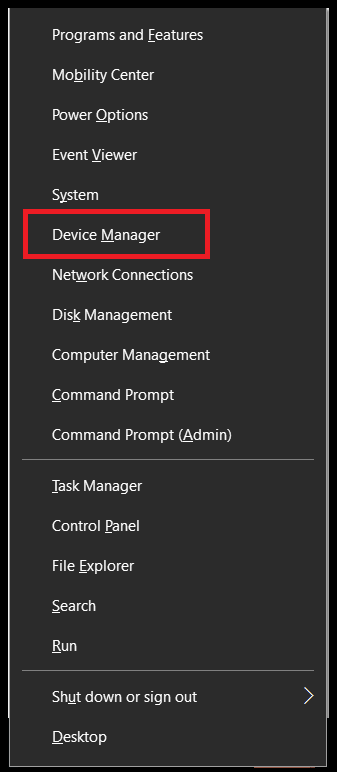
  • First, proceed to launch the Device Manager by pressing the Win+X keys and selecting the relevant option.

Device-manager-window-x-1-jpg (2)

  • Now, wait for the tool to appear. Double-click on Display Adapters to proceed.

In Device Manager Select Display adapters

  • Right-click on the ATI device and select the option to Update the Driver.
  • When the updating window appears, click on Search Automatically for Driver Updates to proceed.

Search-Automatically-for-Drivers

  • Follow the instructions that appear on the system and install the driver.
  • Restart the system when the entire procedure is completed.

This is a manual method to update the ATI display driver for Windows 10/11. Let’s have a look at another manual method to proceed.

Also know: Bit Driver Updater – Top Utility Tool to Update Drivers with Ease


Method 2: Take the Help of Windows OS Update

Do you know that even the Windows OS update utility can help you with the ATI display driver update? This is indeed true. Updating the operating system will allow you to update some necessary drivers on your PC. Have a look at the procedure provided below for more information:

  • First, press the combination of the Win+S keys, search for Check for updates, and press the Enter key.

Check-for-updates

  • The tool may take a few minutes to load. Once it does, click on the Check for Updates button.
  • After extensive checking, the system will reflect the available updates on your system. Download and install all the available updates. Also, allow the system to restart whenever necessary.

This was yet another manual method to execute the ATI display driver install. Manual methods can be a bit complicated to execute and difficult to understand. So, use the automatic method provided below.


Method 3: Update the ATI display driver Using Win Riser (Automatic)

If you wish to save yourself from the hassle and get updates for ATI and any other device driver, then you can consider using Win Riser. This is an automatic driver updater that can help you get updates with a single click. Apart from driver updates, the tool offers extensive features to enhance the performance of your operating system.

The tool allows you to get rid of malware and junk files that are seated deep in the system. One of the best features of the tool is that it allows you to fix all kinds of faulty Registry entries. All these tasks and functionalities can be executed in a single click and even be scheduled as per the user’s requirements.

Let’s have a look at the procedure to use Win Riser for all these tasks, including the ATI display driver update:

  • You should take the help of the button provided below to download the installer of the tool.

Download-Button

  • Install the setup and allow the tool to deep scan your system for faults and errors.
  • When the scanning completes, you will find the errors diagnosed by the tool. Now you can click on the Fix Issues Now button to rectify all the problems diagnosed by the tool. (Alternatively, you can also visit individual error categories and fix individual issues.)

Win riser fix issue now

  • Restart the system when the entire process is completed.

ATI Display Driver Download and Update: Complete

So, here is everything that we wanted to share with you. After following any of the above-provided methods, you will surely be able to install the ATI display driver. All the solutions provided above are very safe to use. However, you may face some problems while using the manual methods. So, proceed with the automatic one if you wish to keep your system up and running at all times.

1 Comment
    [Fixed] World of Warcraft Was Unable to Start Up 3D Acceleration says: Reply
    December 24th 2020, 1:22 pm

    […] Read Also: Fix to Resolve Unable to Connect to World Minecraft On Windows 10 […]

Leave a Reply Cancel reply

Your email address will not be published. Required fields are marked *

Sidebar Image bit G ad1

Latest Posts

  • Best-Ways-to-Combine-Images-Into-PDF-Files
    Best Ways to Combine Images Into PDF Files
    by Niharika / March 12, 2026
  • Best FREE VPS Hosting Providers
    7 Best FREE VPS Hosting Providers in 2026
    by Devesh / March 12, 2026
  • Anytime Astro: Best Website For Online Astrology Consultation
    Anytime Astro: Best Website For Online Astrology Consultation
    by Somya Shrimal / February 13, 2026
  • Best-McAfee-alternative-software-to-use-for-Virus-Protection
    Best McAfee Alternative Software to use for Virus Protection
    by adminuser / February 11, 2026
  • What-is-Flip-Flop-in-Circuite-and-it's-Types
    What is Flip Flop in Circuit and its Types
    by Meet / February 6, 2026

Categories

  • Cyber Security
  • Driver Updater
  • Entertainment
  • Fitness
  • Games
  • How To
  • laptop
  • OS
  • Reviews
  • Tech News
  • Tips & Tricks
  • Top 10
Sidebar Image bit G ad1
How To Install Windows 10 On Mac How To Install Windows 10 On Mac? Simple Guide!by Jyotsana / December 20, 2020
15 Best Christmas Tech Gifts & Gadgets For Kidsby Prachi Dani / December 21, 202015 Best Christmas Tech Gifts & Gadgets For Kids
TechPout Footer Logo

We at TechPout promise to put forth stories that help people to learn and simplify their digital life. Our purpose is to share the true essence of technology with our tech-loving community.

Useful Links

  • About Us
  • Contact us
  • Privacy Policy

Popular Posts

  • Best PC Optimizer Software
  • Best Mac Cleaner Apps
  • Best Driver Updater
  • Duplicate Photo Finder and Cleaner Software
  • Best Free Movie Download Sites
  • Best IPTV Players

Follow us

Copyright © 2026 www.techpout.com. All rights reserved
DMCA.com Protection Status