Main LogoLight Logo
  • Reviews
  • Top 10
  • How To
  • Tech News
  • OS
    • Windows
    • MAC
    • iOS
    • Android
  • Categories
    • Driver Updater
    • Cyber Security
    • Games
    • Fitness
    • Entertainment
    • Tips & Tricks
How To Windows
by Snigdha

How To Take a Screenshot on Windows HP Laptop?

May 20, 2020
1

If you are wondering how to take a screenshot on an HP laptop, then refer to our tutorial to learn about some extremely easy ways of taking screenshots.

Taking screenshots in today’s fast track world seems to be an easy option when you want to retain some information, image, etc for a while. 

But the method to take screenshots differs from device to device. For instance, smartphone devices come with some built-in screen capture apps or other third-party screenshot apps are available too. Similarly, for the iPad, there is a separate way to capture the screen.

As a newbie, sometimes it becomes challenging to understand how to do a particular task quickly; therefore, you might be in need of a blog like this to help you out.

For most laptops, the screenshot capturing process is the same. Let us now see how to screenshot on an HP laptop.

Table of Contents hide
Quick & Easy Methods to Take a Screenshot on HP Laptop
Method 1: Take a Screenshot of the Full Screen
Method 2: Take a Screenshot of the Active Window
Method 3: Custom Screenshot
Method 4: Using Microsoft’s Screenshot Tool
Method 5: Using Browser Extensions & Add-ons
Fix Your Screenshot Issue by Updating Device Drivers

Quick & Easy Methods to Take a Screenshot on HP Laptop

Below described are five methods to take a screenshot on the HP system.

Method 1: Take a Screenshot of the Full Screen

When you see a really important piece of information on your screen, an image, a person’s contact information, or wish to retain a chat for future reference, taking a quick screenshot seems like the only feasible option but if you have this question on your mind as to how to screenshot on HP, then we have got you covered with our first solution here.

To take a quick and easy screenshot, see the below steps:

  • Hit the PrtScn or Print Screen key on your laptop keyboard.
  • Launch the image editor apps such as the Paint or Photoshop application or simply open an MS Word file where you can paste the screenshot.
  • Now using the crop feature, edit the screenshot as per your needs and save the image on your HP laptop.

You can now use the screenshot as needed to simply retain it for some future reference or use.

An Alternative Method For Windows 8/10 Users

For Windows 8/10 users, there is another easier option to take a screenshot:

  • Hit the Windows key + PrtScn/Print Screen together on your laptop’s keyboard.
  • Now launch the File Explorer (press Win + E key simultaneously).
  • Navigate to the path: This PC > My Pictures > Screenshots
  • The screenshot would be saved here in this location.
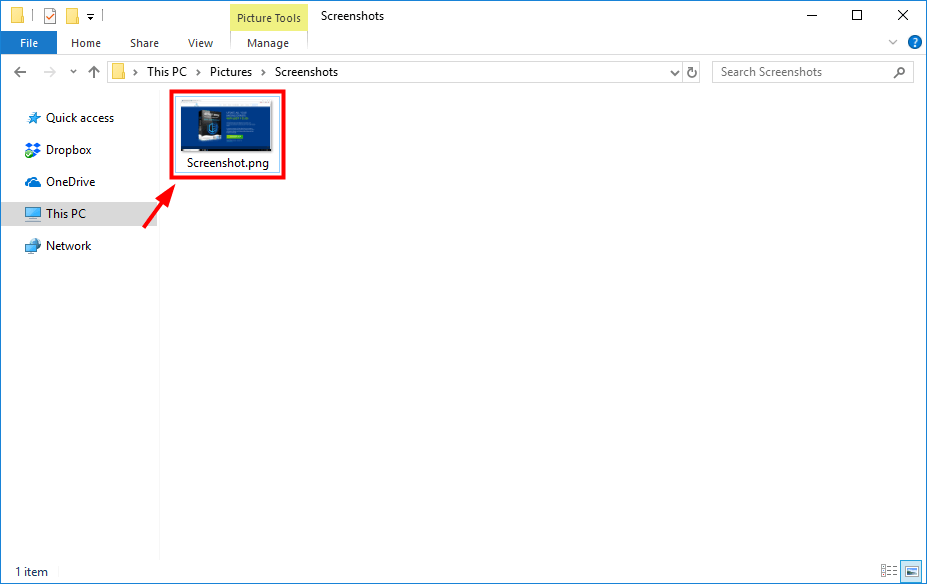
Take a Screenshot of the Full Screen Using Print Screen Key

Read More: Dell vs HP: Which Laptop Brand is Better in 2020


Method 2: Take a Screenshot of the Active Window

Learn how to take a screenshot on HP laptop of the active window i.e. the window which is currently in use; from the below steps:

  • On your HP laptop keyboard, hit the Alt Key + PrtScn or Print Screen key together. 

This action will capture the active window of your system and a copy will be saved to the clipboard.

  • In the image editor app like the Paint or Photoshop application paste the screenshot.
  • Now edit the screenshot as you like with the editing tools and features and use it as required.

Method 3: Custom Screenshot

In order to take a specific screenshot on an HP laptop, you can use the Snipping Tool. Here’s how you can use the tool:

  • Go to the Snipping Tool desktop application and click on the icon “New” of the snipping tool window.
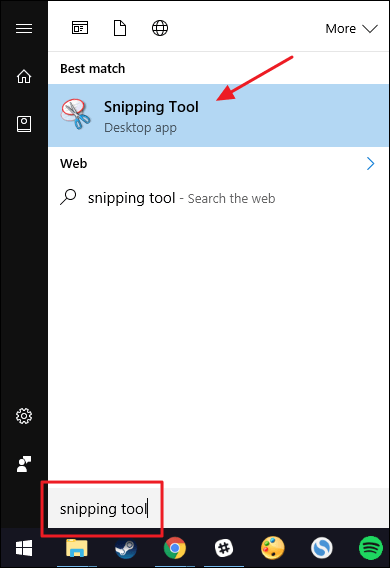
Use Custom Screenshot Method to Take a Screenshot on Windows HP Laptop
  • Now click and drag the mouse pointer over the area of the screen that you want to screenshot on your HP laptop. This will select the region you want to capture.
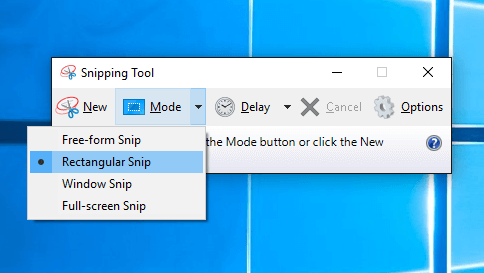
Use Custom Screenshot Method to Take a Screenshot
  • Once you have selected the region, you can then release the mouse.
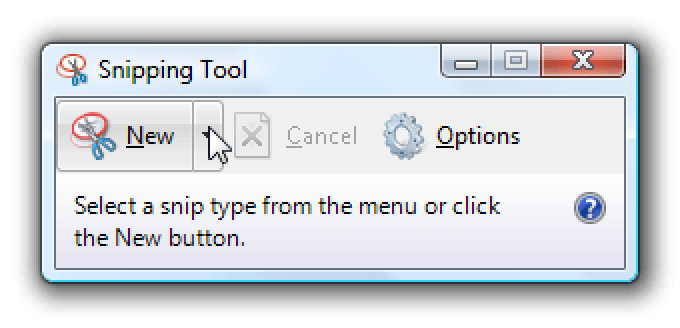
Use Snipping Tool to Take a Screenshot
  • This will open the snippet in the Snipping Tool window, and to save it, you need to hit the Save button.

Method 4: Using Microsoft’s Screenshot Tool

Microsoft’s screenshot tool ‘Snip’ is a handy screenshot tool that you can find in your HP laptop. With this tool you can take screenshots on your HP laptop easily. Following are the steps to do this:

  • You can install “Microsoft Snip” from Microsoft’s Homepage.
  • You can then launch this tool and choose the option of “Capture” from the program interface.
  • Click on the window that you want to screenshot by pressing down the mouse button.
  • The image gets saved in the clipboard automatically.
  • It can further be saved to the albums and shared via email or other messengers.

Read More: How to Track Someone’s Location by Using Phone Number


Method 5: Using Browser Extensions & Add-ons

If you want to know how you can take a screenshot on your HP laptop from a web page, then you can use browser add-ons to capture a screenshot. 

Using an extension makes capturing a screenshot easy which can be pasted onto another webpage or file or can even be saved onto the hard drive. When it comes to choosing the best addons as per your web browser, then you can go with the below choices:

Google Chrome – FireShot, Lightshot, Awesome Screenshot

Mozilla Firefox – Fireshot, Awesome Screenshot Plus

Once you have decided which screenshot browser extension you want to use, you can then go to Chrome Web Store and install the extension by clicking “Add Add-On button.”

Once the installation is complete, you can then see the extension appear in the top right corner beside the search bar. If you want to remove the extension from the browser, then  you use a right-click to open the menu and choose the option of “Remove from Chrome.”

When you want to take a screenshot, you can click on the tool icon from the top bar and select the area that you want to capture. Then, you can either click on the “Copy” button to paste it elsewhere or else press the “Save” button to save it to the albums or My Picture folder.

So, this is all folks about how to screenshot on an HP laptop. However, if you are experiencing some issues while capturing the screenshots, then we have a suggestion to fix your screenshot issue.


Fix Your Screenshot Issue by Updating Device Drivers

When you are taking screenshots on your HP laptop, if you are unable to capture anything, or the screenshot appears to be black or twisted, then it might be happening due to outdated system drivers.

It is a known fact that device drivers play an important role in managing the overall function of your system. So, any issue with the system performance obviously indicates an underlying problem with the device drivers. You can update the device drivers as per the below outlined ways given in the below segment.

You can either opt to download and install the device drivers manually from the manufacturer’s website or else you can make use of a top-notch driver update software like the Bit Driver Updater.
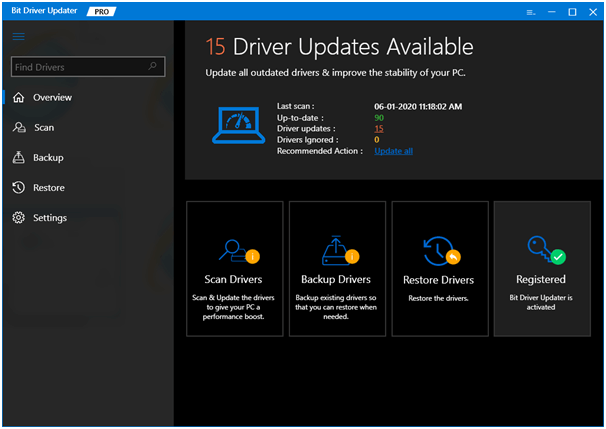
Bit Driver Updater - Best Driver Updater Software

  • You can visit the website and install the tool on your HP system.
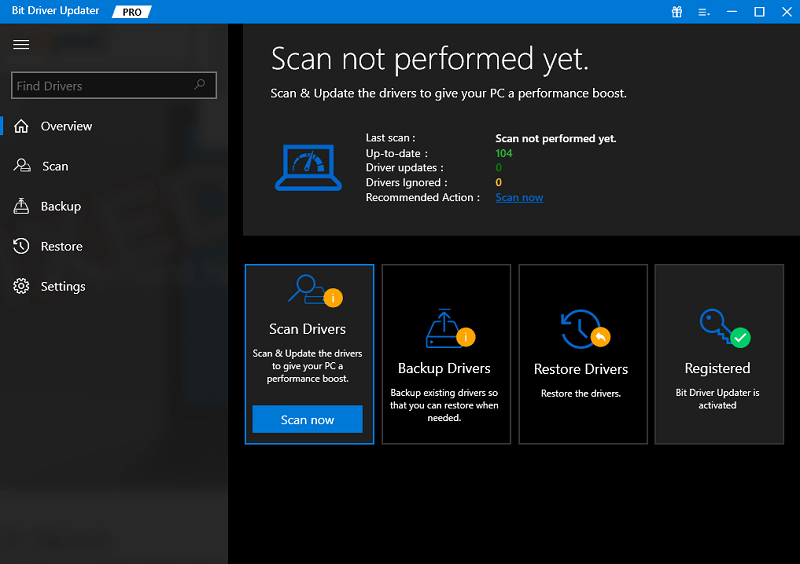
  • Once the installation is complete, you can then scan your system with this tool.
  • Upon scanning, the driver updater tool will detect all the potential driver-related issues in your system such as missing, out-of-date, or malfunctioning drivers.
  • It will retrieve the results and also download the updated versions of those drivers.
  • Using the one-click update feature, you can install all your outdated and faulty drivers at once.
  • If you face any issues in handling the tool, you can reach out to their customer support team at any time of the day and they will be able to assist you immediately.

Read More: Best Free Driver Updater Software For Windows 10/8.1/8/7


Summarizing: To Take a Screenshot on HP Laptop

Thus, you learned from this article that taking a screenshot is an extremely simple task and you can easily do so either by capturing the whole screen into the screenshot and then cropping it as per your need or by taking a custom screenshot.

Additionally, you also learned about troubleshooting screenshot capturing issues by automatically updating system drivers from this blog.

Hopefully, you found this article helpful in understanding how to take a screenshot on the HP laptop. Do let us know your thoughts and suggestions in the comments section below.

Author

Snigdha

Snigdha is a technical content writer with expertise in the field of science & technology. Though she has a very diverse academic and professional profile yet she finds writing to be a creative form that she was unable to explore so far. When not writing, she can be found indulging in other forms of creativity like painting or travelling.

View all posts

Related Posts
How to Fix Overwatch 2 Not Launching on Windows PC

How to Fix Overwatch 2 Not Launching on Windows PC (2023)

January 29, 2023
0

Overwatch 2 is one of the most beloved multiplayer shooter games. Although the game has some remarkable graphics with a huge user base some of the gamers reported issues while launching it. Although the problem can be annoying, the good part is it can be easily fixed.

If you are also here in search of solutions for the same Overwatch 2 not launching on Windows 11 error, this is the right place. The troubleshooting guide will help you fix the issue easily and quickly to enjoy your game without any interruptions.

Before we head directly to the solutions make sure your system meets the requirements of the game.

Minimum System Requirements for Overwatch 2

Operating System: Windows 10 (64-bit) or later versions

CPU: AMD Phenom X3 8650, Intel Core i3

GPU: AMD Radeon HD 7000 Series1 compatible 1GB VRAM, NVIDIA GeForce GTX 600 Series

RAM: 6 GB

Available Disk Space: 50 GB

Resolution: Minimum 1024 X 768

Sound Card: Compatible with DirectX

Recommended System Requirements for Overwatch 2

Operating System: Windows 10 (64-bit) or later versions

CPU: AMD Ryzen 5, Intel Core i7

GPU: AMD R9 308/ AMD RX 6400, NVIDIA GeForce GTX 1060/ 1650

RAM: 8 GB or more

Available Disk Space: 50 GB

Resolution: Minimum 1024 X 768

Sound Card: Compatible with DirectX

In case your system matches the requirements of the game you can proceed with the following methods to resolve Overwatch 2 not launching issues. However, if the minimum requirements are not met upgrade your hardware to avoid gaming issues.


Solutions to Fix Overwatch 2 Not Launching

As we have mentioned all the relevant and possible solutions for Overwatch 2 not launching on Pc you don’t need to apply them all. Simply move down the list of solutions until the issue is fixed and the game launches without any errors.

Solution 1: Download Pending Updates

To maintain the peak performance of your Windows device it is recommended to keep the system updated. Also, if your system drivers have pending updates it can lead to Overwatch 2 not launching error. Therefore, here is how you can fix the issue on your PC

Download Windows Update:

To fix existing bugs and improve the working you can download the Windows update with the help of the following steps.

Step 1: Open Windows Settings using the Windows and I keys together. Open Update & Security section.Clieck on update and security

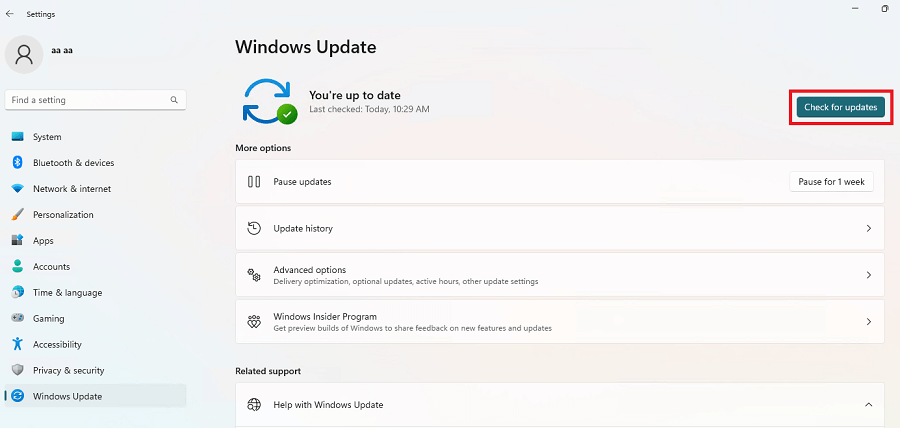
Step 2: Open the Windows Update tab from the left panel.

Step 3: Click on Check for Updates and wait till your system downloads updates ( if any) automatically on your system.Click on Check for updates windows 11 button

Also Read: How to Fix Overwatch Push to Talk Not Working

Download Driver Updates:

If the Graphics driver on your system is outdated it can end up in the issue of Overwatch 2 not launching. Also, missing or corrupted drivers can hamper your gaming experience. Therefore, in order to easily launch Overwatch 2 or other games you must download the latest versioning of the Graphics drivers available.

When in a hurry you might not choose to download driver updates manually from the official website. And for such cases, it is better to opt for an automatic driver updater tool. One such reliable and feasible software is Bit Driver updater. Use the tool to quickly scan and download all the system driver updates with one click. Also, it enables you to schedule driver updates at your convenience. All the driver data is backed up and can be restored when required.

Here’s how to use Bit Driver Updater for updating Graphics drivers automatically to fix Overwatch not launching on Windows 11 or 10 devices.

Automatic Graphics Driver Update via Bit Driver Updater: 

Step 1: Download Bit Driver Updater with the help of the following direct download link. Once done, launch the file and apply the instructions to install it.

Windows Download Button

Step 2: Invoke the driver updater and click on the Scan Now option to search for Graphics driver or other system driver updates.Scan outdated driver of your windows pc

Step 3: From the list locate Graphics driver and press the Update option next to it. Also, if you have the Pro version click on the update All option at the end of the list.Update all outdated driver of your windows pc

Step 4: Apply the instructions on the screen and install the latest Graphics driver update.

Restart your computer to bring the driver updates into effect. Launch the game to check if the Overwatch 2 not launching on Windows 10 error is fixed.

The Bit Driver Updater Pro version offers 24*7 customer support and a complete money-back guarantee for up to 60 days. By using the tool to update system drivers automatically you can not only fix Overwatch 2 not launching on Pc but also improve the overall performance of your device.

However, if these updates couldn’t fix the error, move to the next set of solutions.

Also Read: Best Free Driver Updater for Windows


Solution 2: Update Overwatch 2

If the game version installed on your system is outdated the overwatch 2 not launching on Windows 10 issue can occur. Therefore, download the latest version of the game by using the instructions below.

Step 1: Launch Steam or any other client you use to download games online.

Step 2: From the list click on Overwatch 2.

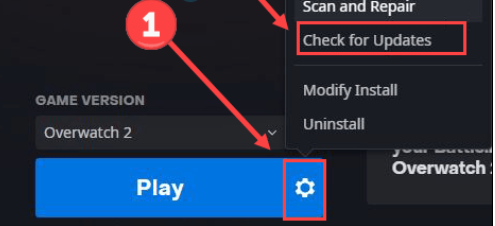
Step 3: Press gear icon present next to the Play button of the game.gear icon present next to the Play button of the game

Wait till the updates if any are downloaded automatically.

Now restart your PC and check if the issue of Overwatch 2 not launching on Windows 11 or 10 issues is resolved. If the problem persists, try the next method.


Solution 3: Verify Overwatch 2 Game Files

If any of the game files on your device are corrupted or missing it can lead to the Overwatch 2 not launching error. Check the integrity of these game files by applying the steps given below

Step 1: Launch your game client and open Overwatch 2.

Step 2: Press the Gear icon next to the game and choose the option Scan & Repair from the list that appears.

Step 3: In the following pop up press the Begin Scan option.

Wait till the scan completes. Now restart your PC once done and check if the game launches successfully.

However if Overwatch 2 not launching on Windows 10/11 error remains, try the underlying solutions.

Also Read: How to Fix Overwatch Stuttering Issue on Windows


Solution 4: Run the Game in Administrator Mode

If the Game fails to gather complete support from your device the Overwatch 2 not launching error can occur. To alter this you can Run Overwatch 2 in admin mode and disable full-screen optimizations. Here’s how it can be one.

Step 1: Right-click on the executable file of Overwatch 2 and open its Properties.

Step 2: Navigate to the Compatibility Tab. Click on the check box for Run this program as admin.

Step 3: Now click on Disable Full-screen optimizations checkbox. To apply these updated settings press Apply and OK.

Launch the game to check if the Overwatch 2 not launching issue is fixed.


Overwatch 2 Not Launching on Windows 11, 10: FIXED

That’s it. We hope that by applying the above fixes the issue of Overwatch 2 not launching was fixed on your Windows device. For many users, the game was interrupted due to faulty or missing graphics drivers. Therefore, keep your Graphics drivers updated to avoid communication issues with your operating system. Use the Bit Driver Updater to automatically update Graphics or other drivers with just one click.

Also Read: Tips to Fix Overwatch Mic Not Working on Windows 10 PC

Have any questions? Write them in the comments. If you think we missed out on something or have feedback for us drop them in the section below. Subscribe to our blog for more informative and helpful tech guides. To never miss any tech news or updates from us follow us on Facebook, Twitter, Instagram, and Pinterest.

How Do Free Apps Make Money

How Do Free Apps Make Money- Complete Guide

May 4, 2022
0

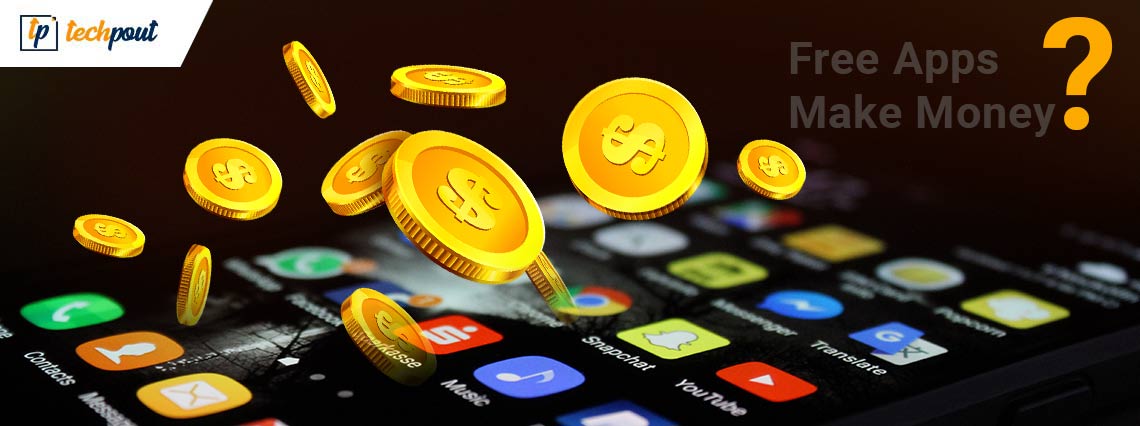
If you want to know how free apps make money, then we have brought this comprehensive write-up for you to help you get the perfect answer to the query. 

There are various types of apps available on the Google Play Store, Apple App Store, and various other trusted platforms. You may know that the number of paid apps is lesser than free ones. Over 90% of the total apps can be downloaded and used for free of any cost.

While installing or using these free apps, you must have asked yourself how free apps make money at least once or twice. This is a very common question asked by a lot of users online, however, the answer to this question is an uncommon one. We may be able to help you get the perfect and desired answer to this question. Keep reading the article for detailed information.

What is the Difference Between the Free (Freemium), Trail, and Paid Apps on the App Store

Before we get to the answer of how free apps make money, let’s know more about what a free app is. A free or freemium app is an app that is available for download and used on the device without any cost. Over 95% of apps on the Google Play Store and over 90% of apps on the Apple App Store are free to download and use. This data persists, although the Apple App Store is more lucrative than the Google Play Store.

These figures alone are enough to explain that users prefer freemium apps over paid ones. As per the analytics shared by Google Play Store, a maximum of 2% of users only shift from the free version to the paid one. This is the main reason why all the developers on the internet prefer to provide a free app on the app stores. (They may also provide an option to get the paid app with the free one.)

The trial app, just like its name, is an app on the app store that is available on a trial only. You can use all or limited features of the app, as set by the developers. After the trial period is over, you need to purchase the paid version of the app. This version can be named PRO, PREMIUM, PAID, or any other.

Also Read: Best Music Player Apps For iPhone


Do Free Apps Make Money

The answer to this question is obviously Yes. There would not have been so many free or freemium apps if the developers or creators of such apps could not earn from them. Additionally, you as the user of the apps or games can also use in-app purchases to buy a lot of things. This also works as added revenue for the developers.

Data shows that over $46 billion in revenue was generated from the Apple App Store in 2018 while the Google Play Store generated a total of over $24.4 billion. As most of the apps on both platforms are free, it is safe to assume that the major share of the revenue came from the free apps. So how do free apps make money?


How Do Free Apps Make Money- The Answer

There are multiple ways through which the developers of free apps can make money from their products. For this purpose, the developers of the app need to indulge in one or more app monetization strategies. These will help them provide the app for free to you as well as generate revenue for their brand. One of the major sources of monetizing the app is advertising. However, that is not the only one.

Let’s have a look at the best ways to monetize the apps and find the answer to how do free apps make money:

Advertisement Structure

The best and the most promising source of revenue for free apps is advertising. By running advertisements on the interface of the apps, the developers can easily generate revenue from the ad provider. Just like any social media, gaming, editing, and other forms of apps, you can easily run ads and earn more.

Here are different types of advertisements that you may see while using the app:

  • CPM (cost per mille)- This form of advertising allows the advertiser to earn based on the impressions generated from the video. Generally, the price cap is fixed at 1,000 impressions but can be changed according to the developers’ and advertisers’ needs. Here impressions are the no. of ad runs on any app.
  • CPC (Cost Per Click)- Just like its name, under the CPC or Cost Per Click advertising, the revenue is generated based on the number of clicks or taps on the advertisement. This is the most common form of advertising used by the developers.
  • CPV (Cost-per-view)- Under the CPV or the Cost-per-view advertising, the developer generates revenue from the app based on the views generated from the video/advertisement.
  • CPA (Cost Per Action)- Lastly, the only form of advertising left is the CPA. Under this form of advertising, the developers generate revenue based on the installations made by the viewers after seeing and clicking on the ad.

You can use any form of advertising on your app as you want to generate revenue.

Also Read: Best Live Streaming Apps for Android | Livestream App

Freemium Structure

Freemium is the most common form of app structure used by any app developer for their apps. Wondering how free apps make money under this structure? Well, the answer is quite simple. The developer of a freemium app provides some features of the app only in the free version. To get access to the rest, you need to purchase the paid version.

If you are wondering how WhatsApp makes money, the answer to this question is using the freemium model with different businesses for response and customer support.

This structure also includes in-app purchases. Generally, the game developers provide an option for in-app purchases. So what do productivity app developers do? The productivity app developers ask you to get a premium subscription to the app. This allows you to get uninterrupted access to the advanced features of the app or game with ease. Additionally, the paid version may also remove the advertisements from the interface.

Subscription Structure

The next way to generate revenue from any free app is by providing a subscription to the premium version of the same. Generally, this structure is used by music, entertainment, productivity, news, virtual private network (VPN) providers, and other apps that provide any form of service to you.

Although this structure is not as successful as the other methods to monetize the apps. Only 4-5% of the total app developers use this structure to generate revenue. Popular apps and platforms like Netflix, Amazon, Spotify, The New York Times, etc. use this structure to generate revenue. Let’s move on to the next answer to how free apps make money.

Sponsorship Structure

The sponsorship structure is like a road less taken to monetize the apps. You may ask how free apps make money with the sponsorship structure. Here’s the answer to that. Under this structure, the developers of the app target a potential sponsor for the app whose working niche is related to or similar to that offered under the app.

For example, the developers of an app that records running can find a sponsor that provides advertisements related to smartwatches or coupons for different brands when you complete a certain task or challenge specified in the app. When you tap on this advertisement, the app will redirect you to the website of the brand. This type of sponsorship is not opted for by the developers very commonly. This structure is not as promising as others.

Also Read: Best Apps To Blur Photo Background On Android & iOS


How Do Free Apps Make Money- Answered

So, we hope that with the help of the common monetization structures provided above. You were able to get the desired answer to how free apps make money. Generally, the app developers use either the advertisement structure, the freemium structure, or a blend of both as per the requirements of the developer and the advertiser.

If you have any other questions related to how free apps make money. Contact us using the comments section below with your queries. We will get back to you with answers as soon as possible. We appreciate your suggestions and comments as well.

1 Comment
    Hamilton says: Reply
    May 28th 2020, 8:15 am

    Thanks for sharing the blog. I really like your article. Each & every point you mention clearly. Thanks.

Leave a Reply Cancel reply

Your email address will not be published. Required fields are marked *

Sidebar Image bit G ad1

Latest Posts

  • Best-Free-Online-Portfolio-Websites-in-2026
    Best Free Online Portfolio Websites in 2026
    by adminuser / March 16, 2026
  • Anytime Astro: Best Website For Online Astrology Consultation
    Anytime Astro: Connect Now For Online Astrology Consultation
    by Somya Shrimal / March 13, 2026
  • Best-Ways-to-Combine-Images-Into-PDF-Files
    Best Ways to Combine Images Into PDF Files
    by Niharika / March 12, 2026
  • Best FREE VPS Hosting Providers
    7 Best FREE VPS Hosting Providers in 2026
    by Devesh / March 12, 2026
  • Best-McAfee-alternative-software-to-use-for-Virus-Protection
    Best McAfee Alternative Software to use for Virus Protection
    by adminuser / February 11, 2026

Categories

  • Cyber Security
  • Driver Updater
  • Entertainment
  • Fitness
  • Games
  • How To
  • laptop
  • OS
  • Reviews
  • Tech News
  • Tips & Tricks
  • Top 10
Sidebar Image bit G ad1
Instagram Introduces New Features to Reduce Online Bullying Instagram Introduces New Features to Reduce Online Bullyingby Prachi Dani / May 18, 2020
How to Use Google Authenticator For Your Facebook Accountby Prachi Dani / May 20, 2020How-to-Use-Google-Authenticator-For-Your-Facebook-Account
TechPout Footer Logo

We at TechPout promise to put forth stories that help people to learn and simplify their digital life. Our purpose is to share the true essence of technology with our tech-loving community.

Useful Links

  • About Us
  • Contact us
  • Privacy Policy

Popular Posts

  • Best PC Optimizer Software
  • Best Mac Cleaner Apps
  • Best Driver Updater
  • Duplicate Photo Finder and Cleaner Software
  • Best Free Movie Download Sites
  • Best IPTV Players

Follow us

Copyright © 2026 www.techpout.com. All rights reserved
DMCA.com Protection Status