Main LogoLight Logo
  • Reviews
  • Top 10
  • How To
  • Tech News
  • OS
    • Windows
    • MAC
    • iOS
    • Android
  • Categories
    • Driver Updater
    • Cyber Security
    • Games
    • Fitness
    • Entertainment
    • Tips & Tricks
Android iOS Top 10
by Prachi Dani

11 Best Apps To Blur Photo Background On Android & iOS (2024)

December 13, 2023
1

Keeping the subject in focus and making the background blur can make your dull photographs exciting and appealing. But how to perform this task on your android and iOS gadgets? 

Well, Blur Background apps offer the ultimate solution to this issue. In this article, we will discuss some of the best apps to blur the background of your pictures. 

We are living in a tech-driven century where clicking stunning pictures using your mobile phones is extremely easy.

Smartphones offer fantastic camera quality, along with several editing tools. Every second day a new tool makes its way to the app store, including the blur background apps. 

Many smartphones come with in-built photo editing apps, but some need a dedicated app to add a blur effect to your pictures. 

Here is a list of some of the best apps that can blur the background and add life to your boring and dull images. Go through the list of apps to blur background and pick the one that fits in well with your requirements.

Table of Contents hide
Best Blur Background Apps for Android and iPhone in 2024
1. Square Pic- Photo Editor, Blur Image Background
2. Snapseed – Blur Photo Background App
3. After Focus – Blur Picture App
4. Motionleap by Lightricks – Photo Animator
5. Instagram
6. PicsArt Photo Editor
7. Facetune 2 – Selfie Photo Editor
8. Cymera – Best Blur Effect & Filters
9. Blur Image Background – Blur Background Blur Photo
10. Blur Photo & Background
11. DSLR Blur Photo
App to Blur Background – FAQs

Best Blur Background Apps for Android and iPhone in 2024

Adding a blurred background to your pictures without a professional camera seemed impossible in earlier times. 

But in the last couple of years, several blur picture apps have been developed that can assist you well in blurring the background of your dull images. These apps offer an excellent way to transform your images and showcase your creativity. 

1. Square Pic- Photo Editor, Blur Image Background 
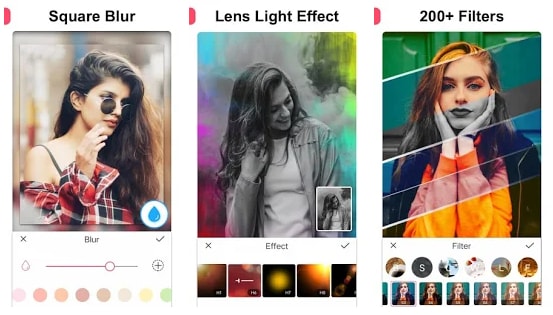
Square Pic- Photo Editor, Blur Image Background

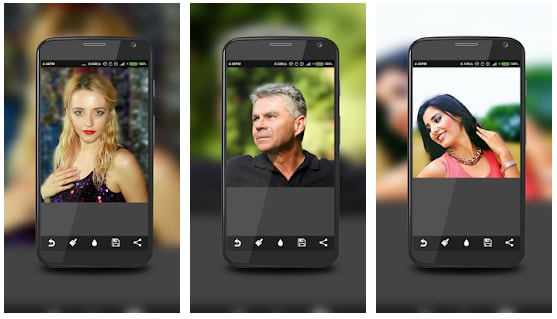
Editing photos and making blur backgrounds is easy with the Square Pic app. The user can easily change the image the way they want with its amazing features. Using the app user can adjust the blur strength, add effects, filters and stickers. 

The interface which the app offers is really simple, any user can edit and add effects to the image. All you need to do is select the image to import and add filters or effects from the list. That’s it you have changed your image successfully. 

Android

Must Read: Best Free Passport Size Photo Maker


2. Snapseed – Blur Photo Background App 
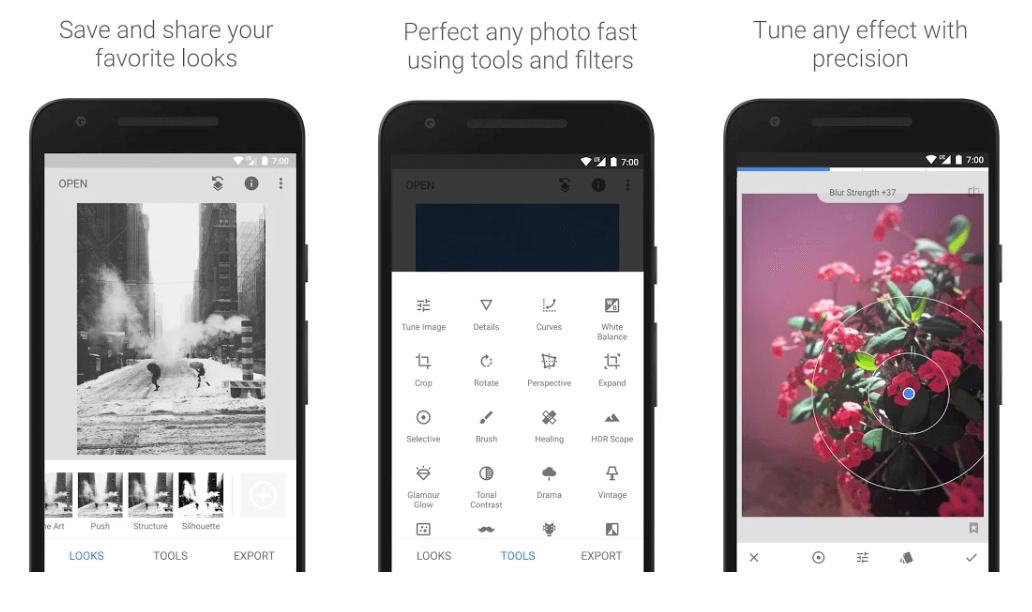
Snapseed - Blur Photo Background App 

Snapseed is a popular name among smartphone users who love photography. It is a product of Google and offers several picture editing tools.

You can use this Blur photo Background App to bring the main object in focus by adding an out-of-focus background to your images. 

Become a self-taught photographer with this stunning app to blur background and add more clarity to your images. Use the below download links to try this app today.

Android iOS


3. After Focus – Blur Picture App

After Focus - Blur Picture App

Next in the list of blur picture apps is After Focus. Use it to apply Zoom, motion, and Lens effects to your pictures. You can either choose to take a new picture or edit an existing image from your photo gallery. 

It is a stunning app that can effortlessly blur the background of your images with intricate edges.

Must Read: Best Android Camera Apps For Quality Pictures

To select a focus area, draw a boundary, and then choose the type of blur you wish to add. It comes for free. However, if you want an ad-free working, you can choose to use its Pro version at $1.83. 

Android iOS


4. Motionleap by Lightricks – Photo Animator
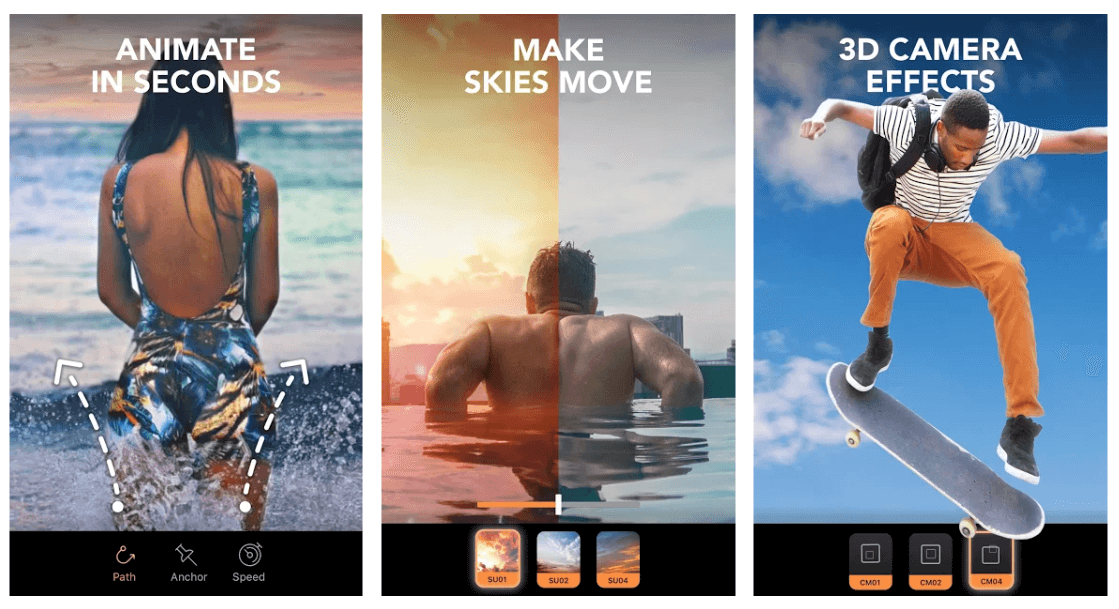
Enlight Pixaloop - Photo Animator

If you are looking for an app with professional-level edits, then Motionleap can be a decent option for you. You can use it to edit, adjust, and animate your boring images. You can use it to edit, adjust, animate your boring images and as blur background app for android.

Motionleap is compatible with both Android and iOS platforms and has several useful editing tools to offer. You can use it to put the main object in focus by adding a blur effect to the background. 

Linear, radial, and mirrors are some tilt-shift styles that you can apply to your images using this Blur Background App. 

Android iOS


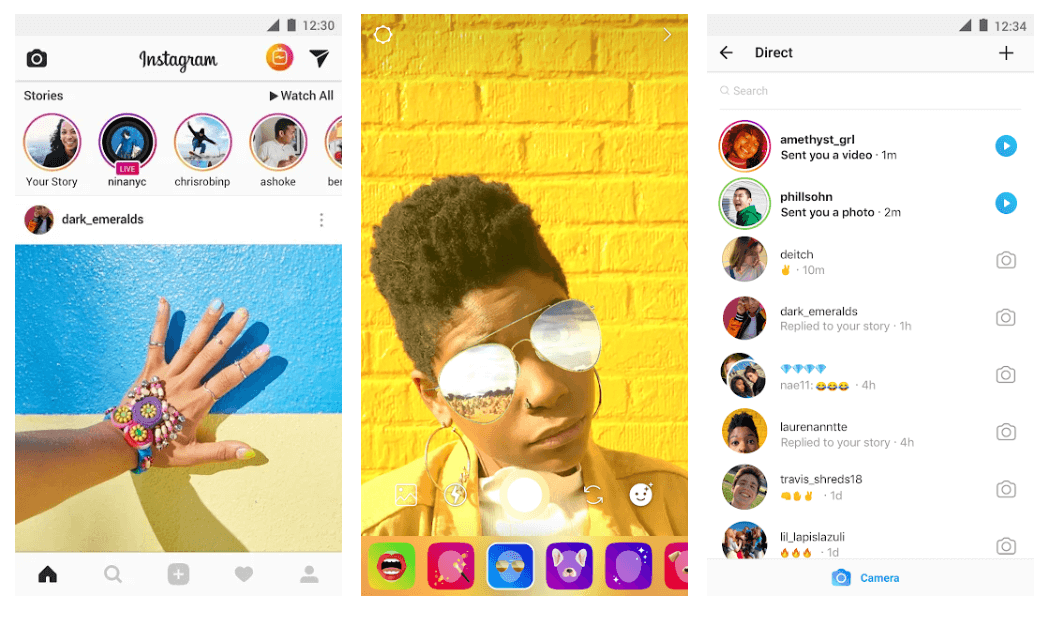
5. Instagram

Instagram - Blur Photo Background App

Besides being one of the most loved social media platforms, Instagram also has many stunning image editing tools to offer. Edit your pictures and share them on your profile for your friends to see. 

You can add a blurred background and apply a bokeh effect to bring the main object of your picture in focus. Use its Edit section to add a Tilt-shift to your photographs, Radial and linear are the other two options that you may consider. 

To download this Blur photo Background App for your smartphones, use the below links.

Android iOS


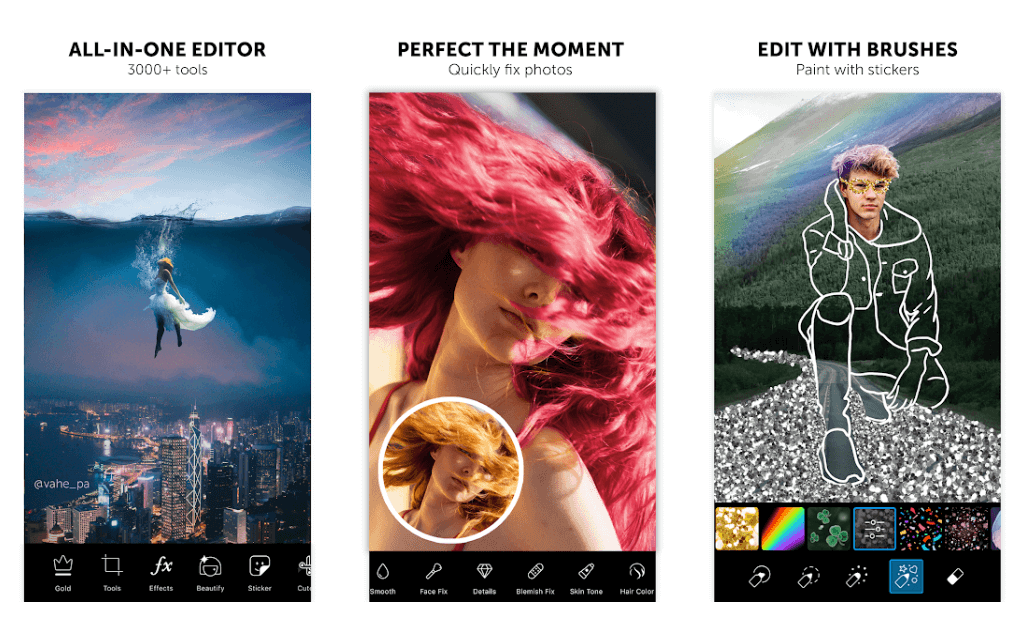
6. PicsArt Photo Editor

PicsArt Photo Editor Apps

Next one in the list of best app to blur background is Picsart. The Photo Editor application is one of the most popular apps for making the background blur. It enjoys over 500 million satisfied users. 

This power-packed app offers a massive basket of stunning features and effects, including Motion, Smart, normal blur, and many more. You can use it to edit, alter, and crop your picture the way you want. 

Besides being one of the most efficient apps to blur the background of your images, it can also be used to make custom stickers. It is compatible with both iOS and Android devices and is exceptionally easy to use. 

Android iOS


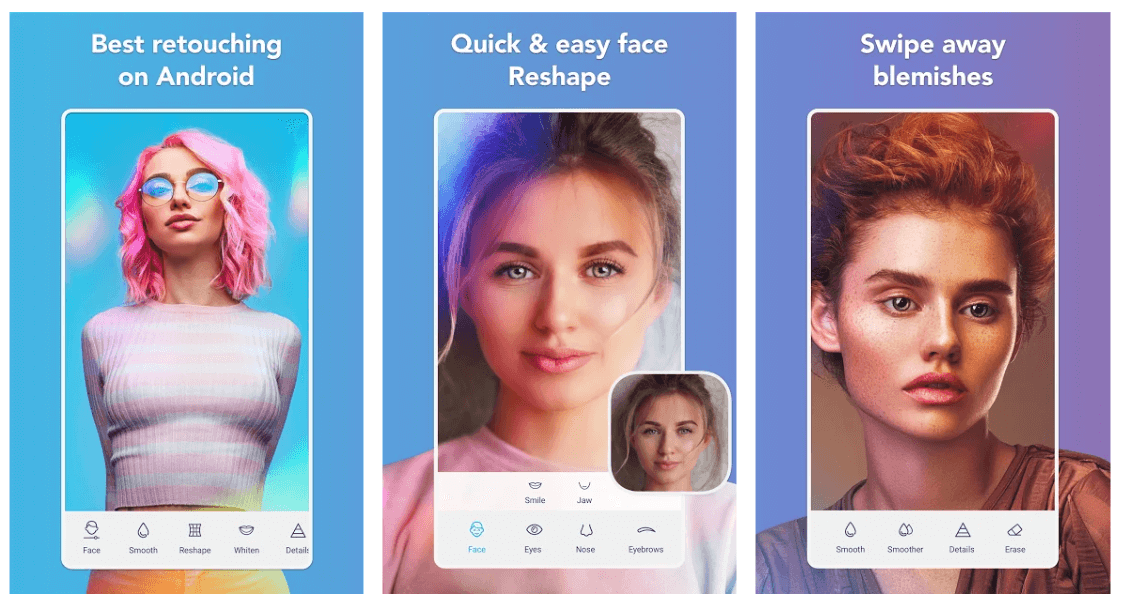
7. Facetune 2 – Selfie Photo Editor

Facetune 2 - Selfie Photo Editor App

If you are addicted to selfies, then Facetune2 can be the right choice for you. The app provides you with several options to retouch and alter your images by adding a blurred background to them. 

Apart from being a trusted app for blurring background, you can also use it to add glitter, makeup filters, and whiten teeth in your selfie pictures. The blur background feature works on a real-time basis, but you can also use it for your existing images. 

Android iOS


8. Cymera – Best Blur Effect & Filters
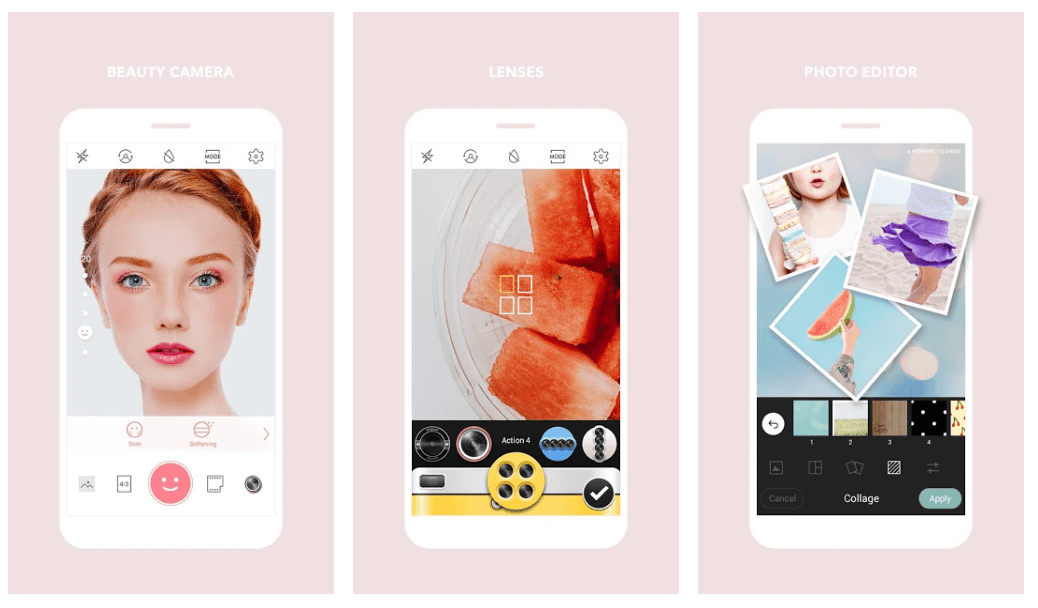
Cymera - Best Blur Effect & Filters Apps

Capture and edit pictures with this feature-rich blur picture application. It has different lenses, which you can choose to take better photos. It also provides multiple blur effects and filters. 

Use it to blur the background, adjust the contrast and brightness of your pictures in a fast and secure manner. You can also choose to add some makeup effects to your images with Cymera. 

Android iOS

Must Read: Best Photo to Cartoon Picture Apps For Android & iOS


9. Blur Image Background – Blur Background Blur Photo
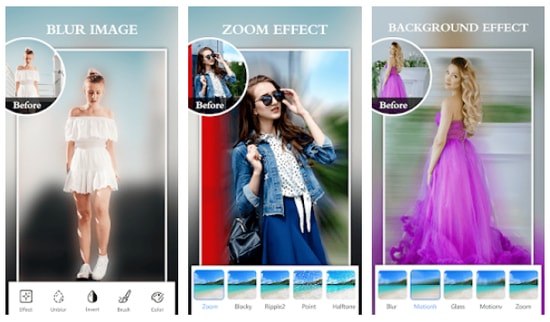
Blur Image Background - Blur Background Blur Photo

Blur Image Background Editor is another excellent app that blurs background, designed specifically for users who loves to give their favorite photos and selfies a breathtaking look. With the help of this simple to use application, you can effortlessly blur the background of your images or unwanted objects without having to pay a single penny.

However, similar to other blur photo background apps, this application also offers in-app purchases in order to provide access to the highly advanced photo editing tools.

Android


10. Blur Photo & Background

Blur Photo and Background

Blur Photo & Background is a fast and easy to use application to blur image background for free. You can effortlessly change the look and feel of your pictures using its amazing blurry effects.

Moreover, this blur picture editor comes with a wide variety of photo editing tools like curve control, color adjustment, and many others to help you turn your beautiful shots into masterpieces. These features are add on to its functionality of the photo app to blur background of your images. You can get this excellent application for free by clicking on the link given below.

iOS


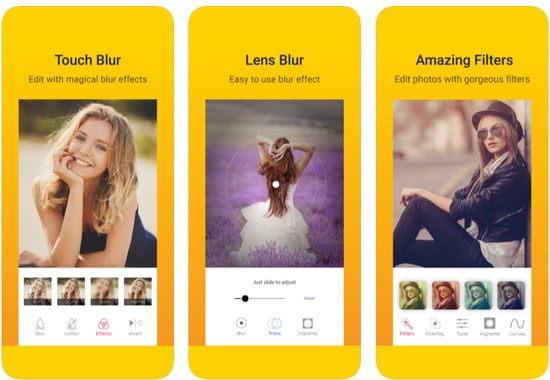
11. DSLR Blur Photo

DSLR Blur Photo

Another one in the list of best background blur apps is DSLR Blur Photo. It is a dedicated app that offers the user to blur their images. The user can blur the images, change the blur strength, and can also select the area where they want the effect to be. The app is very simple to use. Moreover, Android users can enjoy this amazing app for blurring the background pretty easily. While other apps offer many other features this app is dedicated to blurring the background only, which can make you think before installing it. But you can easily create blur images with this app. Android users have rated this app 3.8 out of 5.

Android


App to Blur Background – FAQs

Q1. How can I blur a picture for free?

There are a lot of apps both free and paid available online that allow users to blur their pictures for free. We have mentioned the best blur photo background applications for Android and iOS. Use any of the above-listed apps that fit in well with your requirements.

Q2. How can I blur the background of a photo?

Pick any of the above applications and allow access to your picture. Follow the in-app steps to blur the background. The above list has applications for both Android and iOS users to blur the background for any picture.

Must Read: Best Photo Recovery Apps


Wrapping up – Blur Photo Background Apps

Explore and discover the world of photography with various picture editing apps. Use them to polish your images by adding a blur effect to them. 

Do not settle for less when you can add a new life to your dull pictures. Use various blur effects to highlight the subject and add a creative touch to your images. 

Refer to our list of some of the best Blur photo Background App and start with your creative journey.

Author

Prachi Dani

Prachi Dani is a technical content writer who specializes in areas of science and technology. She is highly up to date with technological transitions and transformations. Writing is not her passion but the only thing that carries satisfaction in life. If not writing, you may find her engrossed playing action games on her treasured smartphone.

View all posts

Related Posts
Best Free SD Card Recovery Software for Mac

7 Best Free SD Card Recovery Software for Mac in 2024

January 10, 2024
0

In the Era of limited storage capacity of devices, memory cards can be a great & versatile solution for storage. But some users have also reported problems with data loss on their SD cards. And since you ended up here the chances are you might have also deleted files from your SD card. The reason behind data loss can be accidental, malfunctioning, attacks, corrupted devices, or formatting.

However, whatever the reason is, the good news is you can recover this data by using a recovery tool. In the guide below we have mentioned the best free SD card recovery software for Mac in 2024. Alternatively, you can also use the best free data recovery software for Mac in case the data loss is not from the SD card.

However, below you can read the details about each and then choose the suitable option for your Mac.

List of 7 Best SD Card Recovery Software for Mac in 2024

Below you will find the best free SD card recovery software for Mac. Read the overview of each to make the best choice to recover your data easily and safely.

1. Disk Drill

Disk Drill for mac

Availability for OS: All Mac versions starting from macOS X 10.5 to Ventura.

The next best SD card recovery software for Mac is Disk Drill. One of the most comprehensive tools that can help users to recover data safely and easily. Despite being an easy-to-use option, it delivers professional results. The entire recovery process is simple. All you need to do is connect the SD card to your Mac and follow a few steps to recover data.

It can recover data even from corrupted or reformatted cards. Also, apart from data recovery it can protect your data by offering byte to byte backup and disk cleanup.

Pros

  • Deep Scanning through multiple options
  • Preview files before recovering
  • Trial version is available for Free
  • Data

Cons

  • Portable Version unavailable

Pricing: 

  • Basic: Free
  • Pro: $89.00 + $29 for Lifetime Upgrades, One user, and up to 3 simultaneous activations
  • Enterprise: $499 + $99 for Lifetime Upgrades, Upto 10 users, and infinite activations

Download Here

Also Read: How to Do Deleted Video Recovery


2. Wondershare Recoverit

Wondershare Recoverit for mac

Availability for OS: macOS 10.10-11 or later.

The first one on our list of best free SD card recovery software for Mac is Wondershare Recoverit. The software was released in 2003 and is now one of the top preferences of users to recover data on their Mac devices. With over 95% data recovery rate the software delivers apt results.

The free version of the software can recover up to 100MB of data. Therefore, to recover your entire data in front of the SD card you need to purchase the Paid plan. It supports more than 1000 file formats.

Pros

  • Clean and Simple user interface
  • Offers complete money back 7 days
  • Import and export sessions
  • 24*7 support service
  • Supports over 1000 file formats for data recovery
  • Uses advanced algorithm for accurate scanning

Cons

  • To unlock the crucial features you need to upgrade to Paid version.

Pricing: 

  • Standard: Crash Recovery for Single PC $79.99 per year
  • Essential: Unlimited recovery for one PC $69.99 per year
  • Premium: File recovery and repair for 2 PCs $99.99 per year

Download Here


 3. R-Studio

R-Studio for mac

Availability for OS: macOS X v10.4 Tiger – macOS 10.14 Mojave.

Another great choice for the best free SD card recovery software Mac is R-Studio. The software was developed for tech-savvy users to offer extensive data recovery. It has multiple advanced features that make recovery. You can even repair RAID implementations that are damaged.

The data recovery possibilities are not restricted to SD cards and hence it can also help in recovering data from other storage devices. Although it’s designed for professionals, if you are a beginner you can take the help of the detailed manual available online.

Pros

  • Demo mode available for trial
  • Advanced functionality
  • In built HEX editor
  • Recover SD card over your network
  • Multiple file format recovery

Cons

  • To recover large files you must switch to the paid version
  • The recovery process is complicated
  • Not beginner friendly

Pricing: 

Free version can only repair files with size up to 256kb. Therefore, to recover larger files you can choose any of the following plans

  • Individual: $79.99
  • Technician: $899.99

Download Here


4. Stellar Data Recovery

Stellar Data Recovery for mac

Availability for OS: macOS Catalina, macOS Mojave, High Sierra 10.13, 10.12, 10.11, 10.10, 10.9, 10.8, and 10.7

The next best SD card recovery Mac software on our list is Stellar Data Recovery. It is one of the top-rated software to recover a variety of data on your SD card. The simple 3 step process for data recovery is quick and efficient. Its manual and easy installation guide makes it feasible for both professionals and beginners.

To make your results more prominent you can use different filters to segregate the file types. However, to unlock the complete potential of the tool you must upgrade to the premium plan.

Pros

  • Fast yet deep scanning
  • Filter scan results
  • The recovery process is step by step
  • Repair corrupted images and video files

Cons

  • Complete yearly license required

Pricing: 

  • Free version: Download files upto the size of 1GB
  • Professional: $59.99
  • Premium: $79.99
  • Technician: $149

Download Here

Also Read: Best Free Photo Recovery Software to Recover Deleted Images


5. EaseUS

EaseUS for mac

Availability for OS: macOS 10.15, 10.14, 10.13, 10.12, Mac OS X 10.11, 10.10, 10.9, and Big Sur

Here comes another best free SD card recovery software for Mac EaseUs data recovery. Undoubtedly the tool is one of the simplest and most easily accessible tools to recover corrupted or formatted SD card data. As the name implies the software keeps users at ease as its top priority.

The Free version allows you to recover files up to 2GB which is so much more when compared to the other free tools. Whereas, the paid version expands its capabilities by adding some exceptional features such as one-to-one assistance.

Pros

  • User-friendly interface
  • Support for time machine
  • Multiple scanning modes
  • Filter results with file type

Cons

  • Additional features are only available in the Paid version
  • No file preview a few file formats

Pricing: 

Free version with limited features. Whereas, the Paid version is available for $89.95.

Download Here


6. PhotoRec

PhotoRec for mac

Availability for OS: All macOS X versions

PhotoRec is another simple and reliable option to recover SD card data. Being an open-source tool it offers unlimited data recovery if you have a command over the Command line user interface. One of the best SD card recovery mac software allows users to recover not only photos but also videos, documents, archives, and other media files in different formats.

With a stable recovery process, it allows data recovery for FREE. Even if you are unaware of the command line interface you can learn it’s working through YouTube tutorials.

Pros

  • Unlimited file recovery for Free
  • Over 480 file format support
  • Updates on regular intervals

Cons

  • Preview option for files unavailable.
  • User interface is basic and no graphical

Pricing: 

Available for Free

Download Here


7. Remo Recover

Remo Recover for mac

Availability for OS: macOS X or later versions

The last one here in our list of best free SD card recovery software Mac is Remo Recover. The tool enables data recovery from SD cards even with errors such as SD card not showing files, Unrecognized memory card, etc. Also, the tool can not only recover files from SD cards but also other storage media such as external hard drives.

This best SD card recovery Mac tool works only in the read-only mode which provides safe data recovery without any interruptions.

Pros

  • Fully functional demo mode available to recover files
  • Deep scanning
  • Simple and user-friendly interface
  • Over 300 file format support data recovery

Cons

  • Not-so-impressive features

Pricing: 

  • Basic: $59.97
  • Pro: $94.97

Download Here

Also Read: How to Recover Data from External Hard Drive Mac


Frequently Asked Questions (FAQs)

Q1. How to recover files from SD card on Mac? 

To recover your data lost from an SD card on your Mac device you need to have data recovery software. Although there are a plethora of options available online for the same, in our list we have mentioned some of the best SD card recovery software for Mac ( Both paid and Free).

Q2. Can you recover data from the SD card? 

Yes, you can easily recover data deleted from your SD card with the help of a data recovery tool. But for any data recovery software to work the data must not be overwritten, the SD card should not be damaged, & your recovery tool should support the file format that you need to restore. Once these conditions are met, use any of the aforementioned best SD card recovery Mac software.


Closing Lines

And it’s done. In the above article, we have thoroughly explained the best free SC card recovery software for Mac in 2024. Go through the list and choose the suitable software for your Mac depending on your requirements, pricing, and the depth of data recovery you need to perform. Most of the aforementioned best SC card recovery Mac tools are available for a free trial. Therefore, it can be easier for you to choose once you try.

If you think we missed out on any of the data recovery software for Mac do let us know in the comments we would love to add them to our list. Also, for more listicles, troubleshooting, and other tech guides subscribe to our blog. Never miss out on any updates by following us on our social media channels i.e Facebook, Twitter, Instagram, and Pinterest.

19 Best Free Document Scanner Software for Windows 10 in 2024

19 Best Free Document Scanner Software for Windows 10 in 2024

March 12, 2024
1

Searching for best document scanning software for your Windows device? We got it covered for you. Stay glued till the end of the article to find the best free scanner software for Windows 10, 11 or other older version devices.

Let’s not talk about the tremendous programs and hacks that this temporary technology is gearing up with everyday. Since we are not living in an oblivion far from the reach of this steady evolution, we are perhaps introduced with the convenience of many free document scanning software that, once upon a time, used to be traditional. Today, through this article, we are going to shed some light upon the best document scanner software that you can use in 2024.

Why Free Scanner Software?

You have a bountiful of reasons to acknowledge that have accelerated the need of document scanning software for PC and mobile phones and have vanquished the hustle and bustle of to-dos. Here are the results that can prompt you to ease yourself with this helpful and quick tool.

  1. The first and most important reason to install a scanner software free is that using it rids you of the baggage of physical documents and more or less, aids in the contribution towards the environment. (Don’t underestimate the less paper-faced clutter in your office.)
  2. With free scanner software you can preserve the documents you cannot afford to cast off.
  3. Scanner software for PC or mobile phones will help you in effortlessly editing the documents.
  4. It favors efficiency and promotes easy sharing.

Read Also: Best Free PDF Editing Software For Windows

What Are the Best Free Document Scanner Software for Windows 10?

There is more than just a single best free scanning software for Windows 10 because of amplified and varied features offered by many PDF scanners that touch different standards of requirements. We have collected the best free scanner software that certainly makes the document errands run smoothly and efficiently along with many other well-engineered features that you may want to use in future. Go through the list to find the perfect document scan software freeware or a paid version that fits in well with your requirements.

1. NAPS2

NAPS2

NAPS2 (Not Another PDF Scanner 2) is an amazing free scanner software to humble you with its relaxing functionality. For those who are keen to save their precious time and avoid hand-wringing on multiple clicks, this best document scanner software is a boon.

Notable Features of NAPS2:

  • This PDF scanner is compatible with all file formats.
  • The OCR tool (Optical Character Recognition) supports over 100 languages.
  • It supports WIA and TWAIN.
  • It allows you to combine documents along with tweaking and finishing the resolution, paper size and more.
  • It is open source and also makes the process of scanning documents fast and effortless.

Pros

  • Easy-to-use interface
  • In built OCR engine
  • WIA & TWAIN support
  • Open source
  • Available for Free

Cons

  • Lacks advanced features

Download Now


2. CamScanner

CamScanner

CamScanner is another free scanner software for Windows PC users to help them with the editing, conversion and even, wireless printing functions. It is one of the best photo and document scanning software available out there.

Notable Features of CamScanner:

  • OCR is supported by this document scanning utility.
  • It allows you to sync, share and combine the data.
  • You can go for wireless printing.
  • It features auto-correction of images.
  • It has a user-friendly interface.

Pros

  • Intuitive and clear User interface
  • Combine multiple images
  • Advanced Features
  • Eliminate background elements.

Cons

  • Multiple in app purchases
  • Occupies large space

Download Now


3. ScanSpeeder

ScanSpeeder

The next alternative for a free scanner app Windows 10 is ScanSpeeder. It is one of the best document scanner software for Windows 10 to use easily. Even if you are not a techy person, this tool will help you in the smoothest and most efficient way possible, be it editing the documents and photos or sharing them.

Read Also: How to Turn PDF into Word Document

Notable Features of ScanSpeeder:

  • ScanSpeeder allows you to crop, straighten and adjust the overall composition of documents and photos.
  • It is easy-to-use and delivers the functionality in a snap.
  • It has a free trial version to let you explore its supersmooth service.

Pros

  • Can be used for both personal and professional purposes
  • Automatic backup to keep data safe
  • Notifies if automatic Backup process fails
  • Restoration of data is easy

Cons

  • Functionality is weak
  • Basic features only

Download Now


4. PaperScan

PaperScan Scanner Software

Get yourself relaxed with this best free scanner software with a graphic user interface. It converts documents into PDF and supports multiple file formats at your best convenience. It offers free as well as pro version.

Notable Features of PaperScan:

  • It features the flatbed support.
  • It supports multiple file formats including PDF, JPEG, PNG, JBIG2 and TIFF.
  • It has integration with WIA and TWAIN.
  • It features auto-correction of images.

Pros

  • Free Version Available
  • Encrypted PDFs
  • Multiple device support
  • Over 30 languages supported

Cons

  • Annoying ads
  • Free version offer basic functions only

Download Now


5. CloudScan

CloudScan

Made for the hassle-filled times when you just wish to save added office tasks, or to convert them into the quickest pace, CloudScan is everything you need. This free scanner software for PC features a user-friendly interface and allows you to share the files with other networks.

Notable Features of CloudScan:

  • It features easy sharing with networks.
  • It allows you to scan and convert files steadily.
  • It allows you to edit the documents easily.

Pros

  • Beginner friendly interface
  • Simple settings
  • Does not require any additional set up
  • Reads invoice layout for any doc

Cons

  • Advanced features missing
  • Pricing is comparatively higher

Download Now


6. SimpleIndex

SimpleIndex

Make most of the digital perks to use for documents with this amazing PDF scanner application for PC. It comes with a number of easy to use features, making it one of the best document scanner software for Windows 10, 8, and 7.

Notable Features of SimpleIndex:

  • It is time-saving and affordable.
  • It indexes the documents in sequence.
  • It supports ISIS and TWAIN.

Pros

  • Clean and easy interface
  • Electric Imprinting
  • Reliable software
  • OMR option to mark checkboxes
  • Cons of SimpleIndex

Cons

  • Bit Expensive
  • Cannot be integrated with mobile device
  • Compatible with Windows device only

Download Now


7. HP Scan and Capture

HP Scan and Capture

Rejoice in this free document scanning software made for Windows 10. HP Scan and Capture tool allows you to convert the document into PDF and then save it in the local storage. Let’s have a look at some of its other potent offerings that make it one of the best free document scanner software available for Windows users.

Read Also: How to Convert PDF to Excel Offline

Notable Features of HP Scan and Capture:

  • It features easy document management as it detects HP devices and allows users to scan and edit the documents.
  • It is compatible with other devices.
  • Files can easily be saved in local storage.

Pros

  • Scan documents in bulk
  • Handwritten docs can also be scanned
  • Simple UI

Cons

  • Only available for Windows

Download Now


8. Office Lens

Office Lens

Office Lens is known as the best PDF scanner application for Windows 10 operating system and lets you convert your documents into PDF and share them. It betters productivity and is incredibly useful in enhancement of various types of files.

Notable Features of Office Lens:

  • It can be accessed in both the Windows and the mobile phones.
  • This free scanner software supports OCR (optical character recognition) functionality.
  • The files can be saved in local storage types such as PDF, picture, Word or Excel.

Pros

  • Easy to use
  • Scan documents through different devices
  • Complete integration with OneDrive
  • Easy sharing and accessibility
  • Available for free

Cons

  • OCR feature requires manual work
  • Default options are ordinary

Download Now


9. Free Scanner

Free Scanner

As the name suggest the free scan software Free scanner is packed with essential features. This free scanning software for Windows 10 may prove to be of big help to you. Enhance document scanning efficiency with this amazing free scanner software which features an user-friendly interface.

Notable Features of Free Scanner:

  • It is compatible with the network scanners.
  • It supports various file formats.
  • It supports Windows 10, 8 and 7.

Pros

  • Simple to use
  • Beginner friendly
  • Supports multiple languages
  • Multiple scanning options
  • Customisable

Cons

  • Poor UI
  • Performance issues

Download Now


10. PDF Document Scanner

ez PDF Document Scanner

This easy-on-mind PDF scanner software free features important functions such as scanning, editing, conversion of files into other formats. Apart from this, below are some of its prominent features that make it one of the best scanner applications to scan documents to PDF.

Notable Features of PDF Document Scanner:

  • It allows adjustment and enhancement of documents.
  • The digitized files can be saved to external sources and cloud storage.
  • It is free to use.

Pros

  • Customize documents
  • Scan multiple file formats
  • Open source and Free
  • Available for multiple formats

Cons

  • Does not support low end devices

Download Now


11. Readiris Pro

Readiris Pro

Readiris Pro is one of the best document scanner software for PC offering you multiple choices in editing and converting any document in required format. Moreover, it is user-friendly and is compatible with all editions of Microsoft Windows operating system.

Read Also: Best Duplicate Photo Finder for Windows 10

Notable Features of Readiris Pro:

  • It supports all file formats such as PDF, JPEG, HTML, TXT, GIF, PNG and more.
  • It features GUI and supports TWAIN.
  • It supports over 130 languages.
  • It features easy sharing.

Pros

  • Graphical user Interface is highly intuitive
  • Share Text with users for reviews
  • Convert video to audio files
  • Add digital signatures to your docs for data security
  • Convert docs to PDFs

Cons

  • Keyboard shortcuts are missing
  • Multiple pricing plans makes it complicated to work on Free version
  • Toggle between different functions is difficult

Download Now


12. Alaris Capture Pro

Alaris Capture Pro

Alaris Capture Pro is one of the best document scanning software for Windows 10 that comes with a lot of amazing features. It has functions such as data indexing, neat scanning along with its ability to scan multiple documents and data capturing.

Features of Alaris Capture Pro:

  • It features OCR and barcode reader.
  • It allows the conversion of PDFs into editable documents.
  • It features the barcode reader.
  • It supports WIA and TWAIN.

Pros

  • HD images with the Perfect Page feature
  • Workflows are streamlines
  • Microsoft SharePoint integration

Cons

  • Free version has limited features
  • No option for single document scans
  • Rotate, crop, or other basic features missing.

Download Now


13. Adobe Acrobat DC

Adobe Acrobat DC

If there is a software in this list which you may already be familiar with, it has to be Adobe Acrobat DC. It is a go-to PDF scanner for its exciting features that you cannot skip. View, edit, print the documents and you can share them with multiple users. Let’s stretch a little more to the parameters of its multiple features.

Notable Features

  • Share, edit, scan, and even sign.
  • It renders your data secure if you are an individual user.
  • It makes words such as collaborate and organise sound handy and easy.
  • It is integrated with Adobe Document Clouds and thus, the commenting and sharing come easy.
  • Not to mention, you have a choice to archive and store the files.

Pros

  • Simple User interface
  • Quick searches with indexing feature
  • Edit data and texts even in the tables
  • Maintain consistency through Templates

Cons

  • Issues while launching
  • Frequent Freezes and crashes

Download Now


14. ABBYY Fine Reader

ABBYY Fine Reader

Here comes the next one on our list of best document scanning software i.e ABBYY fine reader. For all those who are looking for a professional photo and document scanning tool, ABBYY Fine Reader can be the best free document scanner software to use. This file sharing software offers a huge list of features that makes it easy for you to scan and edit the document easily. Apart from just editing all the documents single-handedly, you can collaborate with your colleagues and edit in real-time.

Notable Features of ABBYY Fine Reader

  • Using ABBYY Fine Reader you can convert into various formats.
  • It lets you compare various documents of different formats easily.
  • The software offers high document accuracy.
  • You can edit in real time with your colleagues.

Pros

  • Supports multiple languages
  • Advanced functionalities available
  • Simple and intuitive interface
  • Excellent performance

Cons

  • Versioning is unavailable

Download Now


15. OmniPage Standard

OmniPage Standard

Nextly, we have OmniPage Standard on our list of the best document scanning software. It is highly popular for its high-speed scanner and the ability to read touchscreen monitors and pads. As far as the features are concerned, below is what you should know about this software before giving it a well-deserving try.

Notable Features of OmniPage Standard

  • High accuracy
  • Easy-to-use tools and flexible options
  • Retains the formatting of the original document
  • One-step Kindle integration
  • Recognizes 120+ languages
  • Supports multiple formats such as PDF
  • Support for Microsoft Office, HTML, and Corel WordPerfect
  • Converts any photo into a readable format
  • Best-in-class OCR capabilities

Pros

  • The user Interface is clean
  • Great Customer support
  • Add the required text to your images
  • Export docs or images to your social channels such as Facebook

Cons

  • Limited features in Free version
  • Paid option is quite Expensive

Download Now


16. VueScan

VueScan

The next best free document scanning software on our list is VueScan. If you are looking for an easy alternative this one right here is a beginner friendly tool. One major advantage of the software is you can scan unlimited documents. So if you are working with an organization and have multiple documents to scan make use of VueScan.

Notable Features of VueScan:

  • Scan PDFs as single or multiple page documents
  • Automatically detects colors
  • Scan JPEG, TIFF, and other format images.
  • Automatic naming of files
  • Integrated Photoshop to edit
  • Scan films
  • Available for Windows, Linux, and macOS
  • Advanced controls for Scanning
  • Timely updates

Pros

  • Free Trial version available
  • Multiple options to customize
  • Scanning quality is High
  • Scans PDF, JPEG, and other file formats

Cons

  • Outdated user interface
  • Performance issues

Download Now


17. Online Photo Scanner

Online Photo Scanner

The last tool on this list of the best free document-scanning software is Online Photo Scanner. Just like the name of the tool, Online Photo Scanner allows you to scan your pictures and images online. This makes it quite feasible for beginners and professionals to scan the images instantly without downloading any tool.

Notable Features of Online Photo Scanner:

  • Works on multiple OS
  • No need to download a standalone tool.
  • Instant results
  • Simple user interface
  • Smart performance
  • Reliable scanning features

Pros

  • Completely free
  • Drag and drop support
  • Download as an image or PDF as required

Cons

  • Limited features for scanning
  • Can not match the relevance of paid tools.

Download Now


18. Kofax Express

Kofax Express

Next, we have Kofax Express on our list of the best document scanner software for distributed picture capture and high-volume scanning tasks. It boasts all the essential features, such as a simple “point-n-click” scan and the following offerings to justify its position in this article.

Notable features of Kofax Express

  • Boasts a barcode reader
  • Supports document indexing and PortScan processing
  • Helps you with faster document digitization
  • Round-the-clock customer support

Pros

  • Effortless batch scanning
  • Support for web platforms, cloud, and SaaS
  • Top-notch image correction after scan

Cons

  • Outdated interface
  • Some unfixed bugs

Download Now


19. FileHold

FileHold

FileHold is the next name on this list of the best free document scanner software for Windows. This tool is not an ordinary one. Using this professional solution, you can easily manage online and offline documents.

Notable features of FileHold

  • Allows you to upload and digitize documents
  • Sign document online
  • Easily accessible on phone, Windows, and more.

Pros

  • Easy to use
  • Smart UI
  • Beginner friendly

Cons

  • Can be too expensive

Download Now


Scanning Software – FAQs

Q1. What is scanning software?

Answer: Scanning software is a tool that enables editing documents or pictures instantly before storing them digitally. In addition to this, the software can help you convert the scanned docs or photos into a PDF format and make changes or edit them quickly. Go through the full list in the article above to find the best scanning software for Windows 11, 10, 8,7.

Q2. What is the best free scanning software for Windows 10?

Answer: The most commonly used and one of the best free scanner software for Windows 10 is Adobe Acrobat DC. The free version of the software has restricted functionalities that can be unlocked by switching to the upgraded premium version.

Q3. How do I scan a PDF file in Windows 10?

Answer: The above article mentions a list of free scanner software for Windows 10, 11, or older version devices. These doc scanner for PC can scan PDF file and allows users to edit or make changes to them quickly and easily. Adobe Acrobat Dc is one of the best scanner software to scan PDFs, images, or other documents.

Q4. Can I scan documents using Adobe Acrobat for free?

Answer: Yes, Adobe Acrobat enables users to scan documents for free. But the free version of this best document scanning software has restricted features. To use the whole capability of the tool upgrade to the premium version.

Q.5 What is the best free photo scanning software?

The best free photo scanning software for Windows is CamScanner, ScanSpeeder, CloudScan, and OfficeLens. These tools provide some of the best and the most advanced features ever for your scanning requirements.

Q.6 What is the best scanner for Windows 10?

Tools like CamScanner, ScanSpeeder, CloudScan, and OfficeLens are some of the best scanner for Windows 10. Using these, you can scan any type of document with ease.

Q.7 Is the Windows Scan app free?

Yes, the Windows Scan app is free to download and use on any supported Windows device for every user globally.


Conclusion

That’s a wrap from our end on our list of best scanning software for Windows10, 11 or older version devices. These best free scanner software are bagging increased popularity due to their efficient features and added functions that we all have been deprived of in traditional scanning. Besides, the fact that it cuts costs, reduces the utility of paper and of course, eliminates the loss of important documents and of course, saves the ever-growing size of bundles of documents.

And returning back to here, we hope this list helps you in figuring out the best document scanner software. Tell us about it in the comment section below.

1 Comment
    Ritika Jain says: Reply
    May 28th 2021, 11:16 am

    Blur Background – Blur image app best tool for set the blurry image effect on your photo to using the android phone. Auto blur shapes effect & blur image background easily after using this blur app.

Leave a Reply Cancel reply

Your email address will not be published. Required fields are marked *

Sidebar Image bit G ad1

Latest Posts

  • Best VirusTotal Alternatives for windows in 2026 
    by Dikshika Singh / April 30, 2026
  • Best Ways to Fix Facebook Session Expired Loop Error  (1)
    Best Ways to Fix Facebook Session Expired Loop Error 
    by Gunjita Sompura / April 28, 2026
  • React vs Vue
    React vs Vue Detailed Comparison in 2026
    by Gunjita Sompura / April 23, 2026
  • Top Image Resizing software for Windows PC 
    by Dikshika Singh / April 21, 2026
  • How-To-Download-and-Install-Windows-Fax-And-Scan-In-Windows-11
    How To Download and Install Windows Fax and Scan in Windows 11
    by Dikshika Singh / April 15, 2026

Categories

  • Cyber Security
  • Driver Updater
  • Entertainment
  • Fitness
  • Games
  • How To
  • laptop
  • OS
  • Reviews
  • Tech News
  • Tips & Tricks
  • Top 10
Sidebar Image bit G ad1
How to Download Playlist from YouTube Using IDM [Step by Step] How to Download Playlist from YouTube Using IDM [2024]by Tanmay Sharma / December 13, 2023
14 Best Football Games For Android In 2024 (Online/Offline)by Prachi Dani / December 13, 202314 Best Football Games For Android In 2024 (Online/Offline)
TechPout Footer Logo

We at TechPout promise to put forth stories that help people to learn and simplify their digital life. Our purpose is to share the true essence of technology with our tech-loving community.

Useful Links

  • About Us
  • Contact us
  • Privacy Policy

Popular Posts

  • Best PC Optimizer Software
  • Best Mac Cleaner Apps
  • Best Driver Updater
  • Duplicate Photo Finder and Cleaner Software
  • Best Free Movie Download Sites
  • Best IPTV Players

Follow us

Copyright © 2026 www.techpout.com. All rights reserved
DMCA.com Protection Status