Trying to sign in to Hotmail back again, and it feels like it’s been so many years that you or a lot of people have used it. Hotmail used to be the most renowned email service tool back in its time, and millions of people used it back then too. Hotmail was founded in 1995 and since then it has gone through numerous updates and new features after a certain period of time.
The good part is that Hotmail still exists, and now it is known as Outlook.com, and you can easily log in to your account with any of the devices you currently own. You can get access to your account with your Windows, mobile phone, laptop, or any other device in just a few steps.
With this guide, you will find all the available and most used methods to sign in to Hotmail and how you can troubleshoot some basic issues related to the same.
Common Troubleshooting Methods
Since Hotmail is one of the oldest email services to work on, if you sign in to Hotmail after a long time, you might encounter some errors in logging in. And there are high chances for you to face some issues even after logging in to your Hotmail account. Even if you use some email extractor tools or to recover your older mail and data from the account.
So, it is necessary to discuss some of the common troubleshooting methods that you can use to fix some basic errors on your system.
- Incorrect Password: If you are unable to enter the correct password for your account or the password is not working to sign into a Hotmail account, then you can click on ‘Forgot Password,’ and you will be able to reset the password according to your choice.
- Temporary Suspended Account: Sometimes, if you sign in to Hotmail after a very long time, then it might suspend the sign-in request. And count your tries as an unusual activity if it detects a new location. Or even if you try repeatedly to sign in to Hotmail again with the wrong password, then it also can suspend the account temporarily.
- Browser Cache or Blocked Cookies: Make sure to clear all the cache and cookies for Outlook and Hotmail before you sign in to Hotmail, or you will not be able to sign in to Hotmail. It is also possible to face blocked cookies if you are using any kind of email automation tools and software in your system.
- Outdated Application: If you are not a frequent user of Outlook, then you also do not keep it updated, and you might be using the outdated application currently. Before you sign in to Hotmail, go to the Play Store or App Store, and make sure that your Outlook application is up to date.
- Antivirus Blocking: Also make sure that all the antiviruses and third-party firewalls you are using are not blocking the authentication to sign in to Hotmail.
Also know: How To Backup Gmail Emails With Attachments
How to Sign in to Hotmail in Windows
You can easily sign in to Hotmail, which is now known as Outlook, on any of your devices you want and use it to reverse email lookup on social networks. There are different ways that you can use to sign in to Hotmail.
Sign In to Hotmail Using the Outlook Application
You can use the Outlook application on your system to easily access your Hotmail account. For that, you need to install and set up the Outlook account in your system first.
And to sign in and access your Hotmail account on outlook, you must follow these steps accurately:
Step 1: Visit ‘ https://outlook.live.com/‘ and install the Outlook application on your desktop.
Step 2: Then you will see the sign-in option on your screen. Enter the Hotmail login details accurately.

Step 3: Click on the ‘Sign in’ option. And make sure to click on the ‘Keep me Signed in’ option to save the log in details but only on the devices you trust.
If you do not want to install and keep the Outlook application in your system, then you can also use the method to sign in to your Hotmail account on the browser you are using.
Sign In to Hotmail Using Web Browser
To sign in to Hotmail, you can use the browser you are currently using on your desktop and access all email clients for Windows, and it is the easiest method to log in repeatedly if you are a frequent user. And following are the steps you can use to sign in to your Hotmail account using the web browser in your system:
Step 1: Go to your current browser and search for outlook.live.com or you can also look for hotmail.com.

Step 2: There you will find the space to enter your Hotmail account details, and make sure you enter the accurate details, including the email address and password.
Step 3: And then click on the ‘Sign in’ option present just below.
Step 4: After this, you might get a complete two-factor verification along with the code on your provided mobile number or Microsoft authenticator application.
So be careful when you enter the code you receive on your provided mobile number or Microsoft Authenticator application; otherwise, you won’t be able to sign in to your Hotmail access.
Also know: Best Free Email Apps for Mac
Frequently Asked Questions (FAQs)
Q1. How to sign in to Hotmail in 2026?
Ans. Hotmail is now known as the outlook, and you can easily sign in on the same for your Hotmail access. You can use the @hotmail.com address on Outlook with the same password if you still remember it, or you can update that as well.
Q2. How can I log in to my Hotmail account without entering the password every time?
Ans. To log in to your Hotmail account, you do not need to re-enter the password every time; you can simply save the login credentials on the application or your web browser. So that it will autofill the details every time you try to access it again.
If you want to sign in to Hotmail in Windows, then you can simply follow a few steps using the way you are comfortable with. Even though Hotmail is now known as Outlook, it works almost the same for email services with lots of new features. And you can get access to your account with your Windows, mobile phone, laptop, or any other device in just a few steps.


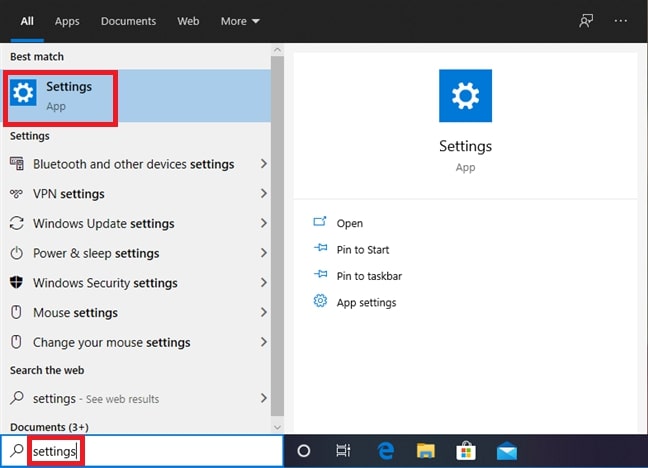
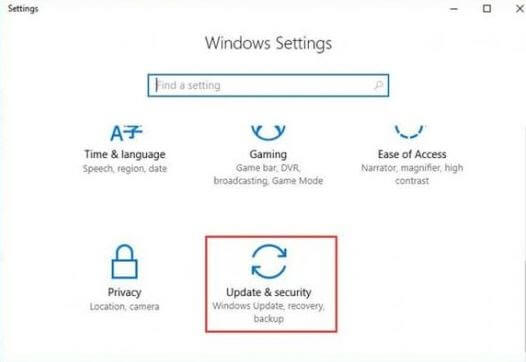
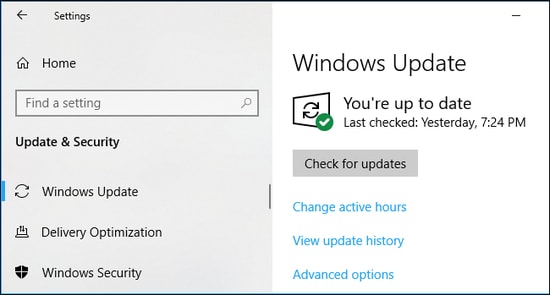

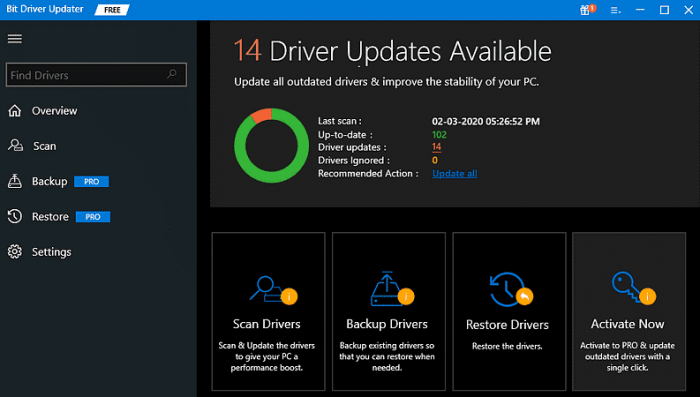
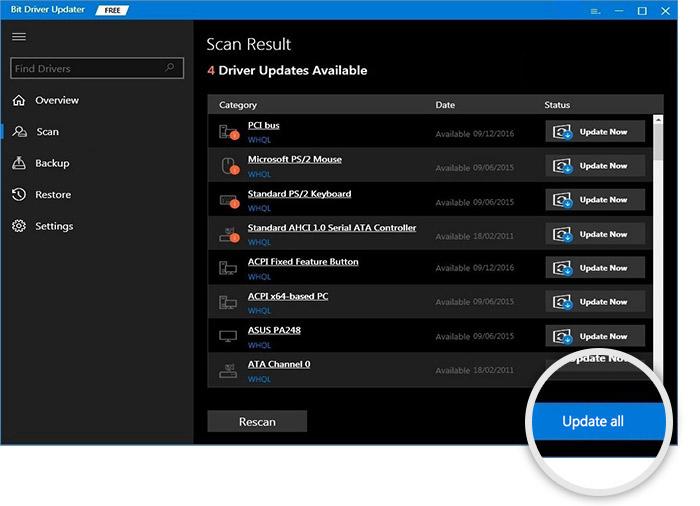
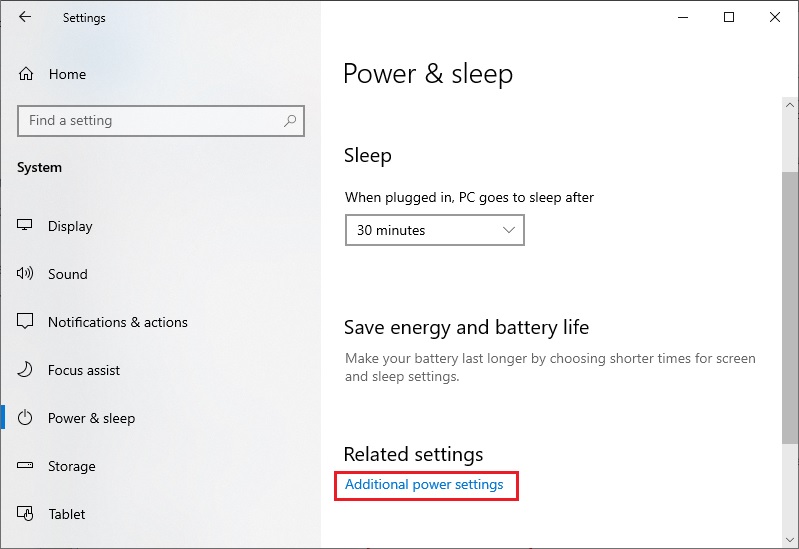 Step 4: Choose Change settings that are currently unavailable.