The Windows action center is a built-in feature in Windows that helps in all the notifications and shortcuts in your system for you to access them quicker. If your Windows ever faces any major or minor software or hardware issues, then Windows action center is where you will get to know.
Windows action center uses are convenient for those who want quick access to small but impactful features of the system. There are different ways to access the action center, and those methods are very easy for you to understand. You can use it to toggle various actions from your fingertips and navigate through several options with multiple menus.
Here is a complete guide for you to understand what the Windows action center is and how to open and enable it to use in your system.
Windows Action Center
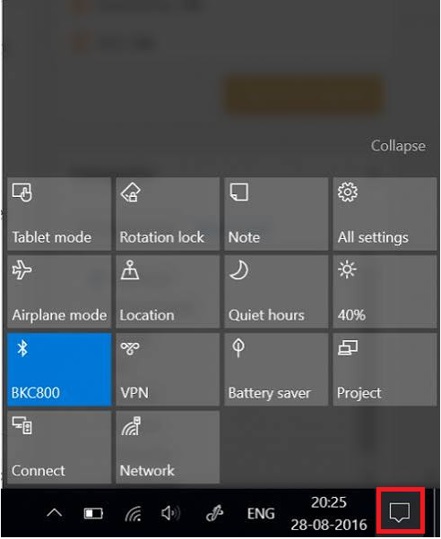
The Action Center in Windows is used in centralizing the notification and quick access for the users. It makes the viewing and maintains the notification, and all the shortcuts easy and quick for the users in Windows. You can access Wi-Fi, Bluetooth, brightness, Connectivity settings, and much more with Action Center in Windows.
This feature is designed in such a way that it helps in enhancing the experiences of Windows users and provides the users with all the important applications and notifications as well. You can also change all the notifications in the action center. You can select what messages you can receive in the action center, and services you want are also customizable.
Windows Action Center Uses
Windows action center uses varies from user to user because it has features to customize what features you want to keep on your action center in your system. You can access the following features in your Windows action center.
- Do not disturb/ Focus Modes
- Wi-Fi
- Brightness
- Notifications
- Airplane mode
- Windows updates Notification
- Battery savers
- Reminders
And a lot more options as per your needs you can customize. It also provides you with notifications from all the other devices connected to your system.
How to Enable Action Center in Windows
To open Windows action center
Method 1: Using Windows Settings
The first method you can use to access the Windows action center is to toggle some of the settings in your Windows and set up the office in your system.
- The following are the steps to access the Windows action center for windows 11:
Step 1: Go to the search bar in the leftmost corner of the task bar.
Step 2: And search for ‘Settings’ and open it. Select the ‘System’ from the left-hand side of the menu.
Step 3: Then go to ‘Notification’ and turn it off. And you can customize all the other options and features you need to keep in the Windows action center.
- The following are the steps to access the Windows action center for windows 10:
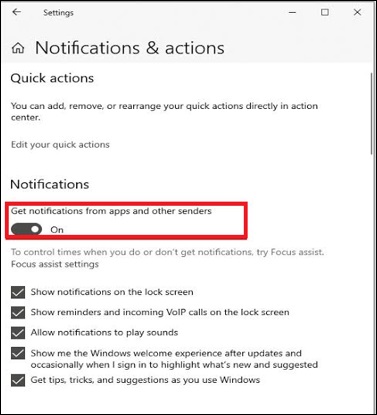
Step 1: Go to the ‘Settings’ in your system and open it then go to ‘System’.
Step 2: And then go to ‘Notification & actions’ from the menu.
Step 3: Select the ‘Get notification from apps and other senders’ and then toggle it off to silent alerts.
Step 4: And disable the action center icon from your taskbar entirely and turn on the ‘Turn system icon on & off’.
Step 5: Then locate the Action Center according to your requirements and toggle it according to your comfort.
Also know: How to Get Help With File Explorer in Windows 11/10
Method 2: Using the Group Policy
Another method you can use to access the Action Center in Windows 11, and this method is mainly used to ensure the standardized experience for all kinds of IT professional and Pro editions. And to use and customize the action center in Windows, follow these steps:
Step 1: Press ‘Windows + R’ on your keyboard and open the Run dialog box in your system.
Step 2: Click on the Start menu from the taskbar and go to the User Configuration and open Administrative Templates.
Step 3: Search for the option ‘Remove Notification and Action Center’ and double-click and open it.
Step 4: Then enable it and click on ‘Apply’ to save all the changes.
After following these steps, restart your system to apply the changes you just made to your system.
Method 3: Using Registry Key
To access the Action Center in Windows 11, you can also try using the registry key and for that the following are the steps you need to follow:
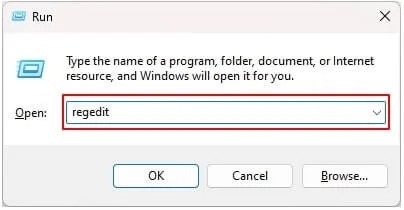
Step 1: Press the ‘Windows + R’ keys on your keyboard to open the Run dialog box.
Step 2: And in the Run dialog box, type ‘regedit’ and click ‘Ok’.
Step 3: And in the next Window, open the ‘HKEY_CURRENT_USER\Software\Policies\Microsoft\Windows\Explorer’ and right click on the right pane and go to the Explorer folder.
Step 4: Go to the ‘New’ option and select ‘DWORD (32-bit) Value and click on ‘DisableNotificationCenter’.
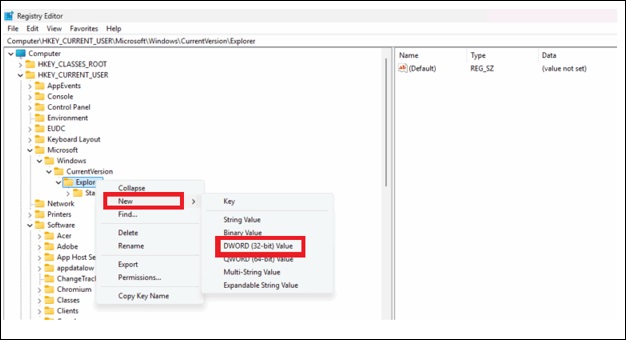
Step 5: Double click and then set up the value 1 and then disable it, or you can also keep it 0 to enable it.
Step 6: Click on ‘OK’ to save the changes you just made.
Method 4: Using the PowerShell
To open Windows action center in your system if no
Step 1: Go to the Search bar in the left corner of the taskbar.
Step 2: And search ‘PowerShell’ and select the ‘Run as Administrator’ option.
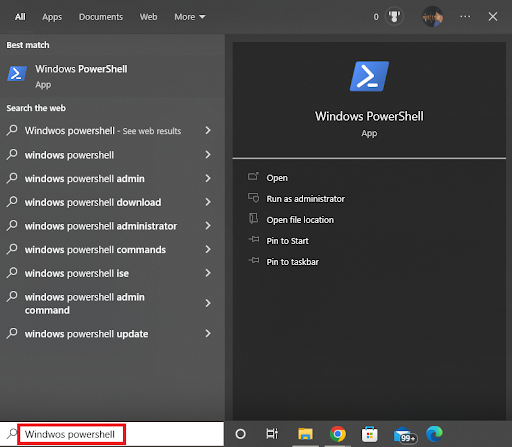
Step 3: To enable the Windows action center, then copy this command:
“Set-Item Property -Path “HKCU:\Software\Policies\Microsoft\Windows\Explorer” -Name “DisableNotificationCenter” -Type DWord -Value 0”
Step 4: And then restart your system to apply the changes you just made.
Also know: How to Access Exchange Admin Center in Exchange Online
Frequently Asked Questions (FAQs)
Q1. Can I customize the Windows action center with a quick settings button?
Ans. Yes, you can customize the action center with quick settings button, and for that press ‘Windows + A’ and click on edit or pencil icon at the bottom of the flyout. Then ‘Add/Unpin’ for you preferred tiles like Bluetooth, Cast, or anything you want in your action center.
Q2. Does the Action Center in Windows 11 get disabled after Windows updates?
Ans. No, Windows updates do not disable the access and customization of Action Center in Windows 11.
Q3. What to do if the action center in my windows does not open?
Ans. If your action center does not open then restart your system UI and press Ctrl + Shift + Esc and open the Task Manager. And search for Windows Explorer and then right-click to restart the system.
The Windows action center is a built-in feature in Windows to make your actions easier and quicker. With this feature, you do not need to go all the way from settings to enable and disable or customize lots of quicker options for your system. There is also a wide range to customize the action center in your system according to your requirements for the actions.