Some fine day you are using your system, and suddenly you encounter that a notification pops up on your screen that “application is unable to start correctly 0xc0000142 error,” and you are clueless about what to do next. The 0xc0000142 error can occur because of lots of reasons and several errors.
This error can be a malfunction for a lot of work you are going to do with your system, like Microsoft, games, and any other activity. There might be several issues that we need to understand before getting into the methods to resolve this issue.
Causes for 0xc0000142 Error
If you randomly encounter that the application is unable to start correctly with 0xc0000142, there could be several reasons for that error.
- Incorrectly configured settings of the system you are using,
- Corrupted entries in Windows OS,
- Software failure of reinstallation in your system,
- Power failure,
- Performing an improper shut down for the system,
- Interruption during updates,
- Damaged and malicious files.
Solution to Fix the 0xc0000142 Error
As we know now, there are several reasons why you might face the 0xc0000142 issue, so there must be some ways to resolve those errors by yourself. Let us understand what those different methods for these causes are to resolve.
Method 1: Keep Office Updated
If you ever encounter the error code 0xc0000142 on your screen of your system, then the first thing you must check is the version of Office you are using currently. You must make sure that the Office you use must be of the latest version. Because Microsoft offers their users to regularly update the Office, that improves bugs and adds new features in the updated version.
The following are the steps to update the Office regularly in your system:
Step 1: Open the File and then go to the ‘Account.’
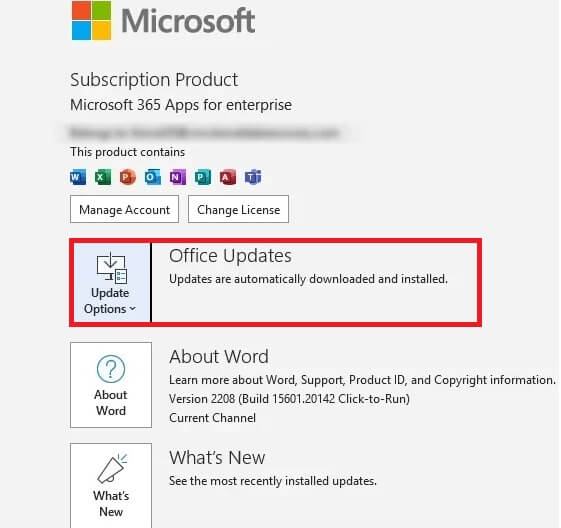
Step 2: Go to ‘Update Option’ and then click on ‘Update Now’.
Then restart your system once and open the Office.
If you still face the issue of the outlook 0xc0000142 error, then you must try to resolve it using this other method.
Also know: How to Lock your Windows PC Automatically in Windows 11
Method 2: Re-register the DLL files
Even after updating does not resolve the error code 0xc0000142, try once more to re-register all the DLL files in your Windows. Or you can even use a DLL fixer to repair all your damaged and malicious DLL files in your Windows. To re-register all the DLL files in your Windows, the following are the steps to do so:
Step 1: Go to the command prompt and type “for %I in (%windir%\system32\*.dll) do regsvr32.exe /s %i.”
Step 2: And then press ’Enter’ and close the command prompt. Then restart the Office once again to resolve the issue.
If you still face the issue of the 0xc0000142 error, then you must try to resolve it using this method.
Method 3: Perform a Reboot
If the issue is not resolved and the error 0xc0000142 continues, then there might be some conflicts related to the program in your system. To resolve this issue and fix the error in your system, the following are the steps to do so.
Step 1: Go to the ‘Start’ option in your system. And go to the ‘Settings’.
Step 2: And search for the option ‘Update & Security’ and select the ‘Recovery’ option and click on the ‘Restart Now’.
Step 3: Then select ‘Troubleshoot’ and then select ‘Advanced Options’ and ‘Startup Settings’.
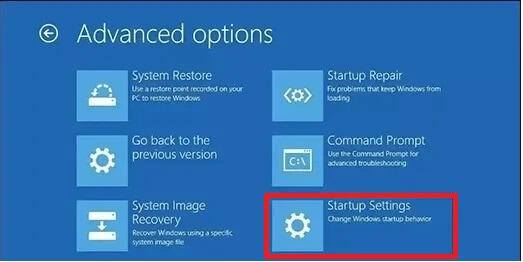
Step 4: And then restart your system once.
If you can, then you also consider using antivirus protection to remove all the tiny unwanted glitches from your system and protect it from repetitive lagging as well.
If you still face the issue of the 0xc0000142 error, then is to try to resolve it using this method.
Method 4: Reinstall the Office
Another method to resolve the outlook 0xc0000142 error, you must uninstall your Microsoft Office and then install it again. And following are the steps to do so:
Step 1: Go to the Control Panel in your system and select the ‘Add/Remove Programs’.
Step 2: And there, search for Microsoft Office from the list and click on uninstall.
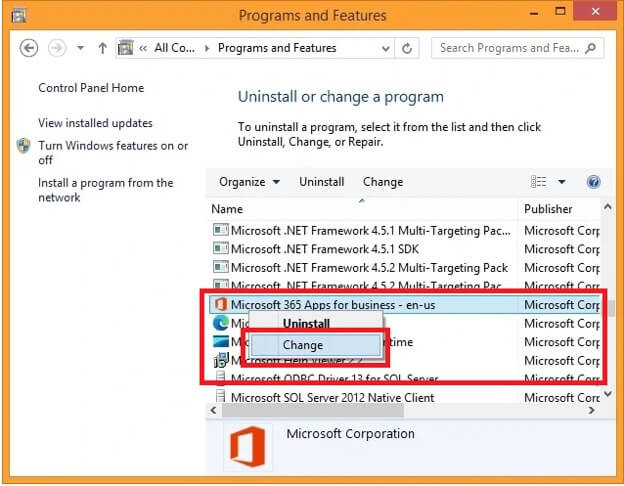
Step 3: And follow all the prompts that appear on the screen of your system to uninstall the program.
Step 4: Then restart the system again and install Microsoft Office again.
If you still face the issue of 0xc0000142 error, then you must try to resolve it using this method.
Method 5: Protecting the Office Software
Many times, the affected software protection also creates errors like these, but there are some methods to fix them also. And the following are the steps you must follow to protect your Office software to fix the issue of this error:
Step 1: Press together the ‘Windows + R’ keys and open the Run dialog box.
Step 2: Type ‘services.msc’ and press ‘Enter’ to open the Services Windows.
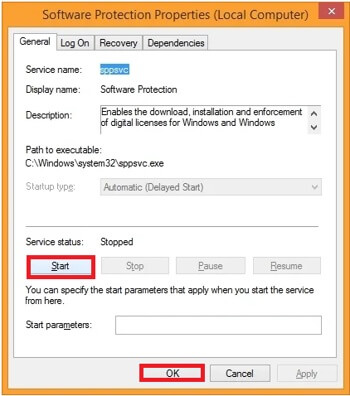
Step 3: Search for the ‘Software Protection’ and click on the properties Window.
Step 4: Make sure that ‘Startup type’ is set to ‘Automatic’ and the ‘Service Status’ is set to ‘Running’. Then click on the ‘Start’ button to start the service. And after the service starts, close the window.
If you still face the issue of the 0xc0000142 error, then you must try to resolve it using this method.
Also know: How to Fix Browser Keeps Crashing on Windows PC
Method 6: Repair the Office
If any of the other solutions do not work, then try to repair the Office.
Step 1: Close all the Office programs running on your system.
Step 2: Press ‘Windows + R’ and open the Run dialog box. And then type ‘appwiz.cpl’ and press ‘Enter’.
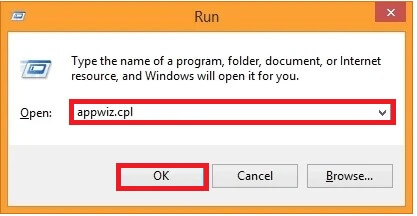
Step 3: And then go to Microsoft Office and select it.
Step 4: Double click on the ‘Change’ option.
Step 5: And this will take you to the next window, and in that, click on the ‘Repair’ and then follow all the upcoming prompts that appear on the screen.
Step 6: At last, wait for the repair to finish and launch the Office program once more and check for the error to be resolved.
Frequently Asked Questions (FAQs)
Q1. What is error 0xc0000142 in your system?
Ans. This error means that the program or any game failed to start or initialize to launch, and there are several reasons for that too.
Q2. Are there any ways to fix all the corrupted files in your system?
Ans. You can fix all the corrupted files in your system using the command prompt as an administrator and then try running ‘sfc/scannow’ easily.
Q3. Is the error 0xc0000142 in your system some kind of hardware issue?
Ans. Generally, the 0xc0000142 error in your system is trouble in loading some of the applications and launching some components of the applications.
To fix the error of application unable to start correctly 0xc0000142, suddenly occurring on your system, these were the methods to resolve it on your own. But make sure that before you take such steps, you must make sure to keep records of the files and all other important data. So, you do not lose any data from your system while resolving this issue.