
Computers don’t have a camera as good as an Android phone; many laptops still use 720p webcams. These computer cameras fall short in clarity and crispness during video calls compared to the larger sensor and smarter processing on a phone’s camera. That’s why many users prefer using an Android phone as a webcam on Windows.
Using the phone as a webcam on Windows, you can experience better video calls, shoot from the rear camera, move around your room, or flip between the front and rear camera lenses; also, the phone cameras support almost all meeting apps, such as Zoom, Microsoft Teams, Discord, Google Meet, OBS, and Slack, without purchasing a dedicated, decent webcam. This article explains how to turn your Android phone camera into a webcam on Windows using a few simple methods.
How to Use an Android Phone Camera as a Webcam for PC
You can use the phone’s camera as a connected camera, use Android USB webcam mode, or use a third-party app, such as DroidCam, to use your Android phone as a webcam on Windows. The Windows Use as Connected Camera feature works best for everyday video calls; Android USB webcam mode works best for low latency and a more stable camera connection; third-party apps are best for fine-grained controls, OBS/production, and older phones. Below are these methods in detail.
Method 1: Use as a connected camera
The connected camera feature lets you use a linked Android phone as a wireless camera. If you have a Windows 11 or later PC and an Android 10 or later device, your phone and PC are on the same Wi-Fi network, and you are signed in with the same Microsoft account, follow the steps below to use the Windows 11 Use as connected camera feature.
- Press Win+I to open PC Settings.
- Click Bluetooth & devices in the Settings menu.
- Click Mobile devices.
- Click Add device in Mobile devices, then follow the pairing process; it may install or open Link to Windows on your phone and pair it with a QR code.
- Click the linked device.
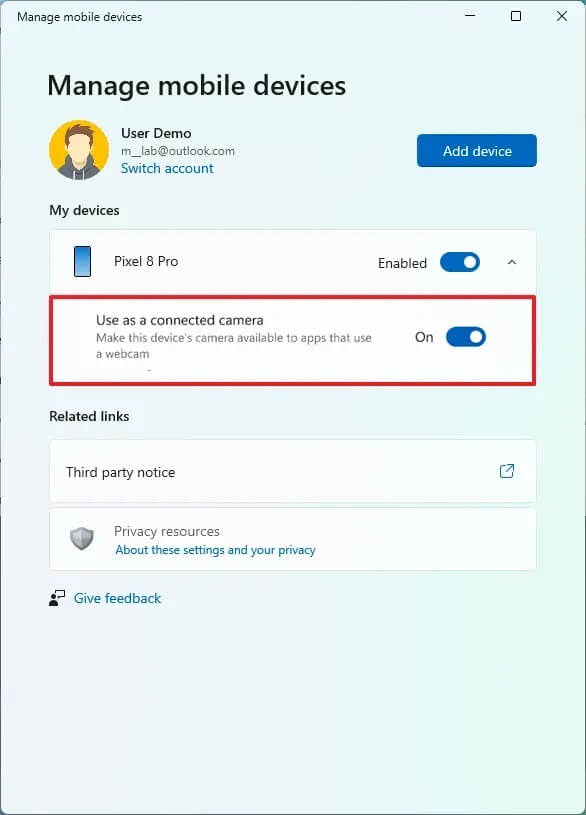
- Lastly, toggle on Use as connected camera.
Also know: How to Download A4Tech Webcam Driver for Windows 10,11
Method 2: Use the built-in USB webcam mode
If you have an Android 14 QPR1 or higher phone and a manufacturer-enabled USB webcam mode, you can use your phone as a USB Video Class (UVC) webcam without a webcam driver or other PC software. Here is how to use your Android phone as a webcam on Windows using the USB webcam mode.
- Use a data-capable USB cable to connect your phone to the Windows computer.
- Tap the USB or charging notification on your phone.
- From the Use USB for options, select Webcam.
- Open Camera or another video app in Windows 11 and choose the phone camera as your input device.
Method 3: Use a third-party webcam app
If your phone does not support the Windows Use as a connected camera feature or USB webcam mode, you can use a reliable third-party webcam app, such as DroidCam, Iriun Webcam, or iVCam, to use your Android phone as a webcam on Windows.
However, if you have problems using your phone’s camera as a webcam on Windows, see the solutions below.
How to Fix Common Problems When Using an Android Phone as a Webcam on Windows
- If your phone does not appear as a camera in Windows, update Windows 11. To update Windows, press Win+S, search for and open Check for updates, click Check for updates, then download & install available updates; confirm that Use as connected camera is enabled in Settings > Bluetooth & devices > Mobile devices; ensure camera access is allowed in Settings > Privacy & security > Camera.
- If the webcam does not appear in your phone’s USB menu, ensure your phone runs Android 14 QPR1+ and has OEM webcam enabled; try another cable and port; wait a couple of seconds after changing modes for Windows to re-detect your phone.
- If the video is green, black, or frozen, allow camera access to the streaming application/link to Windows on your phone; restart the PC client; disable virtual backgrounds, if any, in the meeting application.
- If video lags or stutters, change from Wi-Fi to USB; lower the resolution and frame rate to 1280×720 at 30 fps; move near the access point; ensure your PC and phone are on the same band of Wi-Fi.
- If the orientation is incorrect, unlock your phone’s screen rotation; in application-based solutions, fix portrait shots using the client’s transform/rotate settings.
Also know:How to Fix Skype Not Detecting Webcam on Windows PC
Frequently Asked Questions
Q1. Can an Android phone be used as a webcam?
Yes, you can use your Android phone as a webcam using the phone’s camera as a connected camera, using Android USB webcam mode, or using a third-party app.
Q2. How to enable the Connected Camera in Windows Settings?
To enable the connected camera in Windows Settings, press Win+I, choose your phone from the list, and toggle on Use as connected camera.
Q3. Will using my Android phone as a webcam drain or damage the battery?
The phone camera can affect the battery over time if you keep it plugged in all the time.