A VPN for your system allows you to access internet services with a completely secret tunnel and does not disclose any of your information related to the server you are using. If you want to access the browser privately without anybody knowing about anything. And after using incognito mode, it becomes more secure. With a VPN in Incognito Mode, you can access the browser without leaving any kind of fingerprint after completion and with the complete security of incognito mode.
There are even different ways to access a VPN in the Incognito Mode of the Chrome Browser from accessing the VPN in the Incognito Mode of the Edge browser and in Mac OS. And here is a complete guide for you to understand the benefits of using VPN in incognito mode, along with all the ways to access various browsers.
Understanding VPN in Incognito Mod e
While browsing instead of using a Free VPN for Windows, you must consider using a VPN in Incognito Mode if you want to obtain more security and privacy for your browsing. Because incognito mode provides a clear slate for your system to surf without leaving any kind of fingerprints. Here we will learn the various and primary benefits of using the VPN in incognito mode for your browser.
Benefits of Using VPN in Incognito Mode
Using VPN in Incognito Mode helps you in several ways, including maintaining more safety for your browsing. And creates a significant gap between you and all the malicious attackers. The following are primary benefits you face while using a VPN in Incognito Mode:
- Using the VPN in Incognito Mode not only makes sure about the security and privacy of the browser you are using but also provides access to all the servers and websites that you generally cannot access.
- A virtual private network prevents exposing your IP address to anyone along with all the websites you have visited.
- It hides your fingerprints from getting exposed to hackers or while using a public network.
- If you use the VPN in incognito mode in your browser, it automatically blocks third-party cookies for all those websites you are using.
- The use of VPN in Incognito Mode also helps in blocking all the cookies from your current session to all the other sessions you access.
How to Use VPN in Incognito Mode
You can use a VPN in incognito mode for surfing privately so that nobody can track you because a VPN along with incognito mode in your system adds another layer for security to your browsing. There are different ways to access VPN incognito mode for the Chrome browser, Edge browser, and Mac iOS browsing.
VPN in Incognito Mode of Chrome Browser
To access the VPN in the Incognito Mode of the Chrome Browser, to access the extra secure and fast browsers the following are the steps you need to keep in mind:
- Step 1: For the first step you need to install the VPN application you want to access, or you can also take up an extension for the Chrome Browser if it is not there in your system.
- Step 2: Go to the Chrome Browser, and press ‘Ctrl + Shift + P’ (Windows) and ‘Cmd + Shift + N’ (Mac OS) to open an Incognito Browsing Window.
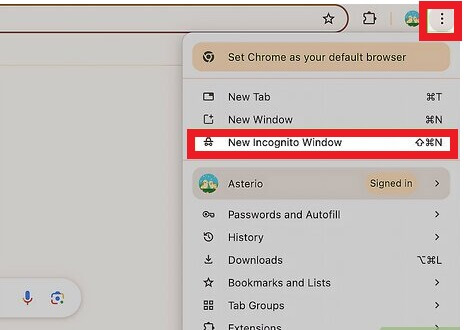
- Step 3: Then activate the VPN in the Incognito browsing Window you just opened or in the browser extension you are using.
- Step 4: Select the VPN extensions icon on your screen and follow all the steps appearing on your screen.
And by completing the whole process, you can easily enable and access the VPN in Incognito mode in your Chrome Browser.
Also know: Easy Methods to Change VPN Location
VPN in Incognito Mode of Edge Browser
If you access the VPN in the Incognito Mode of Edge browser, then it will help you in encrypting your data and digital fingerprints from hackers and attackers. It is the best way to use a browser if you want to surf privately. And for that, the following are the steps for you:
- Step 1: Install the VPN application you want to access, or you can also take up an extension for Microsoft Edge.
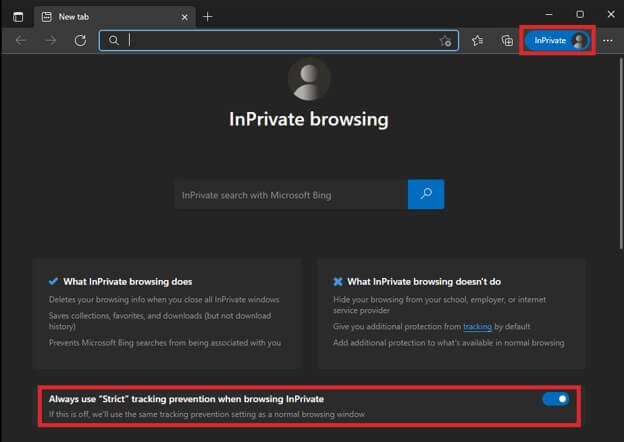
- Step 2: Go to Edge, and press ‘Ctrl + Shift + P’ (Windows) and ‘Cmd + Shift + P’ (Mac OS) to open an InPrivate browsing Window.
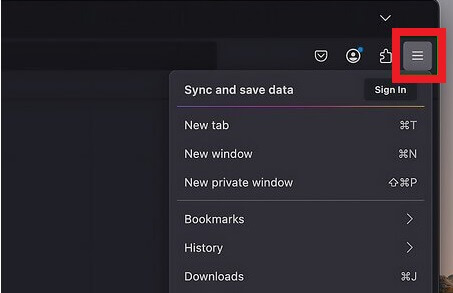
- Step 3: Then activate the VPN in the InPrivate browsing Window you just opened or in the browser extension you are using.
- Step 4: Select the VPN extensions icon on your screen and follow all the steps appearing on your screen.
By completing the process that appears on your screen, you will be able to access the VPN in the InPrivate browsing Window.
VPN in Incognito for Safari
Remember, using a VPN along with incognito mode enhances the security you are using, and even if you want to follow your fingerprint later, then not even you can track that back again. By following these steps, you can easily access the VPN in incognito mode on your Mac OS.
- Step 1: To access the VPN in a private browser for Safari, you need to first install the VPN application you want to access. Or you can also take up an extension that is compatible with the iOS for the same in your system.
- Step 2: Open Safari and press ‘Cmd + Shift + P’ to open an InPrivate browsing Window. Or you can click on ‘File,’ and then a menu will open; then choose ‘New Private Window’ on the screen.
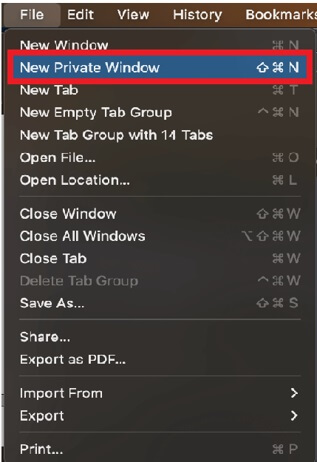
- Step 3: Then activate the VPN in the Private browsing Window you just opened or in the browser extension you are using.
- Step 4: Select the VPN extensions icon on your screen and follow all the steps appearing on your screen.
VPN in Incognito for Firefox
To access VPN in Firefox, you need to follow the given steps properly:
- Step 1: Install the application for your preferred VPN, or you can also select a Firefox extension.
- Step 2: Press ‘Ctrl + Shift + P’ (Windows/Linux) and ‘Cmd + Shift + P’ (Mac OS) to open a private browsing Window.
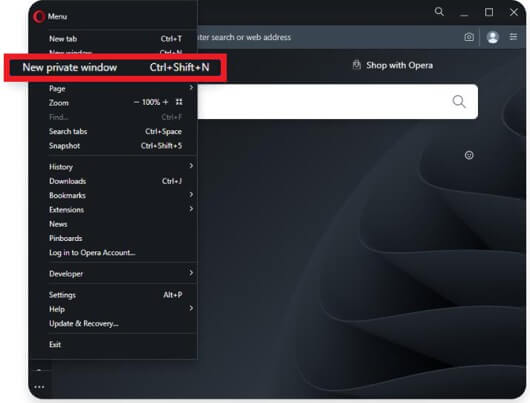
- Step 3: Enable the VPN using the private browsing Window, and to use the browser extension, select the VPN icon and follow all the steps appearing on your screen.
After this, you will be able to access the VPN in your private browsing Window.
Also know: How to Use Windows Built in VPN
Frequently Asked Questions (FAQs)
Q1. What to do if the VPN gets disconnected after entering incognito mode?
Ans. Due to security restrictions and some regional measures, there are some websites that get blocked in incognito mode. To restart them or access them, you just need to manually grant permission to those websites when you use a VPN in incognito mode.
Q2. Do I get a free VPN for incognito mode?
Ans. There are a few options for you to get for free even in incognito mode, but you may not get 100% security or privacy with those free VPNs. There are always restrictions and limitations with the free VPNs, and you can also face issues with complete privacy.
Q3. If I do not use a VPN, then incognito mode can hide my IP address?
Ans. No, the incognito mode alone can never hide your IP address in your browser; you need a VPN for complete security.
Using the VPN in Incognito Mode in your browser enhances your security and privacy with an extra layer. There will be no fingerprint remaining in your browser after this extra layer so that no one can track you using your digital fingerprints. A VPN encrypts the data you are accessing and provides you with extra safety, and the incognito mode takes charge of not saving your history and blocking all the unwanted cookies on the websites you access.