Main LogoLight Logo
  • Reviews
  • Top 10
  • How To
  • Tech News
  • OS
    • Windows
    • MAC
    • iOS
    • Android
  • Categories
    • Driver Updater
    • Cyber Security
    • Games
    • Fitness
    • Entertainment
    • Tips & Tricks
How To Windows
by Harshita

Quickly Fix Steam Disk Write Error on Windows 10

December 12, 2020
1

This post explains how to fix the steam disk write error on windows 10. So, read on to know the entire details!

Steam is a gaming platform for PCs where individuals can be amused by thousands of titles, download & install the latest updates automatically for their games, connect to discussions, and many more. During a game install or update, you may encounter the steam disk write error on Windows 10. This error shows the following message on screen-

  • An error occurred while updating the game_title.
  • An error occurred while installing game_title.

Apart from this, the error occurs because the corrupt hard disk, drive, or steam folder is write-protected, corrupt files in the Steam library, outdated drivers, and so on.

While waiting to install or update a game on Steam if you get a disk write error then you are not the only one who is encountering this error. There are numerous users as well who are struggling with this big headache. But, you are the lucky one as now it’s been quite an easy task to tackle. Yeah! You have heard right. So, let’s read them below in-depth!

Table of Contents hide
Quick Methods to Fix Steam Disk Write Error on Windows 10
Method 1: Restart your PC and Steam
Method 2: Launch Steam as Administrator
Method 3: Install Steam Games on Another Drive
Method 4: Turn off your Antivirus Program Temporarily
Method 5: Update Corrupt & Outdated Drivers
Method 6: Eliminate Disk Write Protection

Quick Methods to Fix Steam Disk Write Error on Windows 10

Are you getting a disk write error steam? If you are confronting so while updating or installing games like Counter-Strike, Dota 2, Grand Theft Auto V, The Witcher 2, etc, then, this post explains to you how to fix the same issue in no time. Therefore, without any further delay, let’s take a step towards the core section of this write-up!

Method 1: Restart your PC and Steam

At the very initial point, what you should try to fix the disk write error steam on Windows is – restarting your system and then Steam. Rebooting the system can possibly fix the errors unless the errors aren’t critical. So, start your system again, after that, open Steam and try to update or install the game. If the error still persists, then move to the next advanced methods.

Also Read: How to Fix Steam Download Slow [Solved]


Method 2: Launch Steam as Administrator

In many events, launching an application as an administrator has proven the best way, in order to fix the issue. Similarly, to fix the disk write error you can run Steam as Administrator. Follow the below-listed steps to launch Steam as Administrator-

Step 1:- Switch to your Steam folder and right-click on the Steam.exe, then click on Properties.

Step 2:- Then, from the pop-up window, head to the Compatiability tab.

Step 3:- After this, tick mark the box presented next to Run this program as an Administrator.

Step 4:- Lastly, click on the Apply option to validate the changes and then, click Ok.

Cope-up with the above series of steps to run the Steam as Administrator to resolve disk write error.


Method 3: Install Steam Games on Another Drive

After launching the Steam as Administrator, still, the error persists, then shift the Steam folder to another healthy & safe drive. Shifting the Steam folder to another safe drive is one of the most effective yet simple methods to troubleshoot the steam disk write error on Windows 10. Here is what you need to do to execute this method!

Step 1:- Link the destination source drive to your PC.

Step 2:- Trigger Steam, thereafter, select the games that you want to shift.

Step 3:- Then, shift the game to the destination source drive which you connected to your PC.

So, this is how to fix disk write error steam on Windows 10 by shifting the Steam games to another safe or healthy drive. Try this method and if you find this one too isn’t work for you then move ahead.

Also Read: Best Game Boosters and Optimizers for Windows PC


Method 4: Turn off your Antivirus Program Temporarily

Besides all this, your Antivirus program can be a culprit as well behind steam disk write error on Windows 10 while downloading, installing, or updating the games on Steam. In this scenario, you have to disable your antivirus program temporarily. Try to turn off your anti-virus program and see if this works or not.


Method 5: Update Corrupt & Outdated Drivers

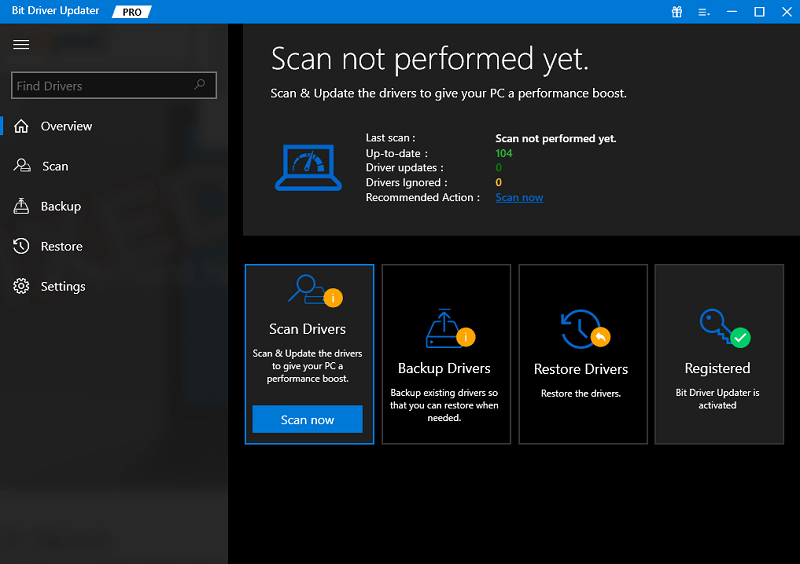
Yet another core reason that not only shows up disk write error but can be the major reason for all the problems that hinder the effective working of the system. If you are accessing the outdated, broken, or corrupt drivers, then, you may encounter many odd issues on your system. Therefore, you need to keep your drivers always updated to its latest version. And, the most effective approach to perform this task is using a Bit Driver Updater. It is absolutely an automatic driver updater tool that requires nothing extra formalities to work. You just need to install this magnificent driver updater tool on your system and within a short series of steps, you can update your outdated or corrupt drivers. Here is how it works!

Step 1:- Download the Bit Driver Updater from the link given below and launch it on your system.

Windows Download Button

Step 2:- Once you have successfully downloaded the Bit Driver Updater, then you have to wait for a while unless the automatic scanning gets executed.

Step 3:- Now, review the list of the drivers quite wisely.

Step 4:- After this, click on the Update now option next to the driver which you want to update. Or, if you want to save much time, then click on the Update All option presented at the last of the list to update all the drivers in one go.

Just within the concise way, you can update & install the latest version of drivers using Bit Driver Updater.
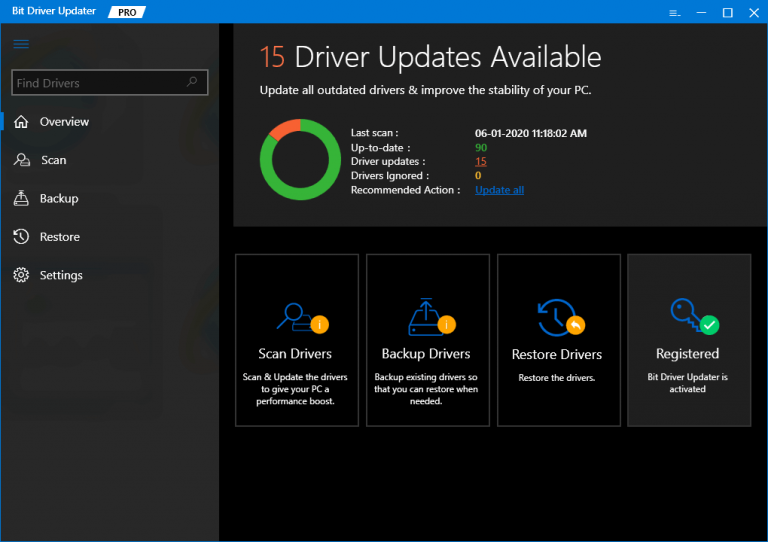
Bit Driver Updater software


Method 6: Eliminate Disk Write Protection

Maybe, because our disk is write-protected we are encountering a disk write error. It is might be possible, so to fix this error, we can eliminate the disk write protection. Here are the steps that explain how to do it!

Step 1:- Hit the Win from the Keyboard. And, then type cmd.

Step 2:- Then, right-click on the best match i.e., Command Prompt. After this, click Run as Administrator.
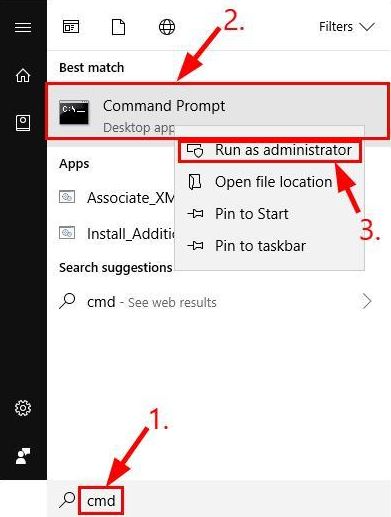
Type cmd in Start Menu Search Bar

Step 3:- And, then input the following command and hit the Enter key after each.

diskpart

list disk

select disk #

attributes disk clear readonly
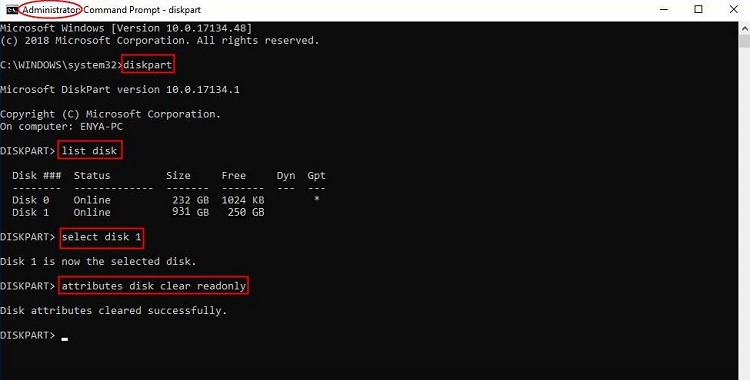
Disk Part Command

Step 4:- Now, turn off the Command Prompt window.

Thereafter, plug the hard drive again and check whether the disk write error has cornered or not.

Also Read: How to Update Drivers Using Command Prompt in Windows 10


Steam Disk Write Error on Windows 10 (Fixed)

This was all we want to explain to you by which you can easily and quickly fix the disk write error steam on Windows 10. It is quite a frustrating moment to encounter a Steam error because it snatches the enthusiasm of playing your favorite game. But, feel yourself lucky, as now you are aware of the methods to diagnose the same error.

Drop a comment in the comment box below and tell us your valuable words on this. If you liked our article then do subscribe to our Newsletter for more such helpful articles. Till the next, stay connected with us!

Author

Harshita

Harshita Sharma is a technical writer with quite a distinct understanding of the tech realm. She is a tech enthusiast who believes that tech knowledge should reach one and all and tries to convert the sketchy knowledge into the simplest possible form for making people understand the tech world better. When not playing with words, she loves to travel and explore new places. And, is a coffee & cricket connoisseur.

View all posts

Related Posts
Microsoft Windows 11 Insider Preview released | Updated Features List and How to Download Guide

Microsoft Windows 11 Insider Preview released | Updated Features List and How to Download Guide

August 26, 2021
0

Microsoft has recently released Windows 11 Insider Preview Build 22000.160 for all the users in the Dev and Beta channels. There are loads of changes that can be witnessed in the preview. The new update includes a Clock app with Focus Sessions. Besides this, the company has announced that they have fixed the issue of the ‘location in use’ icon.

Other than this the company has even released an ISO image for Windows 11 Insider Preview Build 22000.132 on the official website of Windows Insider Preview. These ISO images can be used for the clean installation of Windows 11 software.

Additionally, the company addressed the presence of other issues and worked on fixing them. Missing taskbar and non-working Start menu will be upgraded in Windows 11. Apart from this, the company has fixed the flickering issues with the Taskbar input and pairing issues with Bluetooth LE devices.

Also Read: Microsoft Paint Will Get a New Interface and Tools in the New Window 11 Update

How to Get Windows 11 

Microsoft Windows 11 release date hasn’t been decided yet. It is expected that the new update will roll out this year i.e, 2021. Though before the launch you can get access to the new Windows 11 Insider Program. Follow the below-mentioned steps to download the Windows 11 Insider Preview ISO images easily.

  • Click on the Windows Insider ISO page link and then proceed with the signup process
  • After completing the process, scroll down to the ‘Select edition’ section
  • Open the menu and choose the latest version. You can pick either Windows 11 Dev or Beta build
  • After selecting the version click on the ‘Confirm’ button
  • Next, you have to choose the preferred language and then confirm it
  • After you have completed the above-mentioned steps you will receive a link for downloading Windows 11 Client Insider Preview. You will even get a 64-bit ISO image option

Following these steps, you can easily enroll in the Windows 11 Insider Program and download ISO images.

How to Fix Vertical Lines on Monitor Screen

How to Fix Vertical Lines on Monitor Screen (Guide)

August 24, 2023
0

If you are also getting some Vertical Lines on the monitor and want to fix this problem on Windows then take the help of this simple guide to do the same. 

A monitor is one of the most prominent devices a user needs to interact with the system. So, when any type of colored or non-colored lines appear on the screen, it creates many problems and disturbs the flow of work. Vertical Lines on the computer screen can appear for several reasons. Majorly, these reasons are easy to fix out and fix. However, under certain circumstances, you may need to proceed beyond scraping the surface and go deep.

With the help of this article, we are addressing this problem for Windows users. In the coming sections of this guide, you will find various solutions and suggestions that will help you get rid of the Vertical Lines on the monitor screen. You should follow the solutions chronologically until the issue is resolved. However, before doing that, let’s understand why such errors appear.

Why Do the Vertical Lines on the Computer Screen Appear?

When you use your computer, you may discover that there are multiple lines or a single vertical line on the monitor. Moreover, you can have a second problem where the display on your computer has lines going across it. The lines may be vertical, horizontal, or any combination of the three, and they may be white, blue, or multicolored. It’s possible that this may irritate you quite a bit.

What causes the lines to appear? The appearance of these Vertical Lines on the monitor screen may be the result of a number of different problems, such as improper video cable connections, faulty ribbon cables, an out-of-date graphics card driver, screen damage, and so on.

The appearance of lines is generally caused by one of these three fundamental issues: either the display panel on the monitor itself is broken, the connection between your computer and the display is broken, or the monitor is getting incorrect information.

If the Vertical Lines on the monitor Windows 10 appear and the monitor is still under its manufacturer’s warranty, you won’t be able to do much about the first problem, but the other two problems offer solutions that aren’t too difficult to implement and might get rid of these lines.

So, without any further ado, let’s proceed to the solutions right away.

Simple Solutions to Fix Vertical Lines on the Monitor Windows 10/11

Below, there are certain tested and verified solutions to help you. Once you execute all these solutions chronologically, you will not get the Vertical Lines on the monitor screen. Let’s get cracking.

Fix 1: First Things First!

First, you need to restart the system and then ensure that there is no physical damage to the monitor cable or the monitor itself. Moreover, you also need to ensure that the connectivity between the system and the monitor is not obstructed due to anything. For the same, try disconnecting and reconnecting the VGA or HDMI cable from the system and monitor.

Moreover, you can also try reconnecting the cable in some other port if available. If your system is using the realtor ribbon cables for connectivity, then you should try replacing the same with new ones.

Also Read: How to Fix ViewSonic Monitor No Signal Issue


Fix 2: Modify the Screen Resolution

One of the most common reasons why the Vertical Lines on the computer screen appear is because of the wrong screen resolution. The screen resolution defines the pixel resolution and definition for any monitor. When the screen resolution is optimal and monitor-specific, you will not face any problems while using the monitor. Moreover, the display would be amazing and clear. So, follow the below steps to modify the screen resolution accurately:

  1. Right-click the Windows desktop and open the Display Settings.Display Settings
  2. Under the Scale and Resolution category, look for Screen Resolution.Display Resolution
  3. From the bar, select multiple resolutions individually and apply the settings. Work out to understand which resolution is perfect for your monitor.select the desired resolution

If the resolution is fine and the Single Vertical Line on the monitor or other problem still persists, then reset the resolution to the original one. Follow the next solution to fix the error.


Fix 3: Update the Monitor and Display Drivers

Utilizing the Bit Driver Updater provides a solution for much more than simply keeping drivers up to date. With Bit Driver Updater, not only can you simply improve the performance of the system, but you can do it with ease. There are also other features available, which make it simple to carry out and regulate all of the activities that are associated with driving. For getting an understanding of how the tool operates, let’s move on to the following part.

Moreover, Bit Driver Updater helps you in creating small backups of all or some existing drivers on your computer. This tool is the next and most straightforward approach to fixing the Vertical Lines on the monitor Windows 10.

This superb driver updater makes it super simple for all to get all types of driver updates, including monitor and graphics drivers. If these drivers are outdated on your system, the monitor may show vertical lines. This is one of the greatest approaches that you can attempt to use and install the driver.

The driver ignore option is the most amazing function that allows you to gain more control over drivers. You may add drivers in this list if you do not wish to perform any installation of drivers. It really is a gift in disguise to have the opportunity to update all of the drivers with just one click, including the ones that will fix the Vertical Lines on the monitor screen.

Next, you will have the option to restore these drivers or to share them with others, depending on the circumstances. If you wish to schedule the installation of driver updates, you may also utilize this program.

Update Your Monitor And Graphics Drivers Using Bit Driver Updater

As you may have understood by now, to fix the multi-color or blue/Green Vertical Line on the monitor, you need to update some drivers. In order to update not just the graphics or monitor but also any other driver that may be necessary, follow the set of actions outlined below:

  1. To begin the download of the Bit Driver Updater setup, please click the button located below.Windows-Download-Button
  2. Install the program, then launch it after the installation has finished. The system will immediately start the automated, in-depth scanning that it does in order to look for problematic drivers.
  3. After a minute or two, the utility will compile a list of all the out-of-date drivers, including the driver for the monitor. Installing the driver requires you to click the Update Now button that is located across individual drivers. Alternatively, you may obtain the updates for all of the drivers at once by clicking the Update All button.Update all outdated driver of your windows pc
  4. When the procedure is finished, you should restart the system.

If you are still seeing multiple lines or a Single Vertical Line on the monitor, follow the next fix.

Also Read: How to Setup Dual Monitors to a Laptop


Fix 4: Remove Every Device from the System

Another easy solution for Vertical Lines on the computer screen is to disconnect every single device from the system. This means that you should try disconnecting and/or unplugging the speaker, keyboard, mouse, joystick, any USB device, or any other device that you can. Some other devices may interfere with the performance of the device and cause an error. Try disconnecting individual devices, one at a time, to discover the culprit. Once the device is found, check for the errors in the same and reconnect. You can also try keeping the device disconnected to fix the multiple/single vertical line on the monitor.


Vertical Lines on the Computer Screen: Fixed

So, this was all that we had to share with you. In the previous sections of this guide, we had a look at some of the most trusted and helpful ways to get rid of the Vertical Lines on the monitor Windows 10. We hope that the solutions were easy to follow and helped you get a clear and error-free display.

However, if you need our help with anything, we are here for you. Write your questions in the comments below and we will get back to you with reliable solutions. Moreover, you can also provide your feedback related to the article.

Also Read: How to Fix PC Turns On But No Display on Monitor [FIXED]

If you liked this blog on how to fix the Vertical Lines on the monitor Windows 10, then please subscribe to our newsletter and follow us on different social media platforms.

1 Comment
    [Solved] Inaccessible Boot Device Error On Windows 10 says: Reply
    December 28th 2020, 1:20 pm

    […] Read More: Fix Steam Disk Write Error on Windows 10 […]

Leave a Reply Cancel reply

Your email address will not be published. Required fields are marked *

Sidebar Image bit G ad1

Latest Posts

  • Anytime Astro: Best Website For Online Astrology Consultation
    Anytime Astro: Connect Now For Online Astrology Consultation
    by Somya Shrimal / March 13, 2026
  • Best-Ways-to-Combine-Images-Into-PDF-Files
    Best Ways to Combine Images Into PDF Files
    by Niharika / March 12, 2026
  • Best FREE VPS Hosting Providers
    7 Best FREE VPS Hosting Providers in 2026
    by Devesh / March 12, 2026
  • Best-McAfee-alternative-software-to-use-for-Virus-Protection
    Best McAfee Alternative Software to use for Virus Protection
    by adminuser / February 11, 2026
  • What-is-Flip-Flop-in-Circuite-and-it's-Types
    What is Flip Flop in Circuit and its Types
    by Meet / February 6, 2026

Categories

  • Cyber Security
  • Driver Updater
  • Entertainment
  • Fitness
  • Games
  • How To
  • laptop
  • OS
  • Reviews
  • Tech News
  • Tips & Tricks
  • Top 10
Sidebar Image bit G ad1
How-to-Solve-Discord-overlay-not-working-on-Windows-PC How to Solve Discord Overlay Not Working on Windows PCby Harshita / December 11, 2020
How to Access Steam Screenshots on Windows 10by Jyotsana / December 13, 2020Tips-to-access-steam-screenshot-folder-on-Windows-10-PC
TechPout Footer Logo

We at TechPout promise to put forth stories that help people to learn and simplify their digital life. Our purpose is to share the true essence of technology with our tech-loving community.

Useful Links

  • About Us
  • Contact us
  • Privacy Policy

Popular Posts

  • Best PC Optimizer Software
  • Best Mac Cleaner Apps
  • Best Driver Updater
  • Duplicate Photo Finder and Cleaner Software
  • Best Free Movie Download Sites
  • Best IPTV Players

Follow us

Copyright © 2026 www.techpout.com. All rights reserved
DMCA.com Protection Status