Main LogoLight Logo
  • Reviews
  • Top 10
  • How To
  • Tech News
  • OS
    • Windows
    • MAC
    • iOS
    • Android
  • Categories
    • Driver Updater
    • Cyber Security
    • Games
    • Fitness
    • Entertainment
    • Tips & Tricks
Driver Updater How To Windows
by Niharika

HP Printer Driver Download, Install, and Update for Windows 11,10,7

November 22, 2023
1

Correct and compatible drivers for your HP printer driver ensure the printer performs smoothly. Hence, you can read this article to learn the best ways to get the updated driver downloaded and installed.

Founded in 1998, Hewlett Packard (HP) is among the world’s leading manufacturers of computers and computer peripherals. Specifically, the company is a celebrated name across the globe for its top-notch printing solutions. HP printers are well-known for their accuracy, fast speed, and exceptional performance. However, they can function well only in conjunction with an HP printer driver.

The Hewlett-Packard printer drivers connect your PC to the printer. They translate your commands in 0s and 1s, i.e., the language your computer knows. Without an appropriate driver, the computer cannot understand and perform your commands as you may expect.

Most Recommended Method for HP Printer Driver Download for Windows 10 

The simplest and most trusted way of downloading and installing the latest version of HP drivers for printers on your Windows PC is through Win Riser Driver Updater. The software not only updates all the HP and other hardware drivers automatically in a single click of your mouse but also takes the performance of your computer to a whole new level. You can try this program for FREE by clicking on the below button.

Download-Button

Moreover, the absence of a driver can lead to system crashes, an unresponsive printer, and many other annoying problems. Hence, this post guides you through the best methods to download, install, and update the HP printer drivers for Windows 7/10/11. The following section shares them.

Table of Contents hide
How to Download, Install, and Update the HP Printer Driver
Method 1: Download the HP printer driver via HP’s website
Method 2: Use Device Manager to download the Hewlett-Packard printer drivers
Method 3: Download the HP printer driver update automatically (Recommended)
HP Printer Driver Downloaded and Installed

How to Download, Install, and Update the HP Printer Driver

You can follow the methods shared below to download and install the HP printer driver’s updated version for your Windows 11, 10, or 7 computers.

Method 1: Download the HP printer driver via HP’s website

HP releases the updated drivers for its printers on the official website. You can download and install the HP printer drivers for Windows 10 and other Windows versions from HP’s website if you know your computer’s operating system. If you do not have your PC’s operating system details, you can find them through the directions Settings>System>About. Once you have the needed details, follow these steps to get the driver.

  • Firstly, navigate to HP’s website.
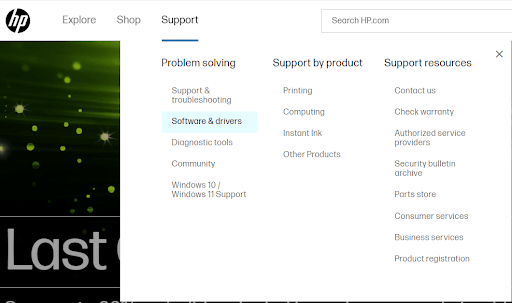
  • Now, hover your mouse over the Support tab.
  • Select Software & drivers from the on-screen menu.HP Official Support - Click on Software and Driver
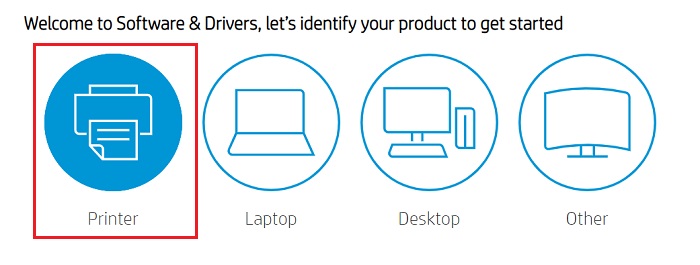
  • You can now choose a Printer as your product type.Click on printer - Hp Official
  • Input your printer name in the on-screen box and press Enter. For example, enter HP Envy 7640 if you wish to download the HP Envy 7640 printer driver.
  • Choose your operating system if it is not detected correctly.
  • Click on the Download button to download the HP printer driver’s installer.
  • Lastly, double-click the installer you downloaded above and follow the on-screen prompts to complete the printer driver installation.

Also Read: Install and Update Latest Canon Printer Drivers For Windows 10, 8, 7


Method 2: Use Device Manager to download the Hewlett-Packard printer drivers

Device Manager is a tool available on all Windows computers to download and install the latest drivers for various peripherals. It helps fix driver-related problems. Though the driver download process through Device Manager is a bit lengthy, here is how to try it to update the HP printer driver.

  • Firstly, right-click on the Windows icon on your taskbar and select Device Manager. Select Device manager

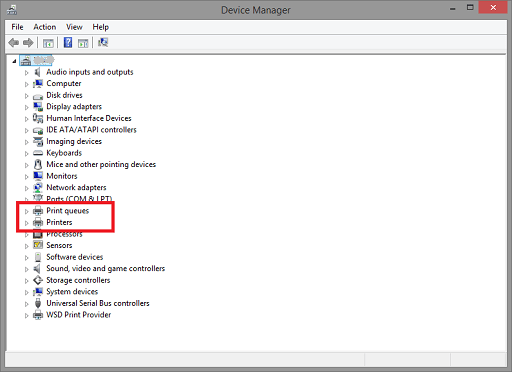
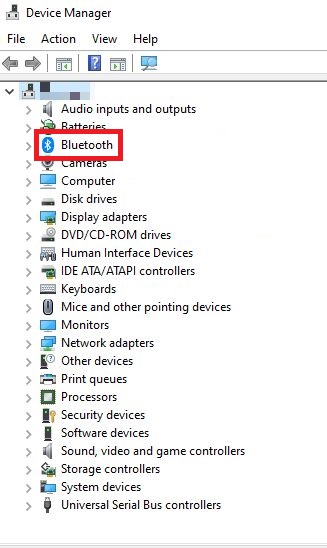
  • After opening the Device Manager, choose the Printers or Print queues category.Select Print Queues in Device manager
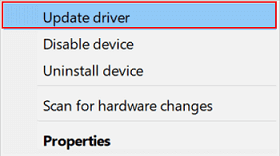
  • Now, right-click on your HP printer and pick Update driver from the on-screen options.Update the Driver in windows pc
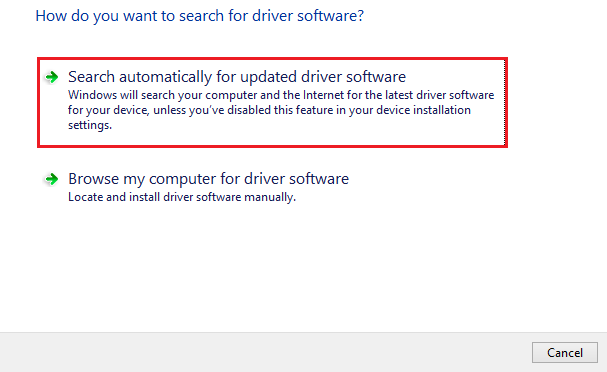
  • Choose Search automatically for the updated driver software option. Windows 11 users need to click on Search automatically for drivers.Search Automatically for Updated Driver Software
  • Have patience until Windows finds the right driver, downloads it, and installs it (it may take a couple of hours to do it).
  • Lastly, restart your computer to complete the process.

Also Read: How to Download and Install Brother Printer Drivers [Quickly]


Method 3: Download the HP printer driver update automatically (Recommended)

Above are all the manual ways you can try to get the required HP printer drivers for Windows 11/10/7 downloaded and installed. As you can notice, all these manual methods have a few downsides. For instance, downloading a non-compatible driver from the official website can harm your computer, and Devices Manager seems to take ages to get the correct driver.

Hence, we suggest automatic driver downloading and installation using a renowned driver updater like Win Riser. The Win Riser software updates all outdated drivers hassle-freely with one click and optimizes your computer for top-notch performance.

Moreover, Win Riser boasts many helpful features like ignore options for drivers you do not wish to update, driver backup and restore, schedulable and in-depth scans, malware detection, and junk removal to name a few.

The following link lets you get the Win Riser software on your computer.

Download-Button

After the software gets installed, you can simply follow the steps shared below to update the HP printer driver and all other drivers automatically.

  • Firstly, launch the software.
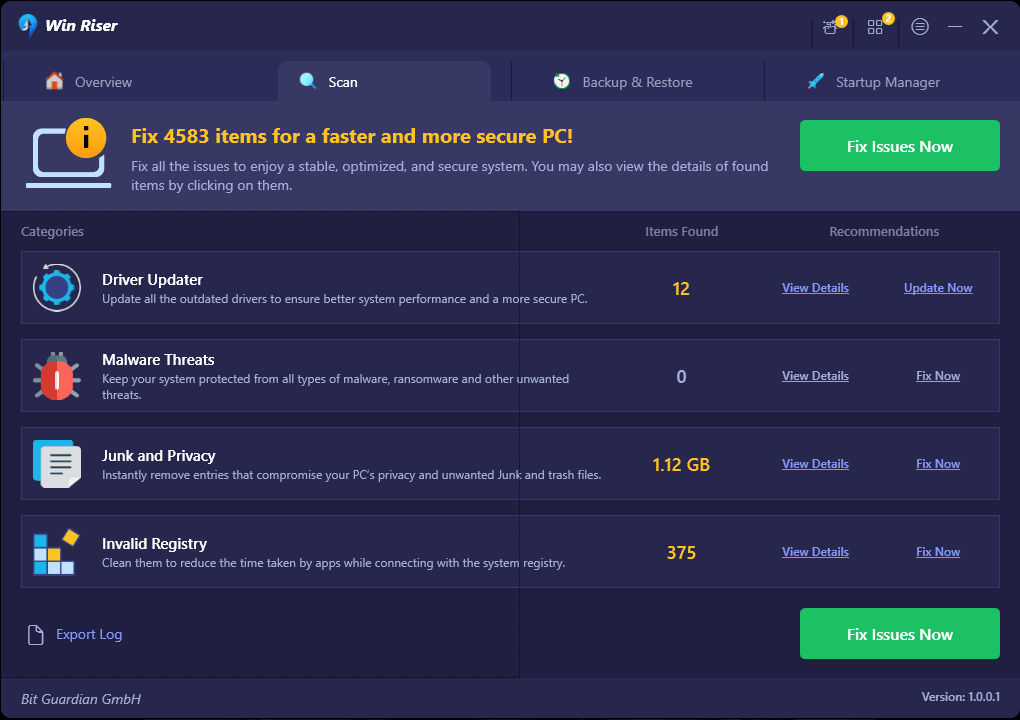
  • Choose the Scan option.Win Riser Scan the Outdated Driver
  • Now, wait for a couple of seconds until you get the scan results.
  • Review the scan results available on your screen.
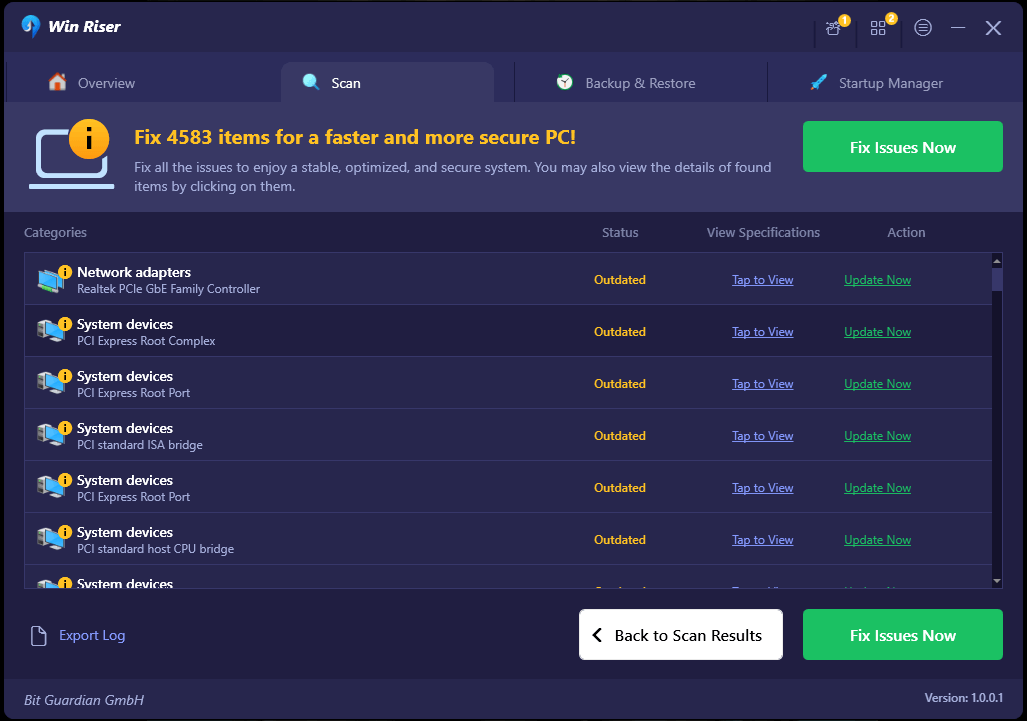
  • Lastly, select the option to Fix Issues Now to resolve all issues automatically.Win Riser Update the All Outdated Driver Click On Fixes Now

If you wish, you can choose the Update Now option to download and install only the printer driver. However, it is not a recommended option as updating all drivers improves the computer performance significantly.

Also Read: How to Download Epson Printer Drivers For Windows 10/8/7


HP Printer Driver Downloaded and Installed

This article introduced you to the approaches you can follow to get the latest HP printer drivers for Windows 7/10/11 installed on your computer. You can download and install the driver through any of these methods.

However, we suggest updating drivers through Win Riser, as it is the fastest, simplest, and safest way to do it. If you have any confusion, or questions, or wish to suggest something related to this post, please drop a comment in the comments section.

Author

Niharika

Niharika is a passionate soul who finds immense satisfaction in putting all her thoughts in writing. Being a technology enthusiast, she loves learning new things about tech and making everyone technologically literate through her articles. When not composing tech articles, you can find her bringing characters to life in her fictional stories, reading something intriguing, or spending time with her near and dear ones.

View all posts | Website

Related Posts
How to Fix realtek audio not working in windows 10,11

How to Fix Realtek Audio Not Working in Windows 10,11

September 16, 2022
0

Do not panic if you are experiencing issues like sound or Windows 11/Windows 10 Realtek audio driver not working. All these problems are easily fixable with the 9 effective solutions shared in this article.

Imagining a soundless computer is nearly impossible. We all need sound on our computers for various purposes, like gaming, calls through the webcam, and so on. However, recently many users reported an annoying issue where Realtek audio is not working.

If you are also facing similar issues, firstly, do not panic as the Windows 1 1/Windows 10 Realtek sound not working is effortlessly fixable. All you require is the quick and easy fixes shared in this article to drive this problem away.

However, before discussing how to fix the Realtek audio issues, it is crucial to know why the sound is not working in the first place. If you understand what caused the problem, fixing it becomes easy as pie.

Why Is Realtek Audio Not Working

The following are the reasons Windows 11/Windows 10 Realtek sound stopped working.

  • Outdated Realtek audio driver
  • Active audio enhancement
  • Windows audio service not working correctly
  • Conflicts with the Microsoft UAA Bus Driver
  • Issues with the current sound format
  • Improperly installed/incorrect sound driver
  • Incorrect output device

Above were some causes behind Windows 11/Windows 10 Realtek audio problems. Let us now discuss how to fix these issues.

Fixes for the Realtek Audio Not Working Problem [2022 Guide]

You may try the following solutions to get rid of the Realtek sound not working issues on Windows 10/11.

Fix 1: Turn off audio enhancements

Audio enhancement changes may interfere with Realtek audio, causing issues like the Realtek audio not working on Windows 11/10. Therefore, it is better to disable audio enhancements. Below are the step-by-step directions to do it.

  • Right-click the system tray’s volume icon. 
  • Open sound settings.Open Sound Setting 
  • Go to Device Properties and then select Additional Device Properties. 
  • Navigate to the Enhancements tab and check the Disable all enhancements box.
  • Select Apply and OK. Speakers Properties - Enhancements

Also Read: Realtek Gaming GBE Family Controller Download and Update


Fix 2: Start the Windows audio service again

Windows 10 Realtek sound stopped working issue may be a result of an improperly functioning or disabled Windows audio service. Hence, restarting or enabling it may solve the problem. You may restart or enable the Windows audio service through these steps.

  • Launch the Run window using the Windows+R keyboard command.
  • Input services.msc in the on-screen box and select OK to open the Services window.Type services.msc Run box
  • Find and right-click on the Windows Audio service. Windows Audio service
  • Select Properties from the context menu.
  • Go to Startup type and change it to Automatic. If the startup type is already automatic, you need to restart the service by right-clicking on the Windows Audio service and selecting Restart from the on-screen menu.
  • Click on Start, Apply, and OK. 
  • Try playing the sound to check whether Realtek audio is working or not.

Also Read: Realtek HD Audio Manager Download for Windows


Fix 3: Disable the Microsoft UAA Bus Driver

Conflict may occur if two high-definition drivers coexist on a computer. Hence, you should try disabling the Microsoft UAA Bus Driver if the Realtek audio driver on Windows 10 is not working. Below are the directions to do it.

  • Search Device Manager to launch it. Type Device Manager In Search Box Near Start Button and Click Best Match Result To Launch The Tool
  • Find and double-click System Devices to view them.
  • If you see Microsoft UAA Bus driver, right-click on it, and choose Disable device from the available options.Disable device
  • Now, you need to restart your computer.
  • Play sound to check whether the Realtek audio not working issue is fixed or it still exists.

Also Read: How to Fix Realtek Audio Stuttering on Windows 


Fix 4: Update the Realtek audio driver (Recommended)

Outdated drivers are the most problematic for your computer. They lead to many issues like the one you are experiencing, i.e., Realtek speakers not working on Windows 10/11.

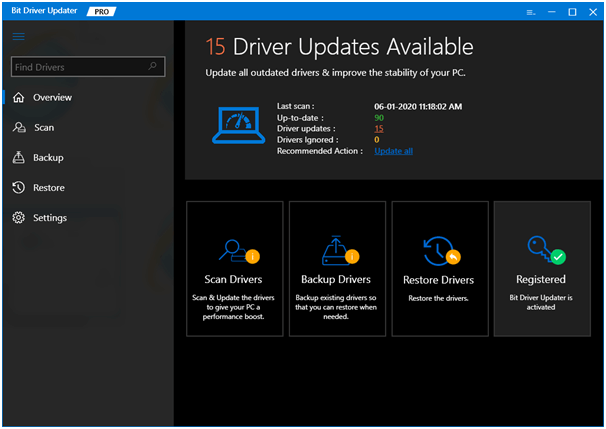
Therefore, updating the Realtek audio driver is the strongly recommended solution to the Windows 10 Realtek audio problems. You may update the driver hassle-freely using automatic software like Bit Driver Updater.

The Bit Driver Updater software updates all problematic drivers with just a click. Moreover, it also boasts many benefits like driver backup and restore, scheduling of scans, acceleration of driver download pace, and many more.

Below is the link to download and try Bit Driver Updater.

Windows Download Button

Once you get the software on your computer, it takes only a few seconds to display all the outdated drivers. After you have all the out-of-date drivers listed on the screen, you may select the option to Update All. Update all the driver - Bit Driver Updater

There is also an option, called Update Now, to update only the Realtek audio driver. However, we are in favor of updating each driver to ensure top-notch computer performance.


Fix 5: Try changing the sound format

Your current sound format may also be the reason Realtek audio is not working on Windows 10/11. Hence, you should change the default sound format to fix the issue. Here are the steps to do it.

  • Right-click the sound icon and open sound settings. 
  • Choose Device Properties and go to Additional device properties. Device Properties and go to Additional device properties
  • Go to the Advanced tab.
  • Click on the down arrow and choose 24bit/44100 Hz or 24 bit/192000Hz according to the speaker’s configuration.
  • Click Apply and OK. Speakers Properties - Change the quality
  • Check whether the above steps resolved the Windows 10 Realtek speakers not working problem or if it remains unresolved.

Also Read: How to Fix Install Realtek HD Audio Driver Failure in Windows 


Fix 6: Reinstall the audio driver

Improperly installed or incorrect audio drivers may also lead to Windows 10/ Windows 11 Realtek audio not working issues. Hence, you may uninstall the audio driver and install it again to solve the problem. Below is the process to do it.

  • Launch Device Manager on your computer.Open Device manager
  • Double-click on the Audio inputs and outputs. 
  • Right-click on the sound driver and choose Uninstall device from the options in the context menu.Uninstall device - uninstall speaker device
  • Delete the driver software for this device and choose Uninstall/OK. 
  • Select Action from the Device Manager and scan for hardware changes. 
  • Restart the computer to complete the driver reinstallation process.
  • After performing the steps given above, check whether the Windows 10 Realtek speakers’ not working issue is fixed or not.

Also Read: Download Realtek High Definition Audio Drivers for Windows


Fix 7: Select the correct output device

Incorrect audio output selection may also cause Windows 10 Realtek audio problems. Hence, you may select the right output device to fix the problem. Below given are the steps to do it.

  • Right-click the volume icon located in the System Tray.
  • Choose the open sound settings option.Select Speakers or Headphones as your output device
  • Select Speakers/Headphones as your output device.
  • Now, confirm whether the issue is fixed or still Realtek audio is not working.

Fix 8: Ensure speakers are properly connected

Connecting speakers to an incorrect port on the computer may also be a reason your Realtek speakers are not working on Windows 10. Hence, you should make sure that the speakers are connected correctly to the right port on the PC. Moreover, the power supply cable should be properly secured to ensure proper speaker functioning.

Also Read: Ways to Reinstall Realtek HD Audio Manager For Windows


Fix 9: Ensure speakers are not muted

It may seem that Windows 10 speakers are not working if they are muted. Therefore, you should check and unmute them to get the sound. Here is the step-by-step process to do it.

  • Right-click the speaker icon and Open Volume Mixer. Open Volume Mixer
  • Turn up the System sound and Speakers channels.Turn up the System sound and Speakers channels

Above, we discussed how to fix the sound and Windows 10 Realtek audio driver not working issues. Now, let us answer some commonly asked questions to clear doubts if any.


Frequently Asked Questions

Below you will find answers to almost every question you may have about the Windows 10/Windows 11 Realtek audio not working issue.

Q1. How do I fix the Windows 10 Realtek audio driver not working problem?

Updating drivers is the best way to fix the Realtek audio driver issues. You may update the driver hassle-freely and automatically with the most recommended driver updater, i.e., Bit Driver Updater.

Q2. How do I get my Realtek audio back?

The above guide shared multiple ways to fix the issues and get the Realtek audio back. You may refer to it to find the best possible solution in your case.

Q3. Why does my speaker work but the mic doesn’t?

If the speaker is working but the mic is not, there are chances that the mic is muted or its volume is too low. Moreover, other causes of the problem may include updating the speaker driver but keeping the microphone driver outdated and accumulating dust in the mic.

Q4. Why is Windows 11 Realtek audio not working?

In addition to the causes mentioned at the beginning of this article, Realtek audio may not work after updating to Windows 11 for reasons like corrupted Windows registry or OS incompatibility.

Also Read: Download and Update Gigabyte Realtek Audio Driver on Windows PC


Realtek Audio Not Working: Fixed

Above was a comprehensive guide to fixing the Windows 11/Windows 10 Realtek audio driver not working issue. You may follow the fixes shared in this article one by one to find the most suitable solution.

However, if you wish to save time and effort, you may directly update outdated drivers using Bit Driver Updater. It instantly fixed the problem for many users. Hence, you may also try it.

Lastly, do not hesitate to drop us a comment if you have any questions or concerns regarding this write-up.

best free dictation software for Windows and Mac

8 Best Free Dictation Software for Windows and Mac

February 5, 2024
0

This article introduces you to the best and free dictation software for Mac and Windows so that you can take notes and transcribe documents effortlessly.

Typists and writers are different for a reason. Not every writer can be swift at typing. Moreover, in general, people do not prefer to type much. Therefore, the best dictation software comes in handy when you want to write something like an article or perhaps a novel, create a document for any purpose, or wish to record voice notes.

The best voice dictation software gained popularity quite recently for the accurate and fast transcription they offer. If you are also looking for a program to transcribe your words, i.e., software that allows you to convert speech to text accurately and quickly, you are at the right place.

We dived into the pool of free dictation software available today to select the best ones depending on their features, ease of use, accuracy, and other parameters. We list them in the following section.

8 Best Dictation Software in 2024

According to our research and findings, the following are the best free dictation software for Mac and Windows.

1. Apple Dictation

Apple Dictation

Apple certainly got the qualifications to develop the best dictation software for Mac. Siri-powered dictation software comes in-built into Mac devices. Hence, you do not even need to download anything on your device.

Moreover, the availability of a wide gamut of languages (over 20 languages) is one of the perks of using Apple Dictation. Furthermore, the following features are another reason Apple Dictation is a highly recommended free dictation software for Mac.

Key features of Apple Dictation

  • Works with all applications having typing facilities, such as word processors, social media, and more
  • You can share the recordings
  • Apple Dictation offers over 95% accuracy

Download Now

Also Read: Best Free Voice Changer Software for Mac


2. Dragon by Nuance

Dragon by Nuance

Dragon’s speech recognition solutions are also a notable name as the best dictation software for writers, students, legal professionals, and all others. With speech recognition based on AI, Dragon is known for highly accurate transcriptions.

In addition to it, the following features also instigated us to call it one of the best voice dictation software.

Key features of Dragon by Nuance

  • Cloud management of documents
  • Computer controls
  • 256-bit encryption to ensure document safety
  • Highly customizable

Download Now


3. Braina

Braina

Braina is yet another free dictation software for PC. You may use this software to transcribe your dictation in over 100 languages.

Moreover, Braina lets you perform multiple tasks through voice commands such as searching files on your computer, playing songs, finding information on the internet, etc.

Furthermore, the following are some other fascinating features of this software that make it the best dictation software for Windows 10 PC.

Key features of Braina

  • AI-powered voice recognition
  • Inbuilt voice commands for easy navigation inside a document
  • Braina has the ability to understand accents and technical jargon of various fields like medical, etc.

Download Now


4. Winscribe

Winscribe

Next, we have Winscribe for everyone who is searching for the best dictation software for Windows 10. Owned by Nuance, this software offers a variety of interesting features such as management of document workflow to organize the text you dictate.

Along with this, below is what else makes Winscribe a great choice if you need the best dictation software with a free trial.

Key features of Winscribe

  • Support for Android, Blackberry devices, iPhone, and PCs
  • Encrypts the data to ensure your privacy stays intact
  • Easy reporting

Download Now

Also Read: Best Free Voice Changer Apps For Discord


5. Speechnotes

Speechnotes

Speechnotes is among the best dictation software for Mac/Windows if you are looking for a program that works online. Once you navigate to the Speechnotes online application, you only need to click on the mic to insert even long texts.

In addition to ease of use, Speechnotes is quite famous for its support for a wide variety of languages ranging from Spanish to Turkish. Moreover, the following features also attract users to this software.

Key features of Speechnotes

  • Quick recognition of speech
  • Start and pause dictation with keyboard shortcuts
  • Custom stamps for text
  • Export of dictated text to Google Drive

Download Now


6. Otter

Otter

Otter is a perfect choice for everyone looking for feature-rich free dictation software. Its AI technology, Ambient Voice Intelligence (AVI), learns as you dictate.

Additionally, the following features of Otter are also a reason sufficient enough to call it the best free voice dictation software.

Key features of Otter

  • Zoom sync for team collaboration
  • Voiceprint sharing
  • Easy user management
  • Live transcription
  • Conversation recording

Download Now


7. Windows 10 speech recognition

Windows 10 speech recognition

There is an in-built voice recognition tool if you are searching for the best dictation software for Windows 10. You can use it for a plethora of purposes, such as writing documents, giving voice commands to your computer, and more.

Below are the features that make Windows 10 speech recognition the best dictation software for writers and all others.

Key features of Windows 10 speech recognition

  • Open applications with speech recognition in Windows 10
  • Windows navigation
  • Document creation using voice command
  • Replacement of mouse and keyboard

Download Now


8. Dictation.io

Dictation(dot)io

Designed by Digital Inspiration, Dictation.io is another best free dictation software for Windows. This browser-based dictation software is easy to use and boasts a clean & intuitive interface. You can easily access all its real-time dictation tools in numerous languages. It supports more than 100 languages so that anyone can easily type documents or emails right into Google Chrome without utilizing a keyboard. However, the biggest drawback of this software is that it cannot be accessed on iPads.

Key Features of Dictation.io:

  • Compatible with more than 100 different languages.
  • Lets you insert punctuations, emojis, and more by simply learning its particular commands.
  • Completely free to use and straightforward.
  • Best for laptop and desktop users.

Download Now

Also Read: Best Audio Recording Software For Mac


Concluding the Best Dictation Software for Mac and Windows

This article looked at the best and free dictation software. You may compare their features with each other to select the one that perfectly suits your needs.

You may write to us in the comments section if the above list misses out on any highly deserving free dictation software for Mac/Windows and if you have any doubts/suggestions.

We promise to be back soon with more useful software recommendations. Until then, you may go through other articles on TechPout to enhance your tech knowledge.

1 Comment
    Download and Install HP OfficeJet Pro 9015 Printer Driver says: Reply
    December 27th 2020, 11:32 am

    […] Read Also: Download, Install and Update Printer Drivers for HP Printers […]

Leave a Reply Cancel reply

Your email address will not be published. Required fields are marked *

Sidebar Image bit G ad1

Latest Posts

  • Best-Free-Online-Portfolio-Websites-in-2026
    Best Free Online Portfolio Websites in 2026
    by Niharika / March 16, 2026
  • Anytime Astro: Best Website For Online Astrology Consultation
    Anytime Astro: Connect Now For Online Astrology Consultation
    by Somya Shrimal / March 13, 2026
  • Best-Ways-to-Combine-Images-Into-PDF-Files
    Best Ways to Combine Images Into PDF Files
    by Niharika / March 12, 2026
  • Best FREE VPS Hosting Providers
    7 Best FREE VPS Hosting Providers in 2026
    by Devesh / March 12, 2026
  • Best-McAfee-alternative-software-to-use-for-Virus-Protection
    Best McAfee Alternative Software to use for Virus Protection
    by adminuser / February 11, 2026

Categories

  • Cyber Security
  • Driver Updater
  • Entertainment
  • Fitness
  • Games
  • How To
  • laptop
  • OS
  • Reviews
  • Tech News
  • Tips & Tricks
  • Top 10
Sidebar Image bit G ad1
Download Synaptics Touchpad Drivers For Windows 10, 8, 7 In 2021 Download, Install, and Update Synaptics Touchpad Driver for Windows 10, 11by Niharika / November 22, 2023
Kodak Printer Drivers Download and Update for Windows 10, 11by Devesh / November 22, 2023Kodak Printer Driver Download, Install and Update for Windows 10, 8, 7
TechPout Footer Logo

We at TechPout promise to put forth stories that help people to learn and simplify their digital life. Our purpose is to share the true essence of technology with our tech-loving community.

Useful Links

  • About Us
  • Contact us
  • Privacy Policy

Popular Posts

  • Best PC Optimizer Software
  • Best Mac Cleaner Apps
  • Best Driver Updater
  • Duplicate Photo Finder and Cleaner Software
  • Best Free Movie Download Sites
  • Best IPTV Players

Follow us

Copyright © 2026 www.techpout.com. All rights reserved
DMCA.com Protection Status