Main LogoLight Logo
  • Reviews
  • Top 10
  • How To
  • Tech News
  • OS
    • Windows
    • MAC
    • iOS
    • Android
  • Categories
    • Driver Updater
    • Cyber Security
    • Games
    • Fitness
    • Entertainment
    • Tips & Tricks
Driver Updater How To Windows
by Niharika

HP Printer Driver Download, Install, and Update for Windows 11,10,7

November 22, 2023
1

Correct and compatible drivers for your HP printer driver ensure the printer performs smoothly. Hence, you can read this article to learn the best ways to get the updated driver downloaded and installed.

Founded in 1998, Hewlett Packard (HP) is among the world’s leading manufacturers of computers and computer peripherals. Specifically, the company is a celebrated name across the globe for its top-notch printing solutions. HP printers are well-known for their accuracy, fast speed, and exceptional performance. However, they can function well only in conjunction with an HP printer driver.

The Hewlett-Packard printer drivers connect your PC to the printer. They translate your commands in 0s and 1s, i.e., the language your computer knows. Without an appropriate driver, the computer cannot understand and perform your commands as you may expect.

Most Recommended Method for HP Printer Driver Download for Windows 10 

The simplest and most trusted way of downloading and installing the latest version of HP drivers for printers on your Windows PC is through Win Riser Driver Updater. The software not only updates all the HP and other hardware drivers automatically in a single click of your mouse but also takes the performance of your computer to a whole new level. You can try this program for FREE by clicking on the below button.

Download-Button

Moreover, the absence of a driver can lead to system crashes, an unresponsive printer, and many other annoying problems. Hence, this post guides you through the best methods to download, install, and update the HP printer drivers for Windows 7/10/11. The following section shares them.

Table of Contents hide
How to Download, Install, and Update the HP Printer Driver
Method 1: Download the HP printer driver via HP’s website
Method 2: Use Device Manager to download the Hewlett-Packard printer drivers
Method 3: Download the HP printer driver update automatically (Recommended)
HP Printer Driver Downloaded and Installed

How to Download, Install, and Update the HP Printer Driver

You can follow the methods shared below to download and install the HP printer driver’s updated version for your Windows 11, 10, or 7 computers.

Method 1: Download the HP printer driver via HP’s website

HP releases the updated drivers for its printers on the official website. You can download and install the HP printer drivers for Windows 10 and other Windows versions from HP’s website if you know your computer’s operating system. If you do not have your PC’s operating system details, you can find them through the directions Settings>System>About. Once you have the needed details, follow these steps to get the driver.

  • Firstly, navigate to HP’s website.
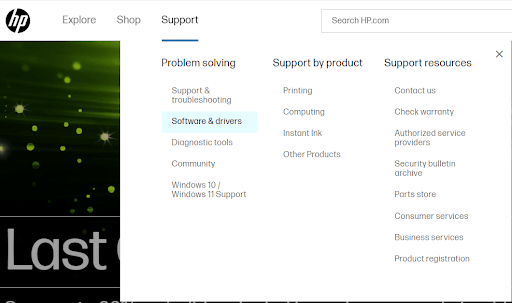
  • Now, hover your mouse over the Support tab.
  • Select Software & drivers from the on-screen menu.HP Official Support - Click on Software and Driver
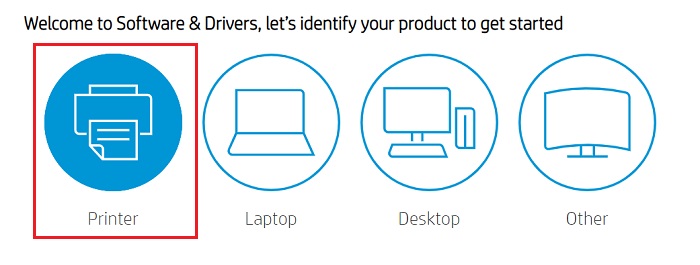
  • You can now choose a Printer as your product type.Click on printer - Hp Official
  • Input your printer name in the on-screen box and press Enter. For example, enter HP Envy 7640 if you wish to download the HP Envy 7640 printer driver.
  • Choose your operating system if it is not detected correctly.
  • Click on the Download button to download the HP printer driver’s installer.
  • Lastly, double-click the installer you downloaded above and follow the on-screen prompts to complete the printer driver installation.

Also Read: Install and Update Latest Canon Printer Drivers For Windows 10, 8, 7


Method 2: Use Device Manager to download the Hewlett-Packard printer drivers

Device Manager is a tool available on all Windows computers to download and install the latest drivers for various peripherals. It helps fix driver-related problems. Though the driver download process through Device Manager is a bit lengthy, here is how to try it to update the HP printer driver.

  • Firstly, right-click on the Windows icon on your taskbar and select Device Manager. Select Device manager

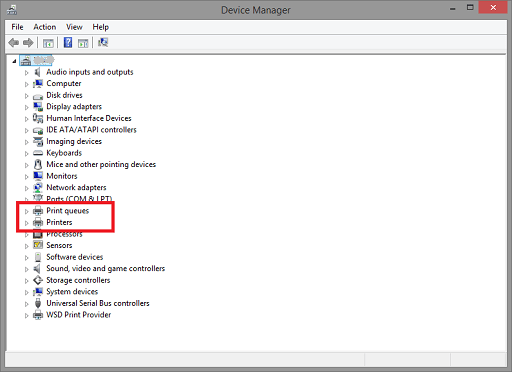
  • After opening the Device Manager, choose the Printers or Print queues category.Select Print Queues in Device manager
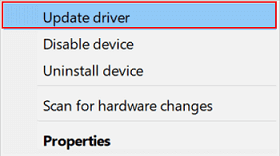
  • Now, right-click on your HP printer and pick Update driver from the on-screen options.Update the Driver in windows pc
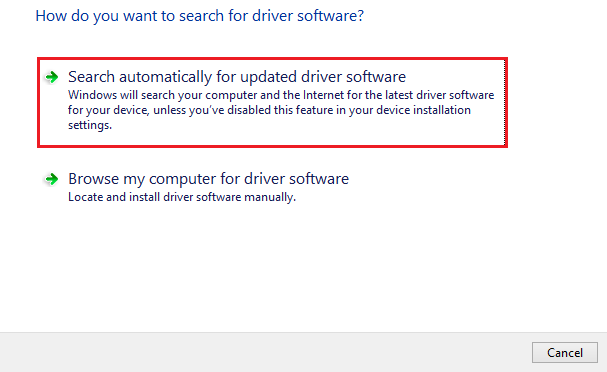
  • Choose Search automatically for the updated driver software option. Windows 11 users need to click on Search automatically for drivers.Search Automatically for Updated Driver Software
  • Have patience until Windows finds the right driver, downloads it, and installs it (it may take a couple of hours to do it).
  • Lastly, restart your computer to complete the process.

Also Read: How to Download and Install Brother Printer Drivers [Quickly]


Method 3: Download the HP printer driver update automatically (Recommended)

Above are all the manual ways you can try to get the required HP printer drivers for Windows 11/10/7 downloaded and installed. As you can notice, all these manual methods have a few downsides. For instance, downloading a non-compatible driver from the official website can harm your computer, and Devices Manager seems to take ages to get the correct driver.

Hence, we suggest automatic driver downloading and installation using a renowned driver updater like Win Riser. The Win Riser software updates all outdated drivers hassle-freely with one click and optimizes your computer for top-notch performance.

Moreover, Win Riser boasts many helpful features like ignore options for drivers you do not wish to update, driver backup and restore, schedulable and in-depth scans, malware detection, and junk removal to name a few.

The following link lets you get the Win Riser software on your computer.

Download-Button

After the software gets installed, you can simply follow the steps shared below to update the HP printer driver and all other drivers automatically.

  • Firstly, launch the software.
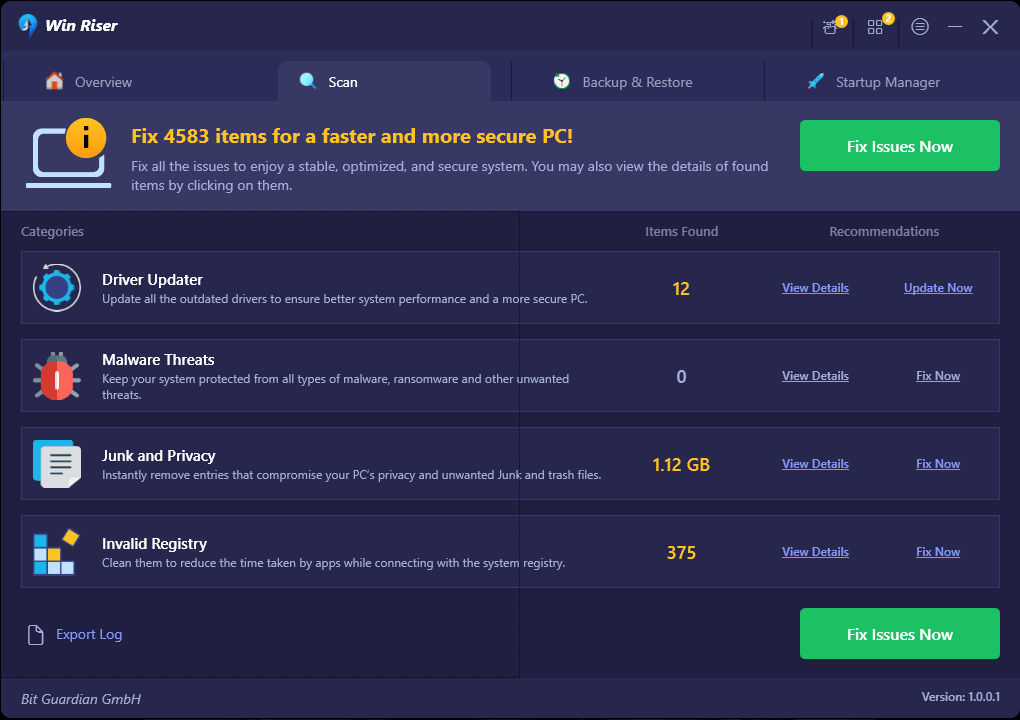
  • Choose the Scan option.Win Riser Scan the Outdated Driver
  • Now, wait for a couple of seconds until you get the scan results.
  • Review the scan results available on your screen.
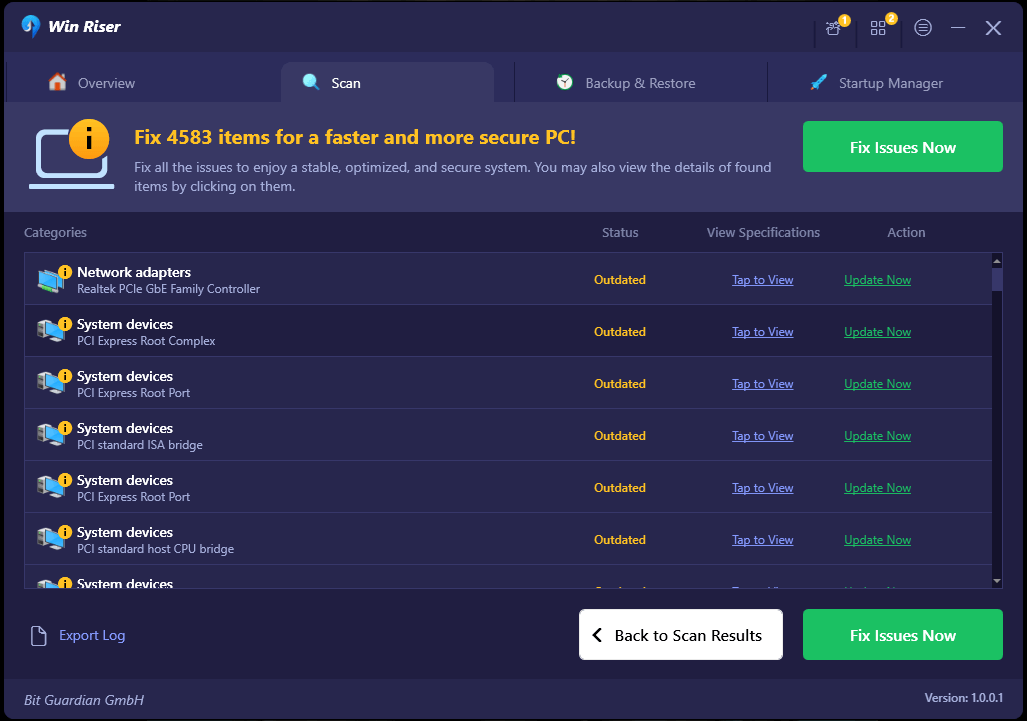
  • Lastly, select the option to Fix Issues Now to resolve all issues automatically.Win Riser Update the All Outdated Driver Click On Fixes Now

If you wish, you can choose the Update Now option to download and install only the printer driver. However, it is not a recommended option as updating all drivers improves the computer performance significantly.

Also Read: How to Download Epson Printer Drivers For Windows 10/8/7


HP Printer Driver Downloaded and Installed

This article introduced you to the approaches you can follow to get the latest HP printer drivers for Windows 7/10/11 installed on your computer. You can download and install the driver through any of these methods.

However, we suggest updating drivers through Win Riser, as it is the fastest, simplest, and safest way to do it. If you have any confusion, or questions, or wish to suggest something related to this post, please drop a comment in the comments section.


Author

Niharika

Niharika is a passionate soul who finds immense satisfaction in putting all her thoughts in writing. Being a technology enthusiast, she loves learning new things about tech and making everyone technologically literate through her articles. When not composing tech articles, you can find her bringing characters to life in her fictional stories, reading something intriguing, or spending time with her near and dear ones.

View all posts | Website

Related Posts
How Can Personal Information Manager Assist You with Your Work Schedule

How Can Personal Information Manager Assist You with Your Work Schedule?

April 20, 2020
0

Having an organized work schedule in place can hike up your efficiency level to a great extent. It can provide you with all the necessary inputs regarding the tasks you need to perform and the order of doing the same. Maybe this is why time management is considered as a super power as it lets us unleash greater productivity within our normal 9 to 5 schedule. This a skill which is possessed only by a selected few. The rest of us however can bank on a personal information manager like EssentialPIM to excel in all the spheres of life. Let us now take a look at the different ways in which this affordable software can organize our work schedule in a seamless manner.

Maintaining a Central Directory of Information

Growing work complexity makes it necessary for employees to deal with huge amounts of data. The data is procured from various fields of work and needs to be stored in a systematic manner for easy access. EssentialPIM stores all the data in a fast, secure and scalable database while cross-linking the same with various other aspects. In this way, making changes in just a single variable can impose the changes on the other linked variables. Users of EssentialPIM can thus benefit out of massive savings in time and energy which can be redirected to other important avenues.

Maintaining a Central Directory of Information

Users can bank on its Notes module for organizing notes as pictures, tables, texts and even attractive sticky notes. You can even deliver premium grade formatting with top-notch features like indexing, automatic clipboard capturing etc. Basic font formatting, as well as, advanced structures with tables and bullets can be guaranteed by the built-in text editor of EssentialPIM which also allows users to export notes and undertake advanced grade editing on the same.

Creating a Chart of the Upcoming Tasks

Creating a Chart of the Upcoming Tasks

Our productivity level increases rapidly if we have a clear notion of the tasks that we need to undertake during work hours. This is where the Calendar module of EssentialPIM can come to your rescue. You can manage all of your appointments, daily tasks and schedule under a common umbrella. It even allows the addition of multiple tasks to a single day with time reminders so that you don’t miss out on deadlines. Managers can mark the tasks of utmost importance in the ‘To-Do’ section. This is particularly helpful if you have to juggle with multiple projects at once. Progress of different tasks can be measured in terms of percentage so that managers can take related decisions properly.

Wise Usage of Time

One of the biggest roadblocks faced by people in the path of organizing their work schedule is time shortage. This mostly happens as we tend to be a hard worker rather than being a smart one. EssentialPIM can fill in all these loopholes with its Contacts module which stores both personal and business contact information in an intuitive format. It offers a bird eye view of various information pertaining to first & last name, mobile number, email address, pictures etc. Searching for any particular information also become super easy with the powerful filter tools.

Wise Usage of Time

Another time taking work is sending mailers which can be taken care of by the Mail module of EssentialPIM. You can enjoy massive time savings by utilizing its mass messaging feature. Newsletters and important announcements can be easily sent to your selected or all contacts with a single click. A unique thing about EssentialPIM is that it synchronies with Yahoo mail and Gmail. Users can thus send the mails from the software itself without having to navigate to individual mailboxes.

Final Words

Growing advent of digitization is leading to the setup of remote offices where people from across the world are collaborating on a single project. A personal information manager like EssentialPIM has an extremely important role to play in such setups as it brings all the information together with adequate tagging support. It even synchronizes the data with various cloud solutions such as Google Drive/ Tasks/ Contacts/ Calendar, CardDAV, CalDAV, Outlook.com/ Office 365, iCloud and many more. All the data is encrypted with the AES (Rijndael) 256-bit key which can guarantee you complete security as you get the organization game on point.

How to Make Minecraft Run Faster on Windows 10, 11 PC

How to Make Minecraft Run Faster on Windows 10, 11 PC

January 13, 2023
0

Looking for effective ways to make Minecraft run faster on Windows 10/11? If yes, then you have come to the right platform. This detailed guide contains a few potential solutions that help you in optimizing your performance in Minecraft.

Waiting for your favorite game to load is not so easy and this task gets tougher when it’s an amazing game such as Minecraft. Recently, many users have reported that their Minecraft is loading quite slower than usual and they have to wait for many minutes to enjoy this trending and addictive game.

This could be happening for a few reasons which we’ll discuss further in this article. But, before that, make sure that your computer meets the minimum requirements of the game and is in the best condition to render quality and uninterrupted gameplay. So, with that, let’s dive deeper and find out solutions to boost your game loading speed.

Methods to Make Minecraft Run Faster on Windows 10/11

Listed below are different approaches that you can use in order to optimize your performance in Minecraft. Go through the entire list and apply the apt method to boost your gaming performance. Now, without further ado, let’s get started!

Method 1: Modify Game Settings

Tweaking some game settings is the simplest and quickest way to speed up your gaming performance. You can consider disabling or lowering Minecraft’s game settings in order to make Minecraft run faster on Windows 11, 10 PC.

Following are the settings you can disable and lower to boost your game.

1. Select Default Package

If you have loaded the resource packages into the RAM, then you might face slow performance issues while playing the game. So, we suggest you use the default resource package to fix the issue and optimize performance in Minecraft. Below is how to do that:

Step 1: Launch Minecraft and click on Options.

Launch Minecraft

Step 2: Find and click on Resource Packs.

Step 3: Click on Default and then Done.

Now, play the game to check if the issue is resolved. If not, then try another solution.

2. Alter the Minecraft Game Resolution

There is no denying that lowering or decreasing the resolution will make the Minecraft game window smaller, but it also helps maximize the performance. Follow the procedure below to lower the Minecraft game resolution for making Minecraft run faster.

Step 1: Launch Minecraft, and click on the menu button available in the upper right corner.

Step 2: Click on Launch options then click Advanced Settings.

Step 3: Next, select Add new option from the drop-down menu.

Add new option from the drop-down menu

Step 4: Now, you need to add a name then click on Resolution from the left.

add a name then click on Resolution from the left

Step 5: You can also modify the size according to your choice, and then click on Save.

Step 6: After that, head back to the News tab, then click on the arrow button available beside the PLAY and select the name you added.

Step 7: Lastly, click on the PLAY button to test the issue.

3. Disable Sound in the Game

Turning off the sound in Minecraft is the simplest and quickest way to make Minecraft run faster on Windows 11, 10 PC. Use the steps below:

Step 1: Run Minecraft and click on Options.

Step 2: Click on Music & Sounds from the available options.

Step 3: Disable it and play the game again to see if the issue is resolved.

Also Read: How to Make a Minecraft Server | Minecraft Server Hosting Setup


Method 2: Close Unnecessary Programs

Running too many programs in the background can impact Minecraft’s performance. Because several programs will take resources and slow down the speed of Minecraft. Therefore, closing unnecessary applications & programs might help you in optimizing performance in Minecraft. Follow the steps below to end the unnecessary programs.

Step 1: Altogether press CTRL + SHIFT + ESC to run Task Manager.

Step 2: Find and select the program you want to close and click on End Task.

click on the End Task

Once done, reboot your computer and play the game to check if the slow performance issue is solved. Unfortunately, if not, then move on to the next solution.

Also Read: Minecraft Won’t Launch On Windows 10


Method 3: Update your Graphics Drivers 

An outdated, broken, or missing driver may hamper the performance and smooth running of your device. Therefore, it is crucial to update drivers from time to time in order to make sure that your system runs properly.

Similarly, to make Minecraft run faster, you need to update your graphics card drivers to their latest versions. You can do it either manually or automatically.

Manual Driver Update: To update drivers manually, you will need expertise in a technical niche and a lot of time because you have to find the correct drivers online on your own. This can also be time-consuming or error-prone, especially if you are a newbie. If that is the case, then we suggest updating your outdated drivers automatically.

Automatic Driver Update: This is the easiest and quickest way to find and install all the latest driver updates on Windows PC. If you do not have time, and the required skills to update drivers manually, then you can do it automatically with Bit Driver Updater.

Bit Driver Updater will automatically detect your system and discover the correct and most compatible drivers for it. You can update outdated drivers either with the free or pro version of Bit Driver Updater. However, it is worth noting that the pro version just takes 2-simple clicks of the mouse. Additionally, you get full technical support and a 60-day complete money-back guarantee.

Also Read: How to Update Minecraft in Windows 10

Now, follow the steps below to update your drivers automatically using Bit Driver Updater:

Step 1: Download Bit Driver Updater from the button provided below.

Windows Download Button

Step 2: Run the downloaded file and follow the setup wizard to complete the installation.

Step 3: Launch Bit Driver Updater and click on Scan.

Scan your driver with Bit Driver Updater

Step 4: Wait for the results. And, click on the Update All button to install the latest version of all PC drivers in just one go. But, if you are using the free version, then you can update one driver at a time. So, simply click on the Update Now button beside the driver you wish to update.

Update all outdated driver of your windows pc

Once everything is done, restart your computer. We hope, now Minecraft is running faster.


Method 4: Upgrading your System

Last but not least, if your PC is old and unable to meet at least the minimum requirements of Minecraft, then Minecraft definitely will run slowly. In this case, it is recommended to upgrade your system in order to make Minecraft run faster and enjoy a better gaming experience.

Also Read: How to Fix Minecraft Realms Internal Server Error 500


Final Words

After implementing the aforementioned tips & tricks you won’t face performance-related issues while playing Minecraft on PC. Hopefully, the article helps you make Minecraft run faster on Windows 10, 11.

If you have any queries or better suggestions, then do tell us in the comments box below, For more tech-related articles, blogs, or information, you can follow us on social media and subscribe to our Newsletter.

1 Comment
    Download and Install HP OfficeJet Pro 9015 Printer Driver says: Reply
    December 27th 2020, 11:32 am

    […] Read Also: Download, Install and Update Printer Drivers for HP Printers […]

Leave a Reply to Download and Install HP OfficeJet Pro 9015 Printer Driver Cancel reply

Your email address will not be published. Required fields are marked *

Sidebar Image bit G ad1

Latest Posts

  • Best-Free-Online-Portfolio-Websites-in-2026
    Best Free Online Portfolio Websites in 2026
    by adminuser / March 16, 2026
  • Anytime Astro: Best Website For Online Astrology Consultation
    Anytime Astro: Connect Now For Online Astrology Consultation
    by Somya Shrimal / March 13, 2026
  • Best-Ways-to-Combine-Images-Into-PDF-Files
    Best Ways to Combine Images Into PDF Files
    by Niharika / March 12, 2026
  • Best FREE VPS Hosting Providers
    7 Best FREE VPS Hosting Providers in 2026
    by Devesh / March 12, 2026
  • Best-McAfee-alternative-software-to-use-for-Virus-Protection
    Best McAfee Alternative Software to use for Virus Protection
    by adminuser / February 11, 2026

Categories

  • Cyber Security
  • Driver Updater
  • Entertainment
  • Fitness
  • Games
  • How To
  • laptop
  • OS
  • Reviews
  • Tech News
  • Tips & Tricks
  • Top 10
Sidebar Image bit G ad1
Download Synaptics Touchpad Drivers For Windows 10, 8, 7 In 2021 Download, Install, and Update Synaptics Touchpad Driver for Windows 10, 11by Niharika / November 22, 2023
Kodak Printer Drivers Download and Update for Windows 10, 11by Devesh / November 22, 2023Kodak Printer Driver Download, Install and Update for Windows 10, 8, 7
TechPout Footer Logo

We at TechPout promise to put forth stories that help people to learn and simplify their digital life. Our purpose is to share the true essence of technology with our tech-loving community.

Useful Links

  • About Us
  • Contact us
  • Privacy Policy

Popular Posts

  • Best PC Optimizer Software
  • Best Mac Cleaner Apps
  • Best Driver Updater
  • Duplicate Photo Finder and Cleaner Software
  • Best Free Movie Download Sites
  • Best IPTV Players

Follow us

Copyright © 2026 www.techpout.com. All rights reserved
DMCA.com Protection Status