Main LogoLight Logo
  • Reviews
  • Top 10
  • How To
  • Tech News
  • OS
    • Windows
    • MAC
    • iOS
    • Android
  • Categories
    • Driver Updater
    • Cyber Security
    • Games
    • Fitness
    • Entertainment
    • Tips & Tricks
How To Tips & Tricks
by Prachi Dani

How to Use Google Authenticator For Your Facebook Account

May 20, 2020
1

Every minute a new Facebook account is hacked, if you don’t want to be the next victim then use 2-Step Verification on your Facebook account. 

From bank accounts to email accounts and from social media accounts to your browsing history nothing is hidden from the eyes of Cybercriminals. A standard level of authentication can expose your device to digital attacks and identity theft, thus to safeguard your confidential information it is imperative to use two-factor authentication. 

What Happens When You Activate 2-Step Verification on your Facebook Account?

Setting up the 2FA on your Facebook account prevents any unauthorized access to it: 

  • Any attempt to login to your account which is done from an unidentified mobile device or computer system will be declined until and unless a special 6 digit code is entered along with the password.
  • Apart from this, if anyone else besides the account holder tries to log in to the account, the account holder will receive an alert message that a login attempt has been made.

If you wish to set up two-factor verification for your account, there are two methods that you can use. 

  1. SMS based security message.
  2. A dedicated app based code generator method. Google Authenticator is one such app that you can utilize in such scenarios.

Experts recommend that the use of Google Authenticator is a more secure method than the SMS based message.

What is Google Authenticator?

Google Authenticator is a dedicated mobile security app. Its working is based on the 2 step verification and is used to check the authenticity of the user before granting them access to the account.

Table of Contents hide
How to Use an Authentication App for Two-Factor Authentication on Facebook?
How to Enable Two-Factor From The Web?
How to Enable Two-Factor From Your Phone?
Final Words

How to Use an Authentication App for Two-Factor Authentication on Facebook?

Now, that you are aware of the basic information about two-factor verification and Google Authenticator. Let’s have a quick look at the process to set it up on the web and mobile phones. 

  • How to enable two-factor from the web?
  • How to enable two-factor from your phone?

How to Enable Two-Factor From The Web? 

Follow these simple steps to activate Two-factor verification from Web:

1. To start with Login into your Facebook Account. 

2. Click on the Settings button from the upper right corner of your Facebook page.

3. Now click on the “Settings and Login” tab.

4. From the displayed window choose the Two-factor authentication section and click on the Edit button.
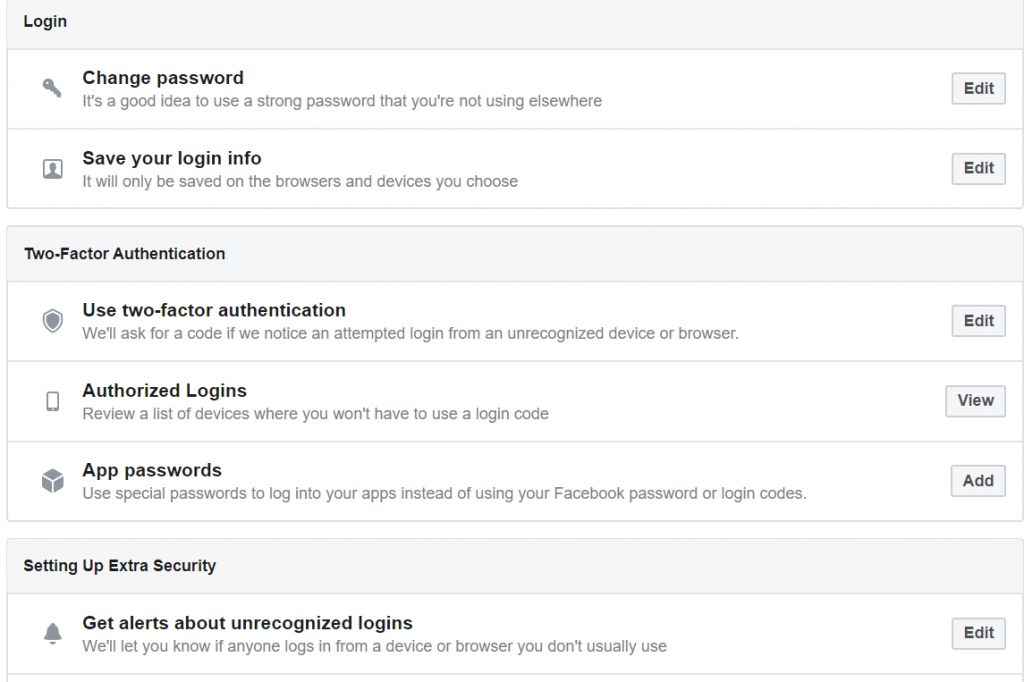
Choose the Two-factor authentication section and click on the Edit button

5. Here you can choose from the Text Message or the Authentication app.
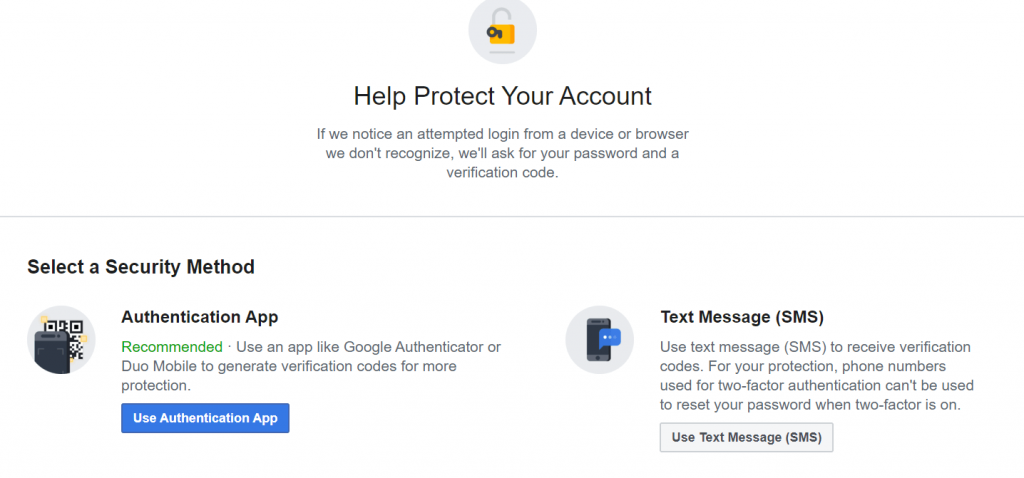
Choose from the Text Message or the Authentication app

6. To pick the SMS code option, click on Use text message, select your phone number and then enter the verification code sent on your number.
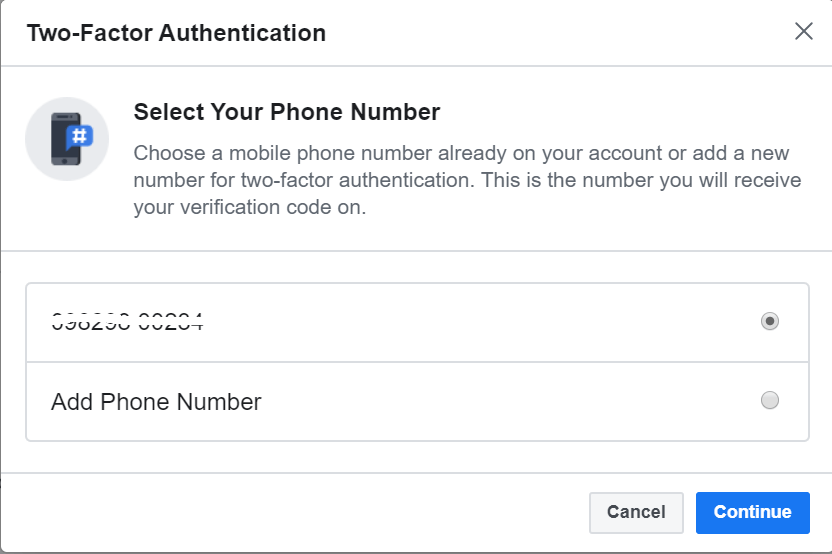
Enter the verification code sent on your number.

7. You can alternatively choose to use the Authentication app. 

8. A new window will appear on your screen with a QR code displayed on it. Here you can either scan the QR code or enter the code in your Google authentication app. 
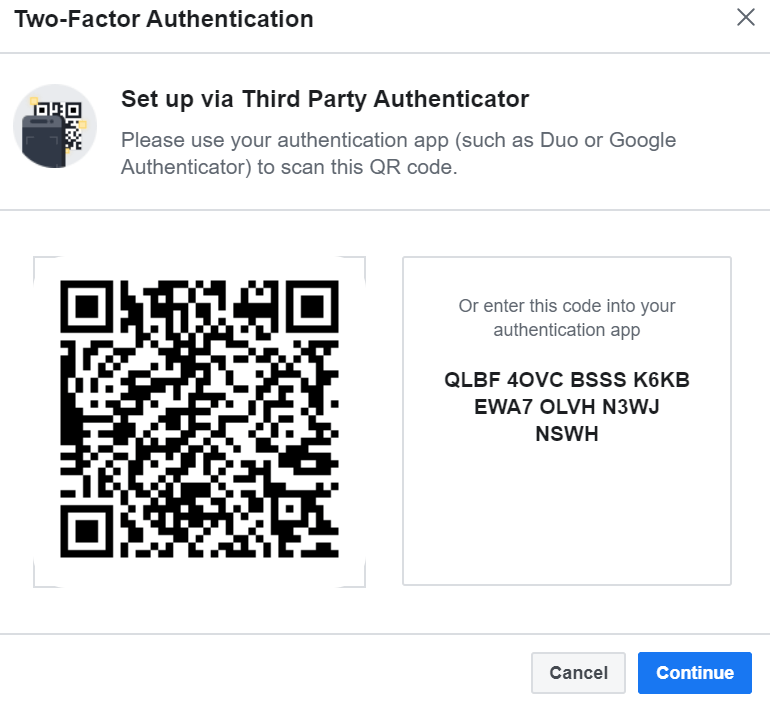
Scan the QR code or enter the code in your Google authentication app

9. Following the above mentioned steps will activate and enable two-factor from the web. Once done you will need to enter a unique code every time you try to login into your account from an unauthorized device. 

Read More: How To Wave On Facebook (Facebook App & Facebook Messenger)

How to Enable Two-Factor From Your Phone?

Follow our step-by-step guide to enable and activate two-factor authentication on your Facebook account from your mobile device:

1. Login into your Facebook account from your mobile device. 

2. From the rightmost side of the navigation bar open the Menu tab.

3. In the next step, open the Setting and Privacy option.

4. Now choose the Settings button.

5. From the Settings menu, opt for Security and Login option.
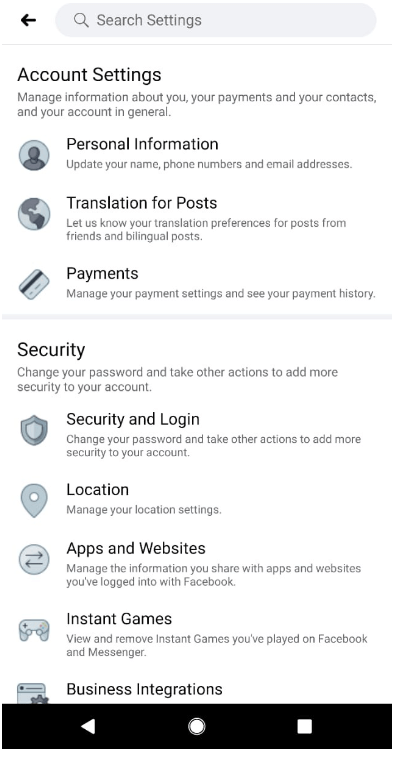
Enable Two-Factor From Your Phone

6. Now click on the Two-Factor authentication tab.

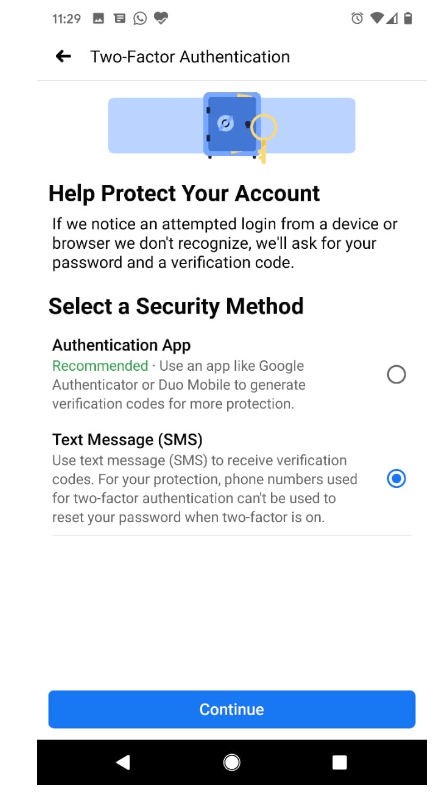
7. From here you can either choose to use the Text message or the Authentication app.
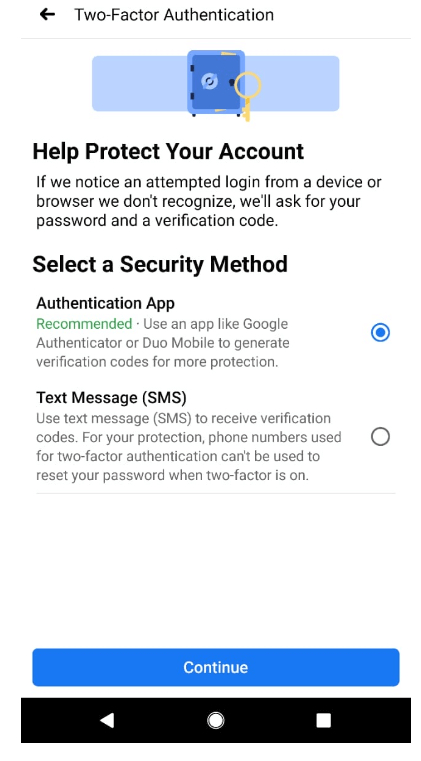
Choose to use the Text message or the Authentication app

8. If you choose the Text message option, a unique code will be sent to your registered mobile number to confirm your identity.
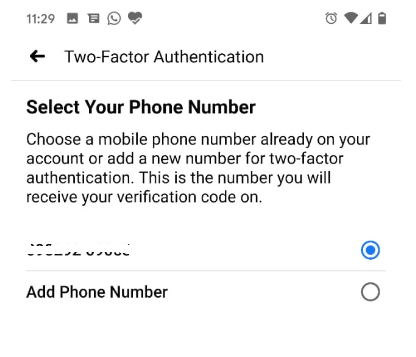
Confirm Registered Mobile Number
unique code will be sent to your registered mobile number

9. Alternatively you can choose to use the Authentication app. Here you will be provided with a QR code. Scan the QR to validate your identity, if you are unable to do so, you can manually enter the secret code to confirm your identity.
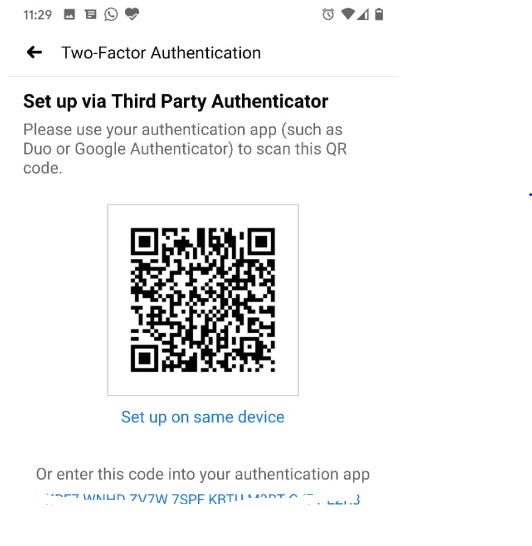
Choose to use the Authentication app

On successful completion of the above mentioned steps, you will see a confirmation message stating that the Two-factor authentication has been successfully enabled on your Facebook account.

Read More: How to Use Multiple Facebook Accounts on Android Smartphones

Final Words

We hope that our blog has given you enough insight about the importance of two factor authentication and how to set up Google Authenticator to generate the security code. 

Follow the steps as mentioned above to safeguard your Facebook account from unauthorized access.

Author

Prachi Dani

Prachi Dani is a technical content writer who specializes in areas of science and technology. She is highly up to date with technological transitions and transformations. Writing is not her passion but the only thing that carries satisfaction in life. If not writing, you may find her engrossed playing action games on her treasured smartphone.

View all posts

Related Posts
How to Fix No Sound Issues in Windows 10 PC

How to Fix No Sound Issues in Windows 10 PC

April 9, 2020
0

Are you facing audio issues in your computer and want to know how to fix the “no sound” problem in your Windows 10 systems? Time and again Microsoft updates in Windows 10 lead to bugs and issues arising out of it.

Other than that, external hardware and Windows software conflicts can lead to audio problems in the Windows 10 computers. Whatever be the reason, these issues can be frustrating to tackle; therefore, in this article, we will cover the solutions of sound issues occurring in Windows 10 systems.

Best 6 Ways to Fix Sound Issues in Windows 10 PC

Below-given are the simple fixes of Windows 10 audio issues.

1. Check Cables, Volume, Speaker and Headphone Connections

First and foremost, check to see if there are any loose connections and issues that can be sorted on your own. To do this, use the below guidelines:

  • Ensure that all cords and cables are plugged into the right jack. The speaker, headphone, and microphone wires have to go into the correct connection points.
  • Ensure that all cords and cables are plugged inappropriately.
  • Check to see if the system sound has been muted mistakenly. Also, check the volume controls and level of volume.
  • Try changing the USB port of the speaker and headphone to see if it functions well on another port.

Read More: How To Fix Flickering Screen Issues on Windows 10


2. Check the Sound Settings

If the above methods did not fix the sound problem on your Windows 10 PC, then check the Sound Settings in your computer as per the below-given ways: 

  • On the taskbar, right-click on the Speaker icon, and choose the “Open Volume Mixer” option.
  • Ensure that all the volume controls are enabled.
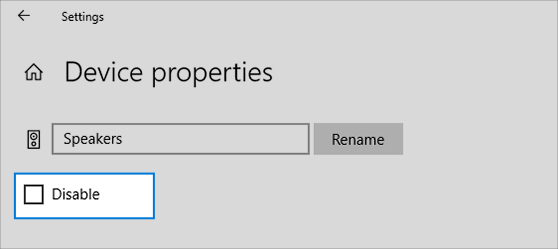
  • Go to the Device properties to check that the devices haven’t been disabled. For this, use the below path: Start > Settings > System > Sound.
  • Here, choose your audio device and then go to the Device properties for both the output and input devices.
  • Also, ensure that the Disable box is unchecked for the output as well as input devices.
Check the Sound Settings to Fix The Sound Problem in Windows 10 PC

3. Run the Audio Troubleshooter

You can also try out this method of using the built-in audio troubleshooter to solve Windows 10 audio issues on its own. 

All you need to do is follow the below steps:

  • Go to the Control Panel.
  • Then, select Troubleshooting, followed by choosing the “Troubleshoot audio playback” option.
  • Then, you can follow the subsequent instructions and prompts to complete the steps and see if the audio problem gets sorted.

Read More: How to Update Printer Drivers in Windows 10


4. Update and Fix Your Audio Driver

If the audio issue still persists, then it could be possible that the audio drivers are outdated or missing and to resolve this you need to update the audio drivers. You can possibly take two approaches for this purpose, either you can update the audio driver via the Device Manager or use a free driver update software.

  • Updating audio drivers via Device Manager
  • Open the Device Manager window from the Start menu and then go to the list of devices.
  • Expand the audio driver section and see if the sound card is functioning properly or not.
  • Then, click right on the sound card, and select the Properties option.
  • Then, under the Driver tab, choose the option of “Roll Back Driver” to the previous stable version of the sound driver.
  • Otherwise, you can also choose the option of “Update Driver” to let Windows look for the latest version of the sound driver online and update it automatically.
  • Updating audio drivers via driver updater tool

Instead of updating the sound driver manually, acquire Bit Driver Updater – the best driver updater software that can scan the missing, corrupted, and outdated drivers of your system swiftly and replace them with the latest versions in a jiffy.

This driver updater software can scan and fix all your driver related issues in just a single click. The round the clock technical assistance is of immense help if you have run into some undetectable issues with the tool.

Whichever method you opt for updating the sound drivers, you need to restart the computer to ensure that the updates are installed correctly.


5. Restart Audio Services

Ultimately, if the above resolutions do not work, then you can go to the search box on the taskbar and search for Services.

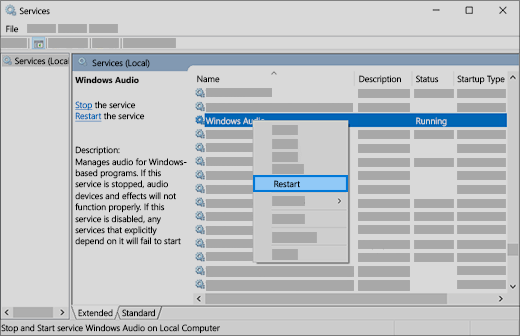
Then, you need to select the listed services and individually restart all of them with the right-click option. Restart the following services:

  • Windows Audio
  • Windows Audio Endpoint Builder
  • Remote Procedure Call (RPC).
Restart Audio Services to Fix The Sound Issue in Windows 10 PC

Read More: How to Change the Sound of Your Google Assistant’s Voice


6. Try Other Audio Formats

You can go to the Control Panel and then choose ‘Sound’ from the Hardware and Sound section. On the Playback tab, select the Properties of the Default Device.

Further, on the Advanced tab, under the Default format, change the audio format to see if the audio device finally starts functioning again. If one option doesn’t work then, try out the other formats too, to fix the sound issue of your Windows 10 computer.


Summarizing

Thus, in this article, we have addressed the problem of the sound system and detailed the troubleshooting methods for audio-related issues in your Windows 10 computer. 

Most of these methods are easy and can be successfully executed by novices. Also, there are plenty of free Windows troubleshooting tools that can help you fix any system problem smoothly.

Hopefully, you can now resolve the sound issues on your own and continue listening to songs, seamlessly stream videos and attend your Skype calls without encountering any trouble with the system sound of the PC.

Best Free Productivity Apps and Software to Be Efficient in 2024

16 Best Free Productivity Apps and Software to Be Efficient in 2024

March 4, 2024
0

This article has the best free productivity apps that can help you in enhancing the output and increasing the speed of your work. Follow the article to know more about the apps in detail.

Technology plays a major role in today’s time as you can use the technology and proceed with the projects and work with ease. To improve the efficiency of work you need to have the right combination of apps and software so that you can work effectively and efficiently. That’s where the productivity apps come into play. These apps have professional tools that you can use to make the work easy.

For every profession there are dedicated apps, if you are a designer then you can use graphic design software, if you are an architect then you can use floor plan software. This article will similarly help you find the best free productivity apps that would help you with your work and projects. So without any further delay let’s take a look at the software and apps that you can use to increase productivity.

16 Best Free Productivity Apps to Use in 2024

Here are 16 top productivity apps like the note-taking app, graphic design app, and many others that can help you work efficiently. Read below about the apps in detail.

1. Google Keep

Google Keep

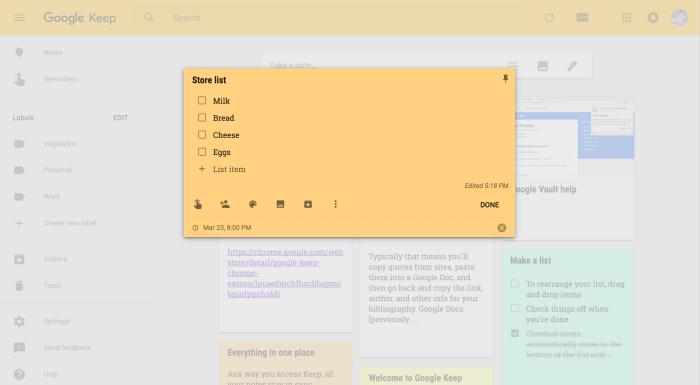
Google Keep is one of the best Google Chrome extensions that you can use to note every important point easily from your browser. You can download this app on your mobile and can even have it on your PC. Remembering the important tasks and dates can be very tough when working, so this app will help you keep track of all the important notes. You can simply add the document with all the important dates and work and then add them to the home screen.

You can add a different color to the notes to differentiate depending on the importance and work. Some of the notes apps require a subscription to use them, but Google Keep is absolutely free and anyone can use the app.

Visit Here


2. MindMeister

MindMeister

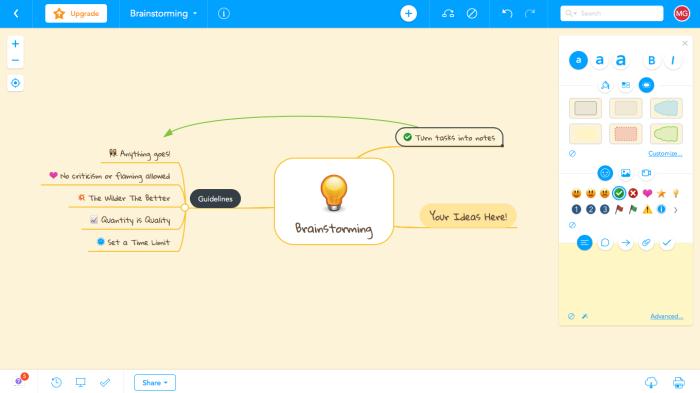
MindMeister is very unique and one of the best free productivity apps that you can use. This app can be used to help you remember your ideas. This app will help you keep the ideas saved as most people get ideas while talking to people or browsing on the internet. At that time you can simply use this app to note down the important points for future consideration.

You can simply add solutions and points along with other new ideas together in a very attractive manner. The app offers 3 mind maps for free, if you wish to use it further then you have to pay $4.99/ month. The paid plan will unlock unlimited mind maps for personal use.

Visit Here

Also Read: 14 Best Free Data Recovery Software For Windows 10/8/7


 3. Google Drive

Google Drive

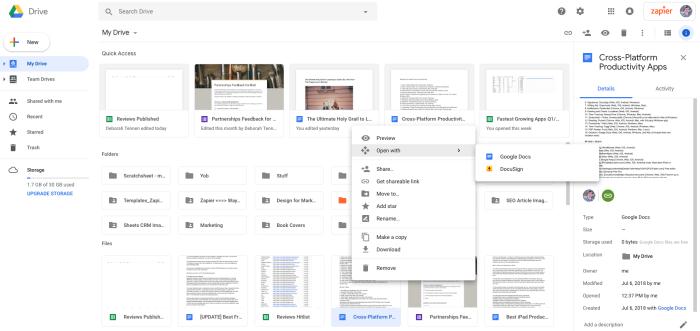
Google Drive is a great person as well as an office app that you can use to store files. This is another best free productivity app from Google which will help you store and keep the files accessible for every device. Every hardware has limited storage which will be filled someday and in that case, you need to either change the device or choose another way to store files.

This cloud storage platform is available for every device including PC and mobile phones. You can simply log in with your account credentials and get all the data. Other than this the work which you do on Google apps will be saved on Drive only. When you first sign up with your ID you will get 15 GB free storage after that you need to purchase the monthly plan for the storage you require. The app charges $1.99 for 100GB storage/ month.

Visit Here


4. HelloSign

HelloSign

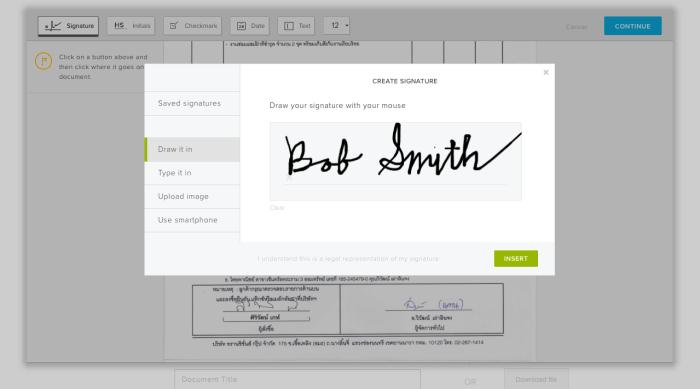
In the digital world, we all need to keep our documents and signatures together to register and start new things. While most people fail to keep the images together, this productivity app will help you sign every document digital without any issue. Now after having this app you don’t have to rush for printouts and then scan those hard copies to share via mail. The process is very simple. All you need to do is click on the add signature field to add it to the document easily.

The app has helped in easing the work which is why it is considered the best free productivity app to use. Using the free version of the app you can sign up to 5 pages a month, if you wish to upgrade the plan then you need to pay $15/ month for the pro plan.

Visit Here

Also Read: 10 powerISO Free Alternative Software for Windows


5. Foxit

Foxit

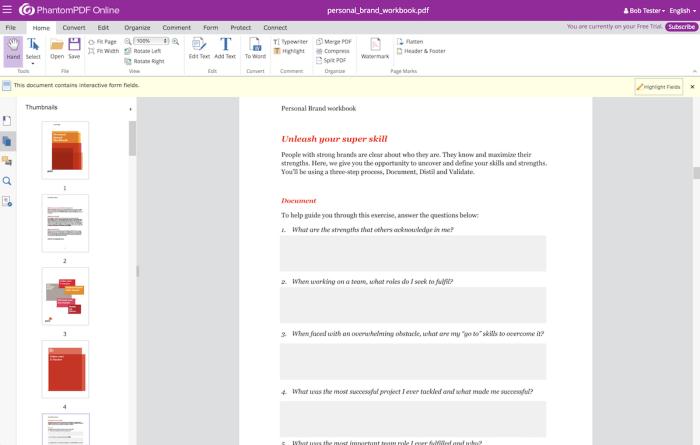
PDF files are a digital form of the hard copy, you can use the field as .pdf format to share and edit them easily. To help you in the process to edit pdf we have added one of the best free productivity apps that you can use. Foxit is a great app that can help process all the pdf related work.

Using this app you can easily add new files and convert them into PDF format. Other than this you can easily edit and open PDF files.y you can even sign the files without using any third-party application. The software is available for mobile phones and desktops, you can even use it on the web browser and save space on the hard disk.

Foxit is one of the top productivity apps that offers features like read and sign pdf documents in the free version. If you wish to use the core online editing feature then you need to pay $7.99/ month.

Visit Here


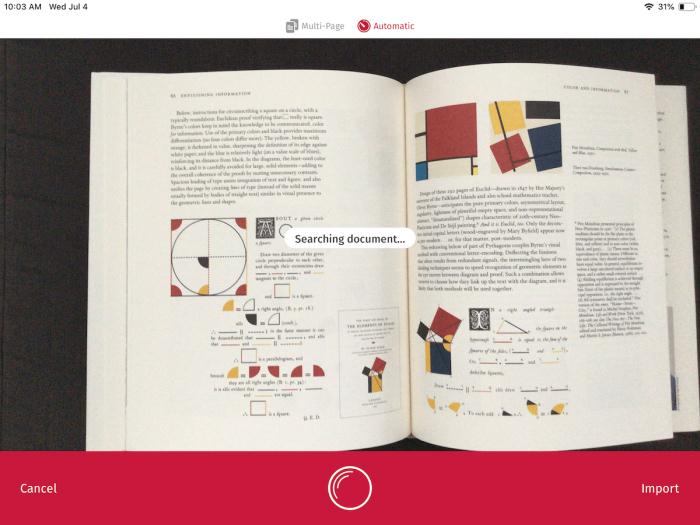
6. Scanbot

Scanbot

In this digital world, you need to have all your documents in digital form to share them easily. The main task is to convert those hard copies into digital form but this free productivity app named Scanbot is made to help its users in scanning hard copies easily. Though this app is only available on your phone or tablet so you cannot use it on any other platform.

The app is really simple, all you need to do is open the camera from the app to scan for the documents and just click a picture of the pages or file for which you wish to create a digital copy. After you have saved the image the app will change your file into pdf format so that you can easily share it using various platforms.

This app can be considered as a paid and a free productivity app as it offers both versions to its users. For the core, scanning features the app charges $4.99 and for the Scanbot pro version, the app charges $6.99.

Visit Here

Also Read: Best Laptop Battery Testing Software for Windows 10


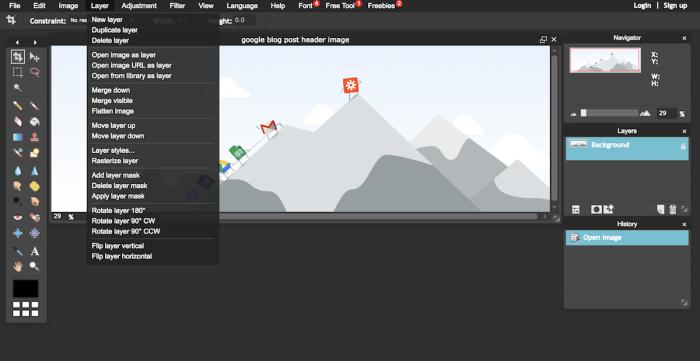
7. Pixlr

Pixlr

There are many apps that can be used to edit and manipulate images. The king of all the software is Adobe Photoshop but then in this list of best free productivity apps, we have mentioned a new name. Pixlr is a great tool that you can try to edit images easily. Though this app is also not among the free productivity apps, the reason for adding this in the list is its amazing features.

The app offers various features which can make your work easy and help you to become more productive. The toll offered by the apps includes crop, resize, rotate, blur, heal, rotate, and others. You can even add elements to your social media handle. The elements offered by the app are borders, stickers, text, graphics, and other effects from various platforms.

The app has professional tools as well, so if you wish to create or edit a project using the professional tool you can easily proceed with the app. The best part is Pixlr has a very easy-to-use interface that can be adapted by any of the users whether newbie or experienced. If you wish to use the pro tools then you need to pay a $5/ month fee to access them. The user who is new and doesn’t want to use the pro tool can use this app for free.

Visit Here


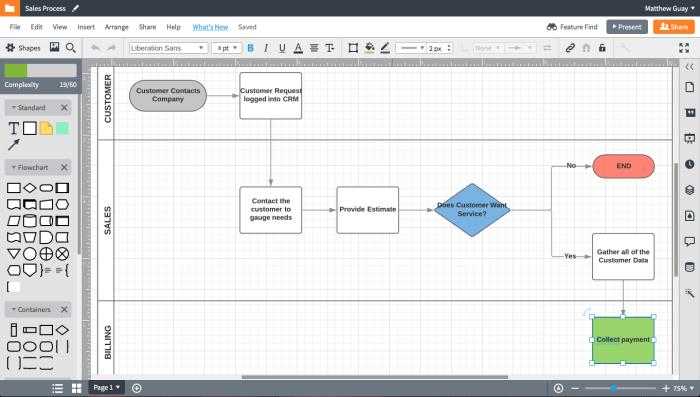
8. Lucidchart

Lucidchart

Next app in the list of best free productivity apps is Lucidchart. This app offers various features that you can use to create different and unique charts easily. Whether you wish to create charts for the presentation of school or for work, you can simply create them as per the need.  The apps have many templates that can help you easily create charts.

This is very easy: you can simply use the elements from the left menu of the screen. You can even simply drag and drop your creation as per need and requirement. The app can be used on PC as well as on mobile devices. The app offers 3 active documents up to 60 objects for free, if you wish to upgrade then the app requires a $11.95/ month fee that offers larger documents and templates.

Visit Here

Also Read: 13 Best Video Chat and Calling Apps for Android


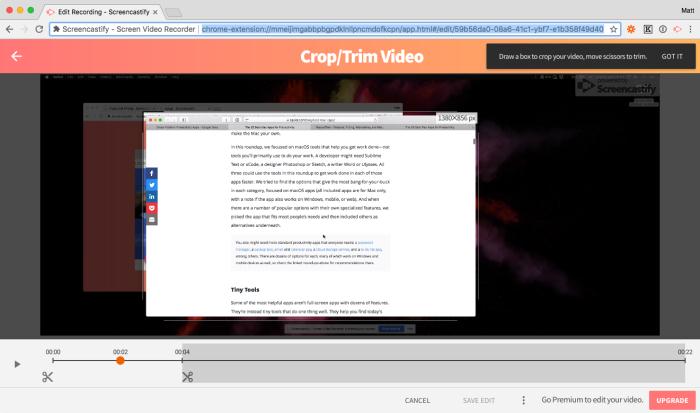
9. Screencastify

Screencastify

While researching or working on any product you need to keep adding data from various sources. The data can be anything including images, articles, or files, some of the data isn’t available to download. For those read-only files or data from a web browser, this is the best productivity app that can be used.

This app can be used to record the screen and record audio from the microphone. You can use the recording for your projects and share them easily by using various platforms. Using the free version you can screen record for 10 minutes and if you wish to record more than you have to purchase a monthly subscription for unlimited video length. The monthly subscription costs $24/ year.

Visit Here


10. Rescue Time

Rescue Time

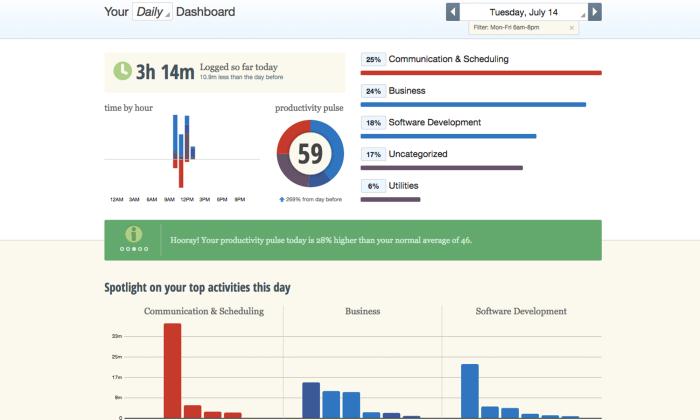
The way you can be productive, the same way there are many distractions that can distract you from being productive. You cannot calculate how productive you were. This app is developed to help you track all your activities and time spent browsing through the apps. As the name suggests this app can help in rescuing your valuable time.

This app offers a detailed database of apps under various sections like productivity and distracting. This app also shows a graph comparing today and last week, with a gentle reminder. You can use this top productivity app to access your activity. The app offers free core tracking features but if you want to block distracting sites, track time away from PC and make a detailed report then you can buy the premium version for $9/ month.

Visit Here

Also Read: 10 Best Free Janam Kundali Software For Windows PC


11. Zoom

Zoom

Zoom is one of the best free productivity apps that you should use. The time has changed and the pattern of meetings too, in today’s time you need to have a video conferencing app that can help you connect with your teammates easily. This is a reliable tool that can have up to 100 people in a single room.

The teammates can easily use the virtual whiteboard to explain ideas to other people at the meeting. You use to create and join meetings using a web browser which means users can save space on their PC.

The app can host meetings for 100 members for 40 minutes for free. If you wish to have unlimited meeting time then take the monthly plan. The plan for unlimited time and users costs $14.99/ month.

Visit Here


12. TeamViewer

TeamViewer

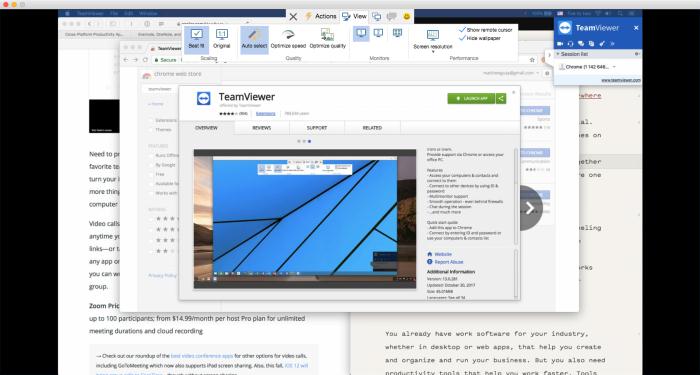
This is the best productivity app that will let you work remotely on your office computer or laptop. If you are surprised by knowing then believe me this is true. Using this app you can easily control other PCs. The app is not bound for geographical location, you can stay 1000km away and still make necessary changes to your office or home computer.

The graphics can have lower quality but then you can easily get your stuff done from anywhere. This is a free productivity app for personal use but for business use you need to take the monthly plan which costs $49/ month.

Visit Here

Also Read: 10 Best Microsoft Edge Themes for Windows 10


 13. LastPass

LastPass

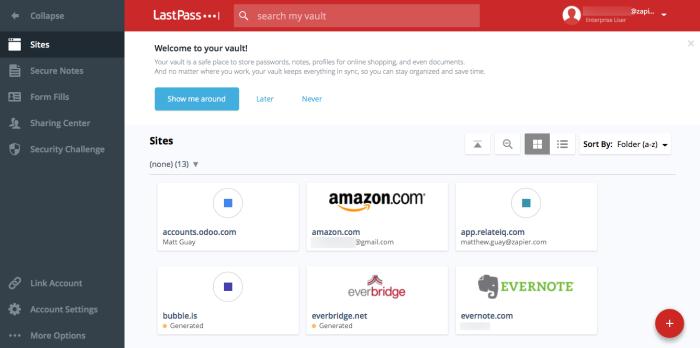
Every website now requires you to sign in with your email address and a password. The password criteria in every website can be different from one another which means you would need to have different passwords for every site. Keeping those passwords in mind is very tough especially for the website which you use once a month.

This top productivity app is created to help you store all your passwords easily. You can download and add the apps extension to your browser. While you browse any website this extension will save the password and even the card information.

You can use this app for free with core features. For premium features you need to pay $2/ month, the premium account holders can share passwords and store encrypted files as well.

Visit Here


14. Grammarly

Grammarly

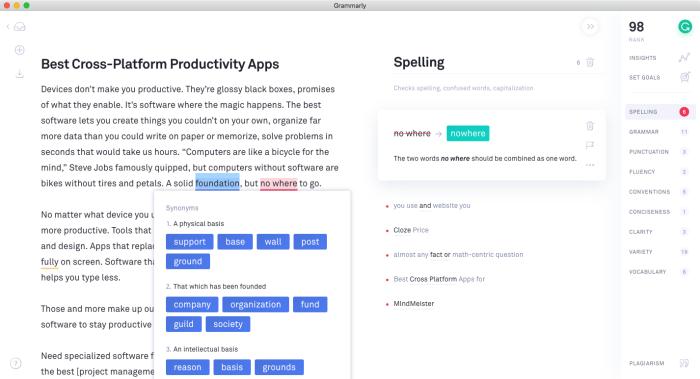
Next best free productivity app on the list is Grammarly. This app will help you eliminate all the errors which you made in the documents. Whether you are preparing a presentation or working on your blog. You can simply download the app or can even add the extension to the browser. Using the browser extension you can simply rectify all the errors on the documents you open on the browser.

The app will suggest spelling errors, grammar checks, plagiarism checkers, and other tools. The app will give you relevant suggestions according to industry-specific terms. The app offers a free core tool for all users but if you wish to use the advanced tools then you need to pay $29.99/month.

Visit Here


15. CloudConvert

CloudConvert

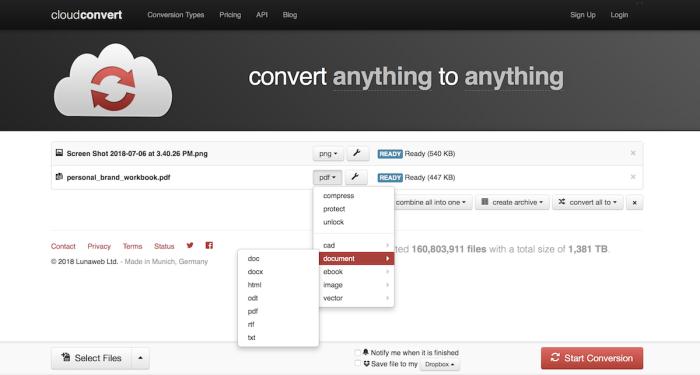
Last app in the list of Best productivity app list is CloudConvert. While you might have struggled many times to use a file with a different file format. Using this app you can simply convert files to the format you want and easily access them. The app has more than 200 file types which include .doc, .xls, and others.

Other than this you can even convert files into design files too so that you can simply use them on the graphic design software. The files can be converted into .psd, .ai, .dwg, and other formats. The files you can convert using this top productivity app can be stored on the cloud platforms like Google Drive, Dropbox, and others.

Using the free version you can convert up to 1 GB files and 25 minutes of conversion per day. To have more conversion minutes you need to pay $8 for 500 conversion minutes.

Visit Here


16. ClickUp

ClickUp

ClickUp is the next name on this list of the best free productivity apps for you in 2024. With the help of this simple tool, you can increase your productivity and bring it to the roof. The app uses artificial intelligence to offer quality functionalities to you. Whether it is your meetings, daily tasks, scheduled events, or anything else, ClickUp is the perfect tool to manage every task.

Visit Here

Also Read: 18 Best Duplicate Photo Finder & Cleaner Software


Let’s Conclude the List of Best Free Productivity Apps

The list shared above has all types of paid and free productivity apps. You can easily choose the app which suits you best. If you wish to use the apps for basic features then the list has the best productivity apps. We hope that we have helped you find the productivity app which you were looking for. If we did, tell us how knowledgeable you find this article. Please write in the comment section below.

1 Comment
    Thomas says: Reply
    May 20th 2020, 11:51 pm

    Hi Prachi
    I have not yet tried the Google Authenticator app, but I know how those app works and there is not doubt that it is the best way to protect your online accounts. Password is simply not enough anymore.

Leave a Reply Cancel reply

Your email address will not be published. Required fields are marked *

Sidebar Image bit G ad1

Latest Posts

  • Anytime Astro: Best Website For Online Astrology Consultation
    Anytime Astro: Connect Now For Online Astrology Consultation
    by Somya Shrimal / March 13, 2026
  • Best-Ways-to-Combine-Images-Into-PDF-Files
    Best Ways to Combine Images Into PDF Files
    by Niharika / March 12, 2026
  • Best FREE VPS Hosting Providers
    7 Best FREE VPS Hosting Providers in 2026
    by Devesh / March 12, 2026
  • Best-McAfee-alternative-software-to-use-for-Virus-Protection
    Best McAfee Alternative Software to use for Virus Protection
    by adminuser / February 11, 2026
  • What-is-Flip-Flop-in-Circuite-and-it's-Types
    What is Flip Flop in Circuit and its Types
    by Meet / February 6, 2026

Categories

  • Cyber Security
  • Driver Updater
  • Entertainment
  • Fitness
  • Games
  • How To
  • laptop
  • OS
  • Reviews
  • Tech News
  • Tips & Tricks
  • Top 10
Sidebar Image bit G ad1
How To Take a Screenshot on Windows HP Laptop? How To Take a Screenshot on Windows HP Laptop?by Snigdha / May 20, 2020
Microsoft 365 Login Pages May Hide Phishing Attackby Prachi Dani / May 22, 2020Microsoft 365 Login Pages May Hide Phishing Attack
TechPout Footer Logo

We at TechPout promise to put forth stories that help people to learn and simplify their digital life. Our purpose is to share the true essence of technology with our tech-loving community.

Useful Links

  • About Us
  • Contact us
  • Privacy Policy

Popular Posts

  • Best PC Optimizer Software
  • Best Mac Cleaner Apps
  • Best Driver Updater
  • Duplicate Photo Finder and Cleaner Software
  • Best Free Movie Download Sites
  • Best IPTV Players

Follow us

Copyright © 2026 www.techpout.com. All rights reserved
DMCA.com Protection Status