Knowing how to reset PRAM on a Mac helps if you are experiencing hardware or system problems, such as strange screen resolution changes or lost speaker volume preferences. It also helps troubleshoot hardware issues, such as a Mac failing to boot properly or showing a question mark on startup. PRAM, or Parameter Random Access Memory, stores key system settings and customizations, such as startup disk selection, time and date, and volume. Modern Macs replace PRAM with NVRAM (Non-Volatile Random Access Memory), which performs the same functions as PRAM, but without requiring a battery to retain its data.
In addition to PRAM or NVRAM, Macs also have SMC (System Management Controller) memory to manage hardware-related functions. Resetting SMC can also fix several common issues, such as the Mac not turning on or turning off unexpectedly, the battery not charging, the Mac overheating, display flickering, a malfunctioning keyboard backlight or trackpad, an uncontrollable fan, and other hardware problems.
This article explains in detail how to reset NVRAM/PRAM and SMC on a Mac, beginning with a quick overview of these memory types and when to reset them.
What Is PRAM or NVRAM
Parameter Random Access Memory, or PRAM, is a small area of a Mac’s RAM that stores various macOS settings and parameters. It stores the necessary system configuration information, such as screen resolution, time zone, color depth, mouse speed, speaker volume, and startup volume selection, required when the Mac starts.
Unlike RAM, PRAM does not store information temporarily; it is a non-volatile memory that retains the information permanently, even after you shut down the device, using a small battery.
Modern Intel-based Macs replace PRAM with NVRAM. NVRAM is non-volatile random access memory with the same properties and functions as PRAM but holds less information.
When to Reset PRAM or NVRAM
You should reset your PRAM or NVRAM if you experience problems such as resolution changes or connectivity issues. An NVRAM or PRAM reset can help fix issues like the keyboard behaving erratically, volume control not working properly, mouse not working as expected, incorrect time and/or date, and unexpected screen resolution changes.
However, resetting the PRAM or NVRAM should be the last option after exhausting all the other ways to solve the problem, such as restarting the device and cleaning your Mac.
How to Reset PRAM or NVRAM on a Mac
Use a combination of the Option, Command, P, and R keys to reset Mac PRAM or NVRAM. Below are the detailed steps to do this; these steps apply to all Mac devices, including MacBook Air, iMac, and MacBook Pro.
- Shut down your Mac.
- Disconnect all USB devices; leave only the wired keyboards connected.
- Press the Power button on your Mac to turn it on.
- Press and hold the Option, Command, P, and R keys until you hear the startup sound twice. On Macs that do not have a startup sound, the Apple logo will appear and vanish twice.
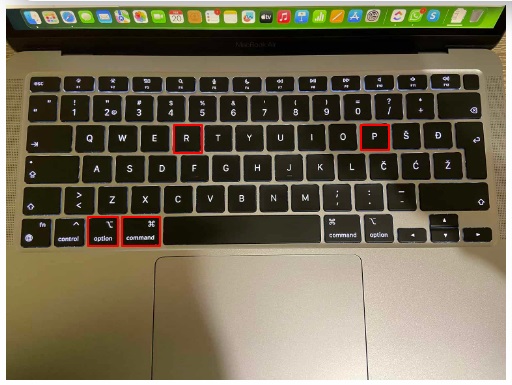
- Release the keys to continue the usual Mac startup.
If resetting PRAM or NVRAM does not fix the issue, reset SMC.
What Is SMC
A System Management Controller, or SMC, is a chip on the motherboards of Intel-based Macs that stores essential information to control hardware components, such as the fan, built-in camera, and display backlight.
When to Reset SMC
Reset SMC if you notice any hardware component-related symptoms, such as the battery not charging properly, the Mac won’t start, fans running at full speed, MacBook or MacBook Pro overheating, the built-in camera not working, issues with keyboard backlight, status lights, or display backlight, or the Mac sleeps or shuts down without warning.
How to Reset SMC
The steps to reset the SMC on a Mac vary depending on the device model. The guide below explains how to reset the SMC on Intel-based Macs. Mac devices based on the Apple silicon M1 and M2 processors do not have an SMC, as the chip itself performs the SMC functions on these devices. On Macs with Apple silicon M1 and M2 processors, turning off the device and waiting for 30 seconds before restarting it gives results similar to an SMC reset. Below is the process to reset the SMC on various Mac models.
How to reset the SMC on MacBook Air, MacBooks, and MacBook Pros (Post-2018 models)
MacBook Pro, MacBook Air, and MacBook models from 2018 and later have the Apple T2 Security Chip. To reset the SMC on these Mac devices, use the combination of Control, Option, Shift, and Power keys. Here is how.
- Shut down your Mac.
- Press and hold the Power button for at least 10 seconds.
- Let go of the Power button.
- If the Power button does not solve the problem, shut down the Mac device.
- Press and hold the right Shift key, left Option key, and the left Control key for seven seconds.
- Press and hold the Power button along with the right Shift key, left Option key, and the left Control key.
- Continue holding down the Power button along with the right Shift key, left Option key, and the left Control key for another seven seconds.
- If your Mac device has turned on, holding down the above four keys turns it off again.
- Let go of all four keys and wait for another couple of seconds before restarting your Mac.
Also know: How to remove the activation lock on a MacBook?
How to reset the SMC on MacBook Air, MacBooks, and MacBook Pros (Pre-2018 models)
MacBook Air, MacBook, and MacBook Pro models before 2018 do not have an Apple T2 Security Chip. Moreover, whether a pre-2018 Mac has a removable or non-removable battery also impacts the SMC reset process on these devices.
On pre-2018 Macs with a non-removable battery, you can use the Shift, Control, Option, and Power button to reset the SMC. On pre-2018 Macs with a removable battery, no such key combination is required. Below is how to reset the SMC on a pre-2018 Mac with a removable battery and a non-removable battery.
How to reset a pre-2018 Mac’s SMC (device with a removable battery)
- Shut down your Mac device.
- Remove the battery from your Mac.
- Press the Power button and hold it for five seconds.
- Re-insert the battery and switch on your MacBook.
How to reset a pre-2018 Mac’s SMC (device with a non-removable battery)
- Shut down your Mac.
- Connect your Mac to a power adapter.
- Press and hold the left Shift, Control, Option, and Power button for 10 seconds.
- Release all the keys.
- Press the Power button to turn on your Mac.
Hope this resets the PRAM/NVRAM and SMC on your Mac. However, if you have any questions or confusion, you can find the answers in the frequently asked questions below.
Also know: Fix Mac External Hard Drive Not Mounting
Frequently Asked Questions
Q1. Is it safe to reset PRAM on a Mac?
A PRAM reset is safe since it does not harm your Mac. However, it reverts your device to its factory settings, deleting any customization you made to your device’s system settings.
Q2. Is it safe to reset the SMC?
It is safe to reset the SMC. However, check the battery system preferences after the reset to ensure your customizations are in place.
Q3. How often should I reset PRAM or NVRAM?
Reset PRAM or NVRAM on your Mac only when a problem occurs.
Q4. Does resetting PRAM fix battery and fan issues?
No, a PRAM reset does not fix battery and fan problems; an SMC reset fixes them.
Q5. What does resetting PRAM or NVRAM do on a Mac?
A PRAM or NVRAM reset on a Mac reverts the device’s system settings to the factory default, deleting your customizations.
Q6. What will happen if I reset the SMC on my Mac?
Resetting the SMC on a Mac clears out temporary data associated with low-level hardware functions and reverts these settings to factory defaults.
Q7. What should I do if a PRAM reset does not solve the issue?
If resetting PRAM does not solve your problem, reset the SMC and, if you are running the latest macOS and an older Mac, ensure they are compatible.