If you have any external hard drive not mounting mac, then there are a lot of various reasons behind that error. The reasons for external hard drive not mounting mac could be disk malfunctioning, or sometimes disk remains unrecognized by the system itself.
Let us understand the primary reasons and ways to fix if your Mac external drive is not mounting.
Common Reasons an External Hard Drive Is Not Mounting in Your Mac
Here are some of the common issues for external hard drive not mounting mac.
1. Corrupted HFS+ or APFS Catalog File
When the main index of all the files on volume, which is the catalog file, is damaged, that could be the primary reason for APFS catalog file is not able to mount any external hard drive. And especially on HFS+ volume, this file is known as Catalog B-Tree. Whenever this catalog file gets damaged due to reasons like sudden disconnection, power cuts, or macOS while working on it, any volume you want to mount won’t work.
2. APFS Container or Corrupted SSDs
There are containers introduced by APFS which hold multiple volumes, and snapshots were also introduced which are the point-in-time copies of volumes. Whenever any volume becomes malicious, you can easily mount a container of that volume. Whenever the APFS container with its metadata gets damaged, the recovery requires an APFS forensics analysis tool which navigates the container and helps in extracting the file data. mac external hard drive not mounting
3. Mechanical Failure in the Drive
To find out if the failure is physical, then try to check if your drive is making any sort of unusual sound. The physical failure can be read/write head gets failed which makes a clicking sound, and when the spindle motor is not starting then it makes a beeping sound, and when the PCB fails it makes no sounds at all. The recovery is done exactly like you recover from any hard drive not mounting mac. And whenever you recover from any physical failure, it does not affect your filesystem format at all.
4. Accidental exFAT Format
Whenever you share drives between Mac and Windows, it generally uses exFAT or NTFS. If you MacOS shows the drive-in disk utility but there is no mountable volume then it is the damage of partition table, which is typically from an unsafe ejection. Any kind of accidental reformatting is always recoverable only and only if it is caught early. To recover from this, you need to rebuild the partition table by scanning the data of the disk.
Ways to Fix if Your Mac External Hard Drive Not Mounting
After you recover your data or you are unable to recover your data because your mac external hard drive is not mounting, then you need to repair your drive first. If hard drive won’t mount mac
Here are some ways which will help you to fix the drive if your hard drive not mounting mac:
1. Check Connections
Make sure all your connections, especially with your external hard drive, are proper and secure.
The following are some of the connections you need to make sure are proper and secure.
- Make sure to keep your Mac plugged into the power outlet and ensure that it has enough power to route your external drive connected.
- Disconnecting all the other unnecessary devices from your Mac or which are less needed at that time also helps in saving power.
- Try not to use various USB cables, ports, and hubs repeatedly, which leads to connection instability.
Also know: How to Fix Notes Not Showing on Mac Problem
2. Check if partition is mounted
The first step should be to make sure the most problematic partition is actually mounted on your Mac. The primary thing to remember is that you won’t be able to mount the complete drive.
The following are the steps you must remember to mount the APFS containers.
Step 1: Go to ‘Disk Utility’ and search your external drive.
Step 2: Select the ‘View’ button from the toolbar and choose the ‘Show all Devices.’
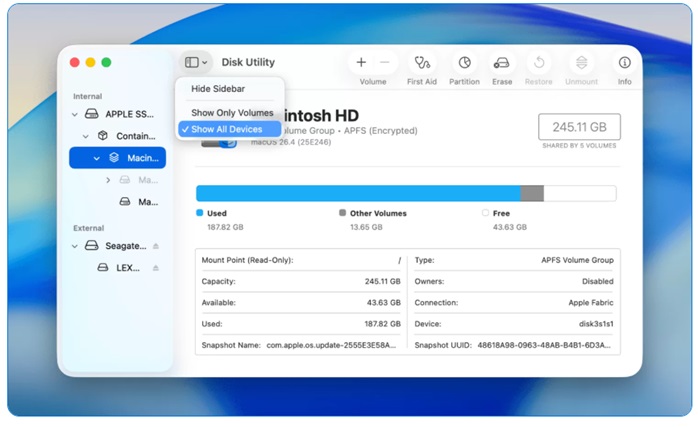
Step 3: Go to your drive and in the sidebar, you can see all the partitions and APFS containers.
Step 4: Check the partition or APFS container that you want to mount but make sure you do not go to parent drive. The mount button can only be activated whenever you choose the partition or the container.
Step 5: You will see a ‘Mount’ button in the toolbar if the partition is not mounted. And you see the ‘Unmount’ button, if your partition is already mounted.
3. Reformat the drive
The most effective way to fix any logical or non-logical damage is to reformat a drive. It helps rebuild the file system from scratch.
Here are the steps to reformat the drive to fix logical damage:
Step 1: Open the ‘Disk Utility’ in ‘Application.’
Step 2: Click on the external drive from the sidebar.
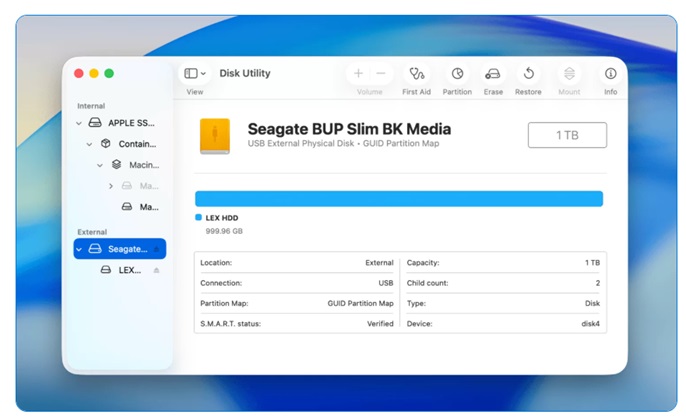
Step 3: Select the ‘Erase’ button from the toolbar.
Step 4: Search for the name of your drive and select the most appropriate file system format.
Step 5: Click on the ‘Erase’ button and let the process complete.
Methods to Recover Data if Hard Drive Not Mounting Mac
1. Using Contact Data Recovery Service
If your software is unable to recover or detect the drive or any of your files, then it is the clear indication of a serious issue which usually requires a professional intervention. Sometimes the software only works for logical problems like detecting and deleting corrupted file systems, but they do not help with any sort of physical drives problems. And sometimes if you try to fix physical issues, it can make things a lot worse.
Here are some of the common signs of a physical failure when a hard drive won’t mount mac:
- And type of unusual sounds like clicking, grinding, or whirring which you haven’t heard before in your system.
- If you drive is repeatedly connecting and disconnecting from your Mac without your interference.
- If your Mac is freezing temporarily whenever you try to access that drive.
- And if your drive is spinning up at all whenever you power on.
- If you smell anything burning or any sort of electric smell comes from your drive.
2. By Using Data Recovery Software
You can use any specialized data recovery software to mount your files even if your external hard drive is not mounting mac. Because even if your external hard drive not mounting mac but your files often remain intact in your system. You just need to use that kind of software which reads the data directly from your drive. There are a lot of ways to recover your data from the drive even if your external hard drive won’t mount mac.
Also know: How to remove the activation lock on a MacBook?
Frequently Asked Questions (FAQs)
Q1. Are there any ways to mount using terminals if the external hard drives not mounting mac by any other way?
Ans. Yes, you can mount an external hard drive if there are no other ways, by using the ‘diskutil’ command in your system. For that you must identify your drive using diskutil list first then use ‘diskutil mountDisk/dev/diskX’ (name X as your disk identifier) and mount all the mountable partitions in that disk. And if you want to mount any specific partition then use ‘diskutil mount/dev/diskXsY.’
Q2. Why my external hard drive won’t mount mac?
Ans. There are many reasons why your external hard drive not mounting mac like the drive is malicious, the file system could be damaged, or there are errors in your OS itself.
Q3. What are the steps to mount any unmounted disk on a Mac system?
Ans. The following are the steps to mount an unmounted disk on a Mac system:
Step 1: Go to the ‘Disk Utility.’
Step 2: From the list, select the disk drive.
Step 3: Click on the ‘Mount.’
These were all the primary reasons for your external drive is not mounting on your Mac. And along with that, there are also ways to fix those errors in your system also mentioned. And with all these ways you can easily fix this error without any professional help.