Is your computer crashing, freezing, stuck on a black or blue screen, or sluggish after a recent software update? Do you want to troubleshoot driver problems, diagnose unbootable PCs, repair corrupted files, recover your system, or access the Windows Recovery Environment (WinRE) to exit a boot loop? Then you need to know how to start Windows 11 in Safe Mode.
Windows 11 Safe Boot Mode is a diagnostic environment. It boots into Windows without non-critical components, i.e., with a bare-bones interface. It helps fix issues when something stops Windows from functioning correctly during a normal startup. For example, you can restart Windows 11 in Safe Mode to remove a recently installed driver, roll back a driver, uninstall problematic apps, fix a Blue or Black Screen of Death, diagnose startup issues, troubleshoot display problems, perform security scans, and check whether a third-party application is causing a problem.
You can boot Windows 11 in Safe Mode using Settings when your desktop is responsive, press Shift + Restart when Windows loads partially, or use other methods in this guide to enter Safe Mode.
How to Boot Windows 11 in Safe Mode
You can boot Windows 11 in Safe Mode using Automatic Repair or Command Prompt and a DVD or USB installation drive if Windows 11 fails to start normally; if Windows 11 is accessible, you can use Shift + Restart on the sign-in screen, System Configuration (msconfig.exe), or the Settings app. Below are all these methods in detail.
Method 1: Use Automatic Repair to boot Windows 11 in Safe Mode
When Windows 11 fails to start normally after three attempts, it automatically triggers Automatic Repair mode to enter Windows 11 Safe Mode. Here is how to start Windows 11 in Safe Mode using Automatic Repair.
- Power on your computer.
- When the manufacturer logo or the spinning dots appear, press the Power button for at least ten seconds until the PC shuts off.
- Repeat the above process three times.
- On the fourth power-on, you should get a Preparing Automatic Repair screen and then a recovery menu.
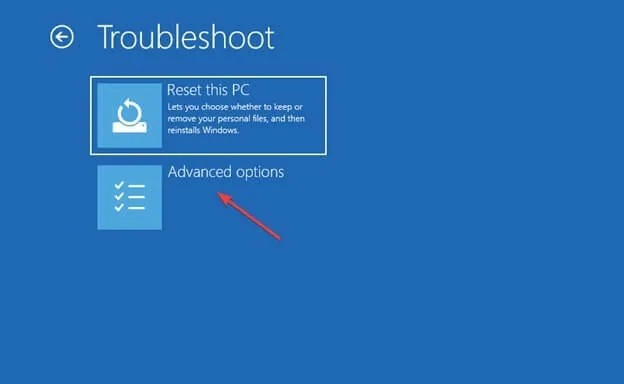
- Click Troubleshoot in the recovery menu.
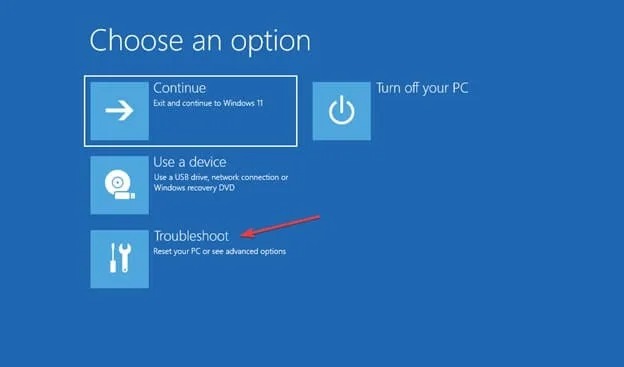
- In the Troubleshoot options, click Advanced Options.
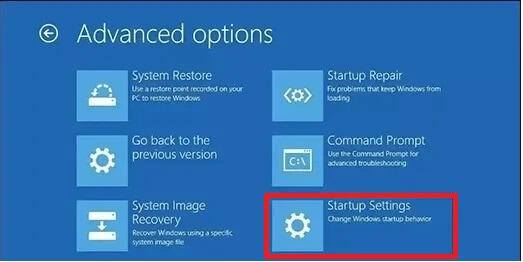
- Click Startup Settings in the Advanced Options.
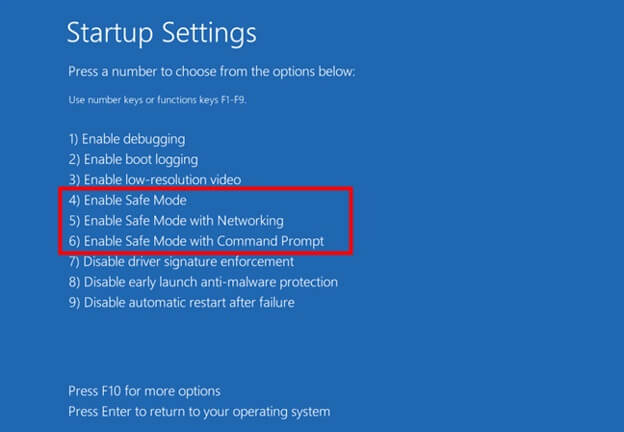
- Click Restart, and then press 4, F4, 5, F5, 6, or F6 to boot Windows 11 in Safe Mode. Pressing 4 or F4 enables the standard Safe Mode. 5 or F5 boots into Safe Mode with networking drivers and services. 6 or F6 enters Safe Mode with Command Prompt.
Also know: How to Use a VPN in Incognito Mode: Complete Guide
Method 2: Use Command Prompt and a DVD or USB installation drive
You can use a DVD or USB stick with the Windows 11 setup to enter Safe Mode. Here is how.
- Create a bootable Windows 11 USB drive on another PC.
- Use the USB drive to boot your PC.
- Once you reach the installation screen, select Repair your computer.
- Navigate through the path Troubleshoot > Advanced Options > Command Prompt.
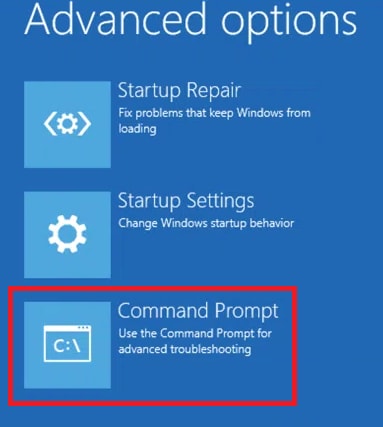
- In the Command Prompt, copy and paste/type the command bcdedit /set {default} safeboot minimal and press Enter.
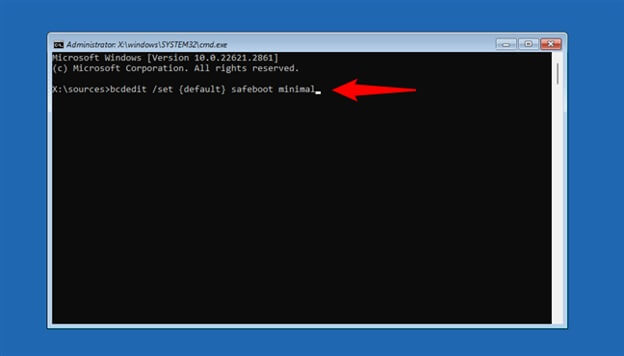
- Close the Command Prompt when the “The operation completed successfully” message appears.
- After closing the Command Prompt, click Continue on the next screen.
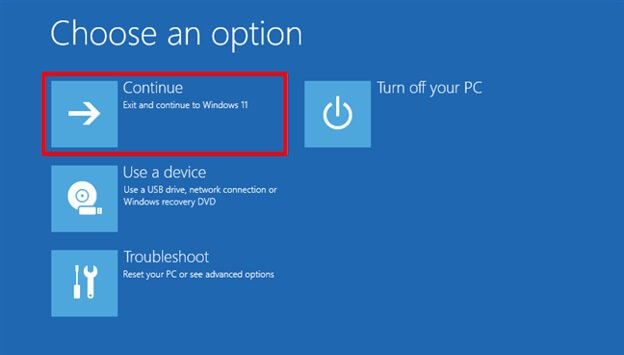
- Wait for Windows 11 to restart in Safe Mode. Please note that Windows 11 will now enter Safe Mode each time it starts. If you want to boot Windows 11 normally, run the command bcdedit /deletevalue {default} safeboot in the Command Prompt.
Method 3: Press Shift + Restart on the sign-in screen
If you can access the sign-in screen but cannot log in, you can use the Shift + Restart combination on the sign-in screen to boot Windows 11 in Safe Mode. Below is how to start Windows 11 in Safe Mode from the sign-in screen.
- Click the Power icon in the lower-right corner of the sign-in screen.
- Press and hold the Shift and Restart keys until you can see a recovery screen.
- Follow the path Troubleshoot > Advanced Options > Startup Settings > Restart.
- Press 4, 5, or 6 depending on whether you want to boot into the standard Safe Mode, Safe Mode with networking, or Safe Mode with Command Prompt.
Method 4: Enter Windows 11 Safe Boot using System Configuration (msconfig.exe)
You can use the System Configuration (msconfig) utility to start Windows 11 in Safe Mode. Here is how.
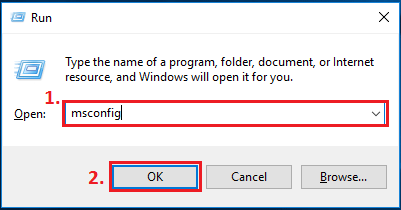
- Press Win + R to access the Run utility.
- In the Run box, type msconfig and press Enter.
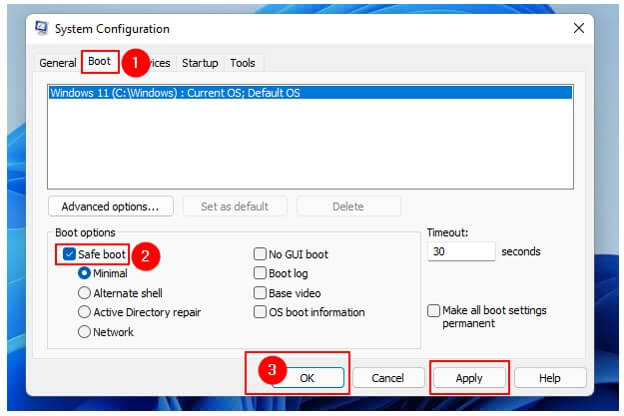
- In the System Configuration window, click Boot.
- Tick the Safe Boot Box.
- Click Network under Boot Options if you want to boot into Safe Mode with Networking.
- Click Apply and OK to restart Windows 11 in Safe Mode. To exit Safe Mode, open msconfig, uncheck Safe Boot, and then restart.
Also know: How to Fix “Failed to Enumerate Objects in The Container” Error
Method 5: Use the Settings app to restart Windows 11 in Safe Mode
When Windows boots normally, you can use the built-in Windows Settings to boot Windows 11 in Safe Mode. Below is how to start Windows 11 in Safe Mode using Settings.
- Press Win + I to open Settings.
- Click System in the Settings panel.
- Next, click Recovery in the System options.
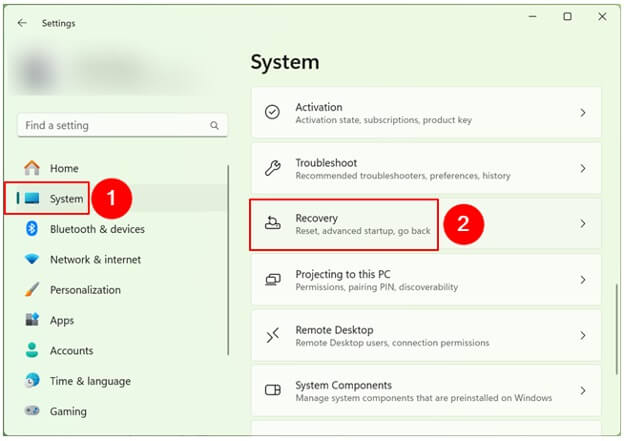
- Click Restart Now next to Advanced Startup, and then confirm.
- After your computer reboots into the Windows Recovery Environment (WinRE), follow the path Troubleshoot > Advanced options > Startup Settings > Restart.
- Press 4 to boot into the Standard Safe Mode, 5 to enter Safe Mode with Networking, or 6 to access Safe Mode with Command Prompt.
To make the best use of Safe Mode, it is important to understand the types of Safe Mode and their uses.
Which Windows 11 Safe Mode Option Should You Choose
Here are the types of Safe Mode explained to help you choose one.
- Safe Mode: This is the Standard Safe Mode you access by pressing the menu key 4 or F4. It loads only essential drivers and services; helpful when you want to uninstall drivers, remove malware, or roll back updates.
- Safe Mode with Networking: It loads Safe Mode with network drivers. Press the menu key 5 or F5 to enter Safe Mode with Networking to download replacement drivers or tools when troubleshooting.
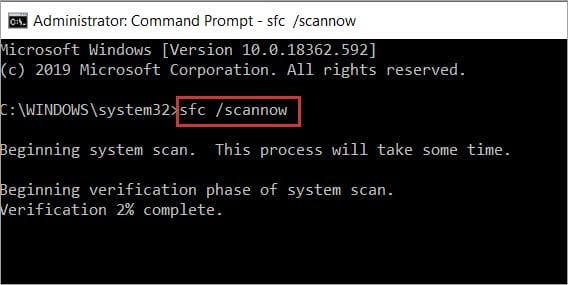
- Safe Mode with Command Prompt: It opens Safe Mode and cmd.exe. To boot into Safe Mode with Command Prompt in Windows 11, press the menu key 6 or F6. It helps fix issues such as a broken Explorer and run repair commands such as SFC.
That’s how to start Windows 11 in Safe Mode, the Standard Safe Mode, Safe Mode with Networking, or Safe Mode with Command Prompt. Below, we answer a few related questions to clear up any confusion you may have.
Frequently Asked Questions
Q1. What is Windows 11 Safe Mode?
Safe Mode in Windows 11 is a minimal driver and service environment. Loaded by the boot loader, it loads Windows with only necessary components.
Q2. How do I force a restart in Safe Mode?
To force a restart in Safe Mode, open the Start menu, click the Power button, press and hold the Shift key, click Restart, continue holding the Shift key until the recovery screen appears, and follow the path Troubleshoot > Advanced Options > Startup Settings > Restart. After your computer restarts, press 4/F4 for the Standard Safe Mode, 5/F5 for Safe Mode with Networking, or 6/F6 for Safe Mode with Command Prompt.
Q3. Will Windows 11 Safe Boot mode delete my files?
No, booting Windows 11 in Safe Mode does not delete your files. It only starts your computer with limited services and drivers to help you fix various issues.
Q4. Can Safe Mode remove malware?
Yes, Safe Mode can help remove malware. Most malware uses services that do not load in Safe Mode, making it easy to detect and remove malware.
Q5. Can I install programs in Safe Mode?
Installing programs in Safe Mode is generally not recommended, as it may result in incomplete installations and other problems.
Q6. Does F8 work for Windows 11 Safe Mode?
No, F8 can no longer launch Safe Mode directly. The UEFI firmware in Windows 11 loads faster than the F8 interrupt. However, you can use the Command Prompt to activate a legacy boot menu for limited F8 functionality.
Q7. How do I know I am in Safe Mode?
You have entered Safe Mode if your desktop background goes black with Safe Mode appearing in all the corners of the screen and the display running at a lower resolution. Moreover, many applications will not open, and some features will be limited.
Q8. What can I do in Safe Mode?
In Safe Mode, you can perform many troubleshooting tasks, such as removing problematic drivers, fixing Blue Screen of Death errors, uninstalling crash-causing apps, and diagnosing startup issues.
Q9. How is Safe Mode different from a clean boot?
Safe Mode loads Windows 11 with only limited drivers and services; a clean boot loads Windows 11 normally but prevents third-party startup apps and services from loading to isolate software issues. A clean boot is better when you want to fix issues with a specific app, game, or background program.
Q10. How do I exit Safe Mode on Windows 11?
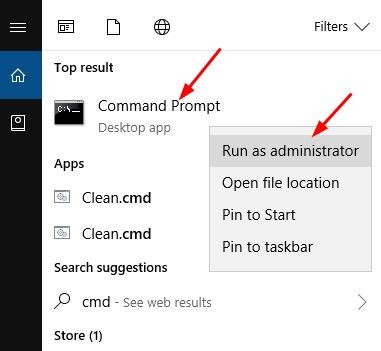
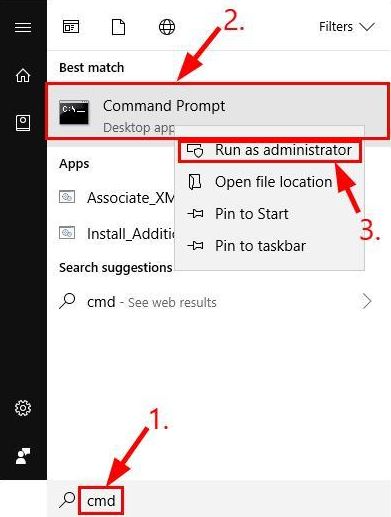
If you boot into Safe Mode using Shift + Restart, Windows Recovery Environment, or Settings, restart your computer to exit it. If Windows 11 keeps booting into Safe Mode, you may need to disable Safe Mode in MSConfig or Command Prompt (depending on whether you entered Safe Mode through MSConfig or Command Prompt). To undo Safe Mode in MSConfig, follow the path System Configuration > Boot > Uncheck Safe Boot > Apply > OK > Restart. To undo Safe Mode in Command Prompt, open Command Prompt (Admin) > Run the command: bcdedit /deletevalue {default} safeboot > Restart.
Q11. What should I do if Safe Mode does not solve the problem?
If Safe Mode does not solve your problem, the next step depends on the issue you are trying to fix. For example, if your system started behaving strangely after a recent change, try System Restore; try Startup Repair if Windows won’t start; Uninstall Updates if a Windows Update caused the issue; use another installation media or recovery option if Windows is severely damaged.
That’s all for how to start Windows 11 in Safe Mode. Hope this helps you solve various problems on your computer. If any confusion persists, leave us a comment.