Experiencing audio playback problems where sound comes from only one earbud, audio quality is muffled, or you are stuck in low-quality hands-free mono mode? Re-pair Bluetooth earbuds for stereo sound on Windows to fix these issues and restore rich, balanced stereo sound with clearly separated left and right channels.
It is easy to re-pair Bluetooth earbuds in stereo mode on Windows 11 or 10. On Windows 11, use Settings > Bluetooth & devices > Devices. On Windows 10, use Settings > Devices > Bluetooth & other devices. This article explains the process step by step, beginning with why stereo sound problems occur in the first place.
What Causes Bluetooth Stereo Sound Issues
Wireless earbuds have two separate units that communicate with one another before any audio is sent to your computer. If the left and right earbuds do not synchronize properly, Windows detects only one audio channel. In some other situations, Windows can prioritize the headset communication profile, which is used for calls, rather than the stereo audio profile for music and videos. Common after Windows updates, this issue may occur due to:
- Old or corrupted Bluetooth drivers.
- Corrupted Bluetooth cache in Windows.
- Incomplete or failed pairing attempts.
- Windows selecting mono audio automatically.
- Battery imbalance; earbuds not charged equally.
- Conflicts with audio enhancement.
- Earbuds connecting in call mode and not in stereo mode.
- Interference from devices paired earlier, such as tablets or phones.
The above issues cause Windows to create duplicate Bluetooth profiles, register only a single side, or change the audio mode automatically. Re-pairing Bluetooth earbuds, i.e., removing the current connection, resetting the earbuds, and then pairing the earbuds again, can solve these problems, restoring stereo sound.
How to Re-Pair Bluetooth Earbuds for Stereo Sound on Windows
To re-pair Bluetooth earbuds for stereo sound on Windows 11, go to Settings > Bluetooth & devices > Devices, remove the earbuds, reset both the earbuds inside the charging case, and then reconnect them. On Windows 10, go to Settings > Devices > Bluetooth & other devices, remove, reset, and reconnect the earbuds. Below are all the steps in detail.
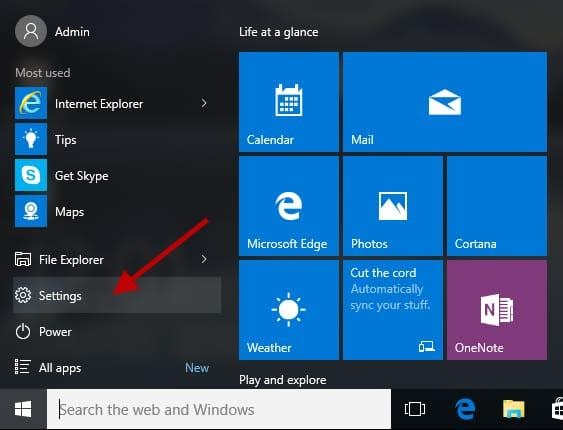
- Press Win + I to open Settings.
- Click Bluetooth & devices in the Settings menu. On Windows 10, click Devices.
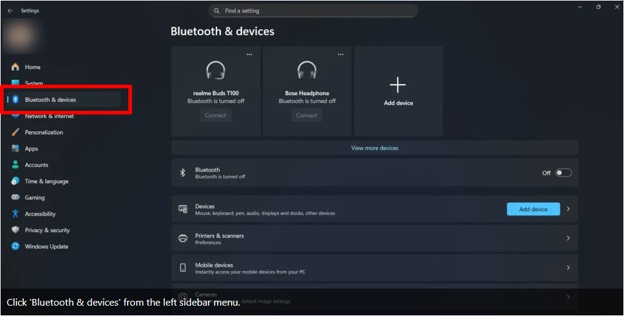
- Click On Windows 10, click Bluetooth & other devices.
- In this step, click the three dots next to your earbuds’ name.
- Click Remove device.
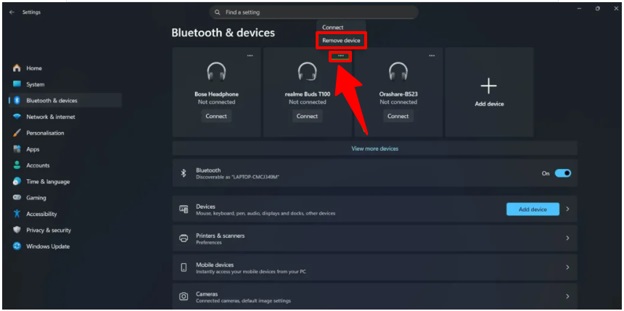
- Confirm the action to remove the existing Bluetooth earbuds connection.
- Toggle off the Bluetooth switch for approximately 10 seconds to clear the current connection profile and make Windows forget the problematic stereo configuration.
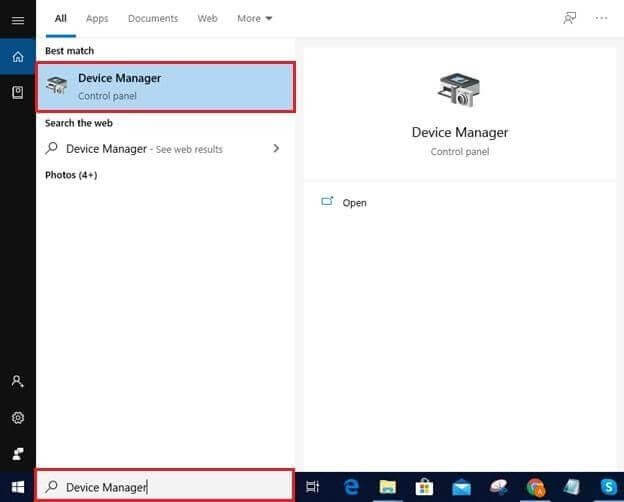
- Right-click the Start button.
- Click Device Manager in the menu that appears.
- In Device Manager, double-click the Bluetooth, Audio inputs and outputs, and Sound, video, and game controllers categories one by one to expand them.
- Look for earbud-related entries. You may find the same device listed as multiple versions, including names that end with Stereo, Hands Free AG Audio, LE Audio, and Headset.
- Right-click each entry related to your earbuds and then click Uninstall device.
- Check the Attempt to remove the driver for this device box if available.
- Restart your computer to rebuild Bluetooth audio configurations in the next attempt to pair your Bluetooth earbuds.
- Next, you need to reset the earbuds completely. The exact process varies from brand to brand, but the process is usually similar. Insert both earbuds in the charging case and ensure they are charging correctly. Press and hold the pairing control on both earbuds for nearly 10 to 20 seconds until the LED indicators turn red, blue, or white, depending on the Bluetooth earbud manufacturer. For some earbuds, you must keep the case lid open when resetting the earbuds, while others require the lid to be kept closed; check the manufacturer’s instructions. For example, for Apple AirPods, you need to hold the setup button on the back; Samsung Galaxy Buds require you to reset using the Galaxy Wearable app; JBL earbuds require holding both touch panels together to reset; Boat, Realme, OnePlus, and Noise earbuds reset with a long-press gesture.
- After resetting the earbuds, leave them in the charging case for nearly 30 seconds so that both earbuds can synchronize with each other.
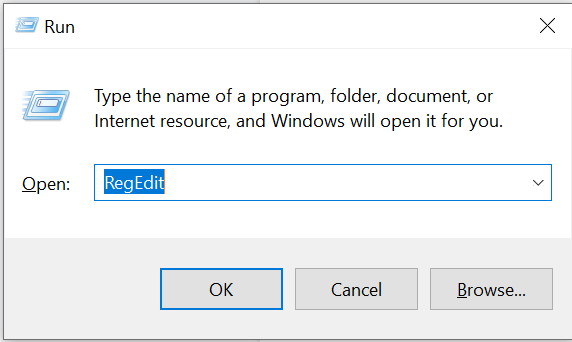
- Restart Bluetooth services to refresh the Bluetooth stack. To reset these services, press Win + R, then type msc, press Enter, locate Bluetooth Support Service, Bluetooth Audio Gateway Service, and Bluetooth User Support Service, right-click each of these services, and click Restart. If any service is not running, right-click the service and then click Start. Also, double-click each service and ensure the Startup type is Automatic. Then, click Apply and OK to save the changes.
- To re-pair the earbuds in stereo mode, follow the path: Start > Settings > Bluetooth & devices > Add device > Bluetooth. On Windows 10, navigate through the path: Start > Settings > Devices > Bluetooth & other devices > Add Bluetooth or other device > Bluetooth. Toggle Bluetooth on. Take both earbuds out of the charging case together and let them enter pairing mode. Select the earbuds carefully when they appear in Windows. If you see multiple entries for your earbuds, select the entry labeled as Stereo, Audio, or Music. Do not select Hands Free, Voice, LE, or Headset entries.
- Wait for the above process to complete before playing audio.
- If Windows selects the wrong audio profile, right-click the Speaker icon in the taskbar and then click Sound settings. On Windows 11, navigate to System > Sound. On Windows 10, follow the path System > Sound > Manage sound devices. In the Output section, choose the stereo version of your Bluetooth earbuds for music, streaming, gaming, and videos.
- On Windows 11, click More sound settings. On Windows 10, go to the Sound Control Panel. Click the Playback tab, right-click stereo earbuds, and then click Set as Default Device. Then, click Apply and OK to ensure Windows uses stereo playback and not call audio mode.
However, if Windows still doesn’t play stereo, or you experience poor audio quality even after re-pairing Bluetooth earbuds for stereo sound on Windows, check the solutions below.
Also know: How to Remove Bluetooth Devices on Windows 10, 11
Troubleshoot Bluetooth Earbuds Not Playing Stereo in Windows
Follow the fixes below sequentially until the Bluetooth earbuds work correctly.
- Turn off hands-free telephony to restore high-quality stereo audio immediately. To do this, press Win + R, type control printers, press Enter, find Bluetooth earbuds under devices, right-click your earbuds, click Properties, click Services, uncheck Handsfree Telephony, click Apply, click OK, and then disconnect and reconnect the earbuds.
- Disable mono audio. To do this, press Win + I, click Accessibility, click Audio, and then turn off Mono audio. On Windows 10, press Win + I, click Ease of Access, click Audio, and then toggle off Turn on mono audio.
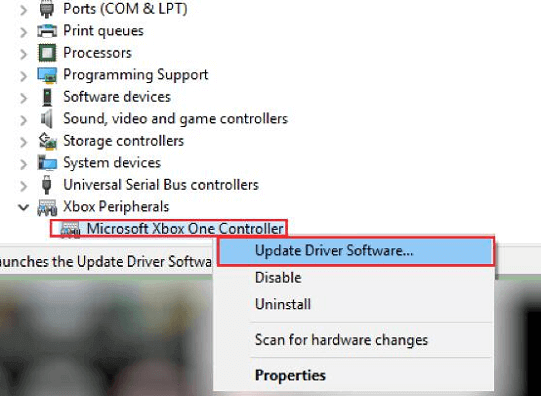
- Update Bluetooth drivers to fix pairing and stereo problems. To do this, right-click the Start button, click Device Manager, double-click Bluetooth, right-click your Bluetooth adapter, click Update Driver, click Search automatically for drivers, follow the on-screen prompts, and then restart your PC.
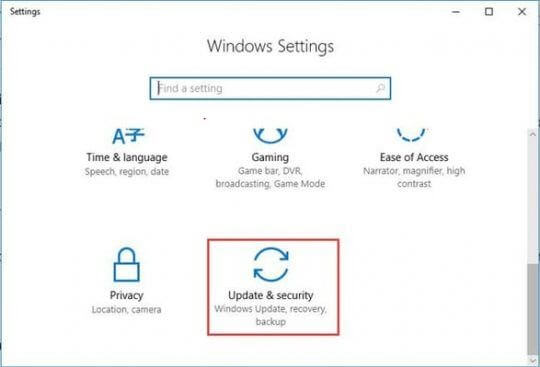
- Run the Windows Bluetooth troubleshooter to repair pairing and audio configuration issues automatically. To do this, press Win + I, click System, click Troubleshoot, click Other Troubleshooters, click Bluetooth, and then click Run. On Windows 10, press Win + I, click Update & Security, click Troubleshoot, click Additional troubleshooters, click Bluetooth, and then click Run the troubleshooter.
Additionally, you can follow the expert tips below to prevent future stereo audio problems.
Also know: How to Unforget a Bluetooth Device on iPhone, Android and Laptop
Tips to Prevent Stereo Audio Issues
To ensure no audio issues occur after you re-pair Bluetooth earbuds for stereo sound on Windows 10/11:
- Do not connect the earbuds to more than one device simultaneously during setup.
- Disconnect nearby devices, such as phones, temporarily to prevent them from interfering with the connection.
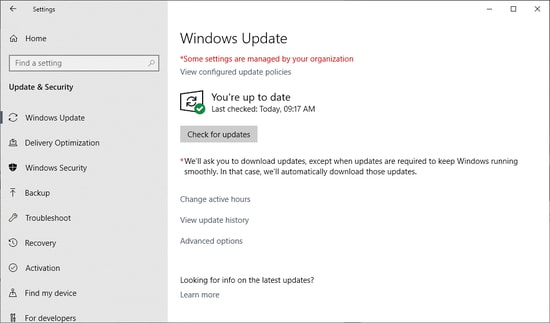
- Ensure your Windows system is up-to-date at all times. To update Windows, press Win + I, click Windows Update (on Windows 10, first click Update & Security and then Windows Update), click Check for updates, click Download & Install for the available update, follow the on-screen prompts, and then restart your computer.
- Do not use USB Bluetooth adapters with obsolete Bluetooth standards.
- Ensure you have Bluetooth 5.0 or the latest hardware for improved stereo stability and synchronization.
- Restart your earbuds periodically to fix temporary firmware issues.
- Install the latest firmware version if your earbuds have firmware update support via a mobile application.
- Ensure there are no unused Bluetooth entries.
- Ensure the 2.4GHz band is clear; remain within 30 feet and make sure USB 3.0 devices are not near your adapter.
- Remember to clean the charging contacts periodically.
Below are the answers to the questions users frequently ask about Bluetooth earbuds and how to re-pair them for stereo sound on Windows 11/10 to clear persistent confusion.
Frequently Asked Questions
Q1. Can I pair my Bluetooth earbuds to my PC?
You can pair your Bluetooth earbuds to your computer if your PC has built-in Bluetooth or a USB Bluetooth adapter. To pair your earbuds to the PC, press Win + I, click Bluetooth & devices, toggle Bluetooth on, enter pairing mode on your earbuds, click Add device, select Bluetooth, and select your earbuds.
Q2. How can I fix Bluetooth audio out of sync on Windows 11?
To fix delayed or out-of-sync Bluetooth audio on Windows 11, re-pair Bluetooth earbuds for stereo sound on Windows and disable audio enhancements.
Q3. Why is only one Bluetooth earbud working on Windows?
Generally, the earbuds lose synchronization with one another on Windows if they are connected via an incomplete Bluetooth profile. To solve this problem, reset the earbuds and pair them again.
Q4. Why does Windows show two earbud versions?
Windows creates two independent profiles for voice communication and stereo audio. The stereo profile offers high-quality sound; the hands-Free profile helps with microphone calls.
Q5. Why do my earbuds keep switching to hands-free mode?
Applications that enable the microphone, such as Teams, Zoom, and Discord, force Windows to switch to Hands-Free mode. You can set these applications to use your computer’s built-in microphone or uncheck Hands-Free Telephony in the Services tab of your device to solve the problem.
Q6. How do I switch from hands-free to stereo audio mode on Windows?
To switch from hands-free to stereo audio mode, right-click the speaker icon, click Sound settings, and click More sound settings. In the Playback tab, right-click the Stereo entry for your Bluetooth earbuds, and then select Set as Default Device. Also, open your earbuds’ properties, navigate to the Services tab, and then uncheck Handsfree Telephony.
Hope that helps you get high-quality stereo sound. If the stereo still does not work, it could be a hardware problem; symptoms may include frequent disconnections, short range, audio dropouts, and only a single earbud connection; switch to a modern Bluetooth adapter if this happens. Contact official device support if you continue experiencing stereo issues, earbuds work correctly on other devices but fail on your computer, your PC cannot detect any Bluetooth device, or Windows shows no option to enable Bluetooth. If you have any questions or need more clarification on how to re-pair Bluetooth earbuds for stereo sound on Windows 11/10, leave us a comment.