You can restore the Microsoft Store in Windows 11 if the app is crashing, refusing to open, displaying a broken interface, or missing altogether. It is easy to restore default apps, such as the Microsoft Store.
You can perform Microsoft Store app recovery on Windows through quick and easy methods in the guide below.
How to Restore Microsoft Store
To restore deleted apps, such as the Microsoft Store, delete the Windows Store cache, run the Windows Store apps troubleshooter, repair the Microsoft Store, update Microsoft Windows, reset the Microsoft Store, or use PowerShell to restore the deleted Microsoft Store. Below are these methods in detail; follow them sequentially until you get the Windows 11 Microsoft Store reinstalled.
Method 1: Clear Windows Store cache
Clearing the Windows Store cache fixes unexpected problems that may have caused the Microsoft Store cache to disappear. Hence, below are the steps to clear this cache using the built-in Microsoft Store reset tool to restore the Microsoft Store.
- Press Win + R to access the Run tool.
- In the Run dialog box, type wsreset.exe and press Enter.
- Lastly, wait for a blank Command Prompt console window and the Microsoft Store to appear.
Method 2: Use the Windows Store Apps troubleshooter
Windows Store Apps troubleshooter scans and fixes Microsoft Store issues. Below is how to run this troubleshooter for Microsoft Store app recovery on Windows.
- Press Win + I to open Settings.
- Click System in the Settings menu.
- Next, click Troubleshoot in the options that appear.
- Click Other/Additional troubleshooters.
- Click the Run button next to the Windows Store Apps troubleshooter.
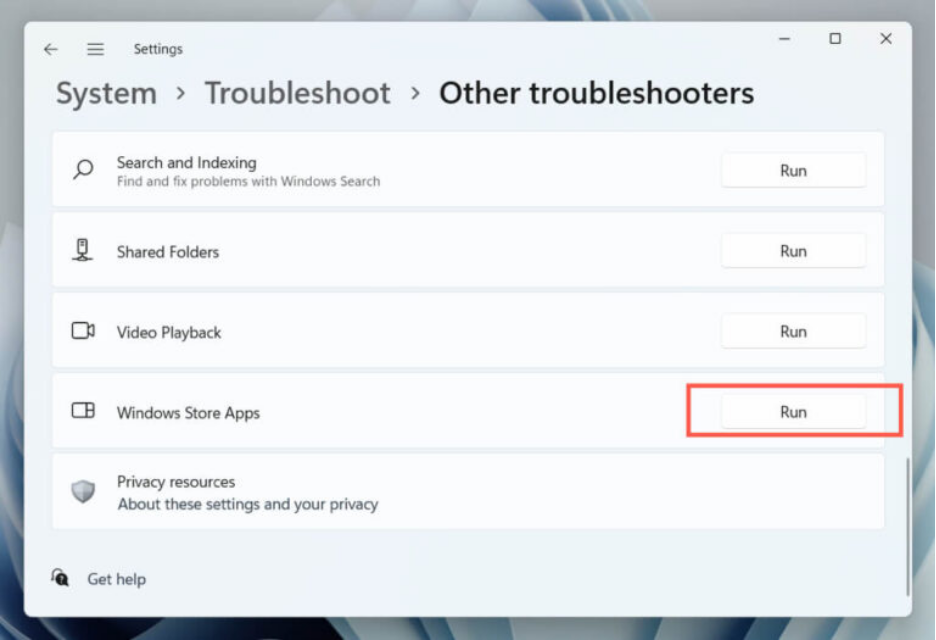
- Follow the instructions that appear to complete the troubleshooting and restart your computer.
Also know: How to Reinstall Microsoft Solitaire Collection In Windows
Method 3: Repair the Microsoft Store
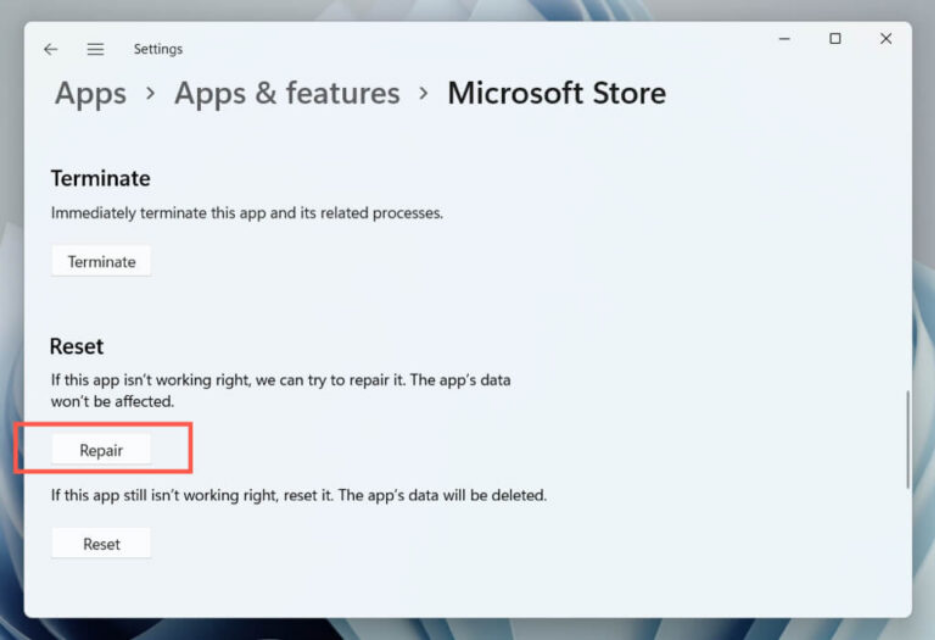
You can remove file corruption problems with the Microsoft Store application using Apps & Features to repair the Microsoft Store. Here is how.
- Right-click the Start button.
- Click Apps and Features in the menu that appears.
- Next, click Microsoft Store in the list of applications.
- Click the three dots (More button).
- Click Advanced Options.
- Lastly, click Repair.
Method 4: Update Microsoft Windows
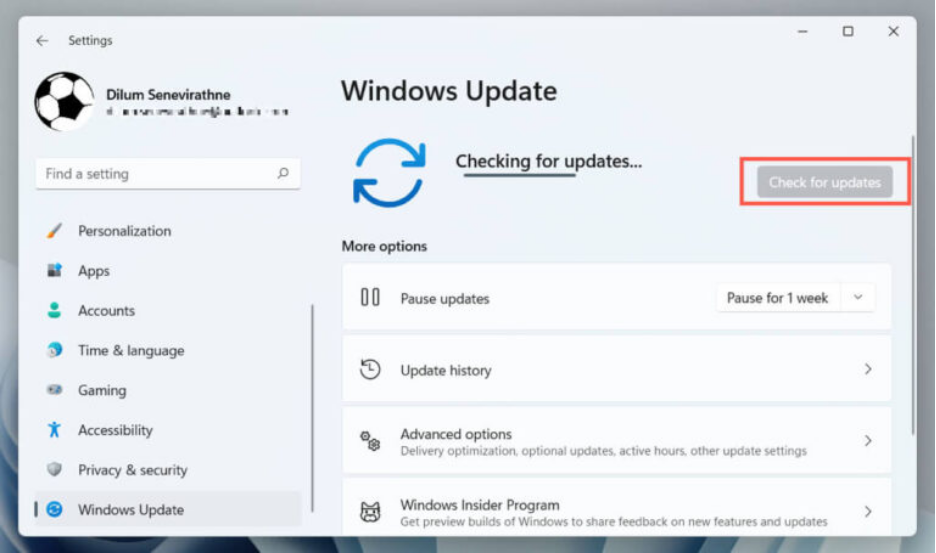
Windows Update fixes conflicts between default apps and Windows. Thus, you can follow the steps below to update Windows to restore default apps like the Microsoft Store.
- Press Win + I to open Settings.
- Click Windows Update.
- Next, click the Check for updates button.
- Click Download and install for available updates.
- Lastly, restart your computer to apply the update.
Method 5: Reset the Microsoft Store
Resetting the Microsoft Store to factory settings solves problems related to broken system settings. It can restore the Microsoft Store sign-in on your PC. Hence, to reset the Microsoft Store:
- Right-click the Start button.
- Click Apps and Features.
- In Apps and Features, scroll down and click Microsoft Store.
- Click the More button (three dots).
- Next, click Reset in the available options.
Method 6: Use PowerShell to restore the Microsoft Store
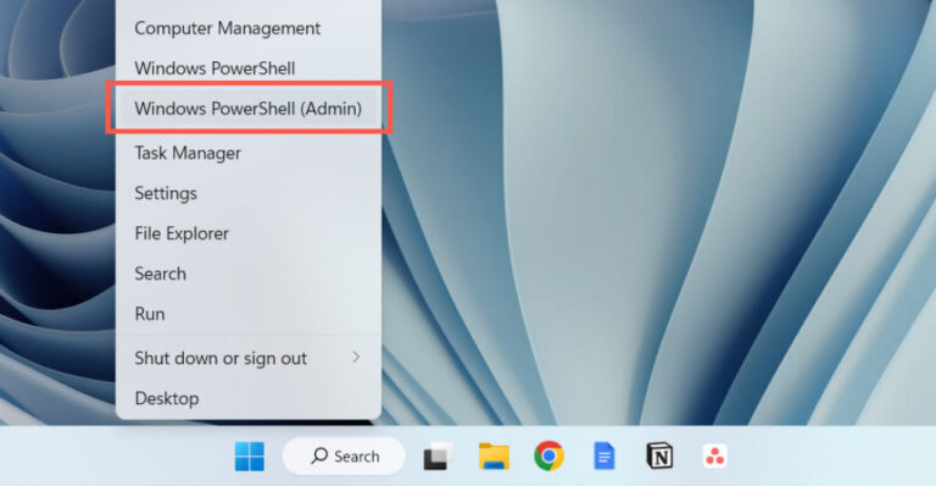
If repairing or resetting does not restore the Microsoft Store’s functionality, you can uninstall and reinstall it using an elevated Windows PowerShell. Here is how.
- Right-click the Start button.
- Click Windows PowerShell (Admin) in the options that appear.
- Click Yes when a User Account Control prompt appears.
- In Administrator Windows PowerShell, copy and paste: Get-AppxPackage -allusers *WindowsStore* | Remove-AppxPackage
- Press Enter and wait until Windows PowerShell uninstalls the Microsoft Store.
- Shut down and restart your computer.
- After your PC restarts, open Windows PowerShell as Administrator.
- In Administrator Windows PowerShell, copy and paste: Get-AppxPackage -allusers Microsoft.WindowsStore | Foreach {Add-AppxPackage -DisableDevelopmentMode -Register “$($_.InstallLocation)AppXManifest.xml”}
- Press Enter to reinstall the Microsoft Store deleted apps.
However, if you experience errors, such as Add-AppxPackage, Package could not be registered, Error 0x80070057, or Error 0x80070002, when restoring the Microsoft Store, you can create a new user account to solve the problem. To create a new user account, open Settings (press Win + I), go to the Accounts section, click Family and other users, click Add someone else to this PC, and follow the on-screen prompts to complete the account creation. After creating a new account, you can move your data to the new account from the old account.
Below, you will find answers to some commonly asked questions about the Microsoft Store restore and reinstallation to clear up persistent doubts.
Also know: How to Reset Microsoft Edge Browser to Default
Frequently Asked Questions
Q1. Can I uninstall Microsoft Store?
Ans. Yes, you can uninstall the Microsoft Store app. However, you cannot download or update applications from the Store after uninstalling it.
Q2. Can I reinstall Microsoft Store without administrator privileges?
Ans. No, administrator privileges are necessary to reinstall the Microsoft Store.
Q3. How do I restore the missing Microsoft Store?
Ans. You can restore the Microsoft Store through Administrator Windows PowerShell, as explained in the guide above.
Q4. How do I fix the Windows Store error?
Ans. You can use the Windows Store Apps troubleshooter to solve Windows Store problems. Follow the path: Win + I > System > Troubleshoot > Other/Additional troubleshooters > Windows Store Apps troubleshooter > Run.
Hopefully, this helps you restore the Microsoft Store. If you have any questions or need clarification, leave us a comment.