The firmware is also called the ‘Software for all the Hardware’ in your system. The need for Firmware updates is necessary because they keep the operations of all the devices up-to-date and smoother.
The firmware mainly provides all the devices with information to start, communicate, and even to perform all the basic input and output tasks for the entire system.
In this article, you will understand the clear firmware definition with the types of all the firmware updates and examples related to it as well.
Firmware Definition
To define firmware exactly, we can say that firmware is a program that is embedded into your hardware devices of the system that helps all of them to operate smoothly and effectively. The firmware mainly provides all the devices with information to start, communicate, and even to perform all the basic input and output tasks for the entire system.
These are already embedded into the graphic cards and memory chips of your system. Unlike other software, these are not installed or uninstalled in the systems. Therefore, it is important to update the firmware regularly, and mainly the hardware manufacturers release all the necessary updates in a timely manner for you.
Type and Examples to Define Firmware
- BIOS: The basic input/output system is usually found in a BIOS of the system. Even the BIOS Update initializes the main hardware components of the system.
- EFI: The EFI or UEFI (Unified Extensible Firmware Interface) can be the better alternative to the BIOS because it provides you with way more advanced features than the BIOS. It also boosts time along with more robust security.
- Embedded Firmware: Being already stored in routers, printers, mobile phones, and many other smart home appliances, it is mainly responsible for them to operate and control all of them strongly.
- Peripheral Firmware: This kind of firmware is mainly found in the peripheral devices like keyboards, mice, and printers to help them communicate with the system mainly.
- Network Firmware: This kind of firmware is used in devices like routers and modems to manage network, internet settings and connectivity, security of the internet, and all the transfers and transmission of data.
What is Firmware Update?
The need for Firmware to update is necessary because it keeps the operations of all the devices up-to-date and smoother.
The following are the primary reasons for the firmware update:
- It helps you to upgrade all your devices without even upgrading the hardware itself.
- After updating you can operate all the devices more smoothly and can experience all the advanced features.
- After updating your firmware, you can simply optimize the performance of the firmware and devices.
- The updating of the firmware can simply boost the execution time of all the devices and helps in running the devices smoothly.
- After you update firmware, it helps in developing and fixing the issues or minor glitches in your system and devices.
- After firmware updates, it will install new capabilities and features in your system and devices.
Methods for Firmware Update
To understand more about the firmware definition, you can use the following methods to update the firmware.
Method 1: Using Windows Update
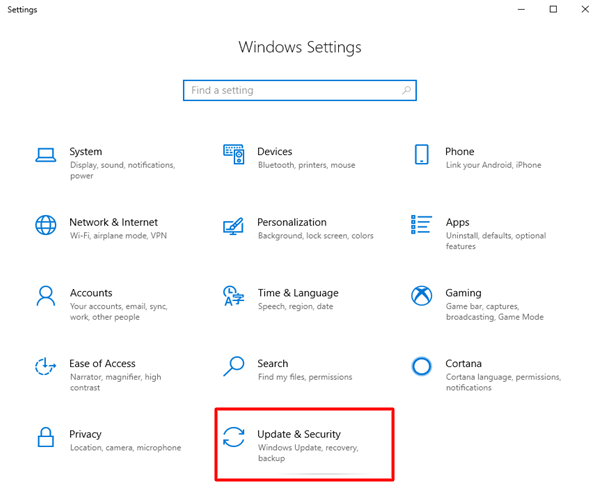
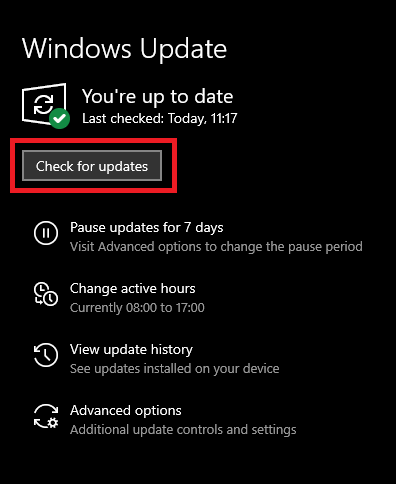
You can also update the firmware by updating Windows as well. The following are the steps by which you can update the Firmware using the Windows update:
Step 1: Go to ‘Start’.
Step 2: Open the ‘Settings’ and go to Windows Update.
Step 3: In the ‘Driver Update’, select the ‘Windows Update Settings’. And go to the ‘Advanced Options’. And then go to ‘Optional Update.’
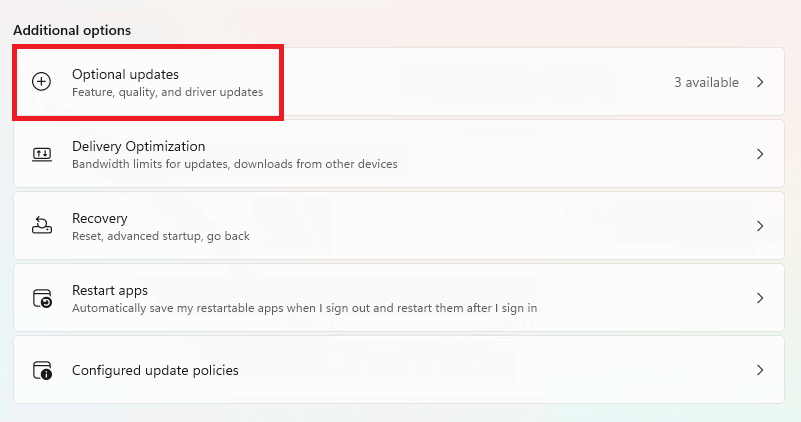
Step 4: And then go to ‘Driver Update’ and select the BIOS update and then download and install it.
Also know: Windows 11 Installation Assistant Download
Method 2: Using Standalone BIOS Utility
The utility is mainly designed to be executed only on Windows, and updates are accessible on the executable files that are easily run on the Windows OS. The following are the main steps to update firmware using the BIOS Utility:
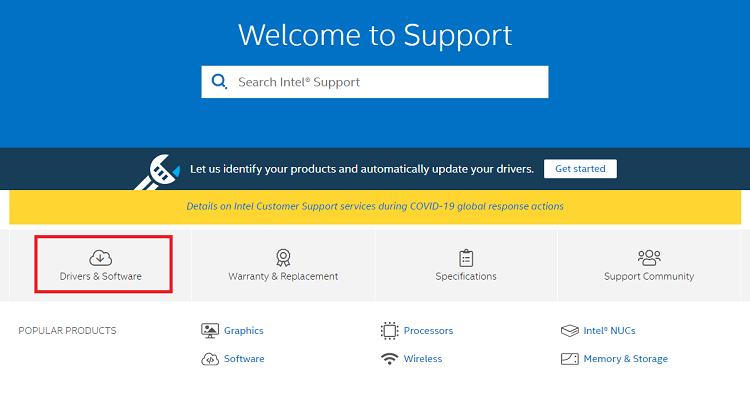
Step 1: First download the latest BIOS update and then go to Drivers & Downloads on the website using the Express Service Code.
Step 2: Then go to the download files and follow all the instructions that appear on the screen and run the installer present on the screen.
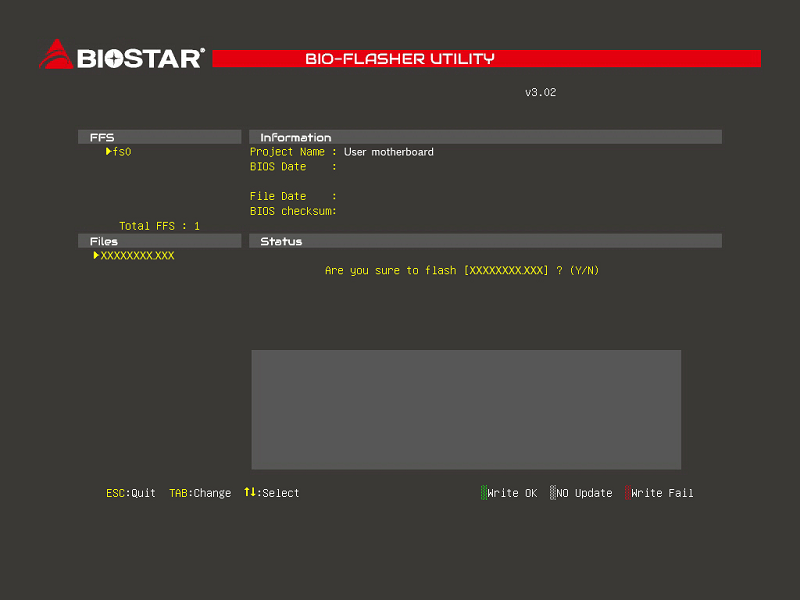
Step 3: Then your system will start automatically and will be rebooted.
Method 3: Using a USB Flash Drive
This method is perfect for all those users who run on either the Ubuntu or Linux OS or whenever the user cannot access Windows. And you can also learn how to reboot the USB Flash Drive as well.
The following are the steps to update using the USB Flash Drive:
Step 1: You can use a USB Flash Drive for the format of the USB drive.
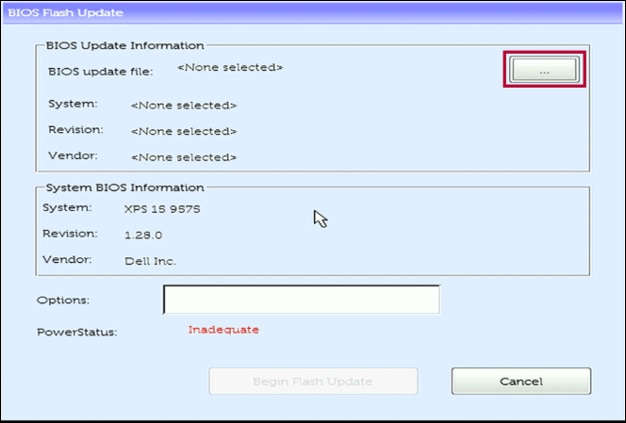
Step 2: Then save and download the BIOS update file.
Step 3: Then access the boot menu and restart the system by pressing F12 and accessing the One-Time Boot Menu.
Step 4: And then select the BIOS update from the menu of the One Time Boot Menu.
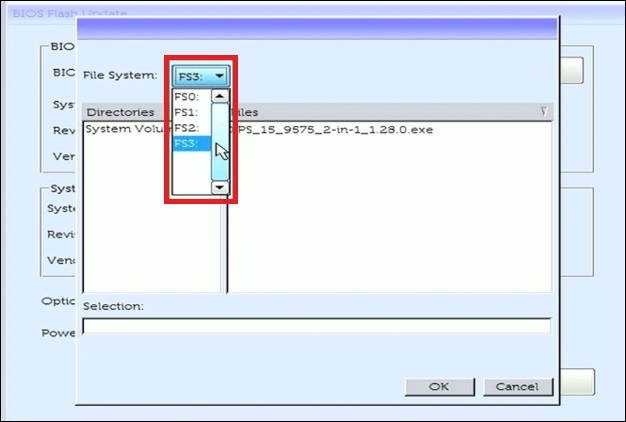
Step 5: After this, plug in the USB drive and select the Flash from the file and then navigate to the File Explorer. Then go to the BIOS update file.
Step 6: And then select the BIOS updates files and select the Update BIOS and then follow all the prompts present on the screen.
Method 4: Using Over-The-Air (OTA) or Remote
You can update the firmware by using the Over-The-Air update and using these following steps:
Step 1: You can either restart or turn on the system.
Step 2: Keep pressing the F12 key repeatedly until One time Boot Menu appears.
Step 3: From the menu, select the BIOS Flash Update – Remote
Step 4: Use an Ethernet cable or any kind of wireless network to connect your system to the internet.
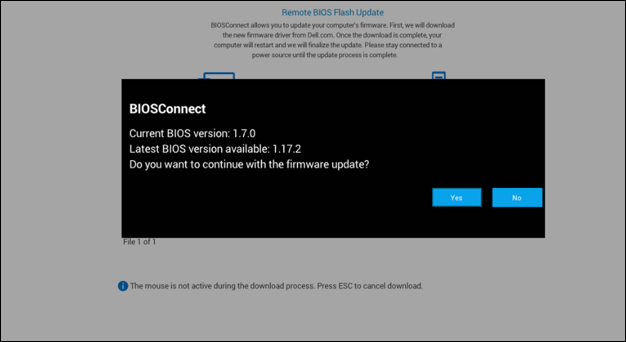
Step 5: Select the BIOS Update, and search for the BIOS version.
Step 6: Then confirm the download and let the update finish.
Also know: How to Fix No Signed Device Drivers Were Found Error in Windows
Frequently Asked Questions (FAQs)
Q1. What is firmware update?
Ans. A firmware update is used to modify the software, which is responsible for the control of all the devices present on your system.
Q2. Do we need firmware for IoT devices, and if so, then why?
Ans. Yes, we need firmware updates for IoT devices because they are more vulnerable to cyberattacks, and we need more updates regularly for these kinds of devices. The firmware update makes these devices more extensible, reliable, and secure.
Q3. Does updating firmware affect any of my personal settings on the system?
Ans. Normally, the update of your firmware neither affects any of your personal settings, nor does it erase any of the personal settings. But it will be intelligent of you to keep a backup for your data before you proceed to update.
To understand what is firmware update, we need to first understand the firmware. Here in this article, we define firmware along with firmware updates and what the examples of firmware are. The need for Firmware updates is necessary because they keeps the operations of all the devices up-to-date and smoother.