Microsoft edge is used in internet activities, and you might face some issues or glitches sometimes with a little assistant. To reset edge browser is easier than you think and becomes important when you face continuous glitches while working on Microsoft edge.
Over time, the browser might collect a lot of temporary files and cookies along with some extensions that start affecting the ability of the edge. So, it is necessary to reset it after some time to clear all those temporary files and cookies.
Reset Edge to Default Settings
After you reset edge to default settings, it will disable all the extensions. And it will also clear all the temporary data stored in your system. Along with this, after you reset a lightweight browser, it is important for you to save all the passwords permanently.
To reset edge to default settings, follow the step mentioned below:
Method 1: Using Settings
Step 1: Click on the three dots present at the top right corner of Microsoft Edge on your screen.
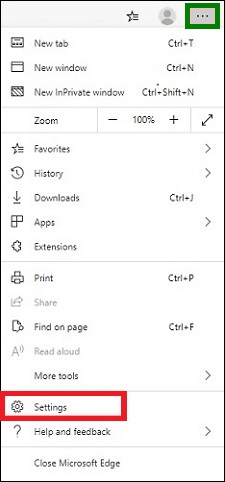
Step 2: Select ‘Settings’ from the menu.
Step 3: Then look for ‘Reset Settings’ from the menu and open it.
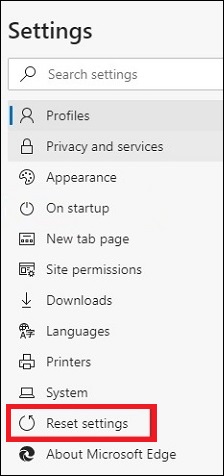
Step 4: Click on the option ‘Restore Settings to their default values’ to reset the Microsoft Edge browser. And then a dialog box will appear.
Step 5: Click on the ‘Reset’ to completely reset the browser to its default settings.
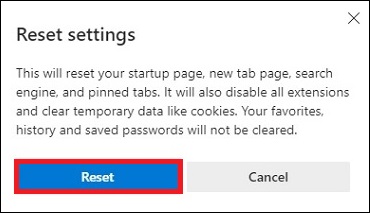
Now with this, you have successfully reset edge browser but make sure that after you reset edge browser it will not delete or remove Microsoft Edge from your device. It only restores all the default settings and resolves all the errors that have occurred in your browser. Over time, the browser might collect a lot of temporary files and cookies along with some extensions that start affecting the ability of the edge.
Also know: Best Gaming Browser for Windows
Method 2: Using PowerShell
The following are the steps to reset edge browser using PowerShell:
Step 1: Press ‘Win + X’ keys together on your keyboard.
Step 2: In PowerShell, type ‘powershellGet-AppXpackage –AllUsers –NameMicrosoft.MocorsoftEdge| Foreach {Add –AppxPackage –DdsiableDevelopmentMode –Register “$($_. InstallLocation) AppXManifest.xml” -Verbose}
Step 3: Now wait for a few seconds and after the command finishes, close the PowerShell Window.
Step 4: Reboot your computer.
After this, you have successfully reset your edge browser.
Method 3: Resetting Without Even Opening It
The following are steps by which you can rest your edge browser without even opening it:
Step 1: Go to the ‘Start’ menu and type ‘Windows PowerShell’ then right click on and click on ‘Run as administrator.’
Step 2: Type this command in PowerShell Window ‘Get-AppXPackage -AllUsers -Name Microsoft.MicrosoftEdge | Foreach {Add-AppxPackage -DisableDevelopmentMode -Register “$($_.InstallLocation)AppXManifest.xml” -Verbose}
Step 3: Now press ‘Enter’ and close the PowerShell and restart the system once.
Reset Edge to Defaults with Every Setting
You can also do Microsoft edge reset browser settings as well.
The following are the steps to change entire edge reset browser settings:
Step 1: Go to the start button present on the bottom left corner of the screen.
Step 2: Find ‘Task Manager’ and from the top result open the application.
Step 3: Go to the processes tab and search for the ‘Microsoft Edge’ from the search box present on the top of the page on your screen.
Step 4: Select the Microsoft Edge’ group of the processes and select the ‘End Task’ button. This will make sure that none of the browser processes are running currently on this device.
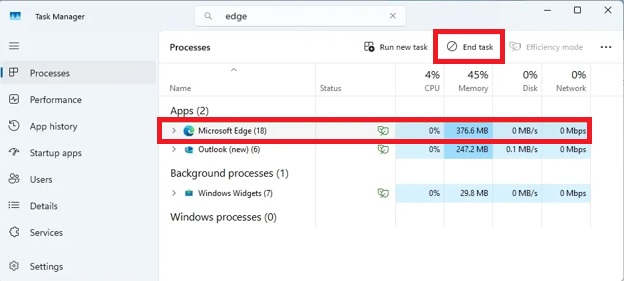
Step 5: Now go to File Explorer.
Step 6: Type ‘%LOCALAPPDATA%\Microsoft’ in the address bar then press Enter.
Step 7: Now right click on the Edge folder from all folders and select the ‘Delete’ option.
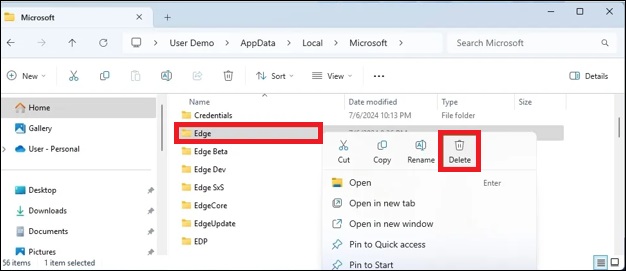
Step 8: And follow further on-screen options (if available).
When Should You Reset Edge Browser?
You must consider to reset edge browser when:
- Your Microsoft edge is unusually slower.
- You are redirected directly towards all the unwanted sites whenever you use your edge browser.
- There are changes in the homepage and search engine of your edge browser without any of your permission.
- When all the extensions are not performing as they should.
What Does Not Affect When You Reset Edge Browser Settings?
When you reset your edge browser:
- It will not remove your favorites.
- Will not erase your browsing history.
- Will not ave any kind of passwords.
Also know: Free Multiplayer Browser Games to Play
Frequently Asked Questions (FAQs)
Q1. How can I enable all my extensions after resetting the edge browser?
Ans. You can enable all your extensions after you reset edge browser by following these steps:
Step 1: Go to the three dots and click on them. And open the menu from the list.
Step 2: and go to extensions and check for all the extensions you want to enable.
Q2. How can I set the Microsoft Edge browser as my default browser?
Ans. You can set the Microsoft Edge browser as my default browser by following steps:
Step 1: Press the ‘Windows’ key on your keyboard.
Step 2: Search for default apps in the search box and go to settings.
Step 3: Go to the web browser and select Microsoft Edge from the list.
Q3. After you reset the Microsoft Edge browser in your system, does it delete your history, favorites, or passwords?
Ans. No, even after you reset your edge browser, it will not delete your history, favorites, or any of your passwords.
Over time, the browser might collect a lot of temporary files and cookies along with some extensions that start affecting the ability of the edge. To reset edge browser on your own is very easy and involves very few steps than you think. All the important steps are mentioned in this article so that you can easily reset your browser on your own, because it might cause trouble for you sometimes.