Main LogoLight Logo
  • Reviews
  • Top 10
  • How To
  • Tech News
  • OS
    • Windows
    • MAC
    • iOS
    • Android
  • Categories
    • Driver Updater
    • Cyber Security
    • Games
    • Fitness
    • Entertainment
    • Tips & Tricks
How To
by Harshita

[Fixed] Embedded Videos Not Playing In Google Chrome

January 20, 2021
1

Learn how to fix Embedded videos not playing in Google Chrome in a few minutes!

Undoubtedly, Google Chrome is one of the best web browsers available currently. As per the sources, Google Chrome is the most popular and accessed browser among desktop or mobile users. Doesn’t matter how far it is the best and popular web browser, still, sometimes even the ideal software can have glitches too. The same is happening with Google Chrome currently.

Many users have reported that Google Chrome is not supporting Embedded videos. When they try to play or download the embedded videos at that time videos not playing on Chrome. However, luckily, this issue can be fixed quite easily. Just read along to know how you can fix Embedded Videos not playing in Google Chrome.

Table of Contents hide
Advanced Solutions To Fix Embedded Videos Not Playing In Google Chrome
Solution 1: Clear Browsing History & Cache Data In Chrome
Solution 2: Switch Off Hardware Acceleration In Chrome
Solution 3: Update Google Chrome
Solution 4: Disable AdBlock On Chrome

How To Fix Embedded Videos Not Playing In Google Chrome

Google Chrome is the most widely used web browser among macOS, Windows, Android, Linux, and iOS users. But, technical issues can occur anytime. Frequently Chrome users complain that it does not load, shows black screen, runs slower than expected, often crashes, and many more. But, this time, the issue is a little bit more frustrating as it prevents playing web videos on Chrome.

However, this can be fixed with much ease. The post explains the best solutions to fix Embedded videos not playing in Google Chrome. But, before moving towards the solutions, be sure that your system has the following to play the video.

  • High and active internet speed.
  • Up-to-date drivers.
  • The most recent version of Chrome.
  • Upgraded Adobe Flash Player.

That is what you have to ensure that your computer has the following. After ensuring that, still embedded videos won’t play, then here are several smart and advanced solutions to fix the same issue.

Read Also: How To Disable Autoplay Videos in Chrome and Firefox


Advanced Solutions To Fix Embedded Videos Not Playing In Google Chrome

Now, have a look at the below mentioned advanced ways to fix embedded videos not playing in Chrome!

Solution 1: Clear Browsing History & Cache Data In Chrome

Temporary or junk files can be the culprits because of which this issue is occurring. Clearing junk or temporary files and browsing history in Chrome can fix the web videos playing issues. Plus, it will also fix the other browser-related issues too. Here is how to do it!

Step 1:- Firstly, open the Google Chrome browser, and then click on the three-dot icon presented at the right top corner of the screen. Then, click on Settings from the dropdown menu.
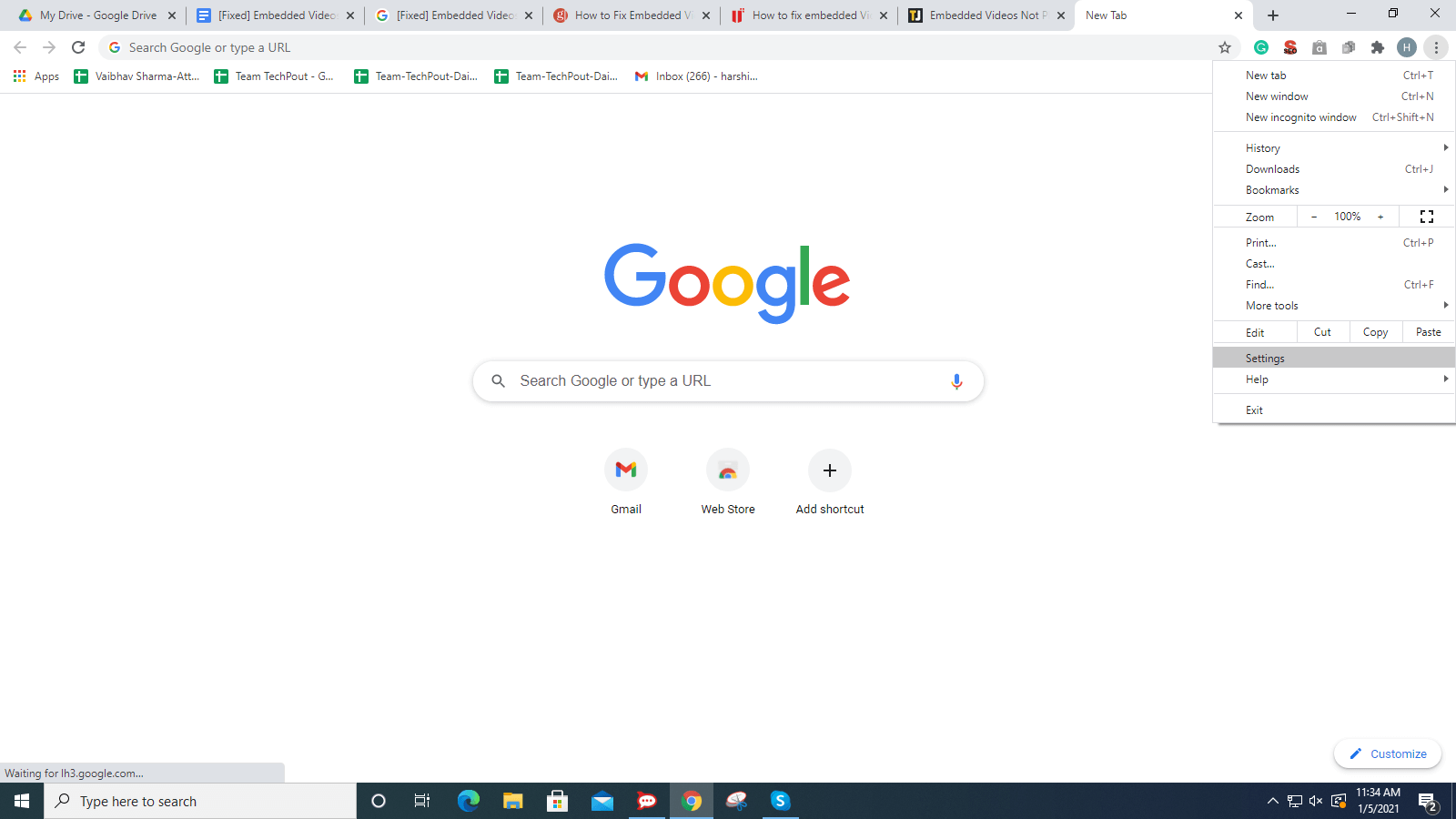
Click On Settings From The Dropdown Menu

Step 2:- After this, scroll down and locate Privacy & Security option, then choose Clear Browsing Data.
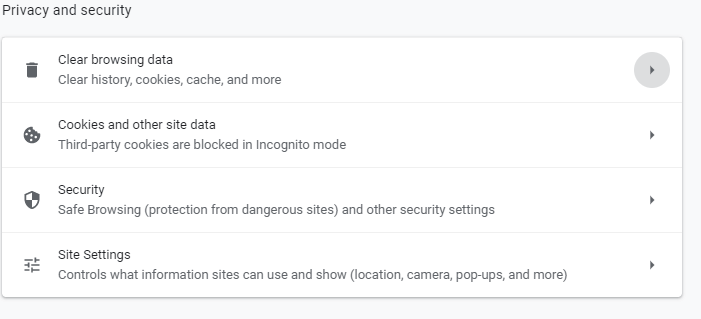
Choose Clear Browsing Data Option

Step 3:- Now, select the time range of eradicating the browsing data.
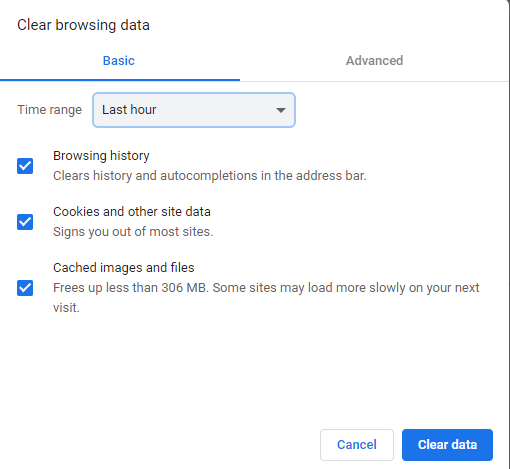
Select Time Range Of Eradicating The Browsing Data

Step 4:- Later on, click on the Clear Data.

Thereafter, open Google Chrome again and check if the issue is fixed or not.

Read More: How To Delete Duplicate Photos On Windows 10


Solution 2: Switch Off Hardware Acceleration In Chrome

After clearing up the cache data, browsing history, or cookies still the issue continues, then try to switch off the Hardware Acceleration in Chrome. This can be solved this annoying issue. Steps to switch off Hardware Acceleration in Google Chrome.

Step 1:- Again, go to the Settings.

Step 2:- Then, scroll down to Advanced and then choose System.

Step 3:- Unmark the checkbox of Use Hardware Acceleration When Available.
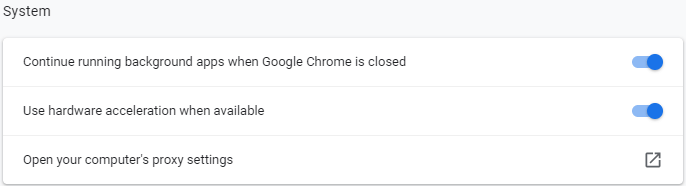
Unmark Checkbox Of Use Hardware Acceleration When Available

After turning off the Hardware Acceleration then check whether the issue solved or not. If it still remains the same as earlier, then move towards other solutions.


Solution 3: Update Google Chrome

What’s more, you can do, in order to fix embedded videos not playing in Google Chrome is – updating the web browser. Updates solve the bugs and improve the performance too. And, mostly fixes the numerous browser-related issues as well including web videos not playing. So, always make sure that you are accessing the updated Chrome. Here are ways to update Google Chrome.

Step 1:- Head to the Settings.

Step 2:- And, then and from the left pane side of the window navigate to About Chrome and click on it.
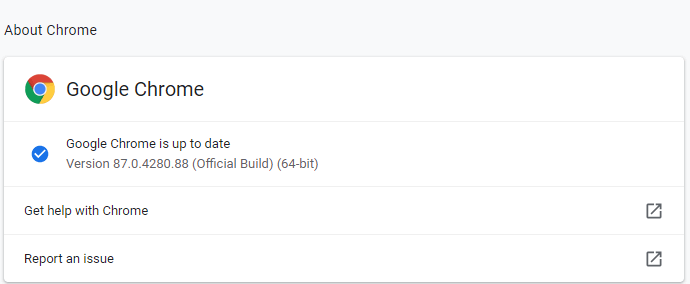
From Left Pane Side Of Window Navigate To About Chrome and Click On It

Then, this will let you know about the update. If the new update is available then install it.

Read More: Best Lightweight Browser for Windows 10/8/7


Solution 4: Disable AdBlock On Chrome

If you are utilizing the AdBlock version on Chrome, then uninstall it. However, the AdBlock prevents ads over the web but sometimes it hinders the functioning too. So, disable the AdBlock can solve videos not playing on Chrome. All that you need to do!

Step 1:- Switch to the Settings of Chrome.

Step 2:- Then, from the left pane side locate Extensions.

Step 3:- Now, detect AdBlock and set its status to off. Or, if you want to remove it then click on the Remove button to eradicate it completely.
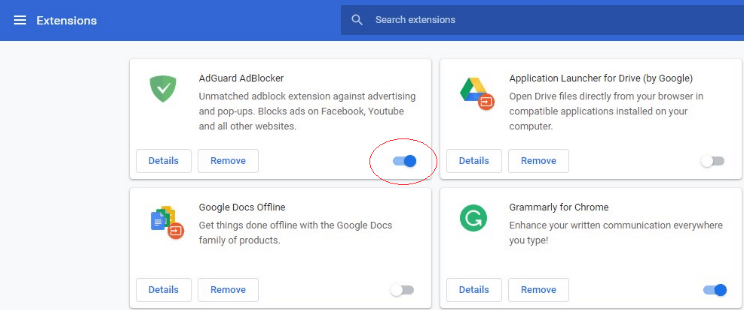
Click On Remove Button To Eradicate It Completely

That’s how to fix Embedded videos not playing in Google Chrome by disabling or uninstall the AdBlock on Chrome.

Read More: How To Update Video Card Drivers In Windows 10


Embedded Videos Not Playing in Google Chrome [Fixed]

Above mentioned methods can fix the Embedded videos not playing in Google Chrome. Eradicating browsing history, cache data, disabling Hardware Acceleration, updating Chrome to its newest version, removing AdBlock extension works for most of the individuals who were facing the same issue. However, you do not need to try them all, just read along until you find the best bet. And, then give a try to the best method according to your preference.

So, that is all, hopefully, now you can easily download embedded videos from Chrome. Still, just in case, if you stuck in any situation where you don’t know how to move further then do tell us in the comment box below. We will surely make every possible effort to help you out in the best ways. Want more such informative and helpful write-ups? Then, do subscribe to our Newsletter to stay updated. Lastly, stay in touch with us, we’ll back shortly!

Author

Harshita

Harshita Sharma is a technical writer with quite a distinct understanding of the tech realm. She is a tech enthusiast who believes that tech knowledge should reach one and all and tries to convert the sketchy knowledge into the simplest possible form for making people understand the tech world better. When not playing with words, she loves to travel and explore new places. And, is a coffee & cricket connoisseur.

View all posts

Related Posts
How to Get Unbanned from Omegle

How to Get Unbanned from Omegle [A Complete 2022 Guide]

July 9, 2022
0

Do not panic if Omegle banned you, as this article shares many effective ways to get unbanned from Omegle on phones and computers. 

At times, all humans wish to get that feeling of belonging. When not occupied with professional and other commitments, you may want to share how your day went, vent your frustrations, or crack jokes with someone. And when it was not possible to find that companionship offline, you searched for it on Omegle. But for some reason, like your quips not going well with somebody not having a great sense of humor, you may get banned on the platform. Well, no worries if you are facing a ban, as this article shares how to get unbanned from Omegle.

Yes, getting unbanned from Omegle is as easy as getting banned from it. Now, if this leaves you wondering, “why did I get banned on Omegle” (don’t know what went wrong!), let us look at all the possible reasons you are unable to use the platform to quench your curiosity.

Reasons Omegle Banned You

You may get banned on Omegle for any or more of the following reasons.

  • Copyrighted music playing in the background
  • Any statement that seems racist, sexist, or hateful
  • Presence of a virtual cam
  • Nudity

The above list is not the end, and Omegle may ban you for many other unusual reasons. Well, no matter the reason, you may use the below methods to get your Omegle unbanned.


Top Methods for How to Get Unbanned from Omegle

Below are the tried and tested methods you may use to get Omegle unbanned on your phone or computer.

Method 1: Use a VPN

Omegle banned your IP address so that you cannot use the platform even from a different device. Hence, you may use a Virtual Private Network or VPN to mask your IP address and use Omegle without any hassles. There are a lot of VPN applications available on the web. However, you must be very careful in selecting the one for your device. An incorrect VPN may put your device and data at a security risk. Hence, we always recommend using the best VPNs..

Also Read: Difference Between VPN and Proxy Server | Proxy vs VPN


Method 2: Get unbanned from Omegle using a proxy server

Proxies function in a similar fashion to VPNs. However, the only difference is that it does not offer encryption when sending traffic via an intermediary server. However, it does not make proxies unsecure. Most proxy servers are adequately secure. You may use the best proxy server to get yourself unbanned from Omegle.


Method 3: Let a few days pass

Omegle’s ban is often temporary, just for a few couples of days. Therefore, you may try diverting your attention to other beautiful joys of life if you are searching for how to get unbanned from Omegle. We feel it is a good idea to take a break, do something you like, and then return with a lot of things to talk about on Omegle.


Method 4: Try getting another IP address

Though your IP address refreshes automatically after a particular time, you may speed up the process to make Omegle unbanned. The following is how to do it.

  • Search Google for your IP address and note it.
  • Unplug your modem from the source of power and keep it unplugged for at least an hour.
  • Re-plug your modem and get it connected to the network.
  • Google your IP address again.
  • If your IP address is different from the previous one, you may use Omegle again.

Method 5: Try connecting to another network

As you know, Omegle bans your IP address from using the platform. Since your network is connected to the IP address, you won’t be able to use Omegle unless you change the network. Hence, connecting to a different network (you can go to another location like a friend’s place to use his WiFi or connect to a public WiFi) is also a way to unban and bring back your Omegle chats.

Also Read: How to Boost Slow VPN Speed


Method 6: Use your phone’s hotspot to connect to Omegle

If you are in no mood to leave your home and go somewhere else to use Omegle, you may use the phone’s hotspot. Your phone has a different IP address than your home WiFi. Therefore, it may help you be unbanned from Omegle. Below we share how to connect to the hotspot on Android and iPhone.

Steps to connect to the hotspot on Android

You may follow these steps to connect to your Android phone’s hotspot to use Omegle.

  • Go to your phone’s Settings. 
  • Choose Mobile Hotspot & Tethering. 
  • Select Mobile Hotspot to activate it.
  • Name your hotspot network and set a password for it.
  • Search for the hotspot network, key in the password, and connect.

Steps to connect to the hotspot on iPhone

The following are the steps you may follow to connect to your iPhone’s hotspot.

  • Open the Utilities menu from the top of your iPhone’s screen.
  • Long-press the widget for WiFi and Bluetooth connections. 
  • Tap on the hotspot icon to activate it.
  • Search for your iPhone’s hotspot network on the computer and connect to it.

Above, we looked at how to get unbanned from Omegle on phone and computer. Now, let us answer some related questions to clear any doubts you may have.

Frequently Asked Questions

Below we try to answer all common questions about how to get your Omegle unbanned.

Q1. How long do bans on Omegle last for?

The duration of Omegle bans depends on the alleged offense and whether the banned person is a first-time offender or a repeat offender. For a first-time offender, the ban normally lasts for a short period (one week), and for a repeat offender, the ban is of a longer duration (over 120 days).

Q2. Are bans from Omegle permanent?

The bans on Omegle are mostly temporary for a duration of over 120 days. However, they may be permanent if the offense is of a serious nature.

Q3. Can I appeal the Omegle ban?

If you believe Omegle banned you mistakenly, you may mail to [email protected] with your full name and account details to enquire about the ban and prove your innocence.

Q4. Which VPN works with Omegle?

Some of the top free VPNs that work with Omegle include ExpressVPN, CyberGhost, ProtonVPN, Hotspot Shield, and TunnelBear.

Q5. Is Omegle for 12-year-olds?

According to Omegle’s age policy, only 13 years+ users can use Omegle. However, if you are in the age bracket of 13 to 18 years, you need your parent/guardian’s permission to use the platform.

Q6. How do I get unbanned from the Omegle ban?

You may refer to the above guide to learn how to get unbanned from Omegle on your phone and computer. Here, we shared multiple ways to unban from the platform, such as VPNs, proxy servers, and more.

Also Read: Reasons Why You Should Have a VPN On Your PC


Concluding Words

So, that was all about how to get unbanned from Omegle to chat with strangers again. You may use the methods shared in this guide to be able to chat on Omegle.

However, once unbanned, we suggest using Omegle responsibly to ensure not getting banned again. And if you have any doubts or concerns about this article, you may always get in touch with team TechPout through the comments section.

How to Turn on Bluetooth on Windows 10 [Complete Guide]

How to Turn on Bluetooth on Windows 10 [Complete Guide]

September 4, 2021
0

Bluetooth won’t turn on in Windows 10? Don’t worry. Here in the blog, we’re going to explain how to turn on Bluetooth Windows 10 and what you can do to fix it if it won’t turn on.

There are plenty of reasons you might need to turn Bluetooth on in Windows but usually, it’s to connect nearby Bluetooth devices (headphones, speakers, mice, keyboards, phones, etc.) with your desktop computer or laptop.

It doesn’t matter if you’re transferring some files, connecting music players with wireless headphones, establishing a BLE mesh network, or even just sharing the wireless connection with another device — you’ll need to turn on Bluetooth before you can do any of it.

Without any delay, let’s explore the different methods to learn how to turn Bluetooth on Windows 10 and fix the connectivity problems related to it.

How to Turn on Bluetooth in Windows 10

For ease of reference, we have divided the below guide into two different segments. The first segment discusses the two easy methods to turn on Bluetooth on PC, while the second one contains some tried and tested workarounds to troubleshoot Bluetooth issues in Windows 10.

Part A: Simple Methods to Open Bluetooth in Windows 10

Let’s check out the two methods you can use for Bluetooth and other devices settings turn on.

Method 1: Turn Bluetooth On Using the Windows Settings App

The easiest way to turn on Bluetooth on Windows 10 is to use the Settings application. Here are the step-by-step instructions that can help you in doing so.

  • First, you need to open the Windows Settings To do so, select the Start (Windows logo icon) button and then choose the gear icon as shown in the image below.
    open the Windows Settings
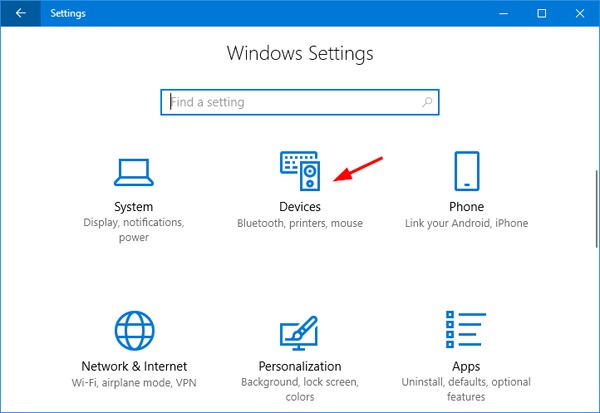
  • Next, you need to select the Devices sub-category from the Settings app.
    Select the Devices in Windows Settings
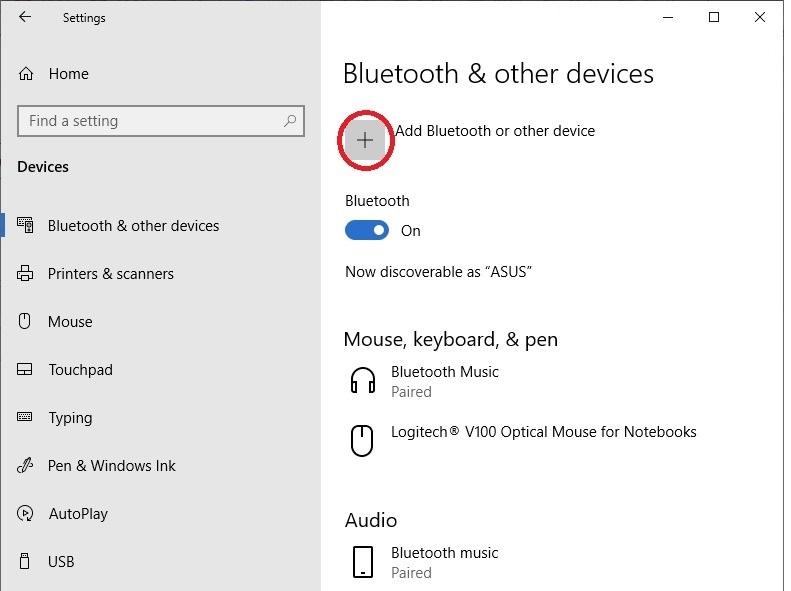
  • Under the Bluetooth & other devices section, tap on the toggle switch button to turn on Bluetooth Windows 10.
    Bluetooth & other Devices Section Bluetooth Button On

Note: If you wish to access the Bluetooth settings menu, you can tap on the More Bluetooth options under the related settings section.

In case the Bluetooth switch is not available on your system, you can resolve the issue by trying out the workarounds explained in the second segment of this post.

Also Read: How to Install and Update Bluetooth Drivers in Windows 10


Method 2: Turn Bluetooth On Windows 10 Using the Action Center

You can also turn on Bluetooth in Windows 10 through the Action Center. Here are the step-by-step instructions for the same.

  • First, you need to select the Action Center You can found the same next to time and date on your taskbar.
  • Next, you can switch on Bluetooth by simply tapping on the icon as shown in the image below.
    Turn on Bluetooth in Windows 10 Through The Action Center

Note: If the Bluetooth is turned off or is not paired to any nearby devices, it might appear as “Not connected”.


Part B: What to Do If Bluetooth Won’t Turn On in Windows 10?

Try the following methods to fix Bluetooth issues on your Windows 10 laptop or desktop computer.

Method 1: Update the Bluetooth Driver on Windows PC (Highly Recommended)

Updating your device driver to its latest version is the best way to resolve Bluetooth icon is missing or Bluetooth isn’t working problem on Windows 10. There are mainly two ways using which you update the device drivers: manually or automatically.

The manual method requires a lot of time, patience, technical skills to update the outdated drivers. On the other hand, the automatic method requires only a single click of a button to update all the problematic drivers.

So, if you want to save your valuable time and effort, you are advised to use a reliable driver updating software like Bit Driver Updater to automatically update the Bluetooth and other Windows drivers. Here’s how to use it.

  • Download, install, and run Bit Driver Updater.

Windows Download Button

  • Wait for the program to complete the automatic driver scan or click on the Scan Drivers button to initiate the driver scan manually. In less than a minute, it will show you a list of device drivers that are causing issues in your Windows computer.
  • Click the Update All button update all your problematic device drivers at once. If you wish to update a specific driver (e.g., Bluetooth driver), then click the Update Now button available next to it.
    Update Driver with Bit Driver Updater

After updating your Bluetooth driver to its latest version, go to the Bluetooth & other devices section in the Windows Settings application.

Select Bluetooth & other devices in Windows Setting

If you see an option to turn on Bluetooth there, then congrats. You’ve resolved the problem. But, if the switch is still missing, you can try out the next method.

Also Read: The Best Bluetooth Software for Windows 10 PC in 2021


Method 2: Run the Bluetooth Troubleshooter

When Bluetooth doesn’t work or you can’t turn Bluetooth on in Windows 10, you can try to run the Bluetooth troubleshooter to resolve the problem. Follow the steps given below to troubleshoot Bluetooth problems on your system.

  • Open the Settings application by pressing the Windows and I key together on your keyboard.
  • Next, select the Update & Security option.
  • From the left navigation pane, select the Troubleshoot option.
  • Next, click on the Additional troubleshooters option.Additional Troubleshooter
  • Under the Find and fix other problems section, you need to tap on the Bluetooth option and then click on the Run the troubleshooter button.
    Run The Troubleshooter for Bluetooth Problem
  • Follow the on-screen instructions to complete the troubleshooting process.

If the troubleshooter can’t resolve the Bluetooth not turning on problem on your Windows computer, don’t worry, we have something else you can try.


Method 3: Restart the Bluetooth Support Service

When the Bluetooth can’t be turned on or off on Windows 10, you can try to resolve the problem by restarting your Bluetooth support service. Here are the detailed steps on how to restart the Bluetooth service on Windows laptop or desktop system.

  • Open the Run command box by pressing the Windows and R key together on your keyboard.
  • Type “services.msc” in the box and click on the OK button.
    Type “services.msc” in the Run Utility box
  • Next, you need to look for the Bluetooth Support Service, right-click on it, and then select the Restart option from the context menu. (If the Restart option grayed out, then you need to select the Start option.)
    Restart Bluetooth Support Service

After restarting the Bluetooth Support Service, restart your computer and check if you’re now able to turn on Bluetooth on Windows 10. If not, there’s one more solution you can try.

Also Read: How to Get Help in Windows 10 [Complete Guide]


Method 4: Reinstall the Bluetooth Adapter in Device Manager

If you don’t see the option to turn Bluetooth on Windows 10, but the Bluetooth device does appear in Device Manager, you can try to reinstall the Bluetooth adapter to resolve the problem. Here are steps you need to follow to uninstall the Bluetooth adapter and install the same again on your computer.

  • First, you need open the Device Manager on your computer. To do so, open the Run command box (Win+R key), type “devmgmt.msc” in the box and click on the OK button.
    Type devmgmt.msc in Run Utility
  • Once Device Manager is opened, you need to expand the Bluetooth category to see the names of devices listed there.
  • Next, you need to right-click on the Bluetooth adapter name and select the Uninstall device option from the context menu.
    Choose Uninstall Device for Bluetooth Adapter
  • Next, you need to restart your computer even if you’re not prompted to do so. Windows operating system will try to reinstall the driver software.

After reinstalling the Bluetooth adapter in Device Manager, go to the Windows Settings app and check whether the option to turn Bluetooth on has appeared or not.

Also Read: Fix Connections to Bluetooth Audio Devices and Wireless Displays in Windows 10


Conclusion

Here in this blog, we have not only shared methods on how to turn on Bluetooth on Windows 10 but also explained how to fix Bluetooth problems in Windows 10 if you can’t turn it on. We hope one of the methods explained above helped you resolve the issue of Bluetooth won’t turn on in Windows 10.

In case you need any further assistance, please feel free to leave a message in the comments section below. For more tech-related guides and latest news updates, subscribe to our newsletter and follow us on the social media handles.

1 Comment
    Sherlyn Ohme says: Reply
    August 31st 2021, 6:32 pm

    Appreciated! Thank you for sharing such a wonderful piece of information. The post really helped me a lot to fix embedded videos not playing in Google Chrome.

Leave a Reply Cancel reply

Your email address will not be published. Required fields are marked *

Sidebar Image bit G ad1

Latest Posts

  • Best-Free-Online-Portfolio-Websites-in-2026
    Best Free Online Portfolio Websites in 2026
    by adminuser / March 16, 2026
  • Anytime Astro: Best Website For Online Astrology Consultation
    Anytime Astro: Connect Now For Online Astrology Consultation
    by Somya Shrimal / March 13, 2026
  • Best-Ways-to-Combine-Images-Into-PDF-Files
    Best Ways to Combine Images Into PDF Files
    by Niharika / March 12, 2026
  • Best FREE VPS Hosting Providers
    7 Best FREE VPS Hosting Providers in 2026
    by Devesh / March 12, 2026
  • Best-McAfee-alternative-software-to-use-for-Virus-Protection
    Best McAfee Alternative Software to use for Virus Protection
    by adminuser / February 11, 2026

Categories

  • Cyber Security
  • Driver Updater
  • Entertainment
  • Fitness
  • Games
  • How To
  • laptop
  • OS
  • Reviews
  • Tech News
  • Tips & Tricks
  • Top 10
Sidebar Image bit G ad1
How to Fix Discord Screen Share Audio Not Working [Solved] How to Fix Discord Screen Share Audio Not Working [Solved]by Snigdha / January 20, 2021
16 Best Free TV Streaming Sites To Watch Online TV Shows (2021)by Prachi Dani / January 21, 202116 Best Free TV Streaming Sites To Watch Online TV Shows 2021
TechPout Footer Logo

We at TechPout promise to put forth stories that help people to learn and simplify their digital life. Our purpose is to share the true essence of technology with our tech-loving community.

Useful Links

  • About Us
  • Contact us
  • Privacy Policy

Popular Posts

  • Best PC Optimizer Software
  • Best Mac Cleaner Apps
  • Best Driver Updater
  • Duplicate Photo Finder and Cleaner Software
  • Best Free Movie Download Sites
  • Best IPTV Players

Follow us

Copyright © 2026 www.techpout.com. All rights reserved
DMCA.com Protection Status