Main LogoLight Logo
  • Reviews
  • Top 10
  • How To
  • Tech News
  • OS
    • Windows
    • MAC
    • iOS
    • Android
  • Categories
    • Driver Updater
    • Cyber Security
    • Games
    • Fitness
    • Entertainment
    • Tips & Tricks
How To
by Harshita

[Fixed] Embedded Videos Not Playing In Google Chrome

January 20, 2021
1

Learn how to fix Embedded videos not playing in Google Chrome in a few minutes!

Undoubtedly, Google Chrome is one of the best web browsers available currently. As per the sources, Google Chrome is the most popular and accessed browser among desktop or mobile users. Doesn’t matter how far it is the best and popular web browser, still, sometimes even the ideal software can have glitches too. The same is happening with Google Chrome currently.

Many users have reported that Google Chrome is not supporting Embedded videos. When they try to play or download the embedded videos at that time videos not playing on Chrome. However, luckily, this issue can be fixed quite easily. Just read along to know how you can fix Embedded Videos not playing in Google Chrome.

Table of Contents hide
Advanced Solutions To Fix Embedded Videos Not Playing In Google Chrome
Solution 1: Clear Browsing History & Cache Data In Chrome
Solution 2: Switch Off Hardware Acceleration In Chrome
Solution 3: Update Google Chrome
Solution 4: Disable AdBlock On Chrome

How To Fix Embedded Videos Not Playing In Google Chrome

Google Chrome is the most widely used web browser among macOS, Windows, Android, Linux, and iOS users. But, technical issues can occur anytime. Frequently Chrome users complain that it does not load, shows black screen, runs slower than expected, often crashes, and many more. But, this time, the issue is a little bit more frustrating as it prevents playing web videos on Chrome.

However, this can be fixed with much ease. The post explains the best solutions to fix Embedded videos not playing in Google Chrome. But, before moving towards the solutions, be sure that your system has the following to play the video.

  • High and active internet speed.
  • Up-to-date drivers.
  • The most recent version of Chrome.
  • Upgraded Adobe Flash Player.

That is what you have to ensure that your computer has the following. After ensuring that, still embedded videos won’t play, then here are several smart and advanced solutions to fix the same issue.

Read Also: How To Disable Autoplay Videos in Chrome and Firefox


Advanced Solutions To Fix Embedded Videos Not Playing In Google Chrome

Now, have a look at the below mentioned advanced ways to fix embedded videos not playing in Chrome!

Solution 1: Clear Browsing History & Cache Data In Chrome

Temporary or junk files can be the culprits because of which this issue is occurring. Clearing junk or temporary files and browsing history in Chrome can fix the web videos playing issues. Plus, it will also fix the other browser-related issues too. Here is how to do it!

Step 1:- Firstly, open the Google Chrome browser, and then click on the three-dot icon presented at the right top corner of the screen. Then, click on Settings from the dropdown menu.
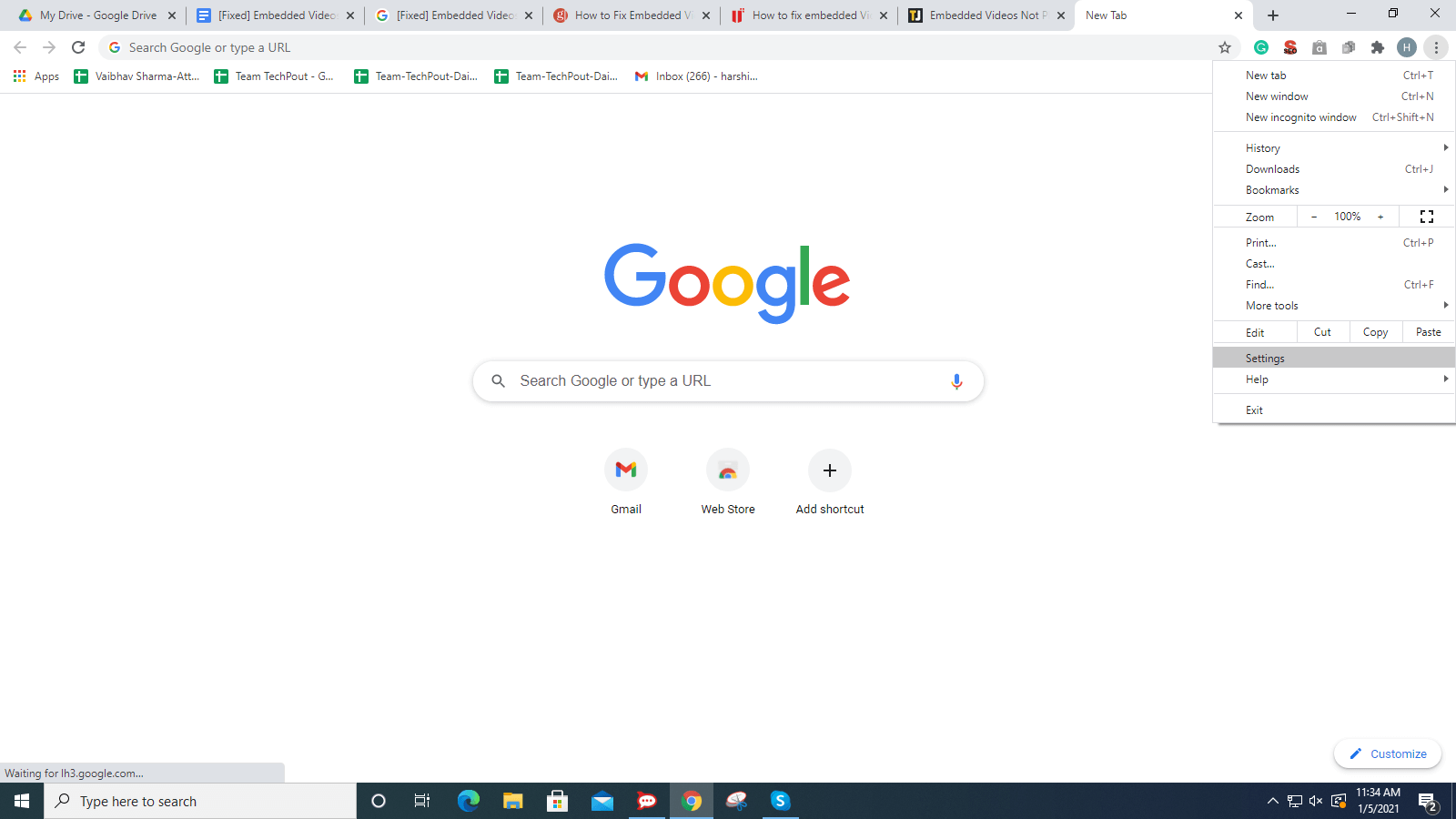
Click On Settings From The Dropdown Menu

Step 2:- After this, scroll down and locate Privacy & Security option, then choose Clear Browsing Data.
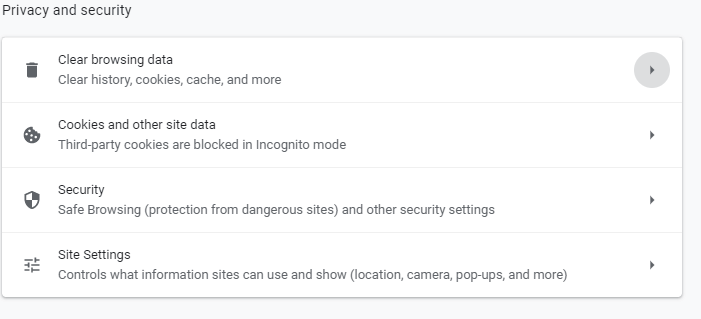
Choose Clear Browsing Data Option

Step 3:- Now, select the time range of eradicating the browsing data.
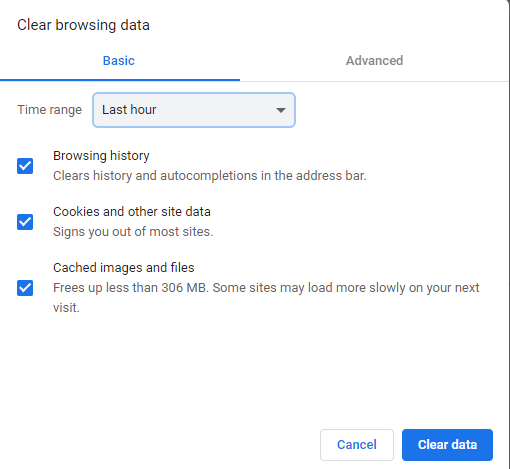
Select Time Range Of Eradicating The Browsing Data

Step 4:- Later on, click on the Clear Data.

Thereafter, open Google Chrome again and check if the issue is fixed or not.

Read More: How To Delete Duplicate Photos On Windows 10


Solution 2: Switch Off Hardware Acceleration In Chrome

After clearing up the cache data, browsing history, or cookies still the issue continues, then try to switch off the Hardware Acceleration in Chrome. This can be solved this annoying issue. Steps to switch off Hardware Acceleration in Google Chrome.

Step 1:- Again, go to the Settings.

Step 2:- Then, scroll down to Advanced and then choose System.

Step 3:- Unmark the checkbox of Use Hardware Acceleration When Available.
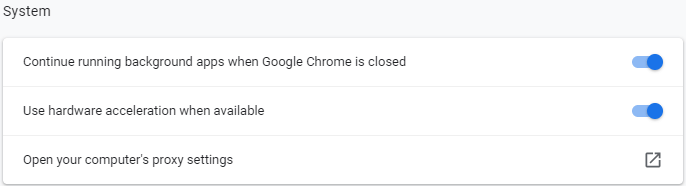
Unmark Checkbox Of Use Hardware Acceleration When Available

After turning off the Hardware Acceleration then check whether the issue solved or not. If it still remains the same as earlier, then move towards other solutions.


Solution 3: Update Google Chrome

What’s more, you can do, in order to fix embedded videos not playing in Google Chrome is – updating the web browser. Updates solve the bugs and improve the performance too. And, mostly fixes the numerous browser-related issues as well including web videos not playing. So, always make sure that you are accessing the updated Chrome. Here are ways to update Google Chrome.

Step 1:- Head to the Settings.

Step 2:- And, then and from the left pane side of the window navigate to About Chrome and click on it.
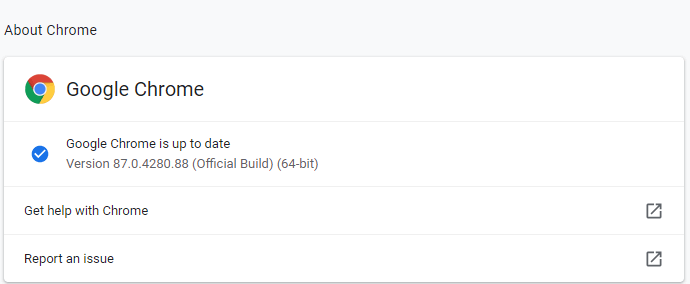
From Left Pane Side Of Window Navigate To About Chrome and Click On It

Then, this will let you know about the update. If the new update is available then install it.

Read More: Best Lightweight Browser for Windows 10/8/7


Solution 4: Disable AdBlock On Chrome

If you are utilizing the AdBlock version on Chrome, then uninstall it. However, the AdBlock prevents ads over the web but sometimes it hinders the functioning too. So, disable the AdBlock can solve videos not playing on Chrome. All that you need to do!

Step 1:- Switch to the Settings of Chrome.

Step 2:- Then, from the left pane side locate Extensions.

Step 3:- Now, detect AdBlock and set its status to off. Or, if you want to remove it then click on the Remove button to eradicate it completely.
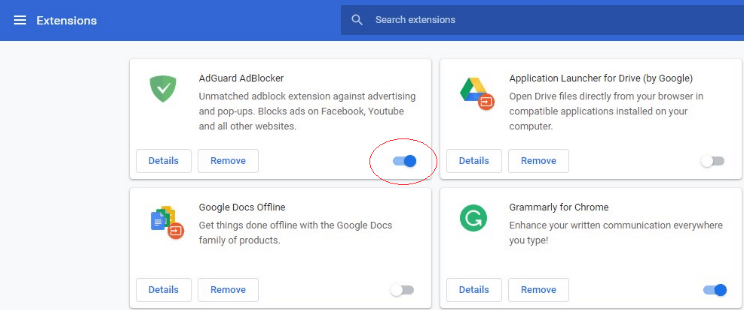
Click On Remove Button To Eradicate It Completely

That’s how to fix Embedded videos not playing in Google Chrome by disabling or uninstall the AdBlock on Chrome.

Read More: How To Update Video Card Drivers In Windows 10


Embedded Videos Not Playing in Google Chrome [Fixed]

Above mentioned methods can fix the Embedded videos not playing in Google Chrome. Eradicating browsing history, cache data, disabling Hardware Acceleration, updating Chrome to its newest version, removing AdBlock extension works for most of the individuals who were facing the same issue. However, you do not need to try them all, just read along until you find the best bet. And, then give a try to the best method according to your preference.

So, that is all, hopefully, now you can easily download embedded videos from Chrome. Still, just in case, if you stuck in any situation where you don’t know how to move further then do tell us in the comment box below. We will surely make every possible effort to help you out in the best ways. Want more such informative and helpful write-ups? Then, do subscribe to our Newsletter to stay updated. Lastly, stay in touch with us, we’ll back shortly!

Author

Harshita

Harshita Sharma is a technical writer with quite a distinct understanding of the tech realm. She is a tech enthusiast who believes that tech knowledge should reach one and all and tries to convert the sketchy knowledge into the simplest possible form for making people understand the tech world better. When not playing with words, she loves to travel and explore new places. And, is a coffee & cricket connoisseur.

View all posts

Related Posts
Why is PS4 Fan Loud and How to Fix it

Why is the PS4 Fan Loud and How to Fix It?

October 11, 2023
0

Why is my PS4 so loud? Is this question bothering you as well? If yes, then take the help of this guide with some simple steps to fix the problem with ease. 

PS4 is one of the best gaming consoles to ever launch. The console from the house of Sony Inc. is one of the most bought and used devices of all time. Right from its introduction in 2013, the console has been quite popular amongst gamers around the world. Even after the launch of its successor, the PS5, the console is still going strong and bringing in sales for Sony.

Although the console is quite amazing, it has been complained to cause some problems for the users. The complaints related to PS4 fan loud are quite common. Gamers from around the globe have reported the same repeatedly. And this issue will appear on your device again and again until you do something about it.

However, there are a couple of easy solutions that you can try and put a halt to your query of “Why is my PS4 so loud?” In the coming sections of this guide, we will have a look at some of these solutions and make the PS4 quiet.

So, without any further ado, let’s understand everything that you can do to fix this problem with ease.

Things You Can Try To Fix the PS4 Fan Loud Problem

Below, you will find multiple methods that you can use to fix the PS4 fan loud problem. For ease of performance and to fix the problem quickly, we suggest that you go through the methods consecutively. Try all the solutions to ensure that your PS4 does not heat up. Not now, not ever. So, let’s start trying.

Fix 1: Use the Device In a Vertical Position

The first thing that you should try to fix the PS4 fan loud problem is changing its placement. We often position our PlayStation 4 system in a horizontal orientation. If you move it so that it is vertical, it can reduce the amount of heat and noise that your console produces. Therefore, we kindly suggest you give it a go to determine whether or not your PlayStation 4 can become quieter and cooler.

Your PlayStation 4 has the capability of standing erect or lying flat; nevertheless, an upright posture with a vertical stand would be the better option. It makes a considerable improvement to airflow, which results in improved cooling, and it has the ability to make your gameplay quieter. Keeping the console in a horizontal position may help lower the level of noise it produces, but a vertical orientation provides better ventilation. And thus, ending your concern of, “Why is my PS4 so loud?”

Also Read: How to Fix PS4 Controller Not Connecting to PC


Fix 2: Sweep Away the Dust

Another common reason behind PS4 fan loud is an accumulation of dust. Dust is one of the primary contributors to the distracting noise that the PlayStation 4 produces. The PlayStation 4’s internals are susceptible to collecting dust and other debris over time, which may block airflow and force the fan to work more diligently to remove heat from the system.

Without the assistance of a qualified professional, it is not feasible to completely remove dust from an area. A lot of gamers will wipe out the outside of the console, but they won’t have any clue what’s going on inside.

It shouldn’t be too difficult to clean up the mess. Cleaning the air ducts that supply the fans with air by using a vacuum cleaner is a procedure that is both practical and effective. It is not dangerous to operate a vacuum cleaner over the air vents that circulate chilly air.

If you want clean air to enter the control panel, you should clear the vents out thoroughly. It’s possible that the console has been clogged with dust, which prevents it from dissipating heat effectively.

If you are wondering “why is my PS4 so loud”; this is the simplest and speediest method for clearing off your PS4’s storage. You can also use a can of pressurized air to clean up all of the inputs and vents in the system. You may put this procedure to the test once a month to clean your PlayStation 4 and maintain it functioning properly.

Warning: Never use a vacuum at high pressure or speed to clean your PlayStation 4, since doing so would almost certainly result in harm to the system’s individual components.

Also Read: How to Solve PS4 Controller Flashing White


Fix 3: Reduce the Game’s Graphics Quality.

Games that need a lot of graphics processing put a lot of strain on the central processing unit, which requires the fan to dissipate a lot of heat. As a direct result of this, the fan is working harder than usual to bring the temperature down, and as a result, it is creating a lot more noise.

Wondering “Why is my PS4 so loud?” Here’s the answer.

The aesthetics in some games are quite spectacular, and the gaming world is rather large. These games have the potential to put a significant strain on the PS4’s technology due to the intricate character models, realistic landscapes, and physics simulations.

It’s possible that the fan on the console may speed up while you’re playing in order to keep the system from overheating, which will result in the PS4 fan loud problem.

Hence, if you are also playing one such game, you can try reducing its graphics properties. Try playing the game with reduced graphics to rule out if this is the issue. If the problem persists, follow the next solution.

Also Read: The Best PS4 Exclusive Games


Fix 4: Make Sure the Cooling Fan is Working

It’s possible that your PlayStation 4’s cooling fans may get damaged or stop working, which would result in increased levels of background noise. This in turn results in the PS4 fan loud problem. The constant rotation of these fans may lead to mechanical problems such as worn bearings or misalignment, both of which contribute to an increase in operating noise.

There is a possibility that the fans on the PS4 may malfunction due to electrical difficulties or problems with internal components. This kind of fault might result in the fan spinning erratically, rotating unevenly, or vibrating more, all of which contribute to an increase in the volume of the fan’s noise.

So, if you are wondering, “Why is my PS4 so loud?”, this can be a potential reason.

In addition to cleaning and vacuuming the console on a regular basis, the replacement of the cooling fan is the most effective solution to this problem. Although employing an aftermarket fan is a viable option, we do not suggest doing so.


Fix 5: Thorough Cleaning of the PS4 Console

The last method to fix the PS4 fan loud problem is to clean the console thoroughly. In the previous solution, you may have cleaned the console and its fan externally. However, the ultimate and the only solution to fix the problem is to clean the PS4 console. For this task, you can open up the console. However, we only suggest you do this if your device does not have a warranty now.

To open the console, take the help of a T8/T9 Torx screwdriver. Once you get your hands on the tool, use the same to open the box, access its cooling fan, and clean it using a brush, a piece of soft cloth, a compressed air gun, and/or a vacuum cleaner if available. Once you are done, you can put back the screws and assemble the device back to its original state.

Also Read: Best Games Like Among Us to Play with Friends


Why is My PS4 So Loud? Asked and Answered

So, now that we have reached the end of this guide, you must be able to fix the PS4 fan loud problem. We hope the solutions provided above, helped you with everything you wanted. However, if you still have any questions or want to provide some solutions, we are all ears.

Write down your queries and suggestions in the comments section below. We will get back to you shortly. Also, subscribe to our newsletter if we are of any help to you. Don’t forget to follow us on Facebook, Instagram, Twitter, or Pinterest. Until we meet again. Like this article on the PS4 fan loud problem to show your support.

How to Fix Steam Games Not Launching in Windows 10,11

How to Fix Steam Games Not Launching in Windows 10,11

May 15, 2024
0

Do not be anxious if Steam is unable to launch your favorite game. This issue is effortlessly fixed with the tried and true fixes in this article.

Developed by Valve Corporation, Steam is the largest platform for digital distribution of games that does not need any introduction. It is trendy among gamers worldwide because of the fun users experience playing Steam games. However, we have come across many computer gamers concerned about an annoying issue where the Steam games are not launching on their Windows computers.

Are you one of those people who are struggling with a similar problem? If yes, this article is the ultimate guide you need to fix the issue. Here, we are going to share some quick and easy yet sure-shot solutions to the Steam games problem. However, let us begin by understanding why the games are not launching to troubleshoot better.

Why Steam Games Won’t Launch on Windows 11/10

The below factors may have contributed to the problems you are experiencing when launching Steam games.

  • Your system does not match the game’s requirements
  • The Steam server is down or experiencing technical issues
  • Steam game’s files may be corrupted or missing
  • The game does not have administrator privileges
  • Your graphics card driver is outdated
  • Steam has accumulated a corrupted cache
  • Other programs are interfering with Steam

After looking at various reasons you may be unable to launch Steam games, let us proceed towards solving the problem.

Fixes for Steam Games Not Launching Issue

You can apply the following solutions if Steam games are stuck on the launching screen and won’t launch on your Windows 10/11 computer.

Fix 1: Ensure your system matches the game’s requirements

All games have some requirements a computer must fulfill for the game to run smoothly. If these conditions are not met, the game may not launch. Hence, you can navigate to the Steam store where your game is listed to learn about its requirements. After knowing the requirements, you can follow the Settings>System>About path to find your PC’s specifications.

You can now compare these specifications with the game’s conditions and take necessary actions, such as upgrading the device or finding a compatible version of the game to fix the problem.

Also Read: How to Fix Steam won’t open Windows 10, 11 (Top Ways)


Fix 2: Check the Steam server

Steam games won’t launch if there is a server issue, such as the server being down. Hence, before moving to complex solutions you can follow these simple steps to check the server.

  • Firstly, navigate to the Downdetector’s website.
  • Secondly, input Steam in the search box on your screen and press Enter. Search Steam in Downdetector
  • You can now select Steam from the search results on your screen.
  • If many reports show Steam outages or problems related to game launching, wait until the developers fix these issues. However, continue troubleshooting if you notice no such problems.

Fix 3: Launch the game with administrator privileges

Some games need administrative rights to access crucial files and make necessary changes to function smoothly. Hence, launching the game with these permissions can solve the problem. Here is the step-by-step process to do this.

  • Firstly, open the Steam application on your PC.
  • Next, choose Library from the Steam menu.
  • In this step, find and right-click the game you want to play and choose Properties from the context menu.
  • Now, choose Local Files from the Properties menu and click Browse. Local Files from the Properties menu and click Browse
  • Find your game’s .exe file and right-click on it.
  • Next, choose Properties from the right-click menu.
  • You can now navigate to the Compatibility tab.
  • Lastly, checkmark the option to Run this program as an administrator and click OK. Run this Program as an administrator

Also Read: How to Fix Steam Missing File Privileges in Windows 10, 11


Fix 4: Verify the integrity of the game’s files

Some game files, if missing or corrupted, can prevent the game from launching. Hence, you can take these steps to check the files and fix the problems if the Steam games are not launching.

  • To get started with the process of file verification, launch Steam on your device.
  • After opening the Steam application, navigate to the Library. 
  • Next, right-click on the game that you are trying to launch and choose to open its Properties. game that you are trying to launch and choose to open its Properties.
  • You can now choose Local Files from the properties and Verify the integrity of game files. Verify integrity of game files
  • Wait until the file verification and repair process is complete.
  • Lastly, launch the game to check if the problem is solved. If the issue persists, you can try the next solution.

Fix 5: Delete the Steam cache

Cache files are helpful as they improve your experience by storing the frequently accessed files so the application takes less time to load. However, if these files are corrupted, you may bump into problems, such as Steam games stuck on launching. Hence, you can clear the cache to fix the issue by following these steps.

  • Firstly, right-click the desktop’s Steam shortcut and choose Open file location from the on-screen menu to navigate to the app directory.
  • Secondly, choose the appcache folder and press your keyboard’s Delete button.
  • After deleting the appcache folder, open Steam to create the appcache folder again.

Also Read: [FIXED] Steam Download Slow for Windows 10, 11


Fix 6: Update the graphics and other drivers

A powerful graphics card is essential for gaming. However, even the most power-packed video cards lag if there is no up-to-date and appropriate driver to support them. The driver helps your graphics card communicate with the computer system for the smooth execution of your commands. If the driver is outdated, this communication breaks, leading to issues like Steam games not launching on Windows 10/11.

In addition to the graphics card driver, some other outdated drivers can also hamper your gaming experience. Hence, you are advised to update all drivers to solve the problem. You can update drivers effortlessly with one click using dedicated software, such as Win Riser.

Win Riser updates all problematic drivers automatically, cleans junk, removes invalid registry, eliminates malware, allows you to roll back the drivers to their original state in the case of an incompatible update, and offers many other features to improve your computer’s performance. Thus, you can navigate to the following link to download this software to your PC.

Download-Button

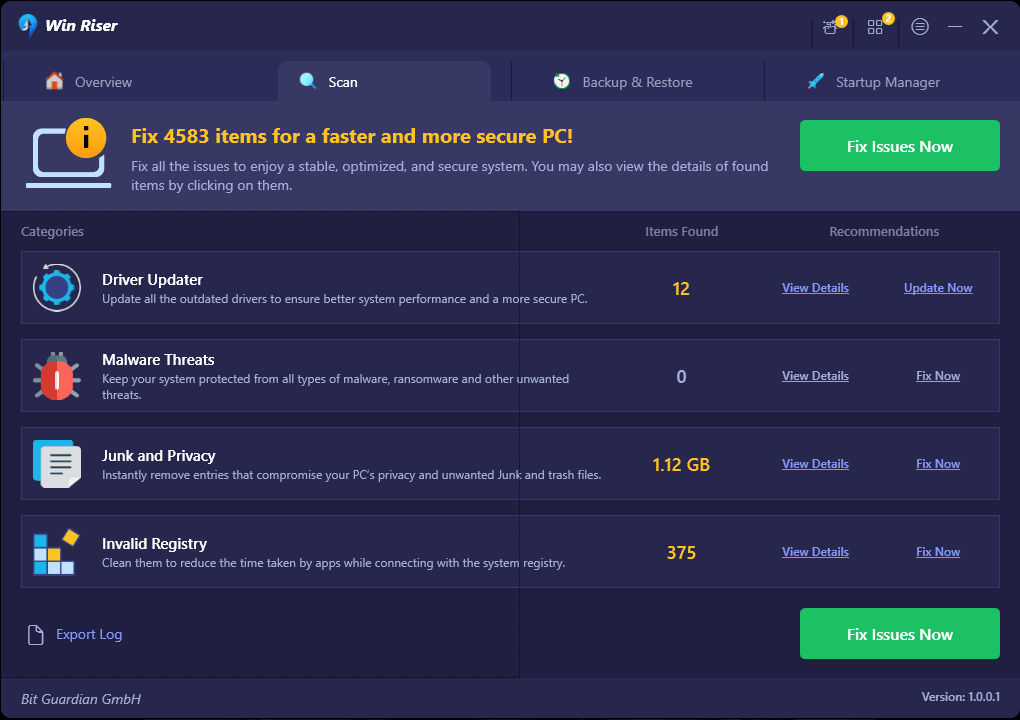
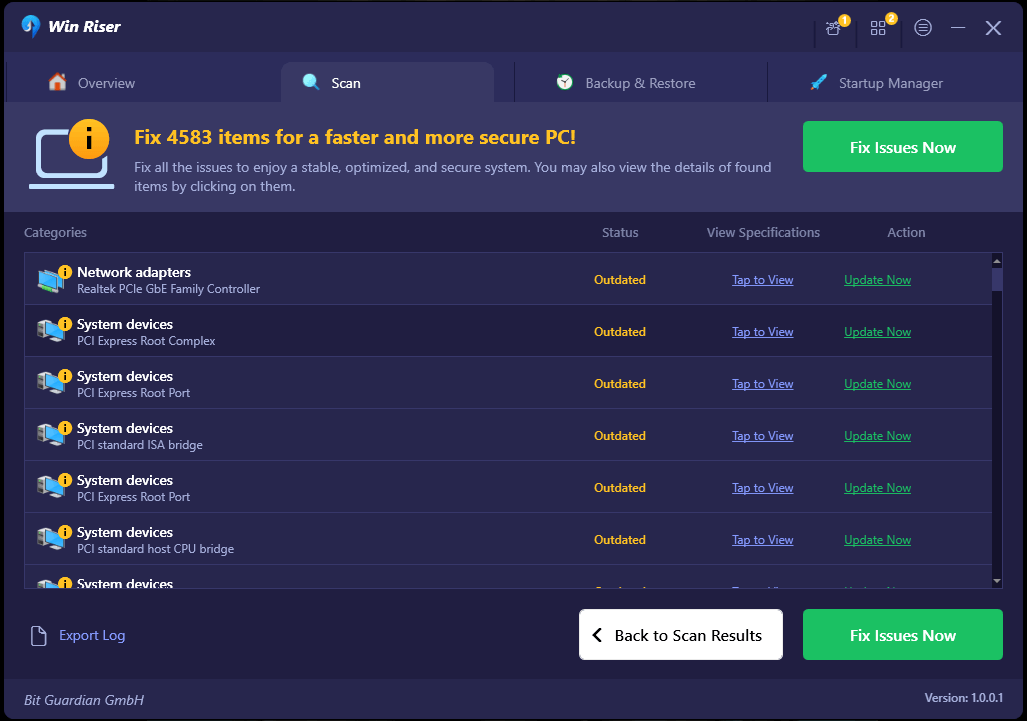
After downloading the software package, double-click on the downloaded file and install the software. Win Riser scans your computer comprehensively for a few seconds after the installation. Let the scan complete and once it completes, click Fix Issues Now to get rid of all the problems automatically. Lastly, restart your computer to apply the changes.Win Riser Driver Updater


Fix 7: Close conflicting programs

Some background programs may conflict with Steam by hogging up the system resources, causing various problems. Hence, closing these unnecessary programs can fix the issue. You can follow these steps to close them.

  • Firstly, launch the Task Manager using the Ctrl+Shift+Esc command.
  • Secondly, choose Processes from the Task Manager window.
  • Select the application that conflicts with Steam and choose End Task. If you are confused about which software may interfere with Steam, you can go through this list.
  • You can now repeat these steps for all the applications you wish to close.
  • Lastly, reboot your PC so the changes can come into effect.

Fix 8: Update Windows

Random operating system bugs can also be a reason Steam games won’t launch on your computer. Hence, you can update Windows to solve these issues by following the below steps.

  • Firstly, use the Win+I keyboard shortcut to open Settings.
  • Next, choose Update & Security from the on-screen settings.Click on Updates and Security
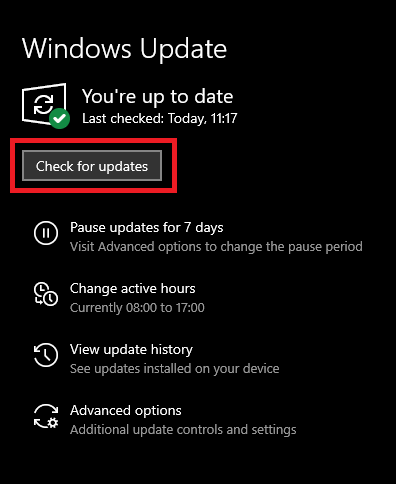
  • Check for updates to detect the latest available updates for your operating system.Check for Updates Button
  • Allow Windows to download and install the on-screen updates.
  • Lastly, reboot your PC to complete the update process and apply the changes.

Also Read: Quickly Fix Steam Disk Write Error on Windows 10


Steam Games Not Launching Issue Fixed

This article explained various tried and tested solutions to the Steam games launch problems. One of these fixes must do the trick for you. However, feel free to reach out to us through the comments section in case you have any questions or suggestions about this guide. Also, we invite you to be a subscriber to our newsletter so we can notify you whenever we solve another annoying issue.

1 Comment
    Sherlyn Ohme says: Reply
    August 31st 2021, 6:32 pm

    Appreciated! Thank you for sharing such a wonderful piece of information. The post really helped me a lot to fix embedded videos not playing in Google Chrome.

Leave a Reply Cancel reply

Your email address will not be published. Required fields are marked *

Sidebar Image bit G ad1

Latest Posts

  • Anytime Astro: Best Website For Online Astrology Consultation
    Anytime Astro: Best Website For Online Astrology Consultation
    by Somya Shrimal / February 13, 2026
  • Best-McAfee-alternative-software-to-use-for-Virus-Protection
    Best McAfee Alternative Software to use for Virus Protection
    by adminuser / February 11, 2026
  • What-is-Flip-Flop-in-Circuite-and-it's-Types
    What is Flip Flop in Circuit and its Types
    by Meet / February 6, 2026
  • Best-Data-Labeling-Software-to-use-in-2026
    Best Data Labeling Software to Use in 2026
    by Meet / February 2, 2026
  • Best-Google-Slides-tools--to-add-as-extension-in-2026
    Best Google Slides Tools to Add as Extension in 2026
    by Meet / January 30, 2026

Categories

  • Cyber Security
  • Driver Updater
  • Entertainment
  • Fitness
  • Games
  • How To
  • laptop
  • OS
  • Reviews
  • Tech News
  • Tips & Tricks
  • Top 10
Sidebar Image bit G ad1
How to Fix Discord Screen Share Audio Not Working [Solved] How to Fix Discord Screen Share Audio Not Working [Solved]by Snigdha / January 20, 2021
16 Best Free TV Streaming Sites To Watch Online TV Shows (2021)by Prachi Dani / January 21, 202116 Best Free TV Streaming Sites To Watch Online TV Shows 2021
TechPout Footer Logo

We at TechPout promise to put forth stories that help people to learn and simplify their digital life. Our purpose is to share the true essence of technology with our tech-loving community.

Useful Links

  • About Us
  • Contact us
  • Privacy Policy

Popular Posts

  • Best PC Optimizer Software
  • Best Mac Cleaner Apps
  • Best Driver Updater
  • Duplicate Photo Finder and Cleaner Software
  • Best Free Movie Download Sites
  • Best IPTV Players

Follow us

Copyright © 2026 www.techpout.com. All rights reserved
DMCA.com Protection Status