Main LogoLight Logo
  • Reviews
  • Top 10
  • How To
  • Tech News
  • OS
    • Windows
    • MAC
    • iOS
    • Android
  • Categories
    • Driver Updater
    • Cyber Security
    • Games
    • Fitness
    • Entertainment
    • Tips & Tricks
Driver Updater How To Windows
by Snigdha

Fixed: Black Screen Problems on Windows 10 [Solved]

December 16, 2020
1

Did you just come across the Windows 10 black screen of death error? Windows 10 has always been engulfed by several performance problems like freezing issues, blue screen of death, black screen issues, etc. In fact, the black screen of death error is not a new problem as this has been a persistent problem since the time of Windows 7.

Users have time again tried troubleshooting one or the other issues but fixing black screen problems has particularly been challenging as it does not give an error code that gives a hint as to where to start troubleshooting. In this article, we will take an exhaustive look at this problem and also learn about how to solve it.

Table of Contents hide
How to Fix the Black Screen Problems on Windows 10
1. The Trouble with the Windows Explorer
2. Update the Graphics Driver
3. Fix Black Screen Problem via the Advanced Options
4. Reset the PC
5. Other Fixes

What is Black Screen Issues on Windows 10?

To put it simply, black screen error on Windows PC happens when there is some error with the GUI.

Black screen error on Windows 10 can be due to problems with the Windows Explorer or the user account profile. This kind of issue could also be triggered by a malfunctioning graphics driver or if there is any disturbance in the physical connection between the display and video adapter. Sometimes, it may also be the result of some faulty feature update patches.

However, you can be at peace because a black screen error doesn’t lead to any sort of data loss.


How to Fix the Black Screen Problems on Windows 10

There could be a number of approaches to resolving black screen issues which have been outlined below.

1. The Trouble with the Windows Explorer

The trouble with the Windows Explorer is indicated when you are able to sign in to your account but still see a black screen. You can troubleshoot the black screen of death problem related to Windows Explorer with the help of the following steps:

  • Open Task Manager.
  • Go to the Processes tab.
  • Then, using right-click action, select the ‘Restart’ option on the Windows Explorer service. This should enable you to access the desktop again.
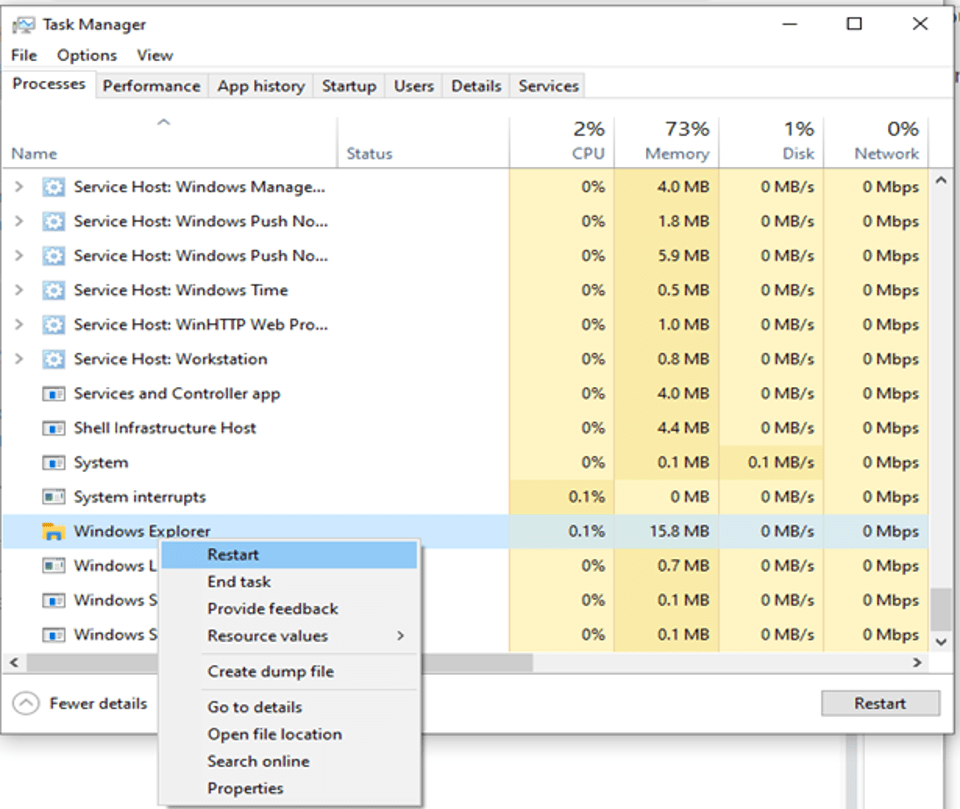
Open Task Manager and Click on Restart Button
  • Alternatively, if the above steps have not resolved the issue, then you could also choose to end the Windows Explorer process and run it again.
  • To run it, you need to go to the ‘File’ menu and select ‘Run new task’.
  • Then, enter ‘explorer.exe’ and click ‘Ok.‘
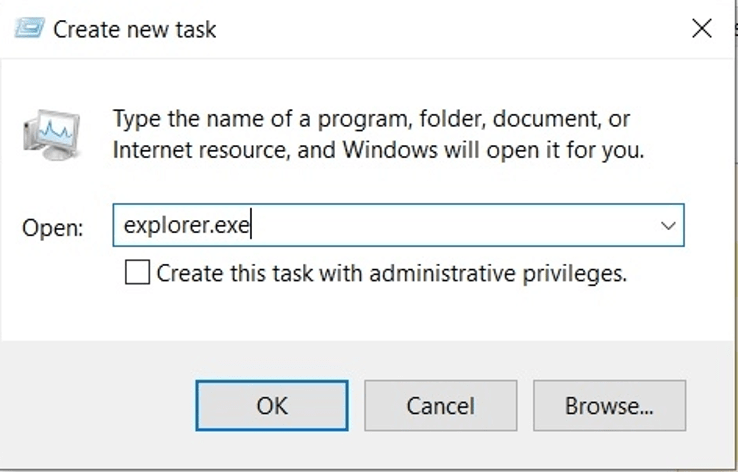
Select Run New Task and Enter explorer.exe
  • This should resolve the issue.

Read Also: How To Fix Flickering Screen Issues on Windows 10


2. Update the Graphics Driver

Many times the heavy games can cause stress on the GPU, which may lead to black screen problems. Graphics drivers can be updated in two distinct phases. The first step is to boot the system in safe mode, followed by fixing the graphic drivers.

  • First, you need to open a new window and then click on Restart while holding the shift key simultaneously. Once the screen shows the “Please Wait” message, then release the shift key.
  • Then, click on Troubleshoot first, followed by opening the Advanced Options.
  • Boot in safe mode by going to the “Startup Settings” option.
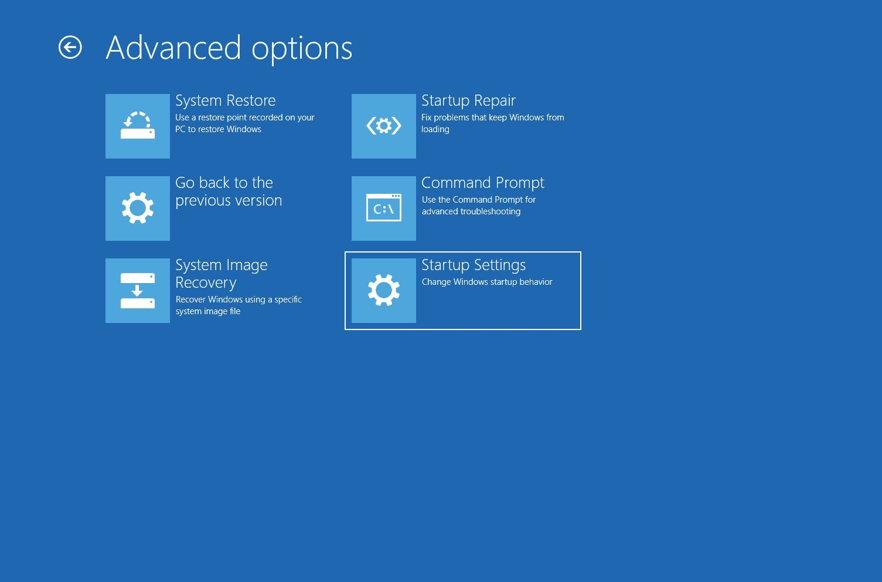
Go to the “Startup Settings" Option
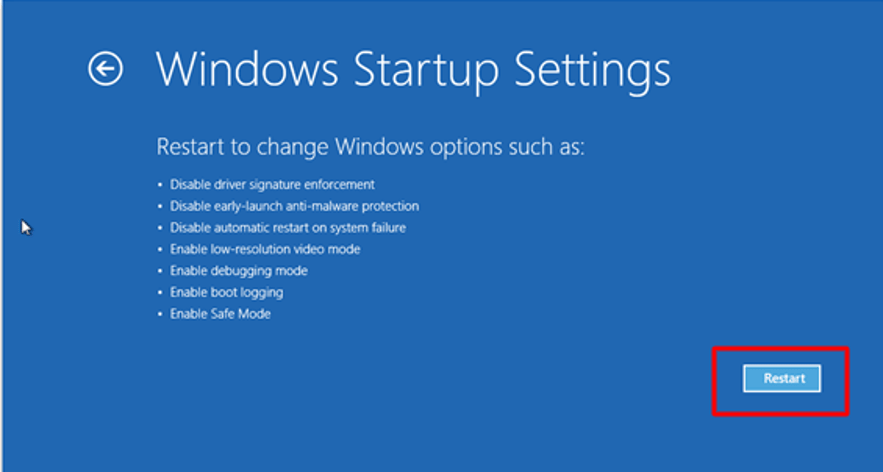
  • Then, click on the ‘Restart’ button.
In Windows Startup Setting Click on Restart Button
  • Finally, you can press F5 or 5 key to choose the option of “Enable Safe Mode with Networking.”
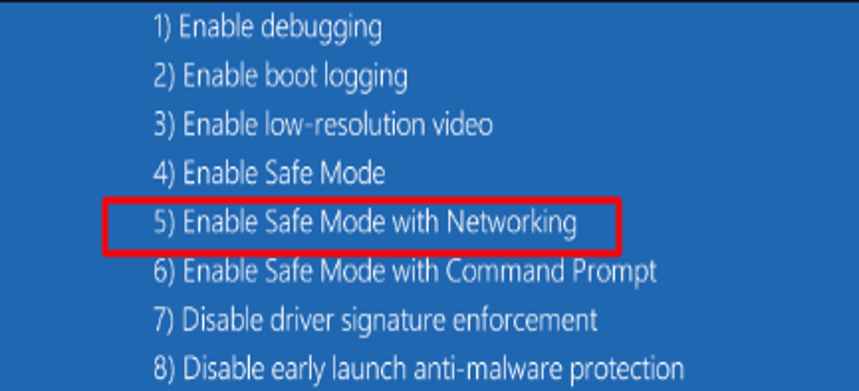
Enable Safe Mode with Networking
  • Now you can go to the Device Manager and open the Display Adapters section.
  • Here, you can go for the following options:

Uninstall the Graphics Driver 

You can right-click on the graphic driver to select the option of ‘Uninstall Device.’ Once the uninstallation completes, you can restart your system. Post this, Windows 10 should automatically reinstall the graphics driver and resolve the black screen issue.
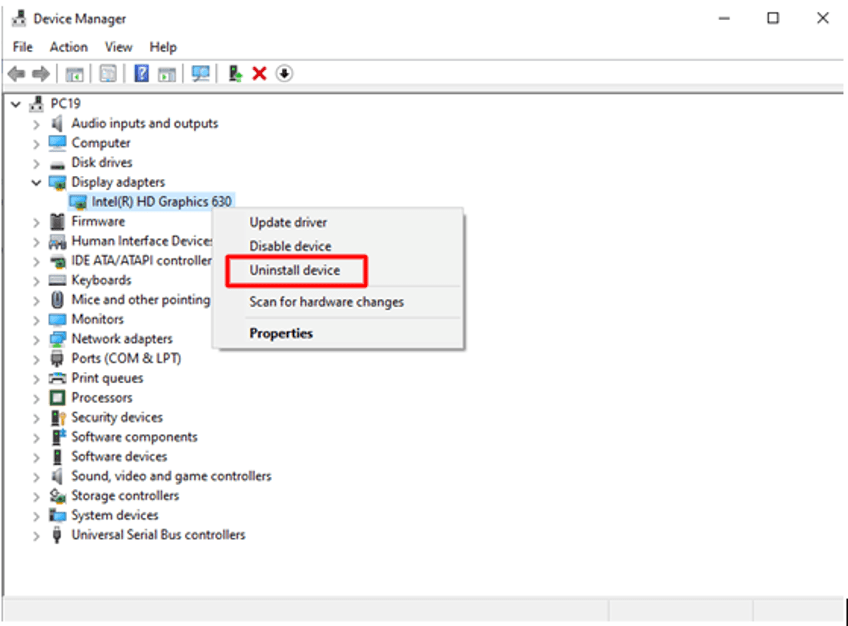
Uninstall the Graphics Driver

Update the Graphics Driver 

If the issue of the black screen still persists then, you can opt to download the graphics driver from the manufacturer’s website or else, update the driver directly from the Device Manager.

For this, you can go to the Device Manager and expand the graphics driver section. 

You can then right-click on the name of the graphic driver and choose the ‘Update driver’ option. 

You can then choose the “Search automatically for updated driver software” in the following prompt and then restart your system

If the problem still persists, you can always go for an automatic driver update software which will really make your job much easier for sure.
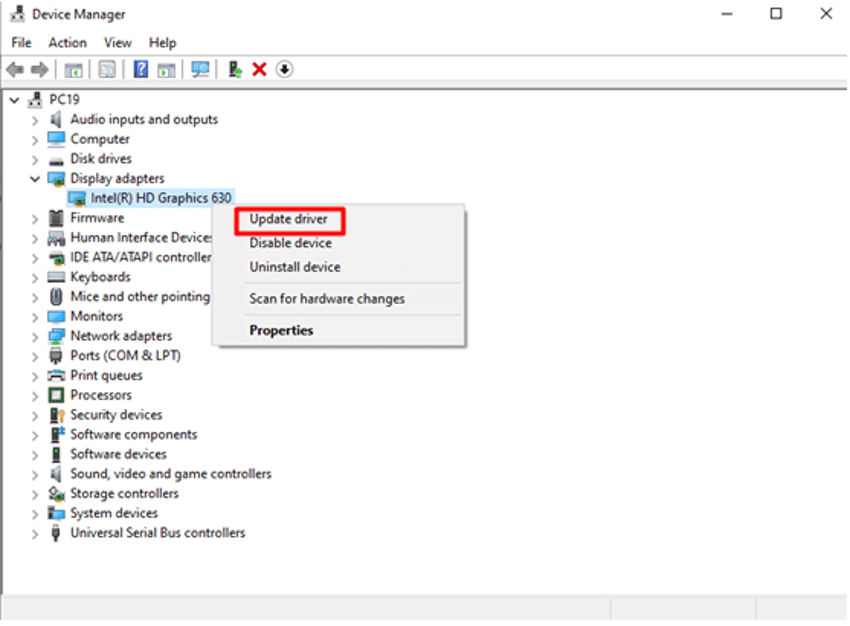
Update the Graphics Driver

Driver Updater Tool

Updating device drivers manually can be a tedious task and requires a lot of computer knowledge and patience. Therefore, you can always use a potent driver updater software, i.e., Bit Driver Updater to find the ideal drivers for your computer and update them automatically. 

Here’s how to update the graphics driver automatically using Bit Driver Updater.

  • Download Bit Driver Updater setup file by clicking on the button below.

    Windows Download Button
  • Run the downloaded setup file and then follow some simple on-screen instructions to install the application on your system.  
  • After this, open the application and click on the “Scan Drivers” button to get a complete list of all missing, faulty, or outdated drivers present on your computer.
  • Once you get the list, go to the graphics card driver and select the “Update Now” option to download and install its most updated version automatically. 

3. Fix Black Screen Problem via the Advanced Options

If none of the above options has solved your black screen of death problem so far, then you can go for two other alternative options viz; use “System Restore” or “Go to the Previous Version.” 

System Restore can take your computer to the most recent system restore point but there are chances that you lose programs and files that you have installed on your system post that point.
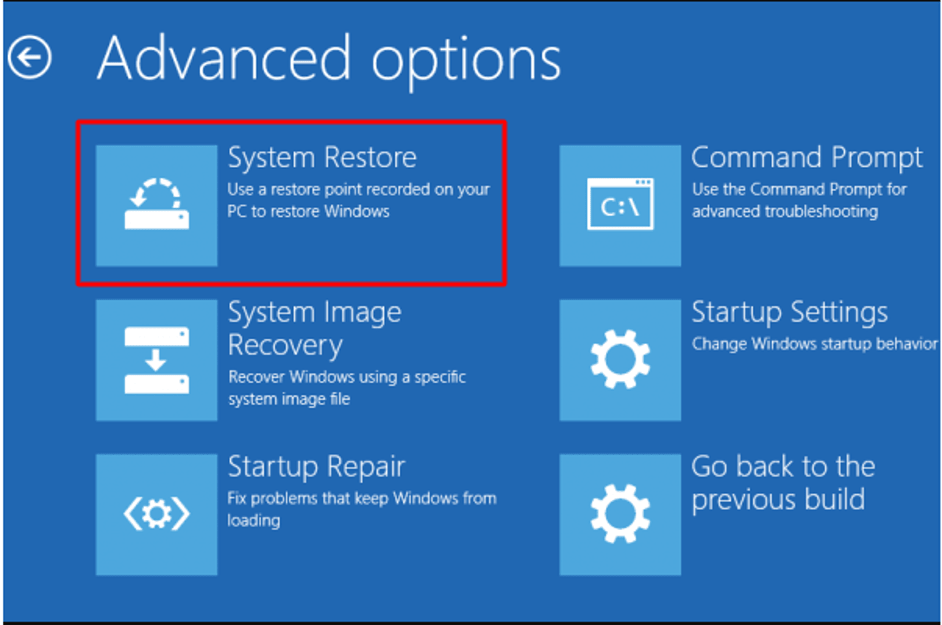
Use System Restore To Fox Black Screen Problem

On the other hand, rolling your PC back to the previous stable version will not impact your personal files.
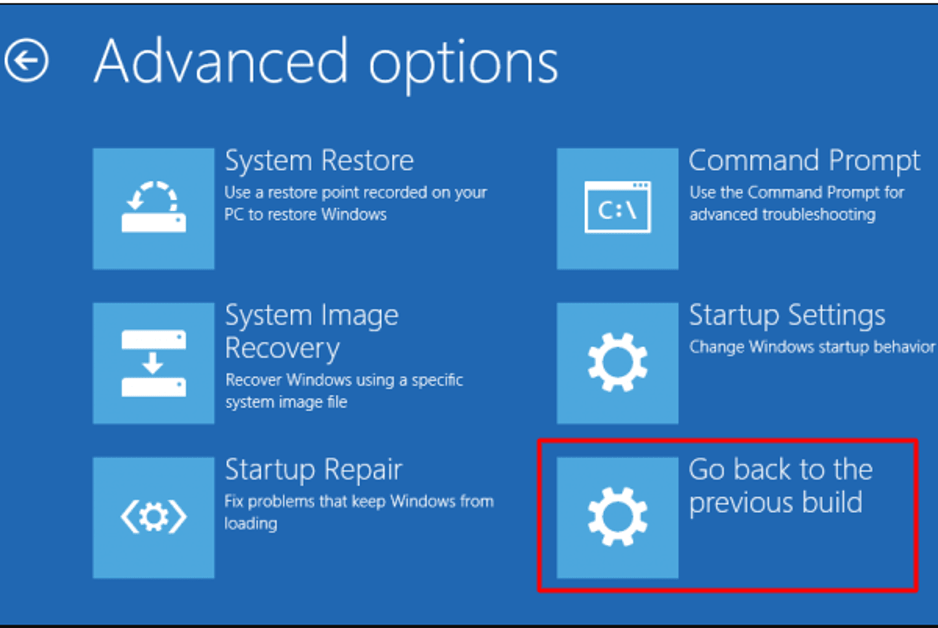
Go Back to the Previous Build

4. Reset the PC

If you are viewing a black screen just after switching on the computer, then you can choose to reset your computer as the final way to resolve the black screen problem. 

  • For this, you can go to the ‘Update and Security’ of Windows Settings.
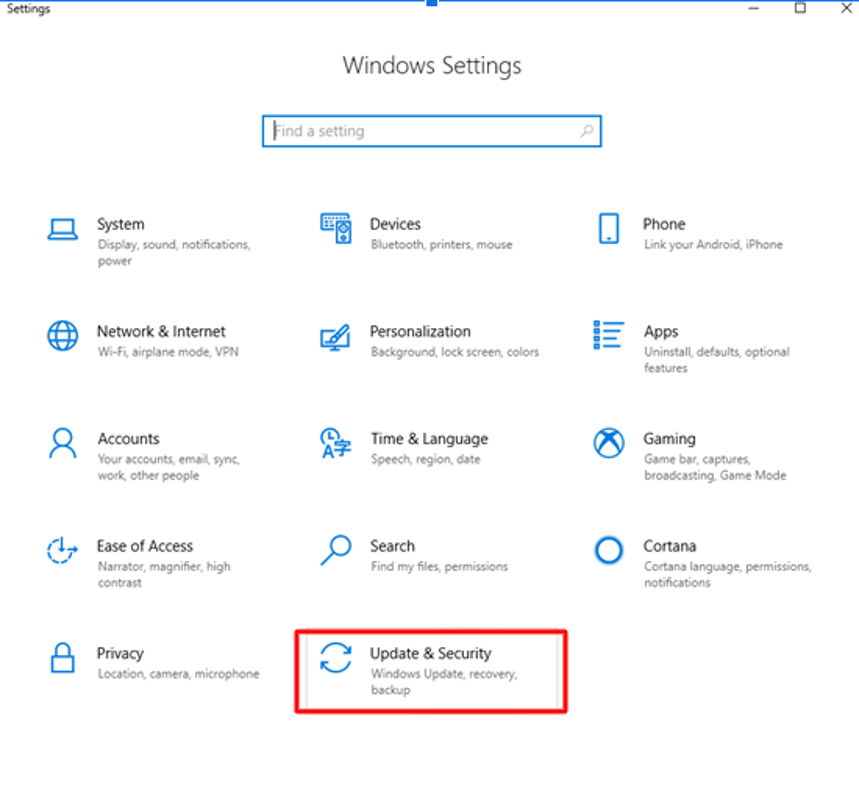
Go To 'Update & Security' Option
  • Then, go to the Recovery tab and click on “Get Started.”
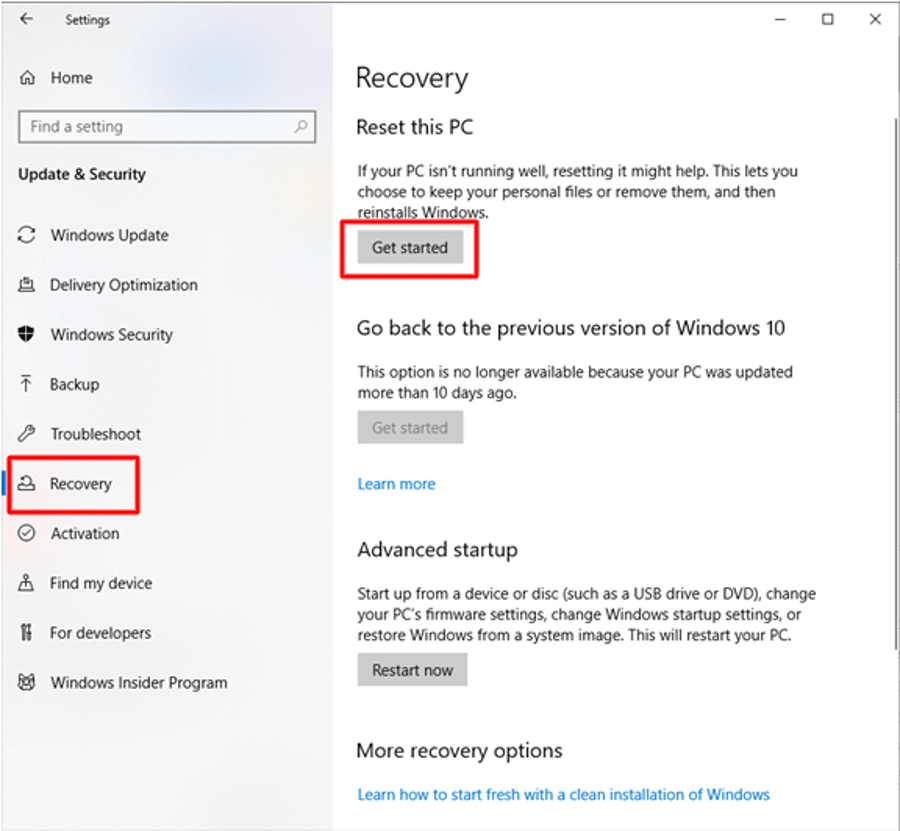
Go To Recovery Tab and Get Started
  • This will further lead you to two options viz; “Keep my files” and “Remove Everything.” You can choose the option which is most suitable for you.

5. Other Fixes

As it is known that there could be multiple reasons behind a black screen problem, therefore based on the various causes of issues, here are some other fixes for the black screen problem.

Disable High Contrast

Settings > Ease of Access > High Contrast > Turn it off > Restart

Uninstall Updates

Start > Control Panel > Programs and Features > View installed updates > Uninstall the most recent updates > Restart the PC

Uninstall Security Software

Settings > Apps > Apps & Features > Security Software > Uninstall > Restart the PC

Create a New User Profile

  • Go to Command Prompt and run as administrator.
  • Then, type “net user tempuser / add,” and further press Enter. Give the name of the account in place of the “tempuser.”
  • Followed by this, type “net localgroup administrators tempuser / add” to change the account type.
  • Finally, restart your computer and sign in with the newly created account.

Read More: How to Remove Junk Files From Windows 10


Black Screen Problems on Windows 10 – [Solved]

Therefore, with the help of this post, you can hopefully troubleshoot your PC’s black screen of death problem and get your PC back in the normal state. The use of an impressive driver updater tool can always help to deal with issues related to graphics drivers. It is quite an established fact that any problem with the graphic driver often leads to multiple problems associated with the display of the system. Hence it is very essential to always have them updated with the help from an all-round driver update software.


Author

Snigdha

Snigdha is a technical content writer with expertise in the field of science & technology. Though she has a very diverse academic and professional profile yet she finds writing to be a creative form that she was unable to explore so far. When not writing, she can be found indulging in other forms of creativity like painting or travelling.

View all posts

Related Posts
Best-Working-Solutions-to-Fix-Window-Shift-S-Not-Working

Best Working Solutions to Fix Window Shift S Not Working

February 12, 2025
0

If the combination of Windows Shift S is not working to launch the screenshot app on your Windows PC or laptop, you can take the help of the solutions offered in this guide to fix it. 

The Windows operating system allows its users to use multiple combinations of keys or shortcuts to make operation easy and quick. Commands or shortcuts like Ctrl+C and Ctrl+Shift+Esc are quite popular and one such shortcut is the combination of Win+Shift+S keys that allows you to take a screenshot or run the Snip and Sketch app on the Windows PC/laptop.

Generally, when you press the combination of Win+Shift+S keys either takes a screenshot of the entire screen/window or allows you to use a screen selection feature to take a snap; depending upon your system settings. This feature comes quite handy when you are playing a game, watching a movie, and various other instances.

However, there are times when the Windows Shift S shortcut fails to work and does not launch the Snip and Sketch app on the OS. And even if the shortcut works, it only works once unless you restart the system. Such issues are quite common and may appear on the OS repeatedly but there is nothing to worry about.

In the coming sections of this guide, we will have a look at the top fixes for the Windows Shift S not working issue.

How to Fix Windows+Shift+S Not Working?: Top Solutions

Below, you will find some solutions to fix the Windows Shift S not working issue on Windows 10/11. All you need to do is follow the solutions offered below chronologically until the issue is resolved.

Fix 1: Check the Keyboard

It is possible that Windows Shift S is not working because there is a problem with the keyboard or its connectivity. You can check the keyboard and its keys using an online keyboard checker. If all the keys on the keyboard are working fine, then the issue lies with the system itself. Use the next fixes to target the system issues.

Check the Keyboard


Fix 2: Turn On the Clipboard History

There is a possibility that the history of your clipboard is deactivated and thus, Windows Shift S is not working. Even if you are attempting to copy the picture to the clipboard, you will not be able to save the image in this scenario. The procedure to run the clipboard history is as follows.

  • Press the combination of Win+I keys to run the Settings.
  • After that, pick the System option.

System

  • From the left pane, click on Clipboard to proceed.

Clipboard

  • It is now time to activate the Clipboard History by toggling on the feature offered on the right pane.

toggling on

To take a screenshot, press the Windows logo key in conjunction with the Shift key and the S key. After that, press the Windows logo key in conjunction with the V key to see whether the screenshot is copied to the clipboard. If the Windows+Shift+S is not working yet, follow the next fix.

Also know: How to Fix Keyboard Numbers Typing Symbols


Fix 3: Simply Reset Snip & Sketch.

Here’s the next solution for the Windows Shift S not working issue. The successor to the Snipping Tool that was included in Windows 10 is called Snip & Sketch. If you are experiencing the problem, you may also attempt to reset Snip & Sketch to see if this resolves the issue. Follow the steps offered below to reset the app:

  • To open the Windows Settings screen, click the Start button and then choose Settings.
  • Navigate to the Apps menu.

Click on Apps setting in Windows setting option

  • Scroll down and choose Snip & Sketch.
  • Click the option that says Advanced Options.

Advanced Options

  • Click the Reset button that appears in the Snip & Sketch box that pops up in order to reset the screen-capturing tool for Windows 10.

If this method fails to fix the Win Shift S not working issue, follow the next fix.


Fix 4: Clear the Clipboard

There is a possibility that the history of your clipboard is completely filled with clippings and thus, Windows Shift S is not working. Even if you are attempting to copy the picture to the clipboard, you will not be able to save the image in this scenario. The procedure to clear the clipboard is as follows.

  • Press the combination of Win+I keys to run the Settings.
  • After that, pick the System option.

System

  • From the left pane, click on Clipboard to proceed.

Clipboard

  • It is now time to Clear the Clipboard History by clicking on the same feature offered on the right pane.

Reset

To take a screenshot, press the Windows logo key in conjunction with the Shift key and the S key. After that, press the Windows logo key in conjunction with the V key to see whether the screenshot is copied to the clipboard. If the Windows+Shift+S is not working yet, follow the next fix.


Fix 5: Ensure that the Snip and Sketch feature is turned on.

It is possible that an integrated or third-party app or service has disabled the Snip and Sketch app on the Windows system. This can be the reason behind the Windows Shift S not working issue. In such cases, you need to enable the app to run and perform on the OS. Follow the steps offered below to do the same:

  • Press the combination of Win+I keys to run the Settings.
  • Afterward, on the left pane, click the Notifications & Actions button.

Notifications & Actions

  • Find Snip & Sketch by scrolling down in the right window and clicking on it. Check to see that it is switched on or enabled.

find snip and sketch

This is a reliable solution that can fix the Window Shift S not working issue. However, if you are still unable to take a screenshot, follow the next fix.

Also know: How to Fix Logitech Wireless Keyboard Not Working


Fix 6: Reinstall the Snip and Sketch App on the Windows PC

Here’s the last solution if the Windows Shift S not working issue is not fixed by now. You can also attempt to remove and then reinstall the Snip & Sketch software from the Microsoft Store to ensure that there is nothing wrong with the newly installed app. Follow the steps offered below to fix the issue via reinstalling:

  • Click the Start button and then choose Settings.
  • Navigate to the Apps menu.

Click on Apps setting in Windows setting option

  • Scroll down and choose Snip & Sketch.

Advanced Options Uninstall snip and sketch

  • Click the option that says Uninstall.
  • Then, you can go to the Microsoft Store and search for the Snip & Sketch software in order to reinstall it on your computer that is running Windows 10.

Shift Windows S Not Working Issue: Fixed

So, that’s all that we had to share with you regarding the solutions to the Windows Shift S not working issue. Once, you undergo all the fixes offered above, you will not face the Windows+Shift+S not working issue anymore on the Windows PC.

If you need any help or have any questions, you can contact us using the comments section below. We will get back to you very quickly. Also, if we were able to help you with the Windows Shift S not working Windows 10 /11 issue, show your support by subscribing to our newsletter and following our social media channels.

How-to-Check-Monitor-Model-in-Windows-11

How to Check Monitor Model in Windows 11/10

September 18, 2024
0

This article helps you effortlessly see what monitor you have if you are confused about it.

Being familiar with the make and model of a device is a prerequisite if you want to update drivers or configure it correctly. However, if you need clarity on how to check the monitor model without even opening the monitor, this article is for you.

Here, in this article, we are going to elaborate on many easy-to-follow methods to check what monitor you have. Let us save precious time and begin with it right away.

Top Methods to Check Monitor Model

You can follow these methods if you are looking for answers to the question, “How to see what monitor I have.”

Method 1: Identify the monitor model via the Control Panel

You can effortlessly find the model of your monitor through the Control Panel. The following steps explain how to check what monitor you have through this built-in Windows utility.

  • The first step is to open the Control Panel. You can search the Control Panel using Windows search to access it.

Control-Panel-jpg

  • After opening the Control Panel, choose Devices and printers from the Hardware and Sound category.

Devices-and-printers-jpg

  • You can now select your monitor from the available devices.
  • Next, right-click on the monitor and choose Properties from the on-screen menu to view the monitor model.

Also know:Best Free Monitor Calibration Software


Method 2: Use Device Manager to check the monitor model

Device Manager is another answer to your question, “How to tell what monitor I have.” This tool allows you to find the required information about all devices connected to the computer, including your monitor. Hence, you can follow these directions to use it.

  • First, right-click the Windows icon and choose Device Manager from the on-screen menu to open it.

Device Manager in Windows 11

  • Next, double-click on the Monitors section to expand it.
  • In this step, right-click the monitor to view its Properties.
  • Lastly, you can note the monitor model from the on-screen properties.

Method 3: Discern the monitor model via settings

Another way to answer the question, “What kind of monitor do I have” is through the settings application. You can follow this simple series of steps to find the monitor details via Windows settings.

  • The first step requires you to click on the Start button.
  • Secondly, click the cogwheel icon (settings) in the lower-left of the Start menu. If the settings icon is not visible, you can scroll down the list of available programs to find and choose settings from the list.

cogwheel-icon-jpg

  • The settings window will appear on your screen. You can now navigate to the System settings.
  • Next, choose Display from the System menu to check what monitor you have.

Method 4: Find the monitor model via Command Prompt

A little complicated for non-technical users, Command Prompt also allows you to check the model of your monitor. Here are the steps you can take to tell what kind of monitor you have.

  • First, open Windows search using Win+S hotkey.
  • Next, input Cmd in the search bar and press Enter to open the Command Prompt.

cmd-jpg (1)

  • You can now input the wmic path win32_videocontroller get description in the command line and press Enter.
  • Lastly, find the Description line with your monitor’s model.

Method 5: Note the monitor model through the manufacturer’s website

The manufacturer’s website is perhaps the easiest way to get the required monitor information. You can simply navigate to the website of the manufacturer and search for their product details to know what kind of monitor you have.

Also know: How to Fix Vertical Lines on Monitor Screen (Guide)


Method 6: Use Task Manager to find the monitor model

The Task Manager utility in Windows also allows you to identify what monitor is connected to the system. Here are the directions you can follow to use it.

  • First, right-click on the empty taskbar and choose Task Manager from the on-screen options.
  • The Task Manager windows will appear on your screen.
  • Next, choose Performance from the Task Manager tabs.
  • You can now click the GPU 0 option.

Performance-gpu-jpg

  • Next, navigate to the Details tab in the bottom-right of the Task Manager window.
  • In this step, locate and click the Monitor section to know your current monitor.

Summing Up

This article answered your question, “What monitor do I have”, by sharing various simple ways to check the monitor model. We hope you are no longer confused about what monitor you are using. However, feel free to write us a comment if you have any doubts or questions.

1 Comment
    5 Reasons Why You Should Have a VPN On Your PC says: Reply
    December 29th 2020, 5:40 pm

    […] you use your PC for work or leisure, and you’ve spent time making it as stable as it can be, you want to make sure it’s safe as well, which is why we’ve put together five of the best […]

Leave a Reply to 5 Reasons Why You Should Have a VPN On Your PC Cancel reply

Your email address will not be published. Required fields are marked *

Sidebar Image bit G ad1

Latest Posts

  • Anytime Astro: Best Website For Online Astrology Consultation
    Anytime Astro: Connect Now For Online Astrology Consultation
    by Somya Shrimal / March 13, 2026
  • Best-Ways-to-Combine-Images-Into-PDF-Files
    Best Ways to Combine Images Into PDF Files
    by Niharika / March 12, 2026
  • Best FREE VPS Hosting Providers
    7 Best FREE VPS Hosting Providers in 2026
    by Devesh / March 12, 2026
  • Best-McAfee-alternative-software-to-use-for-Virus-Protection
    Best McAfee Alternative Software to use for Virus Protection
    by adminuser / February 11, 2026
  • What-is-Flip-Flop-in-Circuite-and-it's-Types
    What is Flip Flop in Circuit and its Types
    by Meet / February 6, 2026

Categories

  • Cyber Security
  • Driver Updater
  • Entertainment
  • Fitness
  • Games
  • How To
  • laptop
  • OS
  • Reviews
  • Tech News
  • Tips & Tricks
  • Top 10
Sidebar Image bit G ad1
[Fixed] Windows Update Error Code 0x80073712 On Windows 10 PC [Fixed] Windows Update Error Code 0x80073712 On Windows 10 PCby Jyotsana / December 16, 2020
How to Remove Your Mobile Number From Truecallerby Snigdha / December 17, 2020How to Remove Your Mobile Number From Truecaller
TechPout Footer Logo

We at TechPout promise to put forth stories that help people to learn and simplify their digital life. Our purpose is to share the true essence of technology with our tech-loving community.

Useful Links

  • About Us
  • Contact us
  • Privacy Policy

Popular Posts

  • Best PC Optimizer Software
  • Best Mac Cleaner Apps
  • Best Driver Updater
  • Duplicate Photo Finder and Cleaner Software
  • Best Free Movie Download Sites
  • Best IPTV Players

Follow us

Copyright © 2026 www.techpout.com. All rights reserved
DMCA.com Protection Status