Main LogoLight Logo
  • Reviews
  • Top 10
  • How To
  • Tech News
  • OS
    • Windows
    • MAC
    • iOS
    • Android
  • Categories
    • Driver Updater
    • Cyber Security
    • Games
    • Fitness
    • Entertainment
    • Tips & Tricks
Driver Updater How To Windows
by Snigdha

Fixed: Black Screen Problems on Windows 10 [Solved]

December 16, 2020
1

Did you just come across the Windows 10 black screen of death error? Windows 10 has always been engulfed by several performance problems like freezing issues, blue screen of death, black screen issues, etc. In fact, the black screen of death error is not a new problem as this has been a persistent problem since the time of Windows 7.

Users have time again tried troubleshooting one or the other issues but fixing black screen problems has particularly been challenging as it does not give an error code that gives a hint as to where to start troubleshooting. In this article, we will take an exhaustive look at this problem and also learn about how to solve it.

Table of Contents hide
How to Fix the Black Screen Problems on Windows 10
1. The Trouble with the Windows Explorer
2. Update the Graphics Driver
3. Fix Black Screen Problem via the Advanced Options
4. Reset the PC
5. Other Fixes

What is Black Screen Issues on Windows 10?

To put it simply, black screen error on Windows PC happens when there is some error with the GUI.

Black screen error on Windows 10 can be due to problems with the Windows Explorer or the user account profile. This kind of issue could also be triggered by a malfunctioning graphics driver or if there is any disturbance in the physical connection between the display and video adapter. Sometimes, it may also be the result of some faulty feature update patches.

However, you can be at peace because a black screen error doesn’t lead to any sort of data loss.


How to Fix the Black Screen Problems on Windows 10

There could be a number of approaches to resolving black screen issues which have been outlined below.

1. The Trouble with the Windows Explorer

The trouble with the Windows Explorer is indicated when you are able to sign in to your account but still see a black screen. You can troubleshoot the black screen of death problem related to Windows Explorer with the help of the following steps:

  • Open Task Manager.
  • Go to the Processes tab.
  • Then, using right-click action, select the ‘Restart’ option on the Windows Explorer service. This should enable you to access the desktop again.
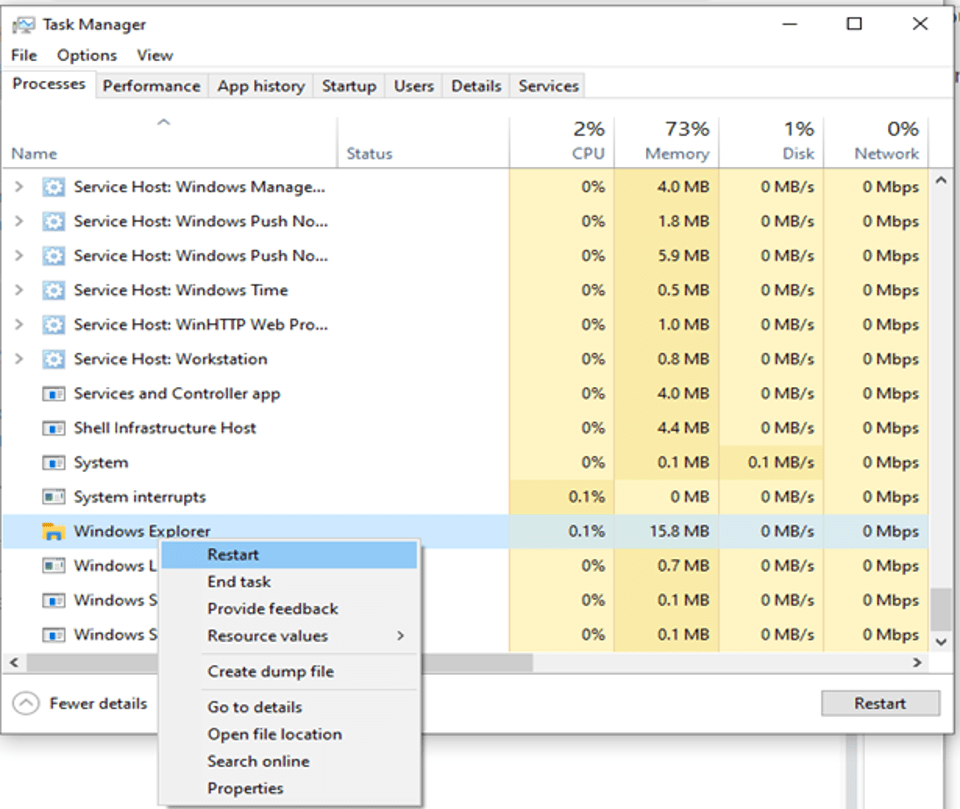
Open Task Manager and Click on Restart Button
  • Alternatively, if the above steps have not resolved the issue, then you could also choose to end the Windows Explorer process and run it again.
  • To run it, you need to go to the ‘File’ menu and select ‘Run new task’.
  • Then, enter ‘explorer.exe’ and click ‘Ok.‘
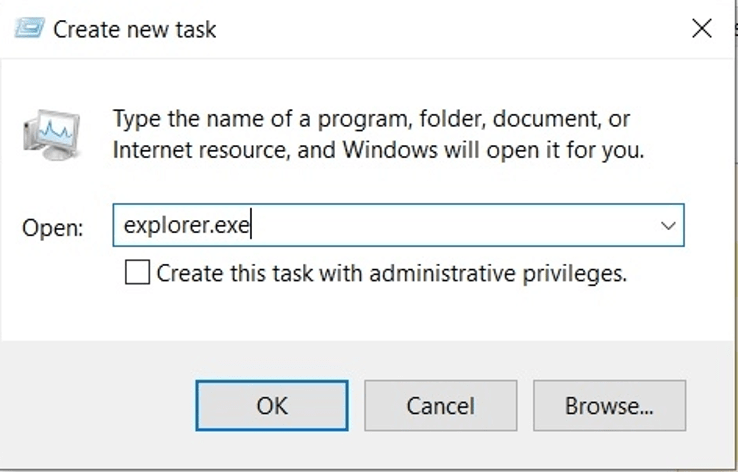
Select Run New Task and Enter explorer.exe
  • This should resolve the issue.

Read Also: How To Fix Flickering Screen Issues on Windows 10


2. Update the Graphics Driver

Many times the heavy games can cause stress on the GPU, which may lead to black screen problems. Graphics drivers can be updated in two distinct phases. The first step is to boot the system in safe mode, followed by fixing the graphic drivers.

  • First, you need to open a new window and then click on Restart while holding the shift key simultaneously. Once the screen shows the “Please Wait” message, then release the shift key.
  • Then, click on Troubleshoot first, followed by opening the Advanced Options.
  • Boot in safe mode by going to the “Startup Settings” option.
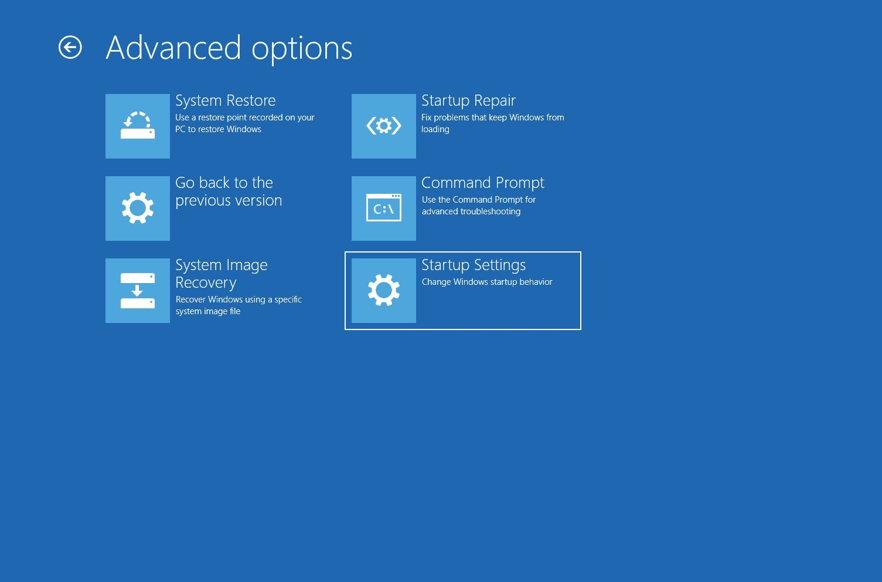
Go to the “Startup Settings" Option
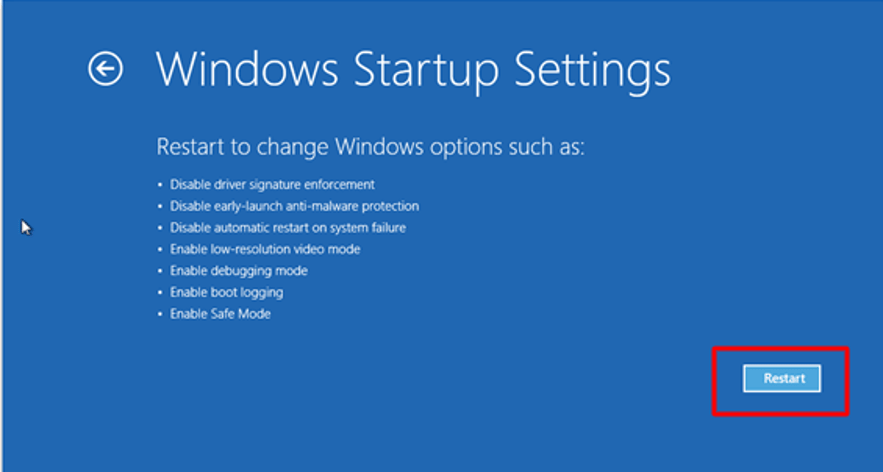
  • Then, click on the ‘Restart’ button.
In Windows Startup Setting Click on Restart Button
  • Finally, you can press F5 or 5 key to choose the option of “Enable Safe Mode with Networking.”
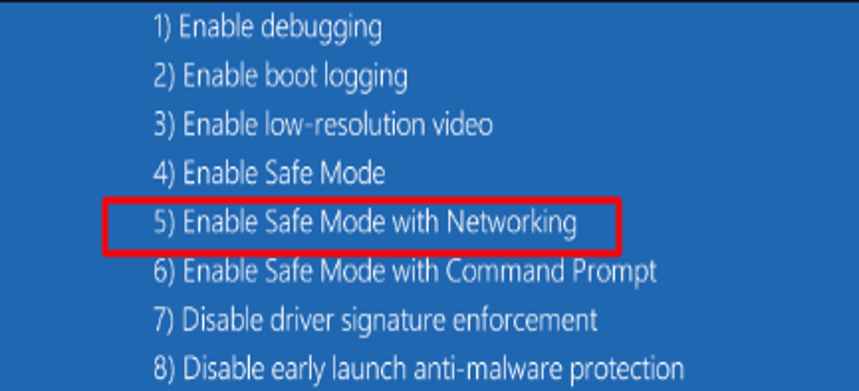
Enable Safe Mode with Networking
  • Now you can go to the Device Manager and open the Display Adapters section.
  • Here, you can go for the following options:

Uninstall the Graphics Driver 

You can right-click on the graphic driver to select the option of ‘Uninstall Device.’ Once the uninstallation completes, you can restart your system. Post this, Windows 10 should automatically reinstall the graphics driver and resolve the black screen issue.
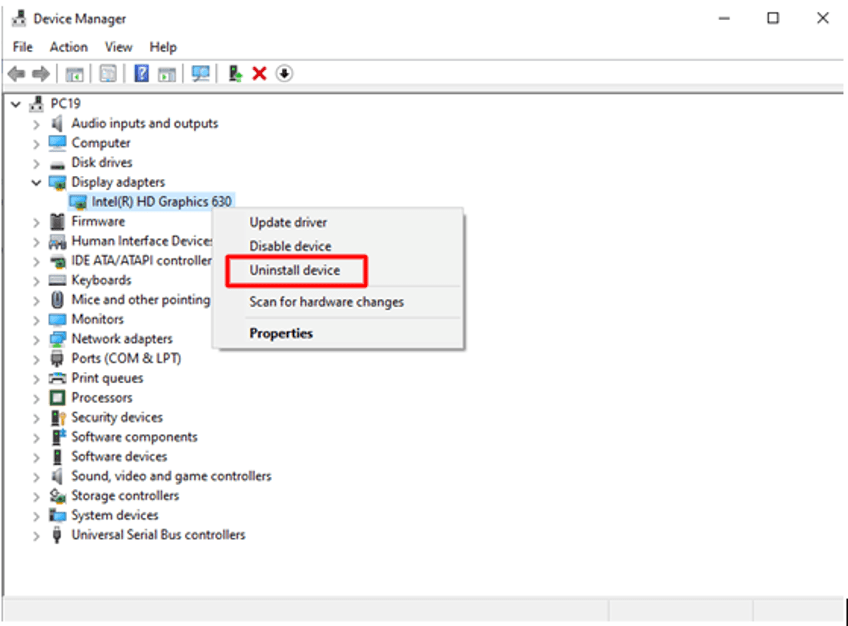
Uninstall the Graphics Driver

Update the Graphics Driver 

If the issue of the black screen still persists then, you can opt to download the graphics driver from the manufacturer’s website or else, update the driver directly from the Device Manager.

For this, you can go to the Device Manager and expand the graphics driver section. 

You can then right-click on the name of the graphic driver and choose the ‘Update driver’ option. 

You can then choose the “Search automatically for updated driver software” in the following prompt and then restart your system

If the problem still persists, you can always go for an automatic driver update software which will really make your job much easier for sure.
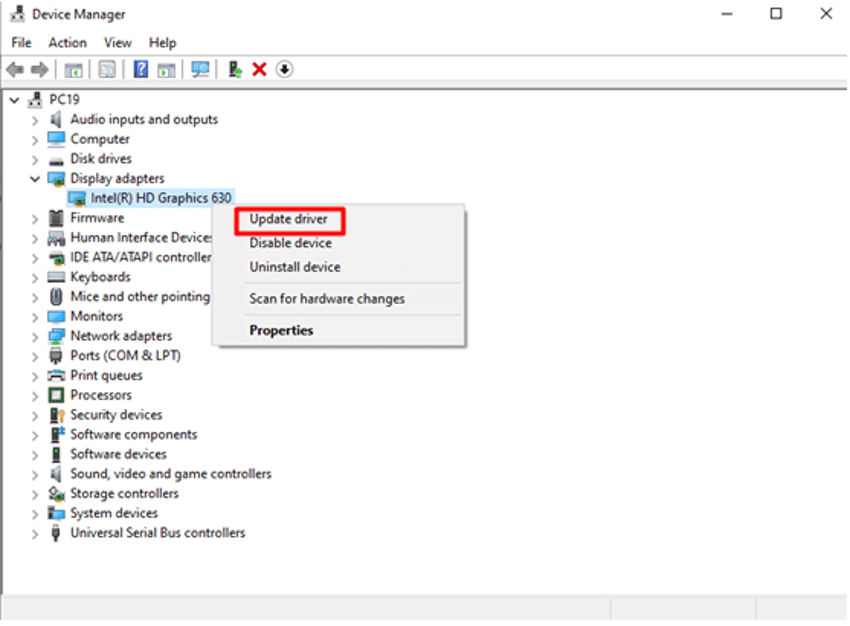
Update the Graphics Driver

Driver Updater Tool

Updating device drivers manually can be a tedious task and requires a lot of computer knowledge and patience. Therefore, you can always use a potent driver updater software, i.e., Bit Driver Updater to find the ideal drivers for your computer and update them automatically. 

Here’s how to update the graphics driver automatically using Bit Driver Updater.

  • Download Bit Driver Updater setup file by clicking on the button below.

    Windows Download Button
  • Run the downloaded setup file and then follow some simple on-screen instructions to install the application on your system.  
  • After this, open the application and click on the “Scan Drivers” button to get a complete list of all missing, faulty, or outdated drivers present on your computer.
  • Once you get the list, go to the graphics card driver and select the “Update Now” option to download and install its most updated version automatically. 

3. Fix Black Screen Problem via the Advanced Options

If none of the above options has solved your black screen of death problem so far, then you can go for two other alternative options viz; use “System Restore” or “Go to the Previous Version.” 

System Restore can take your computer to the most recent system restore point but there are chances that you lose programs and files that you have installed on your system post that point.
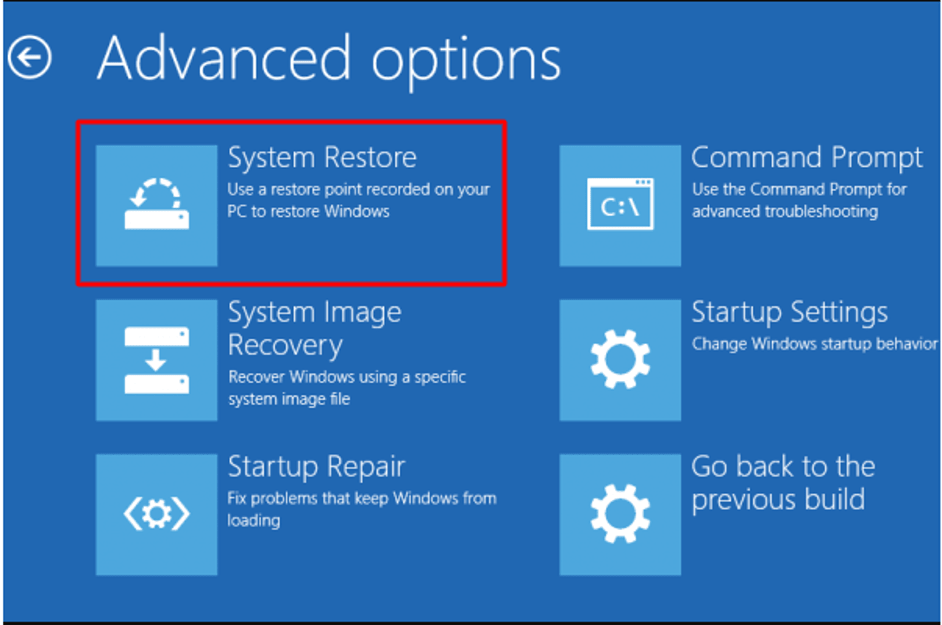
Use System Restore To Fox Black Screen Problem

On the other hand, rolling your PC back to the previous stable version will not impact your personal files.
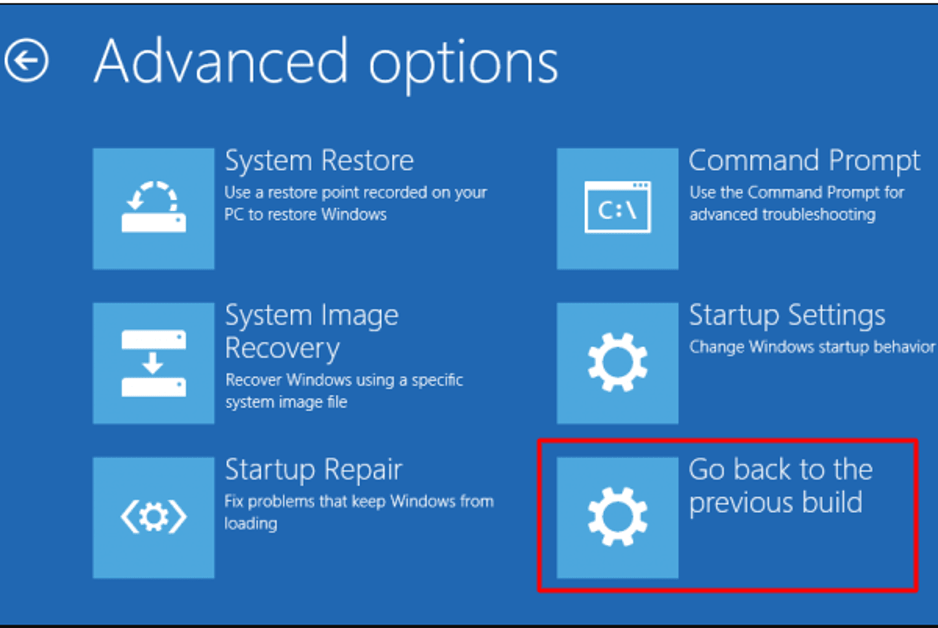
Go Back to the Previous Build

4. Reset the PC

If you are viewing a black screen just after switching on the computer, then you can choose to reset your computer as the final way to resolve the black screen problem. 

  • For this, you can go to the ‘Update and Security’ of Windows Settings.
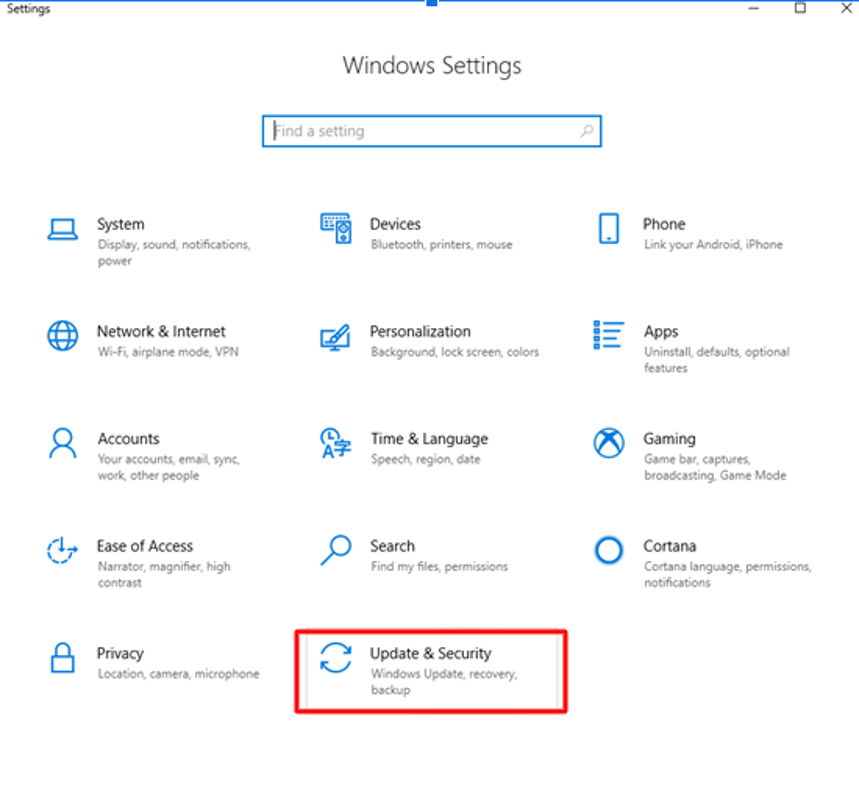
Go To 'Update & Security' Option
  • Then, go to the Recovery tab and click on “Get Started.”
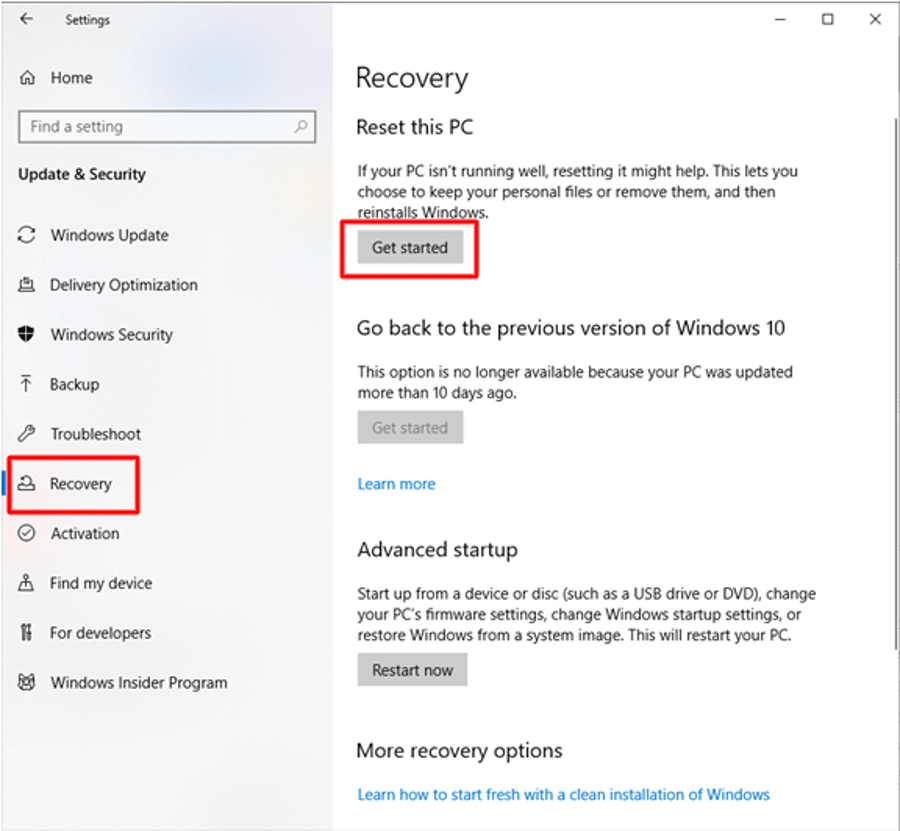
Go To Recovery Tab and Get Started
  • This will further lead you to two options viz; “Keep my files” and “Remove Everything.” You can choose the option which is most suitable for you.

5. Other Fixes

As it is known that there could be multiple reasons behind a black screen problem, therefore based on the various causes of issues, here are some other fixes for the black screen problem.

Disable High Contrast

Settings > Ease of Access > High Contrast > Turn it off > Restart

Uninstall Updates

Start > Control Panel > Programs and Features > View installed updates > Uninstall the most recent updates > Restart the PC

Uninstall Security Software

Settings > Apps > Apps & Features > Security Software > Uninstall > Restart the PC

Create a New User Profile

  • Go to Command Prompt and run as administrator.
  • Then, type “net user tempuser / add,” and further press Enter. Give the name of the account in place of the “tempuser.”
  • Followed by this, type “net localgroup administrators tempuser / add” to change the account type.
  • Finally, restart your computer and sign in with the newly created account.

Read More: How to Remove Junk Files From Windows 10


Black Screen Problems on Windows 10 – [Solved]

Therefore, with the help of this post, you can hopefully troubleshoot your PC’s black screen of death problem and get your PC back in the normal state. The use of an impressive driver updater tool can always help to deal with issues related to graphics drivers. It is quite an established fact that any problem with the graphic driver often leads to multiple problems associated with the display of the system. Hence it is very essential to always have them updated with the help from an all-round driver update software.

Author

Snigdha

Snigdha is a technical content writer with expertise in the field of science & technology. Though she has a very diverse academic and professional profile yet she finds writing to be a creative form that she was unable to explore so far. When not writing, she can be found indulging in other forms of creativity like painting or travelling.

View all posts

Related Posts
Fixed- Unmountable Boot Volume on Windows 10, 11

Fixed: Unmountable Boot Volume on Windows 10, 11

June 29, 2023
0

The Windows stop code saying The Unmountable Boot Volume error may be quite frustrating. You are unable to troubleshoot it in the same way that you would with the vast majority of other issues since it prevents you from booting into Windows.

But if you use the appropriate procedures, you should be able to correct this problem.

We’ll walk you through resolving the “unmountable boot volume” problem so that you may regain access to your computer. Even though these directions are designed for Windows 10, you may easily modify them for Windows 11.

What Does It Mean When You Get an Unmountable Boot Volume Error?

Your “boot volume” refers to the partition of your storage device (either an SSD or a hard disk) that contains Windows. This mistake happens when your computer is unable to launch Windows correctly, which results in a blue screen of death that you will need to solve.

A “stop code” is a particular error message that describes the issue that Windows ran into when you see a blue screen. In this particular instance, the stop code refers to an unmountable boot drive.

In most cases, this is the result of a faulty file system or files inside Windows itself. After installing a significant Windows update, you will often encounter this issue. Although an incorrectly set BIOS is another possible cause of this issue, unless you’ve tampered with the BIOS yourself, it’s quite unlikely that this is the problem.

How to Fix the Unmountable Boot Volume Error

Listed below are the following tried and tested fixes for Unmountable Boot Volume on Windows 10, 11. Without further ado, let’s get started!

Fix 1: Restart your PC

If you just encounter the unmountable boot volume issue once, you probably don’t need to worry about it as much as other blue screen errors, especially if it only happens once. Sometimes, Windows will experience a blip that is just momentary and will never cause you any more problems.

If you are working and suddenly encounter a blue screen indicating that you have an unmountable boot volume issue, restart your computer and attempt to boot Windows again. If the mistake does not reappear for an extended period of time, you should be clear.

However, in most cases, the unmountable boot volume problem will appear every time you attempt to boot into your personal computer, and it will prevent you from loading Windows in any case. In such a situation, proceed with the more advanced solutions explained below.

Also Read: Windows Could not Prepare the Computer to Boot into the Next Phase of Installation: FIXED


Fix 2: Run SFC Scan

Usually, corrupted system files are responsible for “the Unmountable Boot Volume Windows 10/11” error. Therefore, in order to fix the issue, you need to perform the SFC scan. This will automatically find and repair the corrupted or damaged system files on your PC. To use this fix, follow the steps below:

Step 1: Firstly, you will need to open the Command Prompt window. If you’re using Windows 10/11, you can access the command prompt by right-clicking on Start button and selecting ‘Command Prompt (Admin)’. Suppose you are utilizing a different version of Windows. In that case, you can utilize the command prompt by finding the Start Menu for Command Prompt, right-clicking over it, and selecting the option to  ‘Run as Administrator‘.Command Prompt run as administrator

Step 2: After that, you will need to open a new window, enter the following command into that window, and then hit the Enter key. You would be able to do a comprehensive system scan with the aid of this: sfc/scannow.Input SFC-Scannow and Hit Enter

Step 3: After that, you are free to keep the window for the command prompt open until the command has finished executing. Depending on the health of the system, this might take a considerable amount of time. You will receive a notice that reads “Windows Resource Protection did not find any integrity violations” if the command does not identify any errors throughout its execution.

Alternatively, if you get a message that reads, “Windows Resource Protection found corrupt files but was unable to fix some of them”, then you are required to reboot your PC in safe mode to resolve the problem.


Fix 3: Repair the GPT or MBR

When you switch on your computer, the Master Boot Record (MBR) or the GUID Partition Table (GPT) will help the operating system load correctly. Both of these files provide information about where Windows is placed on your hard drive. This may result in an unmountable boot volume warning if it gets corrupted. So, by repairing the Master Boot Record (MBR) or the GUID Partition Table (GPT) you can fix the issue. Follow the steps below to do so:

Step 1: Start your computer once again from the installation media for Windows 10 or Windows 11 and choose Repair Your Computer > Troubleshoot. This time, on the page that lists the Advanced Options, choose the Command Prompt option.Advanced Options - Click on System Repair

Step 2: In order to do an MBR repair, execute the following command into the Command Prompt:

bootrec /fixmbr 

Once it has finished, you may try running the following commands one at a time to do further maintenance or repairs. If your disk supports GPT, the following instructions are the key ones to try to repair the problem:

bootrec /fixboot

bootrec /rebuildbcd

Once the following commands are successfully executed, type Exit to quit the Command Prompt. After that, do another restart, and check to see whether the Unmounted boot volume Windows 11/10 problem still persists. If yes, then try another solution.

Also Read: [Solved] Inaccessible Boot Device Error On Windows 10


Fix 4: Use Chkdsk Command

If the automated repair and the MBR/GPT repair do not resolve the issue, your next option is to run Chkdsk to see if it can fix the error. You have the ability to inspect the storage disk for faults using this key tool that is included in the Command Prompt. These errors might be responsible for the unmountable boot volume error.

Repeat the procedures outlined above in order to open a Command Prompt from the recovery menu, and then type in the following command:

chkdsk /r c:

The /r flag of chkdsk searches your disk for corrupted sectors and corrects any faults it finds. Chkdsk will only report the errors it discovers if you do not include this in the command. You must provide the c: drive for the procedure to search your Windows partition, which is the most specific storage location for Windows. If you’ve relocated your c: to another location, replace it with d: or another letter if necessary.

Chkdsk may inform you that the volume is already in use and request that you run it the next time the system restarts. If this is the case, type Y for yes and then reboot your device to begin the procedure.

Because this might take some time, there’s a chance that you’ll have to wait a little while. After it is finished, you should do another reboot and check to see whether the problem with the boot disk has been resolved.


Fix 5: Test Hardware and Reinstall

If you’ve already done all of the above-mentioned troubleshooting tips, but you’re still getting an unmountable boot disk error every time your computer starts up, the issue is more fundamental. Don’t worry, there’s another way to try in order to resolve the error.

It’s possible that there is a problem with the hardware. Possibly, the data on your hard disk drive or solid-state drive is damaged, it’s about to die, or its connection is broken. If you feel comfortable doing so, open up your computer and check to see that all of the drive’s wires are attached securely. Malfunctioning RAM may be also the source of this issue; thus, you should check that the RAM is correctly positioned.

After determining that the problem is not caused by the hardware, then, you should perform some Windows diagnostic tests to check if a component is breaking. If this is the case, your only choice is to reinstall Windows and begin from scratch in the hopes that this would resolve the issue. This is a bothersome task that requires some time, but if you have a backup, it will be more laborious.

Also Read: How to Fix Bootrec/fixboot Access is Denied in Windows 11, 10


How to Fix Unmountable Boot Volume Error on Windows 11/10: Explained

We have gone through numerous procedures for resolving a problem known as an unmountable boot disk stop code in Windows 10 or Windows 11. The corruption of files is often the root cause of this issue; however, whatever the cause is, you can easily fix the issue by executing the methods mentioned above.

In the worst-case scenario, though, you will be required to run a hardware diagnosis or even reinstall Windows. So, that’s all! We hope you found the guide informative and helpful. You can drop your queries or further suggestions in the comments section below.

Do subscribe to our Newsletter and follow us on Social Media – Facebook, Instagram, Twitter, or Pinterest so you never miss updates related to technology.

Coprocessor Drivers Download, Install & Update for Windows 10, 8, 7

Coprocessor Drivers Download, Install & Update for Windows 10, 8, 7

August 14, 2020
0

If you are using a Coprocessor in your computer to enhance the graphical capability and speed of the computer for supporting some specialized work, then it is possible to experience some issues with this device at times.

Does your computer still seem to be running slowly despite having a Coprocessor installed?

If so, then it would indicate that the Coprocessor drivers might not be functioning appropriately in your computer. This is common when users have upgraded their Windows system to Windows 10 from Windows 7 or 8 version.

So, if you have been experiencing some issues with the Coprocessor drivers of your Windows computer, then it would need to be addressed conveniently. Therefore, let’s explore the ways by which Coprocessor drivers for Windows 7, 8, 10 can be downloaded.


Recommended Way to Download Coprocessor Drivers for Windows

If you are resolute on finding a way to easily update your device drivers without having to spend much time or effort, then you can opt for utilizing a driver updater tool such as the Bit Driver Updater software.

This is a stupendous tool that can help you update the system drivers automatically and regularly so that your PC is always in a stable and error-free condition. There are plenty of useful features that this tool offers.

To explore more about the capabilities of this tool continue reading ahead and click the download button below to acquire the tool instantly.

Windows Download Button

Easy Ways to Download Coprocessor Drivers for Windows

In this segment, we have described the manual as well as the tool-based automatic process to help you download and install the latest update of the Coprocessor drivers for Windows.

Process 1. Using The Manufacturer’s Site

You can always opt for this method to download the Coprocessor drivers, if you have some spare time and technical skills to handle the challenges of this method.

This method involves visiting the PC manufacturer or device manufacturer’s support website to search and find the latest driver update of a particular device which can be then downloaded for the Windows system.

Installation of the driver software is simple as the downloaded files are usually self executable. All you need to do is double click the downloaded.exe file so that it initiates the setup process. After this, you can proceed with the on-screen installation instructions and finish the setup process.

Read Also: How to Restore Sound Drivers Automatically


Process 2. Using The Device Manager

You can also use the in-built tool of Windows known as the Device Manager to download and install the Coprocessor drivers for Windows. Here are the steps to help you with the same:

  • Open the Device Manager tool.
  • Next, find the Other devices from the list of devices.
  • Double-click on it to expand the segment and view the Coprocessor device driver.
  • You might see a yellow exclamation mark in front of it which is indicative of the fact that there is some issue with the driver software.

Device Manager to download and install the Coprocessor drivers

  • Right click on the Coprocessor driver and choose the option from the dropdown menu called Update driver.
  • You will see another prompt appearing on the screen. You have to tap on the option which reads, “Search automatically for updated driver software.”
  • Wait for sometime to let the driver update complete.

Ultimately, the yellow exclamation mark should disappear and you should be able to use the Coprocessor as before. However, if the issue with the Coprocessor seems to persist, then can go for the automated method that will definitely solve your problem.

Read Also: Top Free Windows Driver Updater Programs


Process 3. Using Bit Driver Updater

With Bit Driver Updater you can avoid performing all the complicated steps mentioned above and rather download, install and update the Coprocessor drivers for your Windows PC with ease.

Bit Driver Updater is an advanced tool to evaluate the condition of the driver software on your PC. If this tool detects outdated, faulty, or missing drivers that need correction, then the tool would automatically update them. Follow the below steps to work with this tool:

Bit Driver Updater - Best Driver Updater Software

  • First and foremost, download and install this tool on your computer.

Windows Download Button

  • Secondly, run a complete scan of your Windows system with this tool to find bad drivers.
  • Thirdly, use the one-click update feature in the form of an “Update” button to make the tool fetch the most recent version of the Coprocessor drivers from its driver database.
  • Ultimately, the tool will also carry out the installation process on your computer automatically.

Coprocessor Drivers for Windows [Downloaded, Installed & Updated]

Now that you are well-versed with the methods to download, install, and update the Coprocessor drivers for Windows, I am sure that you will be able to resolve the problem you were having with the Coprocessor of your computer.

When this issue gets resolved, your computer will again perform faster and then ultimately you can carry on your work smoothly.

We would like to hear your questions or suggestions. You can leave your thoughts in the comments box below. You can also follow us on social media platforms or subscribe to our newsletter and notifications.

1 Comment
    5 Reasons Why You Should Have a VPN On Your PC says: Reply
    December 29th 2020, 5:40 pm

    […] you use your PC for work or leisure, and you’ve spent time making it as stable as it can be, you want to make sure it’s safe as well, which is why we’ve put together five of the best […]

Leave a Reply Cancel reply

Your email address will not be published. Required fields are marked *

Sidebar Image bit G ad1

Latest Posts

  • How to Fix Monitor Ghosting – 2021 Step by Step Guide
    What Is Monitor Ghosting and How Do I Fix It?
    by Niharika / April 9, 2026
  • 14 Best Free Tools & Utility Apps For Android in 2024
    15 Best Utility Apps For Your Android Smartphones in 2026
    by Snigdha / April 8, 2026
  • windows 11 installation assistant download
    Windows 11 Installation Assistant Download 
    by Niharika / April 7, 2026
  • Best-vistaprint-alternatives
    Best Vistaprint Alternatives to Use in 2026 
    by Gunjita Sompura / April 1, 2026
  • Best-Data-Labeling-Software-to-use-in-2026
    Best Data Labeling Software to Use in 2026
    by Niharika / March 27, 2026

Categories

  • Cyber Security
  • Driver Updater
  • Entertainment
  • Fitness
  • Games
  • How To
  • laptop
  • OS
  • Reviews
  • Tech News
  • Tips & Tricks
  • Top 10
Sidebar Image bit G ad1
[Fixed] Windows Update Error Code 0x80073712 On Windows 10 PC [Fixed] Windows Update Error Code 0x80073712 On Windows 10 PCby Jyotsana / December 16, 2020
How to Remove Your Mobile Number From Truecallerby Snigdha / December 17, 2020How to Remove Your Mobile Number From Truecaller
TechPout Footer Logo

We at TechPout promise to put forth stories that help people to learn and simplify their digital life. Our purpose is to share the true essence of technology with our tech-loving community.

Useful Links

  • About Us
  • Contact us
  • Privacy Policy

Popular Posts

  • Best PC Optimizer Software
  • Best Mac Cleaner Apps
  • Best Driver Updater
  • Duplicate Photo Finder and Cleaner Software
  • Best Free Movie Download Sites
  • Best IPTV Players

Follow us

Copyright © 2026 www.techpout.com. All rights reserved
DMCA.com Protection Status