Main LogoLight Logo
  • Reviews
  • Top 10
  • How To
  • Tech News
  • OS
    • Windows
    • MAC
    • iOS
    • Android
  • Categories
    • Driver Updater
    • Cyber Security
    • Games
    • Fitness
    • Entertainment
    • Tips & Tricks
How To
by Snigdha

How to Remove Your Mobile Number From Truecaller

December 17, 2020
1

Do you know how you can remove your number from Truecaller’s database? There is no direct way available to delete the account from the app; however, it is possible to do so by deactivating your Truecaller account, followed by delisting the number.

Truecaller app was first launched exclusively in 2009 by Blackberry. Later the app was released on Android and iOS platforms that could be used to manage calls with the help of the caller ID function.

It gained popularity as it accurately displayed the contact details of unknown callers and thus helped to avoid or block spam callers and telemarketers. But not many people prefer using Truecaller, considering it to be a privacy threat.

In this blog, we will first look at how Truecaller tracks and identifies all phone numbers, followed by which will be the methods of shutting down the Truecaller account.

Table of Contents hide
Methods to Deactivate Your Truecaller Account
1. Android
2. iOS
3. Windows Mobile

How Truecaller Identifies the Callers?

Truecaller gains access to the address book of users to collect information about their contacts. This way, through crowd-based outsourcing, it collects the data and stores it in the databases. Thereby, it further identifies the number and displays it accordingly.

This means that even if someone doesn’t use the app, still their data will be available on the Truecaller database that is collected from other people’s phones. Therefore, many people prefer to Unlist their numbers from the Truecaller database.

Truecaller also collects and stores addresses associated with a landline number. Truecaller acquires this data from Telecom companies. Due to this reason, the residential address of a landline number can also be displayed to whoever you are calling, which may be far too risky to reveal to unknown people. The risk of exposure is not only limited to this sphere but even to the extent of discoverability on Google’s search engine.

Read Also:  How to Remove Unwanted Pop-up Ads on Android and iOS


Methods to Deactivate Your Truecaller Account

You can follow the below-mentioned steps to disable the Truecaller account for removing traces of your number from Truecaller’s database. This can be done on Android, iOS, or Windows phones, followed by delisting the mobile number from the Truecaller database.

1. Android

  • Go to the application on your Android phone.
  • Tap the icon resembling people that you can spot in the upper left corner of the app screen.
  • Further, go to the Settings.
  • From there, navigate to the ‘Privacy Center’ section.
  • Here you will find the option to Deactivate the account.
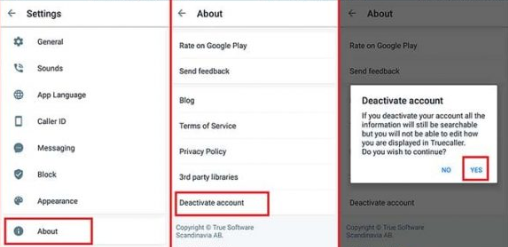
Disable The Truecaller Account From Android Devices


2. iOS

  • Open the application on your iPhone.
  • Tap on the gear icon in the top right corner.
  • Again go to the ‘About Truecaller’ section.
  • As you move down the list, you will be able to locate the option to deactivate your Truecaller account.
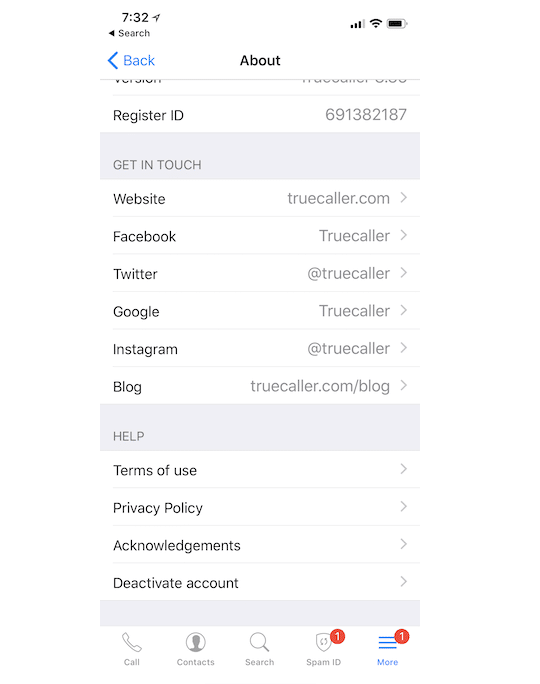
Disable The Truecaller Account From iOS Devices

Read More: Best Truecaller Alternative Apps For Android & iOS


3. Windows Mobile

  • Open the application on your Windows phone.
  • Tap on the three dots located in the bottom right corner.
  • Go to the Settings section of the application.
  • Further tap on the “Privacy Center” option.
  • Here you will find the Deactivate account option.
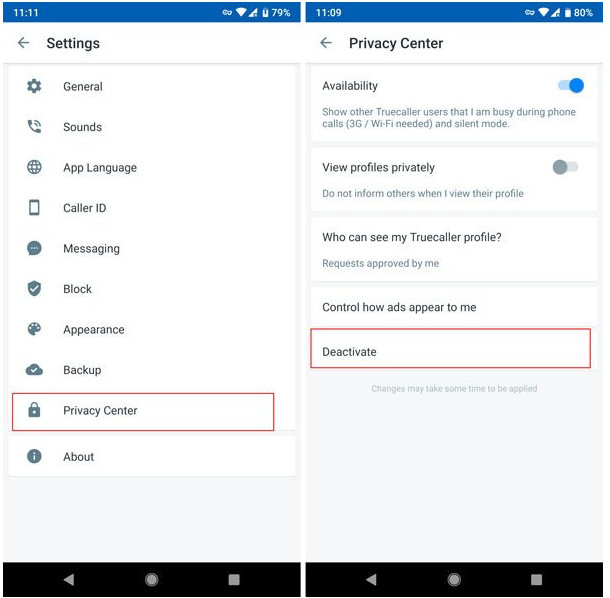
Disable The Truecaller Account From Windows Mobile


Remove Your Number From Truecaller

  • Once the account is deactivated, then you can proceed to erase the number from the Truecaller database.
  • You can go to the Truecaller unlist page.
  • Enter your phone number, preceded by your country code.
  • Select the reason most appropriate reason to unlist your number from Truecaller.
  • Enter the verification captcha.
  • Finally, tick the Unlist option.
  • Usually, it takes 24 hours to complete the delisting request on Truecaller’s part.
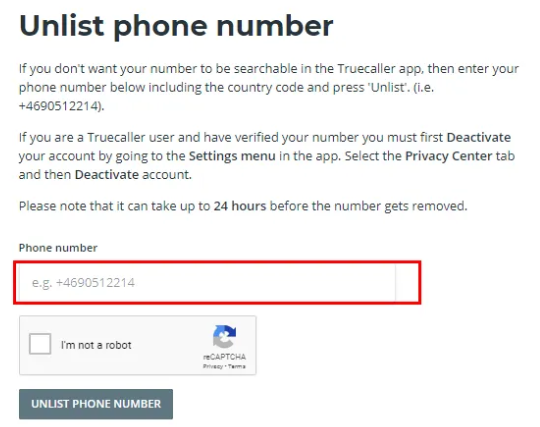
Remove Your Number From Truecaller

Read More:  How To Fix Computer Freezing Problems


Final Thoughts

Therefore, it can be noted that the above-described methods can be used to delete your number from Truecaller and also to remove the account related private information from their databases.

Occasionally, it has been noted that it doesn’t remain off the records forever because tracking continues to happen through other people’s number every time a new person downloads the app and provides access to their contacts list. So, this can lead to the reappearance of the number in the Truecaller database again.

To prevent this from recurring, again and again, you can keep verifying with Truecaller if your number is appearing with them and request them to delete your number.


Author

Snigdha

Snigdha is a technical content writer with expertise in the field of science & technology. Though she has a very diverse academic and professional profile yet she finds writing to be a creative form that she was unable to explore so far. When not writing, she can be found indulging in other forms of creativity like painting or travelling.

View all posts

Related Posts
How To Fix PDF File Not Opening

How To Fix PDF File Not Opening [Fixed]

September 28, 2023
0

PDF file not opening? Are you running into this problem? Don’t worry, explore the prime reasons behind the issue and workable solutions to get the issue fixed, easily & quickly. Continue reading for more information!

There are a variety of document formats that can be accessed, but PDF is the most popular choice for a lot of different reasons. The fact that opening a PDF file on either a computer running Windows or a computer running the Mac operating system does not affect the document’s layout is one of the primary reasons why millions of people around the world prefer to use PDF files. PDF is a format that is widely used by both business professionals and students.

PDF will be your reliable partner in both the creation of a firm portfolio as well as the creation and submission of an online assignment, so use it whether you need to or want to. PDF is universally acknowledged as the superior file format for the sharing of documents over the Internet, and its use is risk-free. But, there is always a risk of corruption or damage occurring in your PDF files. If you are unable to open PDF files, you can try making them accessible to you by using one of the techniques that are described below.

If you are also struggling with PDF files not opening? Then, you have come to the right platform, here you will learn how to fix the issue. But, before we proceed with the solutions, it would be great to know what prevents PDF files from opening.

Why Am I Unable to Open a PDF File?

Listed below are a few major issues you may face while attempting to open your PDF files:

  • Unsupported platform: If a PDF file cannot be opened in Adobe Reader or any other software, an out-of-date version of the program may be to blame. Bringing it up to date with the most recent version is the expedient workaround for this.
  • Incorrect configurations: It’s possible that you’re utilizing the protected mode of the associated program at times. Because of this, it may be unable to open certain PDF files. In order to resolve the issue, you will need to turn off this safety feature. You should also experiment with the several ways to edit a protected PDF file.
  • Error message: “We are unable to open this file something went wrong with the PDF.” Several users have reported experiencing this issue on their respective devices.
  • Damaged or Corrupted Files: If you are receiving a message informing you that a PDF file cannot be located, the file itself may be corrupted. Get in touch with the person who sent you the file and ask them to resend it to you or download a fresh copy.

Also Read: Best Free Textbook PDF Websites to Download Books Online

How to Fix PDF File Not Opening on Windows PC?

Have a look at the below-mentioned most effective solutions to fix PDF files not opening on Windows 10, 11, or older versions.

Solution 1: Restart your Device

This is the very basic resolution that you can apply in order to solve PDF file not opening on Windows PC. Restarting the PC always worked when it came to fixing different kinds of issues on the Windows operating system. So, perhaps this does tricks for you too. Additionally, if you have a PDF reader from a third party installed on your computer, then, you can also try to reinstall it to diagnose the issue.

Important Note: You should install Adobe Acrobat Reader on your computer, as this is the official and most reliable PDF reader available in the market.


Solution 2: Set PDF Reader as your Default Program

If you have multiple PDF readers installed on your PC, then you should set only one PDF reader application as your default PDF file access program that handles all your PDF files. Doing so will help you fix PDF documents not opening on Windows PC. To do that, follow the simple steps below:

Step 1: To get started, simply select any PDF file to open it.

Step 2: Select the Open With option, then click Choose another app from the drop-down menu.

Step 3: Now, from the list, select the PDF reader software that you want to set as your default file reader, and then click the check box next to “Always USE this App to Open.pdf Files.”

Step 4: Lastly, click the OK option to save these settings.

After that, try to test the issue by opening the PDF file. If in case, the PDF file not opening still bothers you, then proceed with another solution.

Also Read: Best Adobe Acrobat Free Alternative


Solution 3: Remove Password Protection

Generally, PDFs are password-protected so that your information or data remains safe. That means, there are instances in which PDF files are password-protected and you don’t have a correct password to access the document which results in ‘PDF document won’t open’ problem. So, instead of looking for alternative ways to open the PDF file, try removing it or unlocking it with the correct password.

Unfortunately, if you still run into a PDF file not opening on Windows 10, 11, then move on to the next solution.


Solution 4: Update Your PDF Reader Software

If you are using the best PDF reader software, then updating the program from time to time is recommended in order to ensure the proper functioning of it. Every update includes a few unique new features that are incorporated into the software. It could be an improved capacity to fix bugs or something else along those lines. To do so, you simply need to open your desired PDF reader software and go to the Help section where you can check for the latest updates and install the available ones. This might help you fix issues like PDF documents won’t open and more. If this didn’t help you, then move on to another hack.

Also Read: Best Free PDF Editing Software For Windows


Solution 5: Launch your PDF Reader Software in Compatibility Mode

None of the aforementioned tactics helped you in fixing the ‘PDF file does not open on Windows 10, 11’? Don’t worry, here is a last resort for you. In case, your PDF reading application is not compatible with your operating system, then you may run into PDF-related issues. Therefore, to avoid this, we suggest you run the PDF reader in Compatibility mode. This will definitely help you out. Once done, reboot your system and try to access your PDF documents.


How to Fix PDF File Not Opening on PC: Explained

In sum, if you are having trouble opening PDF files on your computer, there are a few different potential solutions to fix it. Hence, to help you out, we have prepared this guide highlighting some of the tried and tested solutions to resolve PDF file not opening on Windows 10, 11. We hope you found the information provided in this guide helpful. Feel free to drop your queries or further tips in the comments section below.

For more useful tips related to technology, you can subscribe to our Newsletter and follow us on Social Media (Facebook, Twitter, Instagram & Pinterest) so you never miss any tech-related news and other associated information.

How to Fix Duplicate Save File Issue in Elden Ring

February 13, 2024
0

In this article, we introduce you to the sure-shot ways to effortlessly fix the duplicate file issue in Elden Ring.

Elden Ring is among the best games in the action-role-playing category. Gamers across the globe enjoy this game for its endless entertainment. Moreover, people save their game progress so that they can continue playing from the same point where they left their previous gaming session. However, many users reported an annoying duplicate save file issue in Elden Ring, preventing them from continuing the game.

Are you also one of those users? If yes, you should not panic as you have found this article. This write-up walks you through the tried and true solutions for this problem. However, let us throw some light on the possible causes of this issue before trying to fix it for better troubleshooting.

Causes of Duplicate Save File Issue in Elden Ring

Here are the top factors responsible for the problem you are experiencing.

  • Virus attacks
  • Accidental creation of a duplicate when creating a backup
  • Running the game soon after the installation

Above, we listed the possible reasons you struggle with file issues in Elden Ring. Now, let us answer your question, “How do I fix my EldenRing save file?” issue.

Fixes for Duplicate Save File Issue in Elden Ring (Quick and Easy)

You can try the following solutions to get rid of Elden Ring file issues.

Fix 1: Find and delete the game file manually

Deleting the duplicate game files can fix the issue you are experiencing. Hence, you can follow the below steps to find and delete the Elden Rings duplicate files from your PC’s documents library.

  • To begin with, go to This PC on your computer.
  • Secondly, input C:\Users\[username]\AppData\Roaming\EldenRing in the address bar and press Enter.Find the game file manually
  • Now, find files with the .sl2 extension and cut and paste one of these files to your desktop.
  • Now, launch Elden Rings and check from where the game loads. If the game loads with the existing file in the folder, delete the file you pasted to the desktop. However, if the game loads with the desktop file, delete the file in the folder.

Also Read: Can Duplicate Files Be Harmful In Your Personal Data


Fix 2: Use a duplicate file finder

You can use the best duplicate file finder and remover software if you find it difficult to locate and delete the game file duplicates. If you are confused about the software you should use, you can choose one from our carefully curated list.


Fix 3: Restart the game

Sometimes, simple solutions like restarting the game do wonders to fix duplicate save file issues and other problems in Elden Ring. Hence, you can follow the below directions to restart your game.

  • To begin with, right-click the Start icon present on the extreme left of your taskbar.
  • Secondly, select Task Manager from the available options.Task Manager
  • Now, navigate to the Processes tab.
  • Lastly, choose EldenRing.exe and select End Task from the lower-right corner.

Also Read: How to Find Duplicate Files with Different Names in Windows 10, 11 PC


Fix 4: Disable Steam’s cloud save feature

Disabling the cloud save feature on Steam has solved the duplicate file save issue in Elden Ring for many users. Hence, you can follow the below steps to disable this feature.

  • Firstly, exit the Elden Ring if it is open.
  • Secondly, open your Steam client.
  • Now, navigate to the Steam LIBRARY.
  • Right-click on Elden Ring and select Properties from the on-screen options.
  • Lastly, choose GENERAL and then unmark the Keep games saves in the Steam Cloud for Elden Ring option.Keep games saves in the Steam Cloud for Elden Ring

Duplicate Save File Issue in Elden Ring Fixed

This article guided you through various ways to fix the Elden Ring duplicate file issues. You can begin your troubleshooting session with the first fix and continue moving down the list of solutions until the problem is resolved.

Also Read: Top 12 Things to Remember While Remove Duplicate Files

However, if you have any doubts or you have other better solutions to the problem, you can write us a comment. Moreover, you can subscribe to our newsletter to stay on top of our mailing list whenever we come up with solutions to another annoying issue. Don’t worry, we never spam.

1 Comment
    Praise Anwuta says: Reply
    April 21st 2020, 12:37 pm

    Thanks for sharing the blog! It’s Really Amazing.

Leave a Reply Cancel reply

Your email address will not be published. Required fields are marked *

Sidebar Image bit G ad1

Latest Posts

  • Anytime Astro: Best Website For Online Astrology Consultation
    Anytime Astro: Best Website For Online Astrology Consultation
    by Somya Shrimal / February 13, 2026
  • Best-McAfee-alternative-software-to-use-for-Virus-Protection
    Best McAfee Alternative Software to use for Virus Protection
    by adminuser / February 11, 2026
  • What-is-Flip-Flop-in-Circuite-and-it's-Types
    What is Flip Flop in Circuit and its Types
    by Meet / February 6, 2026
  • Best-Data-Labeling-Software-to-use-in-2026
    Best Data Labeling Software to Use in 2026
    by Meet / February 2, 2026
  • Best-Google-Slides-tools--to-add-as-extension-in-2026
    Best Google Slides Tools to Add as Extension in 2026
    by Meet / January 30, 2026

Categories

  • Cyber Security
  • Driver Updater
  • Entertainment
  • Fitness
  • Games
  • How To
  • laptop
  • OS
  • Reviews
  • Tech News
  • Tips & Tricks
  • Top 10
Sidebar Image bit G ad1
Fixed: Black Screen Problems on Windows 10 [Solved] Fixed: Black Screen Problems on Windows 10 [Solved]by Snigdha / December 16, 2020
The Audio Service is Not Running On Windows 10 [Solved]by Harshita / December 18, 2020The Audio Service is Not Running On Windows 10 [Solved]
TechPout Footer Logo

We at TechPout promise to put forth stories that help people to learn and simplify their digital life. Our purpose is to share the true essence of technology with our tech-loving community.

Useful Links

  • About Us
  • Contact us
  • Privacy Policy

Popular Posts

  • Best PC Optimizer Software
  • Best Mac Cleaner Apps
  • Best Driver Updater
  • Duplicate Photo Finder and Cleaner Software
  • Best Free Movie Download Sites
  • Best IPTV Players

Follow us

Copyright © 2026 www.techpout.com. All rights reserved
DMCA.com Protection Status