Main LogoLight Logo
  • Reviews
  • Top 10
  • How To
  • Tech News
  • OS
    • Windows
    • MAC
    • iOS
    • Android
  • Categories
    • Driver Updater
    • Cyber Security
    • Games
    • Fitness
    • Entertainment
    • Tips & Tricks
Reviews Windows
by Prachi Dani

Driver Booster 11 Review: Pricing, Features, Pros, Cons & Expert Advice

April 26, 2024
1

Is the Driver Booster tool worth downloading? Read this comprehensive and honest review of Driver Booster software to decide whether it is worth your time or not. 

Did your PC run into a problem and need a fix? Well, this can be due to outdated and broken drivers. The Driver Booster is a renowned driver updating tool that can offer the perfect solution and ensure the good health of your system. 

However, before we move ahead to learn about the features and functionalities of Driver Booster, i.e., one of the best free driver updater tools, let’s first have a quick look at some of the common system issues you can face due to outdated drivers.

What PC Issues Can You Face Due to Broken Drivers? 

  • Your internet connection may become unstable.
  • You may face frequent screen freezing and system crashing issues.
  • The hardware devices attached to your system including the printers, webcam, the scanner may stop to work smoothly.
  • You may also experience sound errors while listening to your favorite music piece.
  • Games may start running slow, they might hang and crash frequently.

So, we know how important are device drivers for your PC to run smoothly. Let’s get some useful insights about Driver Booster, its pros, and cons, features, and benefits along with its pricing policy.

Table of Contents hide
Driver Booster Free Version: All That You Need To Know
Tool Specification and Description
Pros and Cons
Driver Booster Free Version Review- Setting It Up
1. Installation
2. System Scan
3. Fixing Up
4. The Setting, System Support, and Additional Features
Performance Comparison in a Snapshot
Driver Booster Pro – A Brief Introduction
Frequently Asked Questions (FAQs) about Driver Booster
Concluding Words: Driver Booster Review 2024

Driver Booster Free Version: All That You Need To Know

Driver Booster is manufactured by IObit, a company that was founded in 2014 and deals in products like Malware Fighter, Smart Defrag, Advanced System care products and many more. Its line of business is mainly related to utility tools devoted to PC optimization tools, security software, and performance optimization. 

The tool is intelligently designed to perform a system scan, detect all outdated and broken drivers and fix them in no time. 

Windows Download Button

Tool Specification and Description 

Manufacturer IObit
Main Functionality One-click driver updater tool
Latest Version Driver Booster V 11.4.0
Driver Database 200% larger database with around 3,000,000+ drivers including drivers from AMD, Intel, Nvidia and many more.
Windows OS Windows 7/8/8.1/10/XP/Vista
Technical Support 24/7 Technical support
Installer File Size 28.3 MB
Menu Language 48
Additional Features and offerings One-click Update, Game Booster, Feedback channel, fix separate device issues, Secure driver update, create restore points, view system information

Driver Booster is available in three versions. One version is free but comes with limited features and its other version is known as Driver Booster 11 Pro Trail, while its paid version is known as Driver Booster 11 Pro. Its yearly subscription costs $19.95 and $22.95 and can support 1 and 3 systems respectively.


Pros and Cons

Pros

  • Automatic Tool that works when you are away and the system is idle.
  • Can fix and repair your broken and outdated device drivers in a single click
  • It can automatically reboot your system once the drivers are updated and repaired completely.
  • It is compatible with all Window versions
  • It creates a backup of all broken drivers before updating them to avoid any data loss.

Cons

  • The Application is not compatible with Mac, Linux, and Android devices.
  • Does not give details of all missing drivers.
  • At times it is unable to update specific drivers, which have to be updated manually.
  • Contains a lot of ads for other IOBit applications and services.

Driver Booster Free Version Review- Setting It Up

Windows 7 users form the majority of the PC users which require driver updater on a regular basis, Windows 10 system falls in the category of advanced systems which hardly require a driver booster, while the earlier Windows versions are hardly in use. According to experts, the 64 bit Windows 7 system is the most suitable machine for setting up Driver Booster.

Windows Download Button

For better understanding let’s set it up on two devices with the below-mentioned specifications:

Specification Device 1 Device 2
Device Type PC Acer Aspire Laptop
RAM 8GB RAM 3GB RAM
CPU Intel Celeron CPU of 2.60 GHz Intel CPU of 1.30GHz
Screen Resolution 1920*1080 1366*768

Let’s assume that both the devices have not been updated from the last month. During the update search, we found out close to 70 optional and 135 crucial updates. Let’s get started with the actual installation process now.

Read More: CCleaner Review: Product Details, Features, Price & More

1. Installation

The installation process of driver booster is quite simple, just download and set up the installation file from the publisher’s website. 
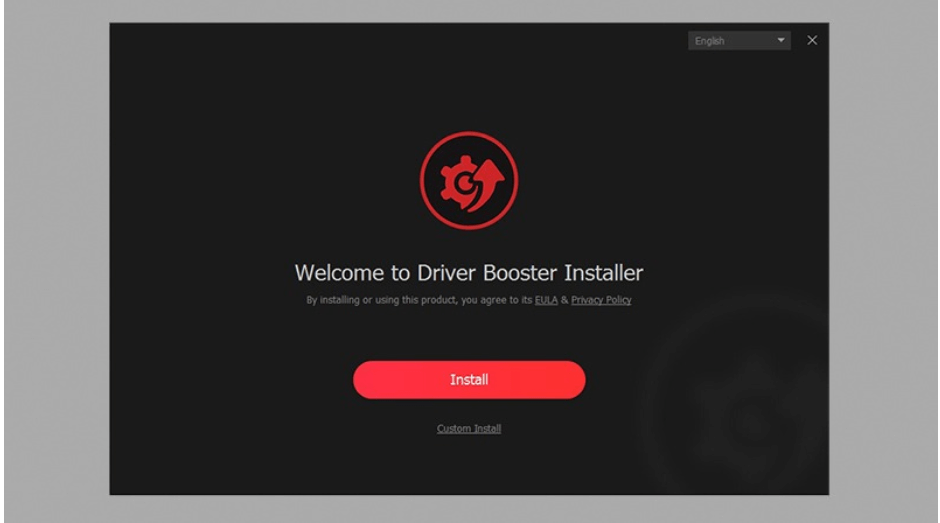
Driver Booster Installer
  • To start with, set your language preferences on the Welcome screen.
  • On the Welcome site, you will see two buttons, one of the red color install button while the other one is for custom installation.
  • We recommend you to go with expert advice and choose the Custom installation. 
  • With the custom installation option, you will be able to skip or install additional tools. 
  • Apart from this, you will also be able to select a path, pin to the taskbar and create a desktop icon.
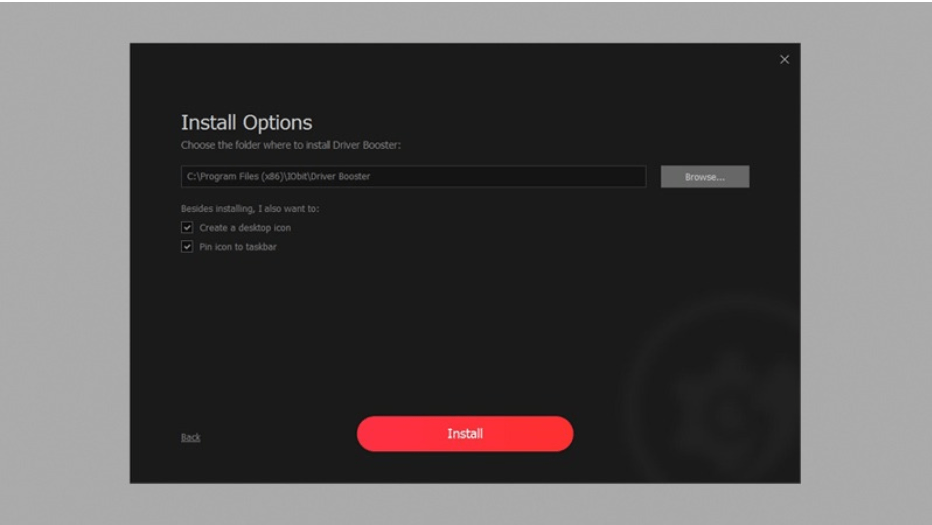
Select Best Path To Install Driver Booster
  • Once you are done with these specifications you can click on the Install button to start the download process. 
  • Post successful installation of the driver booster, you can straight away jump to the system scan. 
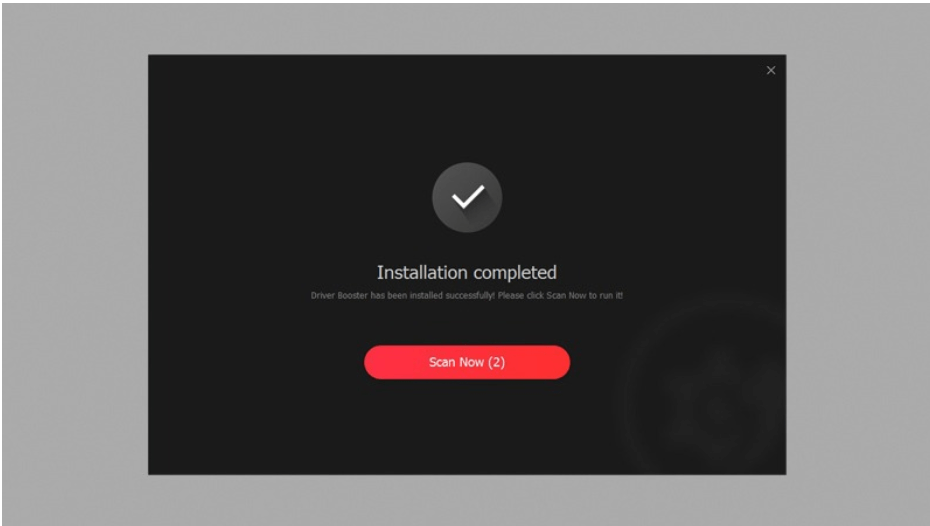
Installation of The Driver Booster

Read More: Best Tips to Speed up Windows 10 Computer

2. System Scan

The advanced working of the driver booster can leave you in complete awe. If you do not click on the Scan button within 5 seconds after the installation, the tool will automatically start a system scan. The main scanning screen comprises a big Scan/Stop button placed in the center along with a Device Driver and Game Components placed on each side of the central scan button. This tool quickly starts and sums up the scan. All under a couple of minutes.
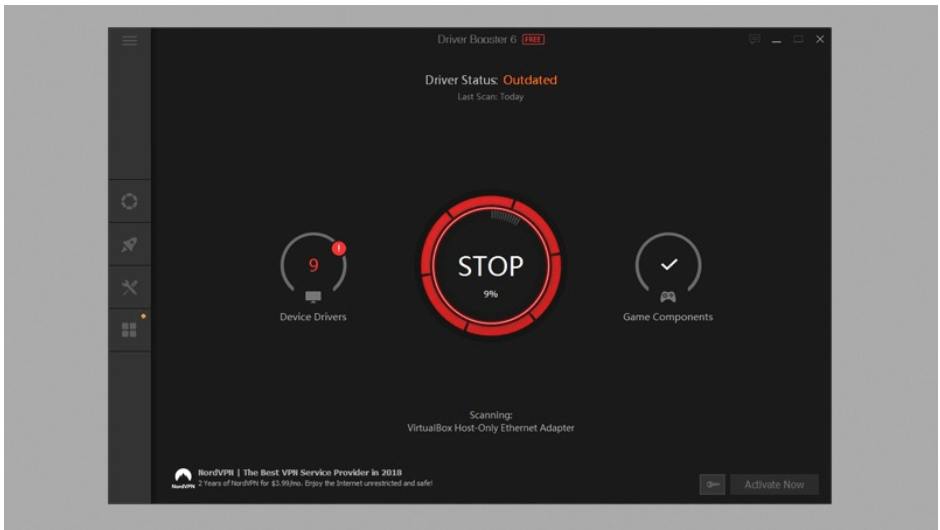
Update Outdated Drivers With Driver Booster

Click on the scan button to start system scanning using the driver booster tool. And now comes the big factor, the detection of outdated and broken drivers. We tested it on both the devices and the results were appropriately corresponding to the health of the two machines.

Once system scanning is complete, the driver booster will display a list of all broken drivers which need to be fixed. Apart from this other additional information is also displayed which includes. 

1. The name and category of the device driver.

2. Details of the current version along with the publisher’s name and date of publication.
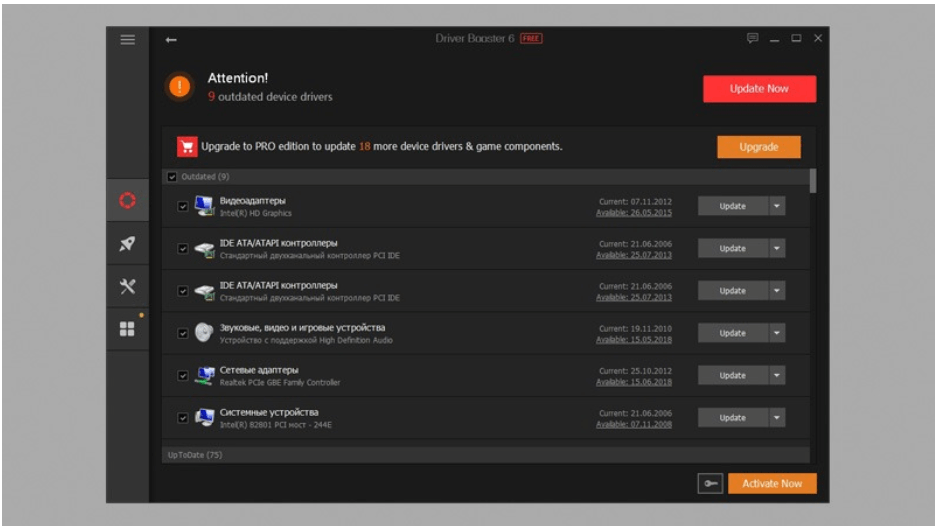
Activate Driver Booster

3. Details of the new available version, its publisher and date.

4. Here users have the option to either install, uninstall, ignore or perform a one-click update of all broken drivers.
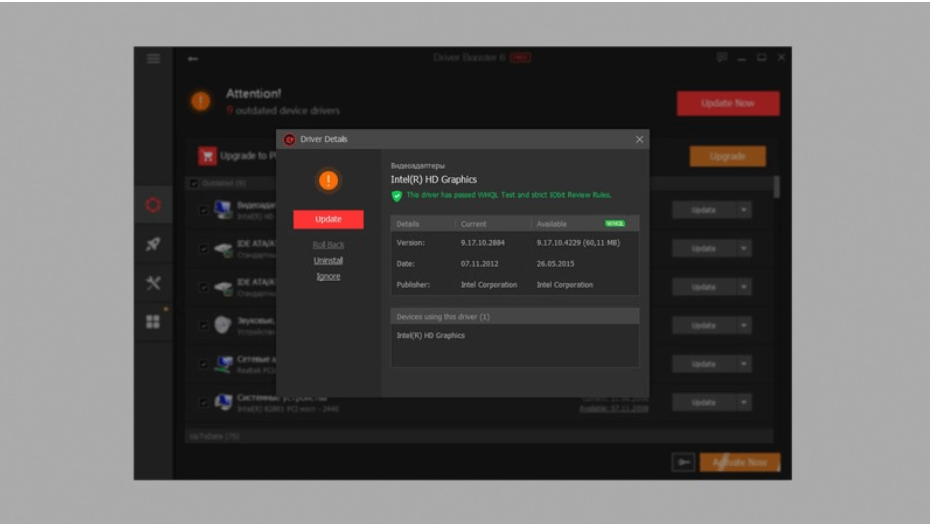
Update All Broken Drivers With Driver Booster

Read More: List of Best Bluetooth Software for Windows 10 

3. Fixing Up

Once the driver booster software is through with the system scanning process, it’s now time to fix and repair the identified drivers. During the repair process you will also be notified of all system reboot requirements, conflicts with system security software, program crashes and network disconnection issues.
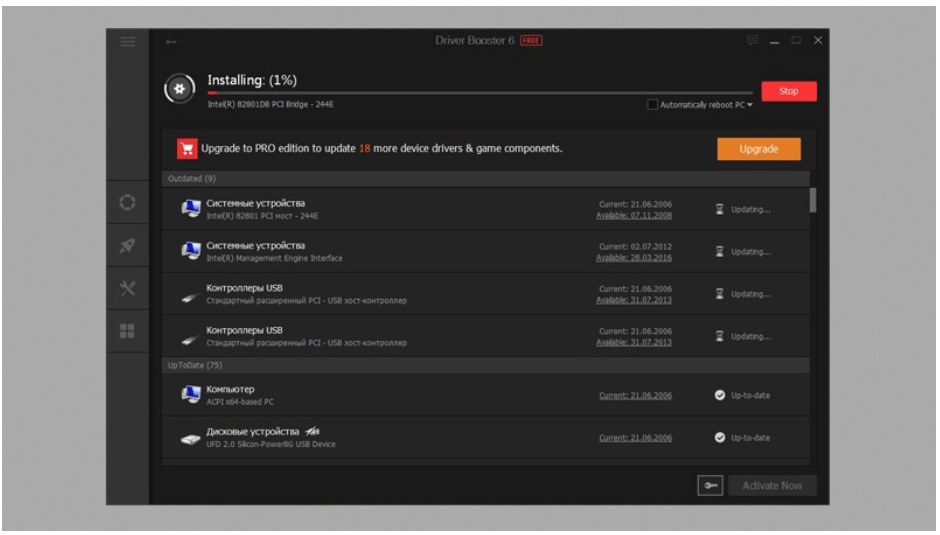
Driver Booster Software

The repair window also gives you real-time update status of each driver and categorizes the progress under headings like preparing, downloading, completed and reboot required.

Once the repair and reboot process is complete you will get a notification stating that “All the drivers are up-to-date”. 
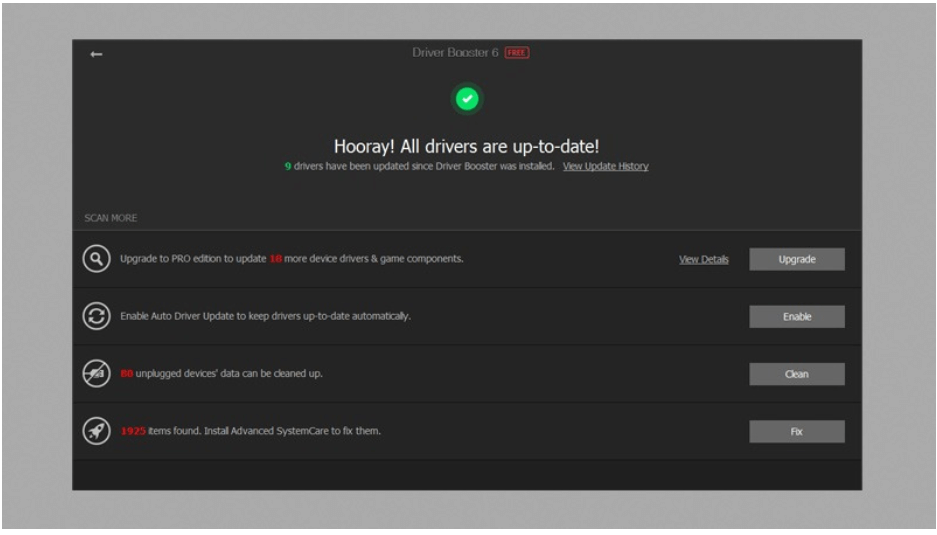
All Drivers Are Up To Date With Driver Booster Software

4. The Setting, System Support, and Additional Features

  1. The Driver booster tool comes with an easy-to-use functionality powered by a clean interface.
  2. Its main page is well designed for a better user experience.
  3. You can customize the page and choose your preferred font size, language, and layout transparency.
  4. It also creates a backup of all drivers.
  5. The tool offers drivers for display devices, graphics cards, and other devices. This helps in improving the gaming performance of your device.
  6. This power-packed tool can effortlessly launch a system scan, can reboot your system automatically, run scheduled systems and repair all outdated drivers in a single click.
  7. It also comes with a 24/7 operation chat window which you can use to discuss your queries with the Driver Boosters team.

In addition to the above-mentioned functionalities and offerings, Driver Booster is also powered with several other useful features. 

  • Smart Defrag: Use it to defrag, optimize and organize your system hard drive. It helps in enhancing the response time of your device.
  • System Optimize: Perform system scan, remove junk and unwanted system registry files to improve the overall health of your system.
  • Game Boost: Enjoy a perfect and uninterrupted gaming experience and configure gaming apps. 
  • IObit Malware Fighter: Add an additional security layer and protect your system against malicious malware, spyware, and other PC threats.
  • Manage multiple passwords with the Dashlane feature of Driver Booster.
  • Apart from this, it also comes with several other tools that can help you fix network failure, bad resolution, no sound, and many other problematic system areas.

Performance Comparison in a Snapshot 

Activity PC Laptop
Installation Time 35 seconds 2 minutes
Scanning Time 30 seconds 2 minutes and 30 seconds
Outdated Drivers Found 9 outdated and 75 good drivers 33 broken and 70 good drivers
Driver Update Time 5 minutes 45 seconds 22 minutes 10 seconds

So this is the final performance summary of Driver Booster 11 free version. However, to get more realistic and definite results we also tried comparing it with few other drivers. By far this is the best tool we have come across and on top of it, it does not use much system resources and is relatively light in weight.

The tool offers value for money to all its users. Some other viable alternatives to this updater charge relatively high prices to offer the same features and functionalities as the app. Thus, making it a cost-effective alternative for you.


Driver Booster Pro – A Brief Introduction

Powered with high-end features and benefits, Driver Booster Pro is the enhanced version of the free version. It comes with a rich database of more than 6.5 million drivers and is capable of detecting even the smallest issue including the gaming components. These drivers are gathered after analyzing over 1200 different brands for better inclusion.

Here are a few highlights about this stunning tool:

  • It comes with a one-click update feature.
  • It is also an Advanced System care tool that can clean system junk, registry entries, and privacy traces to optimize the overall performance and working of your device.
  • It is also capable of scanning spyware.
  • As an additional feature, it also gives its users the power to switch between various interface skins including blue, black, white and many more.
  • Apart from this, for better customer satisfaction it also comes with a 60-day money-back guarantee. 

Frequently Asked Questions (FAQs) about Driver Booster

Q1. Is The Driver Booster Free?

Yes, Driver updater is completely free of cost and can seamlessly scan your system and update all broken and corrupted Drivers. If you wish to enjoy added benefits like gaming optimization, error fix and automatic updates you can opt for its pro version.

Q2. Who Makes The Driver Boosters?

Driver Booster is developed by IObit.

Q3. How Do I Update All My Drivers For Free?

You can update your device drivers for free with the Driver Booster Tool. It is an automatic tool which performs system scan, detects all problematic drivers and updates them in no time.

Q4. What Does a Driver Booster Do?

Driver Booster is a power-packed driver updater tool. It can automatically scan your PC/ laptop for corrupted and outdated drivers and update them. 

Q5. How Do You Check If Drivers are Up To Date?

You can either use a manual way or an automated tool to check the health of your device drivers. The manual ways include two ways: Windows Update and Device Manager option. Alternatively, you may use an automated driver updater tool like Driver Booster to fix your device drivers.

Q6. How Can I Update My Drivers For Free Windows 10?

The best way to update your device drivers is through an efficient driver updater tool. The market is filled with multiple options, if you are looking for free software, you can pick Driver Booster for smooth system performance and hassle-free operations.

Q7. How much space does Driver Booster take up?

Driver Booster only takes up to 28 MB of space on your system and thus, is lightweight.

Q8. How does Driver Booster work?

The working of Driver Booster is simple. It just scans your system for outdated drives, shows you the results, and then updates the same.


Concluding Words: Driver Booster Review 2024

Above, we have shared all the features, functionalities, specifications, and positive & negative aspects of the Driver Booster software. Based on this review you can decide whether to download Driver Booster on your Windows PC or not. 

We hope that you found this review of Driver Booster informative and helpful in selecting a good driver update and repair software for your laptop or desktop. If you are interested in reading more such software reviews & tech-related posts, then do not forget to subscribe to our newsletter. 

Author

Prachi Dani

Prachi Dani is a technical content writer who specializes in areas of science and technology. She is highly up to date with technological transitions and transformations. Writing is not her passion but the only thing that carries satisfaction in life. If not writing, you may find her engrossed playing action games on her treasured smartphone.

View all posts

Related Posts
9 Best Shareit Alternative for PC in 2024 - Instant Transfer Files

9 Best Shareit Alternative for PC in 2024 – Instant Transfer Files

January 17, 2024
0

SHAREit alternatives for PC can be hard to find on Google as you get tons of search results, but to help you ease that process we have filtered the 9 best software like SHAREit that you can use and share effortlessly.

SHAREit is a free and effective tool when it comes to sharing files from one PC to another. The software is compatible with most of the operating systems which means every user can easily download and use it. Other than just relying on the basic and default options which are slow. The software is a great choice for sharing but if you wish to explore more features other than just sharing files then you need to look for SHAREit similar apps for PC.

We have heard you and for you, we have shared the best alternative that you can use for various other functions other than sharing files. So without wasting time, let’s take a look at the list of software and their offerings.

9 Best SHAREit Alternatives for PC to Use in 2024

 Check the alternatives to SHAREit for PC below with all the features and offerings.

1. Send Anywhere

Send Anywhere

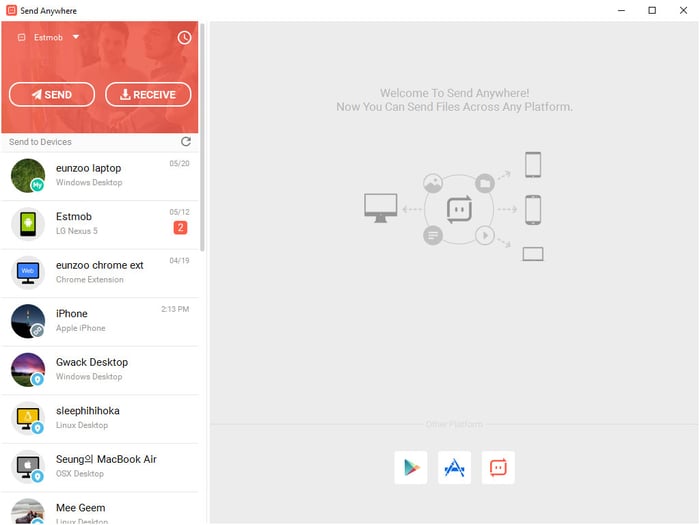
First up on our list of SHAREit alternatives for Windows is  Send Anywhere. The software is a great competition as it is one of the most downloaded software for sharing files and folders effortlessly. Using the software, you can easily share all major files like music, documents, images, videos, and others. Unlike other files sharing software, it offers you a feature that you can use to protect all your files with a passcode. The files can only be opened after the passcode is entered correctly, which means no one other than the sender and receiver can open the files.

Pros

  • The software uses Wi-Fi direct to help you transfer fast and effortlessly
  • It has a secured protocol for transferring files
  • You get an in-built audio and video player for previewing files before sharing
  • The software offers a shareable link which is valid for 48 hours
  • You can use this software for sharing files from your mobile device to your PC

Cons

  • The software asks for several permissions which can be irritating

Download Now


2. SuperBeam

SuperBeam

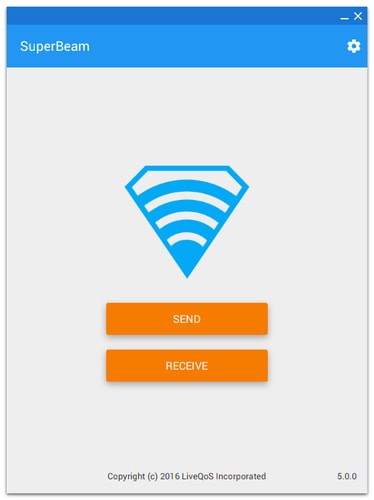
As the name suggests this is a very fast software when it comes to sharing files. Its fast nature has helped it to gain the second position in our list of SHAREit like apps for PC. The software work really smooth and you can easily connect the devices using QR code or NFC, unlike other software where you need to pair device using Bluetooth or Wi-Fi direct. The best part about this alternative of SHAREit for PC is that you don’t have to download the software. If you want to transfer files you can proceed further with the web interface and save space on your PC.

It keeps a track of all the transfers and you can check them all in the history. Other than this it supports all file formats including APKs, audio, video, photos, and documents. You can share files in no time using SuperBeam easily irrespective of the size of files.

Also Read: Best File Sharing Software for PC – Online & Offline Transfer Files

Pros

  • The transfer speed ranges from 20-40 Mbps on average which can shoot up to 75 Mbps depending on the device
  • The software is available for all the version of Windows and Android
  • You can easily set the theme depending on comfort
  • You can transfer files using the free version too

Cons

  • In the free version, you can encounter a lot of ads that can be irritating

Download Now


3. ShareAll

ShareAll

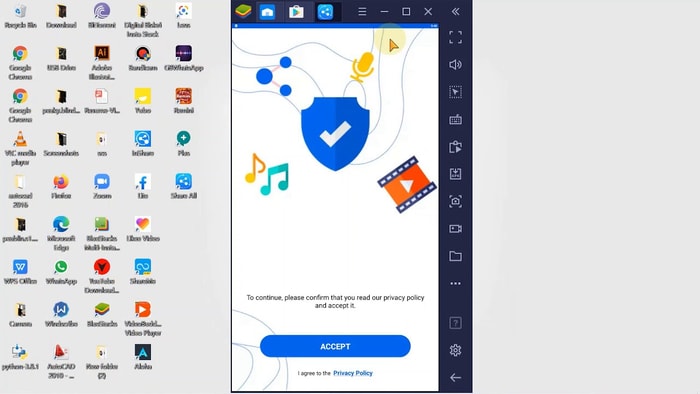
Next up on our list of SHAREit PC alternatives we have ShareAll. It is great software as you can easily share all your images, music, audio, documents, APK, and other files. The software offers 300 times better speed than the usual Bluetooth transfer which means you can share all your files within minutes.

The best part is even if you are not connected to the internet you can share files. The software keeps your files safe and moreover offers password protection for double security. Apart from this, there are many other things which may help you understand the worth. Check the pros section for detail.

Pros

  • The software has a very easy interface that can be adapted by anyone
  • You can easily share files quickly in time
  • It has a multi-language support
  • You can update software and clean junk using ShareAll

Cons

  • The software contains ads that can be annoying

Download Now


4. Xender

Xender

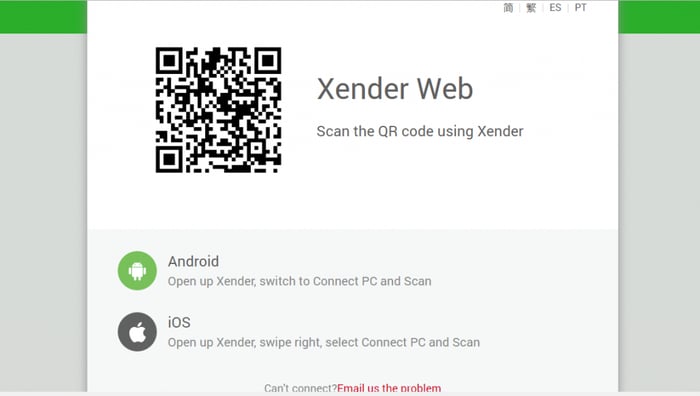
Xender is one of the most used apps like SHAREit for PC. The software doesn’t require much from your PC, as it is compatible with most of the versions on both PC and mobile. You can easily share files like pictures, music, videos, and documents with Xender. The best part is that the software works really fast and in no time you can share files. It was released in 2015 and since then the software has been getting regular updates to help users in a better user experience.

Also Read: Best Xender Alternatives for File Sharing & Transfer

Pros

  • Fast and easy solution for sharing files
  • It is free to use software that has no additional charges
  • You can share with no limit
  • The software supports cross-platform transfer too

Cons

  • Adapting to the application’s interface can be tough for the first time

Download Now


5. Zapya

Zapya

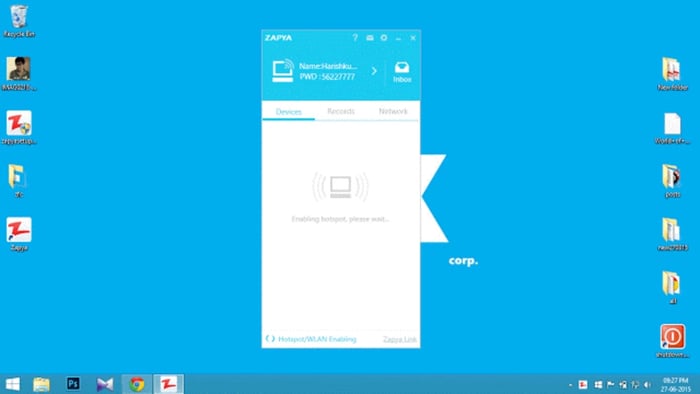
Zapya is another app similar to SHAREit for PCs. The software may not be famous like others but it performs great when it comes to sharing files in bulk. The software has a specialty of sharing bulk files in no time while others offer file sharing only. Irrespective of the file size you can easily share them with any device you want. Zapya is compatible with most of the mobile and PC versions.

In mobile phones, the app requires shaking gestures to connect with other devices, and then you can select the files to share. The process requires two simple steps to transfer files.

Pros

  • The sharing speed is 128 times better than Bluetooth
  • It is compatible with various Android, iOS, Windows, and Mac versions
  • You can easily share all your data at once
  • You get several gestures that can be used as shortcuts for pairing

Cons

  • Other competitors offer better speed while transferring

Download Now


6. AirDroid

AirDroid

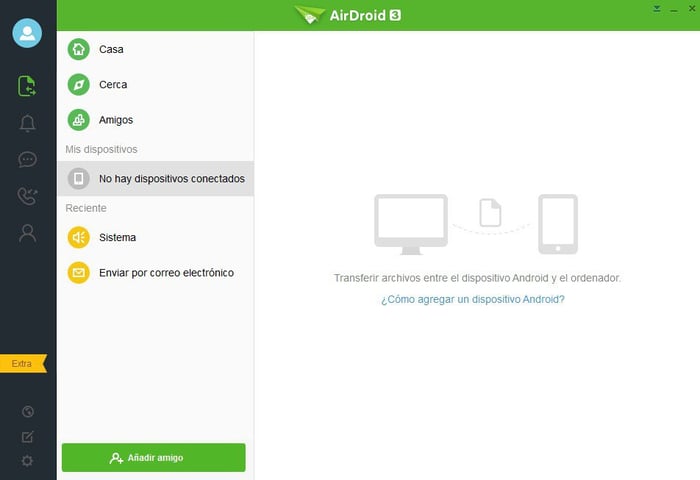
AirDroid is a great SHAREit alternative app for PC as it offers solutions for business, personal and remote access. Using the software you can easily access your mobile device and perform various tasks from your PC only. The task list also includes sharing files as the software is compatible with all the operating systems. You can easily share files from one device to another in no time. If you wish to share files without installing the software that to you can do using the AirDroid Web.

Also Read: Best ES File Explorer Alternative Apps For Android

Pros

  • It offers solutions for all your problems
  • You can easily share files of all extension
  • It lets you control your mobile device from PC

Cons

  • You won’t get much features in the free version

Download Now


7. Feem

Feem

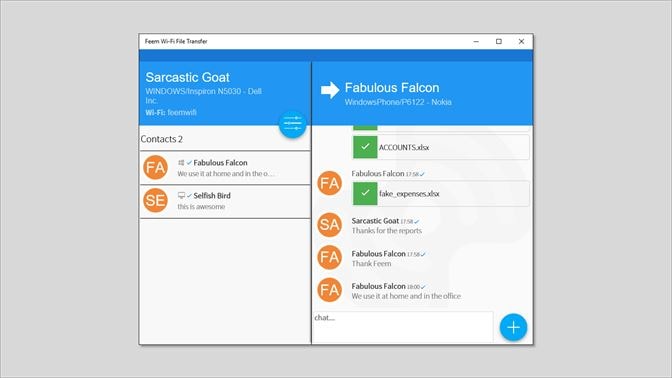
The next SHAREit alternative for Windows is Feem. The software lets you share files easily without network, server, and limits. Though the speed of the software isn’t fast as compared to other competitors, you can definitely have a better speed than Bluetooth. The speed of transfer is 50X better than Bluetooth where you need no other connection or server for sharing.  The best part is you can pause and resume the transfer whenever and wherever you want. The software does not limit that.

Pros

  • The software is compatible with all the devices and OS
  • All your files shared are safe as Feem encrypts them before sharing
  • You can transfer as many files as you want
  • The software has an in-built chat feature where you can communicate and share links and other information

Cons

  • Speed is less as compared to other SHAREit similar apps for PC

Download Now


8. Instashare

Instashare

Instashare is a great software for all users whether you are new to sharing files or you have been doing this for a long time. The software has a very easy-to-use interface that can be easily understood and worked with. You can easily share files irrespective of their type. You can share music, audio, pdf, documents, and other types of files easily.

Also Read: Best Pinterest Alternative Sites & Apps You Should Use

Pros

  • This alternative for SHAREit for PC is open source and doesn’t require any registration
  • You can share files of any extension with any limit
  • The software offers a secured transfer between the device without creating any copy on the cloud
  • It is compatible with older versions of PC too

Cons

  • This is a paid software and you need to purchase it before using

Download Now


9. File By Google (Mobile)

File By Google (Mobile)

Google is the most trusted and popular name when it comes to software and applications for both mobile and PC. In the list of software like SHAREit for PC, we have an entry from Google. The Google File is a great software that you can use for sharing and receiving files. Using the software you can easily share files of various domains like videos, music, application, and documents. For sharing files you don’t have to have an active internet connection, it works perfectly without the internet too.

The best part about this SHAREit alternative for PC is that it is free from ads and other interruptions. It keeps all your files and folders sorted in a defined manner so that you can easily find them when needed.

Also Read: FlashScan: Best Alternative Scanner App For CamScanner

Pros

  • The software works effortlessly without the internet
  • The transfer speed can go upto 480 Mbps which is very fast
  • All the files shared are encrypted for security
  • You get the estimate and time and size remaining for the transfer

Cons

  • The software is only available for Mobile devices

Download Now


Conclusion: Best Alternatives to SHAREit in 2024

Now that you have read the list of best SHAREit alternatives for PC, you can easily figure out the best alternative and then use it for sharing all your files easily in no time. All the software on our list has a different set of features and offerings which can interest you. The last software on our list is only available on mobile devices but it is expected to launch for PCs soon. If you have any suggestions regarding the article, please drop them in the comments section. We would love to hear from you.

How to Download & Update HDMI Driver on Windows 10

How to Download & Update HDMI Driver on Windows 10

October 11, 2021
0

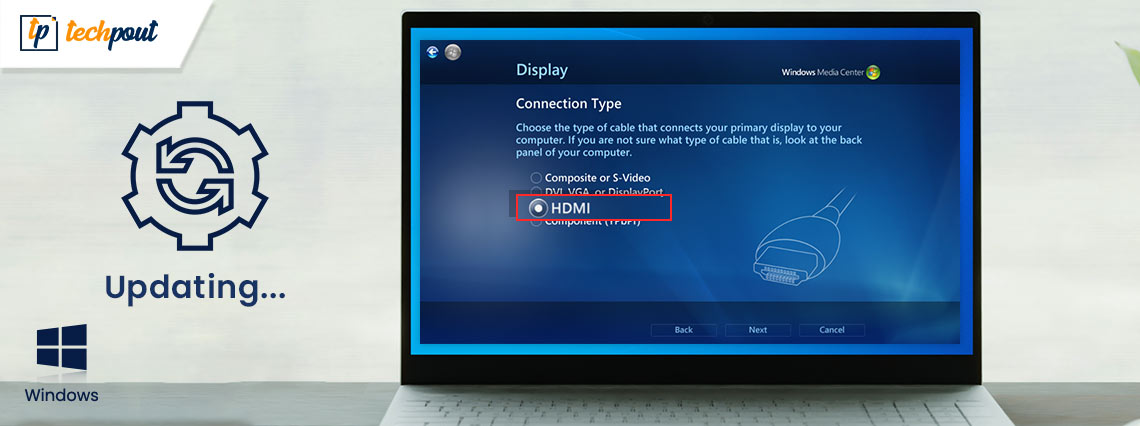
Download and update HDMI driver to its latest version to keep the HDMI-related problems at bay. Read this article to learn the quick and effective ways to do it.

HDMI, an acronym for High-Definition Multimedia Interface, is a proprietary interface for transmitting high-resolution digital video and audio from an HDMI-compliant source, such as a video display controller, to a computer monitor, digital television, or video projector.

In order to keep your HDMI device running well and avoid running into problems like lack of sound, intermittent picture, discoloration, or poor resolution, you need to verify that your device has the latest driver version, and update it if it doesn’t.

Today, through this blog post, we are going to show you how to download, update and install HDMI driver Windows 10 in three different ways.

Experts-recommended Method for Windows 10 HDMI Driver Download

Bit Driver Updater is the best software for updating drivers, you can choose this software over the manual method as it is less time-consuming and more effective. Unlike the manual method, the software has simple single-click functionality using which you can update all the system drivers effectively in one go. You can try this software for free by clicking the button provided below.

Windows Download Button

Methods to Download HDMI Driver For Windows 10 64 bit/32 bit

Is HDMI not working after Windows update 2021? Don’t worry. With the help of the methods listed below, you can easily download and install the latest HDMI driver update on your Windows computer and get rid of the issues related to it.

A key point to note: HDMI ports or cables don’t require suitable driver software to work properly. The computer’s operating system automatically detects and communicates with a new device once it is connected via HDMI. You may encounter HDMI issues in your Windows computer if you have a corrupted or out-of-date graphics driver installed.

Method 1: Download & Update HDMI Driver on Windows 10 via Official Website

You can either visit the official website of your hardware manufacturer or PC vendor to download HDMI driver for Windows 10 HP, Dell, Lenovo, and other popular brands. Here are the step-by-step instructions for the same.

  • First, you need to go to the original equipment manufacturer(OEM) or PC vendor website.
  • Next, you have to type the name of an HDMI-related component (e.g., graphics adapter) in the search bar and hit the Enter key.
  • Next, you need to select the specific version of your Windows operating system (e.g., Windows 10, 64-bit).
  • Now you have to tap on the ‘Download’ button or icon available next to the driver setup file you need.
  • Once the file is downloaded, you have to double-click on it to launch the installation wizard.
  • In the final step, you just need to follow some on-screen instructions to install the updated driver version.

Method 2: Download HDMI Driver for Windows 10 Using Device Manager

You could use an inbuilt Device Manager application to download and install HDMI drivers on Windows 10 laptops or desktop systems. Here are the steps you need to follow to get the latest driver HDMI using the Windows Device Manager.

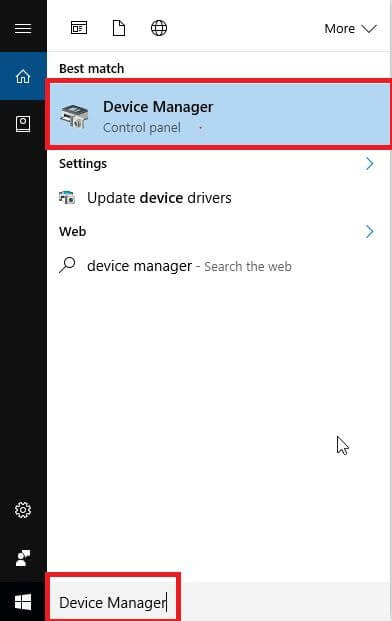
  • First, type “device manager” without quotes in the Windows search box and hit Enter key to launch the Device Manager application.

Type Device Manager and Select Best Match From Appeared Search Result

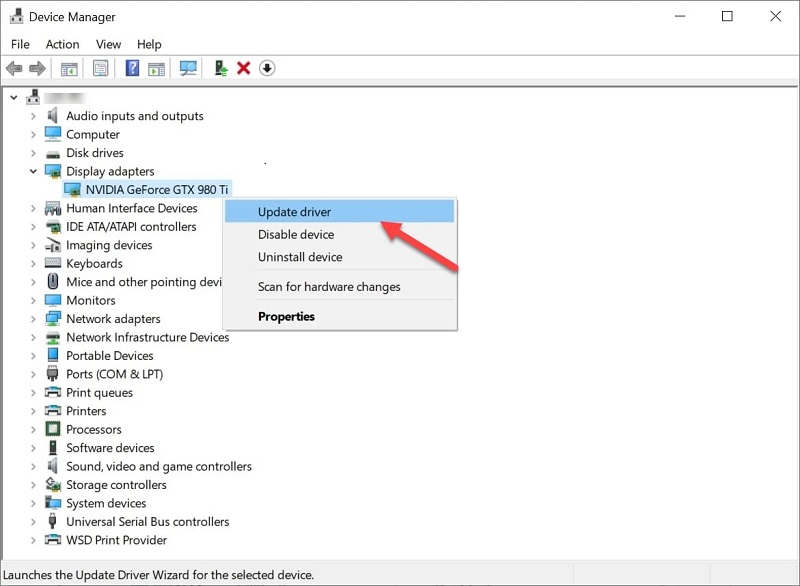
  • Once the Device Manager is launched, you have to go to the Display or Network adapters section and expand it.
  • Right-click on the name of your graphics card and select Update driver option.

Select Update Driver for HDMI Device

  • Next, you have to tap on the Search automatically for updated driver software option.
  • Wait until Windows finds and install a new HDMI driver update.
  • Once the driver is installed, reboot your computer.

Also Read: Download & Update Nvidia High Definition Audio Driver (HDMI)


Method 3: Use Bit Driver Updater to Download & Update HDMI Driver on Windows 10

If you wish to save your time and effort then instead of using the manual method install Bit Driver Updater software. This amazing industry accompanied program is great for updating drivers and improving the hardware functioning. With the help of this program, you can simply scan and update all the drivers in one go.

Here’s how you can use the Bit Driver Updater to download HDMI driver for Windows 10 64 bit or 32 bit:

  • Download and install the Bit Driver Updater program.
    Windows Download Button
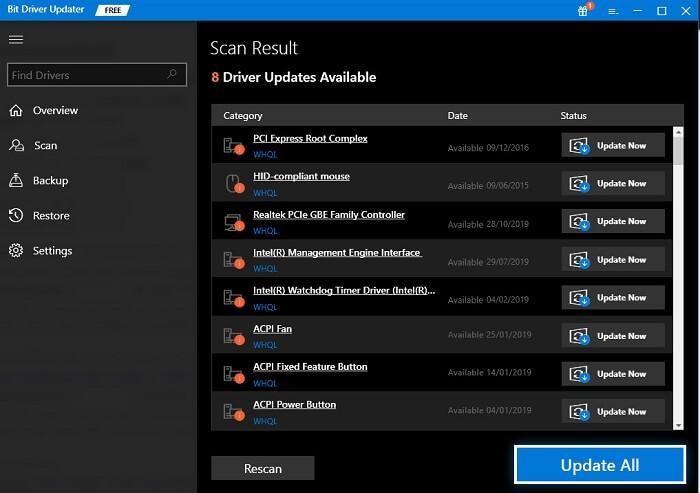
  • Launch the program to check for driver updates.
  • After the scan completes, click the “Update Now” button next to the HDMI device driver you want to update. If you want to update all the outdated drivers at once, you can tap the “Update All” button located at the bottom right corner.

Update all driver with Bit Driver Updater

Also Read: Intel High Definition (HD) Audio Driver on Windows 10 (Fixed)


Is HDMI Port Still Not Working in Windows 10?

Updating your graphics card driver to its latest version can sort out the common HDMI connection problems. In case the issue still persists, you can try the following troubleshooting solutions and see if that helps.

Solution 1: Modify Your Windows 10 Display Settings

You can try to change the screen resolution and refresh rate of your monitor to troubleshoot HDMI connection problems. Here’s how to do it:

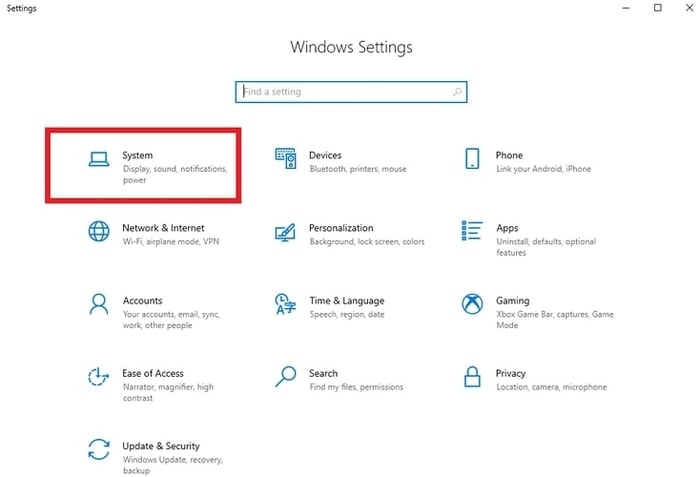
  • Open the Windows Settings application.
  • In the Settings app, you have to select a sub-category named ‘System’.

Choose System from Windows Settings

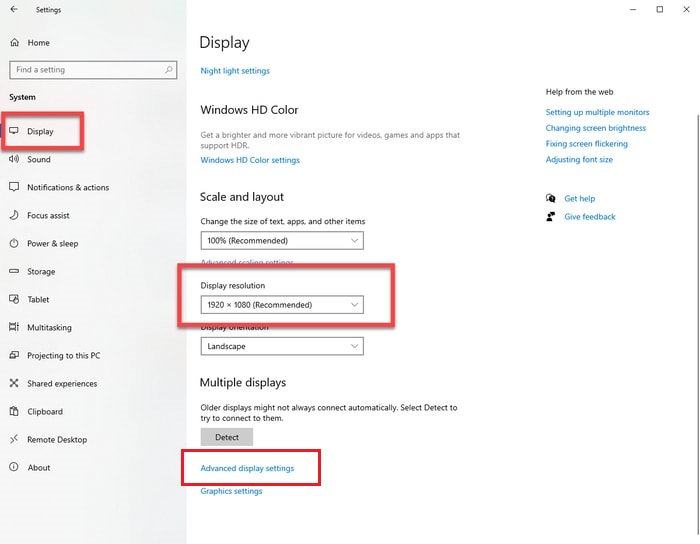
  • Next, select the Display option from the left-hand side panel and then choose 1200 * 1920 (Recommended) option under the Display Resolution drop-down menu.
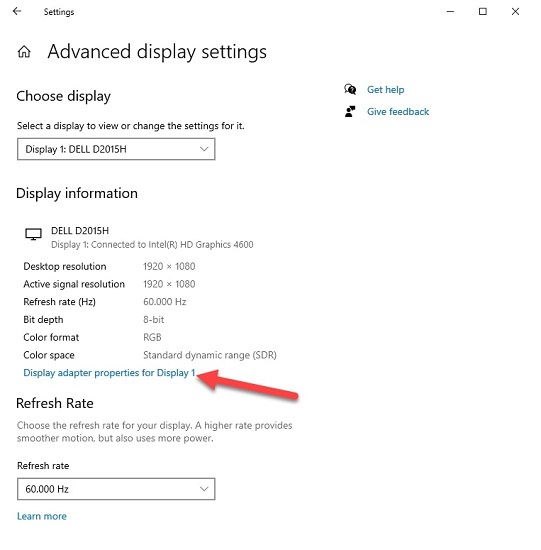
  • Next, you have to select the Advanced display settings option present underneath the Multiple displays section.

Advance Display setting in Display Tab

  • On the next screen, you have to select the Display adapter properties for Display 1 option.

Select the Display adapter properties for Display 1

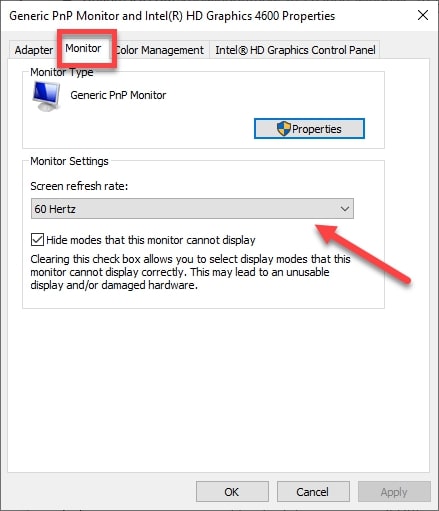
  • Navigate to the Monitor tab and set your screen refresh rate from the drop-down menu.

Navigate to the Monitor Settings

Also Read: Fix Connections to Bluetooth Audio Devices and Wireless Displays


Solution 2: Reboot and Reconnect All HDMI Sources

If the above solution didn’t work, you can try to shut down all your HDMI devices and reconnect them one at a time. Here are the detailed steps:

  • Reboot your laptop or desktop computer.
  • Unplug all your devices (computer, TV, and monitor) from the HDMI ports.
  • Unplug the power cables from your devices for about 5-10 minutes.
  • Plug the HDMI and power cables back into your devices.
  • Turn on the devices.

Also Read: How Do I Know Which Intel Graphics Driver Do I Have


Final Words on Windows 10 HDMI Driver Download, Install and Update

Here in this blog post, we have highlighted various methods to download, install, and update HDMI driver on Windows 10. You can take the help of any method to get HDMI-related drivers.

If you have any further questions or suggestions, please feel free to write to us via the comments section provided below. For more tech-related posts and trending news updates, you can subscribe to our newsletter and follow us on social media platforms: Facebook, Pinterest, Twitter, and Instagram.

1 Comment
    John says: Reply
    May 15th 2020, 4:25 am

    It is very helpful and informative. thanks for sharing.

Leave a Reply Cancel reply

Your email address will not be published. Required fields are marked *

Sidebar Image bit G ad1

Latest Posts

  • Best-Free-Online-Portfolio-Websites-in-2026
    Best Free Online Portfolio Websites in 2026
    by Niharika / March 16, 2026
  • Anytime Astro: Best Website For Online Astrology Consultation
    Anytime Astro: Connect Now For Online Astrology Consultation
    by Somya Shrimal / March 13, 2026
  • Best-Ways-to-Combine-Images-Into-PDF-Files
    Best Ways to Combine Images Into PDF Files
    by Niharika / March 12, 2026
  • Best FREE VPS Hosting Providers
    7 Best FREE VPS Hosting Providers in 2026
    by Devesh / March 12, 2026
  • Best-McAfee-alternative-software-to-use-for-Virus-Protection
    Best McAfee Alternative Software to use for Virus Protection
    by adminuser / February 11, 2026

Categories

  • Cyber Security
  • Driver Updater
  • Entertainment
  • Fitness
  • Games
  • How To
  • laptop
  • OS
  • Reviews
  • Tech News
  • Tips & Tricks
  • Top 10
Sidebar Image bit G ad1
Best Free Private Instagram Viewer Best Private Instagram Viewer Apps, Tools & Sites in 2024by Niharika / April 25, 2024
How To Make A Picture Less Blurry (Easy & Quick Steps)by Harshita / April 26, 2024How To Make A Picture Less Blurry
TechPout Footer Logo

We at TechPout promise to put forth stories that help people to learn and simplify their digital life. Our purpose is to share the true essence of technology with our tech-loving community.

Useful Links

  • About Us
  • Contact us
  • Privacy Policy

Popular Posts

  • Best PC Optimizer Software
  • Best Mac Cleaner Apps
  • Best Driver Updater
  • Duplicate Photo Finder and Cleaner Software
  • Best Free Movie Download Sites
  • Best IPTV Players

Follow us

Copyright © 2026 www.techpout.com. All rights reserved
DMCA.com Protection Status