There are lots of applications that are running in the background for no reason while you are using the system. These applications are the main reason that the battery in your system is constantly draining, and internet consumption is also increasing simultaneously.
To resolve the query ‘how to disable background apps in Windows’ you need to simply put up some of the methods accurately to minimize the data consumption and increase the performance of your system simultaneously. But you just need to make sure to manually restart or open those apps later that you are disabling for now.
Let us now learn how to disable background apps in Windows 11 or 10 in the system to maximize performance.
What Is the Need to Disable Background Apps on Windows 11/10?
If you ever face the situation where background apps are grayed out on Windows and you have no clue on how to disable background apps in Windows
- System Performance: All the applications running in the background always reduce the performance of your system. And if you know how to disable background apps in Windows, then you can easily increase the performance of your system and make it less consuming for resources.
- Battery Life: Maintaining a good battery life for your laptops is a big task, and the main reason behind constantly draining battery is all those applications running in the background.
- Data Consumption: There are lots of applications that consume lots of internet when you use them, and on the other hand, here are these background applications that also consume more data. So, it is quite draining for your network resources.
- Distractions: If you are aware of the methods you can use for your query on how to disable background apps in Windows, then it will help you a lot for staying away from different distractions. All the apps running in the background cause more clutter and interrupt a lot as well.
Now let us proceed towards our query of how to disable background apps in Windows
Ways to Disable Background Apps on Windows 11/10
As we have understood different reasons to disable background applications in your Windows, now we will learn about the methods to fix them accordingly.
Method 1: Using Task Manager
To disable background apps on Windows 10 or 11, the most used method, which is the easiest one, is to use the task manager in your system. Instead, you disable startup programs; you can simply select those selected applications that are just running in the background for no reason.
- Step 1: Right-click on the ‘Start’ button and open ‘Task Manager’ or simply press ‘Ctrl + Shift + Esc’ to do the same.
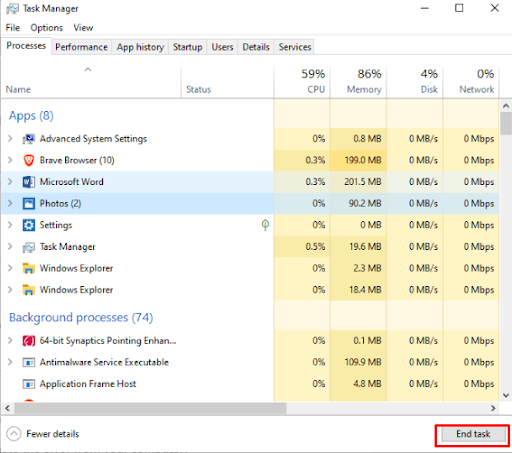
- Step 2: Click on the ‘Startup’ tab and look for all those apps running in the background that you want to disable.
- Step 3: Now right-click on those apps and click on the ‘Disable’ option.
Also know: How To Repair Apps and Programs in Windows 10
Method 2: Using Power & Battery Settings
If you are still stuck on the query of ‘How to disable background apps in Windows’ then you must try using the power & battery settings to get rid of this issue. And here is a complete step-by-step guide for you for the same:
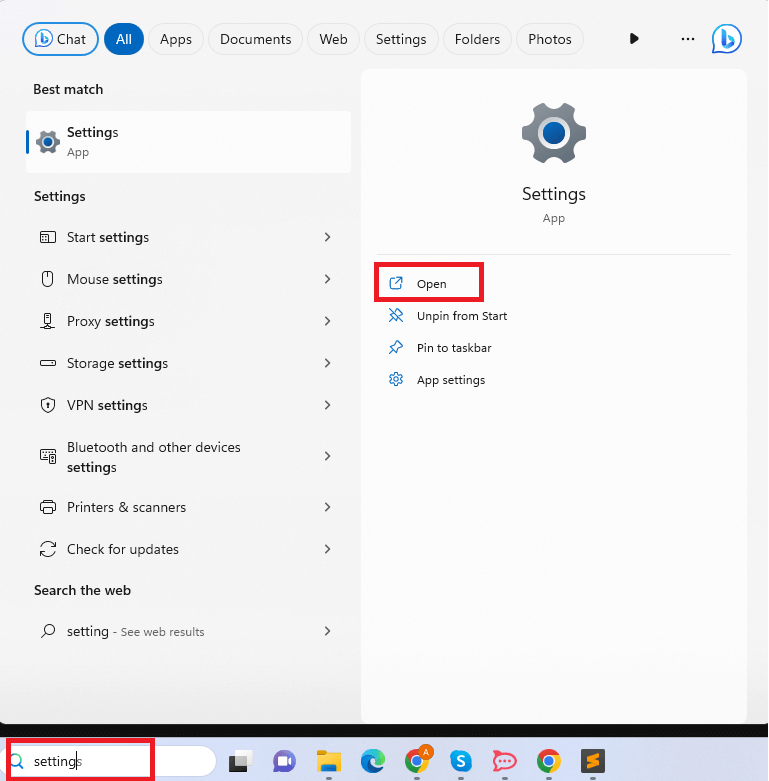
- Step 1: Click on the ‘Battery’ icon present on the rightmost corner of the taskbar, or you can go to the search bar and open ‘Settings’ on your system.
- Step 2: Now open the ‘System’ option and search for ‘Power & Battery’ and there, open the ‘Battery Usage’ option.
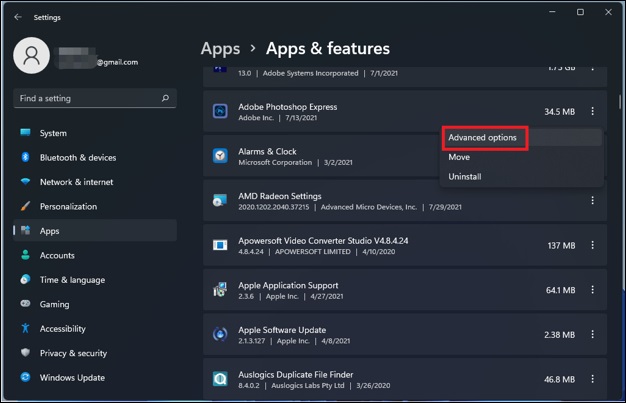
- Step 3: Click on the three-dot menu, which is present just next to the name of the app that you want to disable.
- Step 4: Select the ‘Manage Background Activity’ and select ‘Never’ from the drop-down menu.
Method 3: Using Registry Editor Keys
To disable background apps on Windows 10 and 11 using the registry keys is the other most used method to debloat Windows. When the invisible utilities are maximizing the disk and CPU capacity in your system, you must try using this method.
And here is the answer to the query of ‘How to disable background apps in Windows?’ using the registry editor keys.
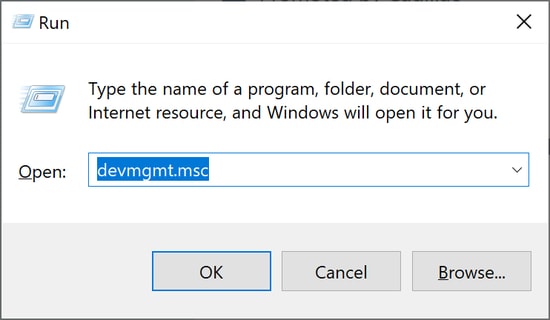
- Step 1: Open the ‘Run’ dialog box, and for that, press the ‘Windows + R’ keys. And type the ‘regedit’ command and start the ‘Registry Editor.’
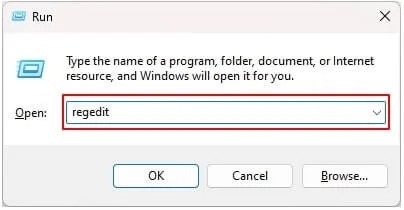
- Step 2: Now locate the ‘HKEY_LOCAL_MACHINE\SOFTWARE\Policies\Microsoft\Windows,’ and go to the ‘Windows’ key.
- Step 3: Now right-click on the ‘Windows’ key and click on the ‘New’ option and select ‘Key’ to create a new key. Name it ‘AppPrivacy.’
- Step 4: Right-click on the ‘AppPrivacy’ key and select ‘New,’ then ‘DWORD (32-bit) Value,’ and set the new DWORD 32-bit.
- Step 5: Now double-click on the ‘LetAppsRunInBackground’ option and set its value to ‘0.’
- Step 6: It will disable all the applications running in the background, and now you can close the Registry Editor.
Method 4: Using Group Policy Editor
To answer the query ‘How to disable background apps in Windows?’ We can use the method of using the group policy editor by following the given steps.
- Step 1: Go to the ‘Search bar’ and type ‘Group Policy’ and then click on ‘Edit Group Policy’ from the menu.
- Step 2: And now go to the ‘Computer Configuration,’ then ‘Administrative Templates,’ followed by ‘Windows Components,’ and finally the ‘App Privacy’ option.
- Step 3: Now double-click on the ‘Let Windows app run in the background’ option present on the right pane of the screen.
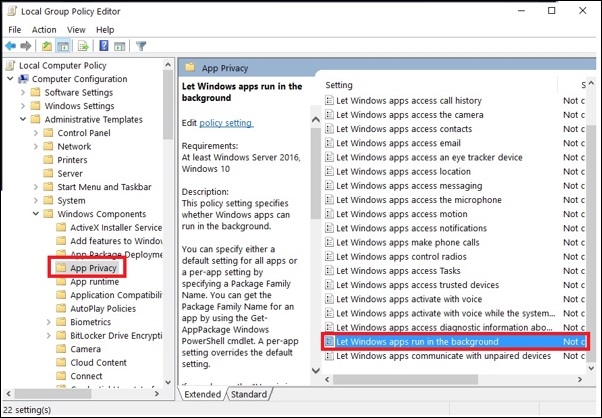
- Step 4: A new window will open, and then click on the ‘Enabled’ option. Then under the options menu, click and open the drop-down menu for the ‘Default for all apps’ option and then select ‘Force Deny.’
- Step 5: Click ‘Apply Changes’ and then ‘Ok’ to save changes you just made.
Method 5: Disable Background Apps on Windows 11 With Current User
To improve the overall performance of the system, you for sure need to answer the question ‘How to disable background apps in Windows,’ and if you put apps to sleep, Windows will still have those apps running in the background when you restart the system.
- Step 1: Go to the ‘Start’ menu and make sure you locate the application you want to configure.
- Step 2: Then right-click on the icon of that application and select ‘App Settings.’
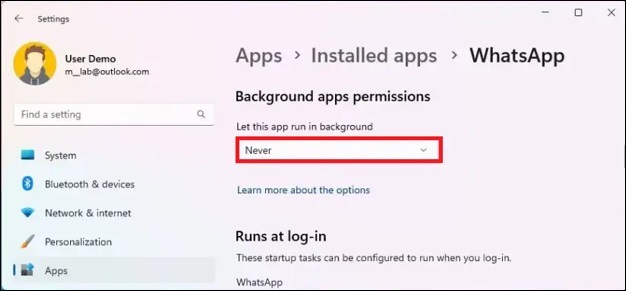
- Step 3: Now click on the ‘Never’ option you see in the drop-down menu or set it to the power optimized under background app permission.
Also know: How to Fix Valorant ‘Graphics Driver Crashed’ Error
Frequently Asked Questions (FAQs)
Q1. What happens with the application after you disable it from running in the background of your system?
Ans. If you disable any app in your system, running in the background will remain closed until you manually open it again.
Q2. How to find which apps are running in the background of your system that you need to disable?
Ans. To find out which apps are running in the background of your system that you need to disable
Q3. How to disable background apps in Windows immediately?
Ans. You can disable apps running in the background in your system using the Current User, Group Policy Editor, Registry Editor Keys, and Task Manager for better results.
That was all about the question ‘How to disable background apps in Windows?’. Just pick one of the methods mentioned and follow all the steps carefully. The task to disable apps running in the background of your system is not as huge as you have always thought. You just need to understand the right way only. But make sure that you need to manually restart or open those apps later that you are disabling for now.