Unnecessarily running applications or programs on the computer is among the top reasons for degraded PC performance and a fast-draining laptop battery. Thus, you can learn how to put Windows apps to sleep to extend battery life, free up system resources, speed up a sluggish computer, improve system performance, and limit what data apps can sync and share when not actively open on your screen.
Putting unnecessary apps into sleep mode is easy on Windows 11/10 through the step-by-step methods in this guide. However, before going into the details of how to put apps to sleep on Windows 10 and 11, it is important to understand what it means to make an app sleep.
What Does It Mean to Put Apps to Sleep on Windows 10/11
Putting an app or program to sleep on Windows means stopping its activities in the background to save system resources and power. When put to sleep, an app does not impact system performance significantly, improving battery life on laptops and overall system efficiency.
By putting unnecessary background apps and programs to sleep on Windows, you can prevent them from hogging your CPU, RAM, and battery.
To sum up the benefits of putting apps to sleep in Windows 11 or 10, it leads to better power management and a smoother user experience.
On that note, let’s help you put unwanted apps and programs to sleep on Windows.
How to Put Windows Apps to Sleep
You can put apps into sleep mode on Windows through the App Suspend feature, Task Manager, power & sleep settings, app permissions, battery saver mode, settings, or reliable third-party tools, depending on the method you find the most convenient. Below is a detailed explanation of all these approaches.
Method 1: Use the App Suspend feature to put apps to sleep (Windows 11)
Windows 11 offers an App Suspend feature to improve power management with background activity control. You can use this feature to put Universal Windows Platform (UWP) apps to sleep. UWP apps are programs that run across different Windows devices using a single codebase, such as built-in apps like Microsoft Photos, Windows Calculator, and Microsoft To Do. While this method does not work with traditional desktop apps (Win32), below is how to put Windows 11 apps into sleep mode if they are UWP apps.
- Press Windows key + I to open Settings.
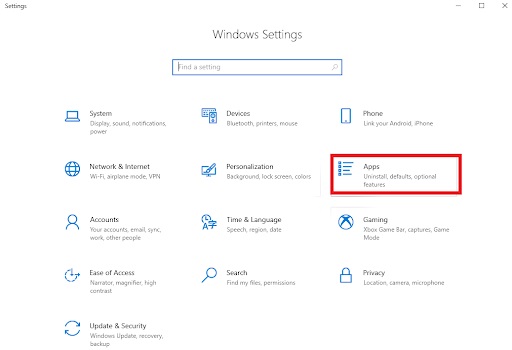
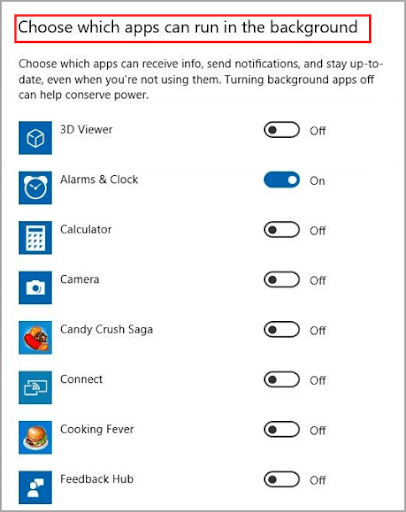
- Click Apps in the Settings menu. For Windows 10, click Privacy.
- Click Installed apps. For Windows 10, click Background Apps.
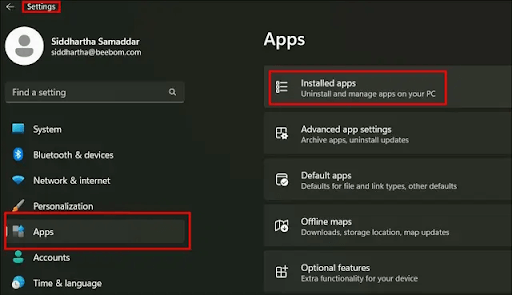
- Next, click the three dots next to the app you want to put to sleep. For Windows 10, toggle off the apps you wish to put to sleep.
- Click Advanced Options in the options that appear.
- From the Let this app run in the background dropdown, choose Never.
Also know: How To Repair Apps and Programs in Windows
Method 2: Put background apps to sleep using Task Manager
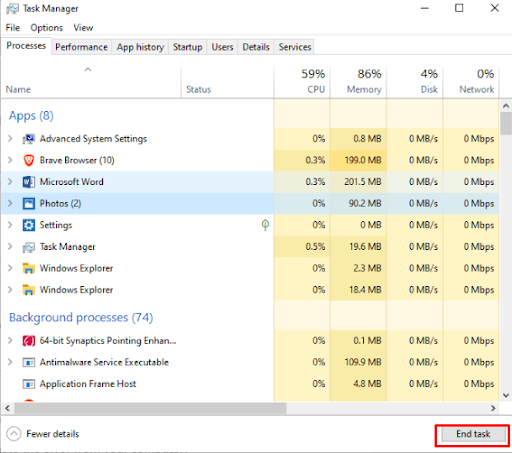
With Task Manager, you can make an app sleep or pause their activities temporarily until you open or resume the app. Here is how to put programs to sleep on Windows 11/10 using Task Manager.
- Press Ctrl + Shift + Esc to access the Task Manager.
- Click More Details if the Task Manager launches in compact mode.
- In the Task Manager, click Processes to view all running apps.
- Right-click the application you wish to put to sleep.
- Click Suspend or End Task to put the app to sleep.
Method 3: Use power & sleep settings to put unnecessary apps to sleep
Using power & sleep settings in Windows 10 and 11, you can manage the applications running in the background and put unnecessary apps to sleep. The following steps explain how to put apps to sleep on Windows 10/11 via power & sleep settings.
- Press Windows key + I to open Settings.
- Click System in the Settings menu.
- In the System menu, click Power & battery.
- In the Battery usage section, click Battery usage by app to see the applications running in the background.
- Find and click the three dots next to the application you want to manage.
- Next, click Manage background activity.
- Lastly, toggle off the option to allow the applications to run in the background.
Method 4: Put apps to sleep through app permissions
Windows, through App Permissions, allows you to control the apps that run in the background. Below is how to put apps to sleep in Windows using App Permissions.
- Press Windows key + I to access the Settings panel.
- Click Apps in the Settings menu.
- Next, click Apps & features.
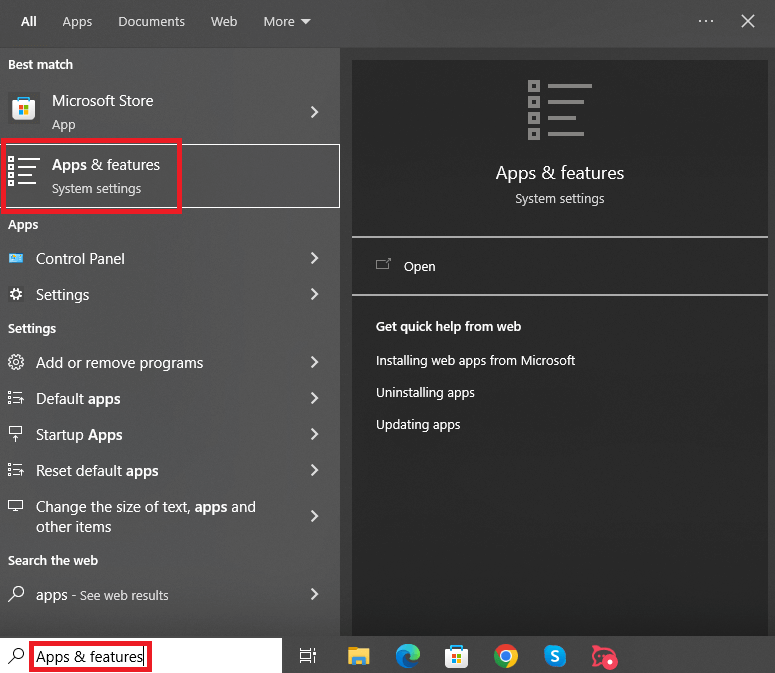
- Search for or scroll through the list to find the app you wish to put to sleep.
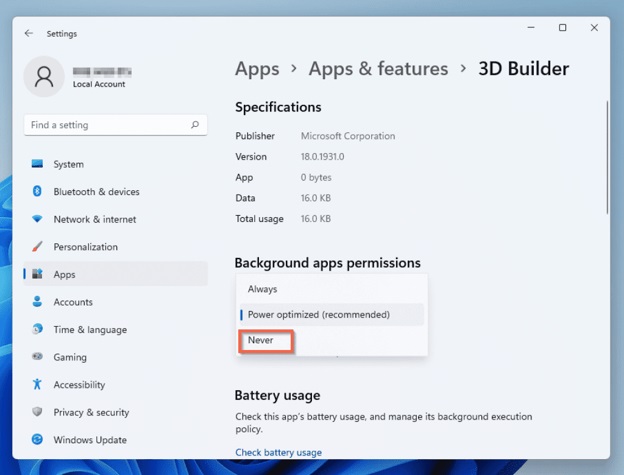
- Click the three dots next to the application’s name and then click Advanced options.
- In the Background apps permissions, choose Never from the drop-down to stop the application from running in the background.
Also know: Best Free Instagram Followers Apps
Method 5: Stop background-running apps using battery saver mode
When active, the battery saver mode puts apps to sleep automatically when your laptop’s battery reaches a specific level. Through the battery saver, Windows restricts background activities and lowers system performance to save energy. Here is how to put apps into sleep mode on Windows 11/10 using the battery saver mode.
- Press Windows key + I to open Settings.
- Click System in the Settings panel.
- Click Power & battery or
- Toggle on Battery Saver or set it to activate automatically when the battery level is below a specific percentage. It puts background apps to sleep automatically to save battery life.
Method 6: Turn off startup apps using settings
You can improve system performance by preventing unnecessary applications from starting up automatically when you boot your PC, stopping them from running in the background unless you open them manually. Below is how to turn off background apps in Windows 11/10, preventing their auto-start.
- Press Windows key + I to open Settings.
- Click Apps in the Settings menu.
- Click Startup in the Apps menu.
- Toggle off the applications you do not want to launch during startup automatically.
Also know:
Method 7: Put programs to sleep using third-party tools
Third-party tools, such as Process Lasso, offer greater control over app activities and manage apps effectively. Below is how to put apps to sleep on Windows 10/11 using a tool like Process Lasso.
- Download Process Lasso from its official website.
- Follow the instructions that appear to install the tool.
- Launch Process Lasso and go to the Active Processes
- Right-click the application you wish to put to sleep.
- Click Terminate or use the ProBalance feature to configure the application to run with only a few system resources.
However, if the app does not stay in sleep mode or the sleep mode is not working, you can check below for solutions.
Also know: Best Distance Calculator Apps
How to Fix Sleep Mode Not Working
You can disable hybrid sleep mode, disable fast startup, and check energy requests if the sleep mode does not work.
- To disable hybrid sleep mode, follow the path Start > Control Panel > Hardware and Sound > Power Options > Edit Plan Settings. In the Edit Plan settings, click Change advanced power settings, go to the sleep option, Allow Hybrid sleep from the list, and change settings to off. Then, follow the path Media settings > when sharing media > allow computer to sleep > Apply > OK.
- To disable Fast Startup, follow the path Start > Control Panel > Hardware and Sound > Power Options. Then, go to Settings and change settings that are currently unavailable. Then, uncheck Fast Startup and save changes. Disabling fast startup also helps if your computer won’t wake up from sleep.
- To check energy requests, type cmd in the search bar and click Run as administrator. Run the command: powercfg /requests. If any problematic application appears, disable it from Task Manager.
Below, we also answer some commonly asked questions about how to put apps or programs to sleep on Windows 11/10 to clear any remaining doubts.
Frequently Asked Questions
Q1. How do I manually put an app to sleep?
You can put an app to sleep manually using Windows Settings. To do this, press Windows key + I, click Apps, click Installed Apps, click the three dots next to the app you want to sleep, click Advanced Options, and then choose Never from the background permissions dropdown.
Q2. Will apps still run in sleep mode on a PC?
Apps do not run in sleep mode on a PC. When sleep mode is active, all background applications and programs are suspended.
Q3. How do I stop programs running in the background?
To stop programs from running in the background, press Ctrl + Shift + Esc to open the Task Manager, click Processes, go to Background Processes, right-click the program, and then click End Task.
Q4. Does putting apps to sleep affect the app functionality?
No, putting apps to sleep does not affect their functionality when you use them actively. However, background tasks, such as syncing data and receiving notifications, may be paused.
Q5. Can I wake up an application after putting it to sleep?
Yes, you can open the app manually to wake it up. Once opened, the application resumes its normal activity automatically.
Q6. Does Windows 11 automatically put applications to sleep?
Yes, built-in power-saving features in Windows 11 can limit background activity for certain applications automatically, especially when you have enabled the Battery Saver mode.
Q7. How do I find the apps running in the background in Windows 11?
To see what apps are running in the background in Windows 11, press Ctrl + Shift + Esc to open the Task Manager and click Processes. In the Processes tab, you can check what apps are running on your Windows 11 PC.
Q8. When should I put apps to sleep on Windows?
You should put apps to sleep in Windows when you are not using them actively. For example, you can put the best weather widgets for Windows to sleep to conserve energy and improve your system’s efficiency.
Q9. Are there apps I should not put to sleep in Windows?
Some applications, such as real-time communication apps, cloud backup apps, or apps that perform critical background functions, may not work correctly if put to sleep.
That’s all for how to put apps to sleep on Windows. Hopefully, putting unnecessary apps to sleep helps you have a smoother experience with your computer. To improve your experience, always save work before putting apps to sleep to prevent data loss, check the impact of suspending applications using the Windows Task Manager, and exercise caution with critical applications to ensure smooth system performance. If you have any questions or concerns, leave us a comment.