Task Host Window preventing shutdown? Is this error causing shutdown delays unless you finish or close it manually? Fast Startup or stuck background processes often cause it.
This article explains how to fix the Task Host Windows error with quick solutions, such as disabling Fast Startup and non-critical services. First, let’s look at what Task Host Window is and why it prevents shutdown.
What Is the Task Host Window
Task Host Window is a Windows program that prevents shutdown if a background task has not finished running. It ensures processes or programs running on your computer are closed properly before shutdown to prevent program or data corruption.
If the Windows Task Host is preventing shutdown, Windows may have found applications or processes that you must finish or close before shutting down your PC. Forceful shutdowns can cause file corruption or system errors. Through this error, Windows indicates you have tasks, documents, updates, services, or applications that need your attention before shutting down.
Why Is the Task Host Window Preventing Shutdown
Incomplete Windows updates, unnecessary services or background programs, unsaved work, damaged system files, Fast Startup, or software conflicts may be why the Windows 11 Task Host is preventing shutdown or displaying the “Closing 1 app and shutting down” screen.
Now that you are familiar with Windows Task Host and why it prevents shutdown, let’s help you fix the issue.
How to Fix the Task Host Window Preventing Shutdown Issue
Windows Update troubleshooter, uninstallation of recent Windows updates, installing pending Windows updates, disabling non-critical services and startup applications, disabling Fast Startup, running SFC and DISM scans, clearing the Software Distribution folder, running the Power Troubleshooter, performing a clean boot, editing WaitToKillServiceTimeout, and disabling the WpnUserService are ways to fix the Task Host Window preventing shutdown in Windows 11. Follow these solutions sequentially until you can shut down your computer normally.
Fix 1: Run the Windows Update troubleshooter
Windows Update Troubleshooter is a built-in tool to fix issues such as a problematic Windows Update process that may have caused the Task Host Window to prevent shutdown. Hence, run the Windows Update Troubleshooter to check for update issues and fix them automatically to solve the “Task Host Window preventing shutdown” problem. Here is how.
- Press Win + I to open the Settings panel.
- Click System in the Settings menu.
- Click Troubleshoot in the System menu.
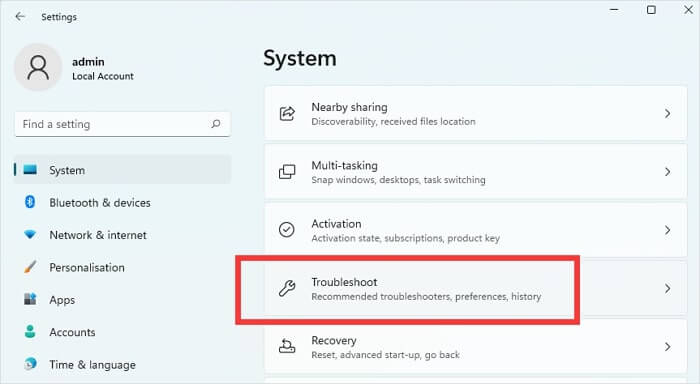
- Next, click Other troubleshooters.
- Click the Run option next to Windows Update.
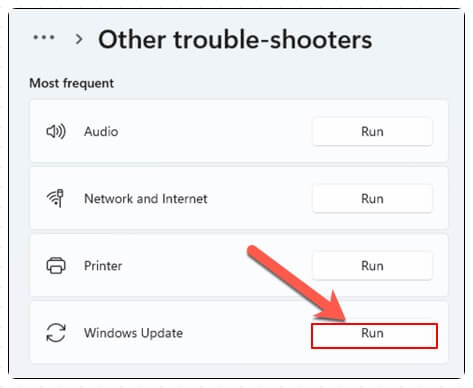
- Follow the prompts that appear to complete the troubleshooting.
- Lastly, restart your PC to complete the process.
Fix 2: Uninstall problematic Windows updates
Sometimes, recently installed Windows updates can cause Task Host Window errors. Below is how to uninstall these updates to allow your PC to shut down normally.
- Click the Start button.
- Type Control Panel in the search bar and click it in the search results.
- In the Control Panel, click Programs and Features.
- Click View Installed Updates.
- Click updates such as KB5015730 or KB5012170, if they are known to be problematic.
- Click Uninstall.
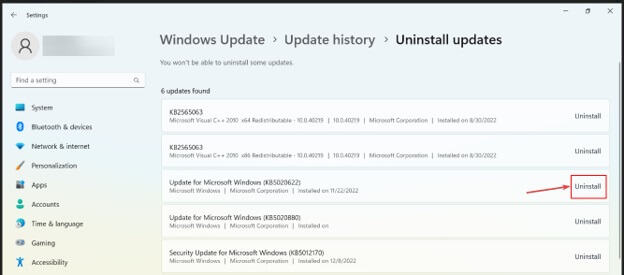
- Next, click Yes or Uninstall when a confirmation prompt appears.
- Lastly, wait for the process to complete and then restart your computer.
Also know: How to Disable Background Apps in Windows 11/10
Fix 3: Install pending Windows updates
Pending or paused Windows updates can be another reason Task Host Windows is preventing shutdown. Thus, follow the steps below to complete any pending updates.
- Press Win + I to open the Settings menu.
- In the Settings menu, click Windows Update.
- Click Resume updates to unpause Windows updates.
- Wait for Windows to install the updates automatically and then restart your PC.
- If there is no Resume updates option, click Check for Updates, allow Windows to install the available updates, and then restart your computer.
Fix 4: Disable all non-critical services and startup apps
Non-essential services and startup applications may be why the Task Host Window is stopping background tasks, preventing the shutdown. These background services and apps may hamper system processes. Hence, here are the steps to turn off these non-critical services and apps.
- Press Win + R to open the Run utility.
- In the Run dialog box, type msconfig and press
- Click Services in the System Configuration utility window.
- Next, click the Hide all Microsoft Services
- Uncheck the services you do not need at startup or click Disable all.
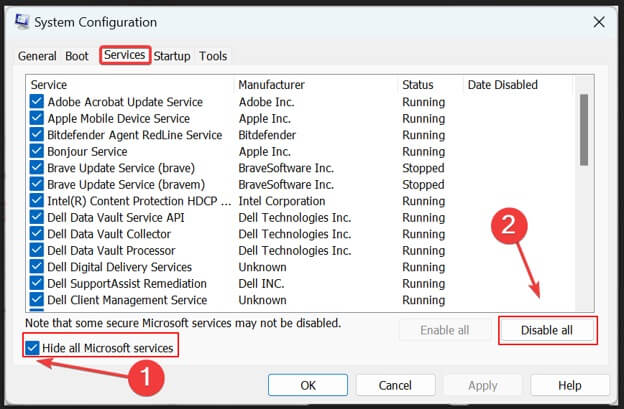
- Click Apply and Ok.
- Lastly, choose to restart your PC.
Fix 5: Disable Fast Startup
Fast Startup is a Windows feature that hibernates your PC when you shut it down. It does not let your computer shut down completely. The following steps disable Fast Startup to ensure your PC shuts down normally.
- Click the Start button.
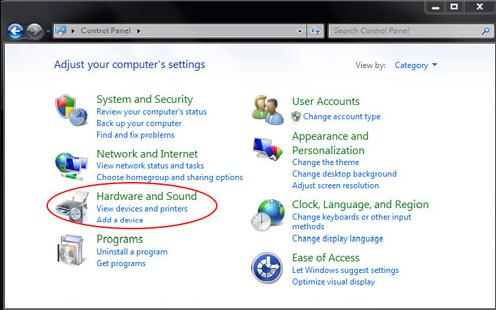
- In the search bar, type Control Panel and select it from the search results.
- In the Control Panel menu, click System and Security.
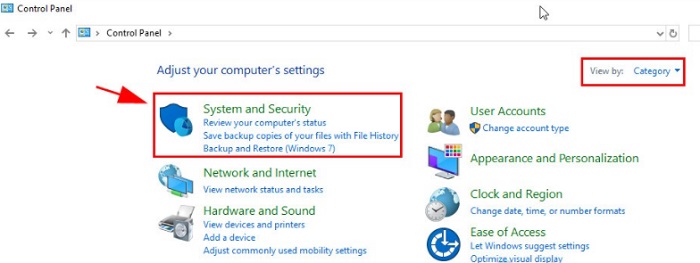
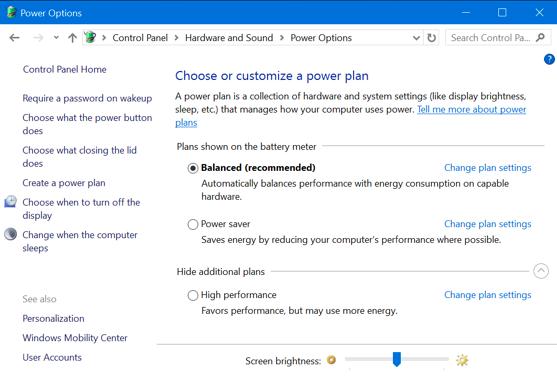
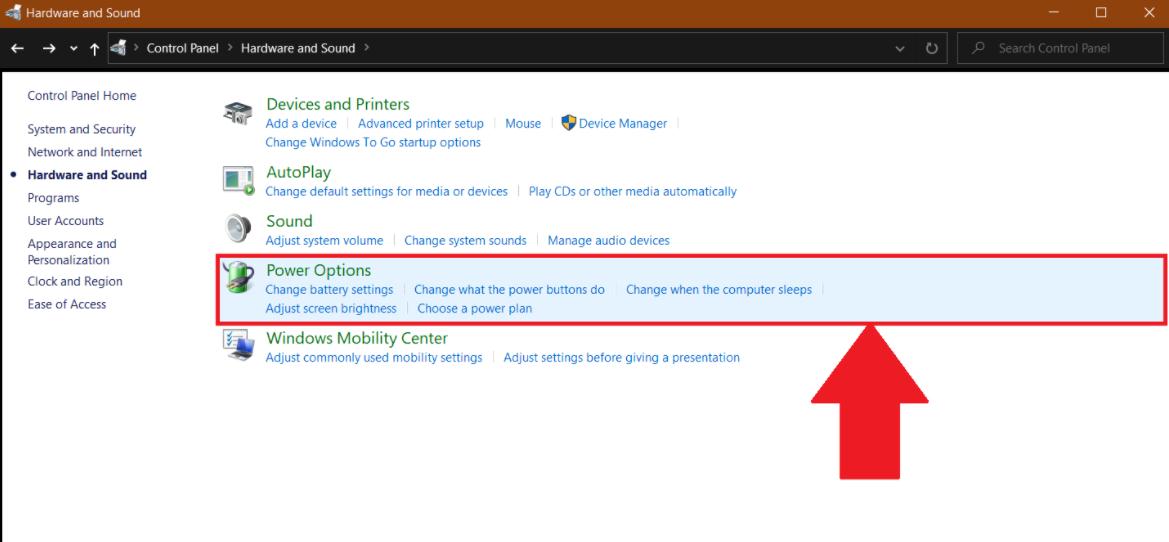
- Click Power Options.
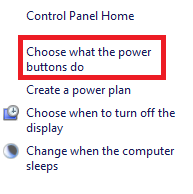
- From the left sidebar, select Choose what the power buttons do.
- Click the option to Change settings that are currently unavailable.
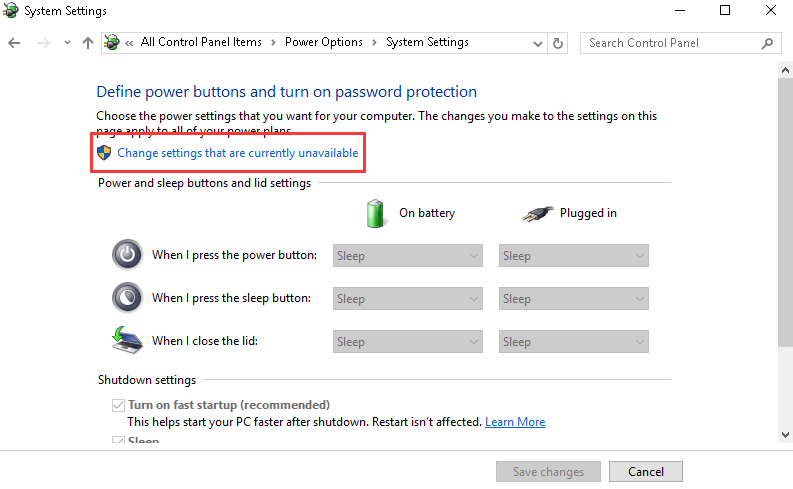
- Uncheck the Turn on fast startup (recommended)
- Click Save changes to disable Fast Startup.
Fix 6: Perform an SFC and DISM scan
SFC (System File Checker) and DISM (Deployment Image Servicing and Management) are built-in Windows tools to repair corrupted files and ensure a healthy system. File repair and system health restoration can fix the “Task Host Window preventing shutdown” error. Below is how to run these scans.
- Right-click the Start button.
- Click Terminal (Admin) or Windows PowerShell (Admin) in the menu that appears.
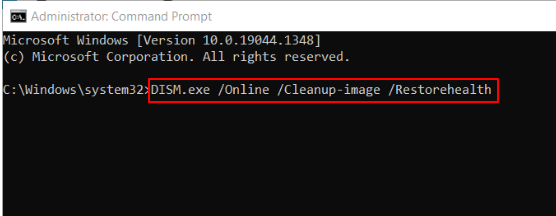
- In Terminal or Administrator Windows PowerShell, type the following command and press
DISM /Online /Cleanup-Image /RestoreHealth
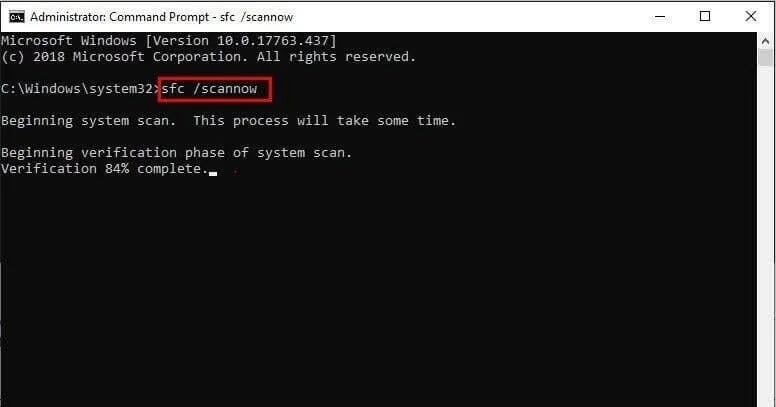
- Once the above process is complete, type the command: sfc /scannow and press Enter.
- After completing the above process, restart your computer.
Also know: How to Fix Browser Keeps Crashing on Windows PC
Fix 7: Clear the Software Distribution folder
The Software Distribution folder is where Windows saves update files temporarily. If these files are incomplete or damaged, they prevent updates from completing during shutdown. Deleting these files ensures Windows downloads new files to fix the issue. Here is how to delete these files.
- Click the Start button.
- Type cmd or Command Prompt in the search bar.
- Right-click Command Prompt in the search results and then click Run as administrator.
- In the Administrator Command Prompt, copy and paste the command: net stop wuauserv, and press Enter
- Press Win + R to access the Run dialog box.
- In the Run dialog box, type C:\Windows\SoftwareDistribution and press
- Select all the files in the on-screen folder, right-click, and then click
- In the Administrator Command Prompt, copy and paste the command: net start wuauserv, and press Enter
- Download and install the updates with Windows Update.
- Lastly, restart your computer.
Fix 8: Run the Power Troubleshooter
The built-in Power Troubleshooter in Windows helps find and fix power-related issues that may be responsible for Task Host Windows errors. Below is how to run the Power Troubleshooter.
- Press Win + I to open the Settings panel.
- In the Settings menu, click System
- Click Troubleshooter
- Next, click Other Troubleshooters.
- Find and click Power Troubleshooter.
- Click Next and follow the instructions to complete the troubleshooting process.
Fix 9: Clean boot your PC
Interference from third-party apps or services may also be why the Task Host Window is preventing shutdown. Hence, here are the steps to do a clean boot that starts your computer only with essential services.
- Press Win + R to open the Run dialog box.
- In the Run dialog box, type msconfig and press
- In the System Configuration window, click
- Uncheck Hide all Microsoft services.
- Click Disable all.
- Next, click Startup.
- Click Open Task Manager.
- Disable all startup list items.
- Lastly, restart your PC.
Fix 10: Edit WaitToKillServiceTimeout in Registry Editor
WaitToKillServiceTimeout value in the Windows Registry determines the duration for which Windows waits for services to close after giving the shutdown command. You can adjust this setting in the Registry Editor to accelerate the shutdown. Please remember that editing the Windows Registry is an advanced solution; be sure of what you are doing to avoid system damage. Here are the steps you need to follow.
- Press Win + R to open the Run dialog box.
- In the Run dialog box, type regedit and press
- Click Yes when a User Account Control prompt appears.
- In the Registry Editor, click
- Click File.
- Next, click Export.
- Save the Registry backup at a desired location before proceeding further to ensure you are on the safe side if anything goes wrong.
- In the Registry Editor, navigate to the path: HKEY_LOCAL_MACHINE -> SYSTEM -> CurrentControlSet -> Control.
- Double-click WaitToKillServiceTimeout and change its value from 12000 to
- Click OK to save the changes.
- If the problem persists, navigate to the path: HKEY_LOCAL_MACHINE -> SYSTEM -> CurrentControlSet -> Services -> WpnUserService.
- Double-click the Start entry and change the value to
- Click OK to save the changes.
- If the problem continues to persist, navigate to the path: Computer\HKEY_CURRENT_USER\Control Panel\Desktop.
- Right-click the right pane, click New, and then click String Value.
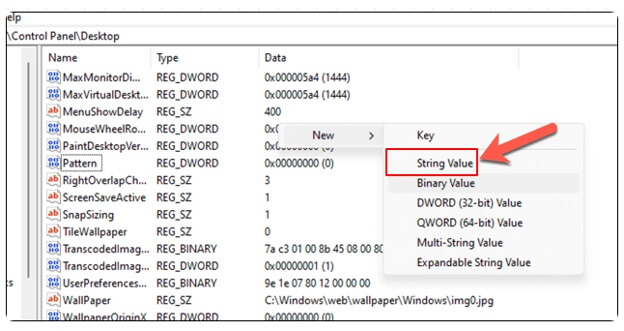
- Name the value AutoEndTasks and change the value data from 0 to
- Lastly, click Ok.
Also know: How to Use Windows Built in VPN
Fix 11: Turn off WpnUserService in the Registry Editor
WpnUserService is responsible for local and push Windows notifications. When disabled, this service cannot receive notifications, such as the “Task Host Window preventing shutdown.” However, editing the Registry is an advanced process; a single wrong step can damage your system. Hence, create a Registry backup by following the first seven steps in the fix above before performing the steps below.
- In the Registry Editor, navigate to the path: Computer\HKEY_LOCAL_MACHINE\SYSTEM\CurrentControlSet\Services\WpnUserService.
- Click the DWORD value called
- Change the Value data to
- Lastly, click
If you have any confusion, you can check the frequently asked questions below to clear your doubts about fixing the “Task Host Window preventing shutdown” problem.
Frequently Asked Questions
Q1. Why is my Task Host Window running in the background?
The Task Host is stopping background tasks so that Windows waits for pending background processes, apps, or services to close before shutting down, preventing data loss and file corruption.
Q2. How do I delete the Task Host Window?
You can click “Shut down anyway” to close the Task Host Window. However, since it is a system component, disabling the Task Host Window permanently is not recommended.
Q3. Is Task Host Window a virus?
Task Host Window is not a virus. It is a legitimate process, a part of the Windows operating system to manage background tasks when the computer shuts down.
Q4. Can I “Shut down anyway”?
You can click “Shut down anyway” to force-close the pending task and shut down your computer. However, if the Task Host Windows appear frequently, fix the background task instead of clicking “Shut down anyway.”
Q5. How do I fix a “Task Host Window” error during shutdown?
To fix the Task Host Window shutdown error, disable Fast Startup, close non-essential apps and services, and check for Windows updates. For detailed and effective solutions, refer to the guide above.
Hope this helps fix the “Task Host Window preventing shutdown” issue. However, if the problem or any confusion persists, leave us a comment.