Dell OptiPlex 7050 drivers are the software that helps connected devices on your OptiPlex 7050 computer and the operating system communicate, ensuring device compatibility with the latest operating systems, hardware components, and software applications. The latest drivers also include performance improvements and optimizations to enhance the device’s functionality and speed. Moreover, it fixes known bugs, issues, and glitches.
Hence, to ensure smooth device performance, you can download and install the latest Dell OptiPlex 7050 driver for Windows 10/11 through the quick and easy methods in this article.
How to Download and Install Dell OptiPlex 7050 Drivers
You can download the Dell OptiPlex 7050 drivers and install them on your computer from the official website, Device Manager, or Windows Update, depending on the method you find most convenient. Below are all the methods explained to download and install the required Dell drivers.
Method 1: Download the Dell OptiPlex 7050 drivers and install them from the official website
The manufacturer’s official website is among the most reliable sources for drivers and driver updates. The following are the steps to download and install the Dell OptiPlex 7050 driver for Windows 10 or 11 from Dell’s official website.
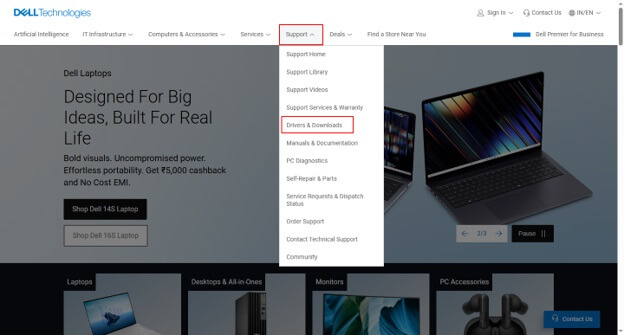
- Navigate to Dell’s official website.
- Hover over the Support
- Click Drivers & Downloads in the options that appear.
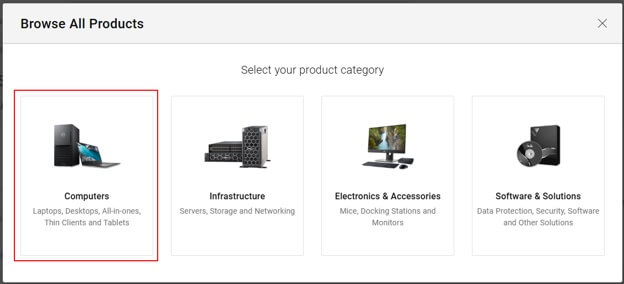
- Click Browse in Browse all products.
- Next, click Computers.
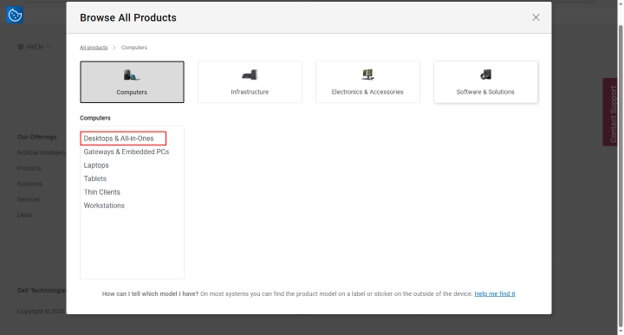
- Click Desktops & All-in-Ones.
- Click OptiPlex.
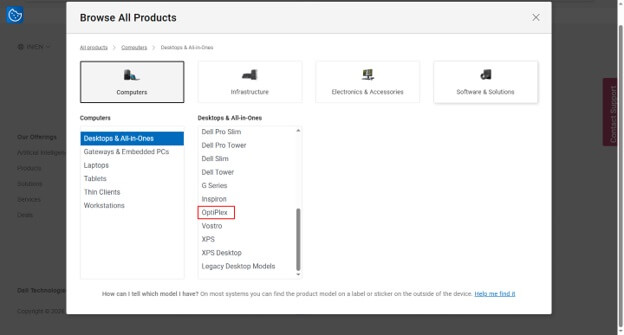
- Next, click OptiPlex Small Form Factor or OptiPlex Tower, depending on whether you have a Dell OptiPlex 7050 Small Form Factor or Dell OptiPlex 7050 Tower device.
- After selecting your product, click Select Drivers.
- Click Download next to the required driver.
- Save the driver application to an accessible location on your computer.
- Double-click the saved driver file.
- Follow the wizard to complete the driver installation.
- Lastly, restart your device to let the newly installed driver take effect.
Also know: How To Fix Dell Computer Not Turning On (Easily & Quickly)
Method 2: Use Device Manager to download and install the latest Dell OptiPlex 7050 drivers
Device Manager is a built-in driver updater utility in Windows to perform driver-related actions, such as downloading, installing, and updating drivers. Below is how to use Device Manager to download, install, and update the Dell OptiPlex 7050 driver.
- Right-click the Start button.
- Click Device Manager in the options that appear.
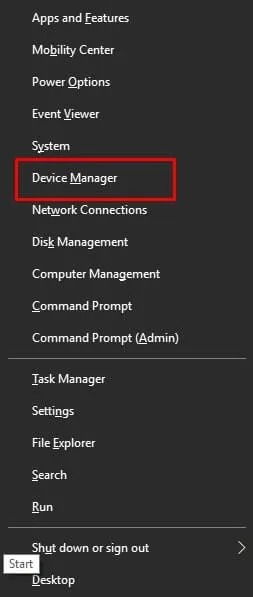
- In Device Manager, double-click the category of the device for which you need the driver. For example, Display Adapters, Network Adapters, or Sound, Video, and Game Controllers.
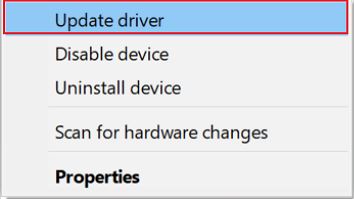
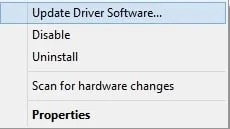
- Right-click the device and then select Update Driver from the options that appear.
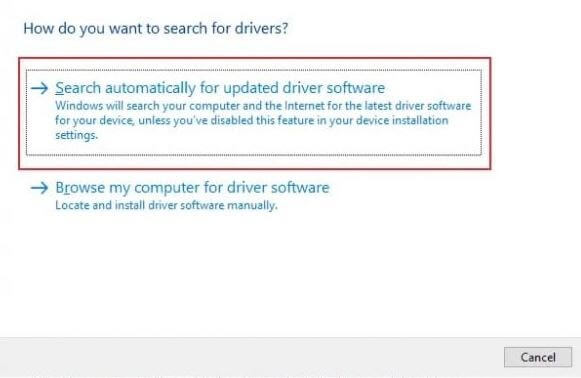
- Click Search automatically for drivers.
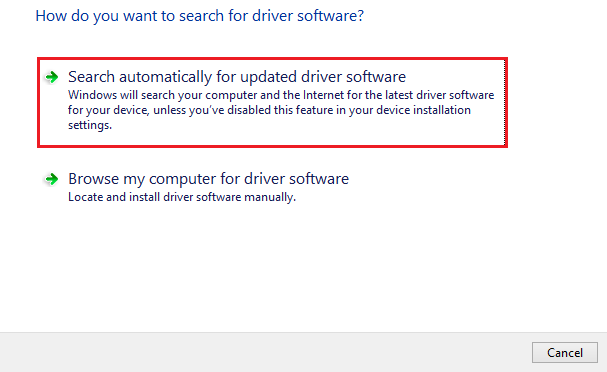
- Follow the prompts that appear to complete the driver download and installation.
- Lastly, restart your device for the changes to take effect.
Method 3: Use Windows Update to get the up-to-date Dell OptiPlex 7050 drivers downloaded and installed
Windows Update fixes common device issues, in addition to downloading and installing the latest device drivers. Hence, below is how to update Windows to download and install the Dell OptiPlex 7050 driver.
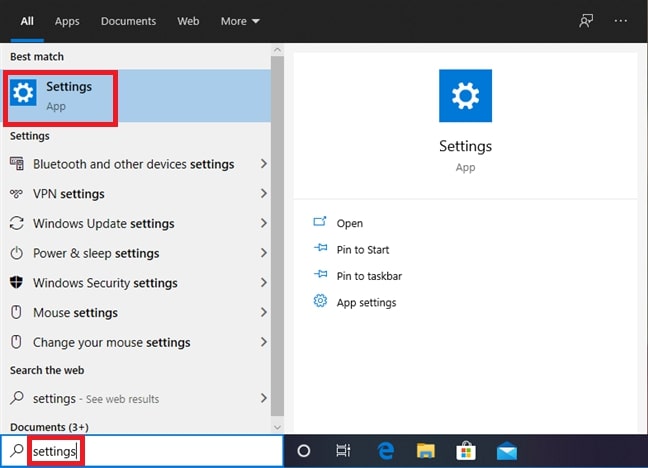
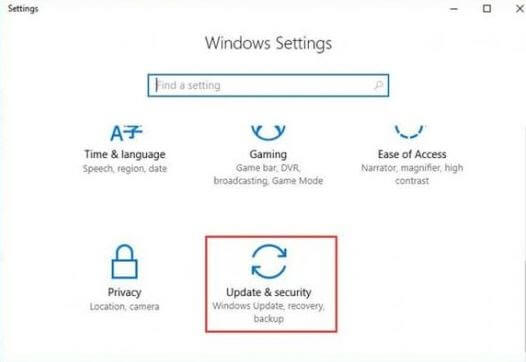
- Press Win + I to open Settings.
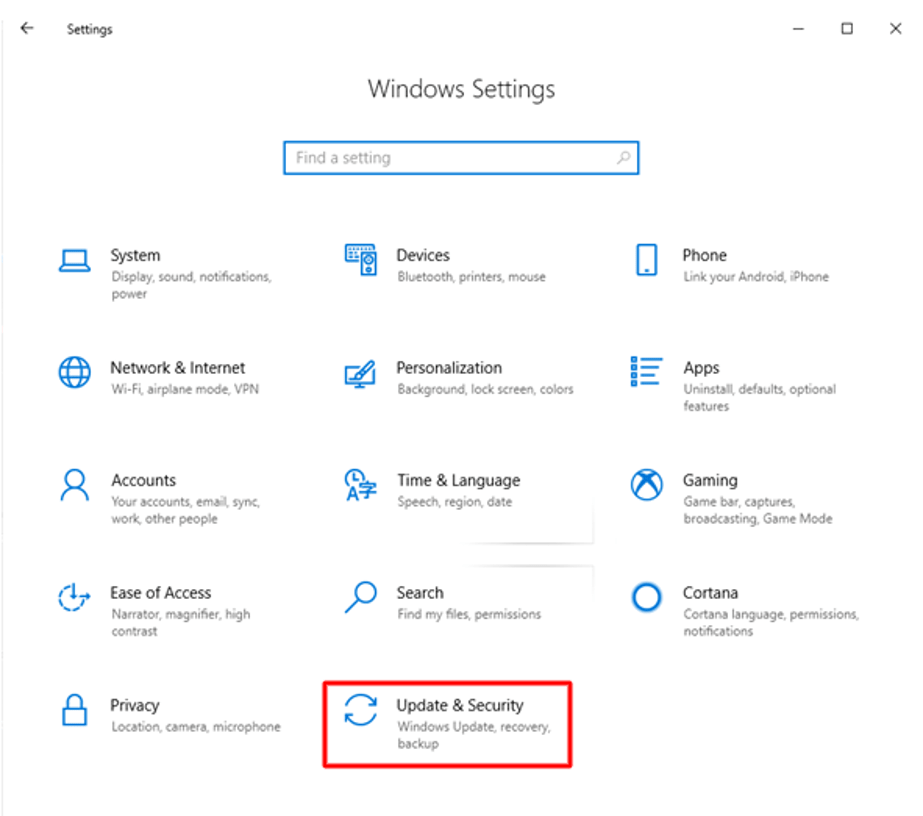
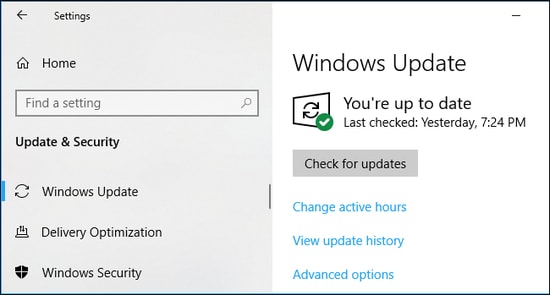
- Click Windows Update. Windows 10 users: click Update & Security, and then click Windows Update.
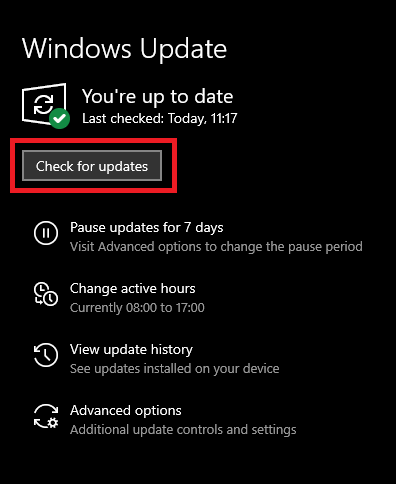
- Click Check for updates.
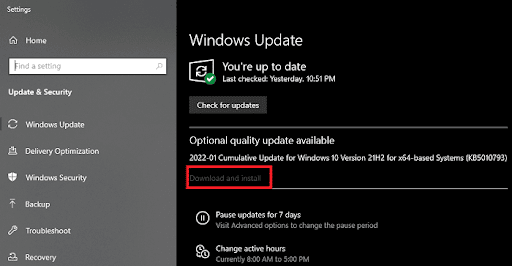
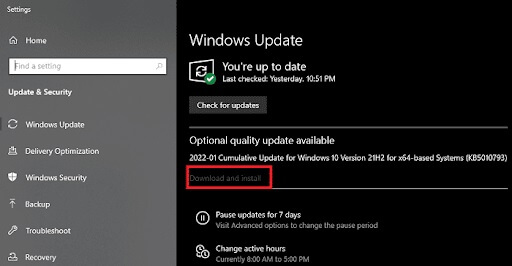
- Next, click Download & Install for all available updates.
- Allow the update process to complete.
- Lastly, restart your computer to let the update take effect.
If you have any confusion about Dell OptiPlex 7050 drivers, you can check the frequently asked questions below for solutions.
Also know: Download Dell XPS 15 9530 Drivers for Windows 11/10
Frequently Asked Questions
Q1. Where can I find Dell OptiPlex 7050 drivers?
You can find the latest drivers for Dell OptiPlex 7050 on the official website, as explained in the guide above.
Q2. How do I download a driver for Dell OptiPlex?
To download Dell OptiPlex drivers, follow the path: Device Manager > Double-click the category of the device for which you want to download the driver > Search automatically for drivers > On-screen prompts > Restart your computer.
Q3. How do I update the Dell OptiPlex driver?
To update the driver for your Dell OptiPlex device, open Device Manager, double-click the device category for which you wish to update the driver, right-click the device, click Update Driver, click Search automatically for drivers, follow the instructions that appear, and then restart your computer. Alternatively, you can download and install the latest drivers through the official website or Windows Update, as explained in this guide.
That’s all for how to download, install, and update the Dell OptiPlex drivers for Windows 10/11 to improve device performance and fix bugs. Hopefully, you will find this guide helpful. If you have persistent questions or confusion, leave us a comment.


 Step 4: Choose Change settings that are currently unavailable.